






Allow or Block Developer Tools Policy using Intune
Hey there, let’s discuss about the topic Allow or Block Developer Tools Policy using Intune. A developer tool is a software app or feature that helps programmers in creating, debugging, testing, and optimizing code.
Developer tools can be built into web browsers or installed as Separate applications. The Intune Settings Catalog Policy allows IT admins to enable Developer Tools for managed devices, providing developers the tools they need while keeping everything secure and compliant.
By configuring this policy, admins can choose who gets access to debugging tools and scripting environments, making sure that only the right people can use these features. When configuring Allow Developer Tools via Intune, we can fine-tune things.
We can limit access to certain user groups or devices, which means only the approved personnel can use the developer tools to reduce the risk of misuse or unauthorized changes. Here we are going to deploy the policy through Settings catalog in Intune.

Table of Contents
What Happens If We Block Developer Tools?
If we block Developer Tools, users won’t be able to use debugging tools, scripting environments, or other development features, which may impact software development workflows.
Developer Tools Policy – CSP
The Configuration Service Providers (CSPs) are parts of Windows that let IT admins and mobile device management (MDM) systems set up policies, configurations, and restrictions on Windows devices from a distance.
| Property Name | Property Value |
|---|---|
| Format | int |
| Access Type | Add, Delete, Get, Replace |
| Default Value | 0 |
We can also see the allowed values for the policy “Allow or Prevent Developer Tools in Browser Using Intune Settings Catalog Policy “. Allowed values are the directives and sources we can specify to control which resources can be loaded on a web page.
| Value | Description |
|---|---|
| 0 | Prevented/Not allowed. |
| 1 (Default) | Allowed. |
Group Policy Mapping
Group Policy Mapping is a feature in Microsoft Intune that helps organizations transition from traditional Active Directory (AD) Group Policy Objects (GPOs) to modern cloud-based Intune policies.
| Name | Value |
|---|---|
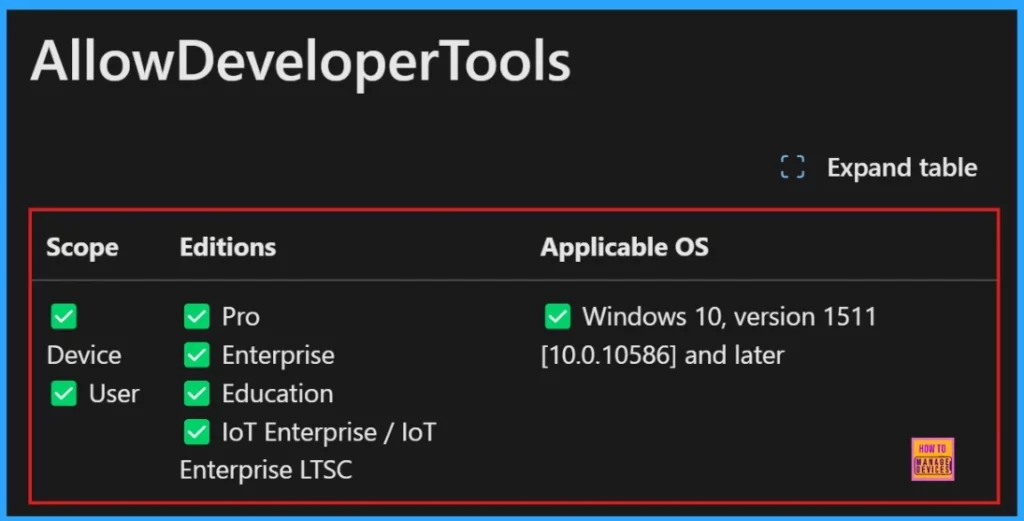
| Name | AllowDeveloperTools |
| Friendly Name | Allow Developer Tools |
| Location | Computer and User Configuration |
| Path | Windows Components > Microsoft Edge |
| Registry Key Name | Software\Policies\Microsoft\MicrosoftEdge\F12 |
| Registry Value Name | AllowDeveloperTools |
| ADMX File Name | MicrosoftEdge.admx |
./User/Vendor/MSFT/Policy/Config/Browser/AllowDeveloperTools
./Device/Vendor/MSFT/Policy/Config/Browser/AllowDeveloperTools
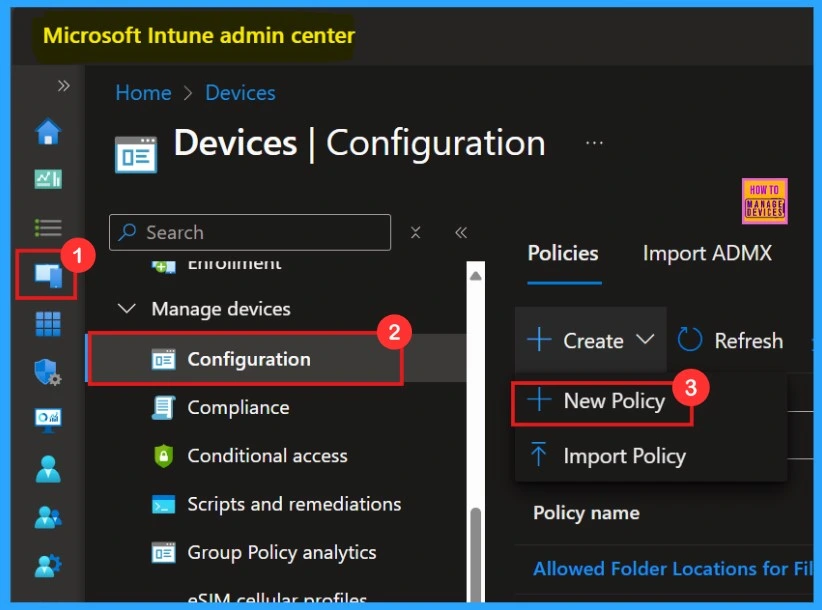
Create a Profile
The first step to deploy a policy is Creating a profile, we need to login in Microsoft Intune Admin Center. Then click on Devices > Configurations. On the right side, click the + Create option and select the New Policy.
- Devices > Configurations > Create > +New Policy
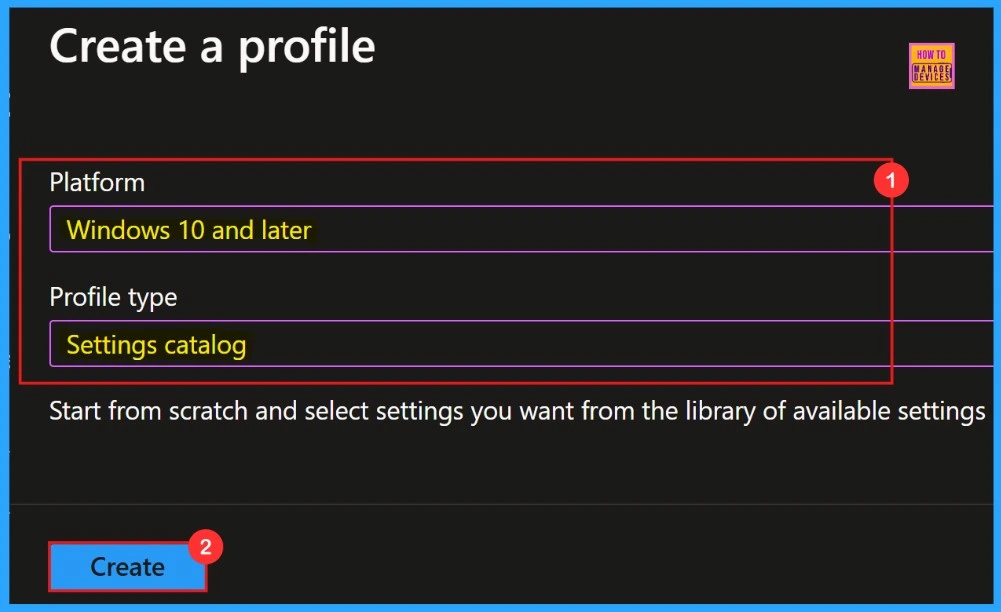
After Clicking the New Policy, another window will open showing the details to choose Platform and profile type. Here we select Windows 10 and later as the platform and set the profile type to Setting catalog. Then, click Create to proceed.
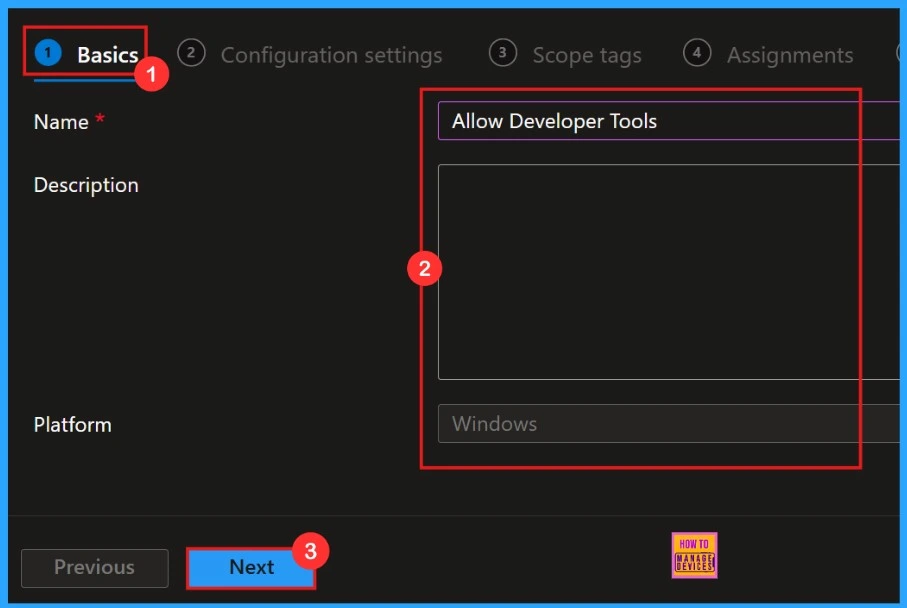
Basics
In the Basics settings we need to add the name of our policy in the Name section. If we want to add any description about the policy, we can add that in the given space. Here we didn’t give any description for the Policy.
Configuration Settings
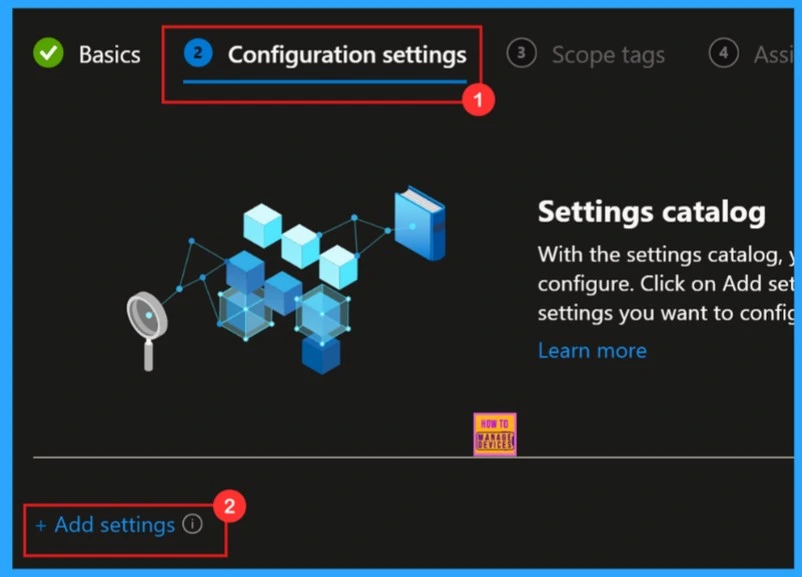
We can add settings for the policies in the configuration settings. Configuration settings define the rules, parameters, and controls determining how systems, applications, or networks operate in policy management.
- Click + Add Settings to Proceed
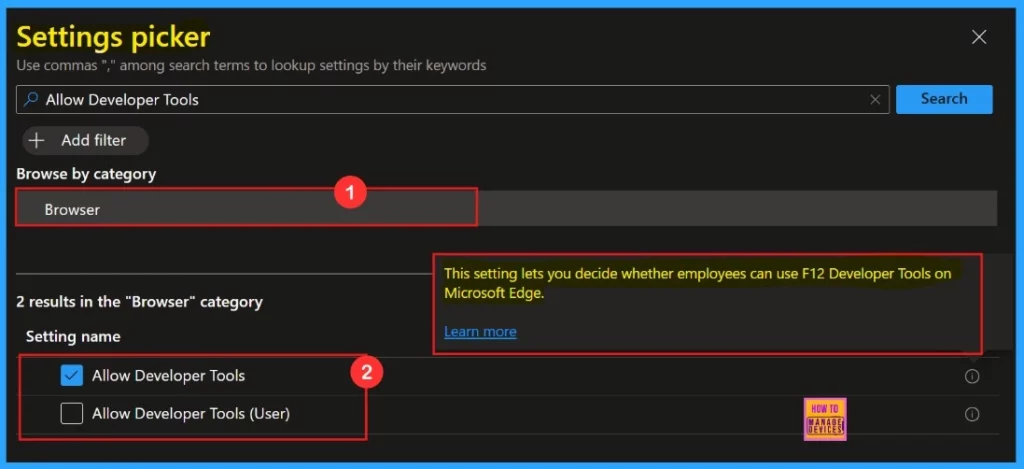
Settings Picker
“Settings Picker” allows us to choose preferred policy settings from the list. Our policy “Allow Developer Tools” comes under “Browser” Category. The screenshot below shows more details. This setting lets you decide whether employees can use F12 developer tools on Microsoft Edge.
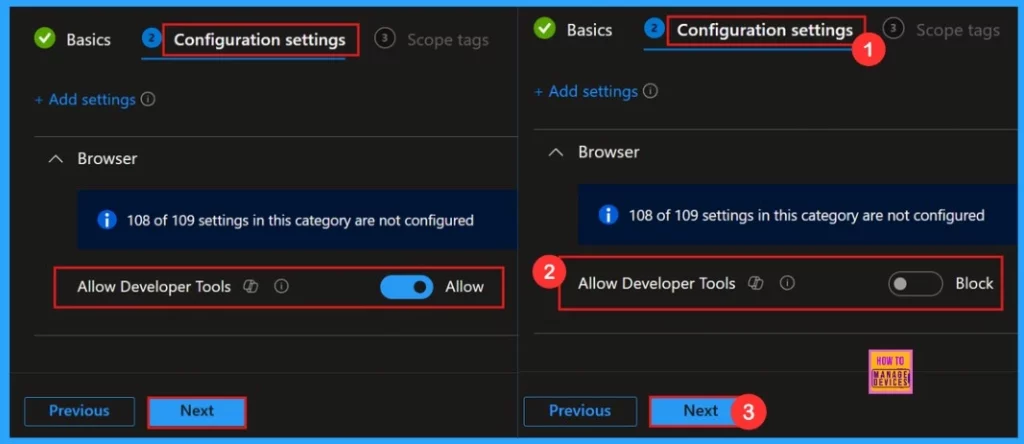
After selecting the policy settings, we can close the settings picker. The policy is shown on the Configuration settings page, and we can select the value. By default, Allow value is active. If you want to enable this policy, go with it and click on the Create button.
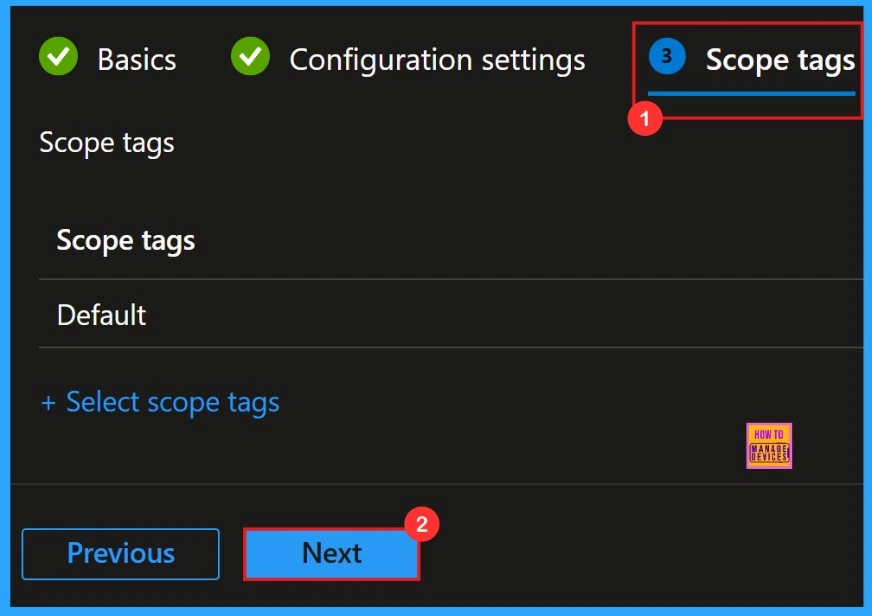
Scope Tags
Scope tags is not a mandatory field, its help you to manage specific policies in Intune. Here i am going to skip this section and continue with policy creation. Click on the Next button.
Assignments
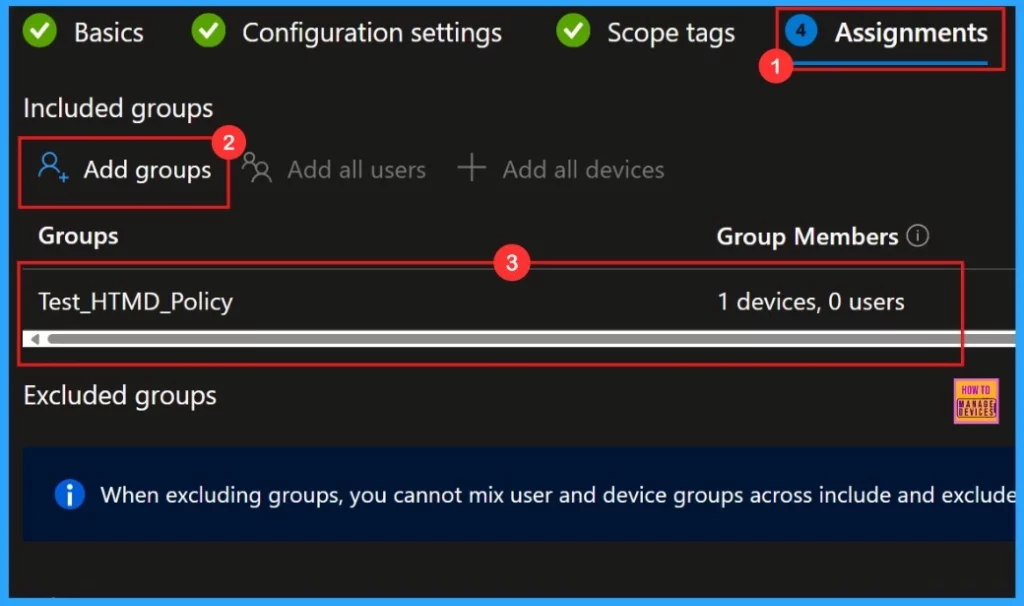
Assignments tab helps you to select specific groups to configure the Policy. Click on the +Add groups option under included groups. Select the group from the list of groups.
Review + Create
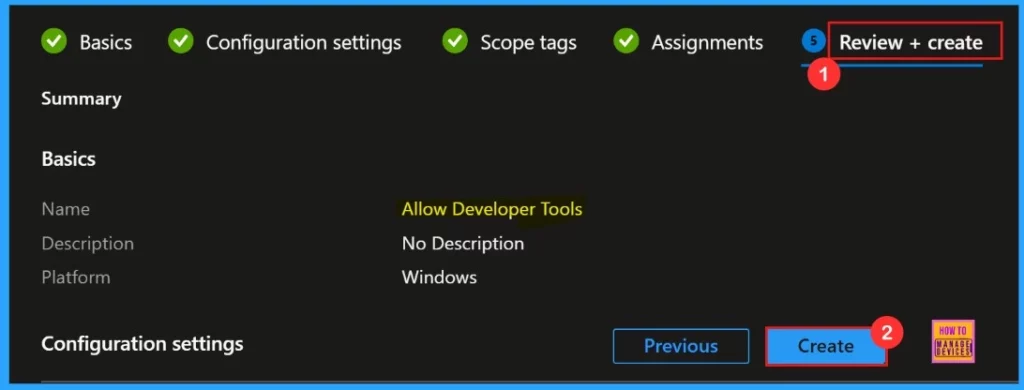
This section allows us to complete the policy creation. We can verify the details on this page. If we need to do any changes in the previous settings, we can do it. After cross checking all the information provided, click on the Create button.
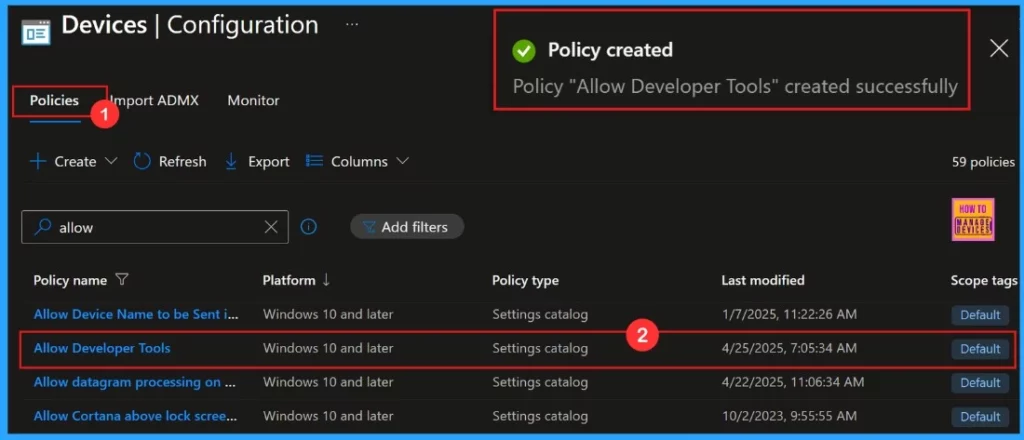
The Policy created notification will pop-up on the screen, after clicking Create button. The message notify that the policy Allow Developer Tool created successfully.
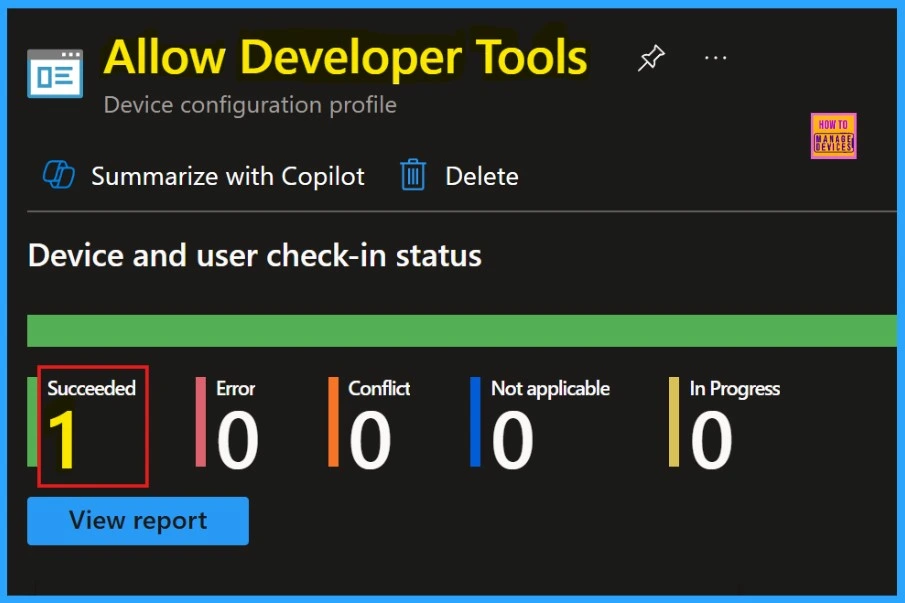
Device and User Check-in Status
After the policy deployment, we need to sync the device on the company portal. After syncing manually, we need check the monitoring status on the Company Portal. Here, we can see the Status shows succeeded result.
Client-Side Verification
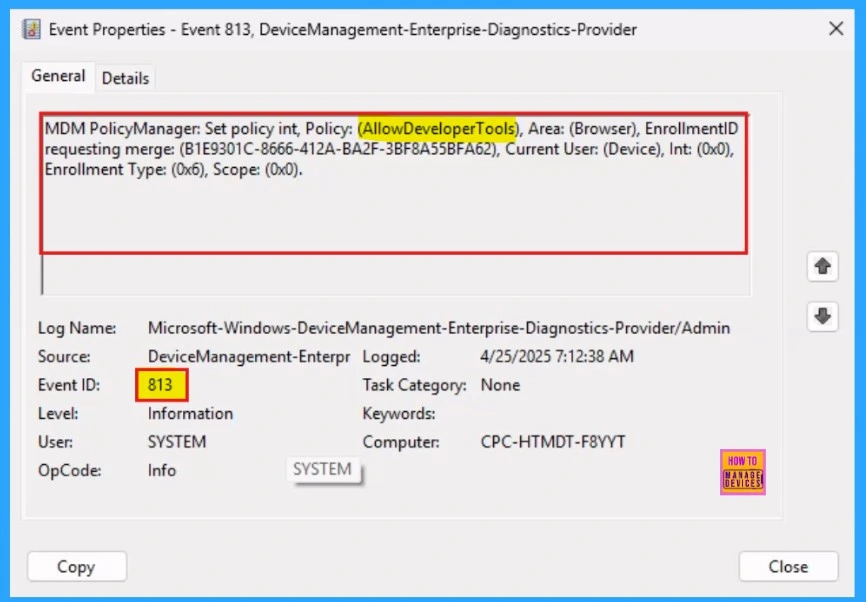
Event viewer helps us easily complete the Client-Side verification. Open the Event Viewer and navigate to Application and Services Logs > Microsoft > Windows > Device Management–Enterprise–Diagnostics–Provider > Admin.
Remove Assigned Group
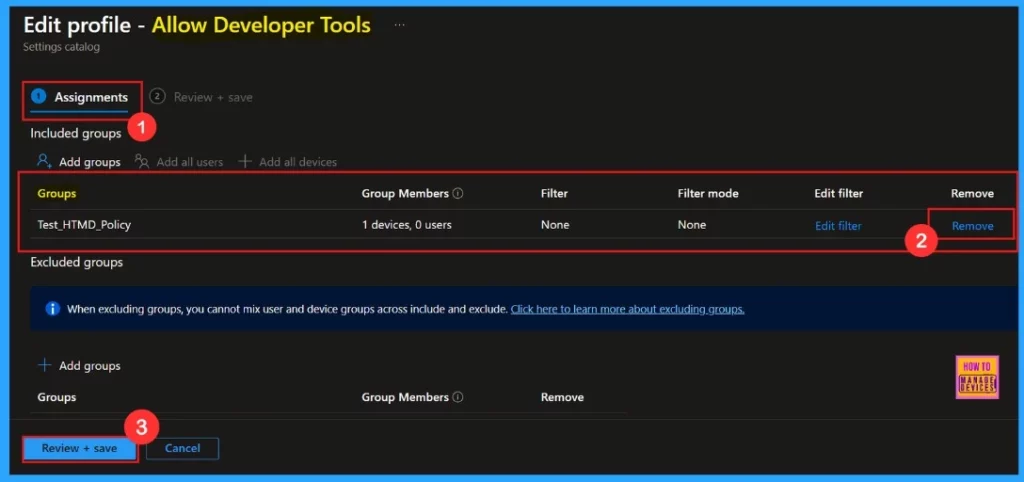
Sometimes removing an assigned group from a policy is necessary for security, compliance, or operational efficiency. The below screenshot shows how we can remove an assigned group from the policy. After the removal we need to click Review + Save to save the changes.
For detailed information you can refer our previous post – Learn How to Delete or Remove App Assignment from Intune using Step by Step Guide
Deletion of the Policy
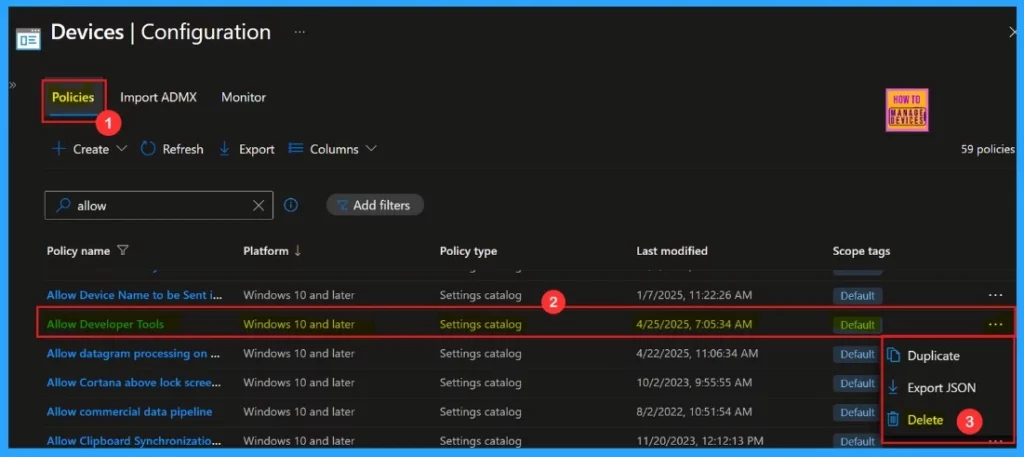
In some scenarios deleting a policy in Microsoft Intune is necessary for security, compliance, or operational efficiency. Here we are going to see the steps for deleting a policy. The below screenshot shows how we can delete the policy we can easily delete the Allow Developer Tools Policy from Intune.
For detailed information you can refer our previous post – How to Delete Allow Clipboard History Policy in Intune Step by Step Guide
Need Further Assistance or Have Technical Questions?
Join the LinkedIn Page and Telegram group to get the latest step-by-step guides and news updates. Join our Meetup Page to participate in User group meetings. Also, Join the WhatsApp Community to get the latest news on Microsoft Technologies. We are there on Reddit as well.
Author
Anoop C Nair has been Microsoft MVP for 10 consecutive years from 2015 onwards. He is a Workplace Solution Architect with more than 22+ years of experience in Workplace technologies. He is a Blogger, Speaker, and Local User Group Community leader. His primary focus is on Device Management technologies like SCCM and Intune. He writes about technologies like Intune, SCCM, Windows, Cloud PC, Windows, Entra, Microsoft Security, Career, etc.


Discussion