






Enable or Disable New Tab Page Content Policy in MS Edge Browser using M365 Admin Center
Hi, today we are discussing on a new topic enable or disable New Tab Page Content Policy in MS Edge Browser using M365 Admin Center. As you all know that Microsoft 365 is a platform for policy deployment for Microsoft edge browser. With this administrator can deploy different types of policy through an organization.
When you open a new tab in Microsoft Edge, you see a page with various features designed to make browsing easier. With the New Tab Page Content Enabled Policy feature, which allows IT administrators to manage the appearance and content of the new tab page for users and this policy is applicable to all types of users.
While administrators can customize the new tab page via the Microsoft 365 Admin Center for users signed in with Entra ID. If the policy is enabled or not configured, Edge will show Microsoft provided content on the new tab page, but users can customize how it appears.
They can choose from different display options, such as completely turning off content, showing content only when they scroll, displaying only headings, or keeping content fully visible. The administrators can use 3 ways to deploy the policy such as Enable,Disable or Not configured.

Table of Contents
What Happens if this Microsoft Edge Policy is Disabled?
New Tab Page Content Enabled Policy in MS Edge Browser
We discussed many aspects of the New Tab Page content policy in Microsoft Edge. This policy can be deployed through the Microsoft 365 Admin Center. Now, coming to the main point how can this policy be enabled or disabled from a user’s perspective. So let’s start the steps.
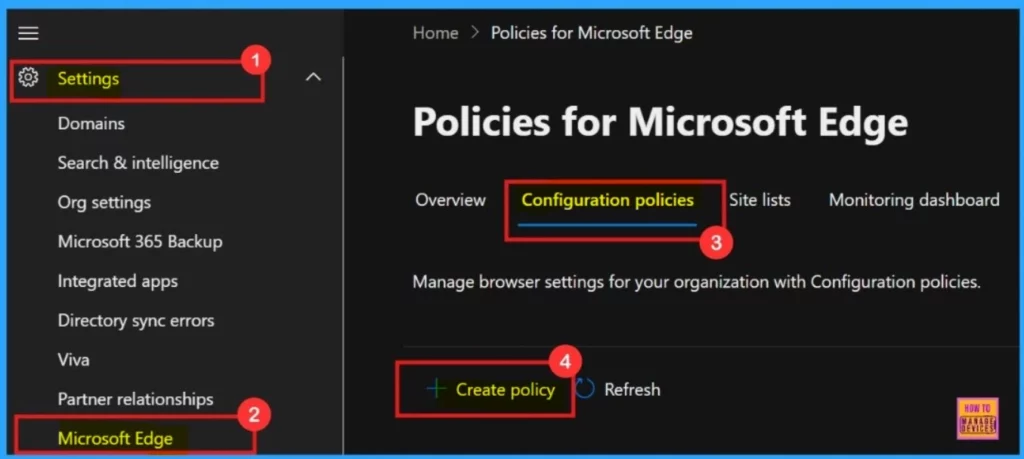
- To access and configure this policy, open the Microsoft 365 admin center.
- Navigate to Settings, then choose Microsoft Edge.
- Next, go to the Configuration Policies tab and click + Create policy to begin setting it up.
- Enable Disable Deleting Browser History in Edge using the Microsoft 365 Admin Center Policy
- Enable Disable Quick Links on New Tab Page in MS Edge Browser
- Customize Alt + Tab Keys Behavior to Show the Number of App Tabs such as Notepad Edge Chrome Browsers
Basics
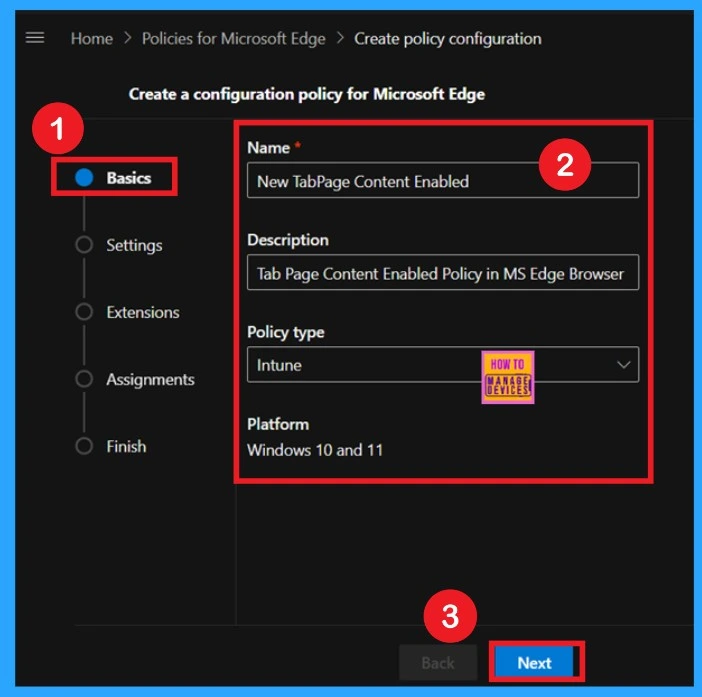
The next step is the basics. You need to enter the basic details, such as the name, description, policy type, and platform. However, you can skip the policy type and platform, as they are already filled in automatically. Focus on providing an appropriate name and description for the policy. This will help you easily identify the policy later.
- Click on the Next to Continue.
Add Settings
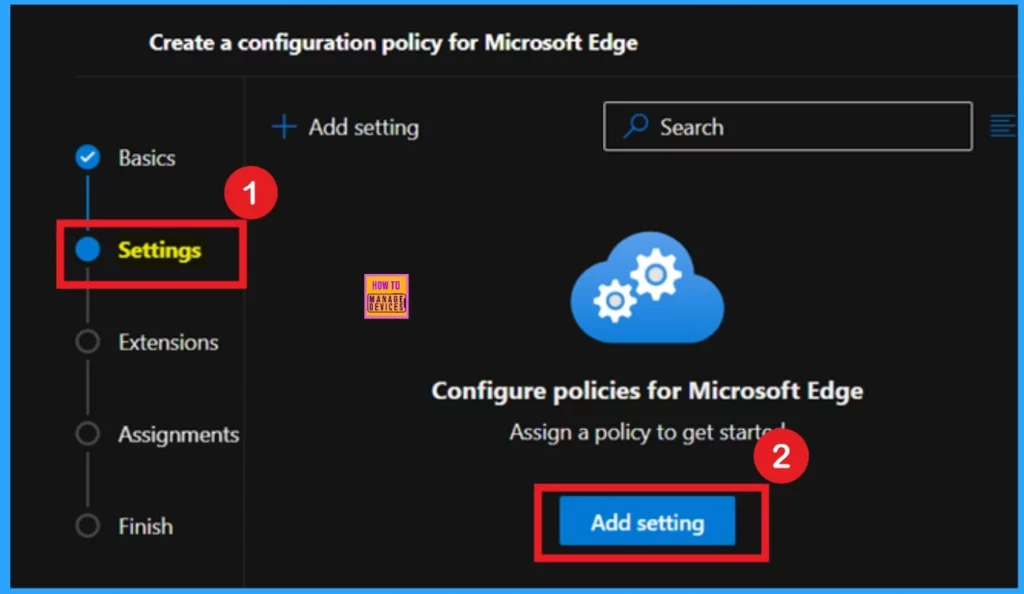
The next step is the Settings section. After completing the basics, you’ll enter the Settings tab. Here, you can click on Add settings. When you click on it, a list of available policy settings will be displayed. From this list, you can select the specific policy you want to configure.
Configure Settings
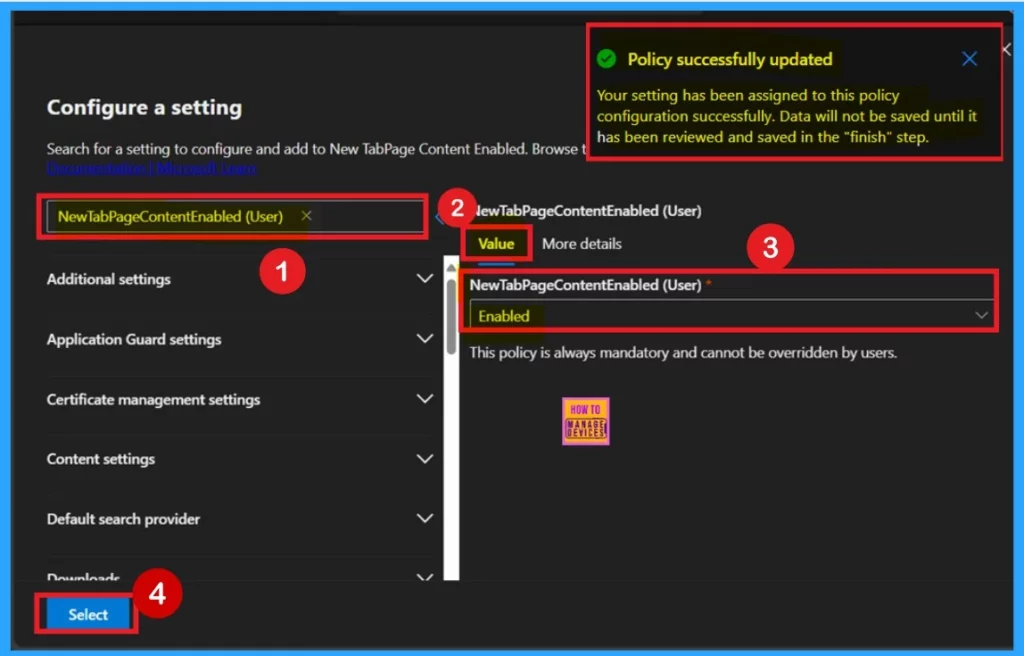
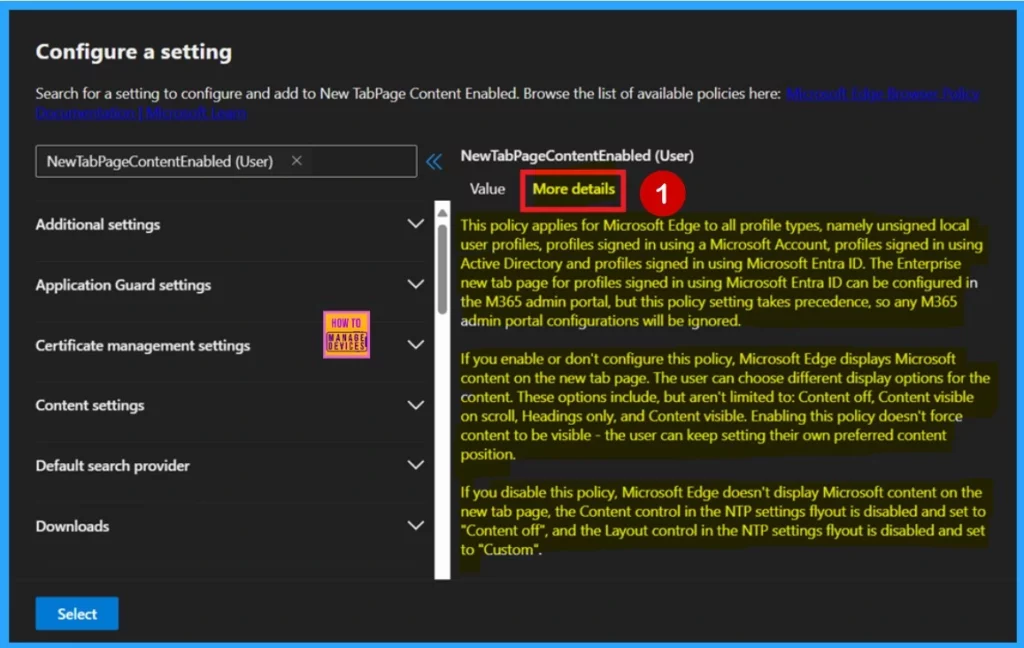
After clicking on Settings, you will be taken to the Configure Setting page. Here, you can either enter the policy name in the search bar or browse through the categories, such as Additional Settings, Application guard settings, etc. When you select the New Tab Page Content Enabled policy, you will see 2 tabs: the Value tab and the More Details tab.
In the Value tab, you’ll find a drop-down arrow. From this drop-down, you can choose to either Enable or Disable the policy. After selecting the desired option, click on Select, and you will receive a notification confirming that the policy has been successfully updated.
- Here I Selected the Enable option.
More Details
Now you are on the More Details tab. You should never skip this section, as it provides important information about the policy. This information can be very helpful when deploying the policy, ensuring that you understand its impact and usage.
| Enable or Not Configured | Disable |
|---|---|
| If you enable or don’t configure this policy, Microsoft Edge displays Microsoft content on the new tab page. The user can choose different display options for the content. These options include, but aren’t limited to: Content off, Content visible on scroll, Headings only, and Content visible. Enabling this policy doesn’t force content to be visible – the user can keep setting their own preferred content position. | If you disable this policy, Microsoft Edge doesn’t display Microsoft content on the new tab page, the Content control in the NTP settings flyout is disabled and set to “Content off”, and the Layout control in the NTP settings flyout is disabled and set to “Custom“. |
Extension
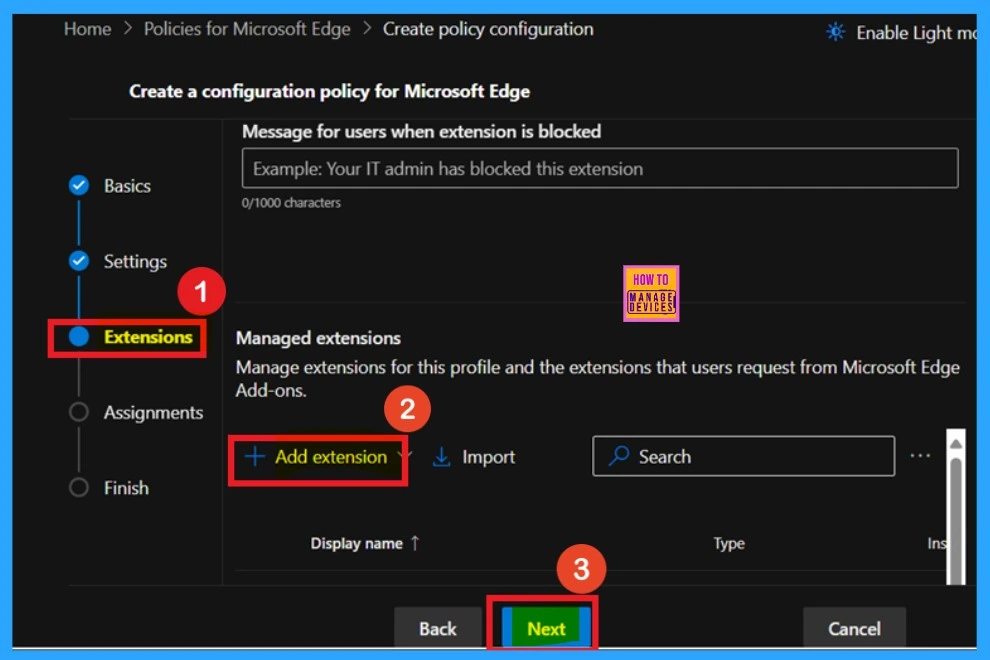
After configuring the settings, you will move on to the Extensions section. In this section, you can add any type of extension to the policy. I usually skip this step because it’s not mandatory. However, if you want to add an extension, click on the + Add extension button.
- In my case, I clicked Next to continue.
Assignments
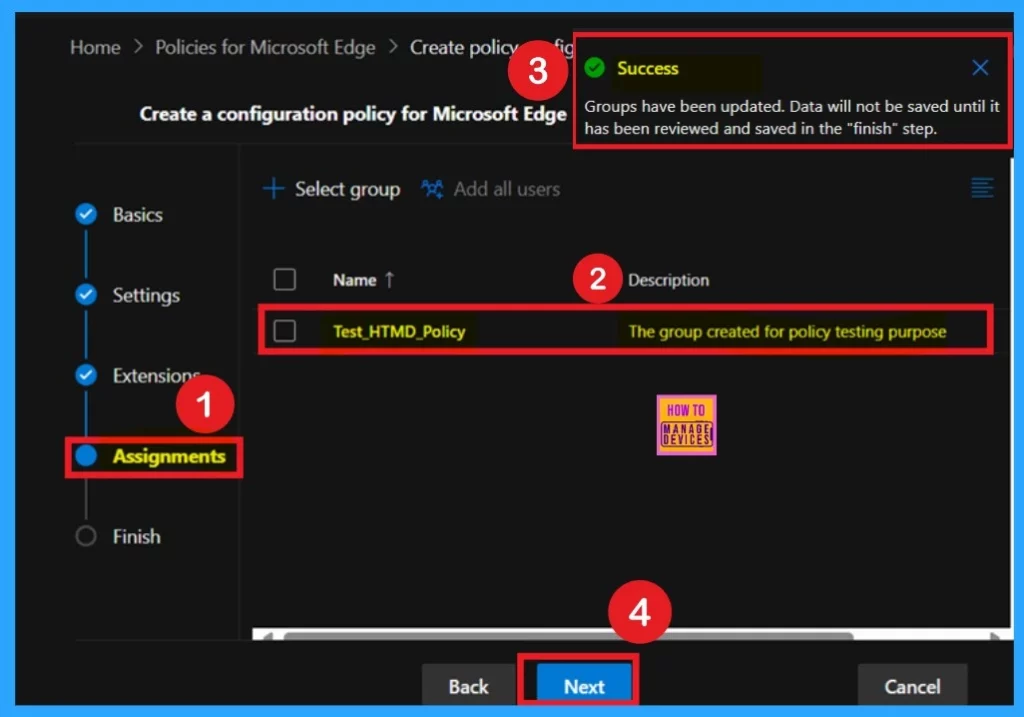
After the Extensions section, you will in the Assignments tab. This step is very important because every policy needs to be assigned to a specific group. In this section, you can add the appropriate group to which you want to deploy the policy. For example, I selected the Test HTMD Policy group.
- After making my selection, I clicked on Select to confirm.
- Then click on the Next.
Finish
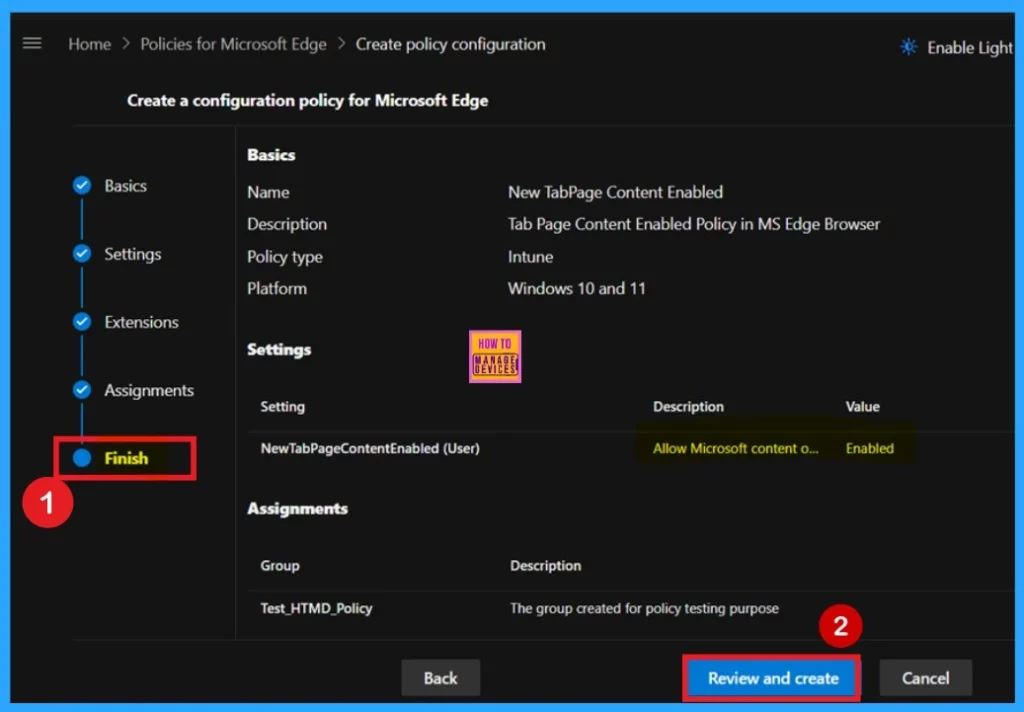
After completing all the previous steps, you will arrive at the Finish tab. This is the final stage of policy creation. You don’t need to do anything special here, as it serves as a summary page. It displays all the details you entered in the earlier sections. If you want to change or edit anything, you can easily go back to the previous steps and make the necessary changes.
- Click Review + Create to finalize the policy.
- After that you’ll receive a notification confirming that the policy has been successfully created.
Monitoring Status
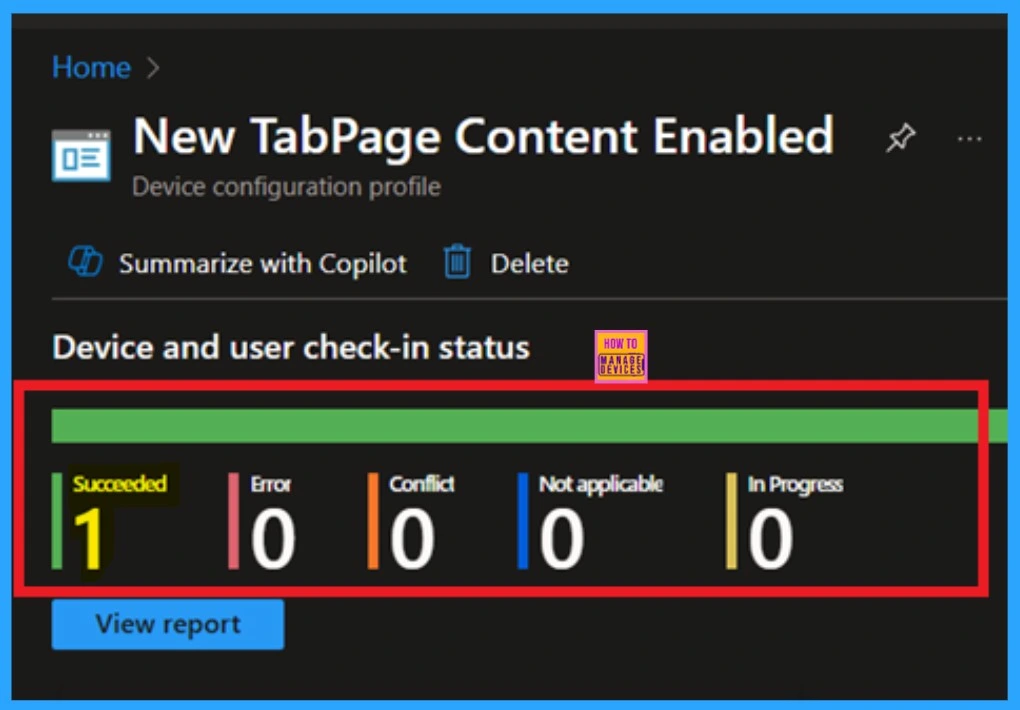
After creating the policy, your next concern is whether the policy has been correctly and successfully deployed. You need to remember that this policy can take up to 8 hours to be applied. You can either use the sync option to reduce the waiting time or wait for the 8 hours. After that check the monitor status throgh Intune.
- First Sign into the Microsoft Intune admin center.
- Navigate to Devices > Configuration profiles.
- Search for the policy name you created, then click on the policy from the search results.
- You can now see the deployment status.
- If the policy has been successfully applied, it will show as Succeeded.
- You can refer to the screenshot below for confirmation.
Client Side Verification
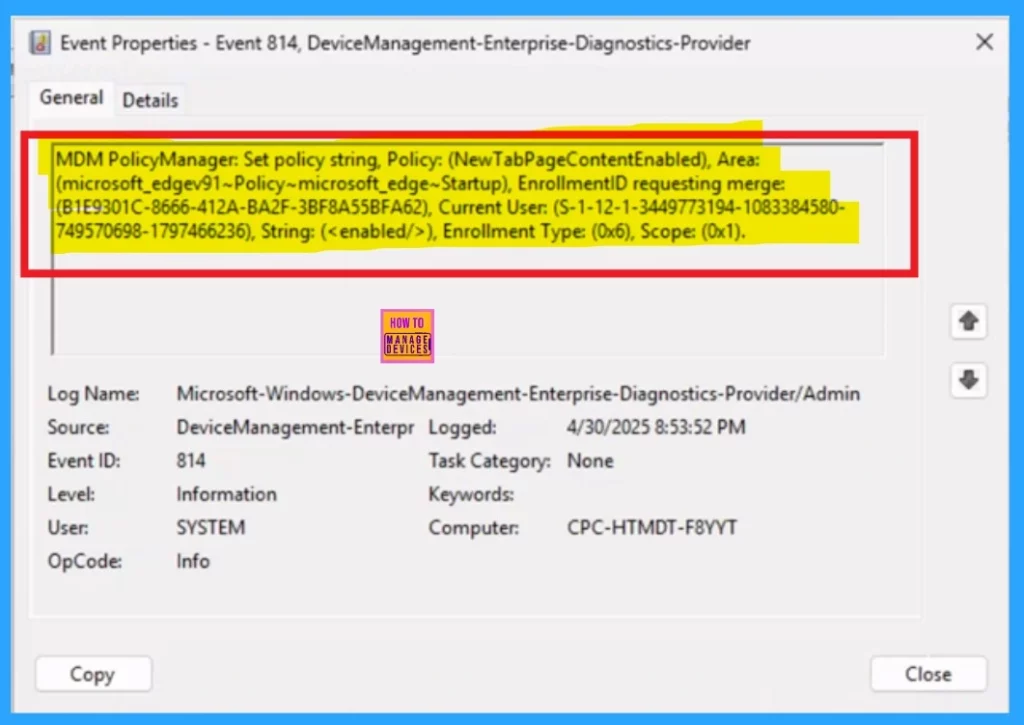
After the Device check in status, now the Administrators can check policy status on individual devices using Windows Event Viewer. To verify client-side compliance, go to Applications and Services Logs > Microsoft > Windows > DeviceManagement-Enterprise-Diagnostics-Provider > Admin, and then filter for Event ID 814.
- I get the results from the Event ID 814.
| Policy Detail |
|---|
| MDM PolicyManager: Set policy string, Policy: (NewTabPageContentEnabled), Area: (microsoft_edgev91~Policy~microsoft_edge~Startup), EnrollmentID requesting merge: (B1E9301C-8666-412A-BA2F-3BF8A55BFA62), Current User: (S-1-12-1-3449773194-1083384580- 749570698-1797466236), String: (), Enrollment Type: (0x6), Scope: (0x1). |
I hope this Policy deployment Guide will helpful for you!
Need Further Assistance or Have Technical Questions?
Join the LinkedIn Page and Telegram group to get the latest step-by-step guides and news updates. Join our Meetup Page to participate in User group meetings. Also, Join the WhatsApp Community to get the latest news on Microsoft Technologies. We are there on Reddit as well.
Author
Anoop C Nair has been a Microsoft MVP for 10 consecutive years from 2015 onwards. He is a Workplace Solution Architect with more than 22+ years of experience in Workplace technologies. He is a Blogger, Speaker, and Local User Group Community leader. His primary focus is on Device Management technologies like SCCM and Intune. He writes about technologies like Intune, SCCM, Windows, Cloud PC, Windows, Entra, Microsoft Security, Career, etc.




Discussion