






How to Configure Auto Discard Sleeping Tabs Policy in MS Edge Browser using M365 Admin Center
Hey there, let’s discuss about the topic how to Configure Auto Discard Sleeping Tabs Policy in MS Edge Browser using M365 Admin Center. The Auto Discard Sleeping Tabs policy in Microsoft Edge allows IT administrators to control how inactive tabs are managed across an organisation’s devices.
With this Group Policy setting, we can decide if Edge should automatically put inactive tabs to sleep to save system resources, which helps improve performance and reduce memory usage. We can set up the policy to enable, disable, or let users customise the feature, ensuring compliance with organisational requirements.
Also, the policy can include a timeout period, like 5 minutes or 1 hour. Before tabs get closed, it can name certain sites that should always stay awake, like internal tools or important web apps. If the sleeping Tabs enabled is disabled, then this feature will be disabled by default and cannot be enabled.
Setting this policy enables Sleeping tabs to be automatically discarded after 1.5 days of inactivity. This is done to save memory. When the user switches back to a discarded tab. the tab will need to be reloaded. If Auto Discard Sleeping Tabs policy enabled, idle background tabs will be discarded after 1.5 days.

Table of Contents
How Does Sleeping Tabs Feature Work?
Enable or Disable Auto Discard Sleeping Tabs in MS Edge Browser using M365 Admin Center
If we are enabling the Auto Discard Sleeping Tabs Policy, pinned tabs won’t go to sleep unless we specifically set that up in the policy. Now we will discuss how to deploy the policy through M365 Admin center.
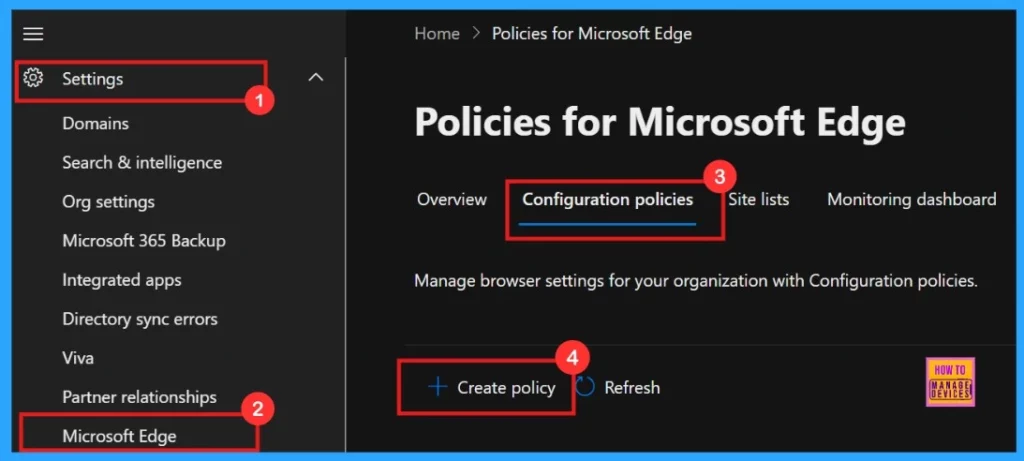
- Microsoft 365 Admin Center > Settings > Microsoft Edge > Configuration Policies > Create policy.
- Enable or Disable Copilot Page Context Policy in MS Edge Browser using M365 Admin Center
- Enable or Disable Share Experience Policy in MS Edge Browser using M365 Admin Center
- Enable or Disable Open in Sidebar Policy in MS Edge Browser using M365 Admin Center
Basics
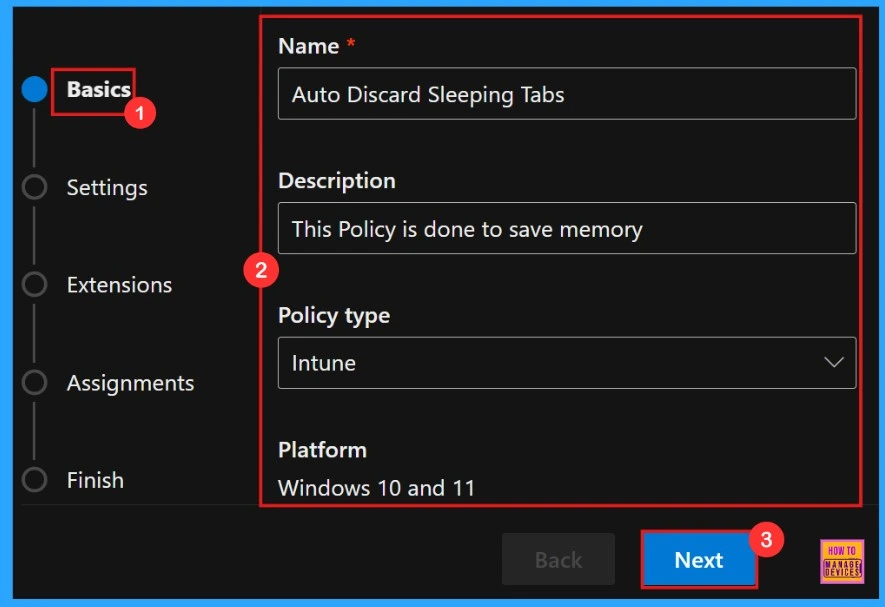
In a Policy configuration, it is important to assign a clear name to the policy and provide a detailed description for the policy. While description of the policy is not mandatory but, name of the policy is important.
| Name | Description | Policy Type | Platform |
|---|---|---|---|
| Auto Discard Sleeping Tabs | This policy is done to save memory | Intune | Windows 10 and 11 |
Settings
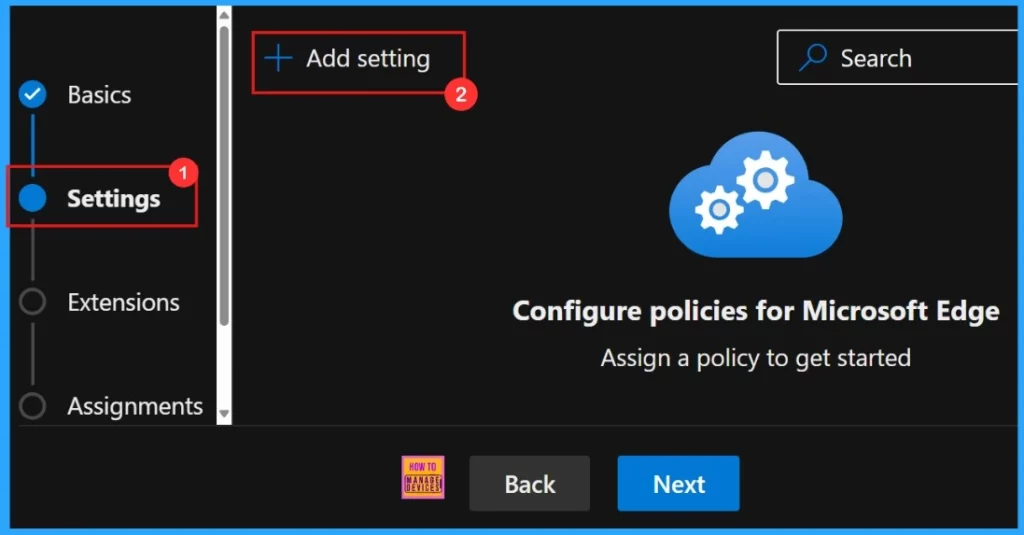
In the Settings tab, we need to click “Add settings“. This is important to choose a configuration setting for deploying a policy. So we need to search for the policy we want to deploy from Additional settings by clicking +Add Settings.
Configure a Setting
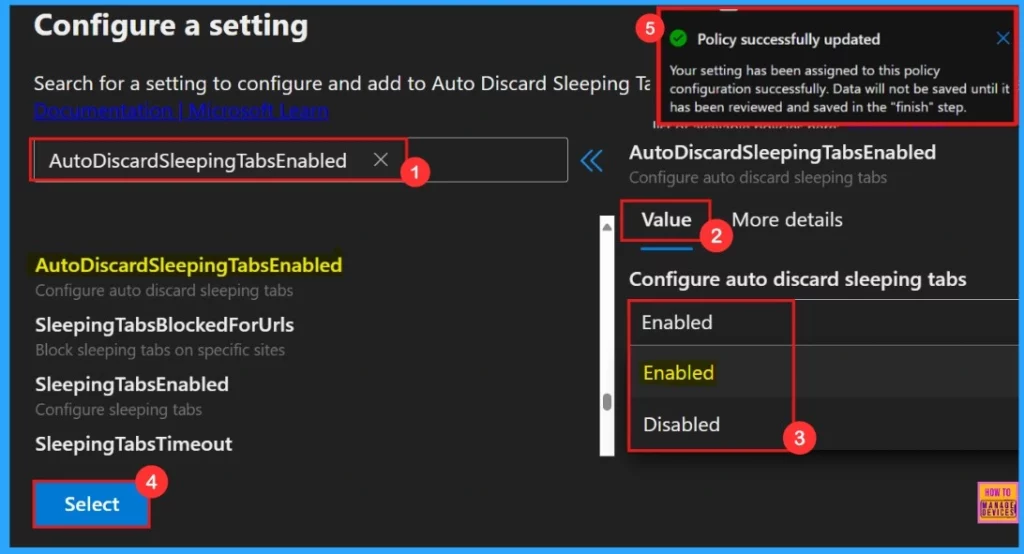
To configure the policy, search for it by name. This will open the Value tab, where we can select Enabled and Disabled options. Here Enable Media Router is a Default setting, so we need to choose the Disabled setting.
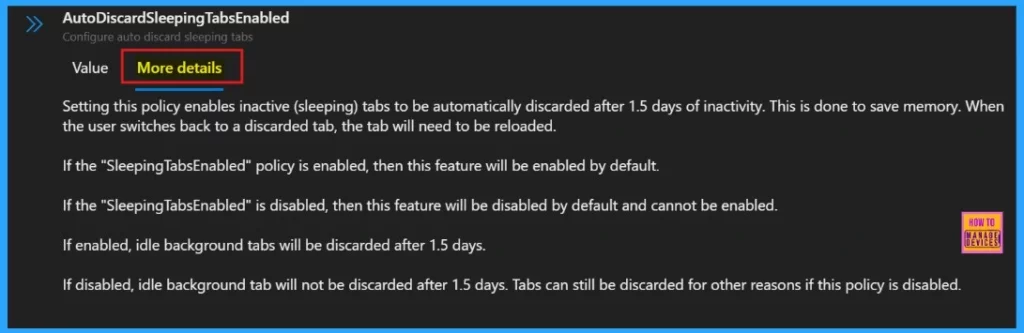
More Details
More details tab helps us to know more about the policy’s purpose and functionality. Click “More Details” to view its complete description, including technical specifications and implementation guidance. Here we need to understand the impotant informations about the policy.
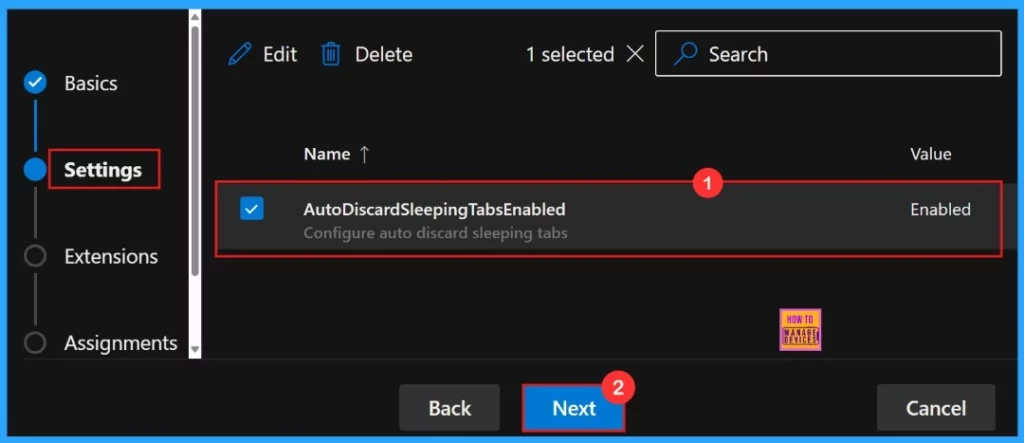
Settings
To enable the policy, just tick the check box next to its name in the list, then click Next to continue with the configuration process. This step confirms our choice and takes us ahead in the policy setup workflow. If we wish we can edit or delete the policy settings here.
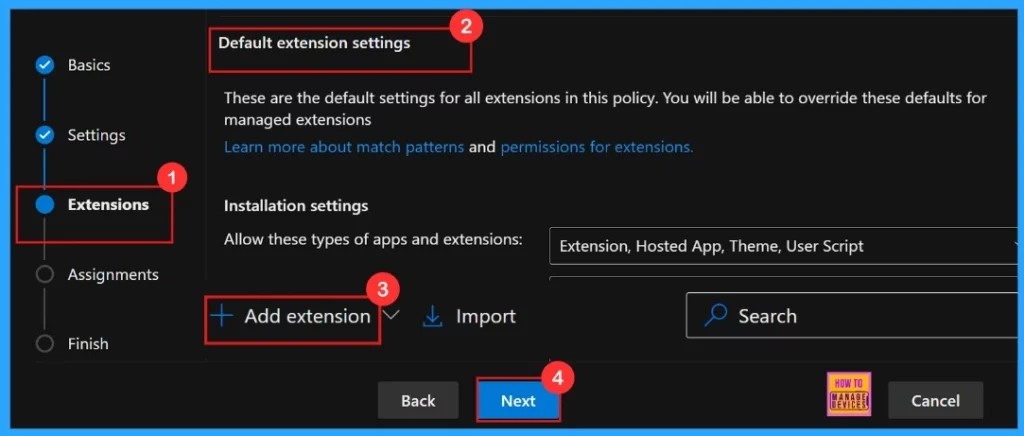
Extensions
In the Extensions section, we can control how extensions customize through various policies, including installation settings and permissions, and URLs. If we need more features, click + Add extension to include them. But if we don’t need any extensions, we can just ignore this section.
Assignment
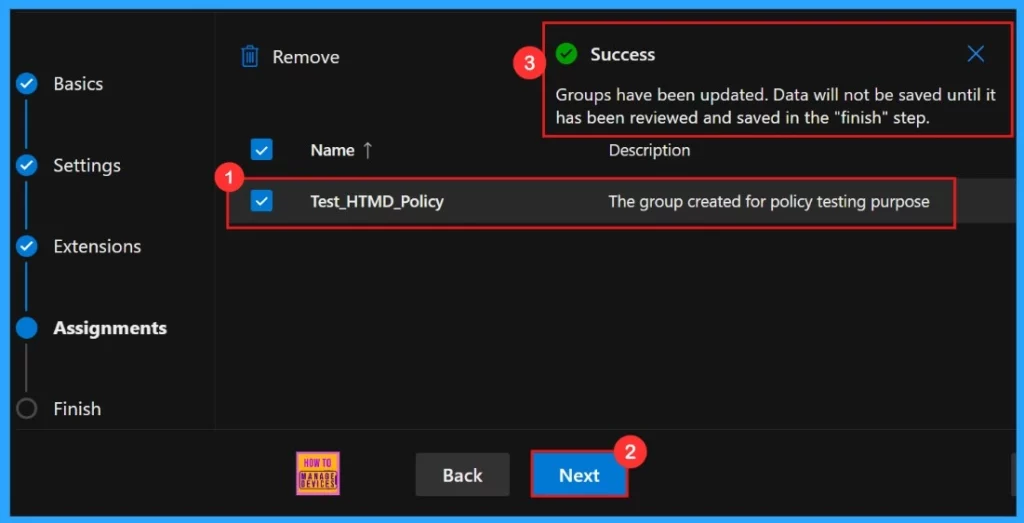
The Assignments tab is where we manage who gets our policy. By picking a group, we can make sure the policy only applies to those users or devices. To assign the policy, click + Select group, then choose the appropriate group from the available Microsoft Entra groups.
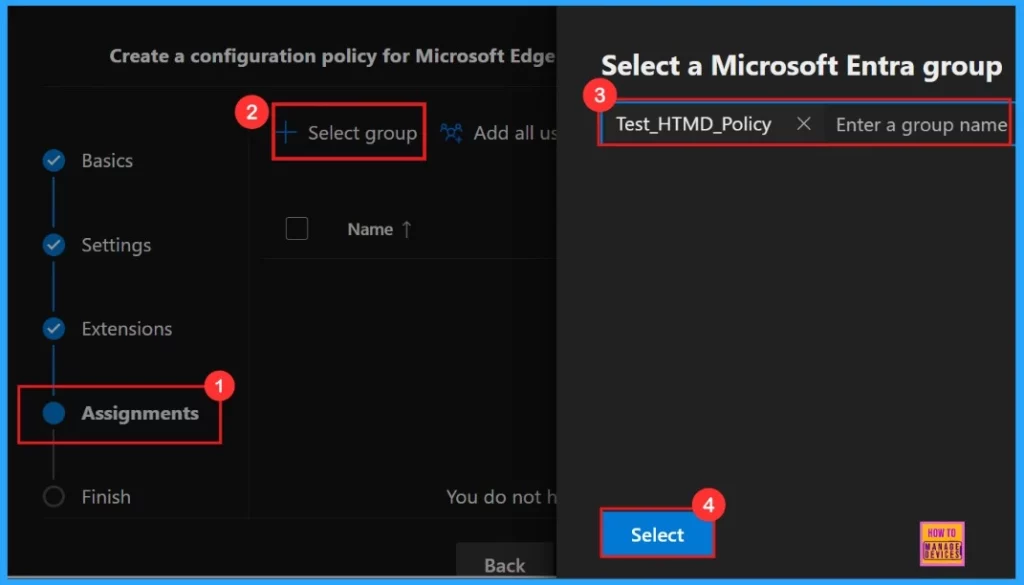
After the selection of the group from the Microsoft Entra groups, a pop-up notification will appear on the page confirming that the group has been updated. Here we assigned the group Test_HTMD_Policy. The Assignments tab is where we manage who gets our policy.
- By picking a group, we can make sure the policy only applies to those users or devices.
Finish
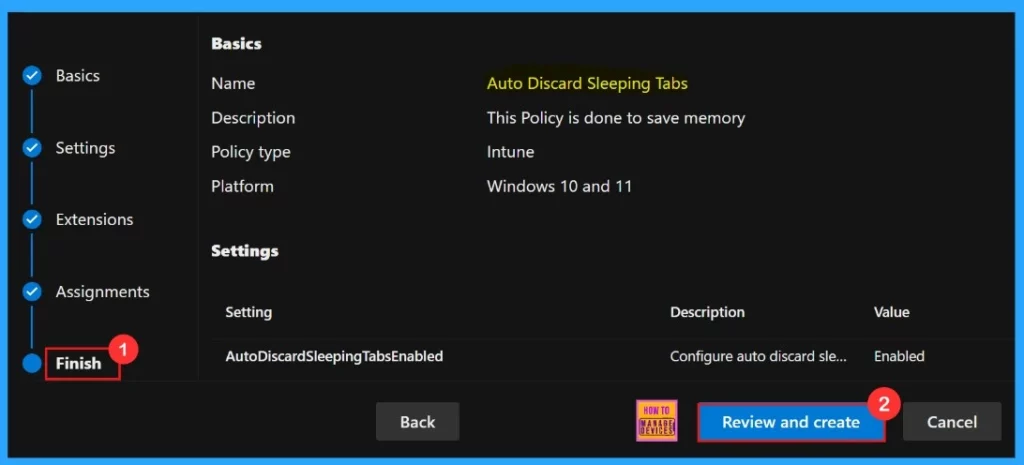
To finish setting up the policy, click Review + create to check all our settings before going live. The summary screen shows the options we have configured, like assignments, rules, and exceptions, which lets us do a final quality check. Once we are sure everything is okay, click Create.
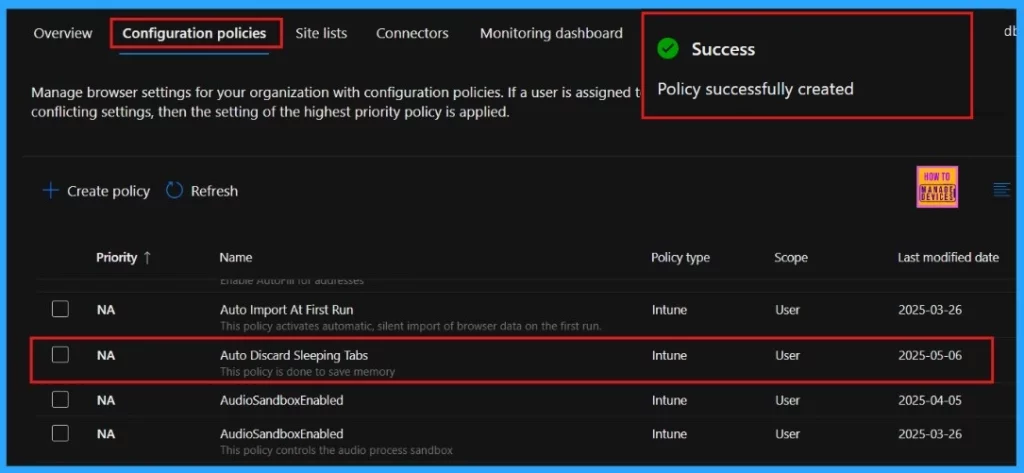
Now the portal will display a success message confirming that the policy has been created successfully. The new policy will then be visible in the Configuration Policies section. We can get the policy in Intune portal also, because we choose the policy type as “Intune“.
Client-Side Verification
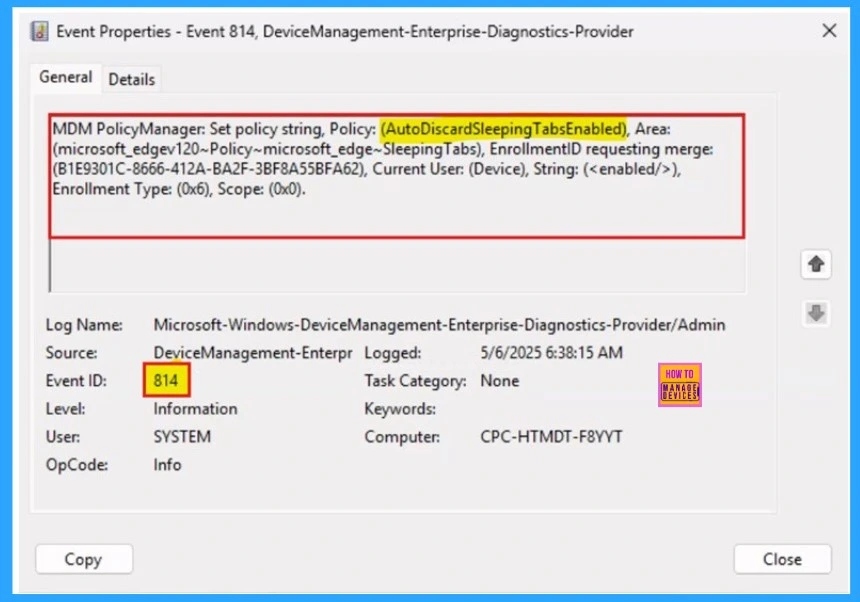
We can check policy status on using Windows Event Viewer. To verify client-side compliance, go to Applications and Services Logs > Microsoft > Windows > DeviceManagement-Enterprise-Diagnostics-Provider > Admin, and then filter for Event ID 814.
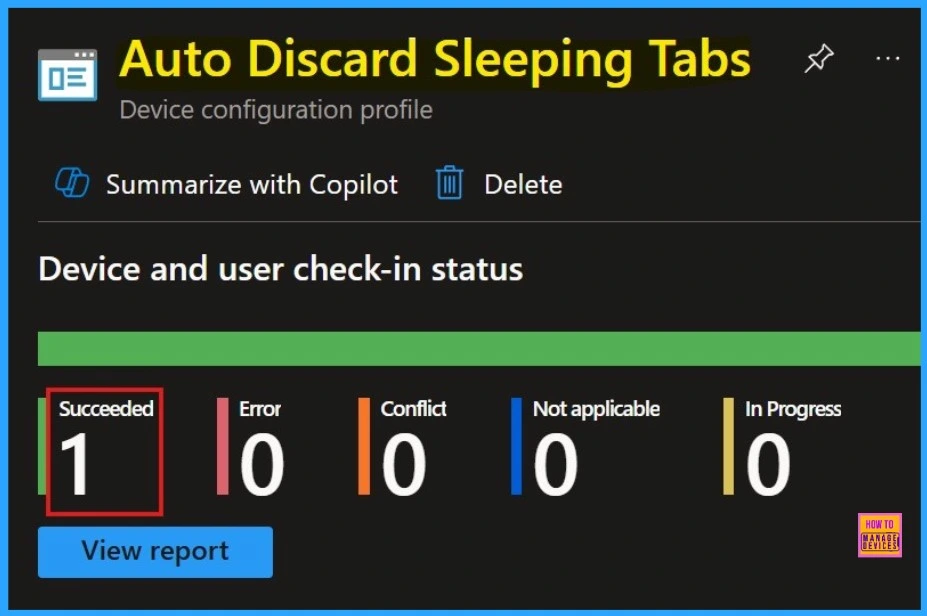
Device and User Check-in Status
After manually syncing the device through the Company Portal, you can verify the policy deployment in the Intune Portal. Navigate to Devices > Configuration, then open the Policies tab to locate the policy. A status of “Successful” confirms that the policy has been correctly applied to the device.
Need Further Assistance or Have Technical Questions?
Join the LinkedIn Page and Telegram group to get the latest step-by-step guides and news updates. Join our Meetup Page to participate in User group meetings. Also, Join the WhatsApp Community to get the latest news on Microsoft Technologies. We are there on Reddit as well.
Author
Anoop C Nair has been Microsoft MVP for 10 consecutive years from 2015 onwards. He is a Workplace Solution Architect with more than 22+ years of experience in Workplace technologies. He is a Blogger, Speaker, and Local User Group Community leader. His primary focus is on Device Management technologies like SCCM and Intune. He writes about technologies like Intune, SCCM, Windows, Cloud PC, Windows, Entra, Microsoft Security, Career, etc.




Discussion