






Enable or Disable Instant Wake Policy in Human Presence using Intune
Hey there, let’s discuss about the topic of how to configure Instant Wake Policy in Human Presence using Intune. The Force Instant Wake Policy is a setting that makes our device wake up instantly from sleep mode when specific things happen.
When it gets a network signal, someone interacts with it, or when it’s time for a scheduled task. Unlike the usual ways that might take a second or need a special signal like Wake-on-LAN, this policy is all about waking things up quickly, so there is no delay.
It is very useful in offices, for remote work, and with smart devices where we need quick responses. We need to remember that if our device keeps waking up for random stuff, it could drain more battery. This post determines whether Wake on Arrival is forced on/off by the MDM policy.
The user will not be able to change this setting, and the toggle in the UI will be greyed out. Now we are going to deploy How to Configure Force Instant Wake Policy in Human Presence using Intune Settings Catalog Policy. We get more details through this post.

Table of Contents
In What Way Does Force Instant Wake Benefit?
It helps faster remote access and is better for automated systems like servers, NAS, and internet devices that need quick wake-up. It also improved the sensitivity for scheduled tasks or maintenance.
How to Configure Force Instant Wake Policy – Windows CSP Details
The Configuration Service Providers (CSPs) are parts of Windows that let IT admins and mobile device management (MDM) systems set up policies, configurations, and restrictions on Windows devices from a distance. The table below shows the technical attributes and behaviour of the Force Instant Wake. It includes Property Name and Property Value.
| Property name | Property value |
|---|---|
| Format | int |
| Access Type | Add, Delete, Get, Replace |
| Default Value | 0 |
Allowed Values
Now we can see the allowed values for the policy “How to Configure Force Instant Wake Policy in Human Presence using Intune Settings Catalog“. We can use directives and sources to control which resources are allowed to load on a web page.
| Value | Description |
|---|---|
| 2 | ForcedOff. |
| 1 | ForcedOn. |
| 0 (Default) | DefaultToUserChoice. |
Group Policy Mapping
The following table shows the Group Policy Mapping details of “Force Instant Wake Policy”. We can know all the details about the policy through this (Name, Friendly name, Location, path, Registry key name, Registry value, etc).
| Name | Value |
|---|---|
| Name | ForceInstantWake |
| Friendly Name | Force Instant Wake |
| Location | Computer Configuration |
| Path | Windows Components > Human Presence |
| Registry Key Name | Software\Policies\Microsoft\HumanPresence |
| Registry Value Name | ForceInstantWake |
| ADMX File Name | Sensors.admx |
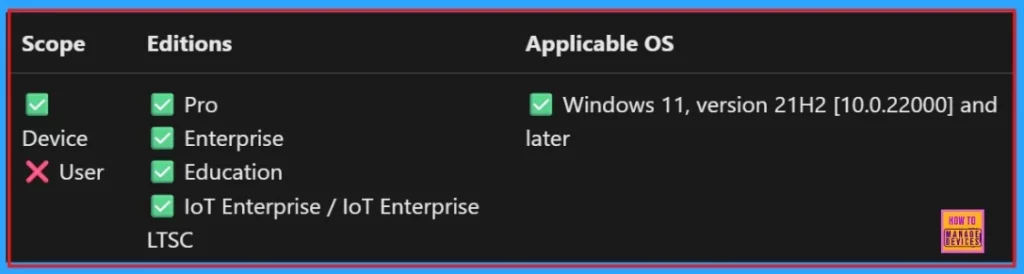
./Device/Vendor/MSFT/Policy/Config/HumanPresence/ForceInstantWake
- Allow or Block Hardware Keyboard Text Suggestions in Text Input using Intune Policy
- How to Enable Disable Touch Keyboard Wide Mode Availability Policy using Intune
- Enable or Disable Folder Locations in File Explorer using Intune Policy
Create Profile
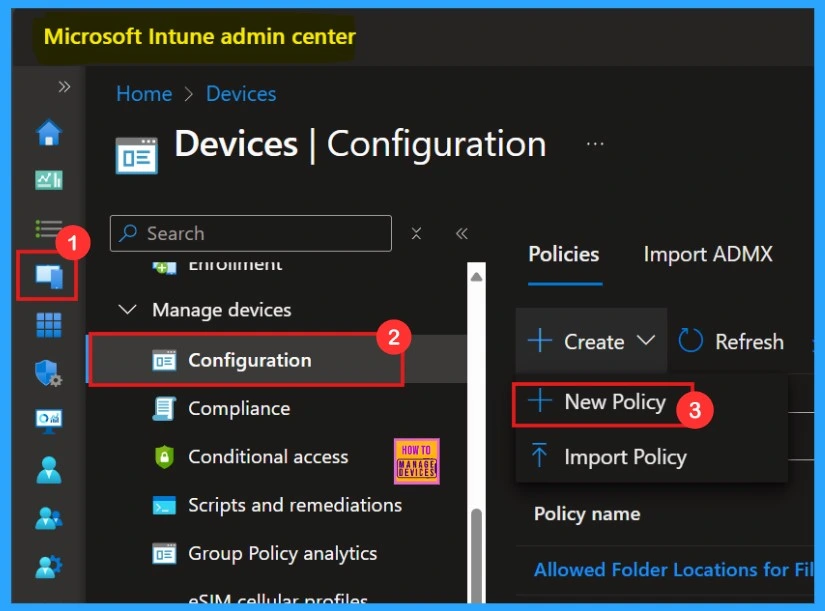
First step to deploy a policy is creating a profile, We need to log in Microsoft Intune Admin Center. Need to click on Devices > Configurations. On the right side, click the + Create option and select the New policy
- Go to Intune Admin Center > Devices > Configuration > Policies > + Create > + New policy.
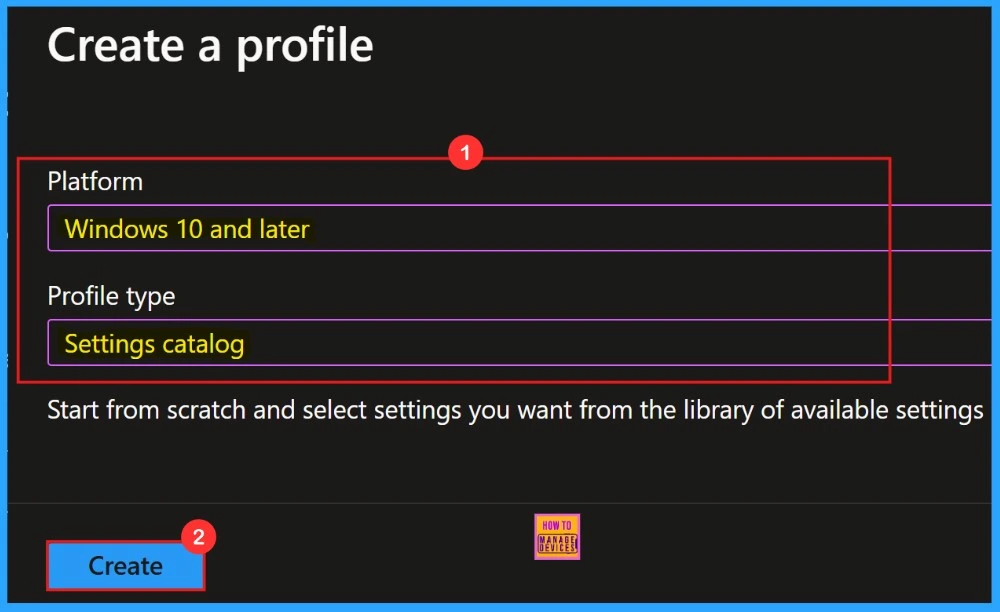
Another window will open showing the details to choose Platform and profile type. Here we select Windows 10 and later as the platform, and set the profile type to Setting catalog. Then, click Create to proceed.
Basics
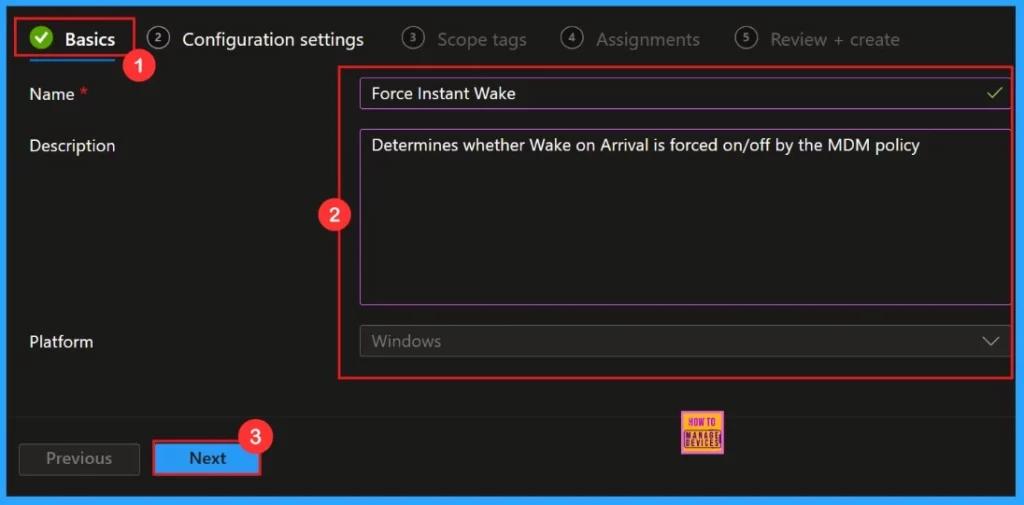
The basic tab is the preliminary step in policy creation. On this tab, we have to give a name for the policy that we want to create. If we want to add any description about the policy, we can add that in the given space. Click on the Next button.
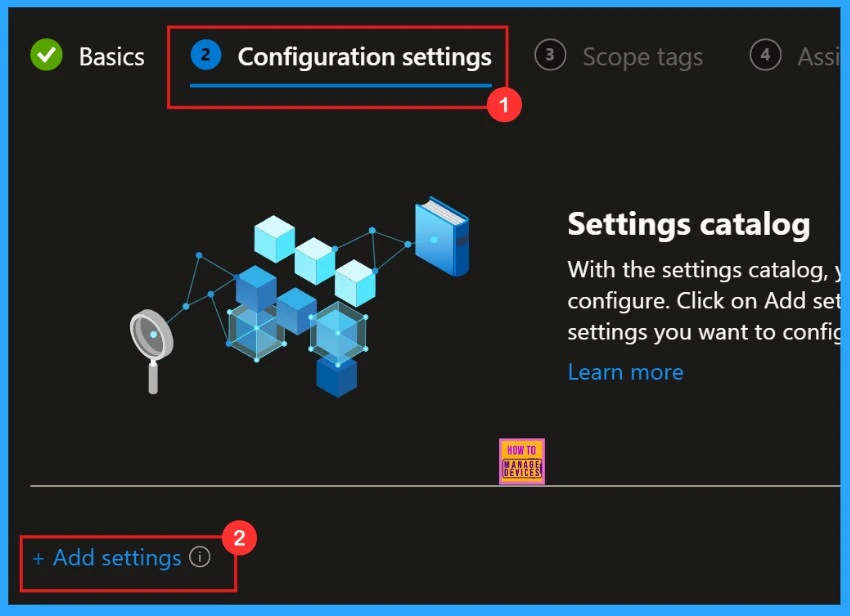
Configuration Settings
We can add settings for the policies in the configuration settings. Configuration settings define the rules, parameters, and controls determining how systems, applications, or networks operate in policy management.
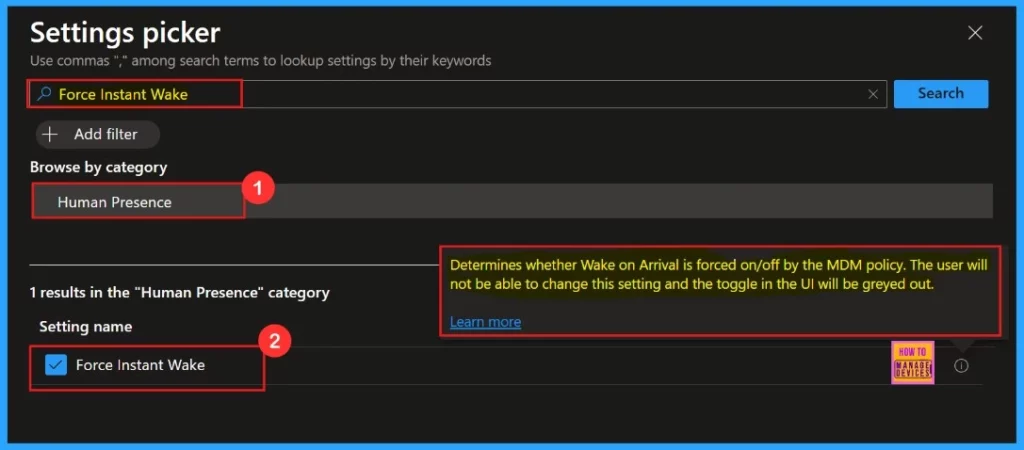
Settings Picker
“Settings Picker” allows us to choose preferred policy settings from the list. This simplifies policy deployment, ensures consistency, and reduces errors. Our policy “ Force Instant Wake ” comes under “Human Presence” Catagory.
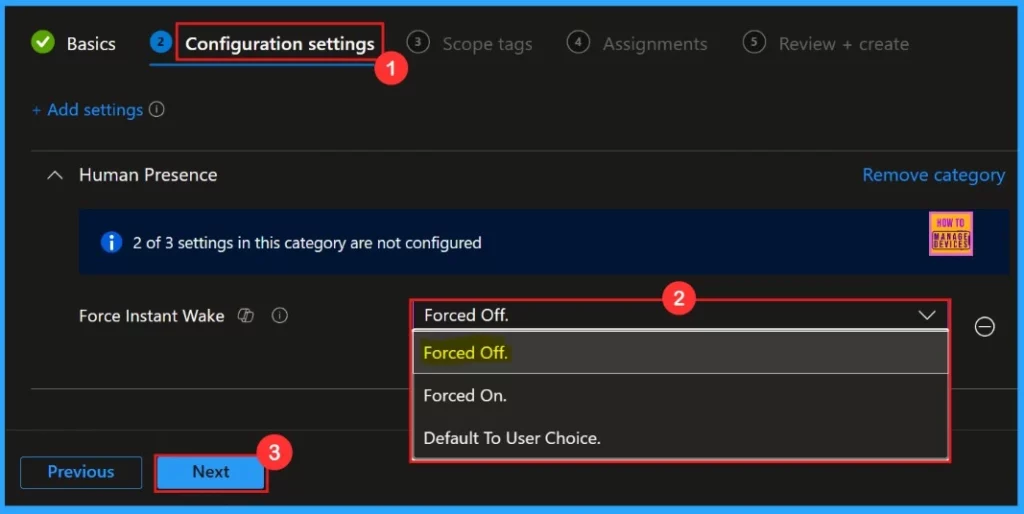
Configuration Settings
After closing the settings picker window, we will be directed to the configuration settings to select the category that we want to deploy the policy. We selected the category ”Force Off” for the policy.
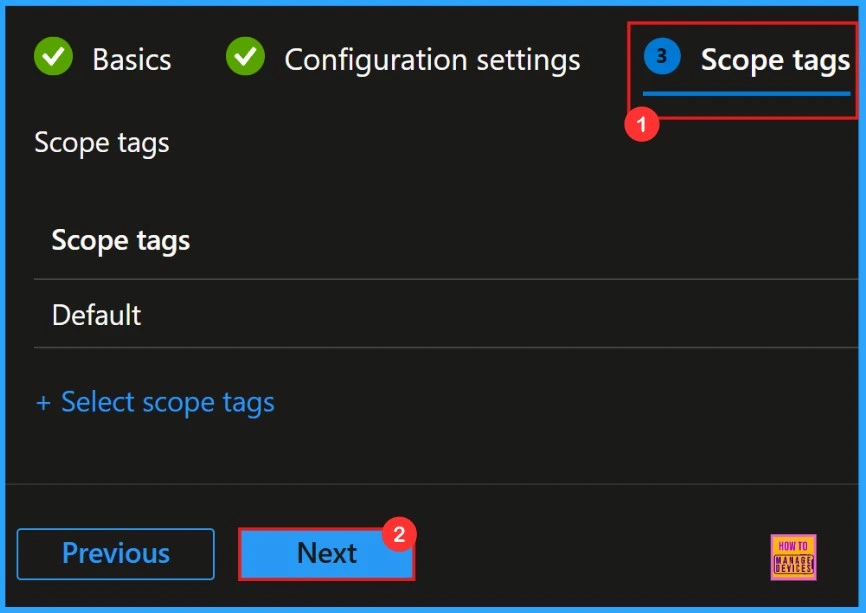
Scope Tags
We are going to skip this section as it is not mandatory for the desired policy. Actually, Scope tags are a filtering mechanism that restricts access to policies, configurations, and devices in IT management systems.
Assignments
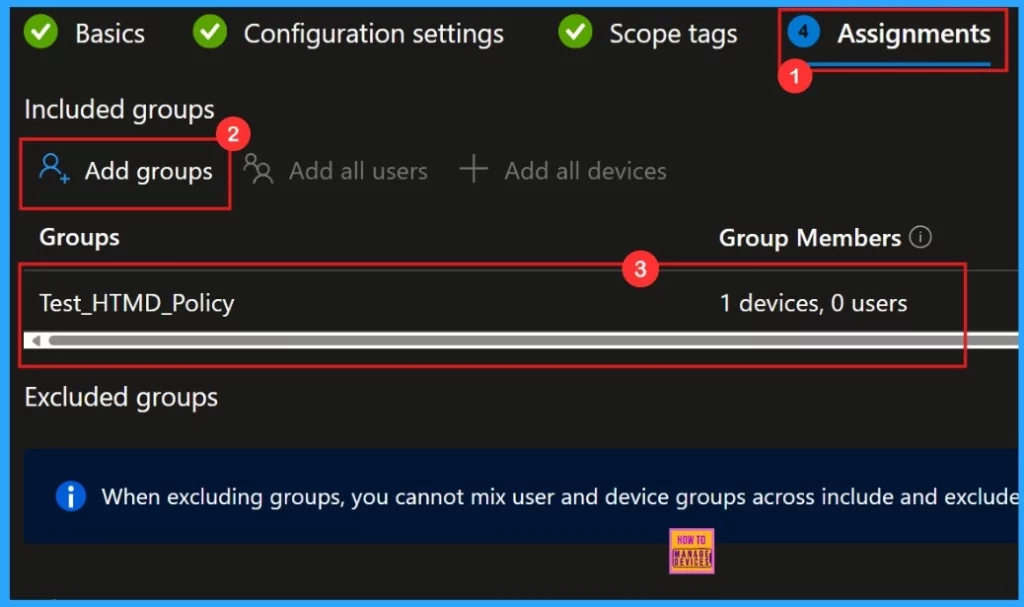
In this section, we need to add groups. The assignments in Microsoft Intune determine which users or devices a policy applies to. Selected group will show on the assignment page. Then, click Next to continue.
Review + Create
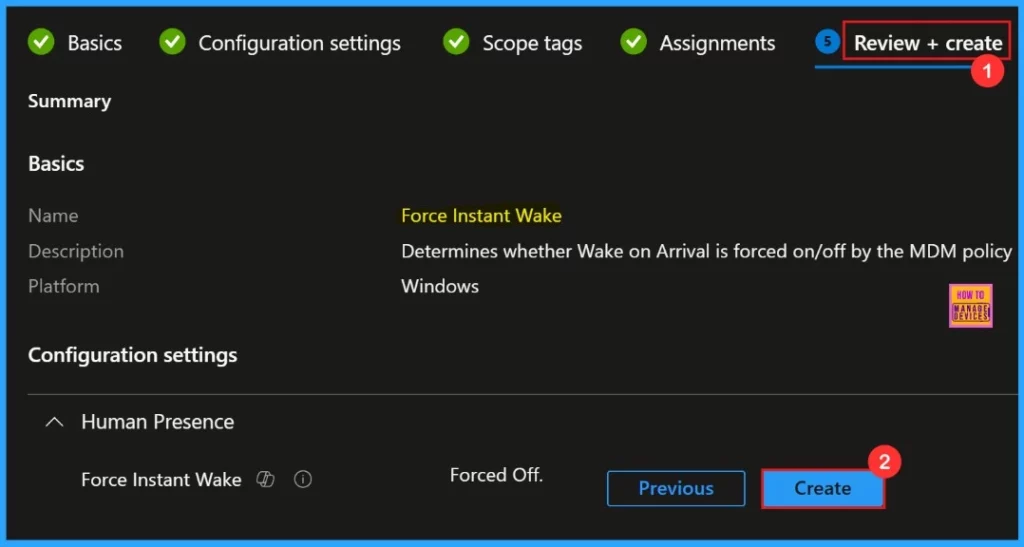
Review + Create is the final step of a policy deployment, here we can see a summary of what the details are we have given for the policy creation. We can go through it and confirm all the information given was correct. After confirming we need to click “Create“.
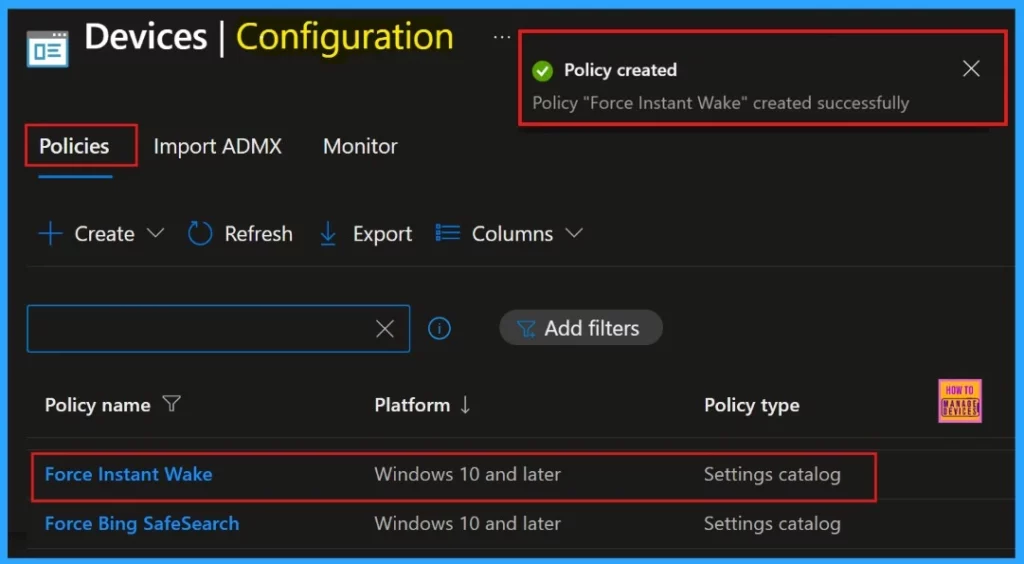
The Policy created notification will pop-up on the screen, after clicking Create button. The message notifiy that the policy Force instant wake created successfully.
OMA-URI Settings to Configure the Force Instant Wake Policy
We can easily configure the Force Instant Wake policy on Windows devices using either Microsoft Intune or by setting a custom OMA-URI. Nowadays we are using Settings catalog for deploying the Policy. Here’s a step-by-step guide to help you-
- Sign in to Microsoft Intune
- Go to Devices > Configuration
- Click Create, and then the new policy.
- Choose the platform as Windows 10 or later.
- For Profile type, select Templates and then choose Custom.
- Provide a Name – e.g. Force Instant Wake Policy
- Add a Description if needed.
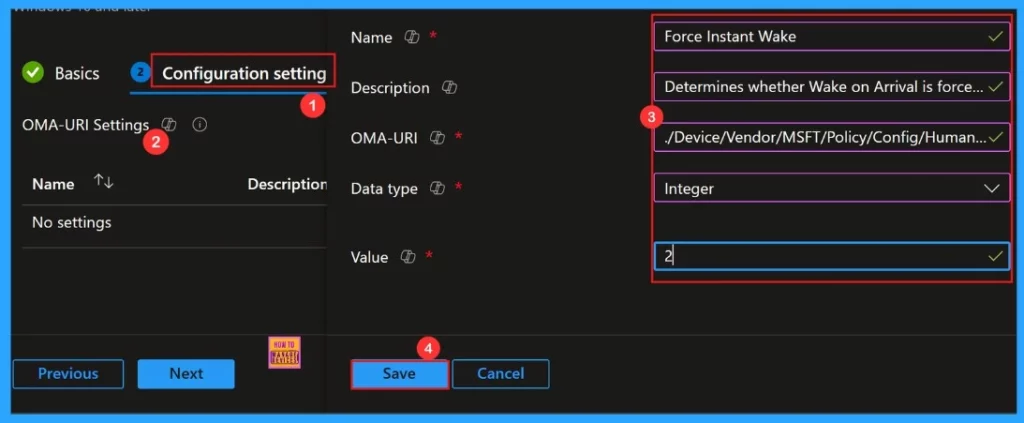
- Click on + Add under OMA-URI Settings to configure the specific setting.
- To Configure the OMA-URI Setting, do the following
- Enter a name for this setting, such as Force Instant Wake.
- Briefly describe the setting, e.g., Determines whether Wake on Arrival is forced on/off by the MDM policy.
- Enter the following OMA-URI path.
- ./Device/Vendor/MSFT/Policy/Config/HumanPresence/ForceInstantWake
- Set the Data type to Integer.
- Enter the value
- 0 to Default To User Choice the Force Instant Wake Policy
- 1 to Force allow the Force Instant Wake Policy.
- 2 to Force deny the Force Instant Wake Policy.
- After entering the above details, click the Save button.
Client-Side Verification
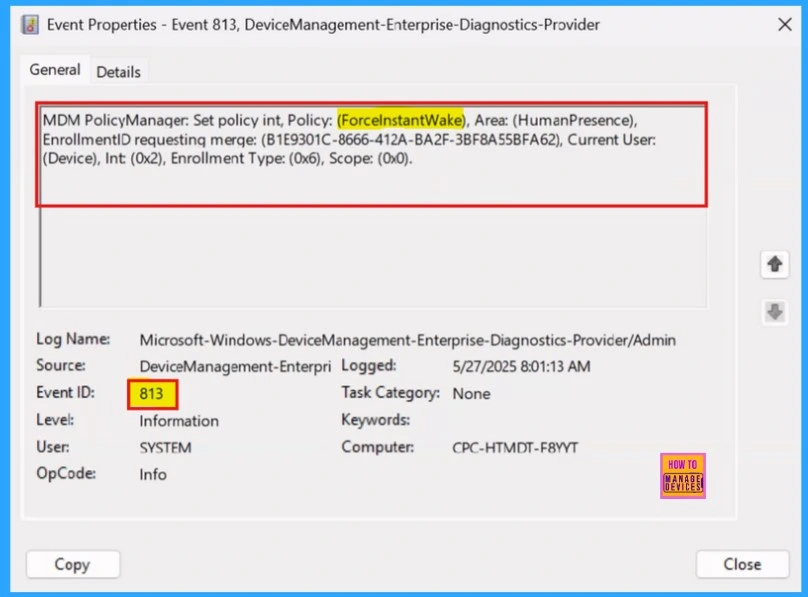
For Client-side verification we need to login to Cloud PC. Then go to the settings Applications and Services Logs > Microsoft > Windows > Devicemanagement-Enterprise-Diagnostics-Provider > Admin.
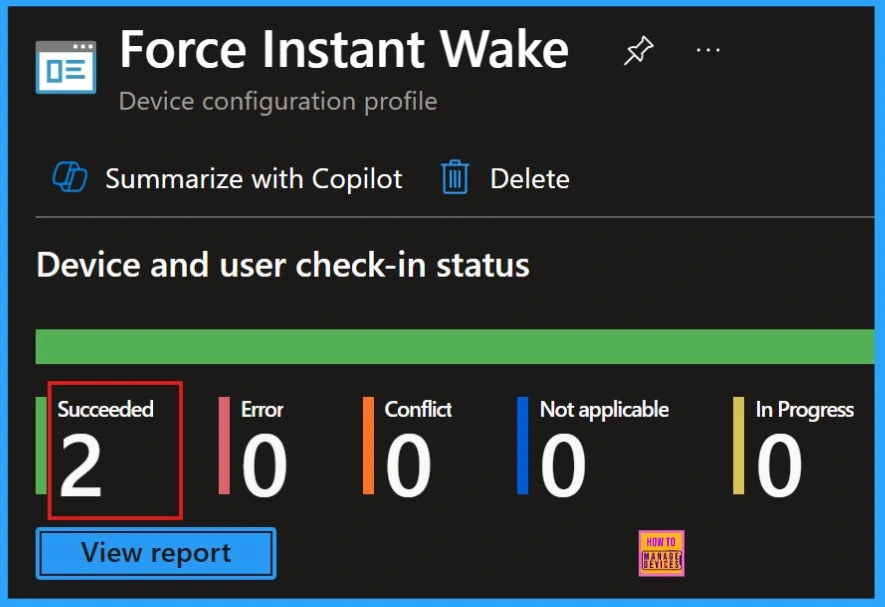
Device and User Check-in Status
To check the monitoring status, we need to go to the device configuration profile and search for the policy we created. Here, we can check whether the deployment of the policy succeeded or not.
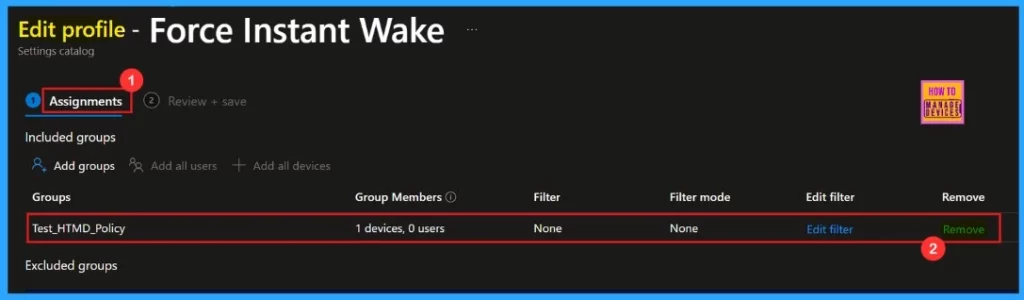
How to Remove Assigned Group from Force Instant Wake Policy
Sometimes removing an assigned group from a policy is necessary for security, compliance, or operational efficiency. The below screenshot shows how we can remove an assigned group from the policy. After the removal we need to click Review + Save.
For more details – Learn How to Delete or Remove App Assignment from Intune using Step by Step Guide
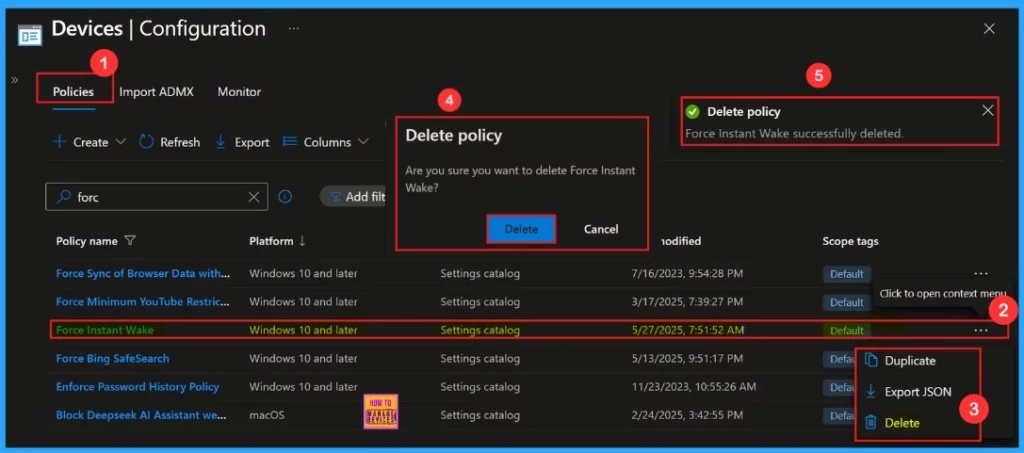
How to Delete Force Instant Wake Policy From Intune
Sometimes deleting a policy in Microsoft Intune is necessary for security, compliance, or operational efficiency. Here we are going to see the steps for deleting a policy. The below screenshot shows how we can delete the policy.
For more details- How to Delete Allow Clipboard History Policy in Intune Step by Step Guide
Need Further Assistance or Have Technical Questions?
Join the LinkedIn Page and Telegram group to get the latest step-by-step guides and news updates. Join our Meetup Page to participate in User group meetings. Also, Join the WhatsApp Community to get the latest news on Microsoft Technologies. We are there on Reddit as well.
Author
Anoop C Nair has been Microsoft MVP from 2015 onwards for 10 consecutive years! He is a Workplace Solution Architect with more than 22+ years of experience in Workplace technologies. He is also a Blogger, Speaker, and leader of the Local User Group Community. His primary focus is on Device Management technologies like SCCM and Intune. He writes about technologies like Intune, SCCM, Windows, Cloud PC, Windows, Entra, Microsoft Security, Career, etc.


Discussion