






Allow or Blocks External Extensions from Being Installed for User Policy using Intune
Hi, today we are discussing Allow or Blocks External Extensions from Being Installed for User Policy using Intune. As you know the Control the installation of external extensions policy is an important setting in Microsoft Edge, especially useful for businesses that manage devices using Microsoft Intune.
In Microsoft Edge they can turn on settings like “Blocks External Extensions from Being Installed and these Settings can be applied to certain groups of users or devices, so they’ can easy to control. Blocking outside extensions is especially important in industries and it help to keeping data private and secure.
By enabling this policy, organizations can make sure that browser extensions can only come from official, trusted sources like the Microsoft Edge Add-ons store. If you enable this setting, external extensions are blocked from being installed.
If this policy is turned off or not configured, users can still install extensions from those other sources. This will affect the security issue of organizations. Blocking unapproved extensions lowers the chances of someone accidentally installing something that could leak data from organizations.

Table of Contents
What Happens when External Extensions from Being Installed Setting is Enabled in Microsoft Edge in Intune?
When the “Control the installation of external extensions” setting is enabled in Microsoft Edge through Intune, it blocks users from installing external extensions. It is very helpful to prevent leaking the data.
External Extensions from Being Installed Policy using Intune – Create a Profile
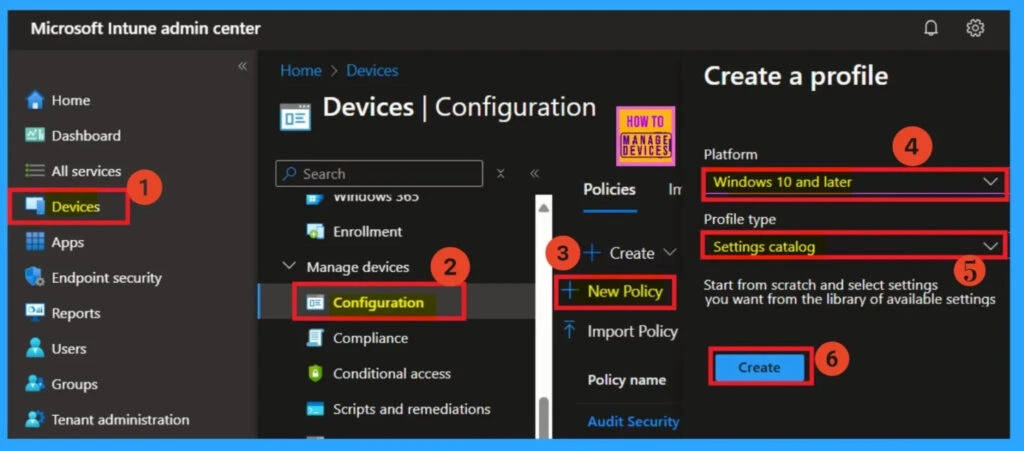
To deploy a policy, you first need to create a profile. Start by logging into the Microsoft Intune Admin Center. Navigate to Devices > Configuration. On the right-hand side, click + Create and choose new policy. A new window will appear where you’ll select the Platform and Profile type. Choose Windows 10 and later as the platform and set the profile type to Settings catalog. Then, click Create to continue.
- Best Guide to Install Google Chrome Extensions using Intune Policy
- Block Google Chrome Extensions from being Installed using Intune Policy
- Block Google Chrome Extensions from being Installed using Intune Policy
Basic Information
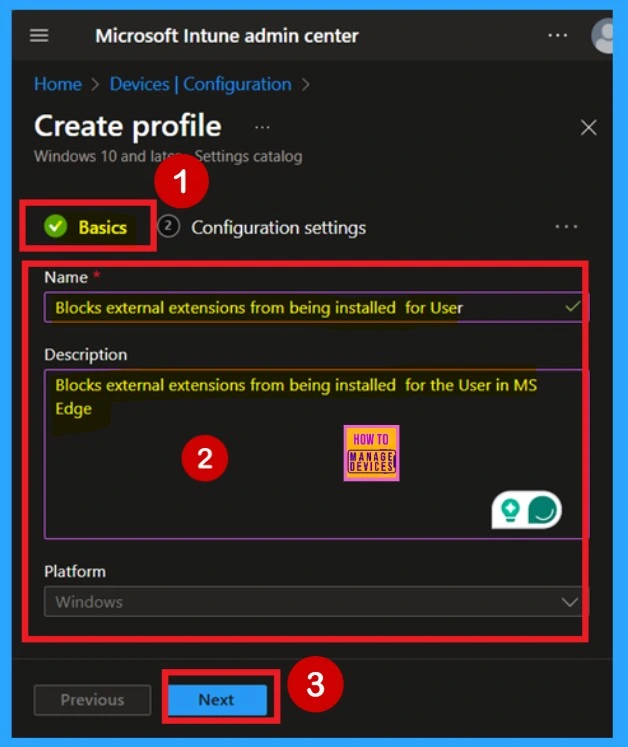
In the Basics tab, enter a name for your policy in the Name field. If you’d like, you can also include a description to provide more details about the policy’s purpose. This helps in identifying the policy later. The policy name and its description will be visible as shown in the screenshot below.
- Name: I named the policy that Block external extensions from being installed for user.
- Description: Block external extensions from being installed for the user in MS Edge
Configuration Settings
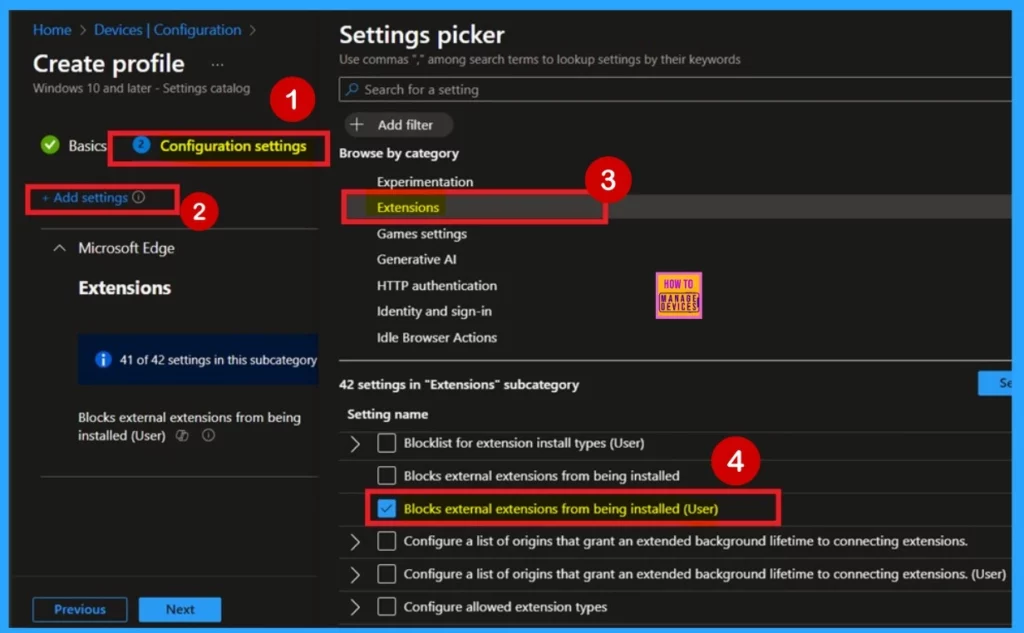
The Next Step Configuration Settings Page On the Configuration Settings page, you will see an option labeled “Add Settings” in blue. Click on that to open the Settings window. In the Settings window, locate and select the Microsoft Edge category. Within that category, click on the Extensions subcategory.
- In the Extensions section, look for the policy named: “Block external extensions from being installed for users” select the policy and close settings picker.
Disable the Policy External Extensions from Being Installed
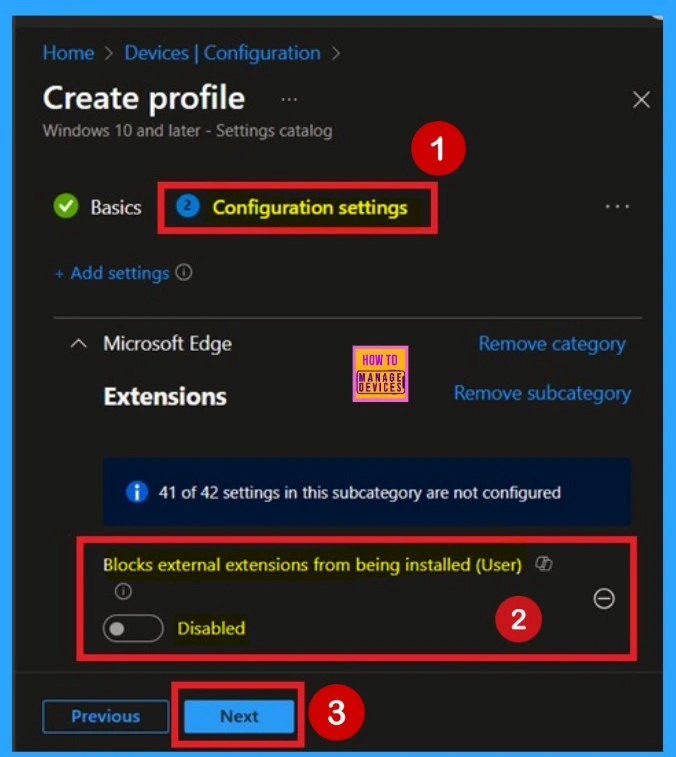
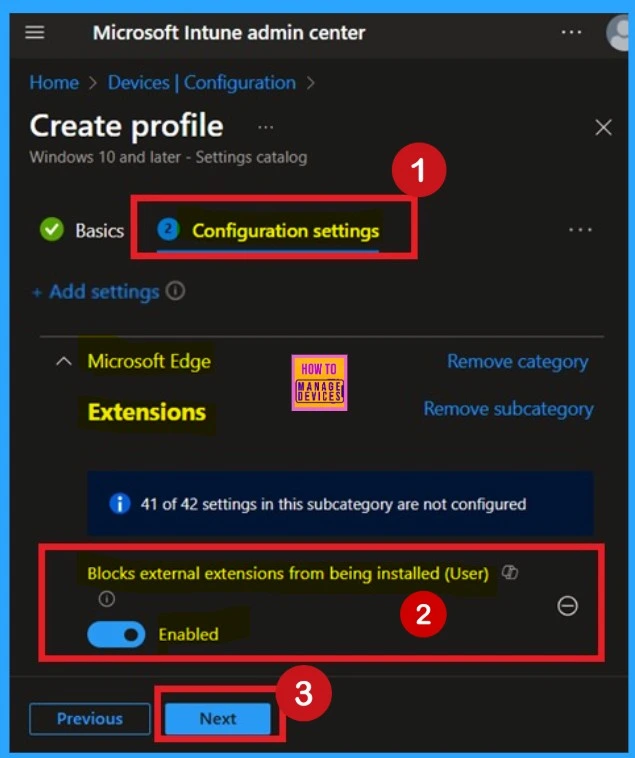
You can easily disable the policy through the Configuration Settings page. After closing the Settings window, you will return to the Configuration Settings page. Here, you will see that the policy is now visible. By default, the policy is disabled. If you wish to proceed with the default setting, simply click Next to continue.
Enable the Policy External Extensions from Being Installed
If the user wants to enable the policy, they can easily do so. To enable it, toggle the switch from left to right. Once enabled, the policy will turn blue and be labeled as “Enabled.” Then, click Next to continue. Enabling this policy ensures that only approved extensions can be deployed. This helps maintain better control and security over browser usage.
Scope Tags
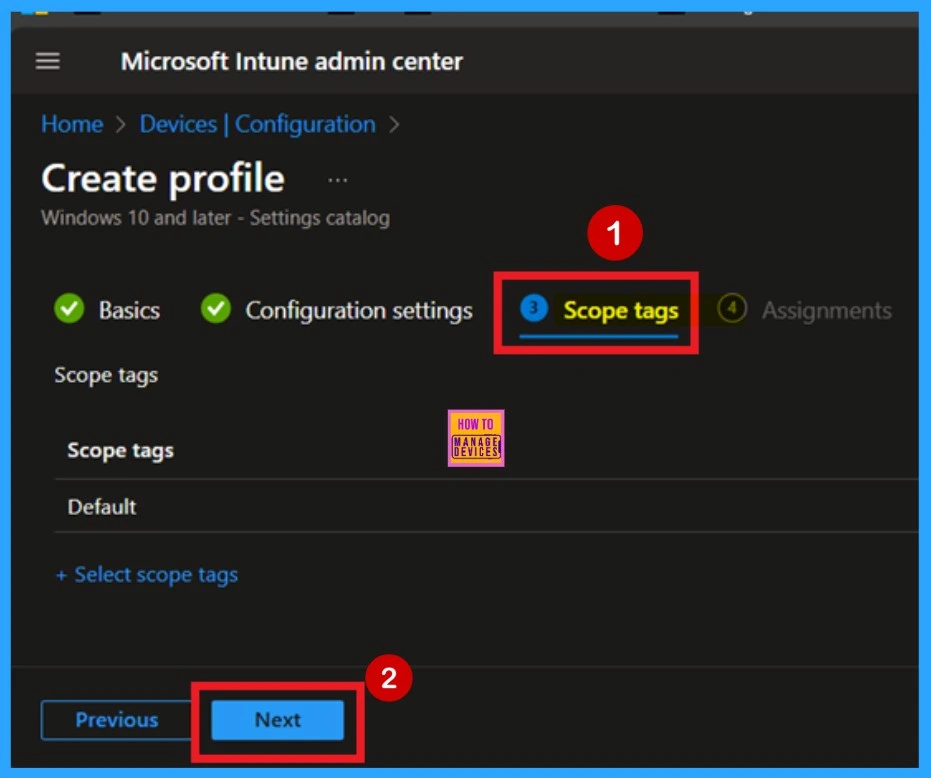
Now you are on the Scope Tags page. Scope tags can be important in certain cases for policy deployment. In this example, I have chosen to skip this section. However, if you want to add a scope tag to the policy, you can select the “Add scope tag” option, which is highlighted in blue.
- Since I’m skipping this step, I click Next to continue.
Assignments
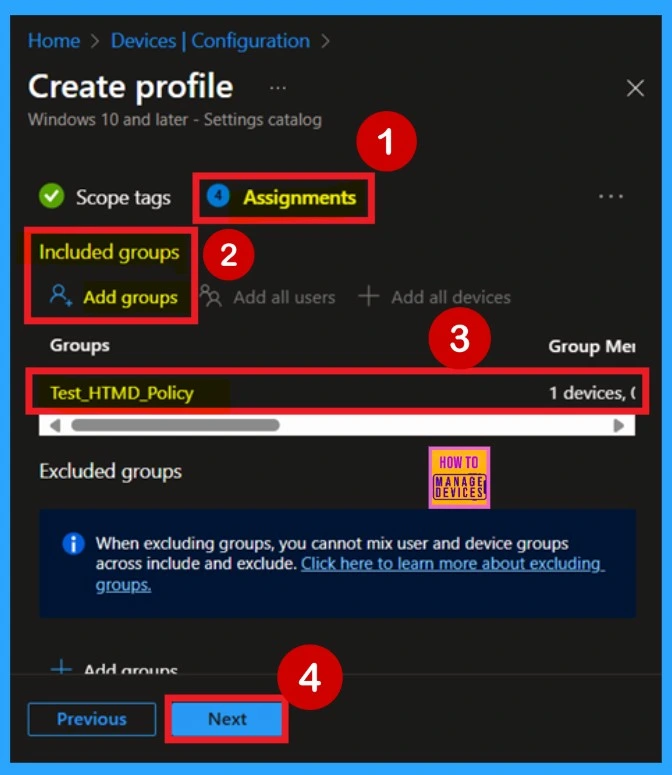
When deploying a policy, the main aim is to specify which organizational group the policy should be applied to. This is done in the Assignments section, which allows administrators to deploy the policy to specific groups. In this tab, you can easily make your selection by clicking on “Add groups” under the Include section. Once clicked, a list of available groups will appear.
- In this example, I selected the Test_HTMD_Policy group. After selecting the group, the assignment is complete, and you can click Next to proceed.
- Always remember that you can assign the policy to one or more groups, depending on your deployment needs.
Review + Create
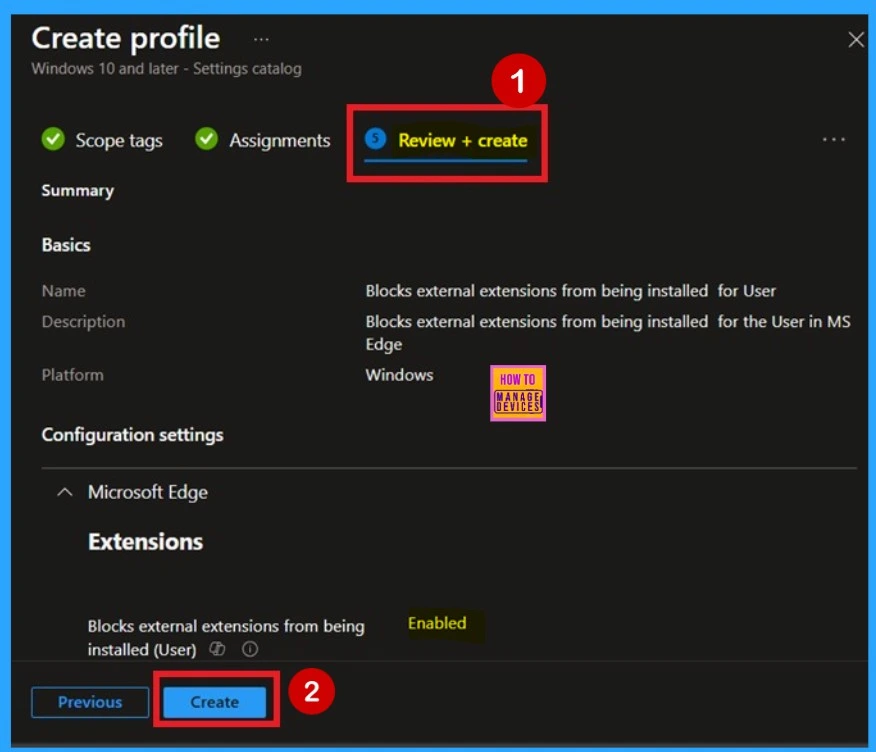
The final step is the Review + Create section. Here, you don’t need to change anything. You’ll see a summary of everything you’ve set up, including basic details, settings, and group assignments. If something doesn’t look right, you can go back and edit it. Once you’re ok with everything, click Create. You’ll get a message saying the policy was created successfully.
Device and user Check-in Status
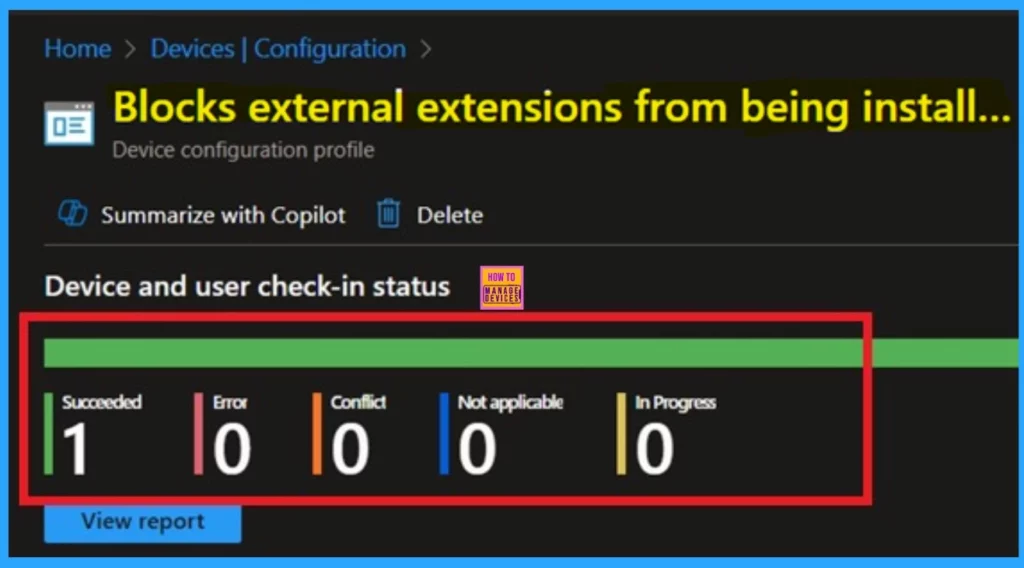
After creating the policy, the next step is to check if it was applied successfully. Always remember that it can take up to 8 hours for the policy to be fully deployed. If you’ve synced the policy through the Company Portal, you can check its status easily. Just go to Devices > Configuration, then search for the name of your policy in the list.
- Click on the policy to see the check-in status for both devices and users.
- In the screenshot below, you’ll see it says “Succeeded: 1” this means the policy was deployed successfully.
Client-Side Verification
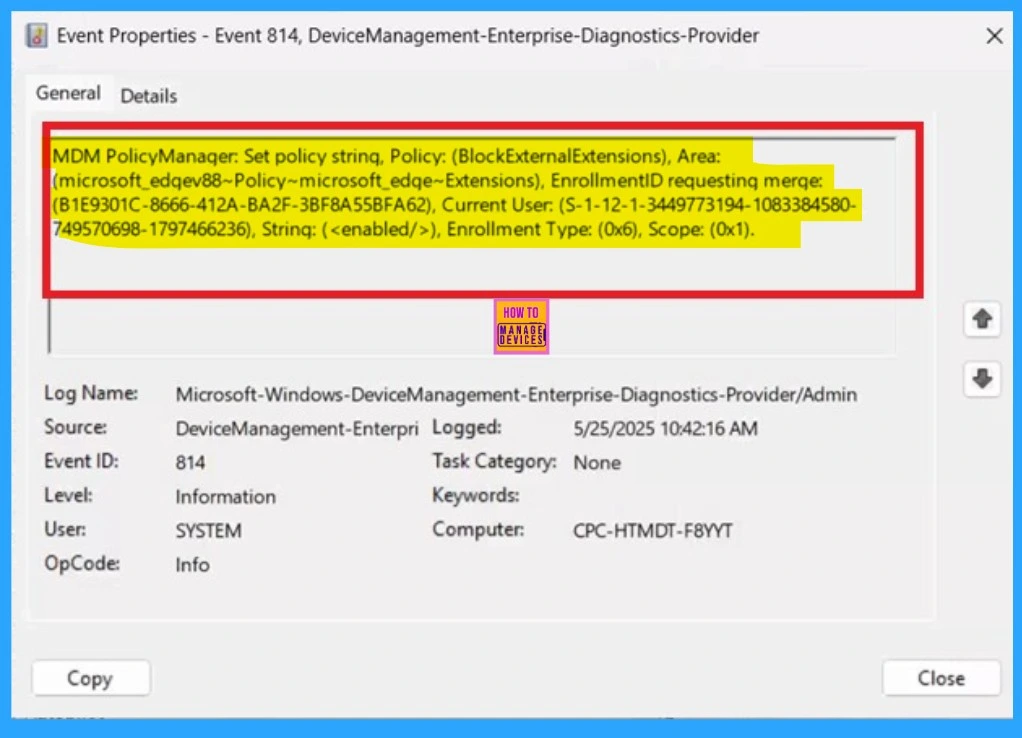
You can check the confirmation in the Event Viewer. To do this, open Event Viewer and look for Event ID 813 or 814. Go to: Applications and Services Logs > Microsoft > Windows > Device Management > Enterprise Diagnostic Provider > Admin.
There, you’ll see a list of policy-related events. It might be difficult to figure out which one shows the right details, so use the “Filter Current Log” option on the right side to narrow down the results. In my case, I found the policy details in the Event ID 813.
| Policy Detail |
|---|
| MDM PolicyManager: Set policy strinq, Policy: (BlockExternalExtensions), Area: (microsoft_edqev88~Policy~microsoft_edqe~Extensions), EnrollmentID requestinq merqe: (B1E9301C-8666-412A-BA2F-3BF8A55BFA62), Current User: (S-1-12-1-3449773194-1083384580- 749570698-1797466236), Strinq: (), Enrollment Type: (0x6), Scope: (0x1). |
Remove Assignments Groups
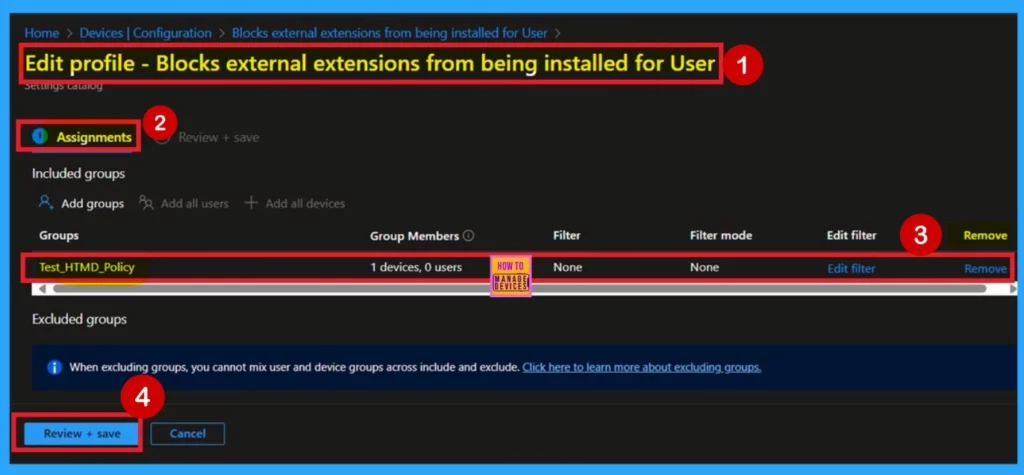
If you want to remove any group from your policy after the policy creation you can easily do that. First go to the Device Configuration then search the policy name and now you get the policy monitoring status page. Here you have to scroll down and you will ge the Assignment section there you will get an edit option.
- In the Assignment page you can see the Remove option Click on that for removing the Policy.
Delete the Policy
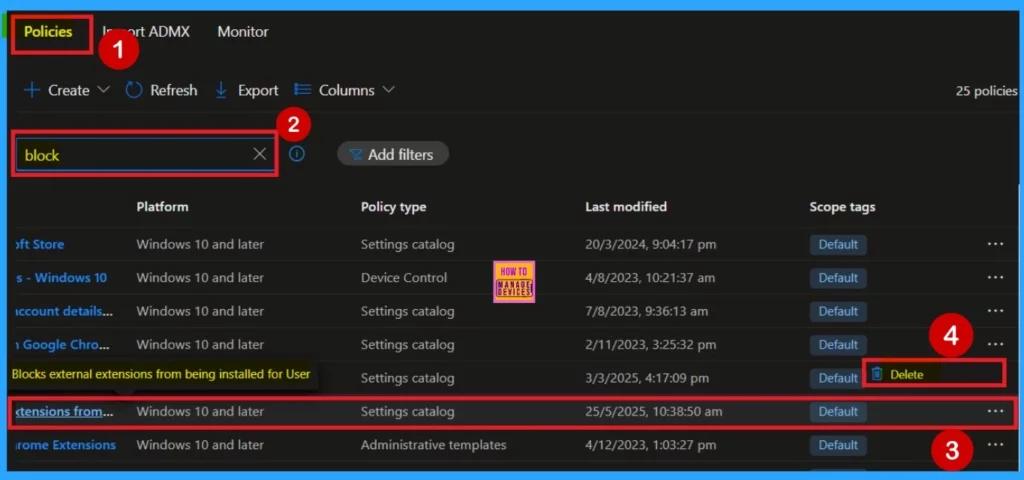
If you want to delete the policy of Blocks External Extensions from Being Installed you can easily do that first go to the Device Configuration then search the policy name and now you get the policy here click on the 3 dot menu of the policy then click on the Delete and the policy Deleted permenantly.
Need Further Assistance or Have Technical Questions?
Join the LinkedIn Page and Telegram group to get the latest step-by-step guides and news updates. Join our Meetup Page to participate in User group meetings. Also, Join the WhatsApp Community to get the latest news on Microsoft Technologies. We are there on Reddit as well.
Author
Anoop C Nair has been Microsoft MVP for 10 consecutive years from 2015 onwards. He is a Workplace Solution Architect with more than 22+ years of experience in Workplace technologies. He is a Blogger, Speaker, and Local User Group Community leader. His primary focus is on Device Management technologies like SCCM and Intune. He writes about technologies like Intune, SCCM, Windows, Cloud PC, Windows, Entra, Microsoft Security, Career, etc.


And HOW to FULLY UNINSTALL extension that was previously silently installed by Intune policy?