






Troubleshoot and Fix Company Portal Enrollment Your Device Is Already Connected Error
Key Takeaways:
- Company Portal blocks users from enrolling devices properly
- Duplicate device entries in Intune or Entra ID
- Incorrect MDM/MAM scope settings
- Device assigned to another user (e.g., via Autopilot)
Today, we are discussing Troubleshoot and Fix Company Portal Enrollment Your Device Is Already Connected Error. This issue has recently happened to some admins, and they reported to Microsoft that when they tried to set up 2 new laptops using the Company Portal app, they got the error: “Your device is already connected by your organization.” When a new device is set up in the company portal then that time you get a message that “Your device is already connected by your organisation”.
Table of Contents
Table of Contents
Troubleshoot and Fix Company Portal Enrollment Your Device Is Already Connected Error
When Company Portal Enrollment error happens to the admins, they think that it is an issue with the user accounts. But they find that this is not the actual reason. So, we have to find out why this error happens to them and how it be solved. So, in this post, let’s look at how to troubleshoot Intune Device Enrollment Issues in Entra ID.
Above, we discussed a lot of things about how to troubleshoot Intune Device Enrollment Issues in Entra ID. As I mentioned above, many users have this issue when they are trying to set up 2 new laptops using the Company Portal app, these laptops were completely new, and this error is valuable there.
- The admins first thought that it was a common issue in user accounts, but it is not, because it works with other devices very well.
- After removing the old accounts, it still shows this error.
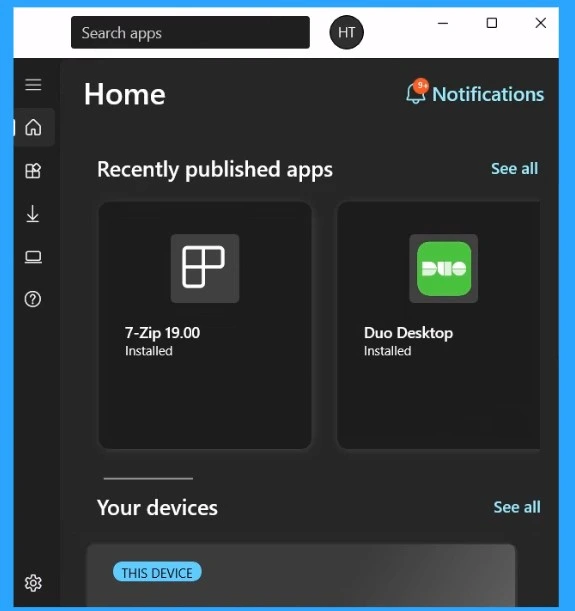
- Easy Steps To Configure An Application Logo In The Company Portal Using Intune
- New Company Portal Experience Monitor App Installation Progress and Compliance Status Reporting
- MS Intune Stop Supporting User Enrollment with Company Portal for iOS iPadOS
- New Appearance for Intune Company Portal App for Windows
Causes for this Issue
When Company Portal Enrollment issue happens, many of them address that they also experience this issue. So, let’s look at why it happens first and what the troubleshooting suggestions are for this. The device may already be registered to Entra ID from a previous setup. This will be the main cause of this issue.

| Cause for this Issue |
|---|
| The same work account was used on another device that’s still linked to Intune/Entra ID and this error happens because of it. |
| If all devices were all wiped before enrollment, there shouldn’t be an issue |
| Old sign-in data or cache in the Company Portal app might be interfering with enrollment. |
| Improper MDM/MAM Scope Settings may be an issue |
| The device may be assigned to another user in Intune, especially if Autopilot was used. |
| If the same device shows up more than once in Entra ID or Intune, enrollment may fail. |
Workaround
Some of the admins give better solutions to solve them easily to the affected ones. Mostly when Company Portal Enrollment issue arises most of the admins try their best too solve this issue. The valuable workaround are given by the alex_connective , Vasudevanr, Rudy_Ooms_MVP, Hjorthen, Coopem16. The woaround the are suggesting as:
- Alex_connective mention some workarounds that different account (like a test or setup account) is listed as the Primary User in Intune, causing conflicts. for that you have to do the workaround is :
- Reassign the Primary User
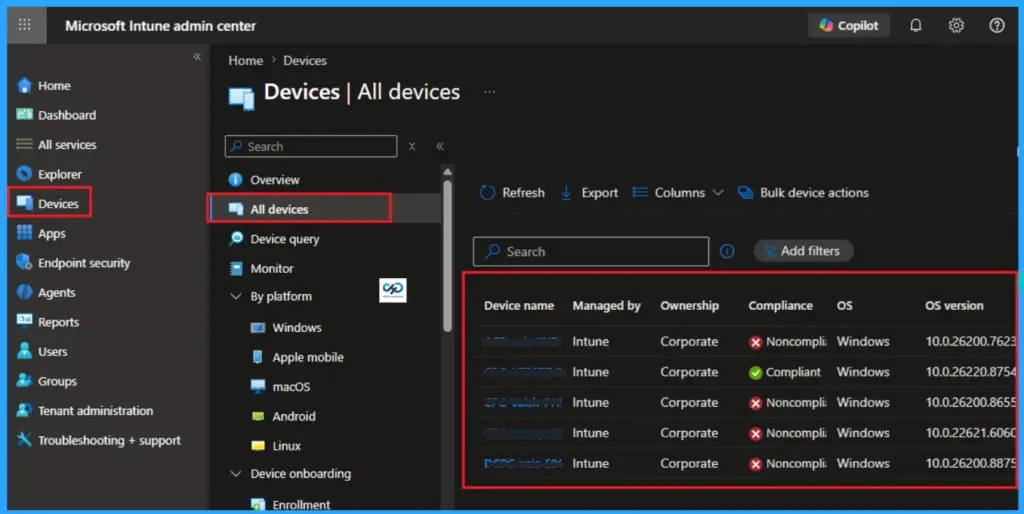
- In Microsoft Intune, go to Devices > All Devices
- Select the affected device
- Click on Change Primary User and assign the correct user
- Sync the device and retry enrollment
Data and Reinstall On Android
- Vasudevanr – Provided this step-by-step to Clear the Company Portal Data and Reinstall On Android.
- From your Android mobile Go to Settings > Accounts > Work account > Remove Account
- Settings > open Company portal app > Deactivate and Uninstall
- Play store > Install Company portal
- Setup new work email
Delete AAD Broker Plugin Folder
Company Portal Enrollment issue may be happend because of Corrupted files in AAD Broker Plugin can block authentication and enrollment. So the Hjorthen suggest as to Delete AAD Broker Plugin Folder.
- Workaround is Delete AAD Broker Plugin Folder
- Go to: C:\Users\\AppData\Local\Packages\
- Delete folder: Microsoft.AAD.BrokerPlugin_*
- Reboot device
Improper MDM/MAM Scope Settings
Rudy_Ooms_MVP mentioniing that Improper MDM/MAM Scope Settings may cause this error. So the Workaround is Correct MDM/MAM Scopes is the solution:
- Go to Microsoft Entra Admin Center > Mobility (MDM and MAM)
- Choose Microsoft Intune
- Set MDM user scope to All or the required group
- Do the same for MAM user scope if applicable
Change Device Assignment
- Device Still Assigned to Another User may be another issue that point out by the PDostiyar
- Workaround: Change Device Assignment is the solution.
- In Intune > Devices, find the device
- Use Change Primary User
- Ensure device ownership and deployment profiles are correct.
- Re-sync or wipe the device if needed.
I hope these Workaround will help you to solve the issue. If you know more Solution to fix this plese let me know in the Comments!
Need Further Assistance or Have Technical Questions?
Join the LinkedIn Page and Telegram group to get the latest step-by-step guides and news updates. Join our Meetup Page to participate in User group meetings. Also, Join the WhatsApp Community and WhatsApp Channel to get the latest news on Microsoft Technologies. We are there on Reddit as well.
Author
Anoop C Nair has been Microsoft MVP for 10 consecutive years from 2015 onwards. He is a Workplace Solution Architect with more than 22+ years of experience in Workplace technologies. He is a Blogger, Speaker, and Local User Group Community leader. His primary focus is on Device Management technologies like SCCM and Intune. He writes about technologies like Intune, SCCM, Windows, Cloud PC, Windows, Entra, Microsoft Security, Career, etc.


Discussion