






How to use New Multi-Monitor and Display Features in Windows 365 Link
Let’s discuss how to use New Multi-Monitor and Display Features in Windows 365 Link. With this update, you can now easily adjust screen resolution, scaling, orientation, and even set up multiple monitors.
These settings help you customize your Cloud PC display to match your working style, making it more comfortable and familiar when using multiple screens or different display setups. Windows 365 Link is the first device from Microsoft made specifically for Cloud PCs. It lets users connect directly to their Windows 365 Cloud PC virtual machine.
Microsoft Ignite 2024 brought exciting announcements, including the introduction of a new user device called Windows 365 Link. This innovative Cloud PC device is designed to offer a seamless and secure computing experience, helping organizations boost productivity while maintaining strong management capabilities.
In this post, you will find everything you need to know about how to use the new multi-monitor and display features in Windows 365 Link. These features let you adjust screen resolution, scaling, orientation, and connect multiple monitors just like on a regular Windows 11 PC.

Table of Contents
What Display Settings are Supported in this Update?
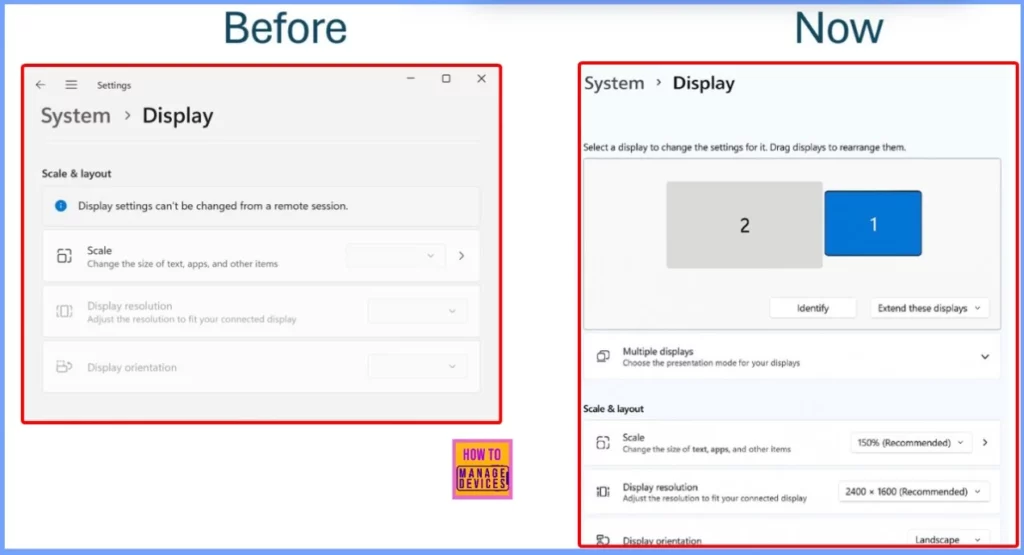
You can now adjust key settings such as resolution, scaling, screen orientation, and monitor layout directly from your Cloud PC. Previously, Windows 365 Link offered only limited display options and basic user experience.
What’s Changed Now?
The latest update brings the same advanced display controls you are used to in Windows 11. It’s designed to make your Cloud PC feel more natural and familiar.
Do I Need to Install anything to Use these Features?
No extra installation is needed. Just make sure your Windows 365 Link client is updated to the latest version, and you’ll see the new settings available automatically.
How to Use New Multi-Monitor and Display Features in Windows 365 Link
Windows 365 Link now includes full support for key display settings such as resolution, scaling, screen orientation, and multi-monitor configurations. These are common requirements for users who work across multiple displays or need precise control over how content appears on their screens.
| New Feature in Windows 365 Link | Details |
|---|---|
| Display Selection | Select a display to change its settings – Display 1 and Display 2 |
| Multiple displays | Choose the presentation mode for your displays |
| Scale & layout – Scale | Change the size of text, apps, and other items |
| Display Resolution | Adjust the resolution to fit your connected display |
| Display Orientation | Choose how your display is oriented |
- How to Create a Device Filter for Windows 365 Link Device using Intune
- Latest RDP Connectivity Requirements for Windows 365 and AVD
- Most Asked 54 Windows 365 Cloud PC Interview Questions and Answers
Need Further Assistance or Have Technical Questions?
Join the LinkedIn Page and Telegram group to get the latest step-by-step guides and news updates. Join our Meetup Page to participate in User group meetings. Also, join the WhatsApp Community to get the latest news on Microsoft Technologies. We are there on Reddit as well.
Author
Anoop C Nair has been Microsoft MVP for 10 consecutive years from 2015 onwards. He is a Workplace Solution Architect with more than 22+ years of experience in Workplace technologies. He is a Blogger, Speaker, and Local User Group Community leader. His primary focus is on Device Management technologies like SCCM and Intune. He writes about technologies like Intune, SCCM, Windows, Cloud PC, Windows, Entra, Microsoft Security, Career, etc.
Discussion