






Cross-Region Disaster Recovery Now Available for Windows 365 Frontline in Dedicated Mode
Hi, today we are on new topic, Cross-Region Disaster Recovery Now Available for Windows 365 Frontline in Dedicated Mode. Microsoft has launched a new preview feature called Cross-Region Disaster Recovery (CRDR) for Windows 365 Frontline in Dedicated Mode.
This helps protect Cloud PCs by creating backups in another Azure region, so users can keep working even if one region goes down. Many companies now use Cloud PCs for frontline workers in areas like, healthcare, and manufacturing. This new feature helps make sure their work isn’t stopped by technical issues.
This new feature, now available for early users, helps protect Cloud PCs from problems in one region by allowing them to be restored from another Azure region. With this update, Microsoft is giving them a way to keep things running smoothly even if something unexpected happens to the main system.
Cross-Region Disaster Recovery for Windows 365 Frontline keeps a complete backup of each Cloud PC, including apps, settings, and files in another Azure region. So, in this post let’s look overview of Cross-Region Disaster Recovery Now Available for Windows 365 Frontline in Dedicated Mode.

Table of Contents
Cross-Region Disaster Recovery Now Available for Windows 365 Frontline in Dedicated Mode
Above we discussed a lot of things about the new update Cross-Region Disaster Recovery Now Available for Windows 365 Frontline in Dedicated Mode and this now available in the Preview. This new feature helps make sure their work isn’t stopped by technical issue or outages. Also, this feature helps keep Cloud PCs safe and running even if there’s a problem in one region.
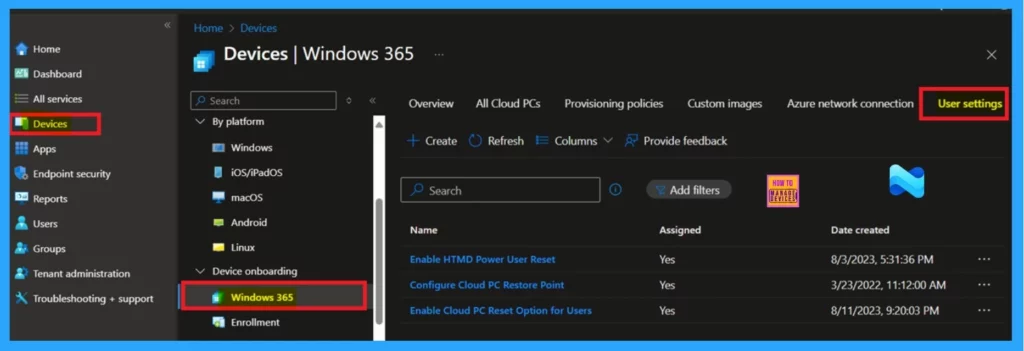
- To set up sign in to the Intune admin center, under Windows 365 > User Settings, you can now configure Cross-Region Disaster Recovery for your users.
| Details | Info |
|---|---|
| Availability | Optional service for Windows 365 Enterprise & Windows 365 Frontline (Dedicated Mode – Public Preview) |
| Release date | July 5 2025 |
| Purpose | Protect Cloud PCs & data from regional outages by creating temporary backup Cloud PCs in other regions |
- How IT Pros Can Use an iOS App to Manage Windows365 Cloud PCs using REST APIs
- How to Create a Device Filter for Windows 365 Link Device using Intune
- Latest RDP Connectivity Requirements for Windows 365 and AVD
Add User settings
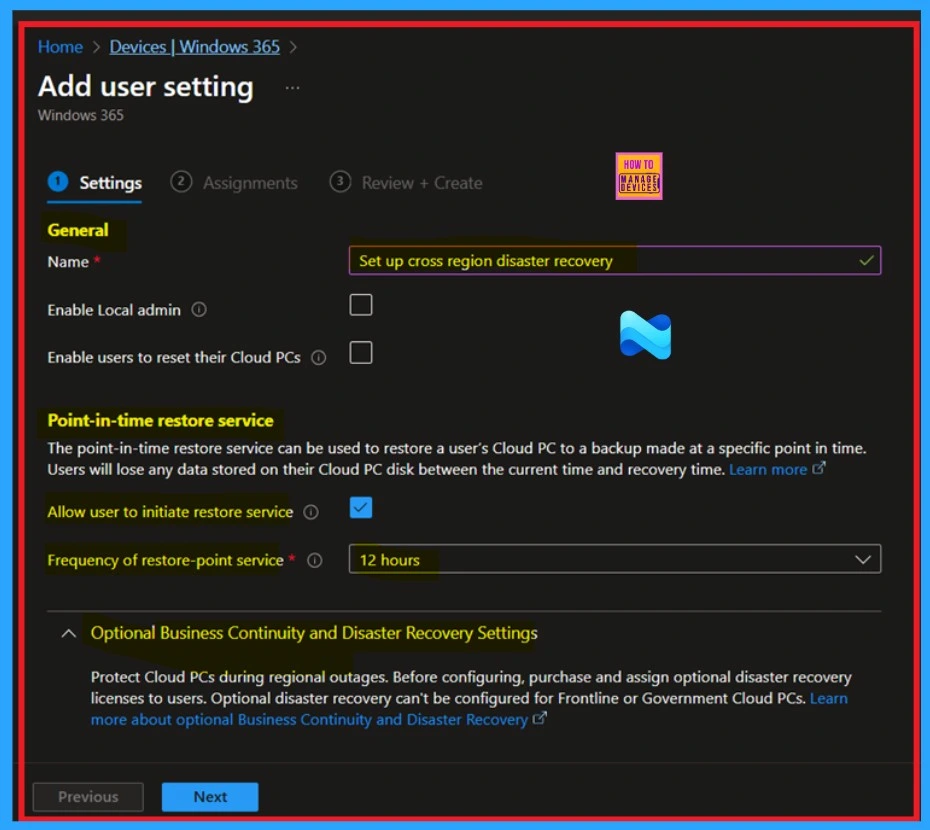
The below you can see a screenshot that is a part of the setup process for enabling the new Cross-Region Disaster Recovery feature for Windows 365 Frontline Cloud PCs. Here, admins can enter a policy name, configure local admin and reset permissions, and set up point-in-time restore, which allows a Cloud PC to be rolled back to a previous state.
- Under Point-in-time restore service, Enable the setting “Allow user to initiate restore service (optional)
- Choose the Frequency of restore-point service as 12 hours in this example, it means that how often backups are created.
- Expand Optional Business Continuity and Disaster Recovery Settings.
Cross-Region Disaster Recovery Settings
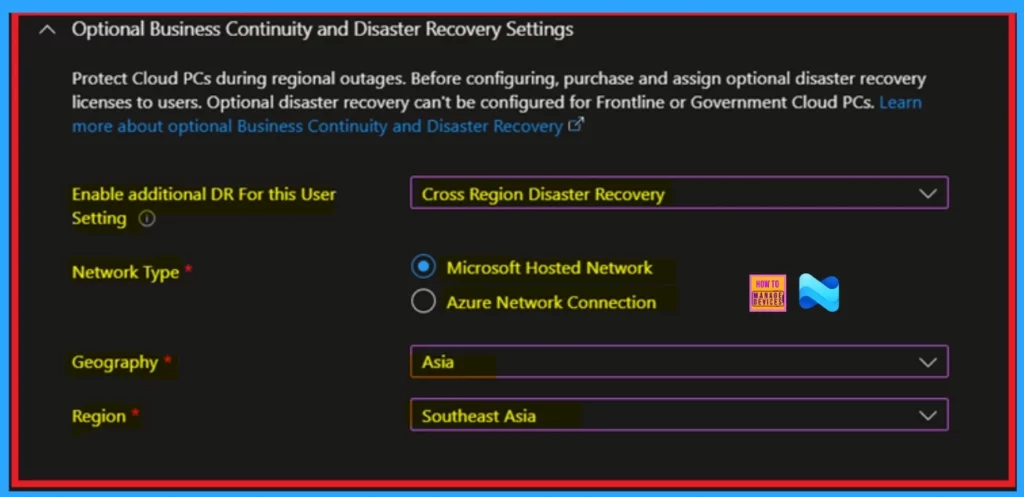
This is the Continuation of Add user setting, and it is focusing on the Optional Business Continuity and Disaster Recovery Settings. You can expand the Optional Business Continuity and Disaster Recovery Settings section to configure CRDR. This is where they can select a backup region using either a Microsoft-hosted network or their existing Azure Network Connection.
- These settings ensure that in case of a regional outage, users can continue working by restoring their Cloud PCs from the backup location by minimizing downtime and improving business continuity.
- In the Cross-Region Disaster Recovery Settings, Set Enable cross region disaster recovery to Yes.
- Enable additional DR For this User Setting – Select Cross Region Disaster Recovery
- Network Type – Select Microsoft Hosted Network.
- Select any Geography
- Set the Region
Need Further Assistance or Have Technical Questions?
Join the LinkedIn Page and Telegram group to get the latest step-by-step guides and news updates. Join our Meetup Page to participate in User group meetings. Also, join the WhatsApp Community to get the latest news on Microsoft Technologies. We are there on Reddit as well.
Reference
Cross region disaster recovery for Windows 365 Frontline in dedicated mode (preview)
Author
Anoop C Nair has been Microsoft MVP for 10 consecutive years from 2015 onwards. He is a Workplace Solution Architect with more than 22+ years of experience in Workplace technologies. He is a Blogger, Speaker, and Local User Group Community leader. His primary focus is on Device Management technologies like SCCM and Intune. He writes about technologies like Intune, SCCM, Windows, Cloud PC, Windows, Entra, Microsoft Security, Career, etc.


Discussion