






How to Make Intune Patch Reports more Useful and Efficient using Eido
Let’s discuss how to make Intune Patch Reports more Useful and Efficient using Eido. To make patch reports more useful and efficient, it is important to focus on clarity, relevance, and automation. A good patch report should highlight key information like update status, compliance trends, and devices that need attention.
Using visual tools and filters can help simplify the data and make it easier to understand. Whether you are using Intune or any other tool, the goal is to create reports that support quick decisions, reduce manual effort, and provide a clear view of your update and security health.
Intune Patch Reports give you a simple overview of which devices got updated, which ones failed to update, and which are missing important patches. These reports are used by IT teams to keep track of update progress across all devices managed by Microsoft Intune.
In this post, let’s talk about monthly patch reports a powerful way to track updates and keep your devices secure. In this post, you will get all the details you need what the report includes, why it is useful, and how you can start using it in your environment.


Table of Contents
What is Eido?
Eido is an agentless platform that simplifies Microsoft Intune management. It gives you powerful visibility, control, and reporting without the usual complexity or the need to install agents on devices.
How Does Eido help with Patch Monitoring?
Eido provides comprehensive patch monitoring and reporting. It shows you exactly which patches are missing on your Windows, Mac, and iOS devices and alerts you when a device’s OS version becomes unsupported.
How Does Eido Manage Intune Policies?
Eido offers robust configuration and compliance policy management. You can manage the following.
1. Back up your important Intune policies
2. Restore previous versions
3. Create policy baselines
4. Copy policies across different tenants
How to Make Intune Patch Reports More Useful and Efficient
Microsoft Intune is a cloud-based device management and security platform that helps organisations manage and protect their employees’ devices, apps, and data. A report is a structured way of presenting information, data, or findings on a specific topic.
- Sign in to Intune admin portal > Reports > Overview
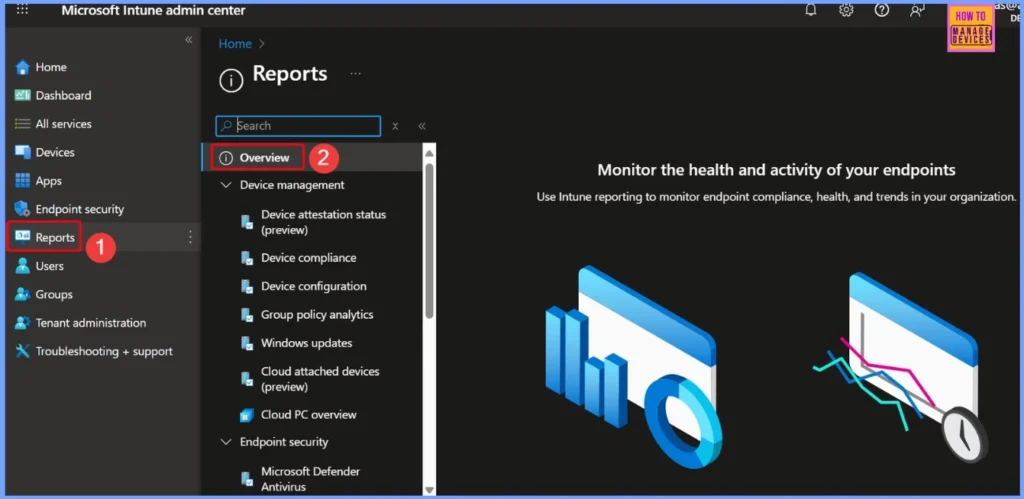
Different Types of Windows Update Reports in Intune
When you look at the Intune reporting section, you will find various types of update-related reports, such as Software Updates, Quality Updates, Feature Updates, and Windows Update Reports. Each of these gives you a different view of update compliance and patch status.
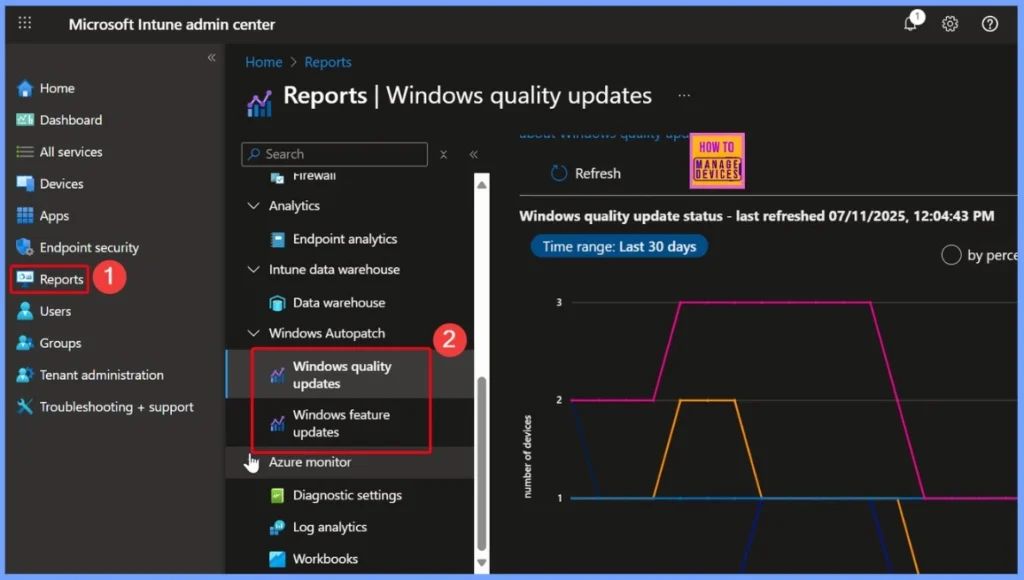
Some reports are generated in formats like 2025 06B, 06D, or Windows Quality Updates per Feature Version. These formats might seem a bit complex at first, but they give you detailed insights into how updates are being applied across different device groups and Windows versions. Understanding these different report types is key to managing and troubleshooting update compliance effectively.
- Go to Intune admin Portal > Reports > Windows quality updates
Simple and Actionable Patch Reports from Eido
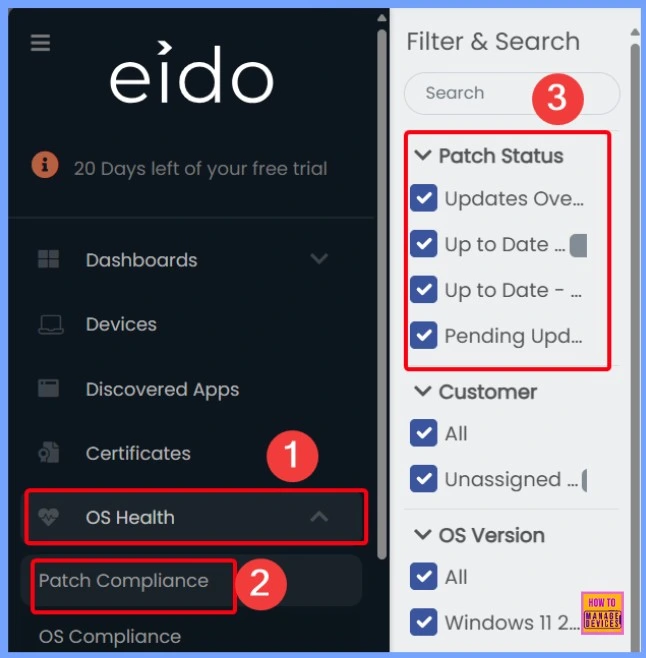
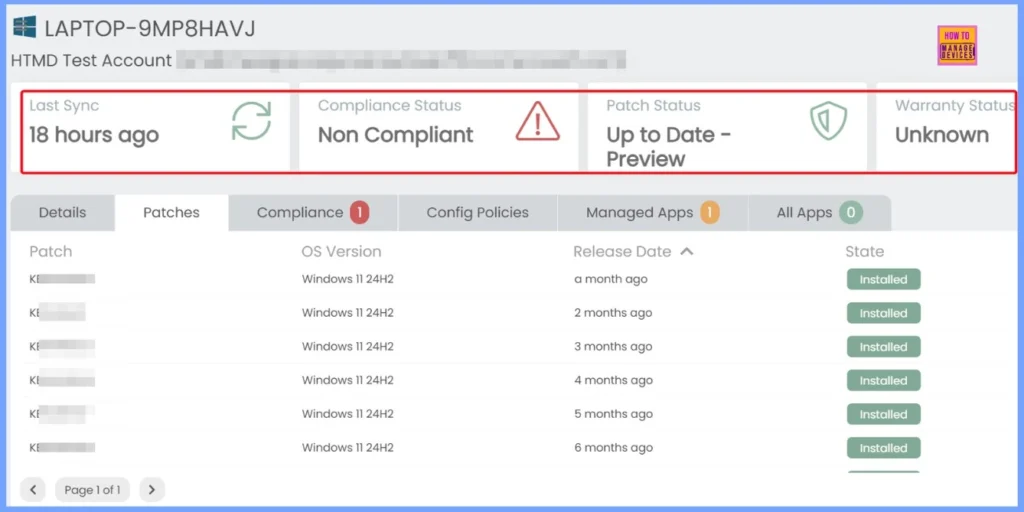
Let’s look at some reports that are simple, clear, and very easy to use. These reports show key update statuses like: Pending Updates, Updates Overdue, Up-to-Date Devices and Unknown Status. You can use these filters to quickly find the information you need, such as which devices are missing a specific KB article or which ones haven’t been updated in time.
- Go to Eido portal using the link https://app.eido.cloud/
- OS Health > Patch Compliance > Patch Updates
| key Update Status Categories Found in Intune Reports |
|---|
| Pending Updates |
| Updates Overdue |
| Up-to-Date |
| Unknown Status |
Eido Reports Come with Different Color-coded Status
Eido reports include colour coded status indicators to help you quickly understand the patch status of your devices. For example, yellow usually indicates a warning or pending update, red shows non-compliant or overdue updates, and blue means the device is up to date. These visual presentation make it easier to spot issues.
| Eido Reports include Colour Coded Status | Details |
|---|---|
| Yellow | Warning / Pending Updates |
| Red | Non-Compliant / Overdue Updates |
| Blue | Up-to-Date |
One Dashboard for All Tenants Powered by EIDO
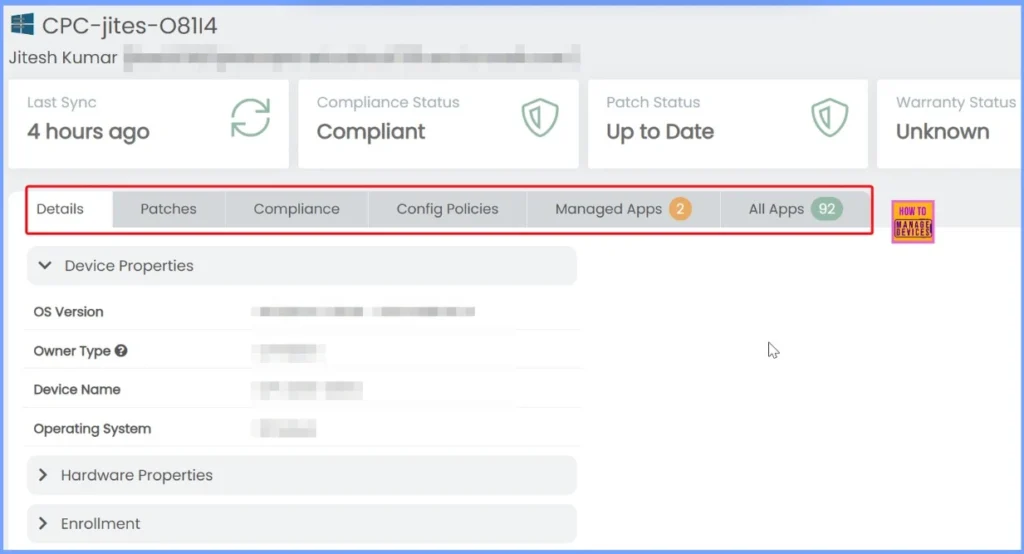
These reports are generated through EIDO, a powerful tool that works with your existing Intune subscription. If you are an MSP managing multiple clients, EIDO makes your job easier by allowing you to add and manage multiple Intune tenants in one place.
You can view patch compliance across all environments and access everything through a single, unified console. It helps with easy reporting, improves visibility, and ensures you stay on top of patching and compliance for every tenant you support.
How to Make Intune Patch Reports more Useful and Efficient? – HTMD Video
In this video, you will get all the details of how to make Intune patch reports more useful and efficient for your day-to-day device management. It covers important topics like generating monthly patch reports, understanding the different kinds of patch reports available in Intune, and how to interpret the various status indications.
Need Further Assistance or Have Technical Questions?
Join the LinkedIn Page and Telegram group to get the latest step-by-step guides and news updates. Join our Meetup Page to participate in User group meetings. Also, join the WhatsApp Community to get the latest news on Microsoft Technologies. We are there on Reddit as well.
Author
Anoop C Nair has been Microsoft MVP for 10 consecutive years from 2015 onwards. He is a Workplace Solution Architect with more than 22+ years of experience in Workplace technologies. He is a Blogger, Speaker, and Local User Group Community leader. His primary focus is on Device Management technologies like SCCM and Intune. He writes about technologies like Intune, SCCM, Windows, Cloud PC, Windows, Entra, Microsoft Security, Career, etc.


Discussion