






How to use Intune Inventory to Check BitLocker Encryption Status of Windows Devices
Let’s discuss How to use Intune Inventory to Check BitLocker Encryption Status of Windows Devices. Encryptable Volume is a tool that checks if a computer’s drives (like C: or D:) can be protected using encryption and whether they are already protected.
Encryption is a method of keeping data safe by locking it, so only authorised individuals can access it. IT administrators use this feature to make sure company computers are following security rules. It helps them find out which devices are protected and which ones still need encryption.
One of our recent posts demonstrates how to collect Disk Drive ID details using the Intune Properties Catalog simply and efficiently. A Disk Drive is the physical part of a computer thatstores everything from the Windows operating system to apps, files, and personal data.
In this post, you will get all the details about the EncryptableVolume setting available in the Intune Properties Catalog. This setting is used to retrieve the encryption status of storage volumes on a Windows device.

Table of Contents
How to use Intune Inventory to Check BitLocker Encryption Status of Windows Devices
EncryptableVolume includes a set of policies that gives specific insights. The VolumeId represents a unique identifier for the encrypted volume, while the WindowsDriveLetter shows the actual drive letter (like C:\ or D:) assigned to the volume.
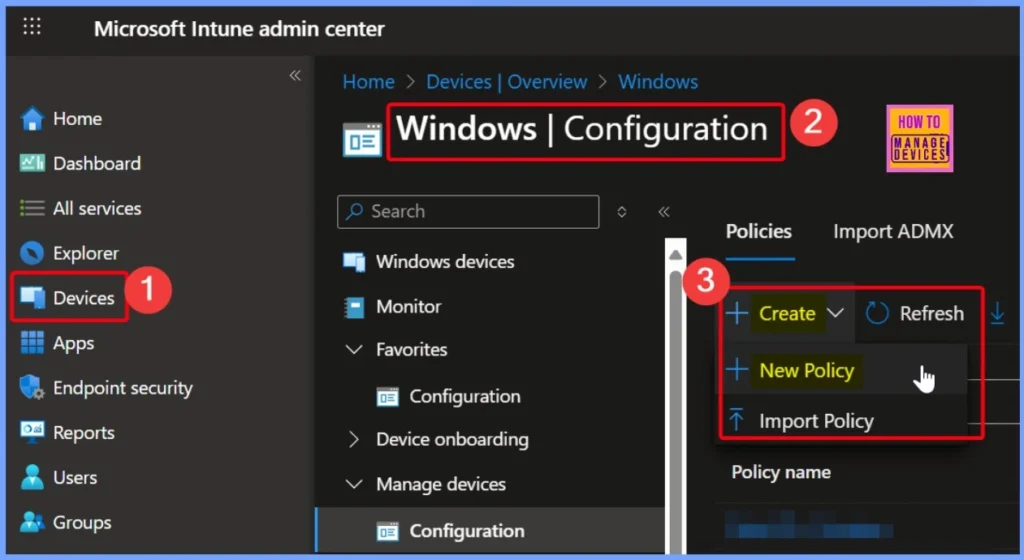
- Go to Microsoft Intune admin center.
- On the left side, click on Devices, then go to Manage devices and choose Configuration.
- Next, click Create, and select New Policy to start setting up your profile.
| Property | Description | Supported platforms |
|---|---|---|
| VolumeId | ID of the encrypted volume. | Windows |
| WindowsDriveLetter | Drive letter of the encrypted drive. | Windows |
| PersistentVolumeId | Persistent ID of the drive. | Windows |
| ProtectionStatus | The BitLocker protection status of the drive. | Windows |
| EncryptionMethod | The encryption type of the device. | Windows |
| EncryptionPercentage | The percentage of the drive that is encrypted. | Windows |
| Locked | The accessibility status of the drive from Windows. | Windows |
- How to Track Device Battery Information using Intune Property Catalog
- How to Collect Physical and Virtual Memory Information using Intune Properties Catalog
- Intune Managing OneDrive File Downloads for Low Disk Space
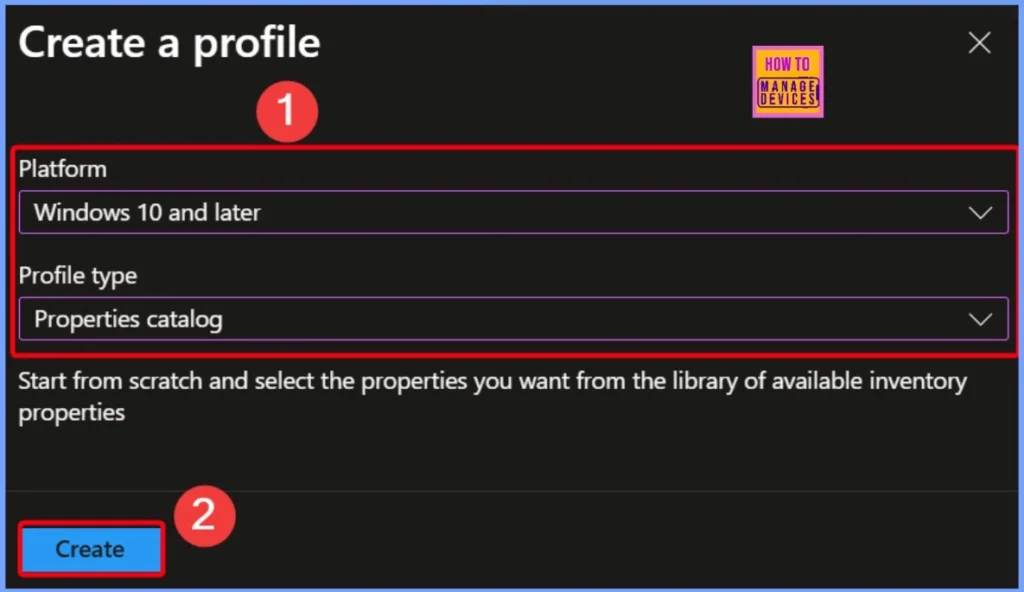
Create a New Configuration Profile
To begin collecting Encryptable Volume details using Intune, start by creating a new configuration profile. First, select the platform as Windows 10 and later, which ensures compatibility with modern Windows devices. Next, choose the profile type as Properties catalog. Click Create to Proceed.
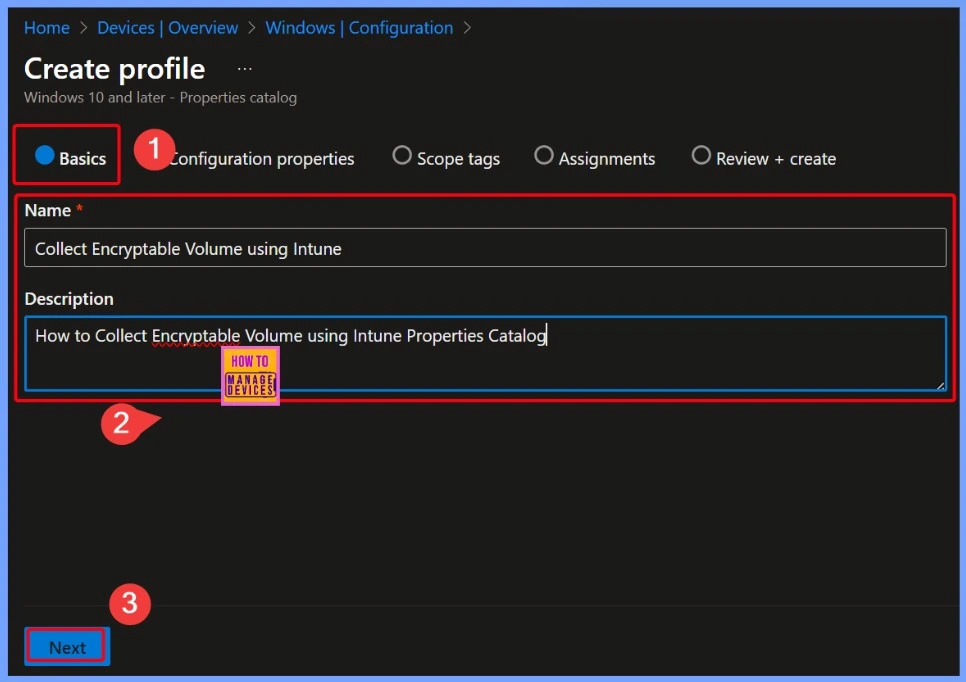
Basics Settings Page
On the Basics settings page, give your profile a clear and simple name like “Collect Encryptable Volume using Intune” so it is easy to identify later. In the Description field, write “How to collect Encryptable Volume using Intune Properties Catalog” to explain exactly what this profile does.
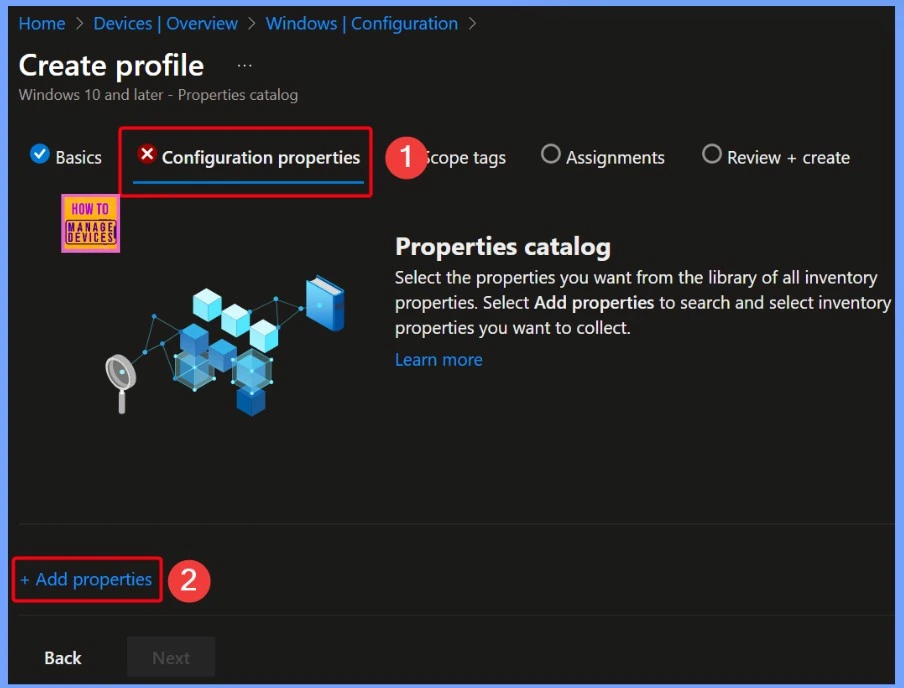
+Add Properties
Encryptable Volume details play a important role in helping IT admins and organizations maintain data security and compliance. For IT admins, these details provide visibility into the encryption status of each device.
- You will see a +Add properties option, clicking this allows you to select the exact device information you want to gather.
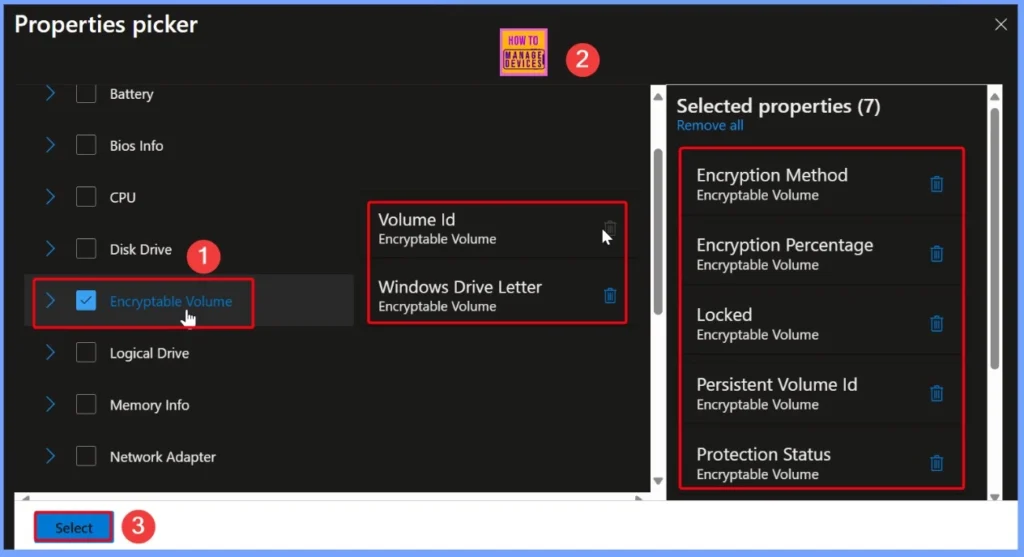
Encryptable Volume
In the properties picker, you will see a list of available settings, and one of them is Encryptable Volume. When you select this option while creating the policy, it will show you a set of related settings that help you check the encryption status of a device’s drives.
| Encryptable Volume |
|---|
| Encryptable Volume |
| Windows Drive Letter |
| Encryption Method |
| Encryption Percentage |
| Locked |
| Persistent Volume Id |
| Protection Status |
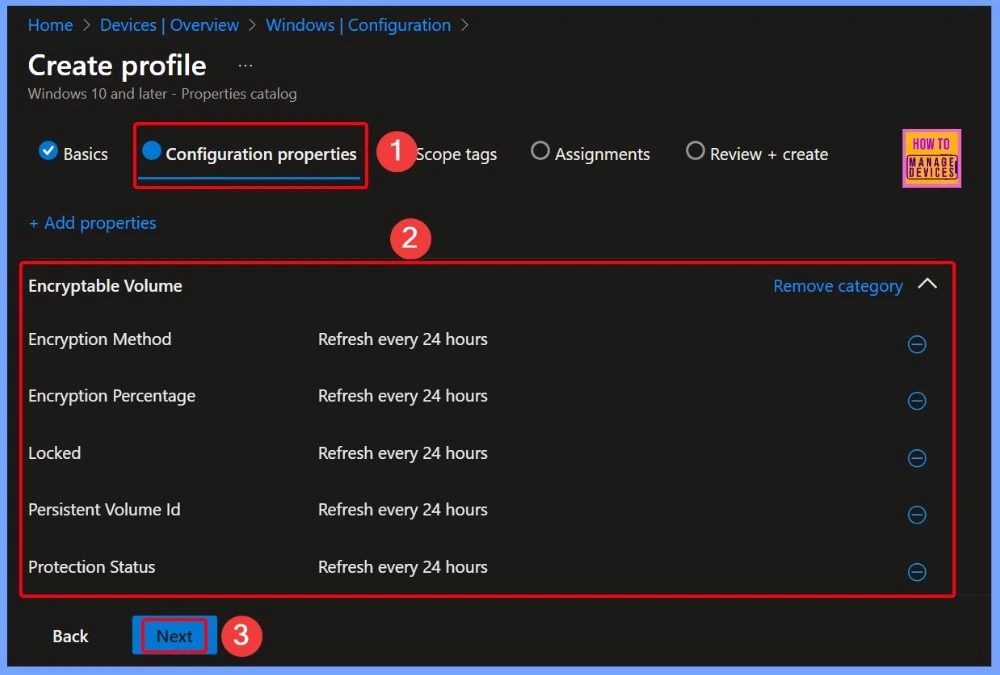
Configuration Properties
In the window shown below, you can see that all the settings related to Encryptable Volume have been selected and configured. These settings allow you to collect important encryption details from the devices. After reviewing and making sure everything is set correctly, simply click the Next button to continue with the profile creation process.
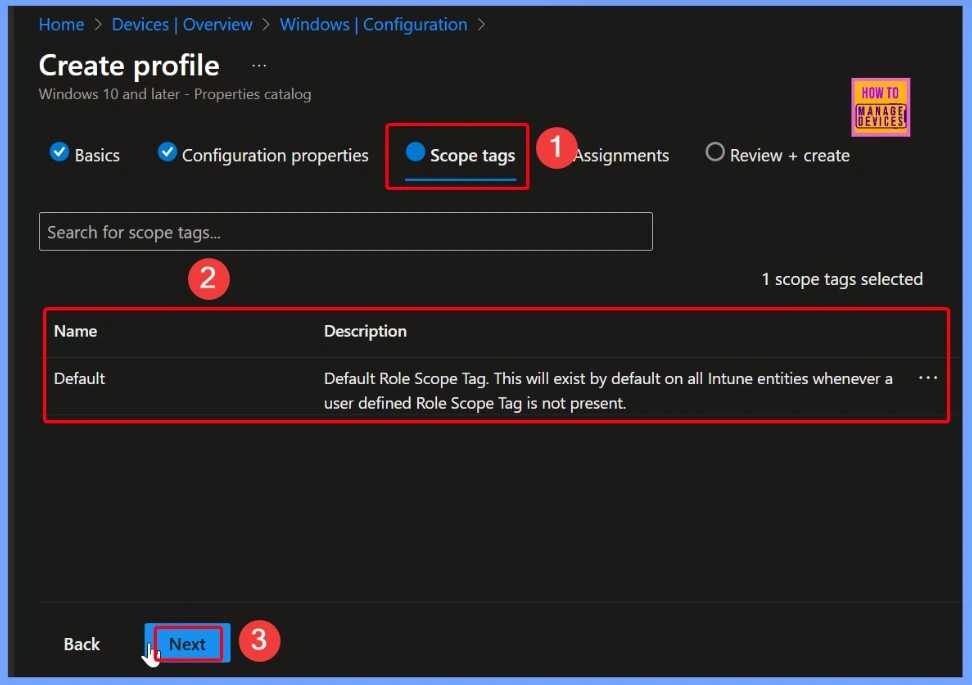
Control Access through Scope Tag
In Microsoft Intune, a Scope Tag is a way to control access and visibility to resources. It is important to note that scope tags do not affect the end user’s experience. Scope Tag is for managing what admins can see and control within the Intune console.
Assignments Help you Control Who Gets What
Assignments help you control who gets what, ensuring only the intended users or devices receive a particular app, policy, or restriction. This is key for maintaining a clean, secure, and efficient device management environment.
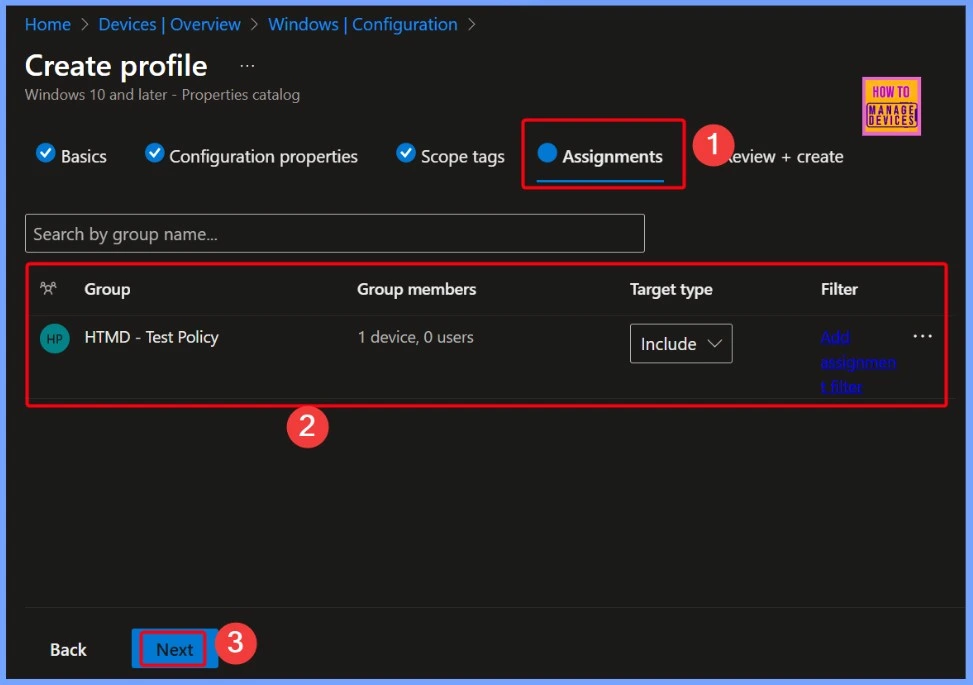
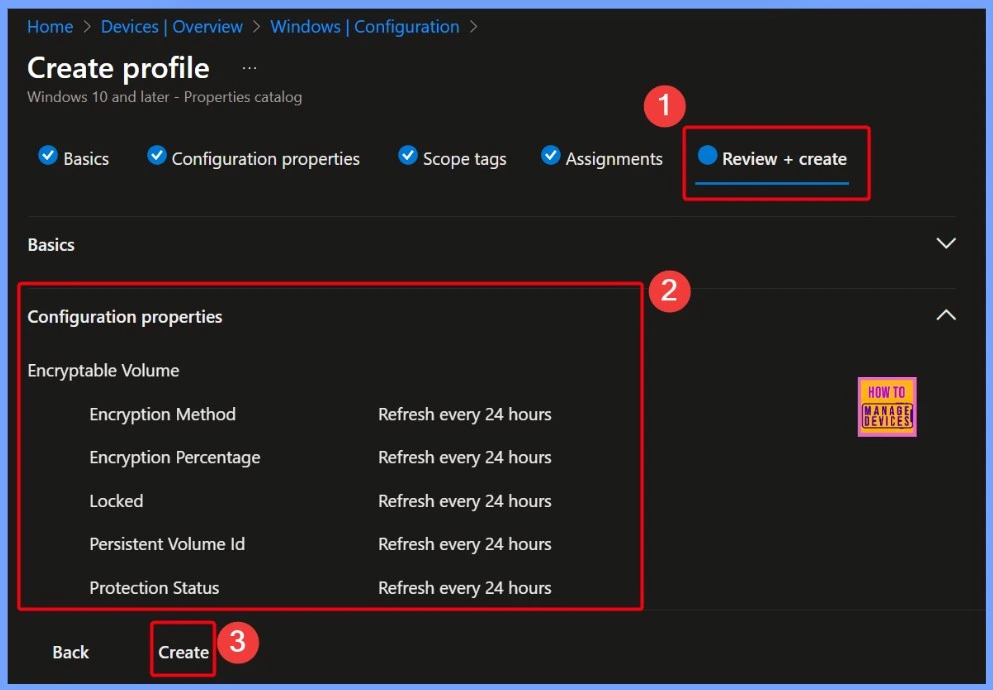
Create Button to Save and Deploy the Policy
Here you will see a summary of all the settings you have configured. It allows you to double-check your choices before applying the configuration. If everything looks correct, you can click the Create button to save and deploy the policy.
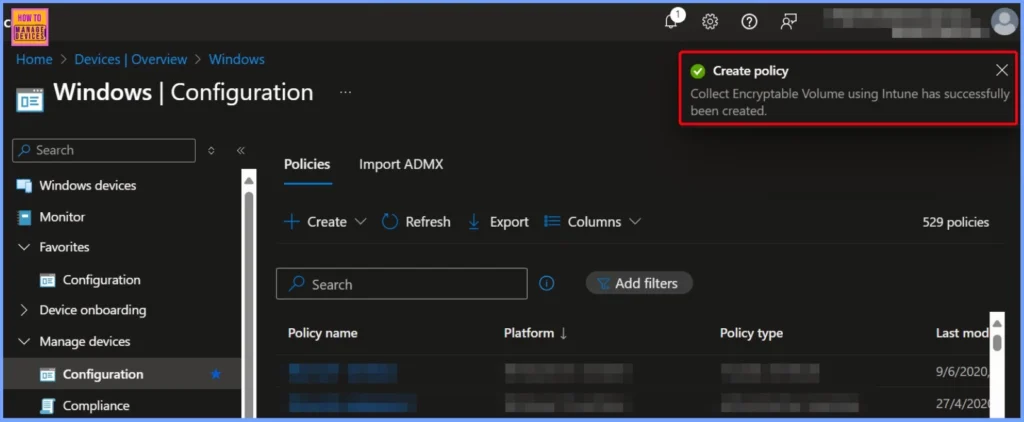
Monitoring Status
In the window below, you will see a notification confirming that the policy has been successfully created. The policy is now ready to be deployed to the assigned devices, ensuring that encryption status data will be collected as intended.
| Create Policy |
|---|
| Collect Encryptable Volume using Intune has successfully been created |
End Result
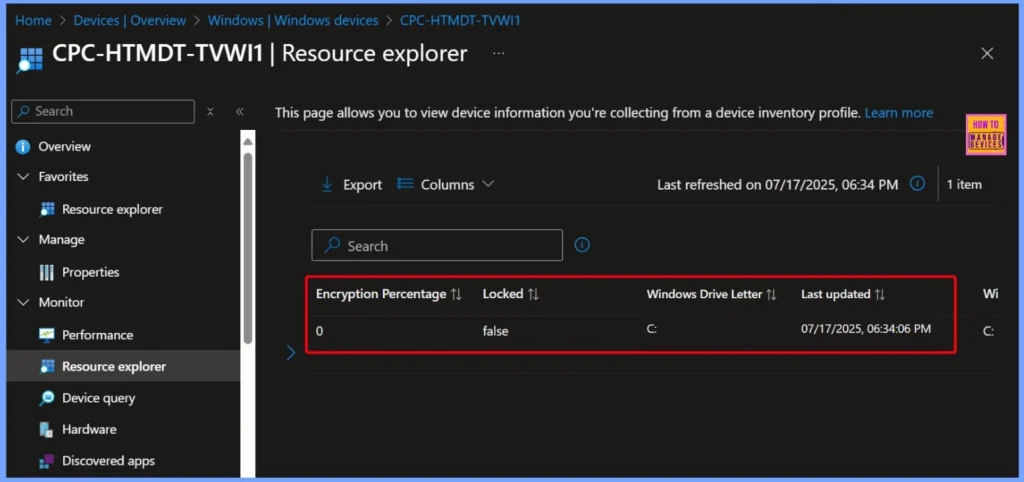
To view the collected Encryptable Volume data, go to Devices > Windows Devices in the Intune portal and select the specific device you want to check. Under the Monitor section, click on Resource Explorer, then choose the EncryptableVolume category to see detailed encryption-related information.
Starting with Intune’s September 2509 release, the Resource explorer pane will be renamed to Device inventory. This is a UI update only no changes will be made to functionality or data. The new name will appear under Devices > select a platform > select a device > Monitor, and will be visible if you have at least one corporate-owned or Windows device targeted by a properties catalog policy.
| Volume Id | Encryption Method | Encryption Percentage | Locked | Persistent Volume ID | Protected Status | Windows Drive Letter | Last updated |
|---|---|---|---|---|---|---|---|
| \\?\Volume{2b4ca538-8fbba-4d0e-87866-20aa67660c36aa}\? | NONE | 0 | False | UNPROTECTED | C: | 07/17/2025, 06:34:06 PM |
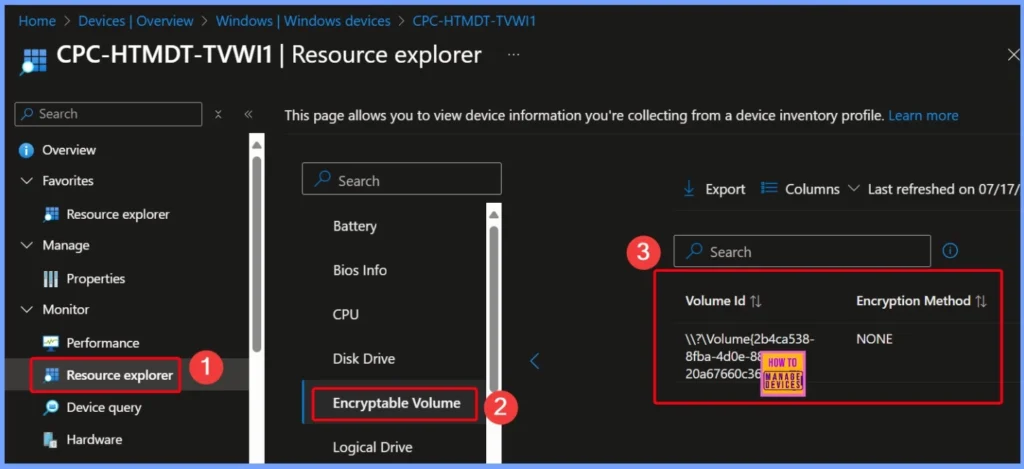
Collected Encryptable Volume Data
Here is the collected Encryptable Volume information for the device. The Volume ID shows the unique name of the drive. The Encryption Method is listed as “None,” which means the drive is not encrypted. The Encryption Percentage is 0, confirming that no part of the drive is protected. The drive is not locked, and its status is marked as UNPROTECTED.
Need Further Assistance or Have Technical Questions?
Join the LinkedIn Page and Telegram group to get the latest step-by-step guides and news updates. Join our Meetup Page to participate in User group meetings. Also, Join the WhatsApp Community to get the latest news on Microsoft Technologies. We are there on Reddit as well.
Author
Anoop C Nair has been Microsoft MVP from 2015 onwards for 10 consecutive years! He is a Workplace Solution Architect with more than 22+ years of experience in Workplace technologies. He is also a Blogger, Speaker, and Local User Group Community leader. His primary focus is on Device Management technologies like SCCM and Intune. He writes about technologies like Intune, SCCM, Windows, Cloud PC, Windows, Entra, Microsoft Security, Career, etc.


Discussion