






OneNote Text Prediction for user Policy Deployment using Intune
Hi, today we are discussing OneNote Text Prediction for user Policy Deployment using Intune. We all are aware about the use of OneNote. This is one of the important features that helps to organize and collect important data on your system so we can say that it is act as a virtual notebook.
text prediction is one of the features of OneNote, which suggests the next word while typing. This feature in Microsoft OneNote can be controlled by a policy setting, allowing organizations to decide if users can use it. This setting only works with subscription-based Office versions like Microsoft 365 Apps for enterprise.
This policy controls whether users can see and use text predictions when writing notes in English in OneNote. If the policy is Enable or not set at all, the users can accept suggestions by pressing the Tab or Right Arrow key. This makes writing quicker and easier, especially when typing long content.
If an organization turns off this policy, text predictions will be completely disabled in OneNote. Users won’t see any suggestions or be able to use them. This can be useful in places where manual typing is more preferred. So, in this post let’s look how this policy to be worked.

Table of Contents
What happens When the policy is Disabled?
OneNote text prediction for user Policy- Get Started
We have discussed many important points about OneNote’s text prediction feature. It’s a useful tool that can be enabled through the Intune policy. Text prediction is a common feature in many typing tools and can improve writing speed and accuracy.
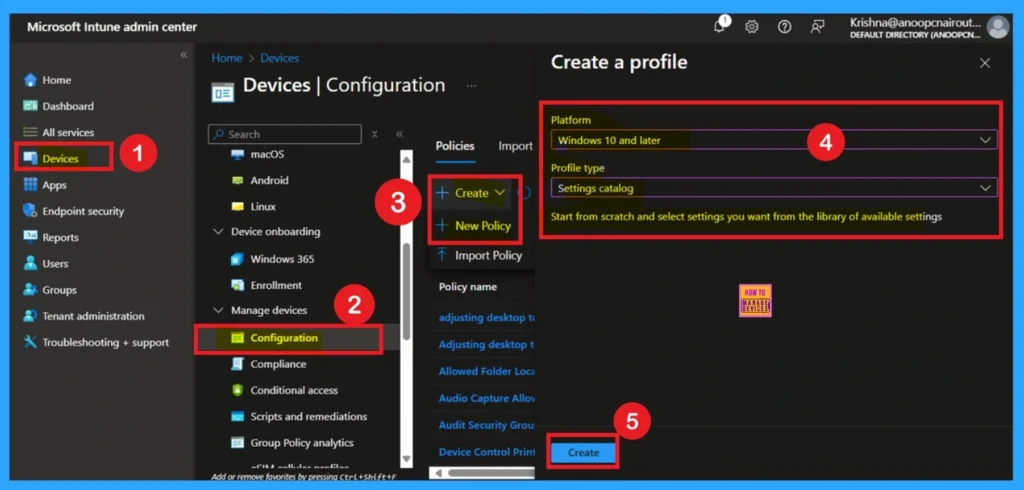
- Open the Microsoft Intune portal.
- Navigate to Devices > Configuration.
- Click on Create to start a new profile.
- Then a window titled Create a profile will appear.
- Add the platform and Profile Type details to be entered
- Platform Windows 10 and later.
- Profile Type as Setting catalog
- Enable Disable Full Screen Mode in MS Edge Browser using Intune Policy
- Allow Manual Start of Microsoft Account Sign In Assistant Using Intune Settings Catalog
- How to Allow Direct Memory Access for Data Protection Through Intune Settings Catalog
Basic Details for Policy
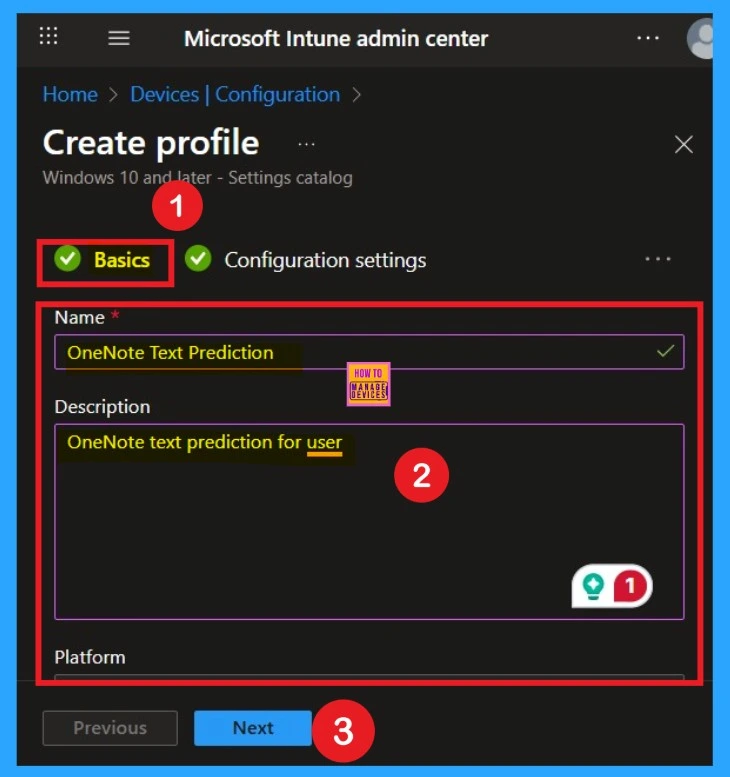
In the Basics tab, enter a name for your policy in the Name field. You can also include a description to provide more details about the policy’s purpose. This helps in identifying the policy later. The policy name and its description will be visible as shown in the screenshot below.
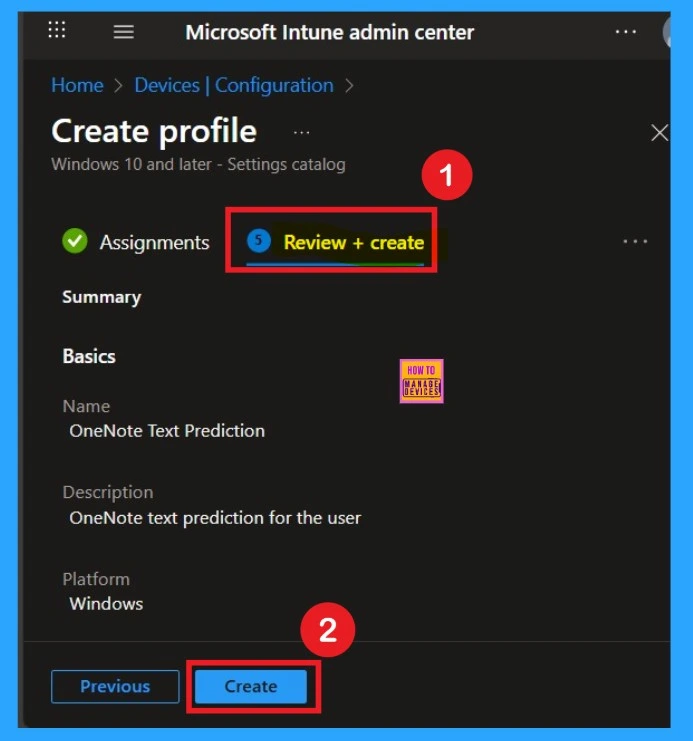
- Name: OneNote Text Prediction
- Description: OneNote text prediction for user
How to Add Configuration Settings
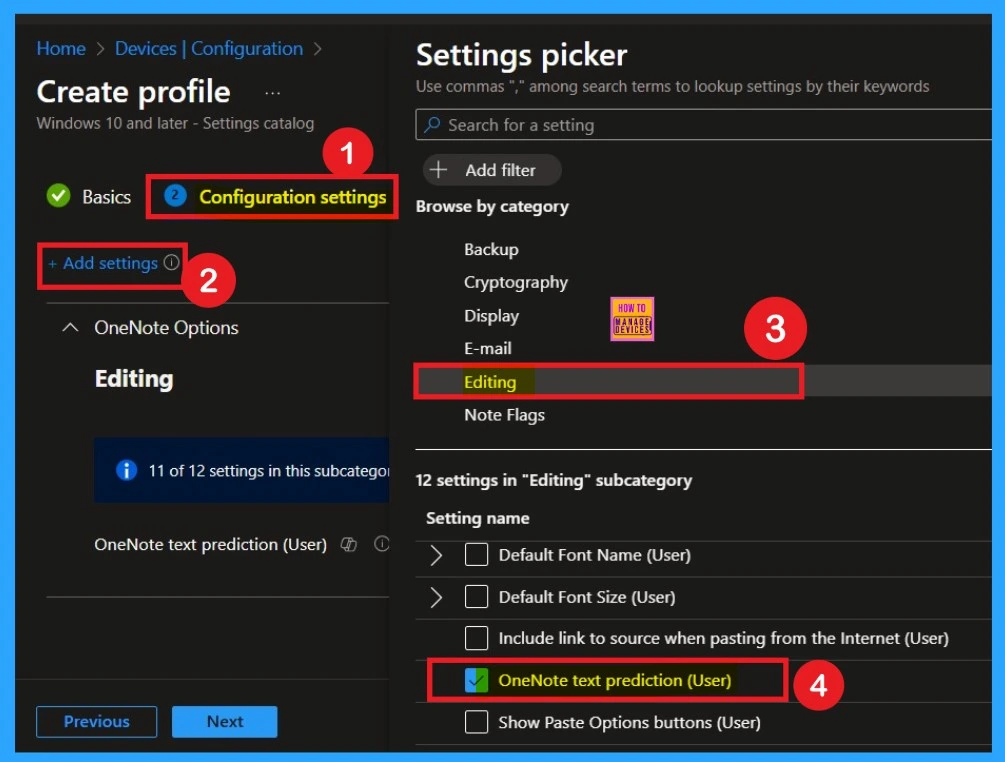
After completing the Basics tab, you will be on the Configuration settings page. This step is very important. Click on the + Add settings button. Once you click it, you will see the categories to browse through. In the search or category list, select the OneNote option. When you click on OneNote, and dropdown arrow icon will appear. Click the arrow to expand and view more options related to OneNote.
- From the expanded list, choose the Editing option.
- Under Editing, you will see different settings and policies there are 12 in total.
- From these, select the OneNote Text Predictions for Users setting.
- Once selected, a blue checkmark will appear next to it.
- Then close the Settings Picker window.
Settings Disabled for OneNote Text Prediction for user Policy
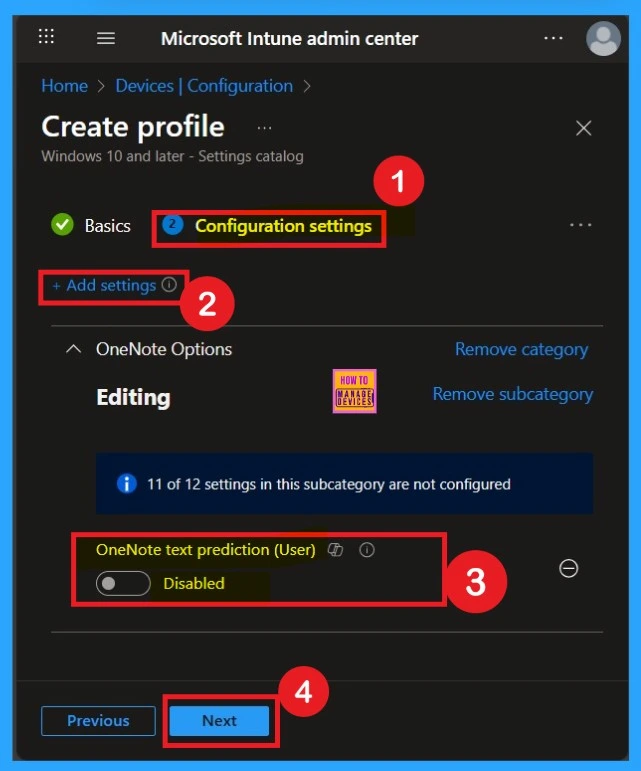
Now you are on the Configuration settings main page. Here, you will see that the selected policy has appeared in the list. By default, it is set to Disabled. If you want to keep it disabled that means, you do not want text prediction enabled in your organization, so you can just click Next to continue.
Settings Disabled for OneNote Text Prediction Policy –Enabled
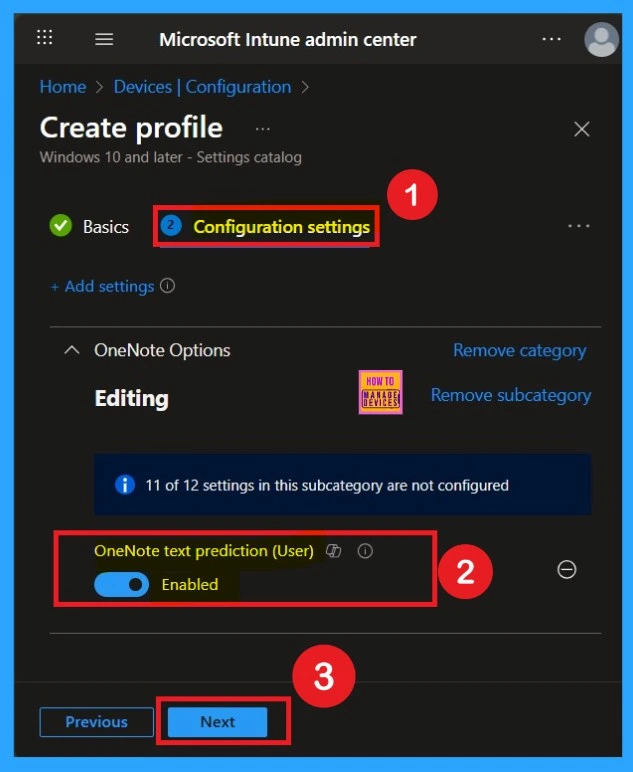
If you want to enable this policy and your organization needs the text prediction feature in OneNote, you have to turn the policy on. To do this, toggle the switch from left to right. Once enabled, the toggle will turn blue, indicating that the setting is now Enabled.
- After enabling it, click Next to continue with the setup.
Know the Scope Tags
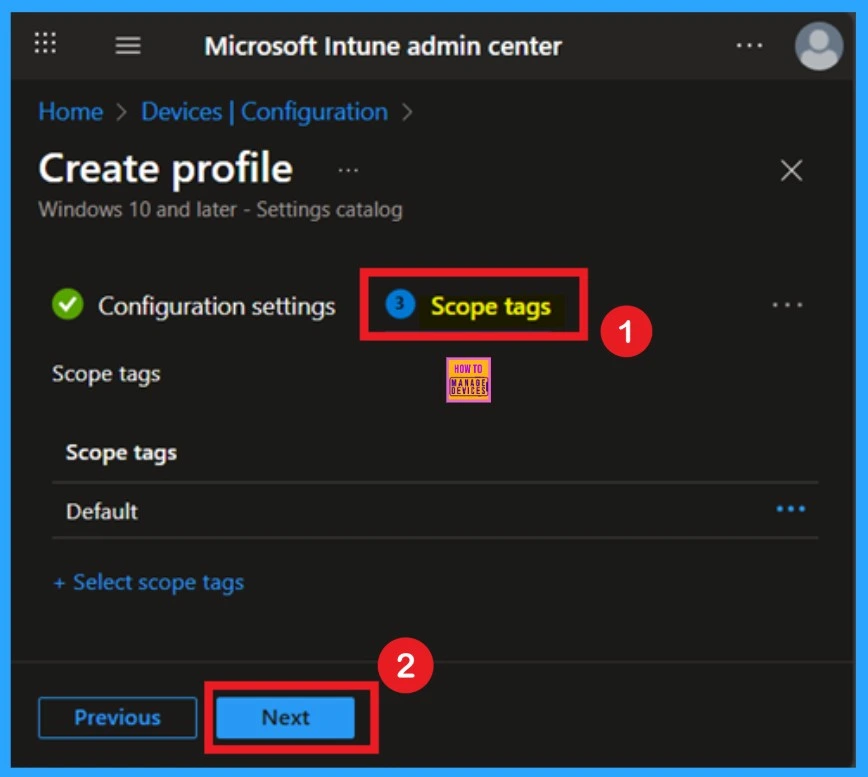
Now you are on the Scope Tags page. Scope tags can be important in certain cases for policy deployment. In this example, I have chosen to skip this section. However, if you want to add a scope tag to the policy, you can select the “Add scope tag” option, which is highlighted in blue.
- I’m skipping this step, So, I click Next to continue.
Know about the Assignments
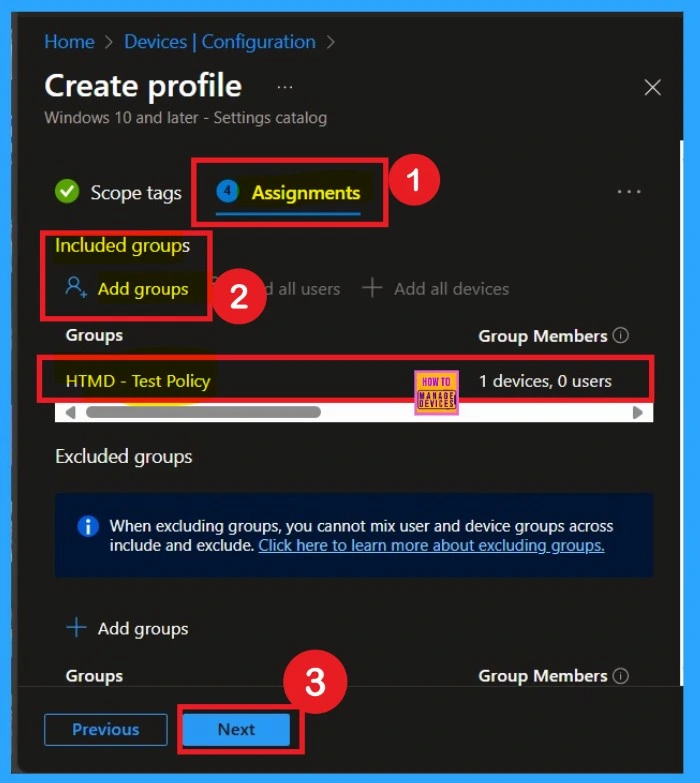
When deploying a policy, the main aim is to specify which organizational group the policy should be applied to In this tab, you can easily make your selection by clicking on “Add groups” under the Include section. Once clicked, a list of available groups will appear.
- In this example, I selected the HTMD Test Policy group.
- Then Click on the Next.
Policy Creation- Review + Create
The final step is the Review + Create section. You’ll see a summary of everything you’ve entered, including basic details, settings, and group assignments. If something you want to change, you can go back previous tabs and edit it. Once you’re ok with everything, click Create. You’ll get a message saying the policy was created successfully.
Monitoring Status
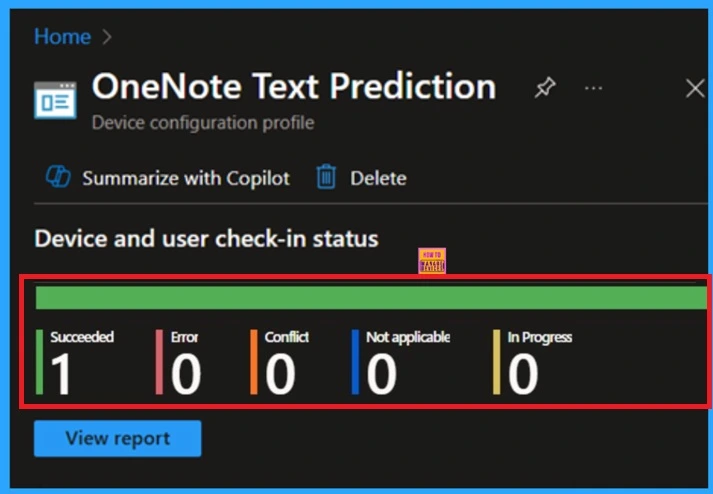
After creating the policy, the next step is to check if it was applied successfully. Always remember that it can take up to 8 hours for the policy to be fully deployed. If you’ve synced the policy through the Company Portal, you can check its status easily. Just go to Devices > Configuration, then search for the name of your policy in the list.
- Click on the policy to see the Device check-in status for both devices and users.
- In the screenshot below, you’ll see it says “Succeeded: 1” this means the policy was deployed successfully.
Client-Side Verification through Event Viewer
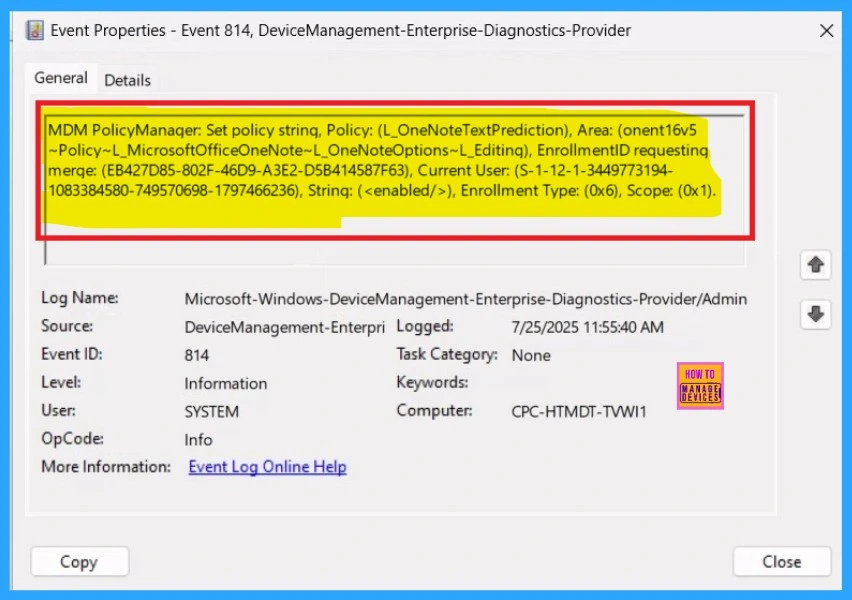
You can check the confirmation in the Event Viewer. To do this, open Event Viewer and look for Event ID 813 or 814. Go to: Applications and Services Logs > Microsoft > Windows > Device Management Enterprise Diagnostic Provider > Admin.
- There, you’ll see a list of policy-related events. It might be difficult to figure out which one shows the right details, so use the “Filter Current Log” option on the right side to narrow down the results.
- In my case, I found the policy details in the Event ID 814.
| Policy Details |
|---|
| MDM PolicyManager: Set policy string, Policy: (L_OneNoteTextPrediction), Area: (onent16v5 ~Policy~L_MicrosoftOfficeOneNote~L_OneNoteOptions~L_Editing), EnrollmentlD requesting merqe: (EB427D85-802F-46D9-A3E2-D5B414587F63), Current User: (S-1-12-1-3449773194- 1083384580-749570698-1797466236), Strinq: (), Enrollment Type: (0x6), Scope: (0x1). |
Delete the Policy from Intune Portal
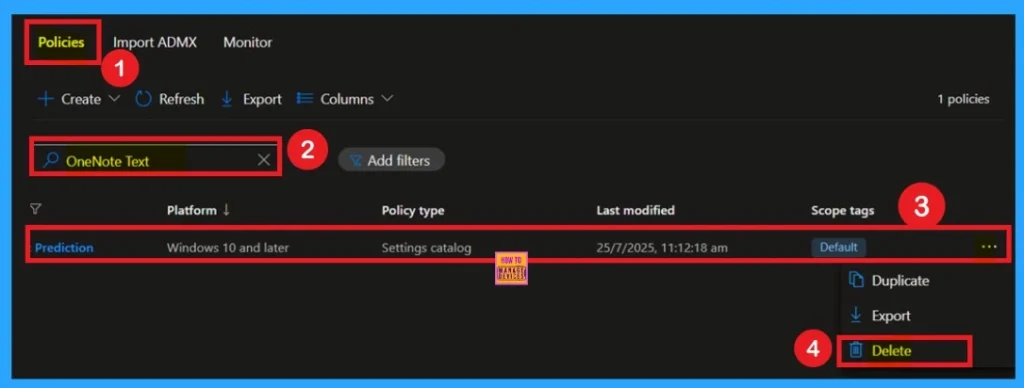
If you want to delete the policy of Text Prediction for OneNote that you created, you can easily do that. First go to the Device Configuration then search the policy name and now you get the policy here click on the 3 dot menu of the policy then click on the Delete and the policy Deleted permenantly.
Removing the Policy Group
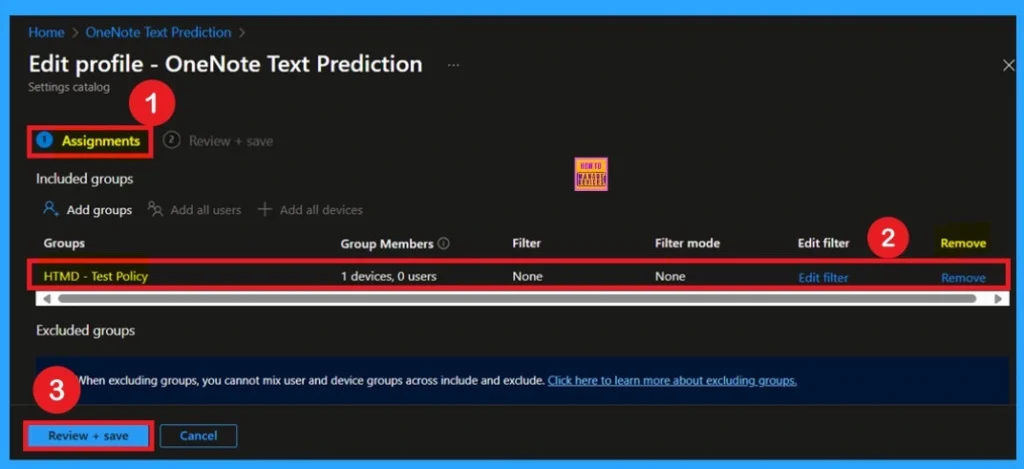
If you want to remove any group from your policy after the policy creation you can easily do that. First go to the Device Configuration then search the policy name and now you get the policy monitoring status page. Here you have to scroll down and you will get the Assignment section there you will get an edit option.
- In the Assignment page you can see the Remove option Click on that for removing the Policy.
Need Further Assistance or Have Technical Questions?
Join the LinkedIn Page and Telegram group to get the latest step-by-step guides and news updates. Join our Meetup Page to participate in User group meetings. Also, Join the WhatsApp Community to get the latest news on Microsoft Technologies. We are there on Reddit as well.
Author
Anoop C Nair has been a Microsoft MVP for 10 consecutive years from 2015 onwards. He is a Workplace Solution Architect with more than 22+ years of experience in Workplace technologies. He is a Blogger, Speaker, and Local User Group Community leader. His primary focus is on Device Management technologies like SCCM and Intune. He writes about technologies like Intune, SCCM, Windows, Cloud PC, Windows, Entra, Microsoft Security, Career, etc.


Discussion