






Fixing Device Limit Errors on iOS with Microsoft Entra
Let’s discuss Fixing Device Limit Errors on iOS with Microsoft Entra. When you try to enroll your iPhone or iPad into Intune, you might see a message in the Company Portal app that says This device is not registered. This usually happens because you have reached the Microsoft Entra device limit for your account.
This issue usually happens in every device in Entra and Intune. This Error means the device was not fully registered due to the device cap being reached. Also, the device might not actually register properly, even though the setup appeared to be successful.
This can cause a confusing problem that is your device shows up in the Company Portal app, but it also has an error message that says it isn’t registered. This happens because Microsoft Entra enforces user per device caps to ensure security and compliance.
That means, if the maximum is set to 5 devices, a user cannot register a 6th device until one of the existing registered devices is removed or the administrator increases the limit. To fix this, administrators can remove stale or unused device entries from the user’s registered devices list in Microsoft Entra. Let’s look detailed workarounds.

Table of Contents
Fixing Device Limit Errors on iOS with Microsoft Entra
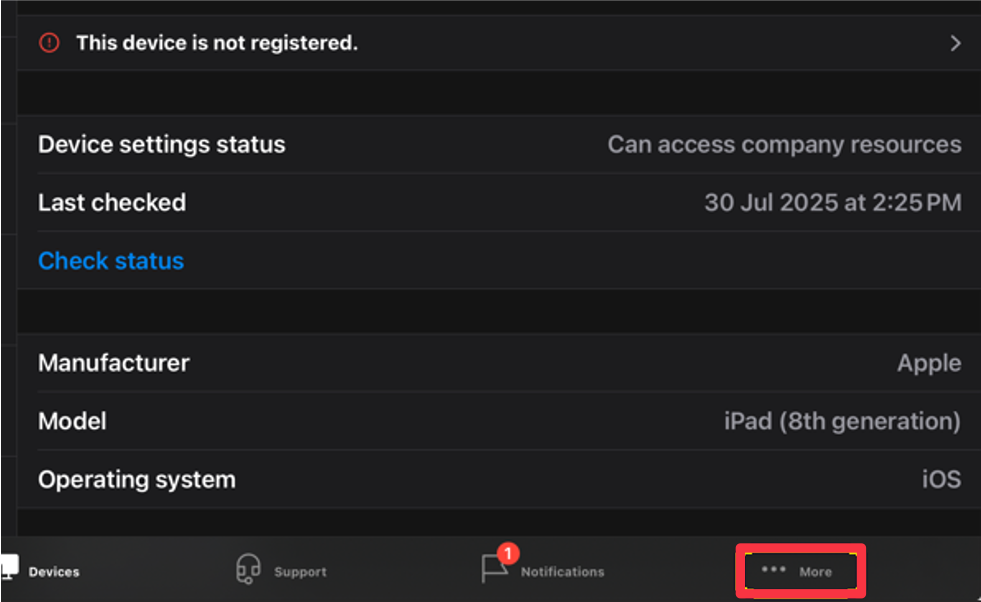
Let’s look how this issue solved in this post, In the screenshot below, you can see an example of this error. Even though the device has been enrolled, the Company Portal clearly shows the warning This device is not registered.
- This message indicates that the device has not been fully registered with Microsoft Entra because the user has already reached their maximum allowed number of registered devices.

- How to Get Device Enrollment Details by User in Intune Explorer with Security Copilot
- How to use Intune Explorer with Security Copilot to Find Windows and MacOS Device Data across your Tenant
- Copilot with Endpoint Privilege Manager to Identify Potential Elevation Risks using Intune
Collect Logs from the Company Portal app
Users can collect logs from the Company Portal app. On the bottom menu of the app, select More, then choose Send logs > Email Logs. These logs provide detailed information about why the registration failed and can be shared with the IT administrator for troubleshooting.
| Error |
|---|
| This device is not Registered |
Workarounds – Remove Old Devices
To fix this, administrators can remove stale or unused device entries from the user’s registered devices list in Microsoft Entra. This frees up space so that the new iOS device can successfully register. Admins should carefully validate which devices are inactive to avoid disrupting access on active ones.
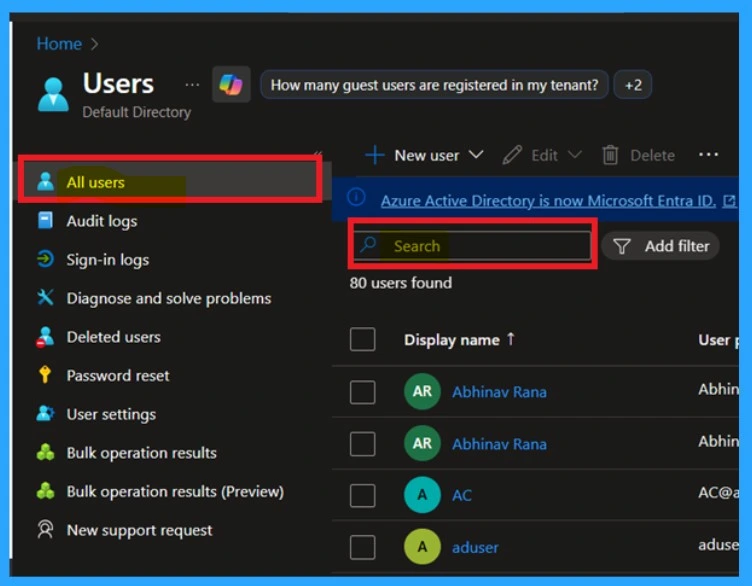
- So to do this navigate through the Navigate to Microsoft Entra ID > Users.
- Search for the user using their UPN.
- Select Devices.
- This displays a list of registered devices for the user. Devices that are no longer in use can be removed.
Increase the Device Limit
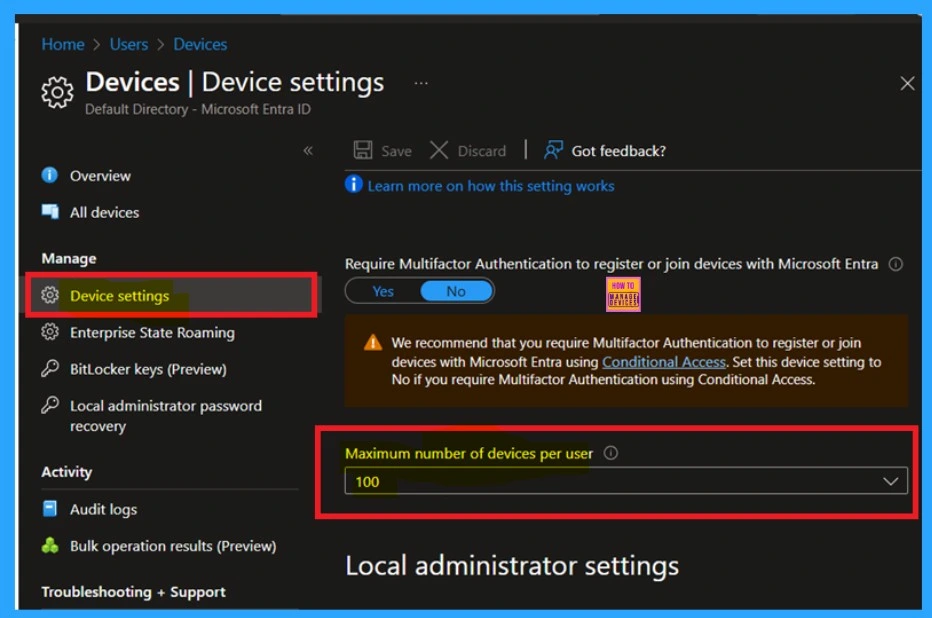
By default, Microsoft Entra allows a set number of devices per user, often limited to 5. To increase this limit, administrators need to navigate to the Microsoft Entra Admin Center, go to Devices, and then select Device settings.
- Locate Maximum number of Devices Per User.
- Adjust the device limit as needed.
- Here shows there are maximum number of device per user is 100.
ReEnroll Devices If it Needed
To fix this, first remove the device from Microsoft Entra. Then, reset the device’s management profile on the device itself. Finally, re-enroll the device using the Intune Company Portal. Sometimes this will help you to solve the issue.
Need Further Assistance or Have Technical Questions?
Join the LinkedIn Page and Telegram group to get the step-by-step guides and news updates. Join our Meetup Page to participate in User group meetings. Also, Join the WhatsApp Community to get the latest news on Microsoft Technologies. We are there on Reddit as well.
Author
Anoop C Nair has been Microsoft MVP for 10 consecutive years from 2015 onwards. He is a Workplace Solution Architect with more than 22+ years of experience in Workplace technologies. He is a Blogger, Speaker, and Local User Group Community leader. His primary focus is on Device Management technologies like SCCM and Intune. He writes about technologies like Intune, SCCM, Windows, Cloud PC, Windows, Entra, Microsoft Security, Career, etc.

Discussion