






How to Block App Location Access in Windows using Intune Policy
Today we are discussing How to Block App Location Access in Windows using Intune Policy. Location tracking is a important feature, and organizations often need to control whether apps on managed devices can use it. By applying the right policy, so, the administrators can ensure better privacy across the environment.
Microsoft Intune provides administrators with a wide range of policy settings to manage Windows devices. One of the key areas is privacy settings, which includes controlling app access to location. Intune makes it possible to enforce these rules so that employees cannot modify or change them on their own.
The policy responsible for location access is LetAppsAccessLocation. With this setting, administrators can decide whether apps should always be allowed, always be blocked, or left for users to control. To block access, IT must configure the setting to Force Deny, which ensures no apps are able to use the device’s location.
This configuration can be applied either globally for all apps or per app by using the Package Family Name of the application. The Package family name can be retrieved with a simple PowerShell command, giving IT teams flexibility in managing permissions.

Table of Contents
Why Should an Organization Set the LetAppsAccessLocation Policy to Force Deny?
How to Block App Location Access in Windows using Intune Policy
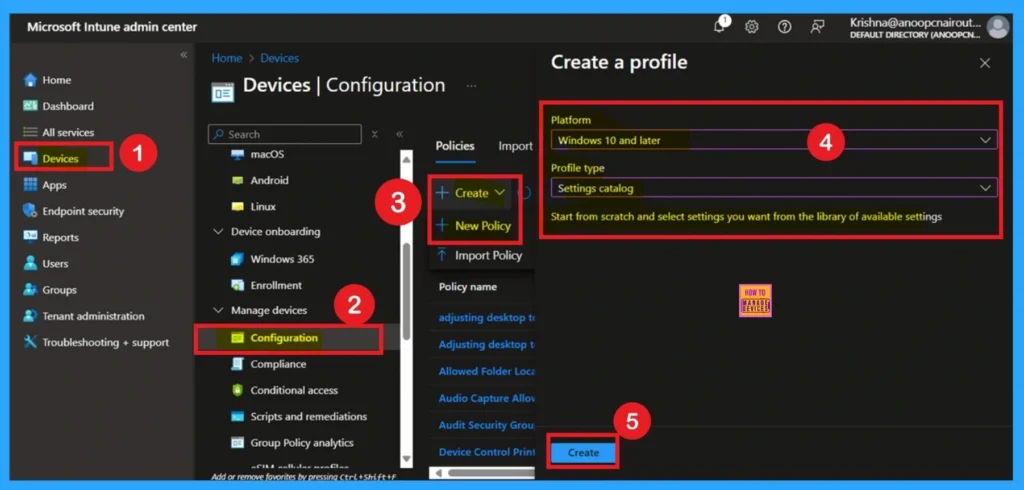
Above we discussed a lot of things about the App location access policy. Now we have to focus on how to deploy the policy through the Microsoft Intune admin center. For that first go to Devices> Configuration> Create+ New Policy. Then you will get a another window for create profile, here we have to set the platform as windows 10 and later and Setting catalog as profile Type.
- How To Locate And Recover Managed Devices With Microsoft Intune
- How To Enable Roam Recycle Bin In FSLogix Using Intune Policy
- Ensure Safe User Sign-ins Through Healthy Providers Required For Register Using Intune Policy
- How To Configure FSLogix Forced Unregister Cache Settings Using Intune Policy
- How to Specify the OneDrive Location in a Hybrid Environment using Intune
- Enable or Disable Storage Locations in File Explorer using Intune Policy
- How to Configure Do not Add Shares of Recently Opened Documents to Network Locations Policy using Intune
How to Do Basics
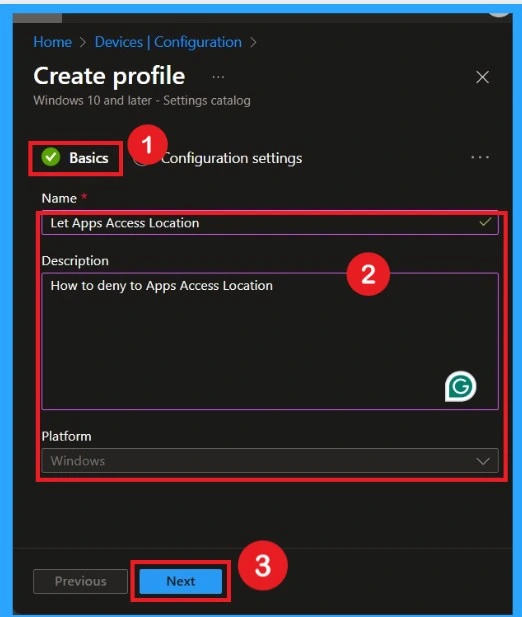
The Basics tab is the quickest step. Here, you need to enter the basic details such as the Name, Description, and Platform information. Since the platform is already set as Windows and you only need to provide a specific name and description for the policy, then click Next.
Configuration Settings
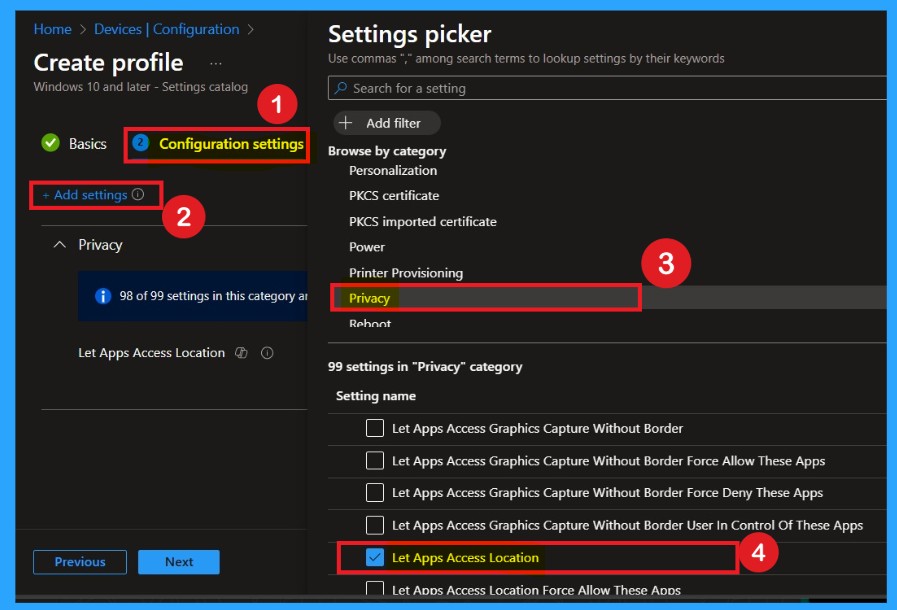
The configuration setting is a very important step in account policy deployment. Here, you need to click on the Settings option, which appears in blue. Once you click on it, a Settings picker window will open. In this window, select the Privacy category. Under Privacy, choose LetAppsAccessLocation to configure app access to location.
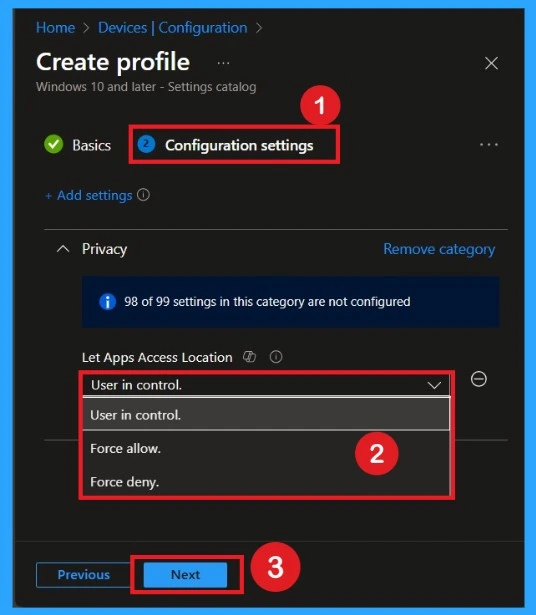
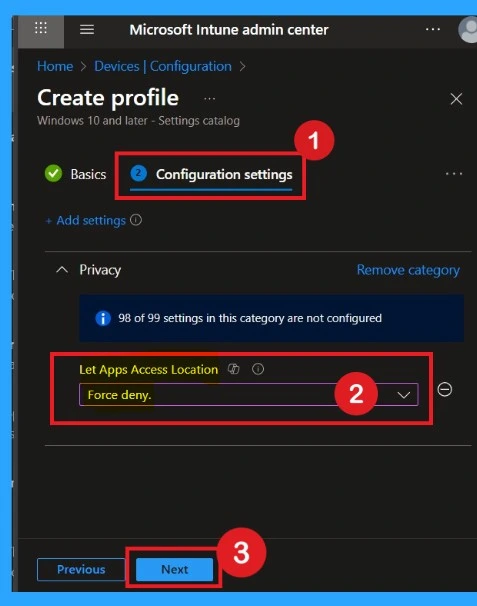
After closing the Settings picker window, you will return to the Configuration settings page. Here, you will see that App Access Location provides several options, such as User is in Control, Force Allow, and Force Deny. You can choose any of these options based on your organization’s requirements.
| Options | Info |
|---|---|
| User is in control | If you choose the “User is in control” option, employees in your organization can decide whether Windows apps can access location by using Settings > Privacy on the device. |
| Force Allow | If you choose the “Force Allow” option, Windows apps are allowed to access location and employees in your organization can’t change it. |
| Force Deny | If you choose the “Force Deny” option, Windows apps aren’t allowed to access location and employees in your organization can’t change it. |
How to Force Deny
If you want to set the configuration as force to deny you can easily select that from those options. If you set force to deny that means you choose the “Force Deny” option, Windows apps aren’t allowed to access location and employees in your organization can’t change it. Then click on the Next to continue.
Importance of Scope Tags
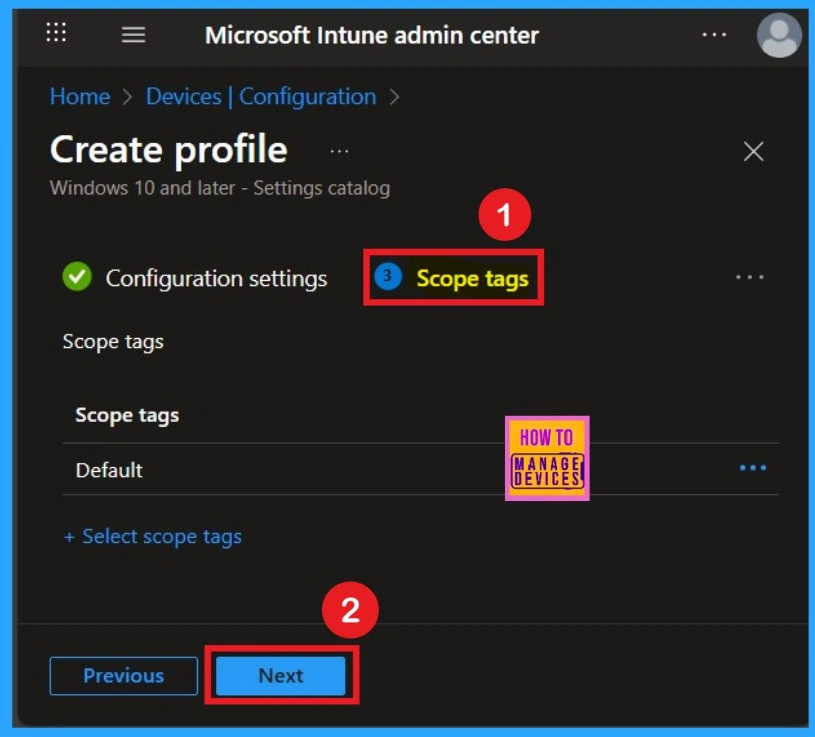
Now you are on the Scope tags section. Scope tags are used to assign policies to specific admin groups for better management and filtering. If needed, you can add a scope tag here. However, for this policy, I chose to skip this section.
Assigning Specific Groups
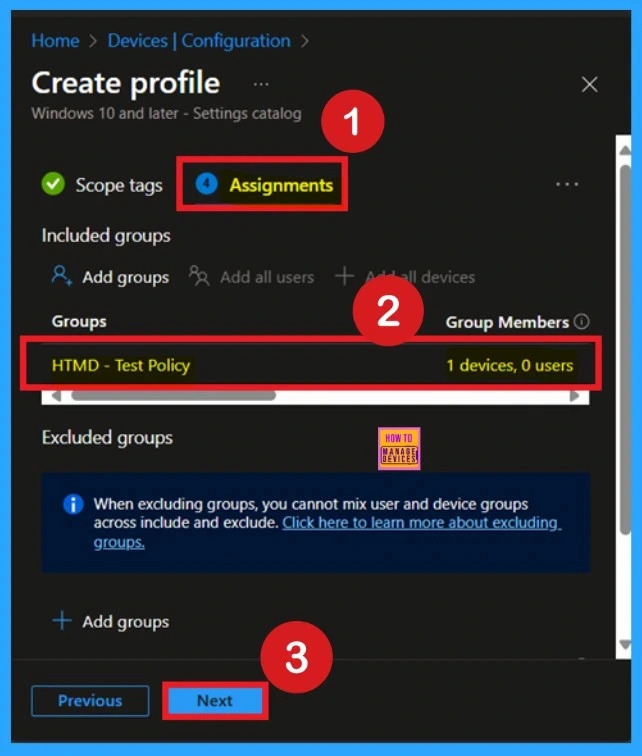
To assign the policy to specific groups, you can use the Assignment Tab. Here I click, +Add groups option under Included groups. I choose a group from the list of groups and click on the Select button. Again, I click on the Select button to continue.
Know about the Review + Create Tab
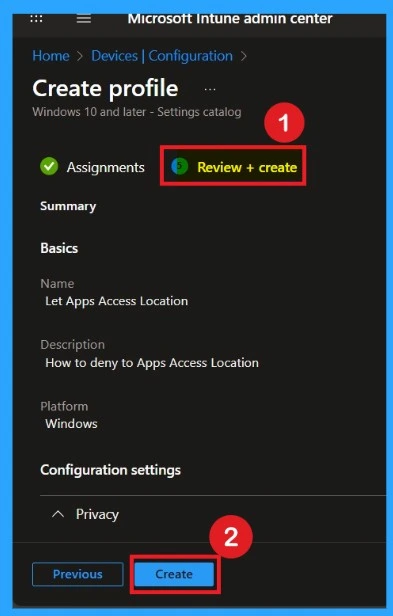
Review + Create Tab helps you recheck all the details of the policy you entered on all the tabs. After verifying all the details, click on the Create Button. After creating the policy, you will get a success message.
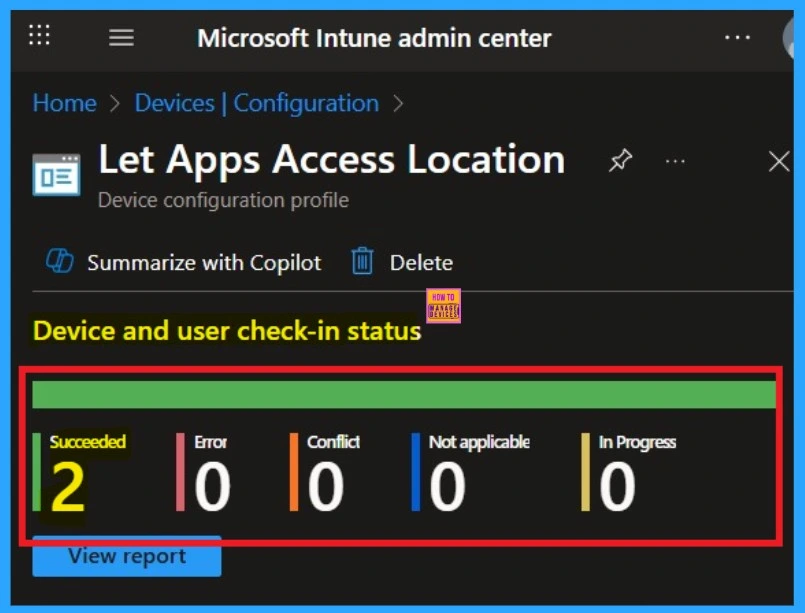
Device and User Check in Status
After creating a policy, we have to monitor that whether the policy was created successfully or not. To check this, you can either wait for up to 8 hours for the policy to apply automatically, or you can reduce the waiting time by manually syncing the policy through the Company Portal.
- After syncing, you can check the policy’s status through the Intune Portal.
- To do this, go to Devices > Configuration Profiles.
- In the Configuration policy section, search for the name of the policy you created.
- Then you can get the details below from that Policy
- It will show is this error successfully deployed or not.
Client Side Verification
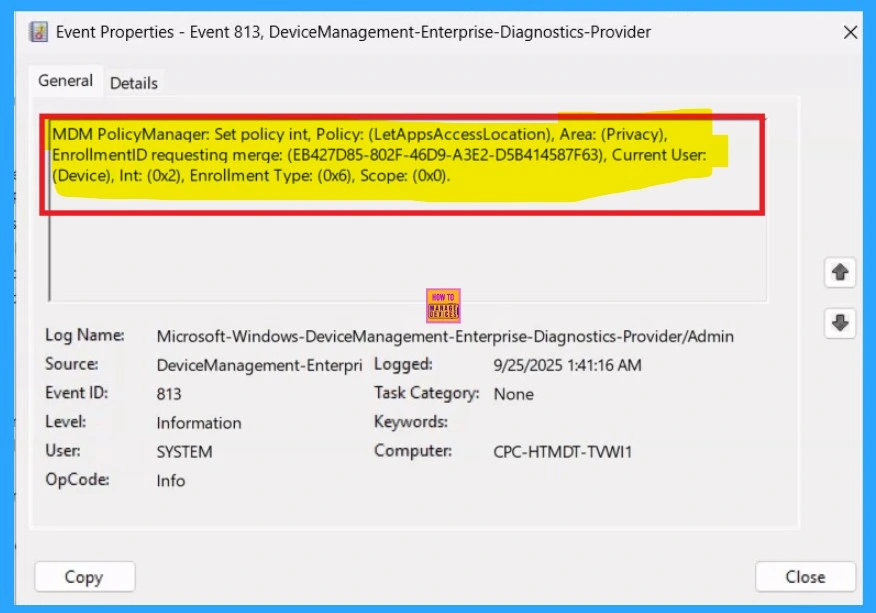
To confirm the policy is successful or not, you can use the Event Viewer. First, open Event Viewer and navigate to Applications and Services Logs > Microsoft > Windows > Device Management > Enterprise Diagnostic Provider > Admin. Look for Event IDs 813 or 814, as these typically contain policy-related information.
How to Remove Policy
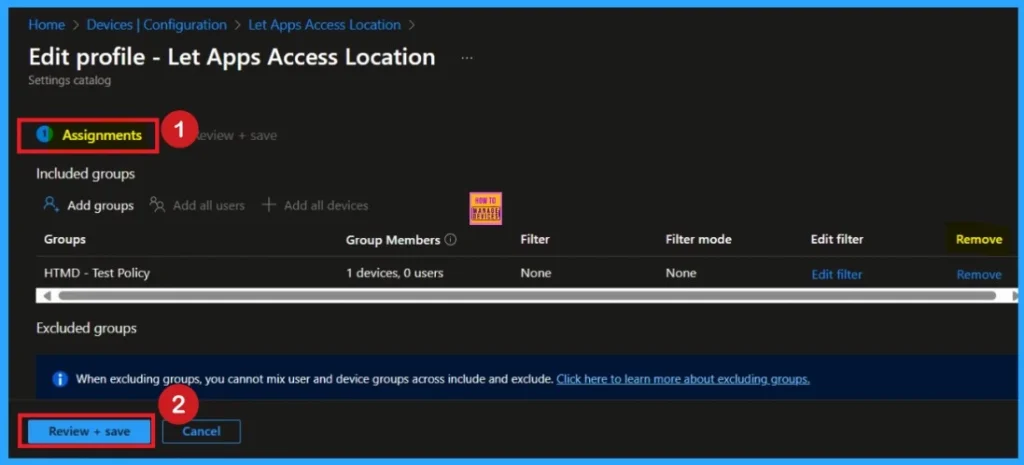
After creating the policy, if you want to remove the group that you previously selected, you can easily do that. First, go to Devices > Configuration policies. In the Configuration policy section, search for the policy, In the policy section When you Scroll down the page, and you will see sections like Basic Details and Assignment Details
- In the Assignment section, you will find an Edit option and click on it.
- When you click Edit, you will enter the Assignment page.
- Click on Remove, then proceed by clicking Review + Save.
For detailed information, you can refer to our previous post – Learn How to Delete or Remove App Assignment from Intune using by Step-by-Step Guide.
How to Delete the Policy that you created
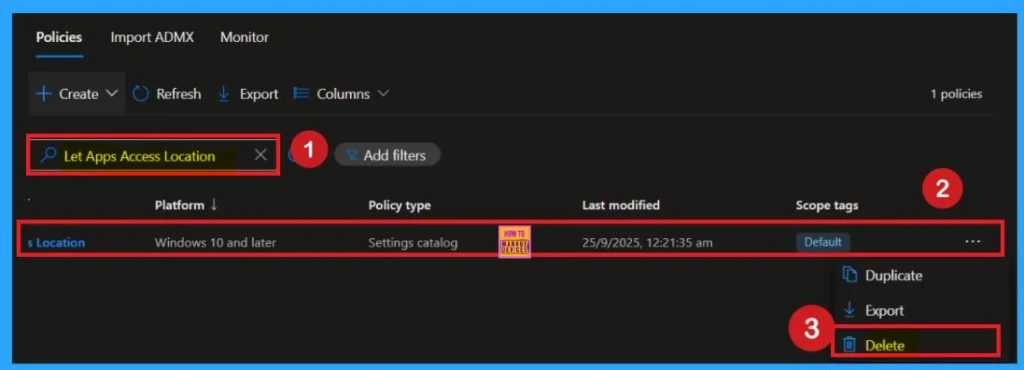
To delete a policy in Microsoft Intune, first sign in to the Microsoft Intune Admin Center. Navigate to Devices and then select Configuration. Locate and select the specific policy you want to remove. Once you’re on the policy details page, click the 3 -dot menu in the top right corner and choose Delete from the available options.
For detailed information, you can refer to our previous post – How to Delete Allow Clipboard History Policy in Intune Step by Step Guide.
CSP Details for the Policy
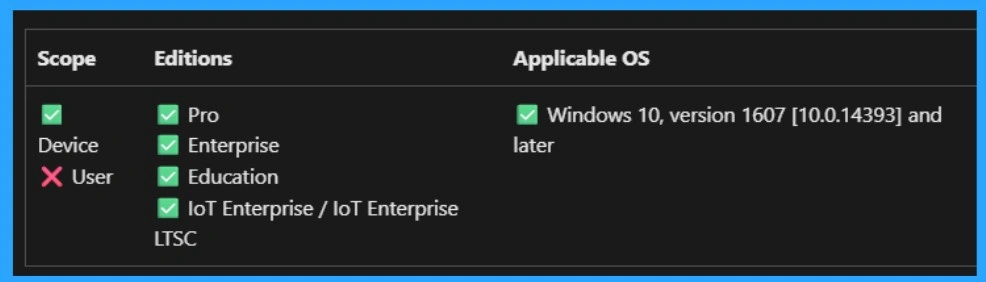
The policy Configuration Service Provider (CSP) is a tool for businesses to manage settings on Windows 10 and 11 devices. It details each policy’s function (Description Framework Properties), available choices (Allowed Values), and how it relates to older Group Policy settings (Group Policy Mapping details).
- The Description framework properties of Windows Apps Access location policy shows the Property name Property value. The below table shows more details.
| Property name | Property value |
|---|---|
| Format | chr(string) |
| Access Type | Add, Delete, Get, Replace |
./Device/Vendor/MSFT/Policy/Config/Privacy/LetAppsAccessLocation_ForceDenyTheseApps
Need Further Assistance or Have Technical Questions?
Join the LinkedIn Page and Telegram group to get the step-by-step guides and news updates. Join our Meetup Page to participate in User group meetings. Also, Join the WhatsApp Community to get the latest news on Microsoft Technologies. We are there on Reddit as well.
Author
Anoop C Nair has been Microsoft MVP for 10 consecutive years from 2015 onwards. He is a Workplace Solution Architect with more than 22+ years of experience in Workplace technologies. He is a Blogger, Speaker, and Local User Group Community leader. His primary focus is on Device Management technologies like SCCM and Intune. He writes about technologies like Intune, SCCM, Windows, Cloud PC, Windows, Entra, Microsoft Security, Career, etc.


Discussion