






Require users to Confirm Large Delete Operations in OneDrive using Intune Policy
Today, we are discussing the policy that Require users to Confirm Large Delete Operations in OneDrive using Intune Policy. As we all know, Microsoft policies play a vital role in maintaining security and efficiency within organizations.
For helping data protection and reduce the risk of accidental data loss, we have decided to deploy the OneDrive policy that prompts users to confirm before deleting a large number of synced files. This policy can be configured to either enable or disable confirmation requirements.
If you enable this Onedrive Policy, a warning will always appear when users delete a large number of synced files. If a user does not confirm a delete operation within 7 days, the files will not be deleted. This not only saves time for IT administrators but also minimizes downtime for employees, improving overall productivity across the organization.
If disabled or left unconfigured, users can choose to hide the prompt and continue deleting files without confirmation, which may increase productivity but also introduces a higher risk of unintentional data loss. So in this post,let’s discuss how this policy to be deployed.

Table of Contents
How Does this Policy Help Organizations Prevent Problems?
Require users to Confirm Large Delete Operations using Intune Policy
Above we discussed an overall view on this policy. Managing this policy in Intune helps organizations balance security and user convenience.Enabling the confirmation for large delete operations is recommended because it protects both individual users and teams from losing important shared files.
- So let’s look how this policy to be deployed through MS Intune
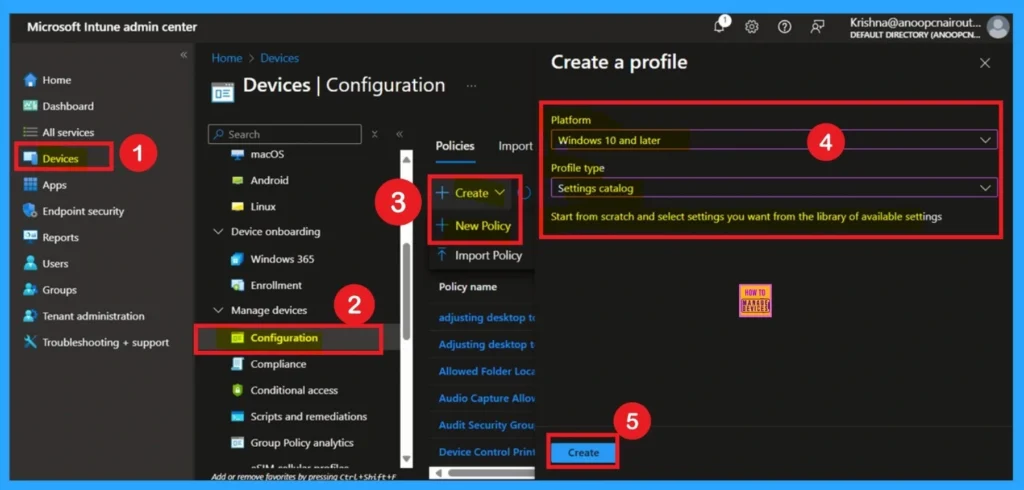
- Go to Devices
- Next, click on Configuration profiles and then select + Create profile.
- When creating the profile, you will need to provide the required details such as the Platform and Profile type.
- For the Platform, select Windows 10 and later.
- Then Click on the Create option.
- Enable Disable Full Screen Mode in MS Edge Browser using Intune Policy
- Allow Manual Start of Microsoft Account Sign In Assistant Using Intune Settings Catalog
- How to Allow Direct Memory Access for Data Protection Through Intune Settings Catalog
What is Basics
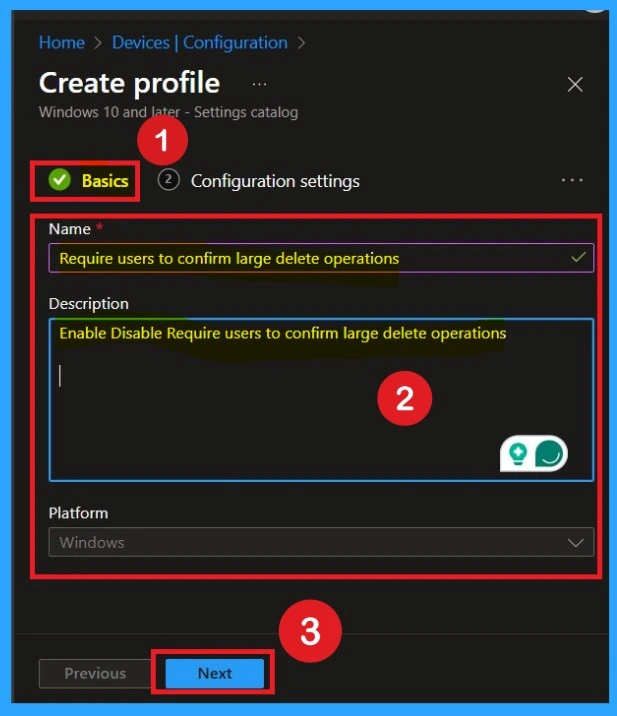
The Basics tab is the quickest step. Here, you need to enter the basic details such as the Name, Description, and Platform information. Since the platform is already set as Windows and you only need to provide a specific name and description for the policy, then click Next.
Purpose of Configuration Settings
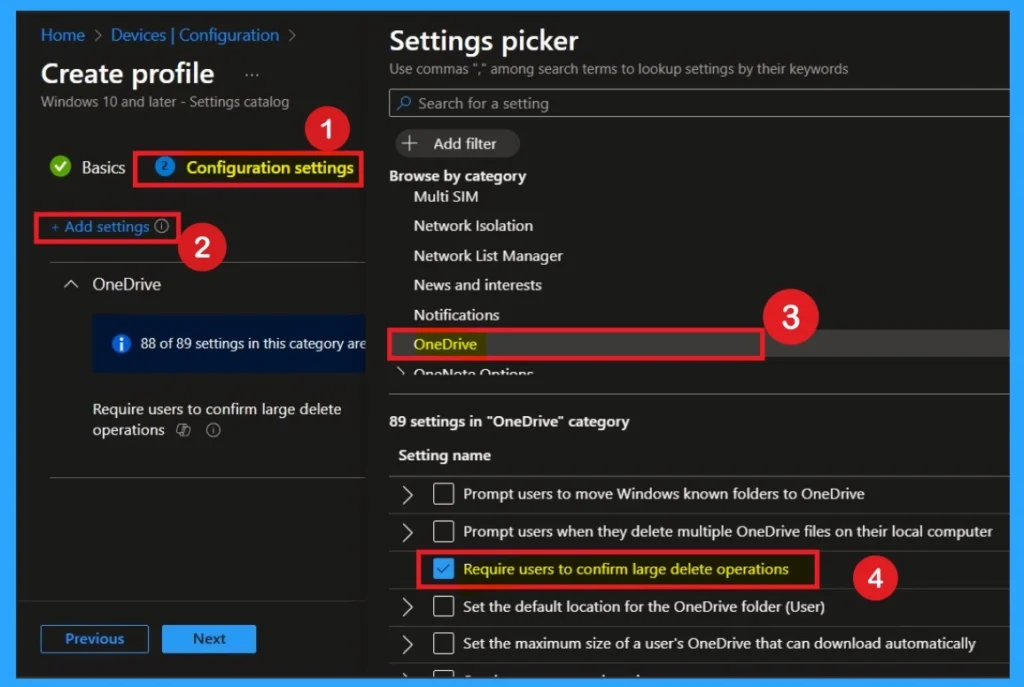
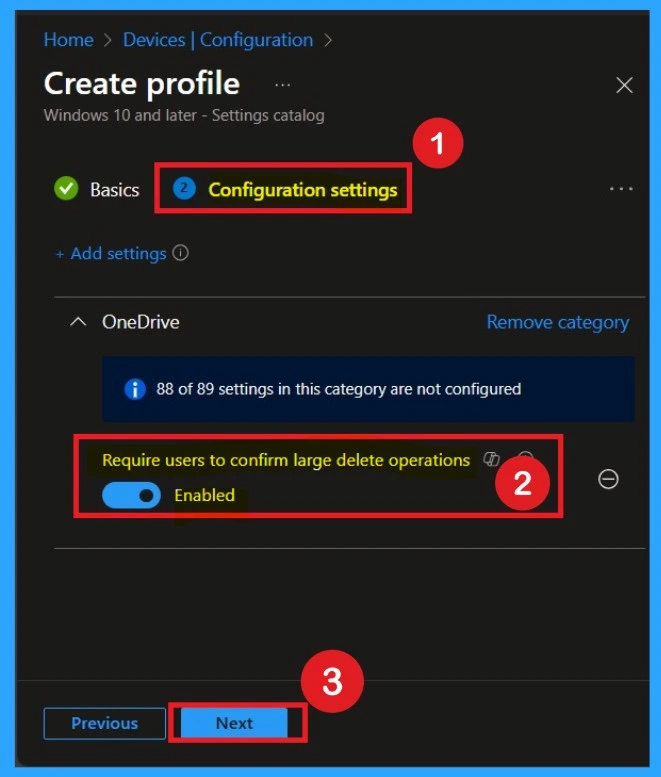
The purpose of configurations is very important, and this step comes right after the basics. Here, you need to click on the Add settings option. This will open different categories available for policy deployment. From these categories, you have to select OneDrive. In the OneDrive section, you will see different types of policies. From there, select the Require users to Confirm Large Delete Operations.
Settings Disabled
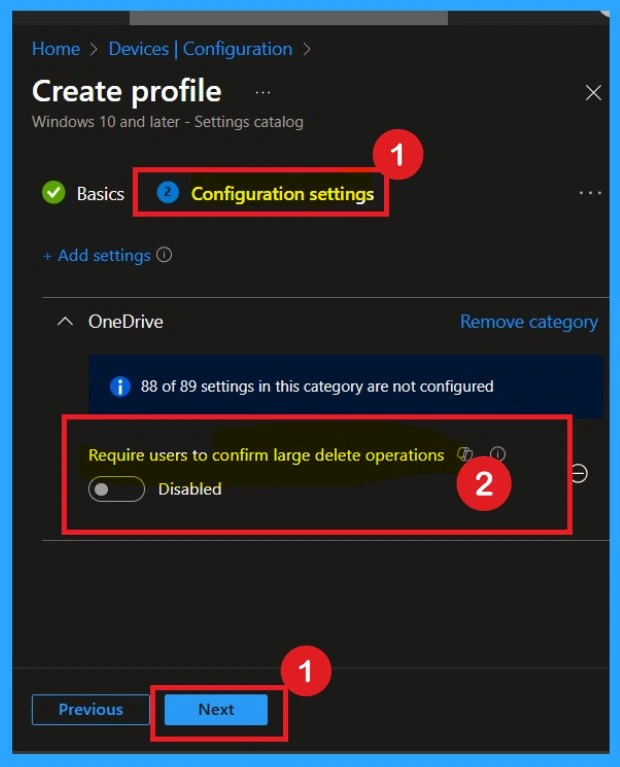
Now you are on the Configuration settings main page. Here, you will see that the selected policy has appeared in the list. By default, it is set to Disabled. If you want to keep it disabled that means, you do not want text prediction enabled in your organization, so you can just click Next to continue.
Enable the Policy
If you want to enable this policy and your organization. To do this, toggle the switch from left to right. Once enabled, the toggle will turn blue, indicating that the setting is now Enabled.
- After enabling it, click Next to continue with the setup.
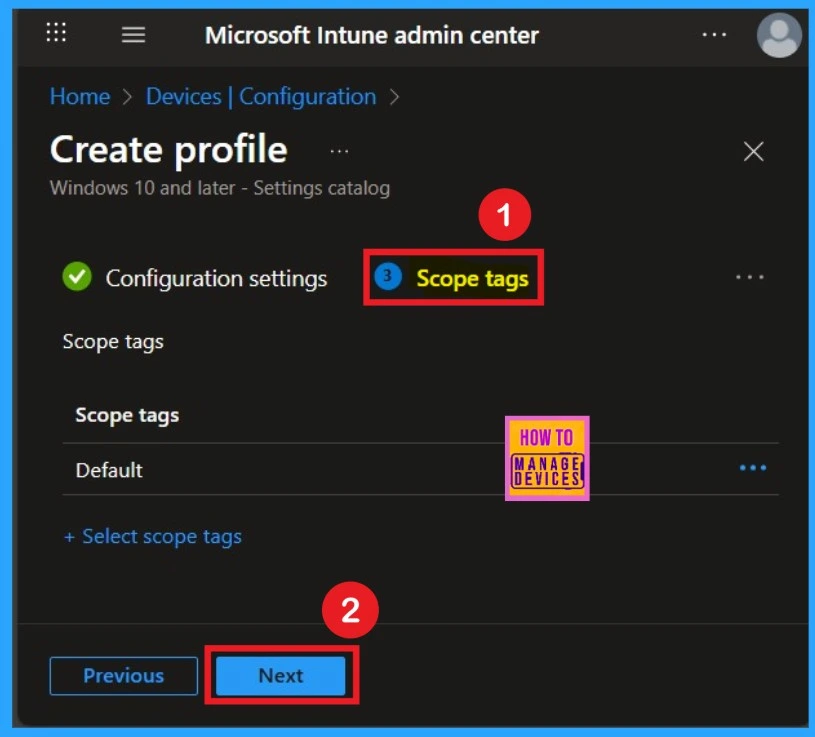
Know about Scope Tags
The Scope tags section is an important part of policy deployment. The advantage of this section is that it allows you to assign the policy to specific groups or departments within your organization. However, adding a scope tag is not mandatory and you can still deploy the policy successfully without using this step.
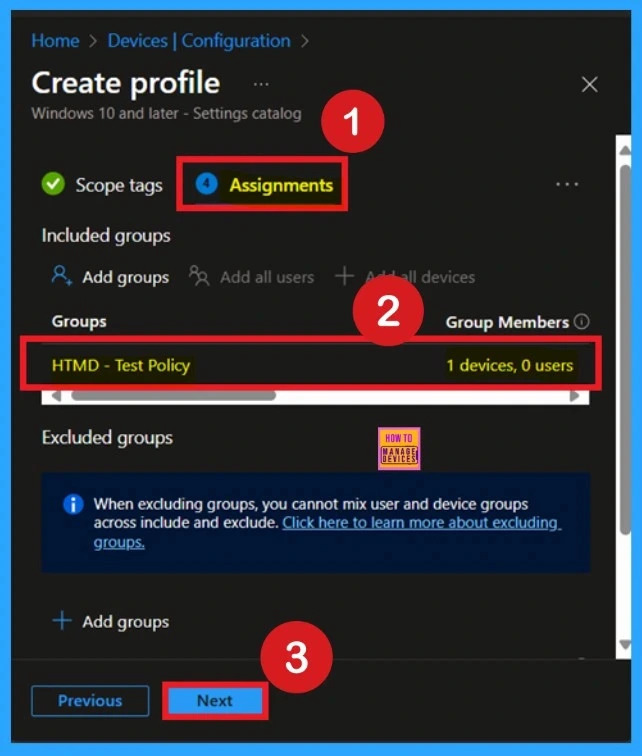
Know about the Assignments
When deploying a policy, the main aim is to specify which organizational group the policy should be applied to In this tab, you can easily make your selection by clicking on “Add groups” under the Include section. Once clicked, a list of available groups will appear. Then Click on the Next.
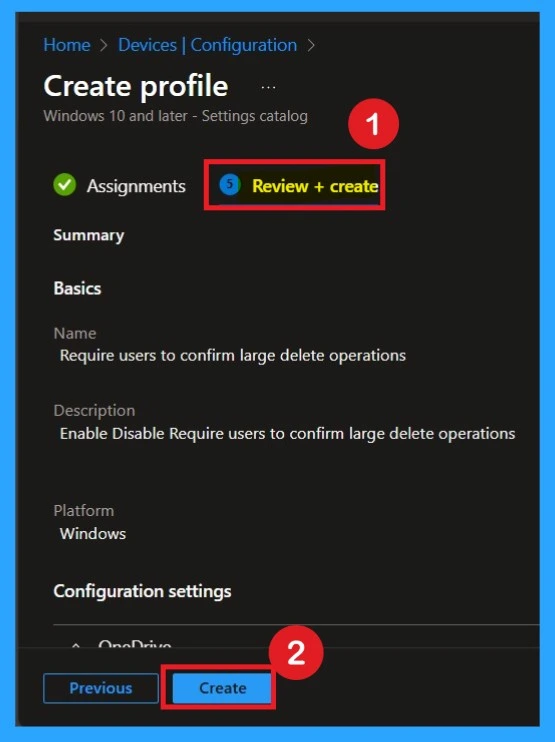
Review + Create Tab
Before completing the policy creation, you can review each tab to avoid misconfiguration or policy failure. After verifying all the details, click on the Create Button. After creating the policy, you will get a success message.
Monitoring Status
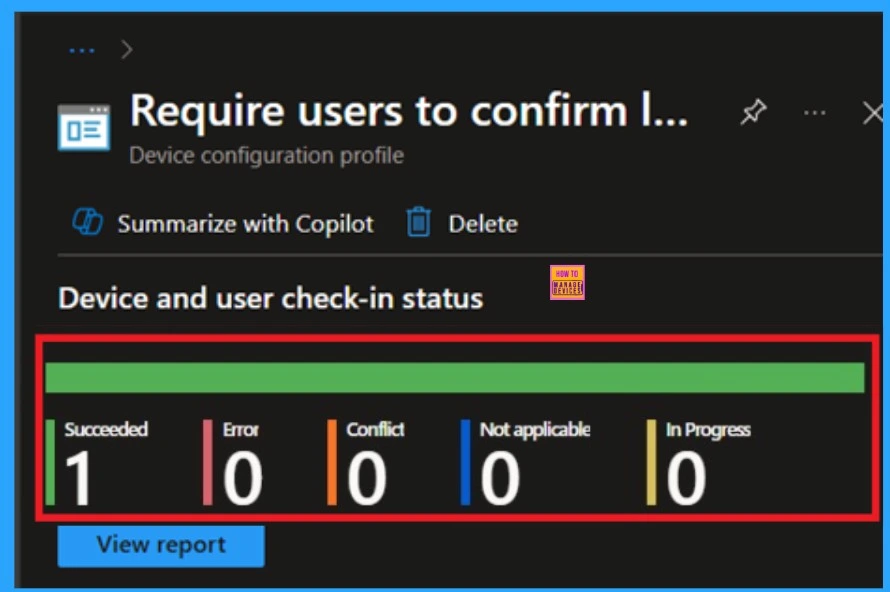
The Monitoring Status page shows whether the policy has succeeded or not. To quickly configure the policy and take advantage of the policy sync, the device on the Company Portal, Open the Intune Portal. Go to Devices > Configuration > Search for the Policy. Here, the policy shows as successful.
Client Side Verification
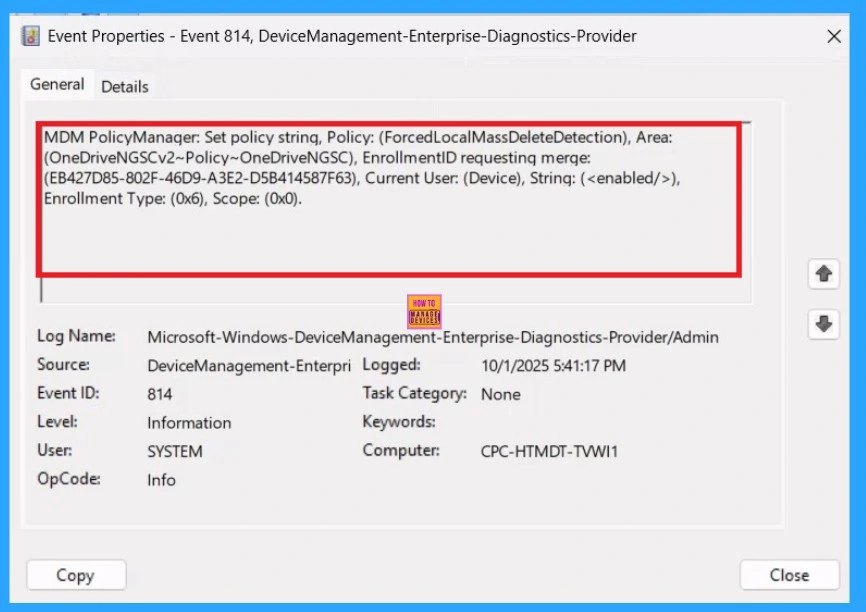
It helps you check the client side and verify the policy status. Open the Client device and open the Event Viewer. Go to Start > Event Viewer. Navigate to Logs: In the left pane, go to Application and Services Logs > Microsoft > Windows> DeviceManagement-Enterprise-Diagnostics-Provider > Admin.
- You will get the success result on Event ID 814
| Policy Info |
|---|
| MDM PolicyManager: Set policy string, Policy: (ForcedLocalMassDeleteDetection), Area: (OneDriveNGSCv2~Policy~OneDriveNGSC), EnrollmentID requesting merqe: (EB427D85-802F-46D9-A3E2-D5B414587F63), Current User: (Device), String: (), Enrollment Type: (0x6), Scope: (0x0). |
How to Remove the Assigned Groups
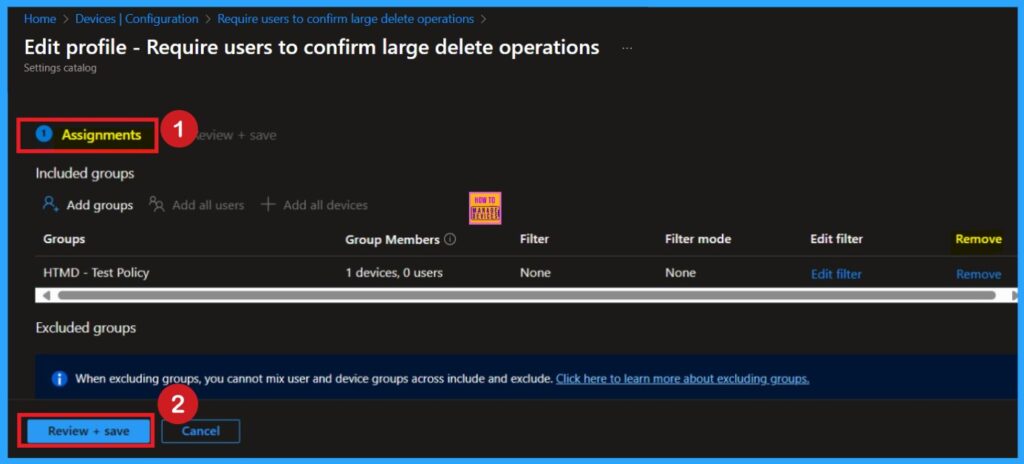
Start by navigating to the Monitoring status page via Devices > Configuration. Search for the policy by name and click on it to open its monitoring details. Scroll down to the Assignments section and click Edit. This will take you back to the policy’s assignment settings. From here, you can remove the group you no longer want the policy to apply to.
Delete the Policy from Intune Portal
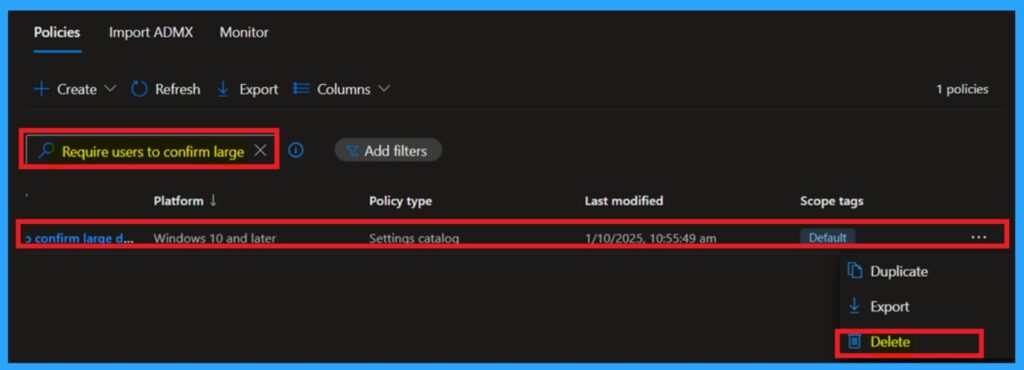
If you want to delete the policy of Moving their Windows Known Folders to OneDrive that you created, you can easily do that. First go to the Device Configuration then search the policy name and now you get the policy here click on the 3 dot menu of the policy then click on the Delete and the policy Deleted permenantly.
Need Further Assistance or Have Technical Questions?
Join the LinkedIn Page and Telegram group to get the step-by-step guides and news updates. Join our Meetup Page to participate in User group meetings. Also, Join the WhatsApp Community to get the latest news on Microsoft Technologies. We are there on Reddit as well.
Author
Anoop C Nair has been Microsoft MVP for 10 consecutive years from 2015 onwards. He is a Workplace Solution Architect with more than 22+ years of experience in Workplace technologies. He is a Blogger, Speaker, and Local User Group Community leader. His primary focus is on Device Management technologies like SCCM and Intune. He writes about technologies like Intune, SCCM, Windows, Cloud PC, Windows, Entra, Microsoft Security, Career, etc


Discussion