






How to Enable OneDrive Files On-Demand using Intune Policy to Improve Storage Efficiency
Today, we are discussingHow to Enable OneDrive Files On-Demand using Intune Policy to Improve Storage Efficiency. This policy allows organizations to manage how files are accessed and stored on employee devices, making work easier and more efficient. Organizations need policies like this to improve the overall experience and maintain a smooth working environment.
The OneDrive Files On-Demand policy allows users to see all their files in File Explorer without downloading them completely. Files are only downloaded when needed, which saves storage space on devices and keeps computers running faster.
When this setting is enabled, OneDrive Files On-Demand turns on automatically for everyone in the organization. All files will appear in the user’s OneDrive folder, but they won’t take up local space until the user opens them. This helps save disk space and keeps computers running smoothly.
When the setting is disabled, Files On-Demand is turned off completely. All OneDrive files are fully downloaded to the device, using more storage space. Users cannot turn the feature back on themselves. This option is useful only if every file must be stored locally for offline access.

Table of Contents
Why OneDrive Files On-Demand Policy Helpful for Organizations?
Enabling Files On-Demand helps organizations that have many users or devices with limited storage. It keeps devices light and fast because only the needed files are downloaded. It also helps employees access their files easily from any location.
How to Enable OneDrive Files On-Demand using Intune Policy to Improve Storage Efficiency
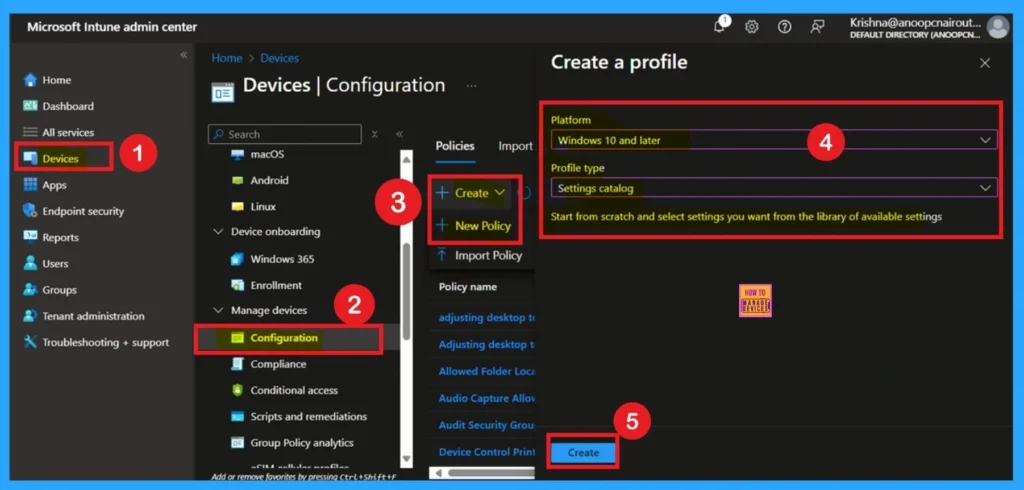
In this Files On-Demand also keeps files safer. All data stays stored securely in the cloud. This improves performance and reduces network load, especially for remote workers. To Start configuration by logging in to the Microsoft Intune admin center. Once logged in, go to the Devices section. From there, select Configuration. In the Configuration area, click on + Create Policy. This will open a new window titled Create Profile. In the Create Profile window
- Set the Platform to Windows 10 and later
- Choose Settings Catalog as the Profile type
- Then, click Create to continue.
- Configure Automatic SharePoint Library Sync Using Microsoft Intune
- Benefits of OneDrive Hide Deleted Files Reminder using Intune Policy
- Prevent users from Moving their Windows Known Folders to OneDrive
- Enable Removable Drive Locations Policy in Windows for Indexing Control using Intune
Know the Basic Tab
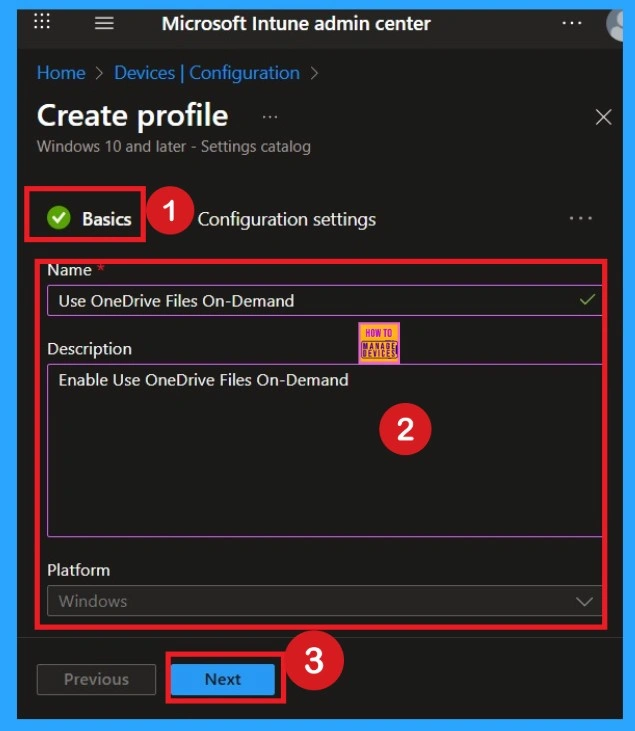
After creating the profile, the next step is to complete the basic details. This typically includes entering the policy name, description, and confirming platform information. In the Platform section, no changes are needed it’s already set to Windows by default. Be sure to provide a clear name for the policy to make it easy to identify later.
Configuration Settings
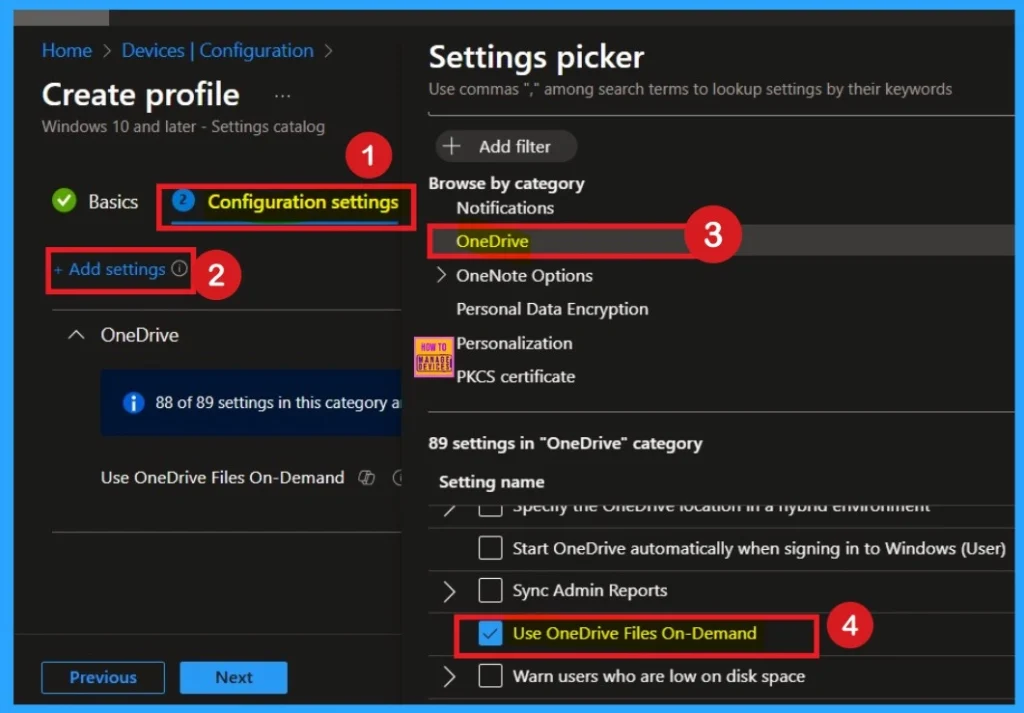
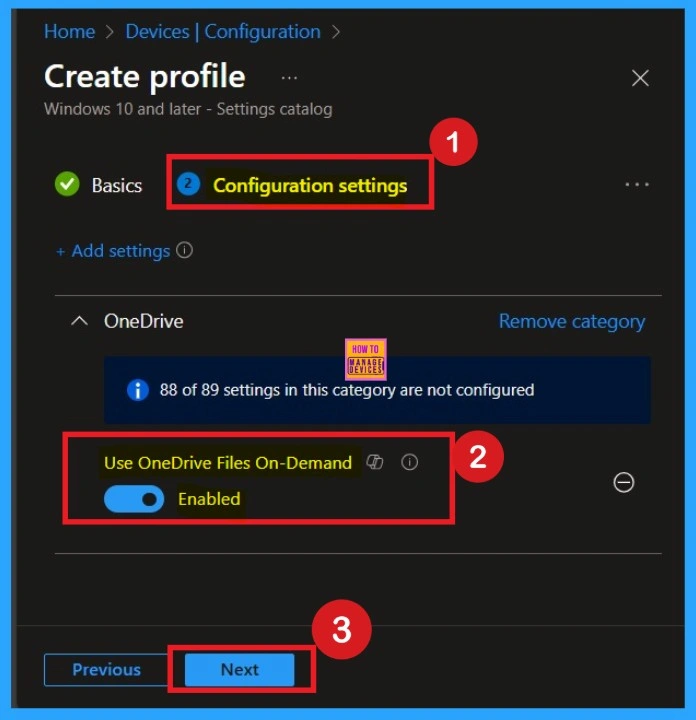
After the basics now you are on the configuration settings window. Here you can select the policy through a category, Settings picker window will help you to select the category. Here I selected OneDrive then select the policy named Use OneDrive Files On-Demand.
How to Disable this Policy
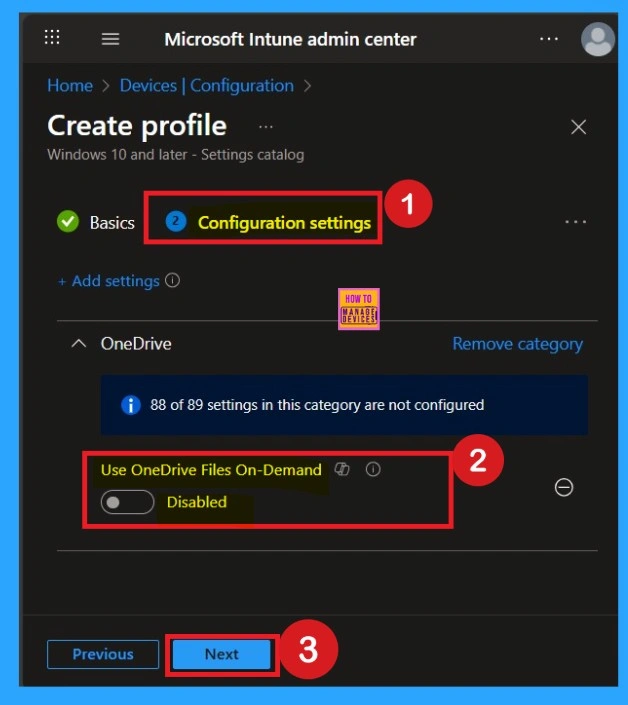
This policy is disabled by default and OneDrive Files On-Demand will be explicitly disabled and users can’t turn it on. If you do not configure this setting, users can turn OneDrive Files On-Demand on or off. If you want to continue with this, click on the Next.
Enable the Policy
To enable this policy, locate the toggle switch next to the “OneDrive Files On-Demand” setting. By default, this toggle is set to Disabled. To activate the policy, simply move the toggle from left to right. Once enabled, the toggle will turn blue and change to Enabled.
Importance of Scope Tags
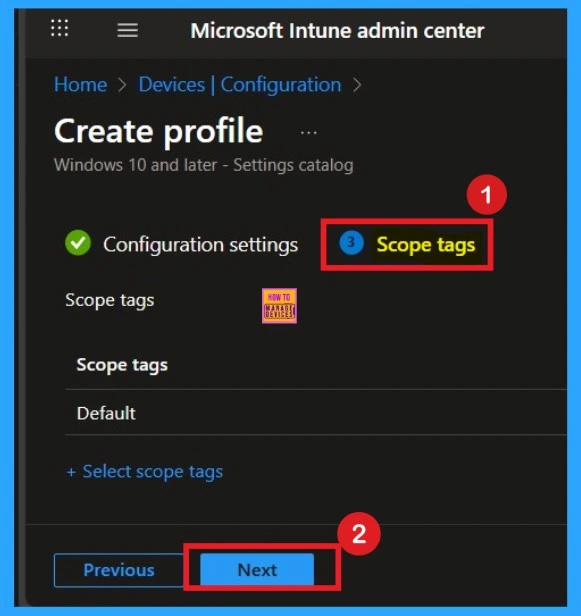
Now you are on the Scope tags section. Scope tags are used to assign policies to specific admin groups for better management and filtering. If needed, you can add a scope tag here. However, for this policy, I chose to skip this section.
What are Assignments in Policy Creation
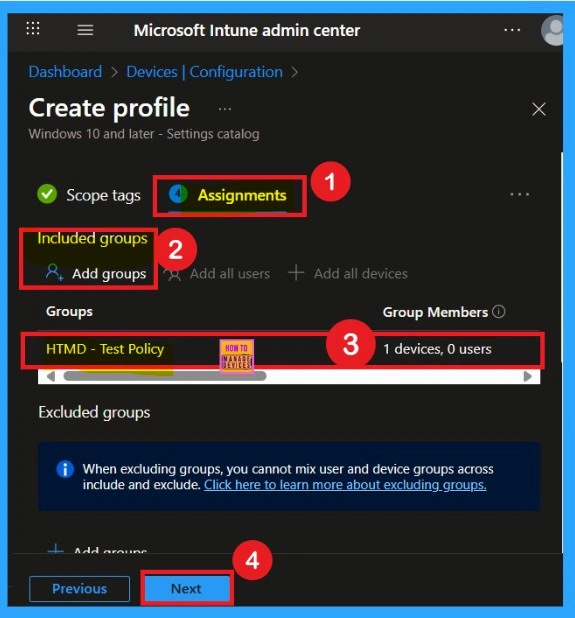
The next step is Assignments. In this section, you can specify which group the policy should be applied to. Our aim is to deploy this policy to a specific group, this step is essential. Look for the Add Groups option under the Include Groups section and click on it. A list of available groups will appear and use the search bar to find and select the group you want to target.
Review + Create
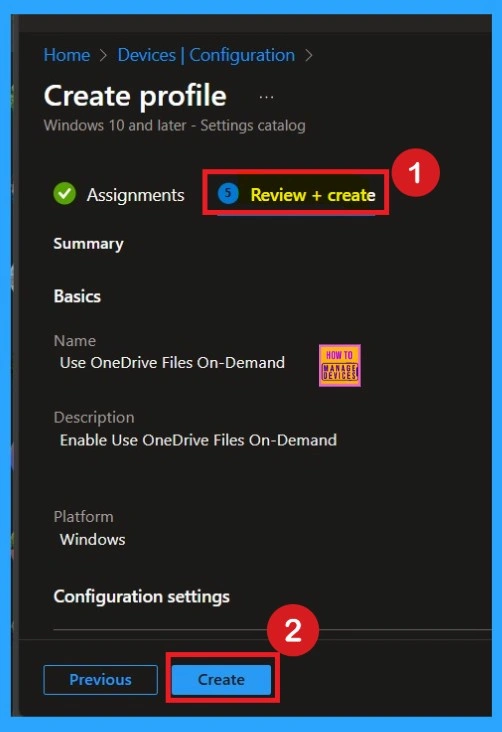
After the Assignments step, you’ll reach the final tab called Review + Create. In this section, you can see a summary of everything you enterd in the previous steps such as basic details, configuration settings, assignment details read them carefully and when everything is ok Click on the Review and Create.
Monitoring status of OneDrive Files On-Demand Policy
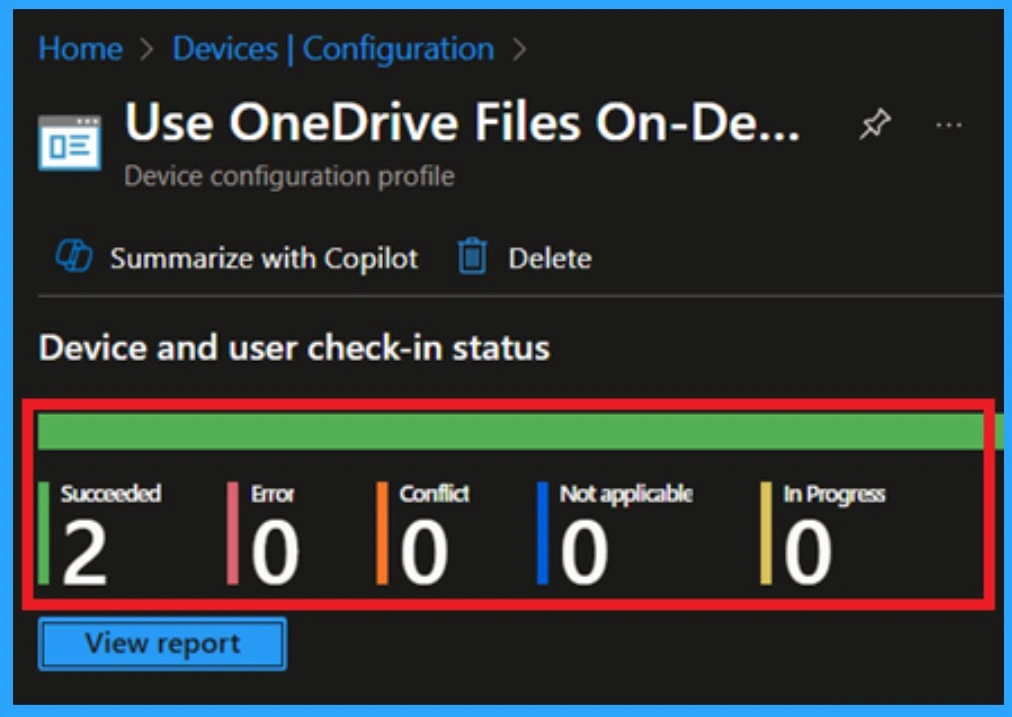
After creating a policy we have to monitor that whether the policy was created successfully or not. To check this, you can either wait for up to 8 hours for the policy to apply automatically, or you can reduce the waiting time by manually syncing the policy through the Company Portal. After syncing, you can check the policy’s status through the Intune Portal.
- To do this, go to Devices > Configuration Profiles.
- In the Configuration policy section, search for the name of the policy you created.
- I named the policy as OneDrive Files On-Demand Policy
- So, I searched that name and, clicked on it, and then I get the status below.
Client Side Verification
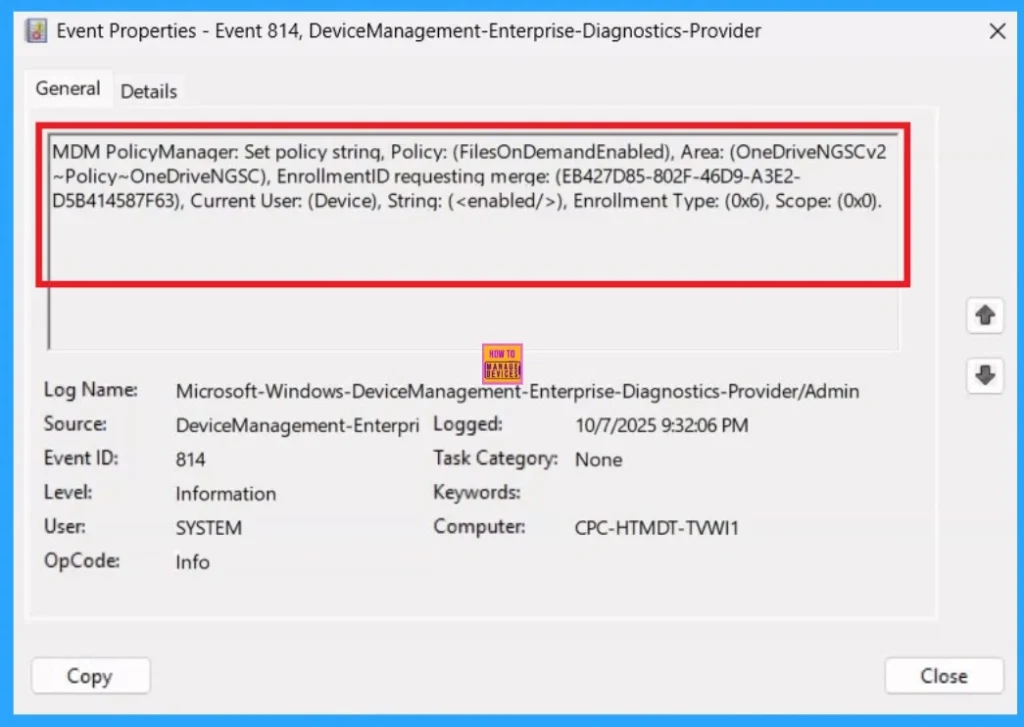
To confirm the policy is successful or not, you can use the Event Viewer. First, open Event Viewer and navigate to Applications and Services Logs > Microsoft > Windows > Device Management > Enterprise Diagnostic Provider > Admin. Look for Event IDs 813 or 814, as these typically contain policy-related information.
- In the below screenshot the policy details were found under Event ID 814.
| Event ID Details |
|---|
| MDM PolicyManaqer: Set policy strinq, Policy: (FilesOnDemandEnabled), Area: (OneDriveNGSCv2 ~Policy~OneDriveNGSC), EnrollmentID requestinq merqe: (EB427D85-802F-46D9-A3E2- D5B414587F63), Current User: (Device), Strinq: (), Enrollment Type: (0x6), Scope: (0x0). KO TO |
Delete the OneDrive Files On-Demand Policy Permanently
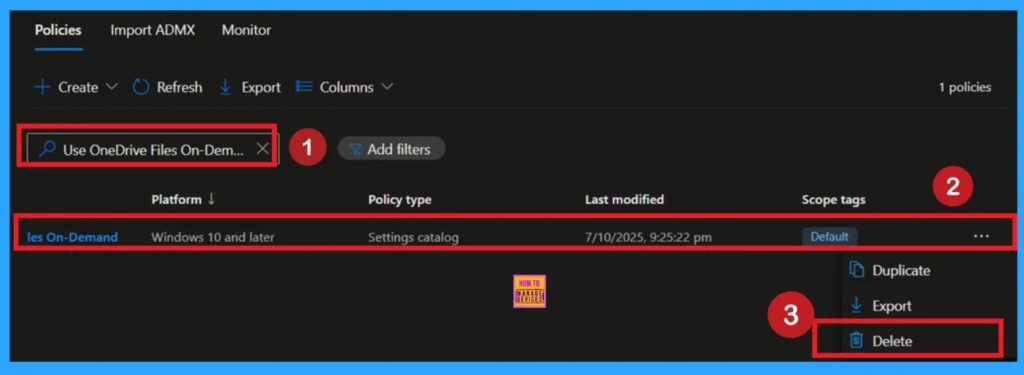
If you want to delete this policy, you can easily do so. First, search for the policy name in the configuration section. When you find the policy name, you will see a 3 dot menu next to it. Click on the 3 dots to open a menu with 3options such as Duplicate, Export, and Delete. Click on the Delete option and the policy deleted for Permanently.
For more information, you can refer to our previous post – How to Delete Allow Clipboard History Policy in Intune Step by Step Guide.
Remove Policy Groups of OneDrive Files On-Demand
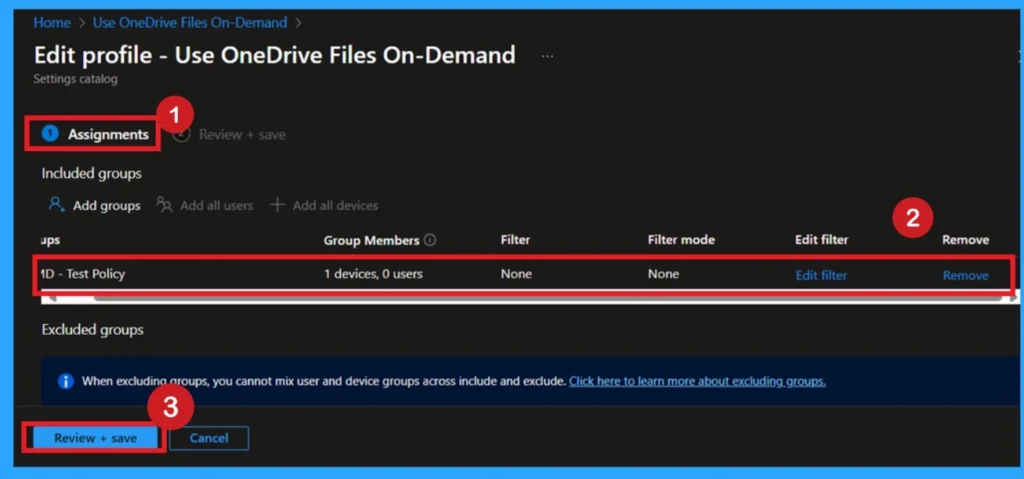
After creating the policy, if you want to remove the group that you previously selected, you can easily do that. First, go to Devices > Configuration policies. In the Configuration policy section, search for the policy name for example, Hide Recent Jump list. Once the result appears, click on the policy.
When you Scroll down the page, and you will see sections like Basic Details and Assignment Details. In the Assignment section, you will find an Edit option and click on it. When you click Edit, you will enter the Assignment page.
For detailed information, you can refer to our previous post – Learn How to Delete or Remove App Assignment from Intune using by Step-by-Step Guide.
Need Further Assistance or Have Technical Questions?
Join the LinkedIn Page and Telegram group to get the latest step-by-step guides and news updates. Join our Meetup Page to participate in User group meetings. Also, join the WhatsApp Community to get the latest news on Microsoft Technologies. We are there on Reddit as well.
Author
Anoop C Nair has been Microsoft MVP for 10 consecutive years from 2015 onwards. He is a Workplace Solution Architect with more than 22+ years of experience in Workplace technologies. He is a Blogger, Speaker, and Local User Group Community leader. His primary focus is on Device Management technologies like SCCM and Intune. He writes about technologies like Intune, SCCM, Windows, Cloud PC, Windows, Entra, Microsoft Security, Career, etc.


Discussion