






How to Block Outlook Child Processes using Intune Attack Surface Reduction Rule
How to Block Outlook Child Processes using Intune Attack Surface Reduction Rule! Block Office Communication Application from Creating Child Processes is a security setting that protects your system from email-based or document-based attacks. This rule prevents Outlook from creating child processes, while still allowing legitimate Outlook functions.
This rule ensures that Outlook is not allowed to open or start any other programs in the background, such as PowerShell or Command Prompt. Hackers often try to trick users into opening a harmful email and then use Outlook to secretly launch these tools to run dangerous commands.
By blocking Outlook from starting such programs, the attack is stopped immediately. The rule is smart to allow Outlook to continue functioning normally for trusted operations. Core features, such as sending and receiving emails, opening attachments within safe applications, and syncing calendars, remain unaffected.
In this post, you will get complete details about the “Block Office Communication Application from Creating Child Processes” security rule. This feature is designed to protect systems by stopping applications Outlook from launching other background programs or scripts.

Table of Contents
How to Block Outlook Child Processes using Intune Attack Surface Reduction Rule
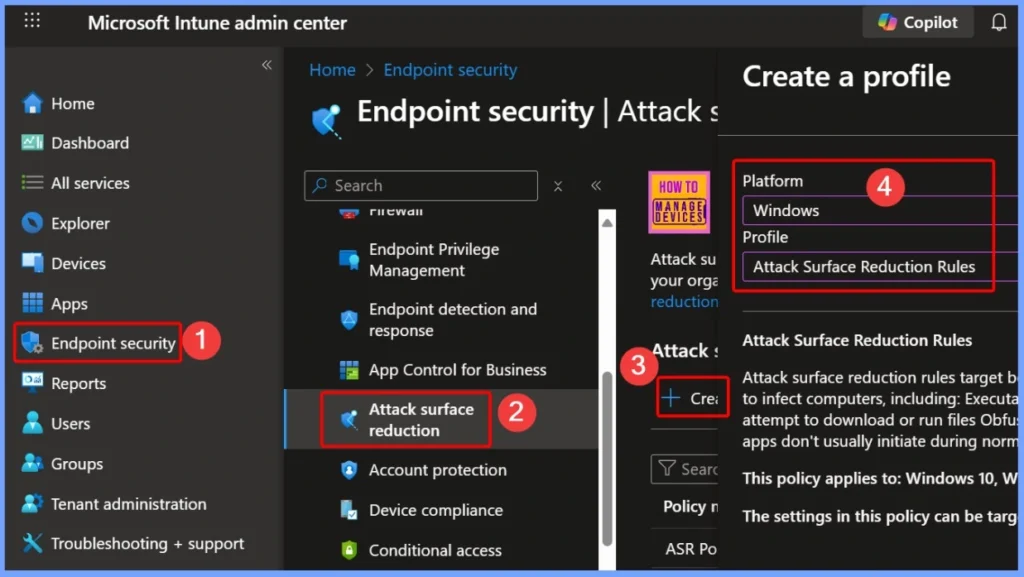
To block Outlook from creating child processes using an Intune Attack Surface Reduction (ASR) rule, start by signing in to the Microsoft Intune Admin Portal with your credentials. Once logged in, navigate to Endpoint security and select Attack surface reduction. From there, click on Create Policy to configure a new ASR rule.
- Quick Fix to your Windows OS Issues with Detection and Remediation Scripts with Intune
- Quick and Easy way to Turn on PowerShell Audit using Intune Policy
- How to Install Microsoft Defender Browser Protection Extension using Intune PowerShell Script
Configure Basic Settings for the ASR Policy
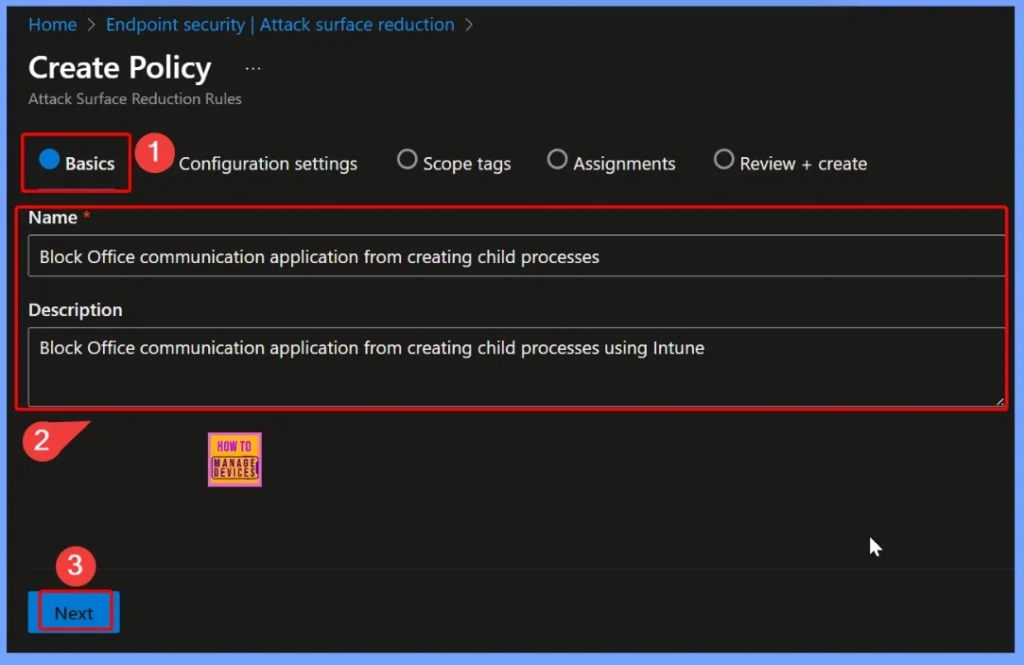
In the Basics section of the policy creation, provide clear and identifiable details. Set the Name as Block Office Communication Application from Creating Child Processes to reflect the purpose of the configuration. For the Description, enter Block Office communication application from creating child processes using Intune.
- These details help maintain consistency and make the policy easy to recognize when managing multiple ASR rules.
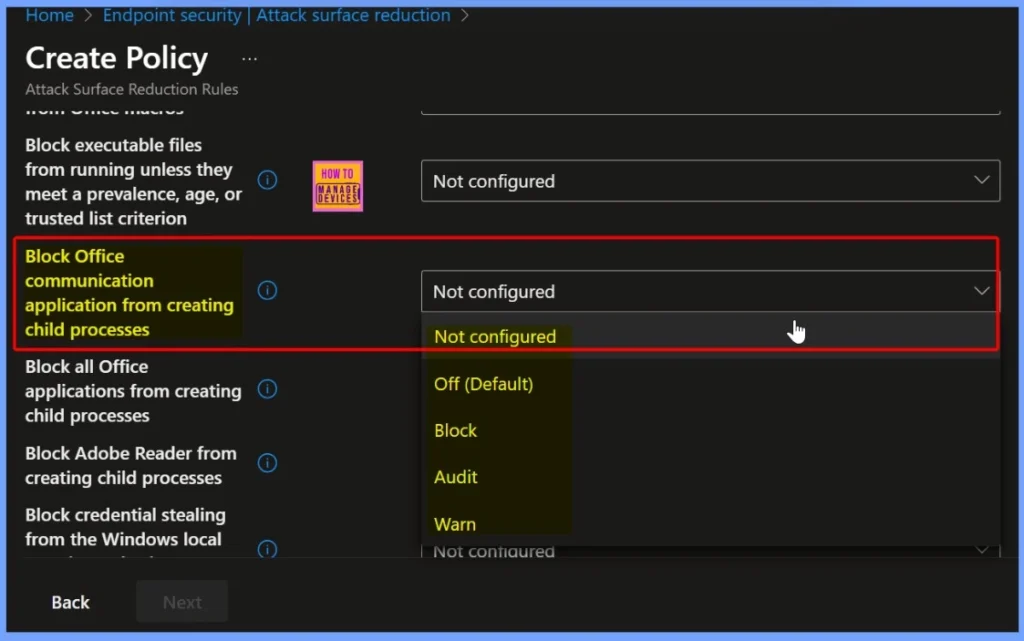
Default ASR Setting Status – Not Configured
By default, the “Block Office communication application from creating child processes” rule is set to Not Configured, which means it is not actively protecting your devices. In this state, Outlook and other Office communication apps are still allowed to launch background processes such as PowerShell or cmd, which can be exploited by attackers through malicious emails or attachments.
Enable Protection by Selecting the Block Settings Option
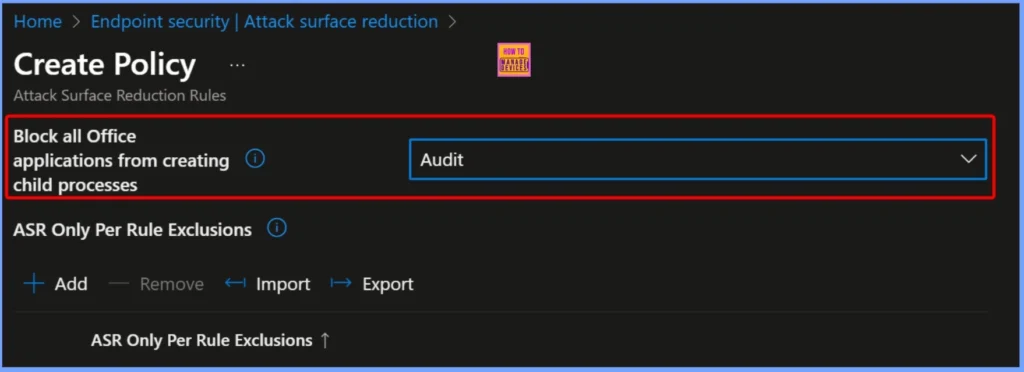
To activate this security control, change the “Block Office communication application from creating child processes” setting from Not configured to Block. Selecting Audit ensures that Outlook and other Office communication apps cannot launch background programs.
| Policy Name | Enable |
|---|---|
| Block Office communication application from creating child processes | Audit |
- Configure Attack Surface Reduction ASR Rules in Intune
- What is Microsoft Defender XDR?
- Microsoft Defender ASR Rules to Block Rebooting Machine in Safe Mode
- MDE Microsoft Defender for Endpoint Telemetry Issues
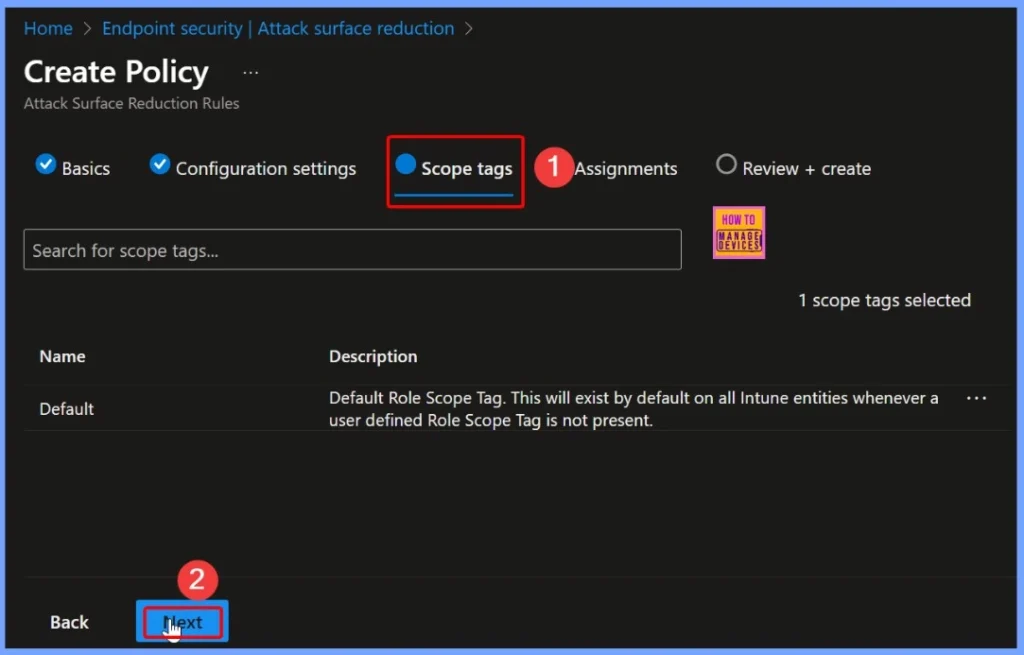
Configure Scope Tags for the ASR Policy
Scope tags help you organize and control which groups or devices the ASR policy applies to. For the “Block Office communication application from creating child processes” setting, you can assign appropriate scope tags in Intune to target specific device groups within your organisation.
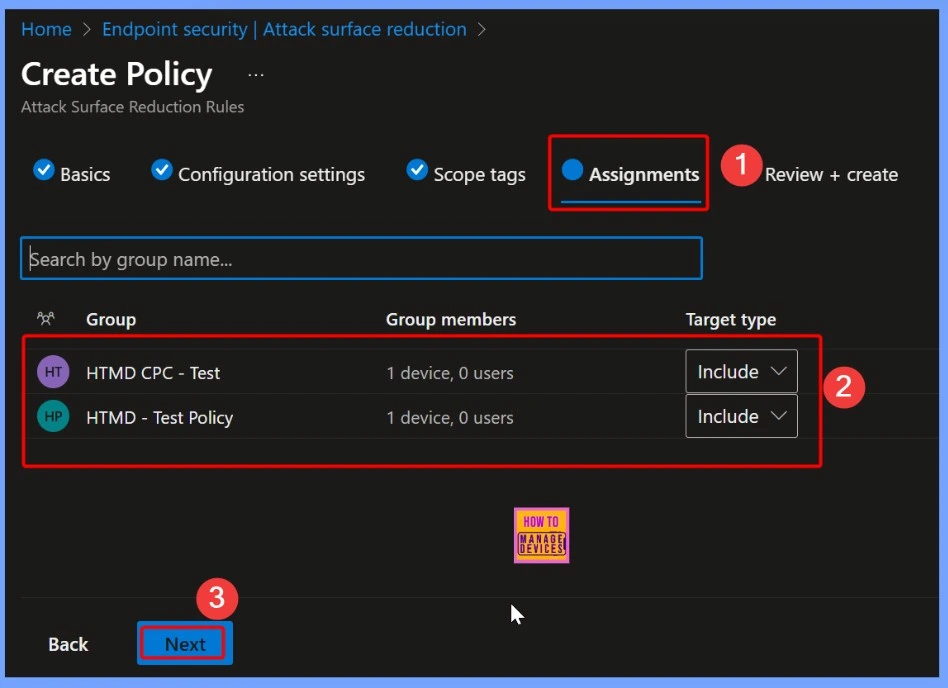
Assign the ASR Policy to Devices Groups
Here i select 2 groups that the HTMD CPC Test and HTMD Test Policy group. Both the group includes 1 devices and 0 users. The target type of this group is Include. All these details are shown in detail in the below screenshot.
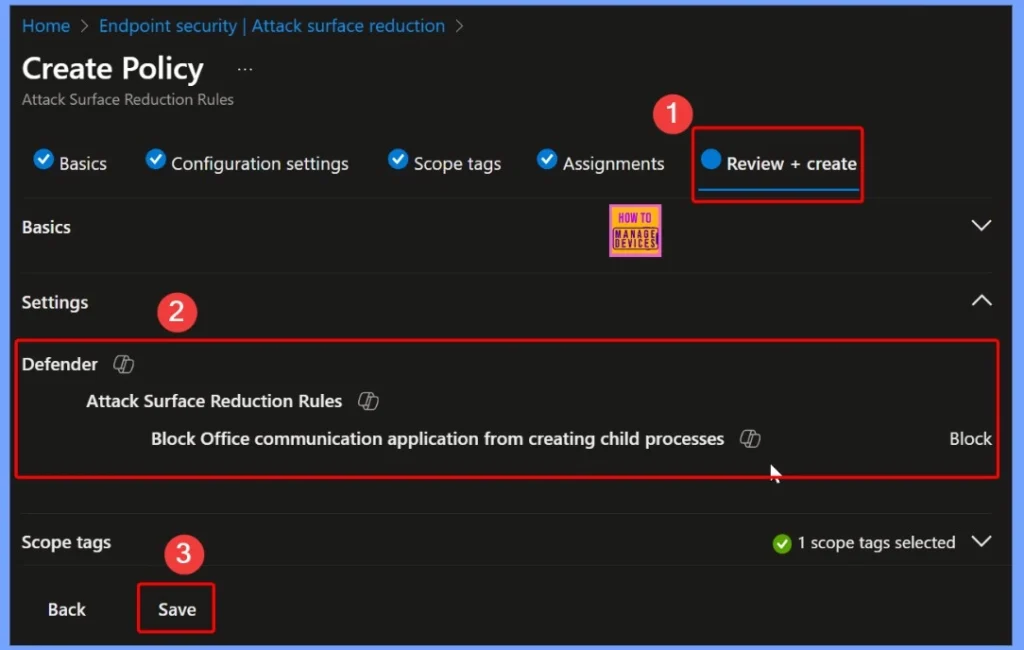
Review and Create the ASR Policy
Before finalizing, the Review + Create step allows you to verify all settings for the “Block Office communication application from creating child processes” policy. Check the policy name, description, scope tags, assignments, and configuration options to ensure everything is correct. After checking the details click the Save button from the below window.
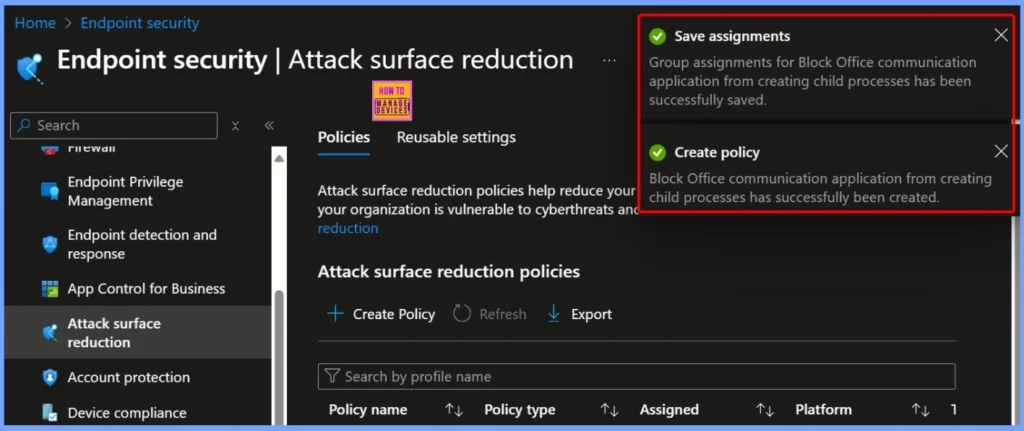
Policy Creation Confirmation and Assignment Save
After clicking Save in the Review + Create tab, you will see two important notifications. The first, “Group assignments for Block Office communication application from creating child processes has been successfully saved,” confirms that your selected device has been correctly assigned to the policy.
The second notification, “Block Office communication application from creating child processes has successfully been created,” indicates that the ASR policy itself has been successfully deployed.
Device and User Check in Status
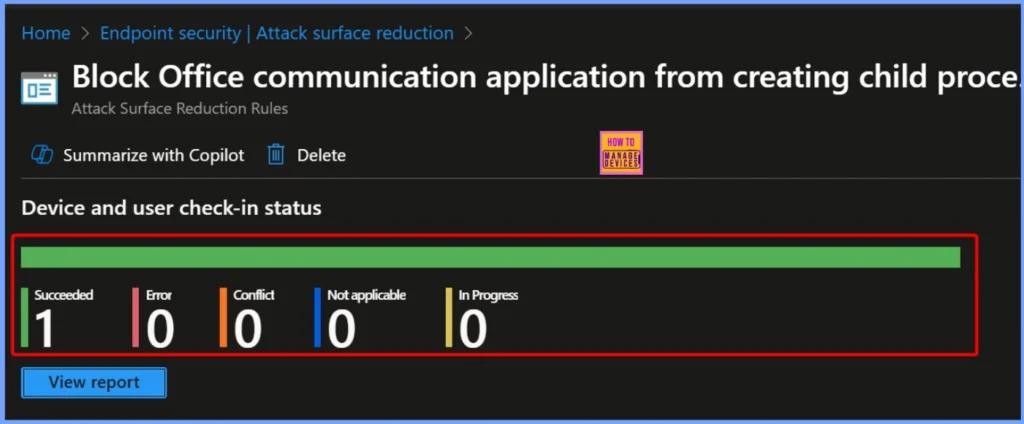
The Device and User Check-In Status shows the current deployment state of the policy. In this case, 1 device has successfully received and applied the policy (Succeeded: 1). There are no conflicts (Conflict: 0), Not applicable 0 and In Progress 0.
Event Viewer – Attack Surface Reduction Rules
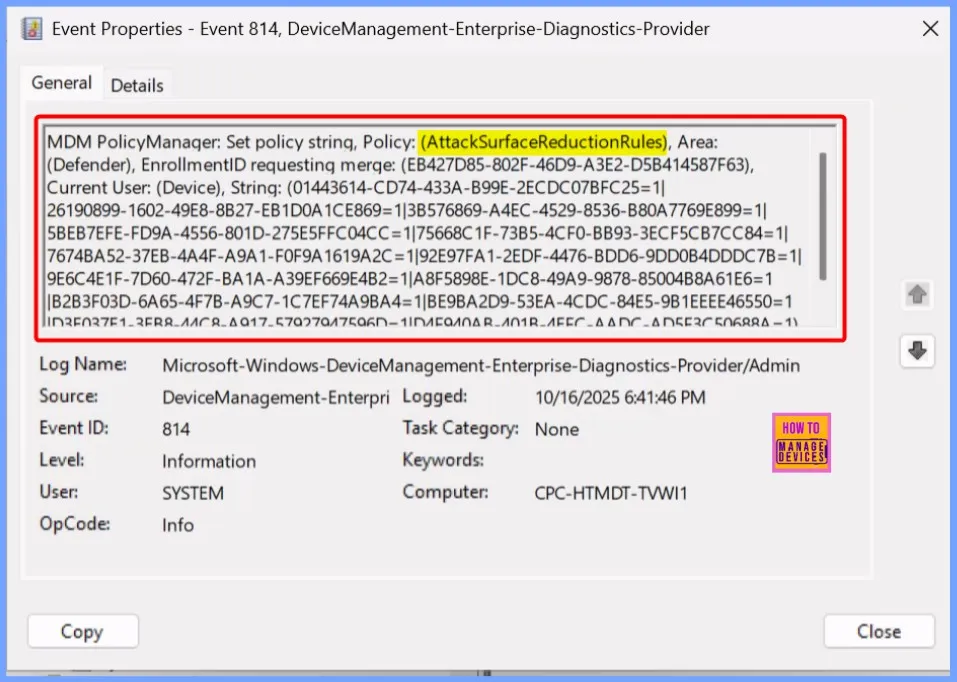
you can use Event Viewer to monitor its activity and ensure it is working correctly. You can see events that indicate whether Office applications attempted to launch child processes and whether those attempts were successfully blocked by the ASR rule. Monitoring these logs helps administrators verify policy enforcement and detect any potential attempts to bypass security controls.
To confirm this, check the Event log path – Applications and Services Logs – Microsoft – Windows – Devicemanagement-Enterprise-Diagnostics-Provider – Admin.
Need Further Assistance or Have Technical Questions?
Join the LinkedIn Page and Telegram group to get the latest step-by-step guides and news updates. Join our Meetup Page to participate in User group meetings. Also, Join the WhatsApp Community to get the latest news on Microsoft Technologies. We are there on Reddit as well
Author
Anoop C Nair has been Microsoft MVP from 2015 onwards for 10 consecutive years! He is a Workplace Solution Architect with more than 22+ years of experience in Workplace technologies. He is also a Blogger, Speaker, and Local User Group Community leader. His primary focus is on Device Management technologies like SCCM and Intune. He writes about technologies like Intune, SCCM, Windows, Cloud PC, Windows, Entra, Microsoft Security, Career, etc


Discussion