






VPN Bandwidth Control via BITs Throttling for SCCM DP | Client
A hot topic within many organizations is controlling the VPN bandwidth without drastically changing anything (split tunnelling?). Many IT Pros and SCCM admins suggested including BITs Throttling for SCCM DP options into the list as an easy win!
Related Post – Use Existing SCCM Config to Help to Reduce VPN Bandwidth | ConfigMgr
Let’s examine an existing SCCM (A.K.A Configuration Manager) configuration to help accommodate remote work scenarios and reduce VPN bandwidth. Some great posts are available in the community and from Microsoft to address these situations. But in this post, I shall concentrate on BITs Throttling for SCCM DP.
You can refer to the post from Rob York on 1.“ Managing remote machines with cloud management gateway in Microsoft Endpoint Configuration Manager” 2. “Managing Patch Tuesday with Configuration Manager in a remote work world“.

Post from Jonas, Roland, and Stefan. Mastering Configuration Manager Bandwidth limitations for VPN connected Clients
| Index |
|---|
| BITs Throttling for SCCM DP |
| Server Side |
| Windows 10 Client-Side BITs Throttling |
| SCCM Client Settings for BITs |
| Resources |
BITs Throttling for SCCM DP
You can use the old-school but very effective method of controlling VPN tunnel traffic with BITs throttling options in the SCCM world! There are two sides to BITs throttling, aren’t there?
You can implement the BITs control at the Windows 10 client end and at the server end. Let’s see what are the options.
NOTE! – BITs throttling control at the client end might also impact other applications.
Server Side
Let’s do this for the site servers causing load on the VPN as a test scenario.
What do you think SCCM DP is a good starting point for the same? I have related posts about IIS settings for WSUS and SUP. But, in this scenario, we are talking about SCCM DP IIS throttling. You can apply the same process for MP and SUP as well. What do you think?
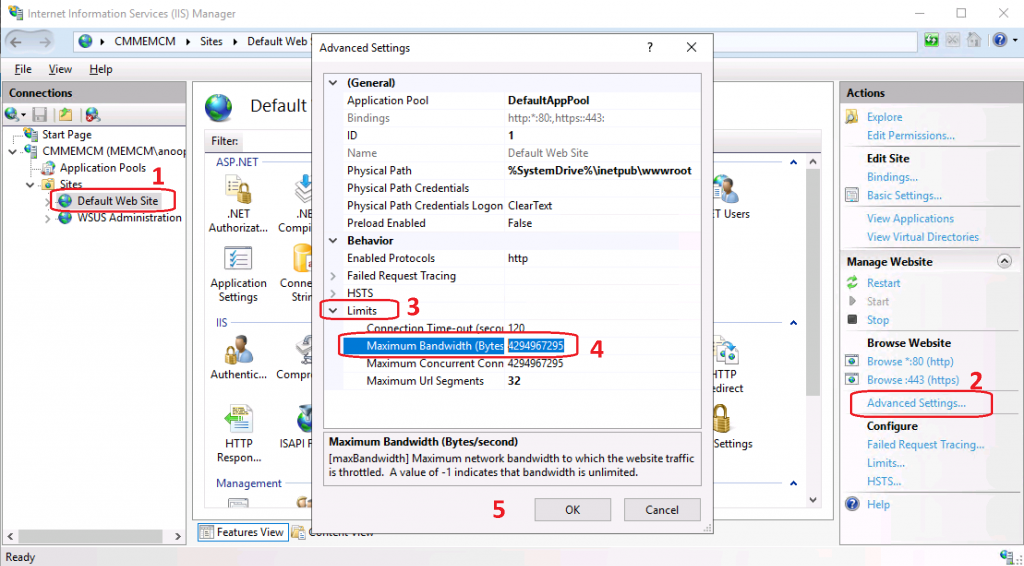
- Login to the Remote Site System or Site Server of SCCM where the DP role is installed
- Launch IIS
- Select Default Web Site >> Advanced Settings
- Under the Advanced Setting window – Check the default value for Maximum Bandwidth (Bytes) settings
- The default setting is on my lab server 4294967295 bytes = ~4.3 GB
- Try to change the setting accordingly as per your requirements
Windows 10 Client-Side BITs Throttling
To have this client-related policy, you can apply the group policy referred to below. Or you can use the Windows CSP method to control the BITs traffic coming out from Windows 10 devices.
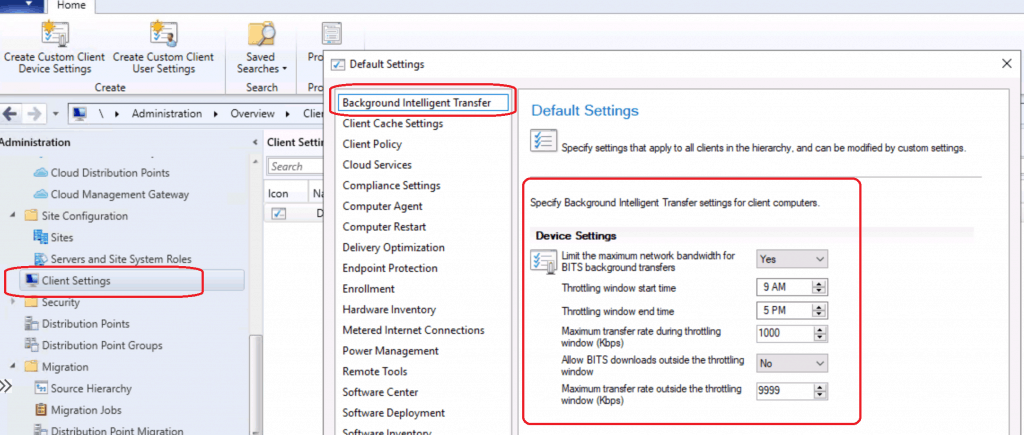
SCCM Client Settings for BITs
Group Policy Settings are given below:
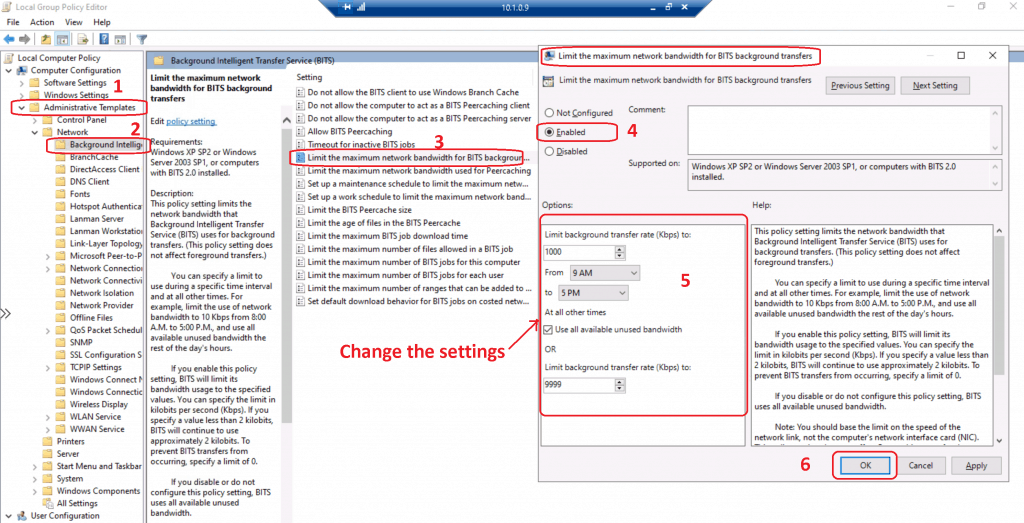
- Open Group Policy by entering gpedit.msc
- BITS policies are located under Computer Configuration– Administrative Templates –Network – Background Intelligent Transfer Service.
- Right-click the policy. Limit the maximum network bandwidth for BITS background transfers and edit.
- Select the ENABLE button to set up the BITs throttling from the Windows 10 client side.
- Change the settings as per your requirements. The following are the default settings.
- Restart the BITs services to apply this setting.
Let’s check BITs Throttling for SCCM DP policy (Limit the maximum network bandwidth for BITS background transfers) description below (not specifically for DP traffic but applicable for all the traffic).
This policy setting limits the network bandwidth that Background Intelligent Transfer Service (BITS) uses for background transfers. (This policy setting does not affect foreground transfers.)You can specify a limit to use during a specific time interval and at all other times. For example, limit the use of network bandwidth to 10 Kbps from 8:00 A.M. to 5:00 P.M., and use all available unused bandwidth the rest of the day's hours.If you enable this policy setting, BITS will limit its bandwidth usage to the specified values. You can specify the limit in kilobits per second (Kbps).If you specify a value less than 2 kilobits, BITS will continue to use approximately 2 kilobits. To prevent BITS transfers from occurring, specify a limit of 0.If you disable or do not configure this policy setting, BITS uses all available unused bandwidth. Note: You should base the limit on the speed of the network link, not the computer's network interface card (NIC).This policy setting does not affect Peercaching transfers between peer computers (it does affect transfers from the origin server); the "Limit the maximum network bandwidth used for Peercaching" policy setting should be used for that purpose.Consider using this setting to prevent BITS transfers from competing for network bandwidth when the client computer has a fast network card (10Mbs), but is connected to the network via a slow link (56Kbs).
Resources
- Windows 10 CSP to control BITs traffic – https://docs.microsoft.com/en-us/windows/client-management/mdm/policy-csp-bits
- BITs throttling Group Policies for non-MDM scenario – https://docs.microsoft.com/en-us/windows/win32/bits/group-policies
- ConfigMgr Best Practices Related to IIS for SCCM SUP WSUS Setup
- Configuration Manager Default IIS Configurations DP Troubleshooting Issues
We are on WhatsApp. To get the latest step-by-step guides and news updates, Join our Channel. Click here –HTMD WhatsApp.
Author
Anoop C Nair is Microsoft MVP! He is a Device Management Admin with more than 20 years of experience (calculation done in 2021) in IT. He is a Blogger, Speaker, and Local User Group HTMD Community leader. His main focus is on Device Management technologies like SCCM 2012, Current Branch, and Intune. He writes about ConfigMgr, Windows 11, Windows 10, Azure AD, Microsoft Intune, Windows 365, AVD, etc.




Why not use LEDBAT? This works perfectly in our environment…
StaffYes you can if your DP is capable you have the LEDBAT feature
Ledbat have ups and down. You can also, instead of gpo, us sccm client settings to limite bits transfer. That’s what I use applied to the VPN group so only client on VPN are affected.
StaffOk what are those ups and downs
Nothing about the Configmgr Bits client setting?
What about Windows 8.1?
StaffWhat about that pls ? Isn’t the same for Windows 8.1
What if we only want to throttle on the client side, when those clients are on VPN? Can we create a separate client settings policy to use bits throttling and apply it to a device collection based on clients that fall into a specific boundary group? We don’t want to throttle as extensively when systems are on-prem.
StaffI don’t think client side bits client settings can be deployed based on boundary group.
As of SCCM 2002 this is possible – see here https://www.systemcenterdudes.com/sccm-powershell-collection-boundary-groups/
Based on Corona Pandemie and more and more people switched to Home office, we had the same challange, to ensure we still can serve the clients with Software and Updates, but save the rare Bandwidth od the VPN User, and reduce the impact for other Services like Outlook and especially Skype.
We tried several things.
First of all, we disabled the DP assigned the VPN Boundaries and enabled it only over the weekend. Possible, but te users need to connect over the weekend, and we all know our users, and trust me, they don’t do it 😉
Then we limited the Bandwidth of the DP, which is also the Primary Site. Don’t ask me why, but as soon we have done this, we experienced some strange Skype issues. As soon we removed the limit, the issues where gone. So from my point of view, not a good idea.
After that, we just create a new DP, which was assigned to the Boundary incl the limit of the bandwidth, and everything is fine.
We can control the Bandwidth and adjust it, if required, and we can add or remove special Software, and “prioritize” packages, while we can control, that clients can only download this one, if needed, to ensure we can deploy even with limited Bandwidth, critical updates as soon as possible.
limiting the clients had the downside, that clients with very fast connections, and we have a lot of them, will be limited as well, and the download took ages, even if we had enough Bandwith available on the WAN
If you have well defined VPN IP ranges, you could also implement Policy-Based QoS settings on all DPs to throttle all traffic to those VPN IP ranges. While BITS throttling is great for backgroup (required) SCCM deployments, BITS isn’t used for Available SCCM deployments – depends on how big your deployed apps are, but a potential pitfall