






Block Common Memory-Based Vulnerability with Structured Exception Handling Overwrite Protection Policy using Intune
Let’s discuss Block Common Memory-Based Vulnerability with Structured Exception Handling Overwrite Protection Policy using Intune. SEH is a mechanism in Windows that allows a program to respond to exceptional events (like hardware faults or software errors, often called exceptions).
When an exception occurs, Windows looks for registered exception handlers in a linked list, known as the SEH chain, stored on the thread’s stack. Structured Exception Handling Overwrite Protection (SEHOP) is a runtime security safeguard that specifically targets and blocks a common exploitation technique.
By Enabling Structured Exception Handling Overwrite Protection significantly improves the system’s security posture and reduces the attack surface, especially for older 32-bit applications that may lack other exploit mitigations.
For administrators responsible for managing and securing the Windows environment, enabling SEHOP through Intune simplifies security management and strengthens their control. For the organization, the benefit of SEHOP is realized in risk reduction, cost savings, and regulatory compliance.

Table of Contents
Block Common Memory-Based Vulnerability with Structured Exception Handling Overwrite Protection Policy using Intune
By setting this policy to Enabled in Intune, administrators ensure that the SEHOP mitigation is enforced across all assigned Windows devices, significantly reducing the attack surface against SEH overwrite vulnerabilities.
- Unlock Optimal Remediation Action for High-Severity Threats using Intune
- Stop Hidden Threats Your Step by Step Guide to Activating Network File Scanning using Intune
- How to Delete Attack Surface Reduction ASR Policy from Microsoft Intune
Steps to Structured Exception Handling Overwrite Protection
You can start the policy creation of the Structured Exception Handling Overwrite Protection Policy in Intune. Using simple steps, you can easily complete the policy creation. Open the Intune admin center. Go to Devices > Configuration > Policies> + Create > + New policy.
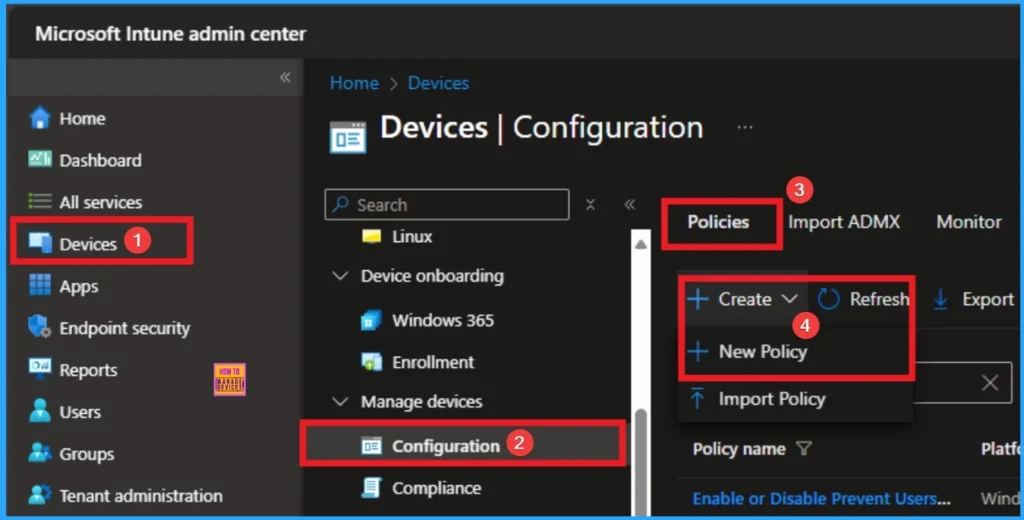
Profile Creation
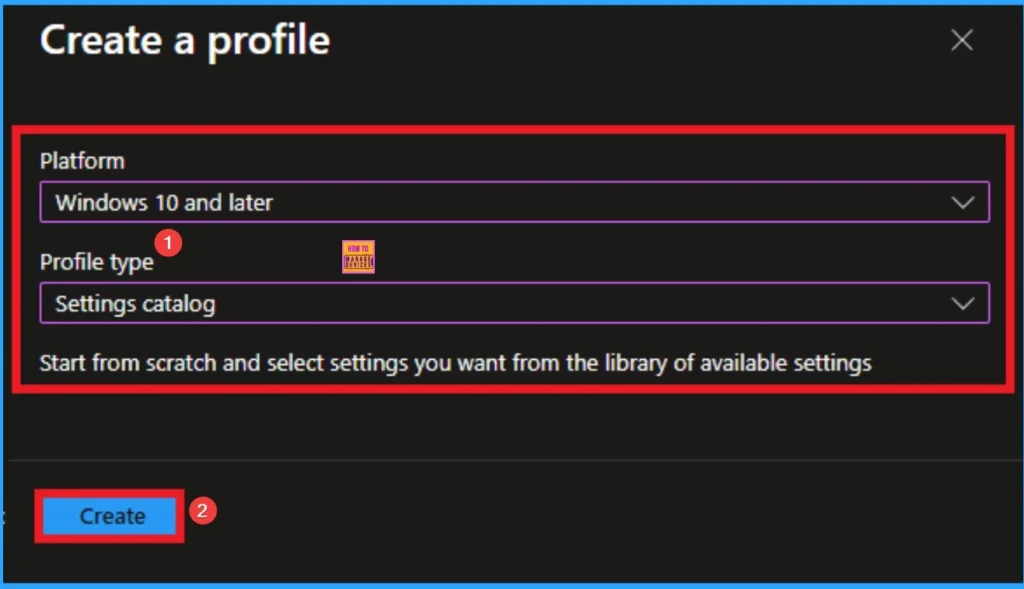
After that, you will get a profile window to select the platform and profile type. First of all, you select the platform, then you can select the profile type. Select Windows 10 and later as the platform, and select settings catalog as the profile type. Click on the create button.
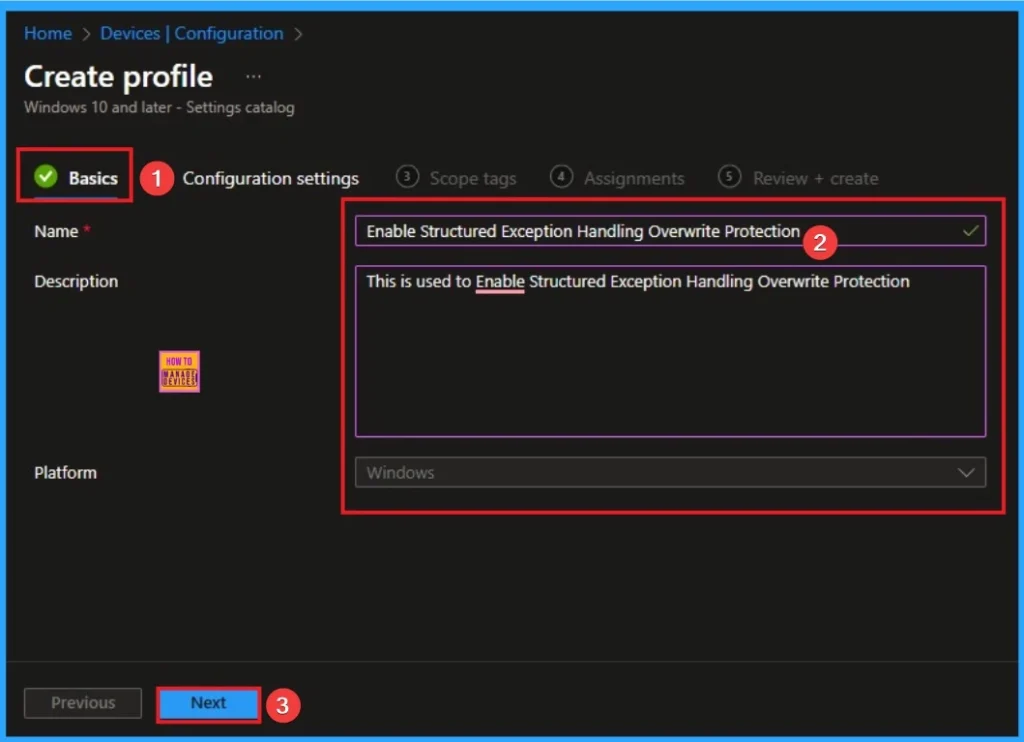
Basic Tab for Adding Name and Description
The basic tab is starting step of policy creation. On this tab, you have to give a name for the policy that you want to create. The name field is mandatory. Without giving a name, you can’t create a policy on the basic tab. You can also describe the policy, which description is not compulsory. Click on the next button.
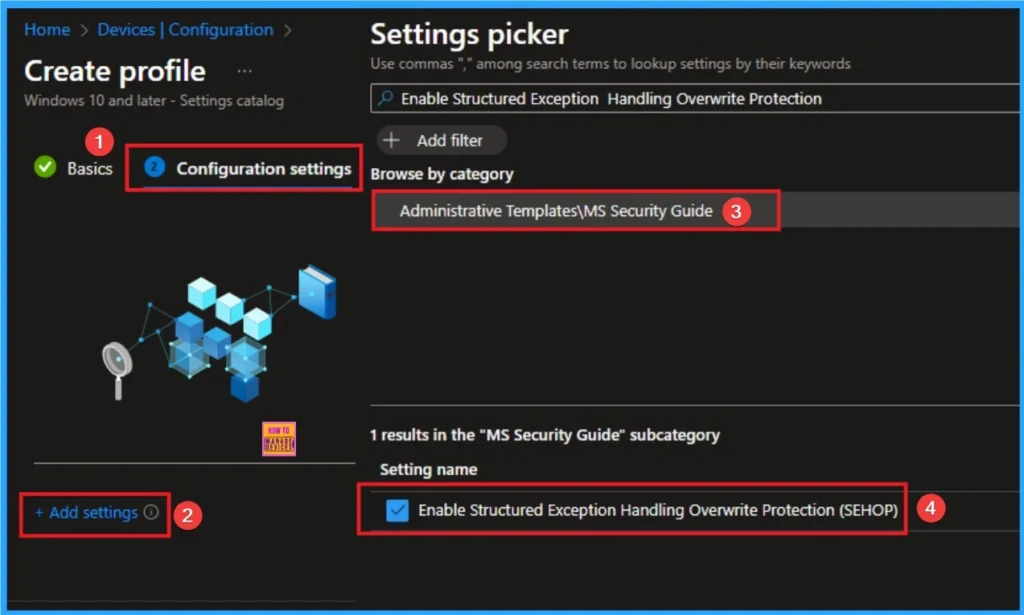
Configuration Settings
The configuration tab allows you to select specific policy settings to manage your organisation’s devices. On this page, we click on the + Add Settings hyperlink. Then you will get a settings picker that will show different types of categories to select specific settings. Here I go to Administrative Templates> MS Security Guide > Enable Structured Exception Handling Overwrite Protection (SEHOP).
Disable Structured Exception Handling Overwrite Protection
The system becomes vulnerable to SEH overwrite exploits. If a process has a buffer overflow vulnerability, an attacker can use it to redirect the program to execute arbitrary, malicious code.
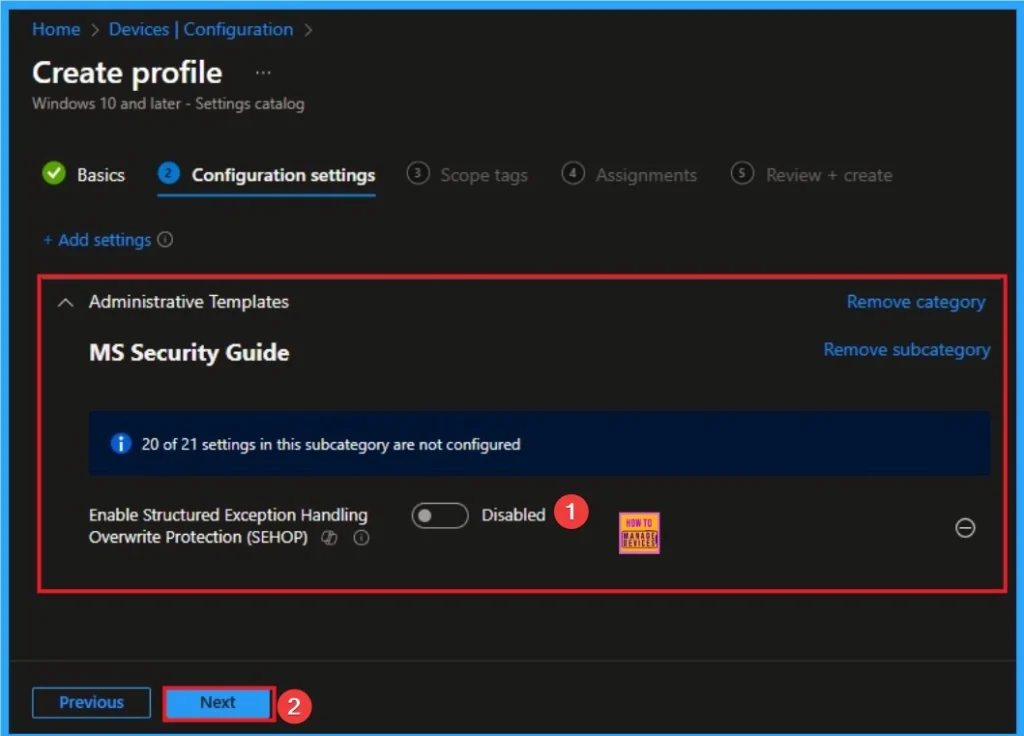
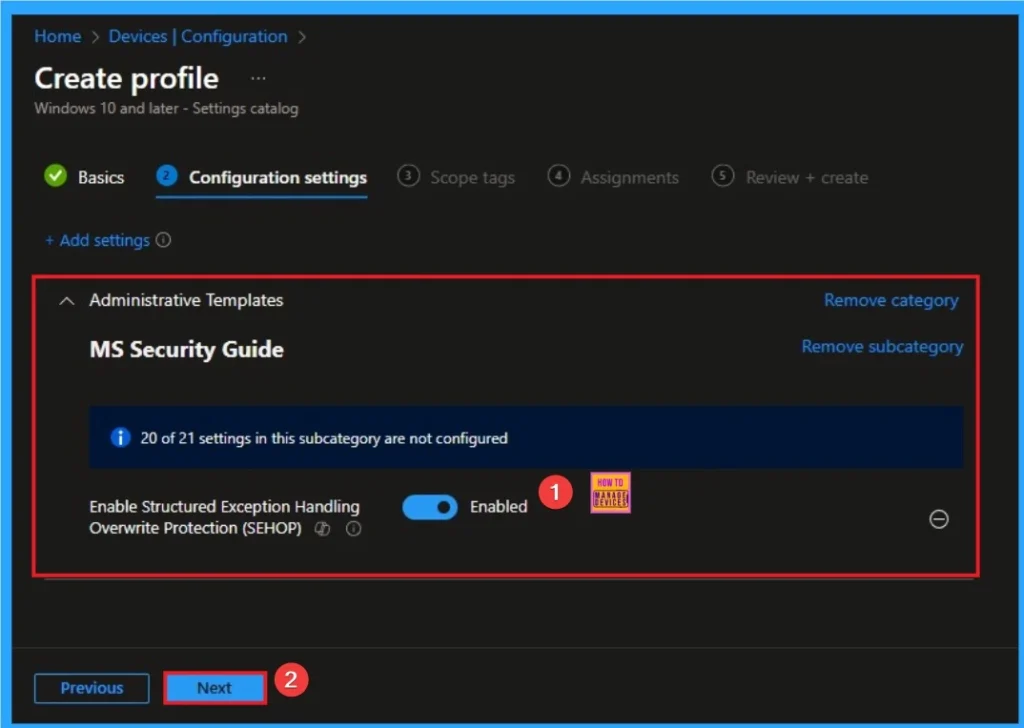
Enable Structured Exception Handling Overwrite Protection
Instead of the attacker executing code, the vulnerable application simply crashes, minimizing the attack window and preventing a system compromise. Here I am going to Enable this policy.
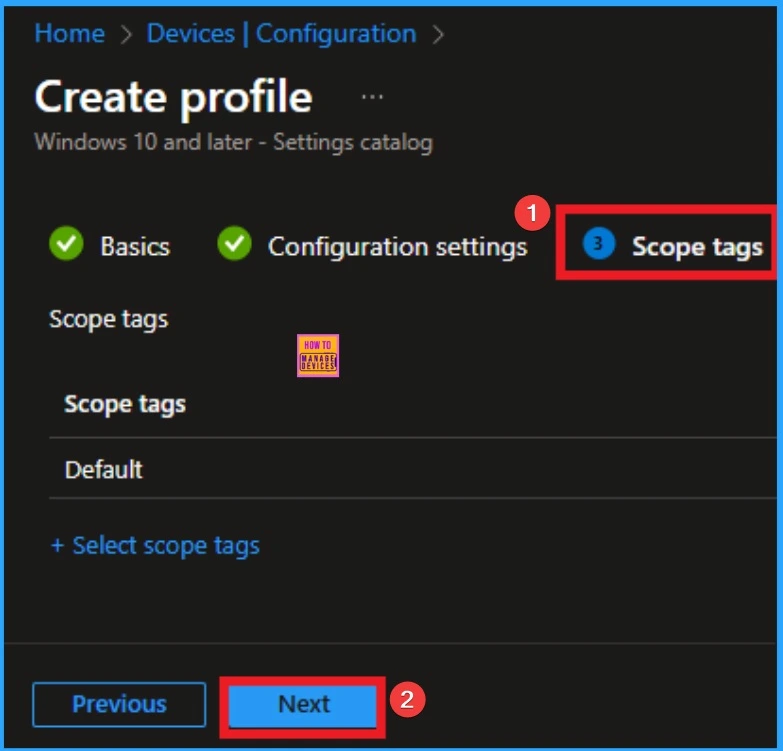
Scope Tags
The next section is the Scope tag and which is not a compulsory step. It helps to assign this policy to a defined group of users or devices. Here, I skip the section and click on the next button.
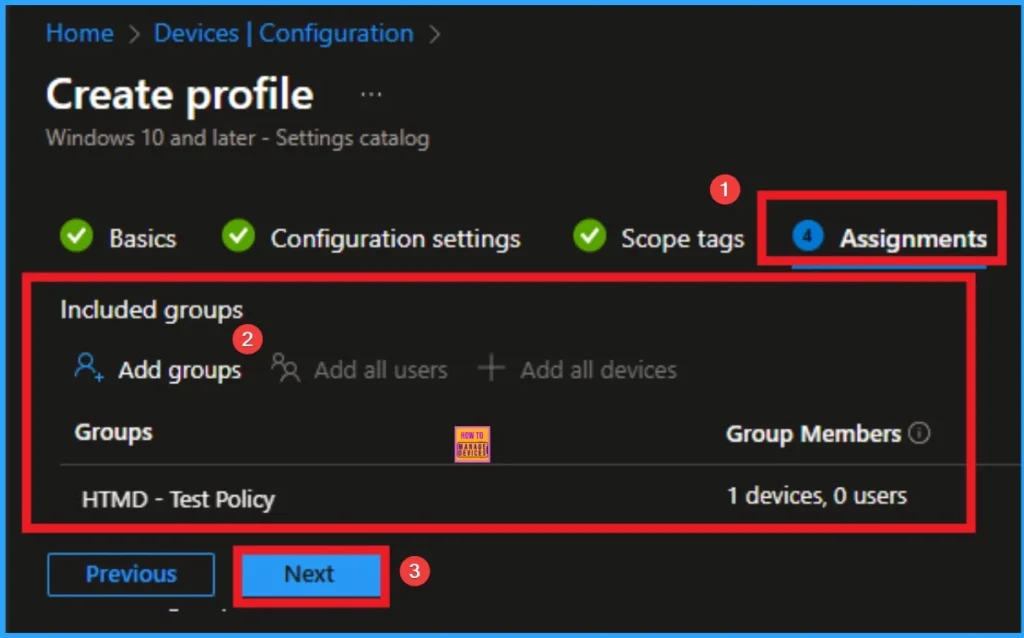
Assignments Tab
The assignments tab is the crucial step that determines which groups can be selected to assign the policy. Click on the +Add groups option under included groups. Select the group from the list of groups on your tenant.
Click on the Select button. And you can see the selected group on the Assignments tab. Click on the Next button in the window below.
Review + Create
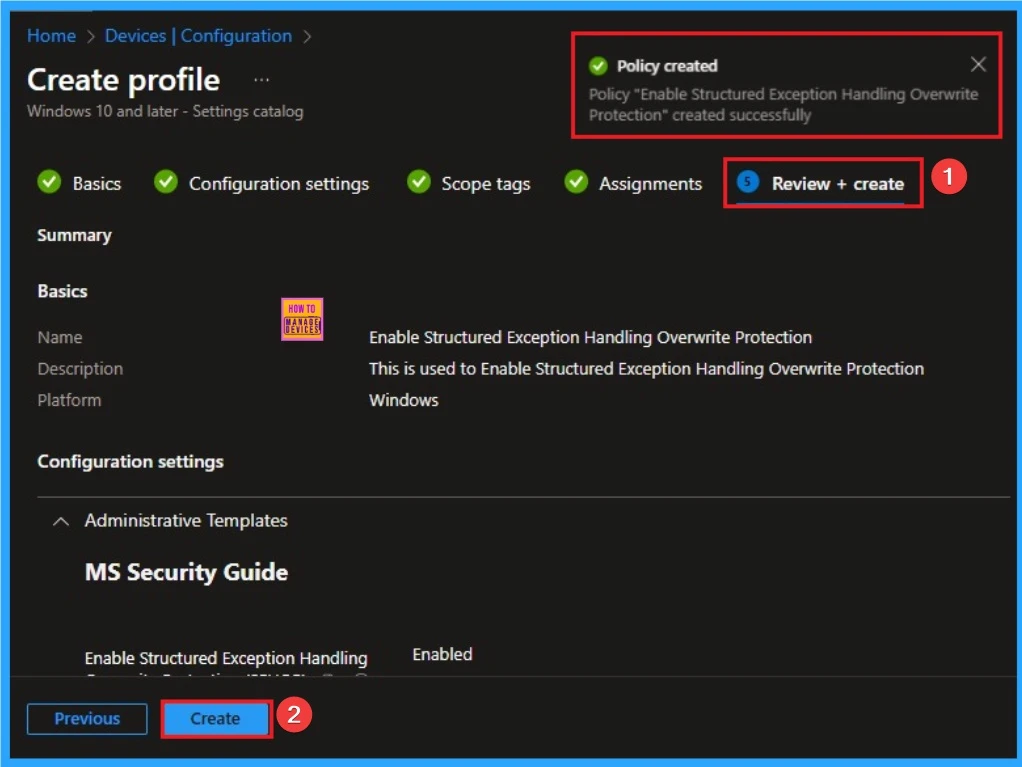
The Review + Create tab is the last step of policy creation. On this tab, you can verify every detail of the policy which are added in the previous steps (basic configuration settings, scope tag assignments s etc). If you want to make any changes, click on the previous button; otherwise, you can click on the Create button.
Device Checking Status
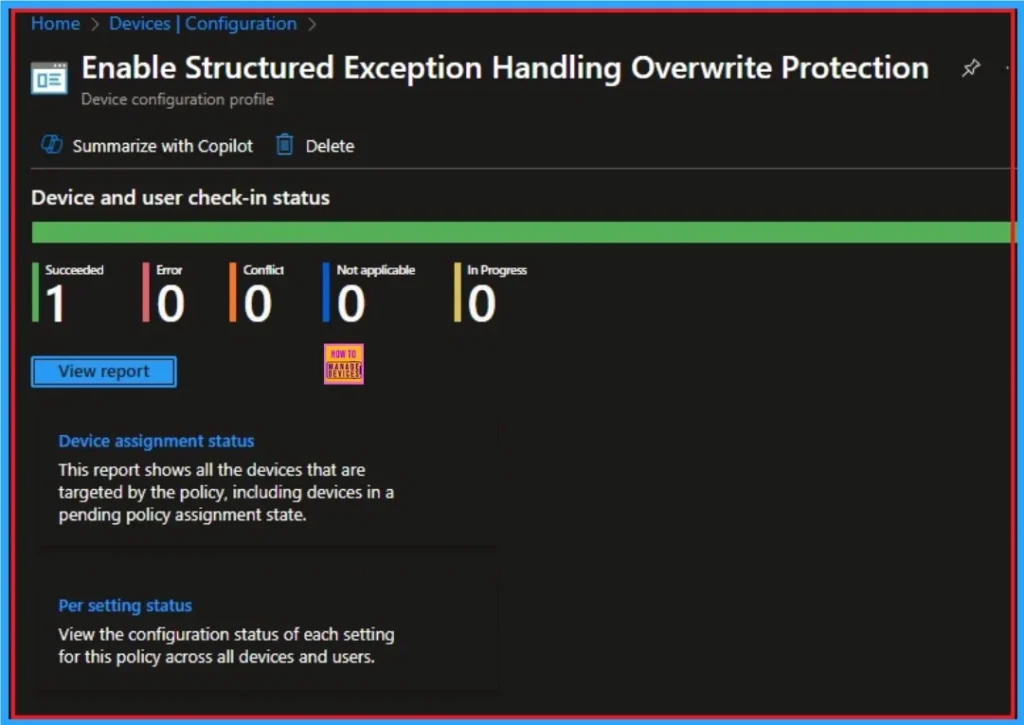
To quickly configure the policy and take advatage of the policy sync the assigned device on Company Portal. Open the Intune Portal. Go to Devices > Configuration > Search for the Policy. Here the policy shows as succeeded.
How to Remove Structured Exception Handling Overwrite Protection
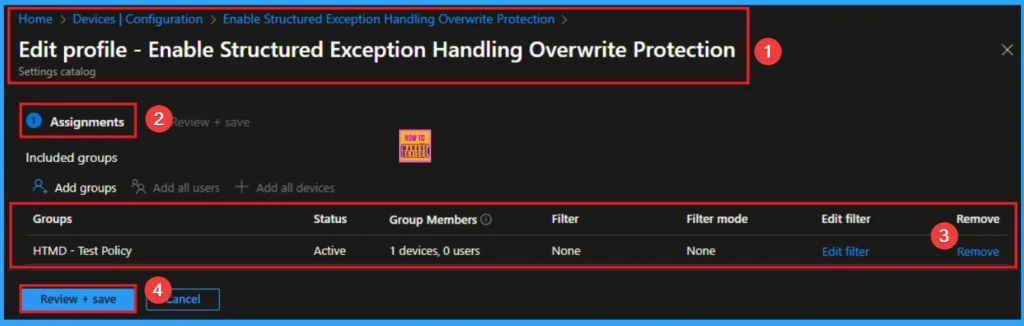
If you want to remove the Common Memory-Based Vulnerability with Structured Exception Handling Overwrite Protection policy on the Intune portal, it is a very easy process. To do this, open the policy from the Configuration tab., and click on the Edit button on the Assignment tab. Click on the Remove button on this section to remove the policy.
For more detailed information, you can check our previous post – Learn How to Delete or Remove App Assignment from Intune using by Step-by-Step Guide.
How to Delete Common Memory-Based Vulnerability with Structured Exception Handling Overwrite Protection
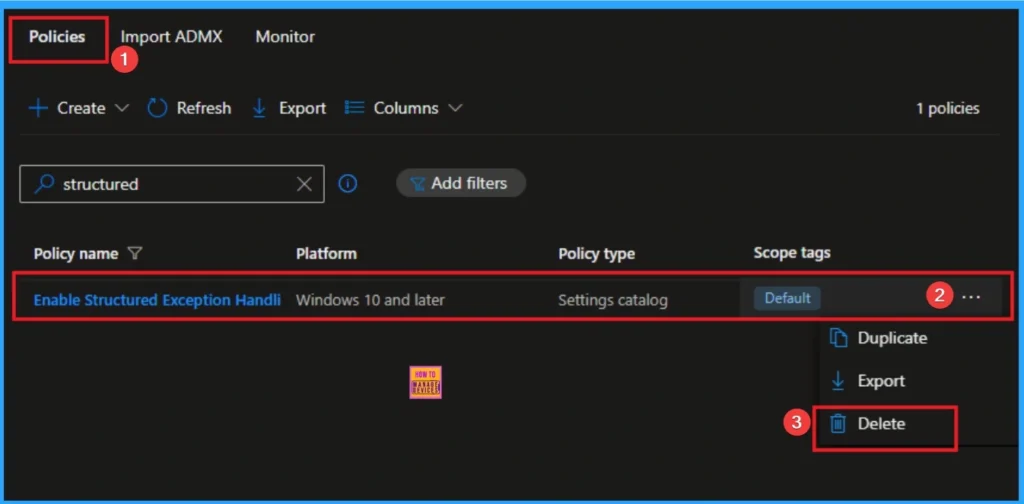
Intune allows you to easily delete a policy within the Intune Portal. Policy deletion is necessary in an organization due to different reasons. To delete the policy, click on the 3-dot option and then click on the Delete button.
For more information, you can refer to our previous post – How to Delete Allow Clipboard History Policy in Intune Step by Step Guide.
CSP Details
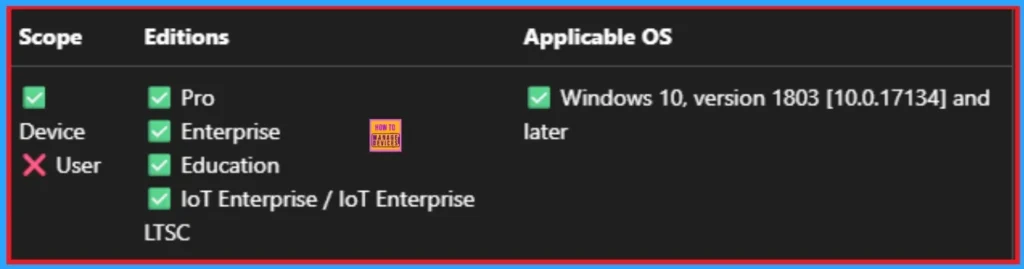
This policy Windows 10, version 1803 [10.0.17134] and later. Windows 10, version 1803 [10.0.17134] and
later.
| Name | Value |
|---|---|
| Name | Pol_SecGuide_0102_SEHOP |
| ADMX File Name | SecGuide.admx |
Need Further Assistance or Have Technical Questions?
Join the LinkedIn Page and Telegram group to get the step-by-step guides and news updates. Join our Meetup Page to participate in User group meetings. Also, Join the WhatsApp Community to get the latest news on Microsoft Technologies. We are there on Reddit as well.
Author
Anoop C Nair has been Microsoft MVP for 10 consecutive years from 2015 onwards. He is a Workplace Solution Architect with more than 22+ years of experience in Workplace technologies. He is a Blogger, Speaker, and Local User Group Community leader. His primary focus is on Device Management technologies like SCCM and Intune. He writes about technologies like Intune, SCCM, Windows, Cloud PC, Windows, Entra, Microsoft Security, Career, etc


Discussion