






Step-by-Step Intune Guide to Block Personal MSAs on Corporate Windows Devices
Let’s discuss Step-by-Step Intune Guide to Block Personal MSAs on Corporate Windows Devices. This setting controls whether users can provide Microsoft accounts for authentication for applications or services. MSAs, typically personal accounts like those ending in @outlook.com, @hotmail.com, or accounts used for personal Xbox/OneDrive) for authentication.
If this setting is enabled, all applications and services on the device are prevented from using Microsoft accounts for authentication. This applies both to existing users of a device and new users who may be added.
However, any application or service that has already authenticated a user will not be affected by enabling this setting until the authentication cache expires. It is recommended to enable this setting before any user signs in to a device to prevent cached tokens from being present.
Enabling this policy prevents users from signing into services like a personal OneDrive, OneNote, or Microsoft Store using their consumer MSA on a corporate device. This is crucial to prevent the unauthorized transfer or synchronization of corporate data onto a personal cloud account.

Table of Contents
Step-by-Step Intune Guide to Block Personal MSAs on Corporate Windows Devices
This setting controls whether users can provide Microsoft accounts for authentication for applications or services. This setting does not affect whether users can sign in to devices by using Microsoft accounts, or the ability for users to provide Microsoft accounts via the browser for authentication with web-based applications.
- Enable or Disable Microsoft Account Connection Policy using Intune
- How to Allow Adding Non Microsoft Accounts Manually Using Intune Setting Catalog
- Intune Allow Microsoft Accounts to be Optional Policy
Steps to Configure Block Personal MSAs
You can start the policy creation of the Block Personal MSAs Policy in Intune. Using simple steps, you can easily complete the policy creation. Open the Intune admin center. Go to Devices > Configuration > Policies> + Create > + New policy.
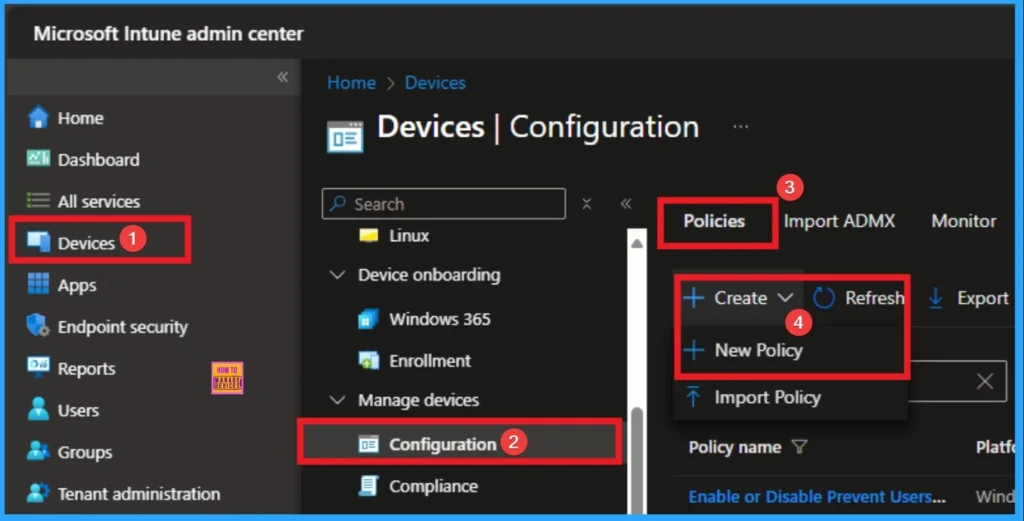
Profile Creation
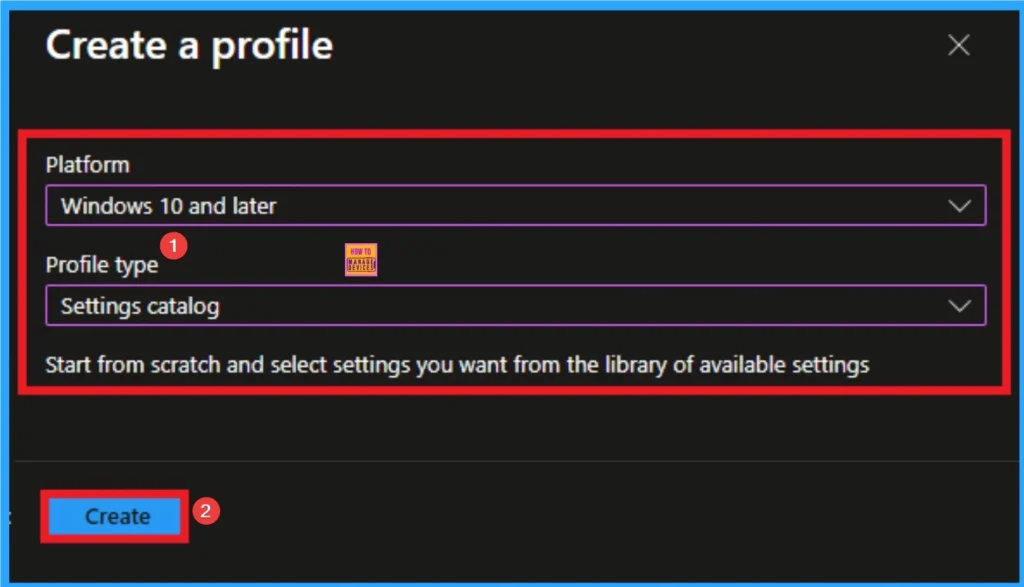
After that, you will get a profile window to select the platform and profile type. First of all, you select the platform, then you can select the profile type. Select Windows 10 and later as the platform, and select settings catalog as the profile type. Click on the create button.
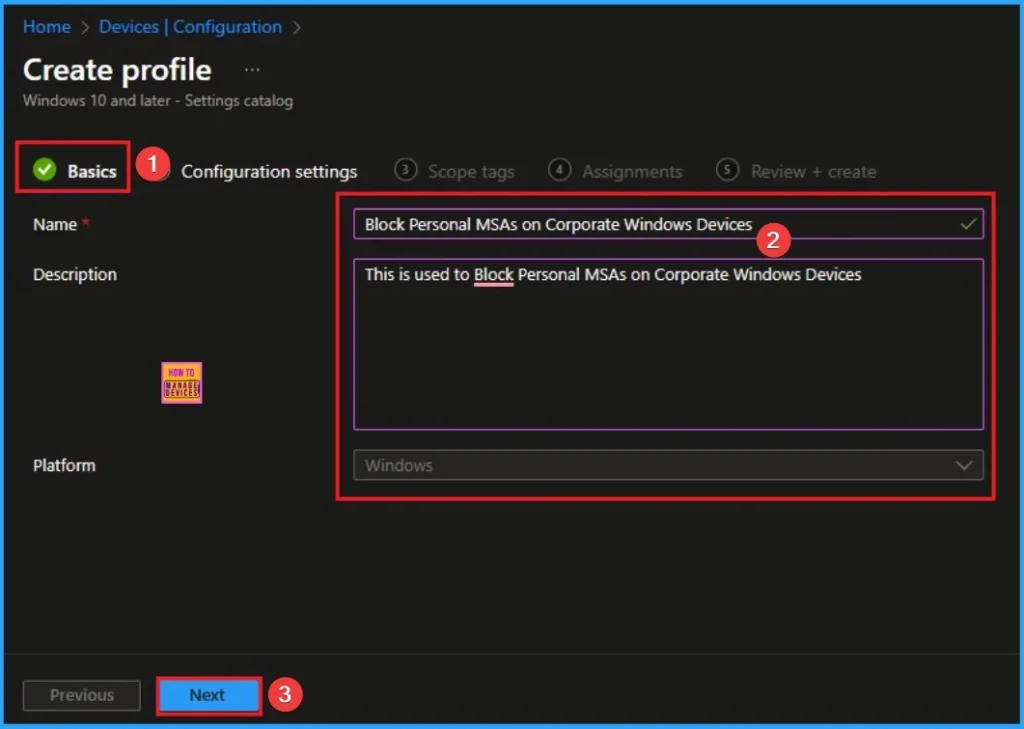
Basic Tab for Adding Name and Description
The basic tab is starting step of policy creation. On this tab, you have to give a name for the policy that you want to create. The name field is mandatory. Without giving a name, you can’t create a policy on the basic tab. You can also describe the policy, which description is not compulsory. Click on the next button.
Configuration Settings
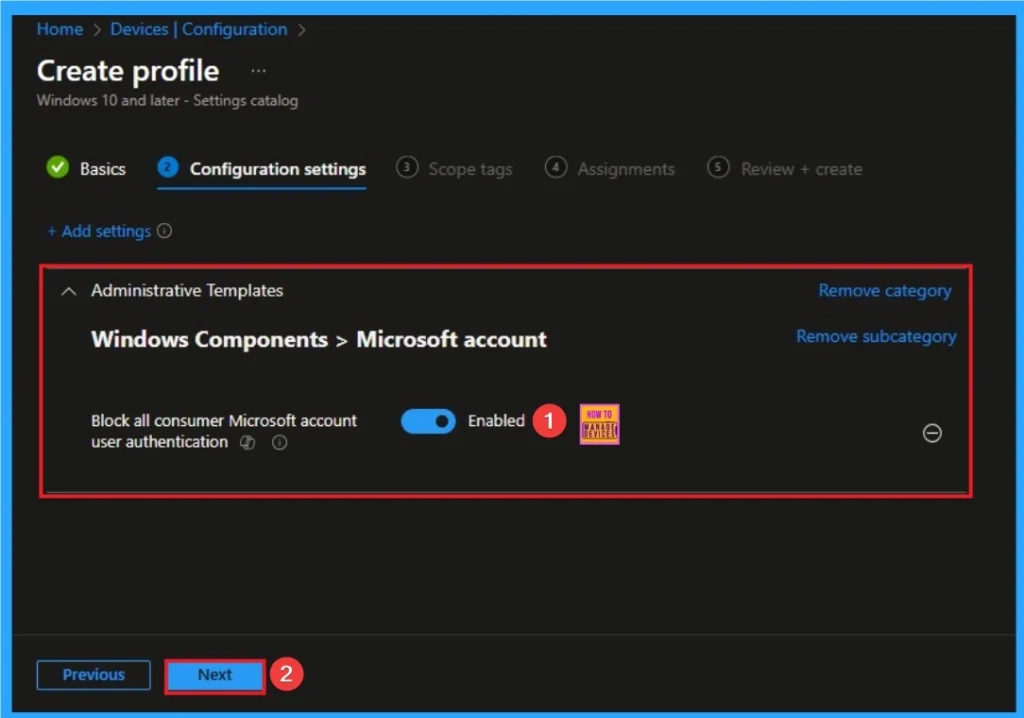
The configuration tab allows you to select specific policy settings to manage your organisation’s devices. On this page, we click on the + Add Settings hyperlink. Then you will get a settings picker that will show different types of categories to select specific settings. Here, I choose Administrative Templates > Windows Components > Microsoft account > Block all consumer Microsoft account user authentication settings.
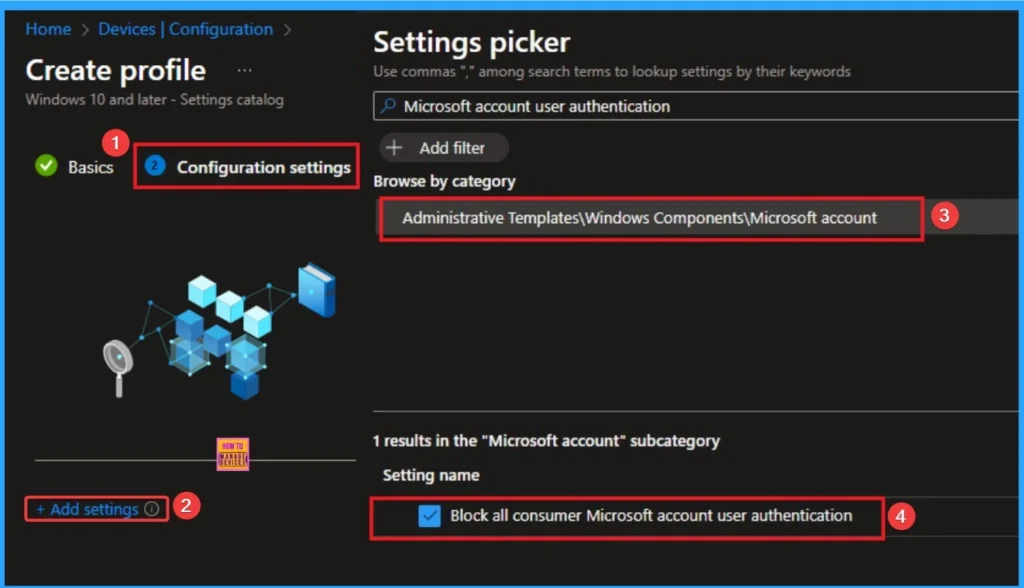
Disable Block all Consumer Microsoft Account User Authentication
If this setting is disabled or not configured, applications and services can use Microsoft accounts for authentication. By default, this setting is Disabled. This setting doesn’t affect whether users can sign in to devices by using Microsoft accounts, or the ability for users to provide Microsoft accounts via the browser for authentication with web-based applications.

Enable Block All Consumer Microsoft Account User Authentication
If this setting is enabled, all applications and services on the device are prevented from using Microsoft accounts for authentication. This applies both to existing users of a device and new users who may be added. However, any application or service that has already authenticated a user won’t be affected by enabling this setting until the authentication cache expires.
Enable Microsoft Account Connection Settings
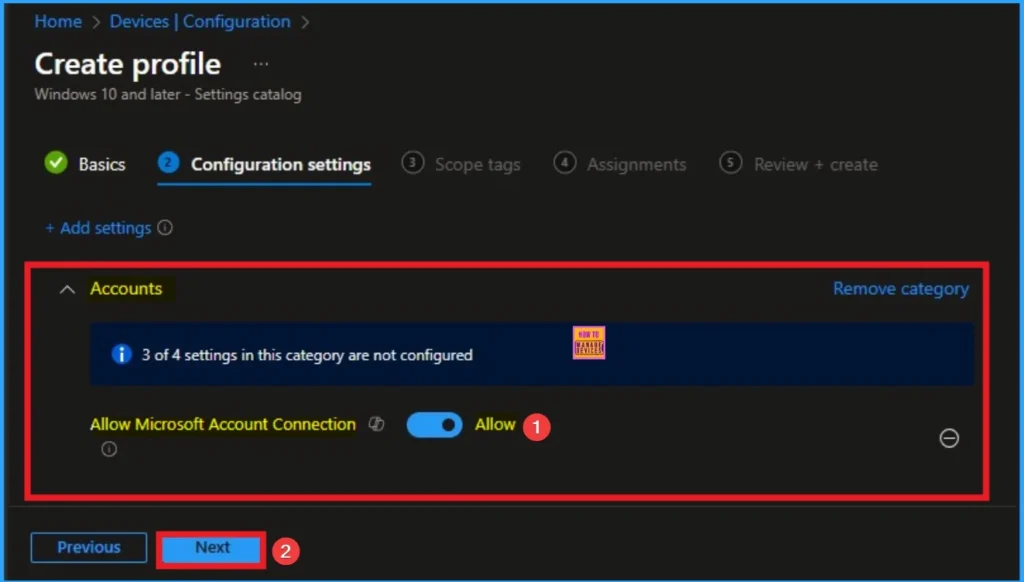
After selecting this policy, it will shown on the Configuration Settings Page. By enabling this policy seamless experience will get to personal Microsoft services alongside work accounts. This policies default, value is Enable. If you are go with this click on the Next Button.
Block Users from Showing Account Details on Sign-in
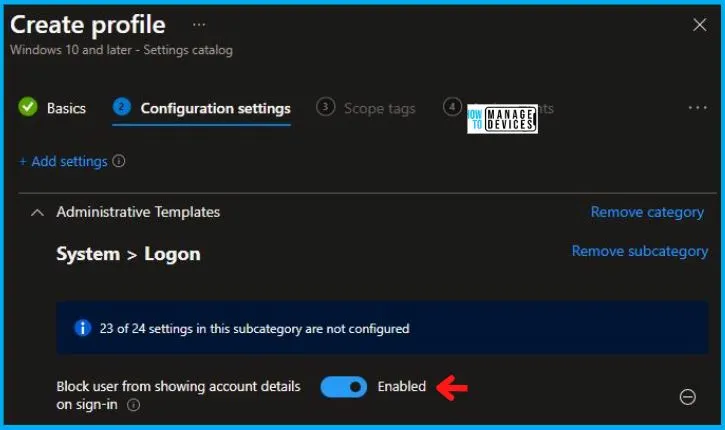
It prevents the email address or full account name of the last signed-in user from being displayed on the login screen. You can enable or disable this policy.
Scope Tags
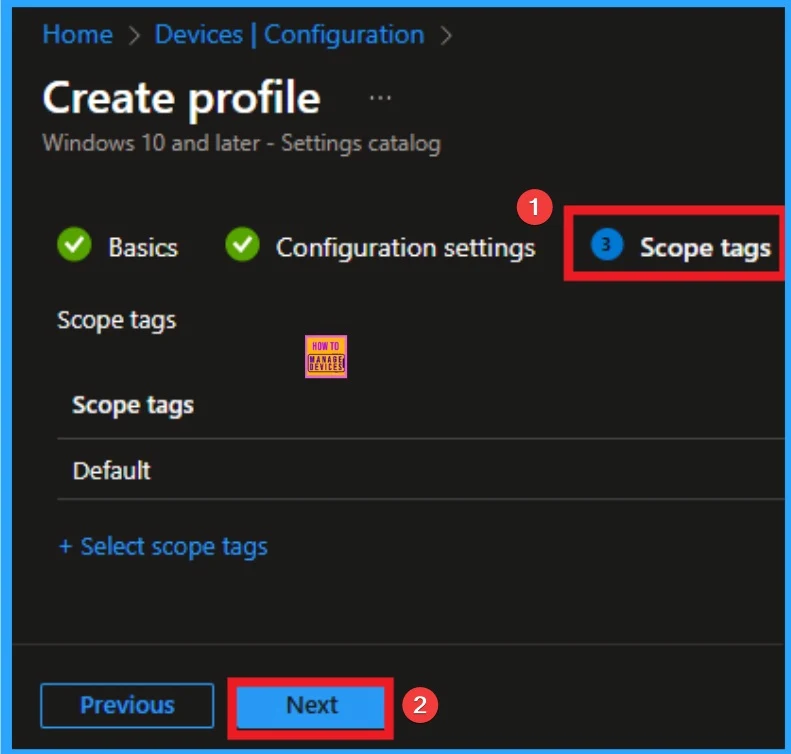
The next section is the Scope tag and which is not a compulsory step. It helps to assign this policy to a defined group of users or devices. Here, I skip the section and click on the next button.
Assignments Tab
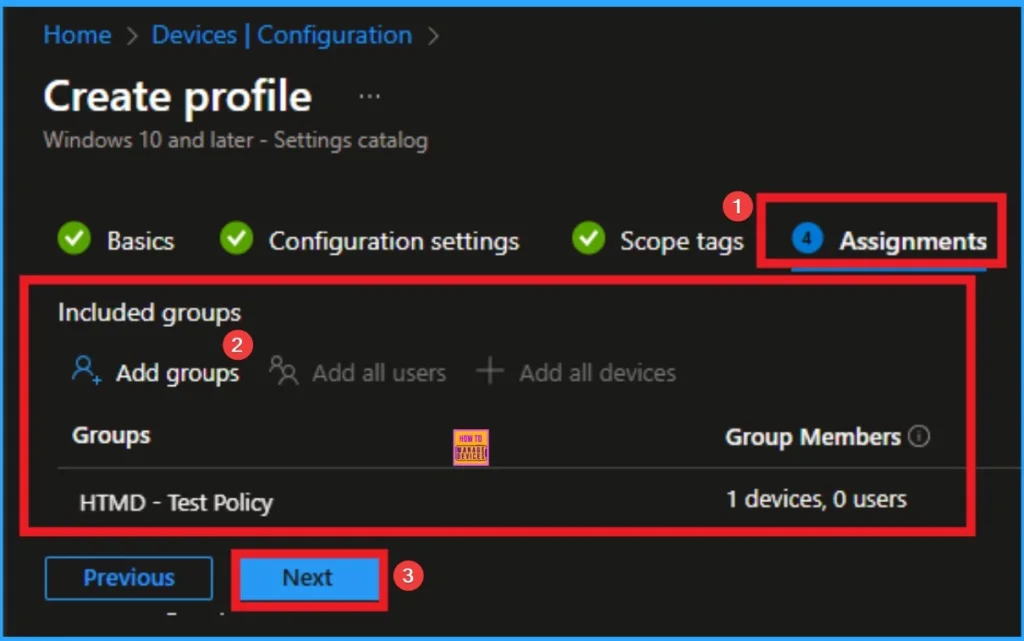
The assignments tab is the crucial step that determines which groups can be selected to assign the policy. Click on the +Add groups option under included groups. Select the group from the list of groups on your tenant.
Click on the Select button. And you can see the selected group on the Assignments tab. Click on the Next button in the window below.
Review + Create
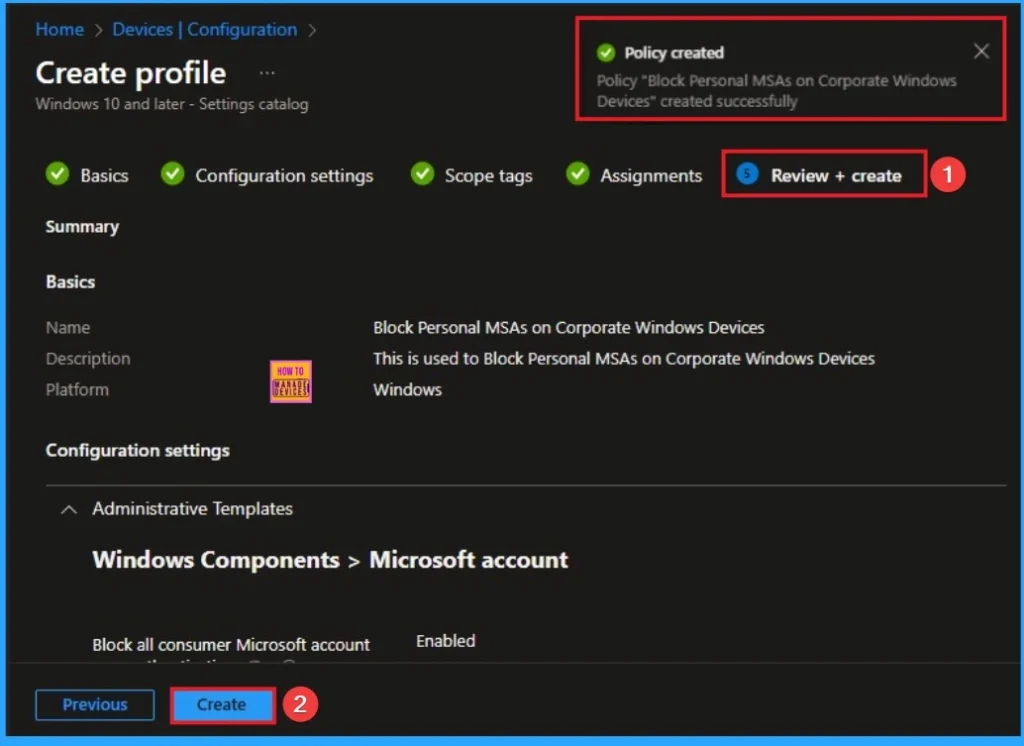
The Review + Create tab is the last step of policy creation. On this tab, you can verify every detail of the policy which are added in the previous steps (basic configuration settings, scope tag assignments s etc). If you want to make any changes, click on the previous button; otherwise, you can click on the Create button.
Device Check-in Status
When the policy is created successfully, you can sync the device on the Company portal for faster deployment. After syncing is completed, you can check the status on the Intune Portal. Go to Devices > Configuration and search for the policy.
- Here the Policy succeeded as 1

Client-Side Verification – Event Viewer
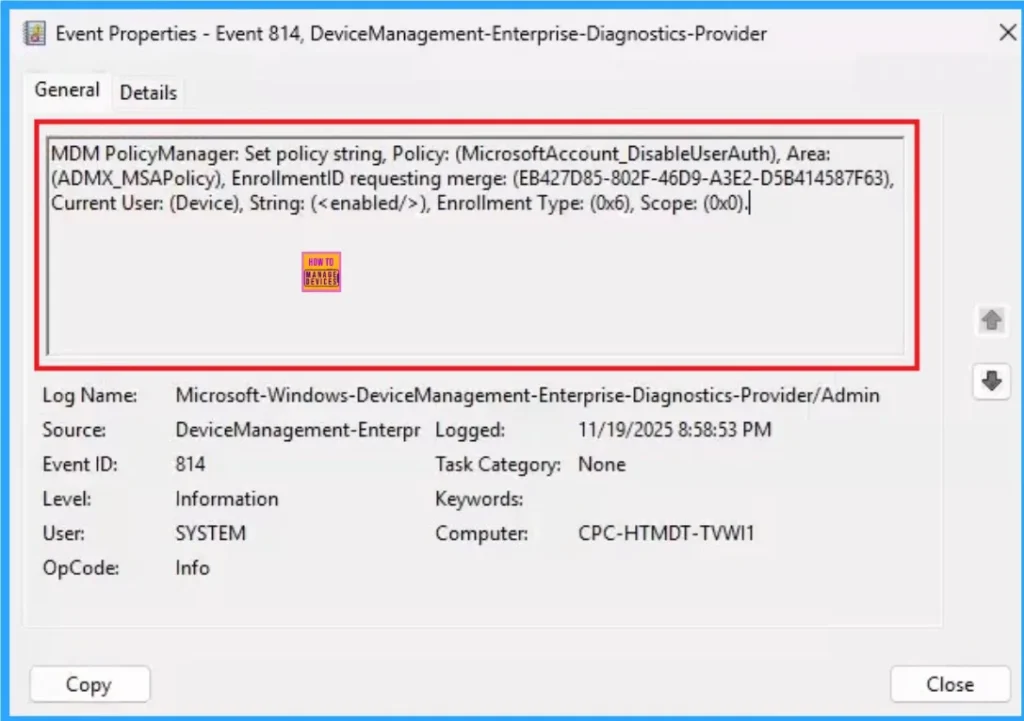
Event Viewer helps you to check if the policy succeeded or not. Event Viewer can be used as a client side verification. Here first go to the Event Viewer and check the Event ID that is usually in 813 or 814. Navigate to Applications and Services Logs > Microsoft > Windows > Device Management > Enterprise Diagnostic Provider > Admin.
MDM PolicyManager: Set policy string, Policy: (MicrosoftAccount_DisableUserAuth), Area:
(ADMX_MSAPolicy), EnrollmentID requesting merge: (EB427D85-802F-46D9-A3E2-D5B414587F63),
Current User: (Device), String: (), Enrollment Type: (0x6), Scope: (0x0).|
How to Remove Block All Consumer Microsoft Account User Authentication Policy
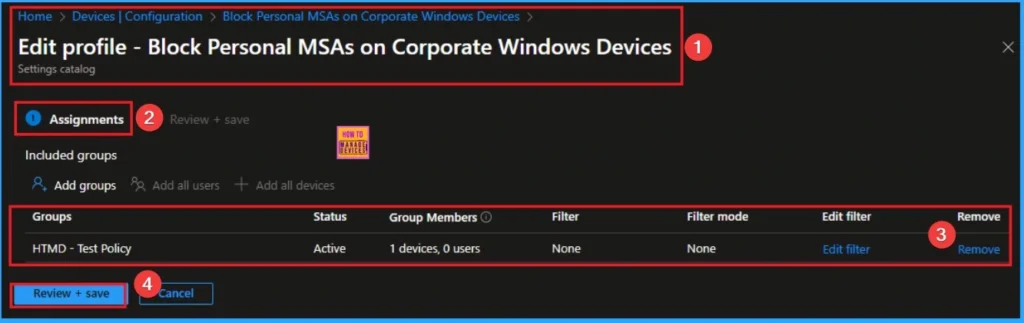
If you want to remove the Block All Consumer Microsoft Account User Authentication policy on the Intune portal, it is a very easy process. To do this, open the policy from the Configuration tab., and click on the Edit button on the Assignment tab. Click on the Remove button on this section to remove the policy.
For more detailed information, you can check our previous post – Learn How to Delete or Remove App Assignment from Intune using by Step-by-Step Guide.
How to Delete Block All Consumer Microsoft Account User Authentication
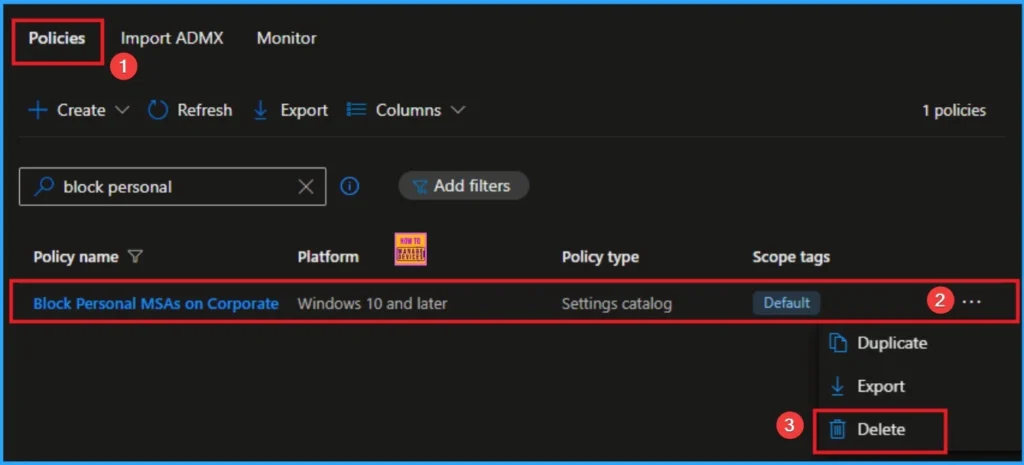
Intune allows you to easily delete a policy within the Intune Portal. Policy deletion is necessary in an organization due to different reasons. To delete the policy, click on the 3-dot option and then click on the Delete button.
For more information, you can refer to our previous post – How to Delete Allow Clipboard History Policy in Intune Step by Step Guide.
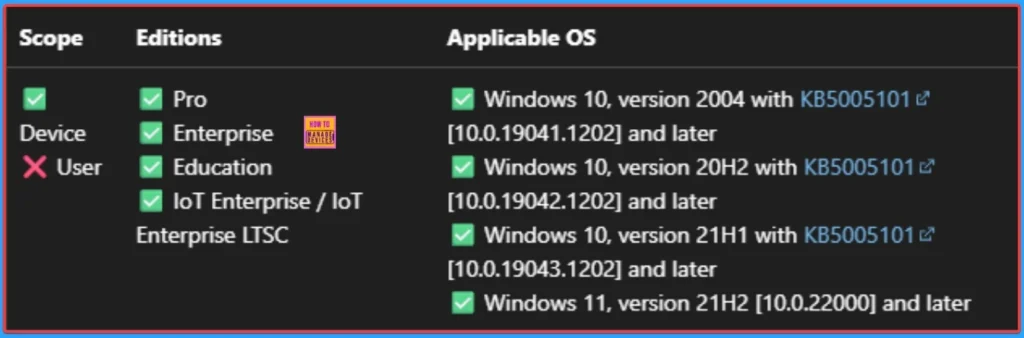
Windows CSP Details
Block All Consumer Microsoft Account User Authentication policy is applicable for Windows 10, version 2004 with KB5005101 [10.0.19041.1202] and later, Windows 10, version 20H2 with KB5005101 [10.0.19042.1202] and later, Windows 10, version 21H1 with KB5005101 [10.0.19043.1202] and later, Windows 11, version 21H2 [10.0.22000] and later.
| Name | Value |
|---|---|
| Name | MicrosoftAccount_DisableUserAuth |
| Friendly Name | Block all consumer Microsoft account user authentication |
| Location | Computer Configuration |
| Path | Windows Components > Microsoft account |
| Registry Key Name | Software\Policies\Microsoft\MicrosoftAccount |
| Registry Value Name | DisableUserAuth |
| ADMX File Name | MSAPolicy.admx |
Need Further Assistance or Have Technical Questions?
Join the LinkedIn Page and Telegram group to get the step-by-step guides and news updates. Join our Meetup Page to participate in User group meetings. Also, Join the WhatsApp Community to get the latest news on Microsoft Technologies. We are there on Reddit as well.
Author
Anoop C Nair has been Microsoft MVP for 10 consecutive years from 2015 onwards. He is a Workplace Solution Architect with more than 22+ years of experience in Workplace technologies. He is a Blogger, Speaker, and Local User Group Community leader. His primary focus is on Device Management technologies like SCCM and Intune. He writes about technologies like Intune, SCCM, Windows, Cloud PC, Windows, Entra, Microsoft Security, Career, etc


Will this policy also block the users from signing into web apps with MSAs? Like signing into let’s say grok.ai with their personnel account? where they can basically upload api keys or company files for their daily work.