






Allow Lock Screen Notifications View on iOS Devices using Intune Policy
The Allow Lock Screen Notifications View setting controls whether users can access the notification history from the lock screen on iOS and iPadOS devices. When this option is set to False, the notification history view on the lock screen is disabled. This means users cannot scroll or review previously received notifications without unlocking the device.
Even when the notification history view is disabled, new notifications are still displayed as they arrive on the lock screen. Users can briefly see incoming alerts such as messages, emails, or app notifications, ensuring they don’t miss important real-time updates. However, once dismissed or timed out, those notifications won’t remain accessible on the lock screen.
From a security and privacy perspective, this policy helps prevent sensitive information from being exposed when a device is locked. It is especially useful in enterprise or shared environments where devices may be left unattended, reducing the risk of unauthorized users viewing past notifications that could contain confidential data.
This setting is available from iOS 7 and later and also supports user enrollment scenarios, making it flexible for both corporate-owned and personally owned devices managed through Intune. Organisations can use this policy to balance usability with stronger privacy controls on the lock screen.

Table of Contents
Allow Lock Screen Notifications View on iOS Devices using Intune Policy
The Allow Lock Screen Notifications View policy helps IT admins strengthen data security and privacy on iOS and iPadOS devices by preventing users from viewing past notifications on the lock screen. When this setting is configured as False, sensitive information from emails, messages, or business apps is not exposed if the device is lost, unattended, or accessed by an unauthorized person.
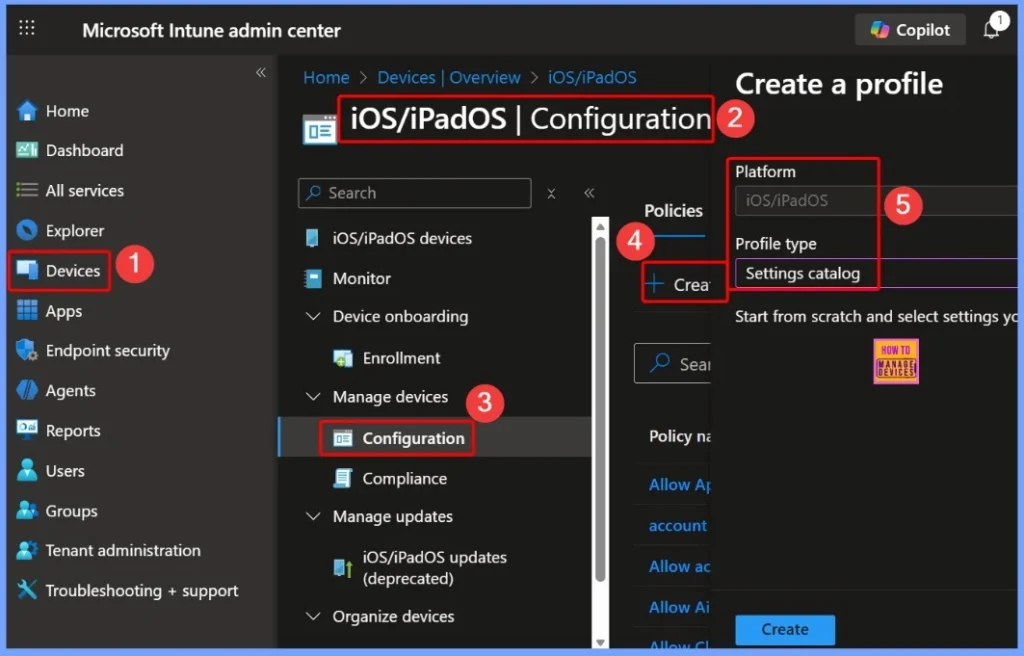
- Sign in to the Intune Admin Center.
- Go to Devices from the left navigation pane.
- Under Devices, select the iOS/iPadOS device platform
- Open the Configuration section.
- Click + Create to start creating a policy.
- Choose New policy
- In the Create a profile window, select iOS/iPadOS as the Platform and Settings catalog as the Profile type.
- Enable Lock Screen Control Center on iOS using Intune Device Restrictions Policy
- Turn off App Notifications On The Lock Screen Policy using Intune
- Control System Lock Screen Policy for Users with Intune
- 3 Methods to Enable Disable Lock Screen Notifications in Windows 11
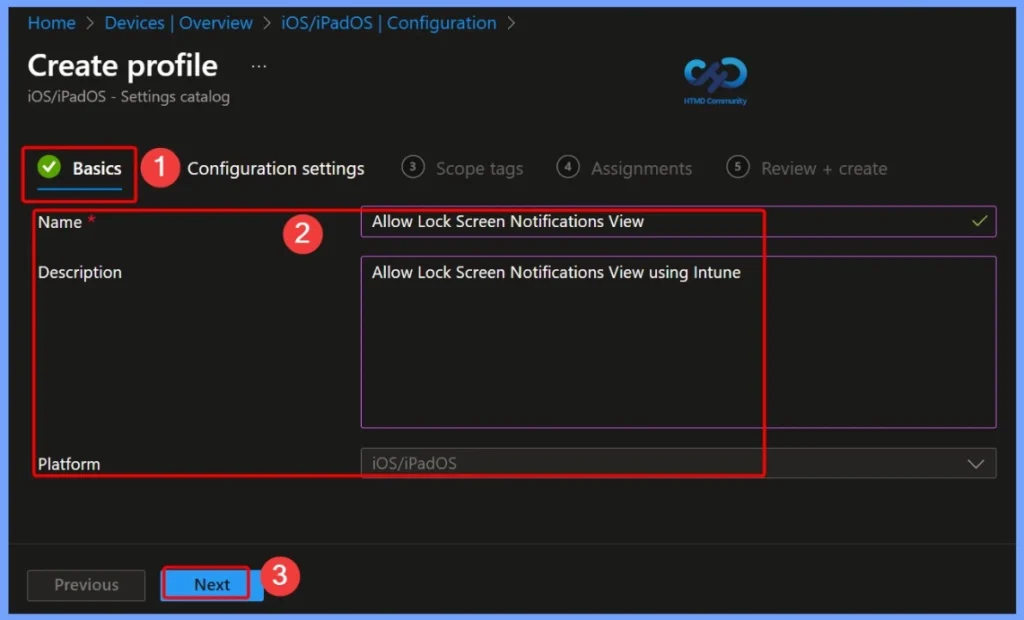
Where You Define the Core Information for the Policy
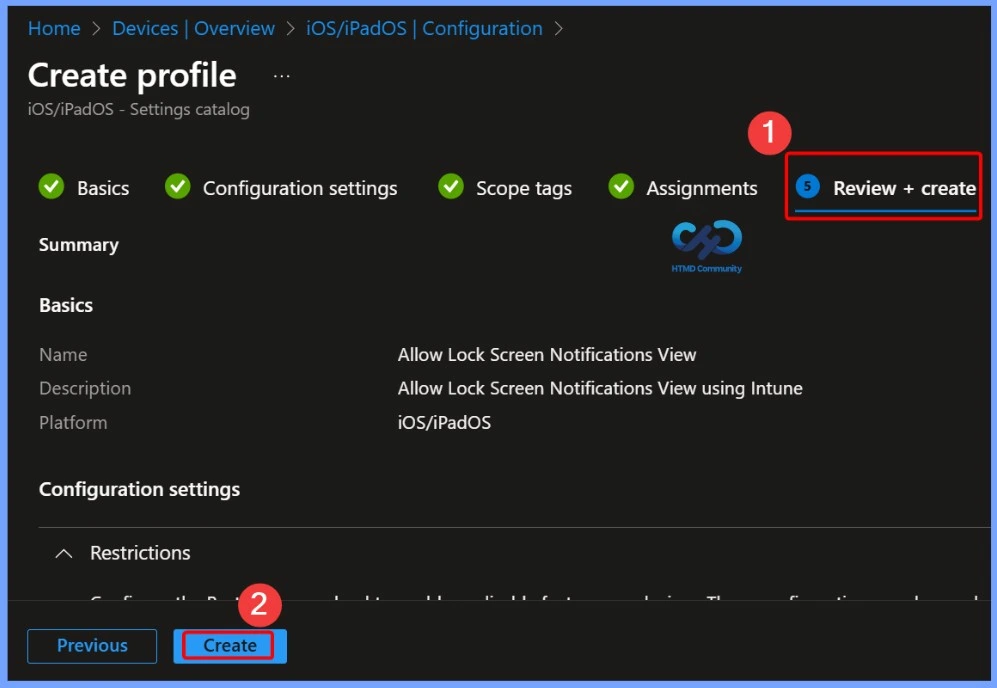
The Basics settings tab is where you define the core information for the policy. In this section, you need to provide the Name and Description to clearly identify the configuration. For this policy, the name is set as Allow Lock Screen Notifications View, making it easy for administrators to recognize its purpose.
- The description, Allow Lock Screen Notifications View using Intune, explains that the policy is managed and enforced through Microsoft Intune for iOS and iPadOS devices.
Configuration Settings of the Policy
This policy also supports a balanced user experience, as real-time notifications are still shown when they arrive. Users remain informed about important alerts without being able to scroll through notification history on a locked device, helping organizations maintain productivity while reducing security risks.
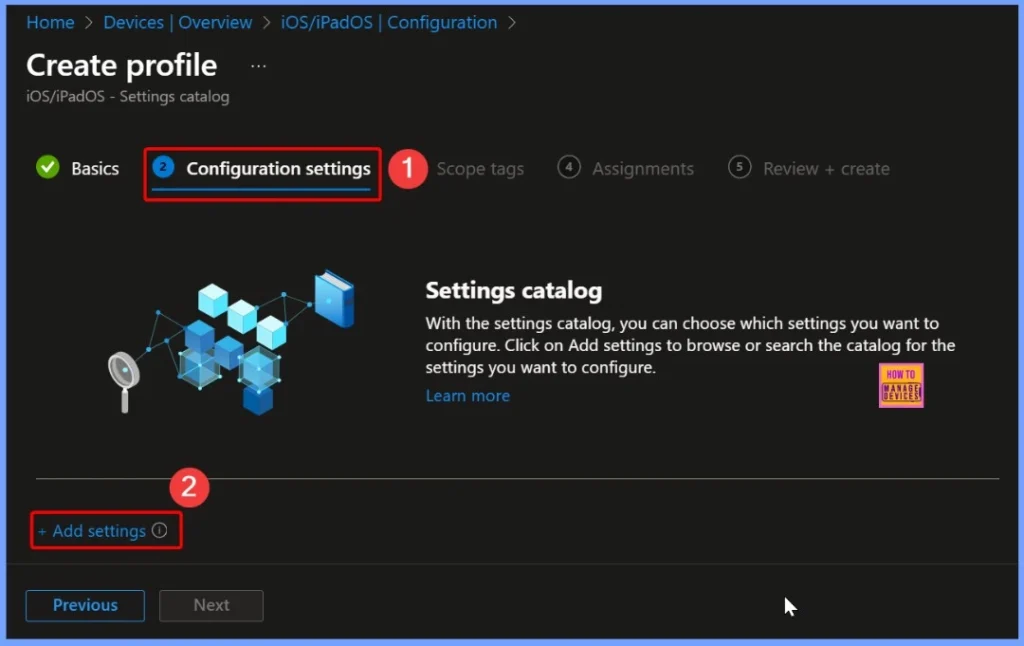
- On the Configuration settings page, locate and click the+ Add settings hyperlink.
Allow Lock Screen Notifications View
From a compliance and risk management perspective, disabling notification history on the lock screen helps organizations meet internal security standards and regulatory requirements. It limits accidental data leakage and supports zero-trust and least-privilege security principles commonly adopted by IT teams.
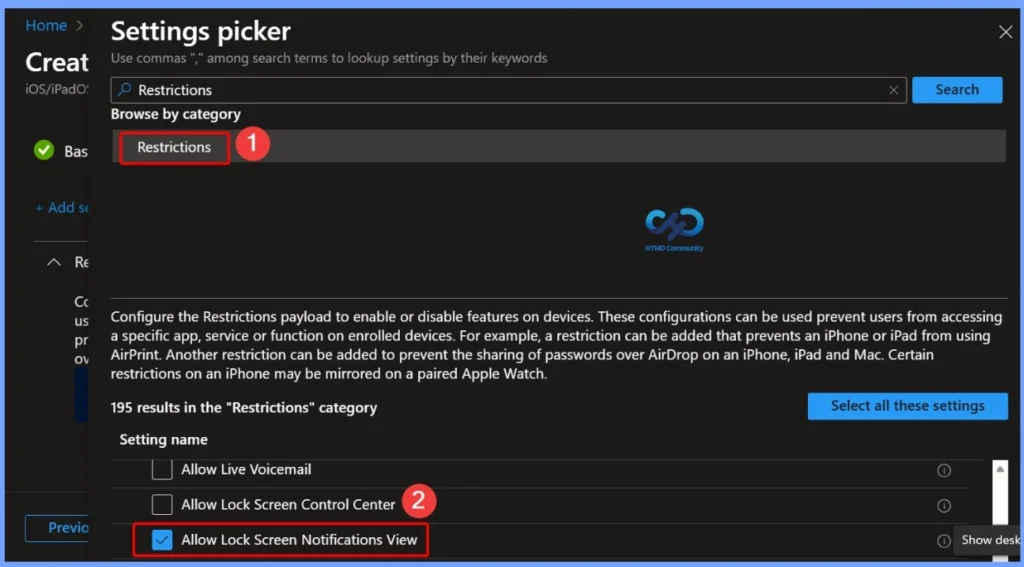
- In the settings picker window search the keyword Restrictions
- From the Restrictions Category select the policy name that Allow lock screen notifications view
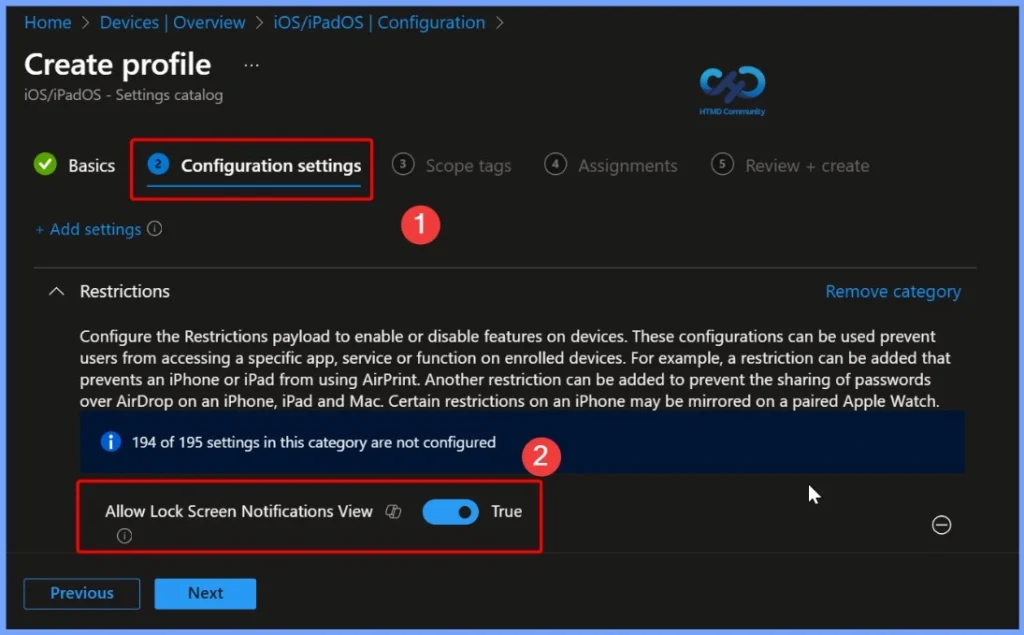
Allow Lock Screen Notifications View – Default Setting
By default, the Allow Lock Screen Notifications View setting is configured as True. This means users can access the notification history directly from the lock screen and view previously received notifications without unlocking the device.
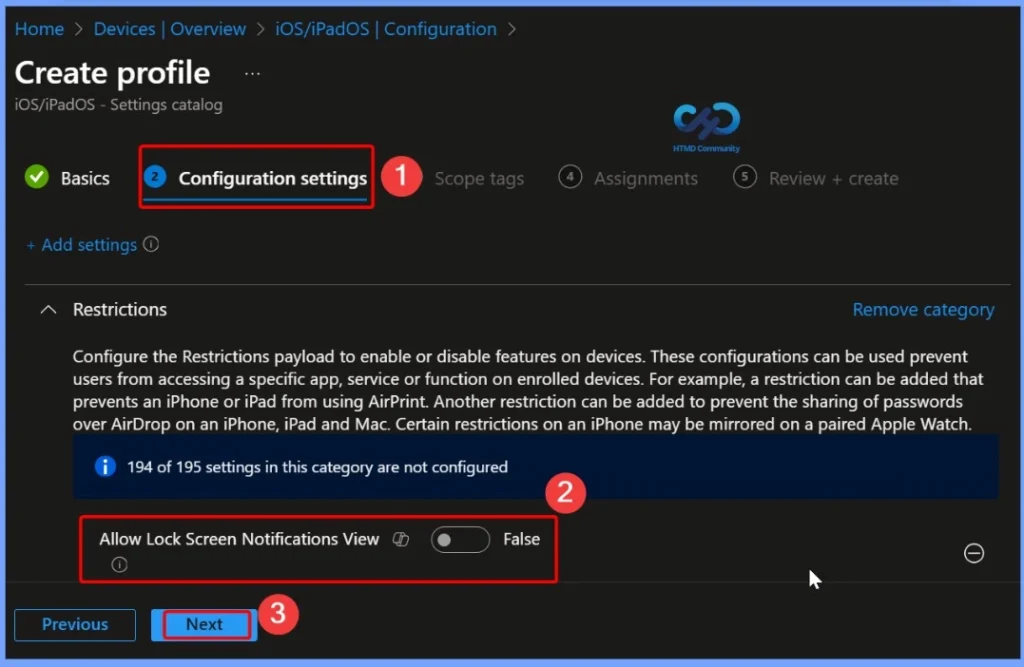
Allow Lock Screen Notifications View – Set to False
When the Allow Lock Screen Notifications View setting is configured as False, the notification history view on the lock screen is disabled. Users can no longer scroll or review past notifications while the device is locked.
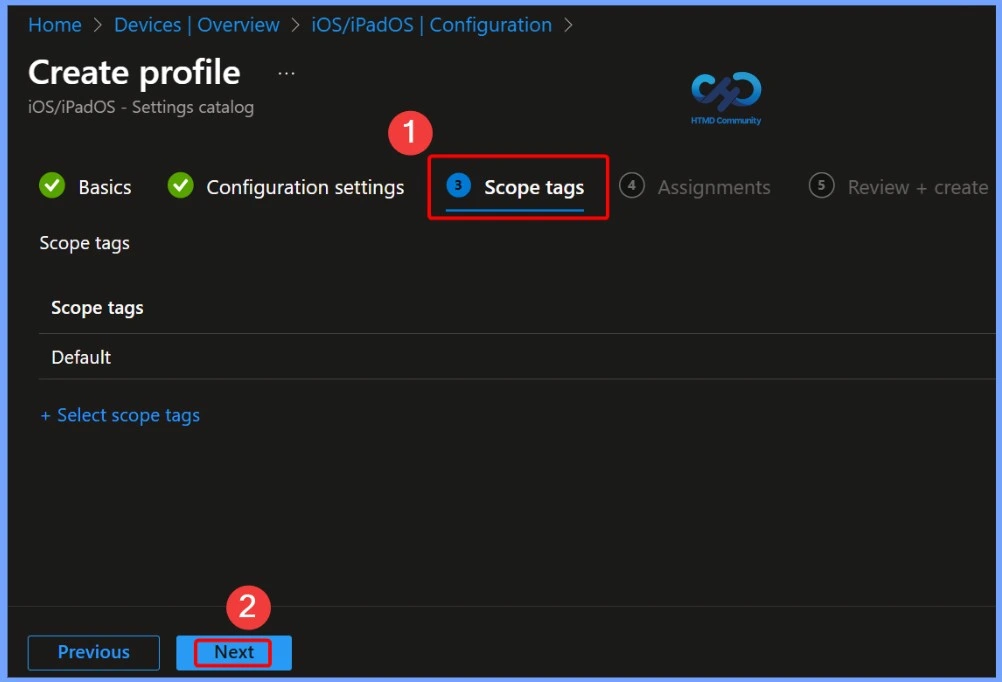
Assigning Appropriate Scope Tags
By assigning appropriate scope tags, access to this policy can be limited to specific administrative roles or teams, helping maintain clear separation of responsibilities. Scope tags do not affect end users or device behavior; they are used purely for administrative visibility and role-based access control within Intune.
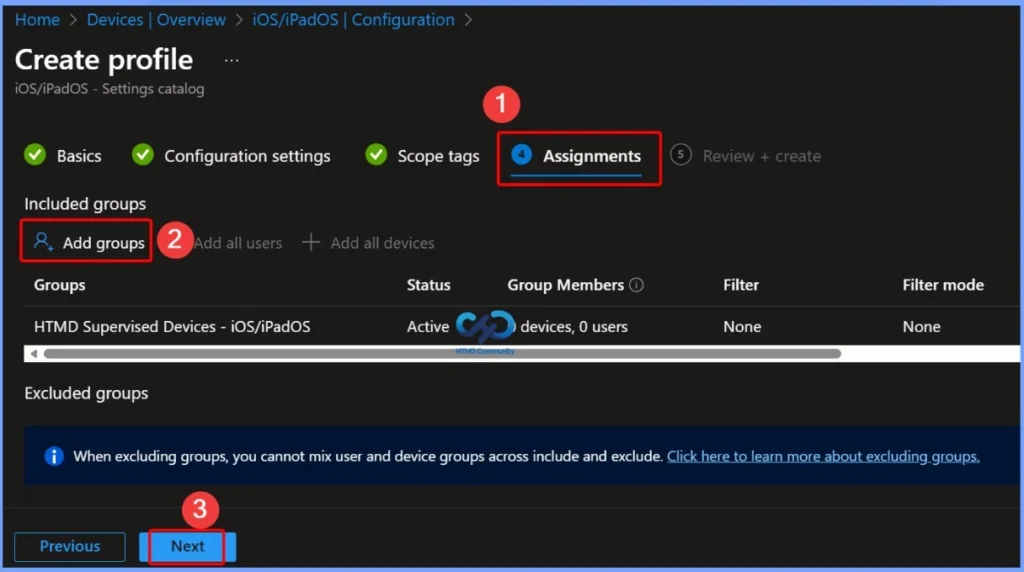
Assign the Policy to Specific User Groups Device Groups or Exclude Certain Groups
The Assignments section defines which users or devices will receive the Allow Lock Screen Notifications View policy. Here, IT administrators can assign the policy to specific user groups, device groups, or exclude certain groups if needed.
Verify All Configured Settings for the Allow Lock Screen Notifications View Policy before Deployment
The Review + Create section allows administrators to verify all configured settings for the Allow Lock Screen Notifications View policy before deployment. Here, you can review the policy name, description, platform, assignments, and configuration values to ensure accuracy.
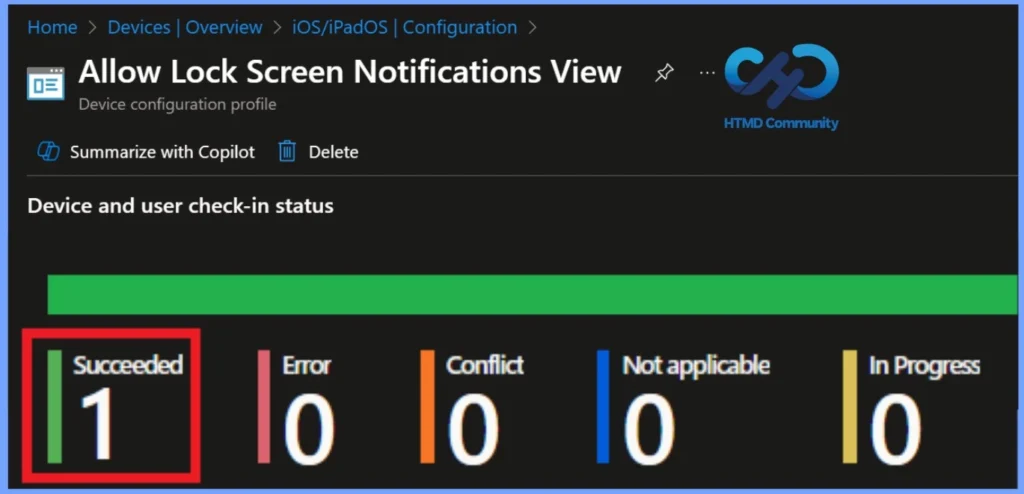
Device and User Check in Status
The Device and User Check-In Status shows the deployment result of the Allow Lock Screen Notifications View policy. A status of Succeeded: 1 confirms that the policy has been successfully applied to one targeted device. The remaining statuses Not applicable: 0, In Progress: 0, Error: 0, and Conflict: 0.
| Device and User Check in Status |
|---|
| Succeeded – 1 |
Need Further Assistance or Have Technical Questions?
Join the LinkedIn Page and Telegram group to get the latest step-by-step guides and news updates. Join our Meetup Page to participate in User group meetings. Also, Join the WhatsApp Community to get the latest news on Microsoft Technologies. We are there on Reddit as well.
Author
Anoop C Nair has been Microsoft MVP for 10 consecutive years from 2015 onwards. He is a Workplace Solution Architect with more than 22+ years of experience in Workplace technologies. He is a Blogger, Speaker, and Local User Group Community leader. His primary focus is on Device Management technologies like SCCM and Intune. He writes about technologies like Intune, SCCM, Windows, Cloud PC, Windows, Entra, Microsoft Security, Career, etc.


Discussion