






Enhancing System Security by Configuring UAC Elevation Prompts using Intune policy
Today we are discussing Enhancing System Security by Configuring UAC Elevation Prompts using Intune policy. This policy makes sure that whenever a program or user tries to do something that needs administrator permission, Windows asks for clear approval before allowing it.
It stops programs from running with high privileges without the user knowing. By managing this setting through Intune, organizations can make sure every device follows the same rules and that all admin actions are safe and efficient.
When this policy is turned on, users see a prompt on a secure desktop whenever an action needs elevated privileges. The screen dims, and the prompt asks the user to allow or deny the action. This secure desktop stops any malicious software from interfering with the prompt or approving actions by itself. It makes administrative actions visible and controlled, so IT admins can better manage security.
Using Intune to set this policy means there is no need to change settings manually on each computer. The policy can be applied to specific users or devices, tested safely, and monitored easily. Administrators can check whether the policy is working correctly from the Intune console.

Table of Contents
Enhancing System Security by Configuring UAC Elevation Prompts using Intune policy
This policy is very helpful against malware because most malicious software cannot work without admin privileges. By showing a secure prompt, the policy makes it hard for malware to get elevated access silently. Users can see and stop any suspicious actions, giving the organization more control over its computers.
- Best way to Fix Classic Outlook Crashes using Intune PowerShell Remediation Script
- How to Install Microsoft Defender Browser Protection Extension using Intune PowerShell Script
- Windows LAPS Automatic Account Management using Microsoft Intune
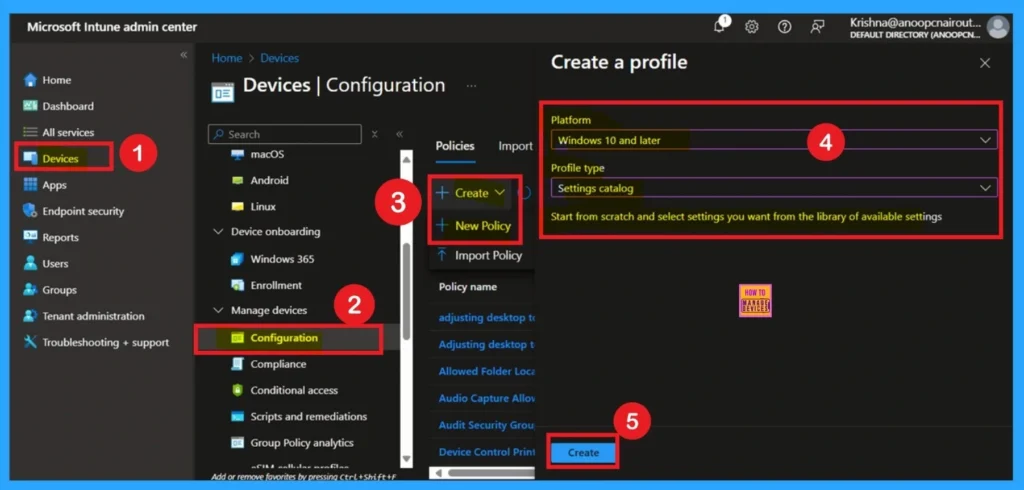
Create Profile
First, you need to configure this policy. Start by signing in to the Microsoft Intune Admin Center. Then, click on Devices. Under the Devices section, go to the Configuration tab, where you will find a + Create option. Click on it, and you will see 2 options, such as the new policy and the Import policy.
- Select New policy, and this will open a new window titled Create a profile.
- Here, you need to enter the Platform and Profile type details.
- After that, click Create.
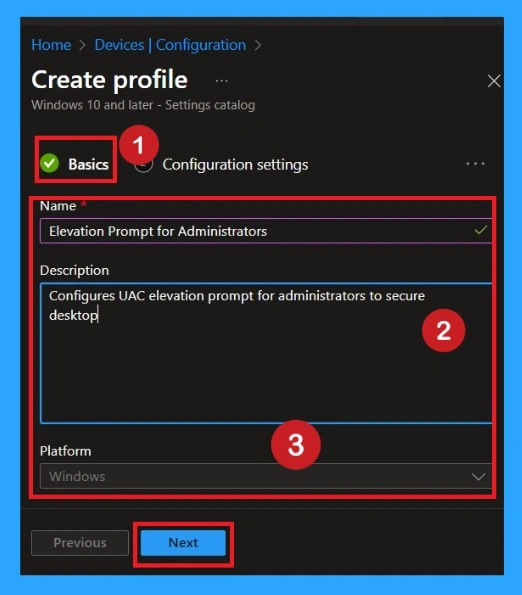
Basics Section
Now we fill the Basics page. We enter a clear name, so everyone knows what the policy does. We also write a short description explaining why this policy is needed. The description helps avoid confusion in the future. This is important when many people are managing policies. Proper naming and description give clarity and save time.
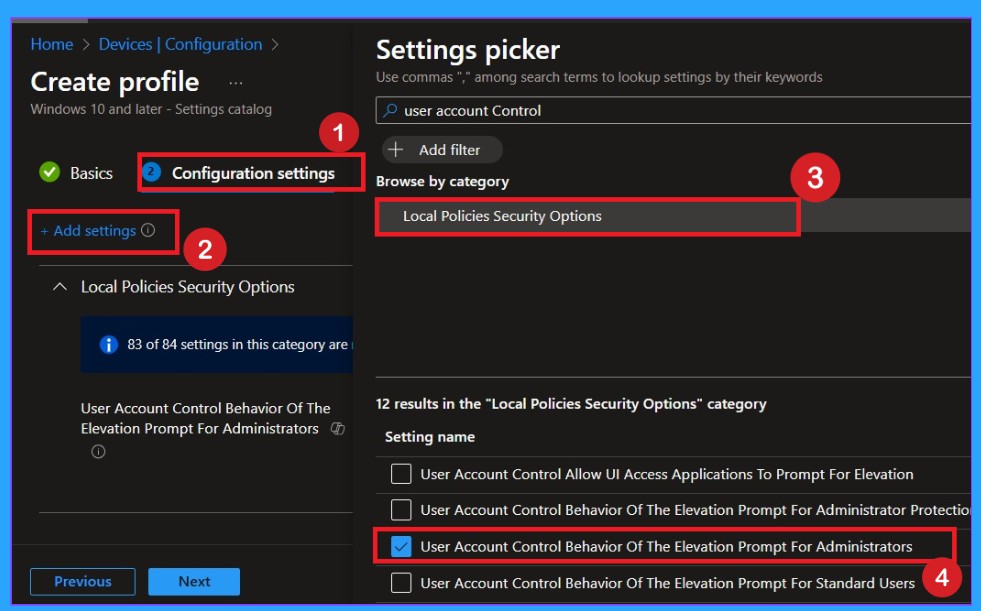
Adding the Configuration Settings
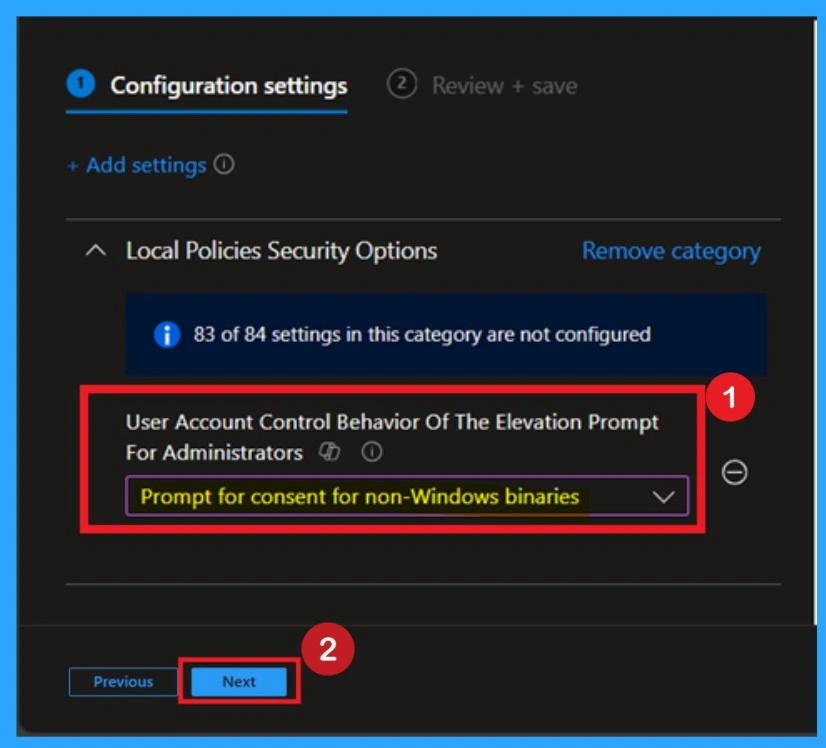
Next, we open the settings page and search for User Account Control. From that list, we pick Behavior of the elevation prompt for administrators. Then we set it to Prompt for consent on the secure desktop. This means Windows will always ask before allowing admin actions. It makes things safer because nothing happens secretly. This step directly controls how admin permissions behave.
Defaulted Option- Prompt for Consent for non-Windows Binaries
By default, this setting is selected as Prompt for consent for non-Windows binaries. This means that when an administrator tries to run an application that is not part of Windows and requires admin permissions, Windows will show a confirmation prompt. The administrator must approve the action before the app can run with elevated rights.
- This default option helps protect the device from unauthorized or potentially unsafe software while still allowing administrators to work normally.
Validating the Secure Desktop Behavior
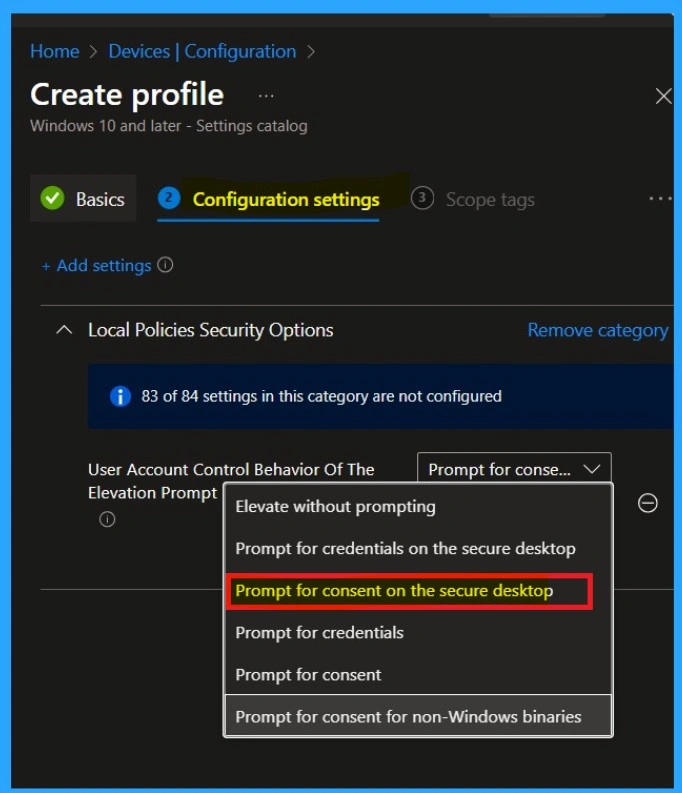
In this setting, Prompt for consent on the secure desktop is selected. This means that whenever an administrator tries to perform an action that requires elevated (admin) permissions, Windows will display a secure confirmation screen. The administrator must click Yes or No to allow or block the action.
The prompt appears on the secure desktop, which temporarily dims the screen and blocks other applications from interacting with it. This helps prevent malicious software from interfering with the approval process. This option provides a strong balance between security and usability, making it a recommended for most environments.
| Policy Settings |
|---|
| Elevate without prompting |
| Prompt for credentials on the secure desktop |
| Prompt for credentials |
| Prompt for consent |
| Prompt for consent for non-Windows binaries |
Scope Tags
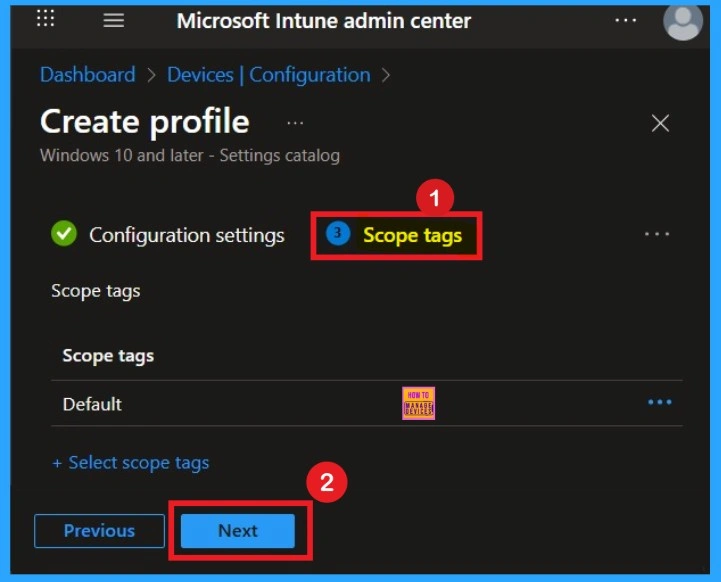
Scope tags do not change the policy itself. They help decide who sees or manages it in Intune. They are useful in big organizations with many admins. They keep things organized and prevent unwanted edits. This step is important when multiple IT teams work together.
Importance of Assignments
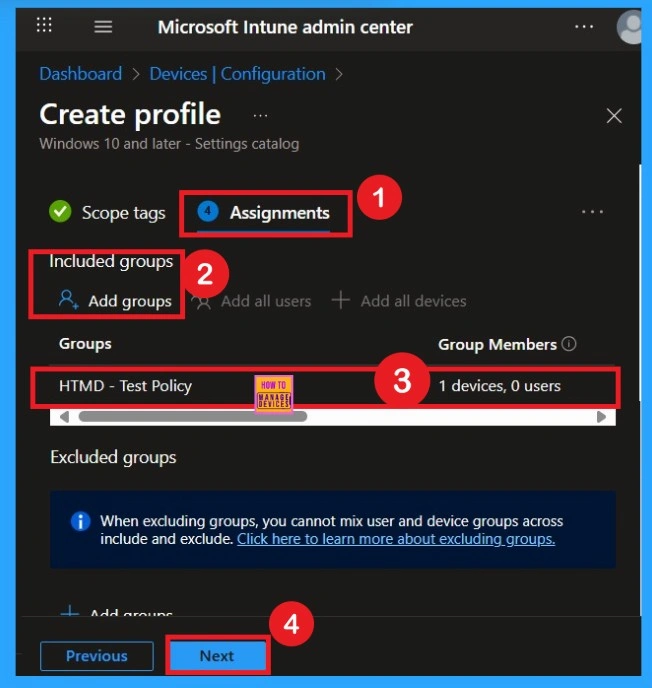
To assign the policy to specific groups, you can use the Assignment Tab. Here I click, +Add groups option under Included groups. I choose a group from the list of groups and click on the Select button. Again, I click on the Select button to continue. Here I selected the HTMD – Test Policy group. If you want to add more groups you can add them easily.
Review + Create Tab
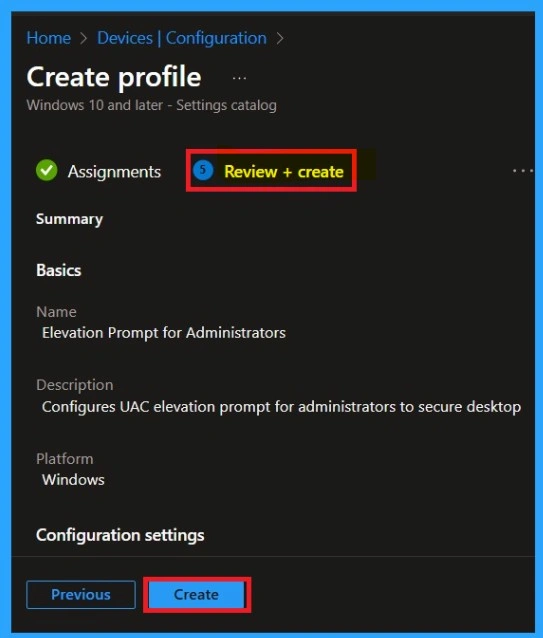
Before completing the policy creation, you can review each tab to avoid misconfiguration or policy failure. After verifying all the details, click on the Create Button. After creating the policy, you will get a success message. This is the final tab that you all know that. We have to do if anything have to changed before clicking on the next after that it is not possible.
Device Check-in Status
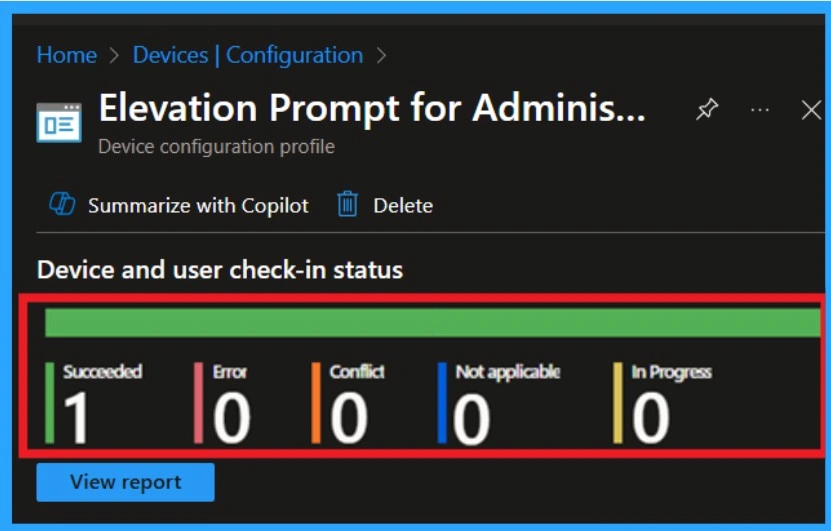
After creating the policy, administrators may want to confirm whether it has been successfully deployed. To check this, go to Devices > Configurations and search for the policy name you created. Once you find the policy, click on it to open the Monitoring Status page.
- On this page, you can view the deployment details for both devices and users.
- The status will show if the policy has been applied successfully.
- This is the main step that help you to get some clarity over your policy.
Remove Groups from Polices
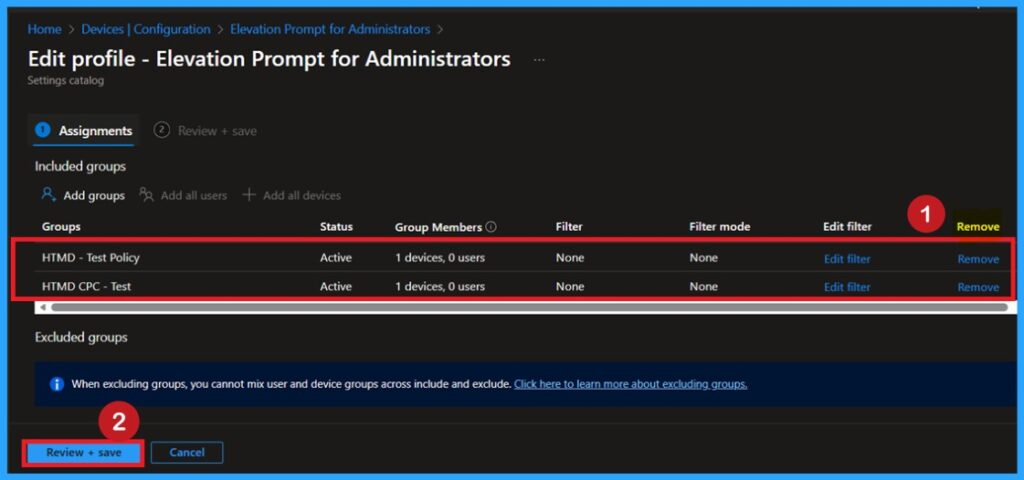
If you want to remove a policy group from the organization, you can do this through the Configuration section. First, select the policy you created, and then go to the Monitoring status page. Scroll down the window until you find the Assignments section and click Edit. From here, you can remove the policy group. Finally, click on Review + Save to apply the changes.
To get more detailed information, you can refer to our previous post – Learn How to Delete or Remove App Assignment from Intune using by Step-by-Step Guide.
Delete the Policy Permanently
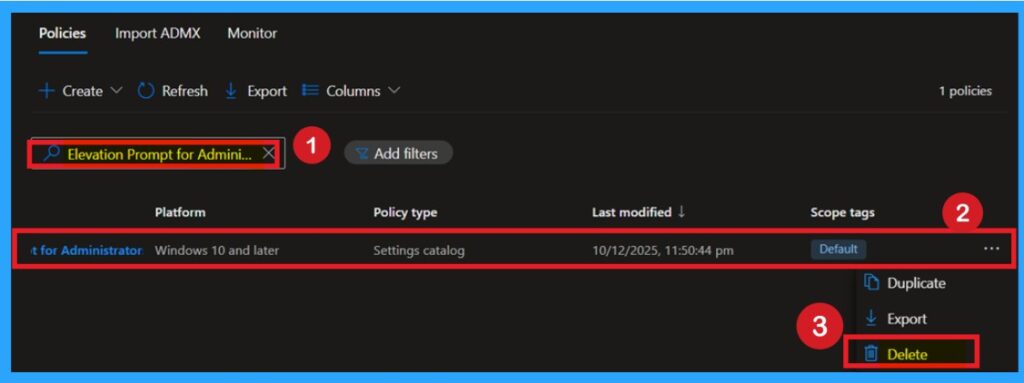
You can easily delete a policy in Intune, first sign in to the Microsoft Intune Admin Center. Navigate to Devices and then select Configuration. Locate and select the specific policy you want to remove. Once you’re on the policy details page, click the 3 -dot menu in the top right corner and choose Delete from the available options.
For detailed information, you can refer to our previous post – How to Delete Allow Clipboard History Policy in Intune Step by Step Guide.
End-User Experience After Deployment
On devices with this policy, users will see a secure prompt when elevated actions are required. The screen dims, and the prompt appears. The user must click Allow or Deny. Nothing happens without their knowledge. This keeps them aware of every admin-level change. It also protects the computer from silent attac
Need Further Assistance or Have Technical Questions?
Join the LinkedIn Page and Telegram group to get the step-by-step guides and news updates. Join our Meetup Page to participate in User group meetings. Also, Join the WhatsApp Community to get the latest news on Microsoft Technologies. We are there on Reddit as well.
Author
Anoop C Nair has been Microsoft MVP for 10 consecutive years from 2015 onwards. He is a Workplace Solution Architect with more than 22+ years of experience in Workplace technologies. He is a Blogger, Speaker, and Local User Group Community leader. His primary focus is on Device Management technologies like SCCM and Intune. He writes about technologies like Intune, SCCM, Windows, Cloud PC, Windows, Entra, Microsoft Security, Career, etc


Discussion