





Enhancing Security by Disabling Dictation on iOS Devices using Intune
Key Takeaways
- Dictation lets users type by speaking on an iPhone.
- It makes typing faster and easier.
- Users can use both voice and keyboard together.
- The keyboard stays open for quick edits.
- Dictation allows easy switching between speaking and typing.
Hey, let’s discuss about How to Enhancing Security by Disabling Dictation on iOS Devices using Intune. With Dictation on iPhone, you can enter text just by speaking anywhere you normally type, such as in Messages, Notes, Mail, or apps. It makes typing faster and easier, especially when you don’t want to use the keyboard. You don’t have to rely only on your voice. While Dictation is active, the keyboard stays open, so you can freely switch between speaking and typing. This lets you correct words, add punctuation, or continue typing without stopping Dictation.
Table of Contents
Enhancing Security by Disabling Dictation on iOS Devices using Intune
In many languages, Dictation is processed directly on the iPhone, meaning your voice is converted to text on the device itself. An internet connection is not required, so it works even when you’re offline.
- Enable or Disable Touch Keyboard Handwriting Mode Availability in Text Input using Intune Policy
- How to Enable Disable Touch Keyboard Wide Mode Availability Policy using Intune
- Allow or Block Hardware Keyboard Text Suggestions in Text Input using Intune Policy
How to Start Policy Creation
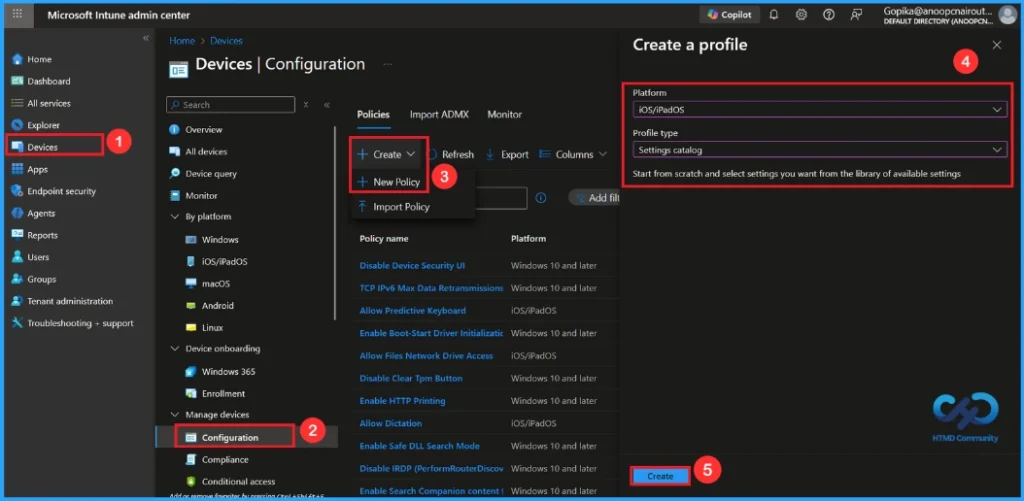
First sign in to the Microsoft Intune admin center. Go to Devices and select Configuration profiles. Then click Create profile to open the profile creation window. Select platform and profile type, then click Create to begin configuring your new policy.
| Platform | Profile Type |
|---|---|
| iOS/iPadOS | Settings Catalog |
Basic Tab for Name and Description
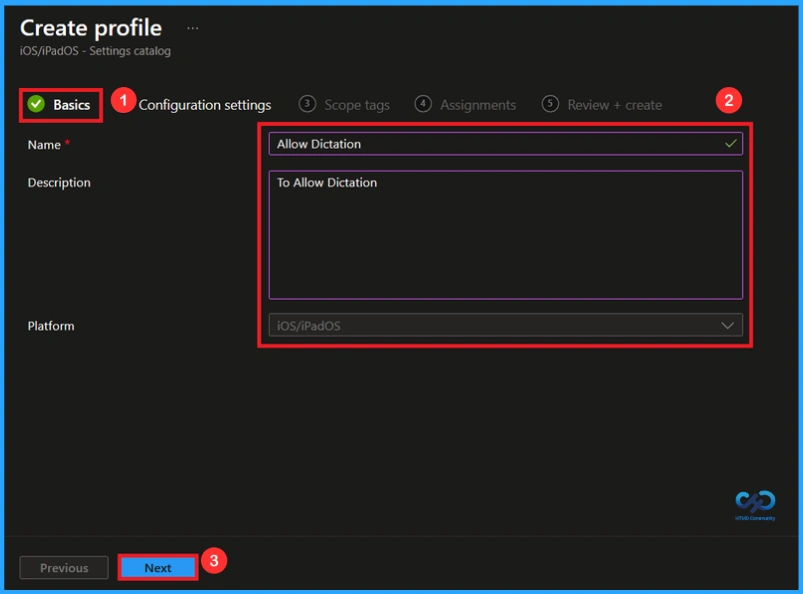
To begin configuring a policy in Intune, start with the Basics step. Here, we can add the name of the policy and give a brief description.

- Name of the Policy: Allow Dictation
- Description: To Allow Dictation
- Platform: iOS/iPadOS
Configuration Settings
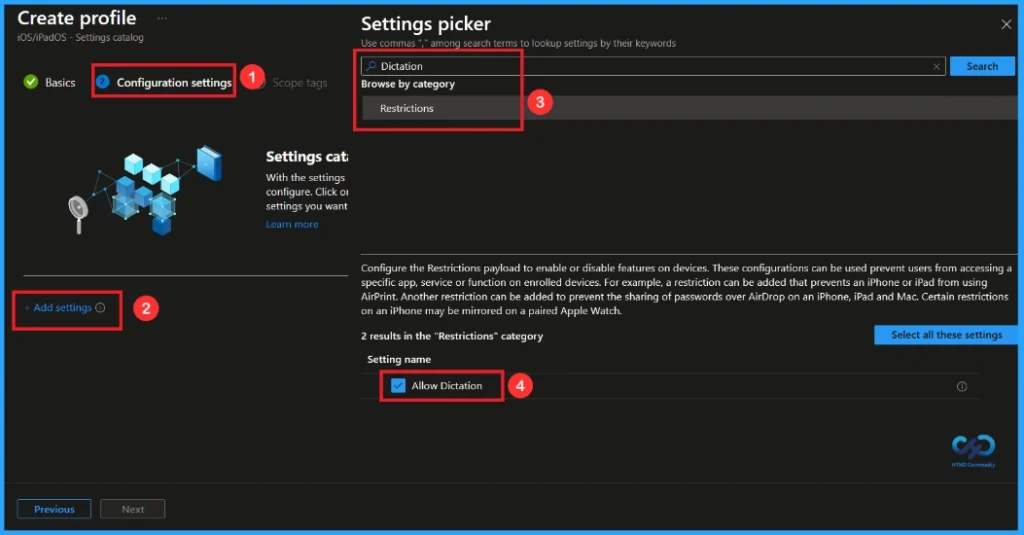
In the Configuration settings tab, click the Add settings button to open the Settings picker. Search the category Restrictions or type Dictation. Then, select the the setting Allow Dictation.
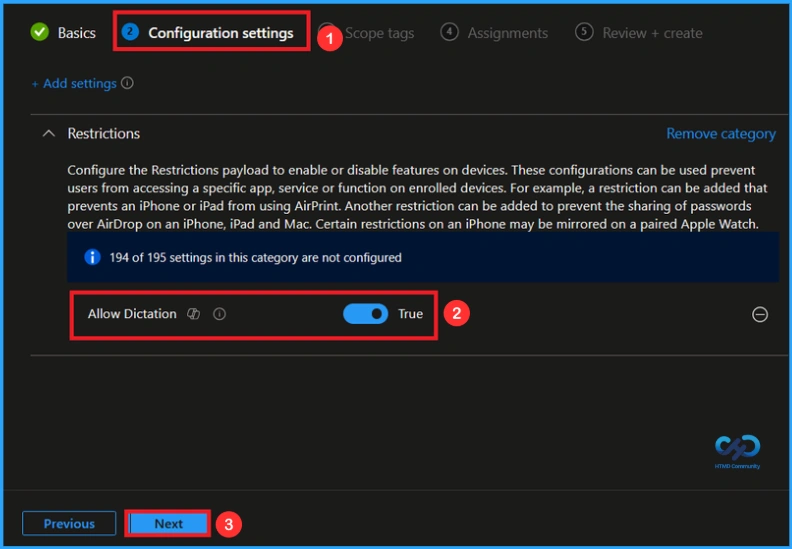
After selecting the policy, you will be on the Configuration Settings page. Here, you can see two options true or false. By default, the dictation policy is enabled. If you continue with this click Next to proceed.
Block Dictation Policy
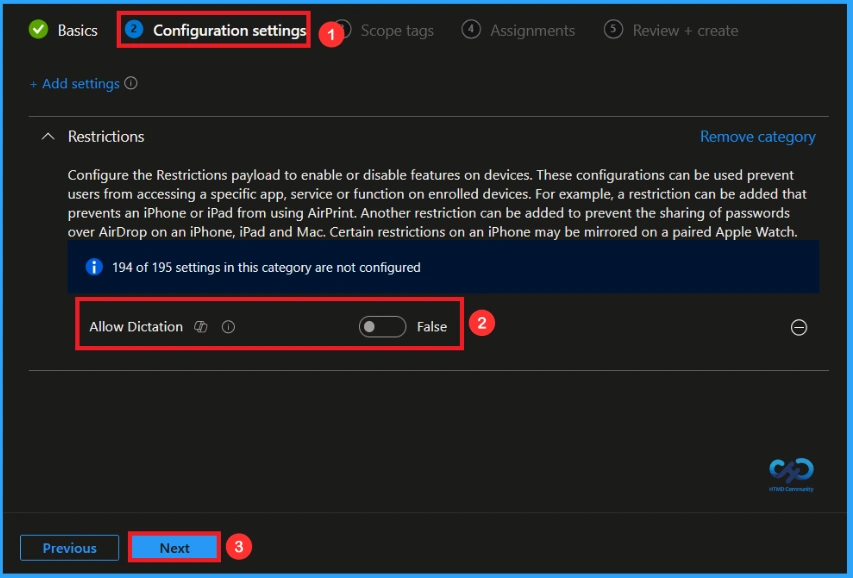
Here, you can enable or disable the Dictation policy. Disable the dictation policy bytoggling the button from right to left. Then click Next to continue.
What is Scope Tag
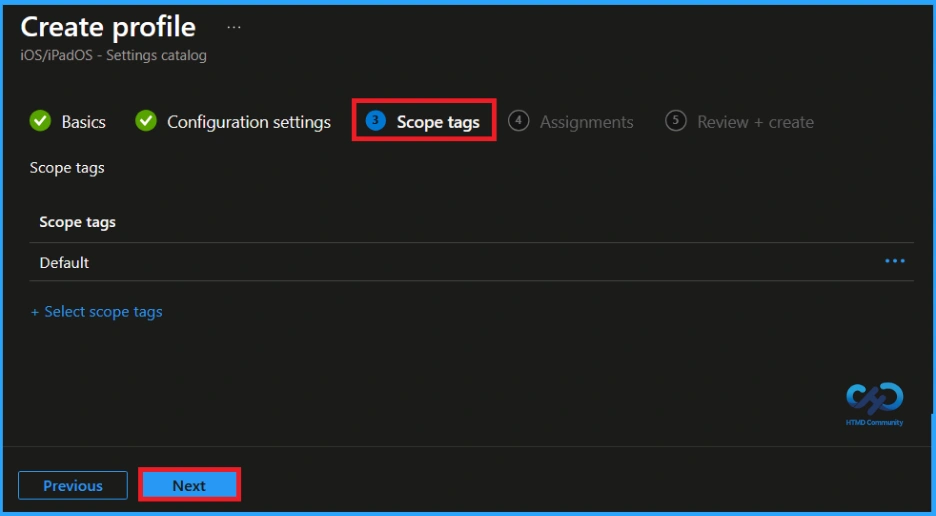
After configuring the settings, click Next. You will then reach theScope Tag section. Scope tags help you organize and filter policies based on departments, locations, or roles. They make it easier to manage and assign policies to the right groups. If you want to add a scope tag for your policy, you can easily do that. Once done, click Next to continue further.
Assignments Tab for Selecting Group
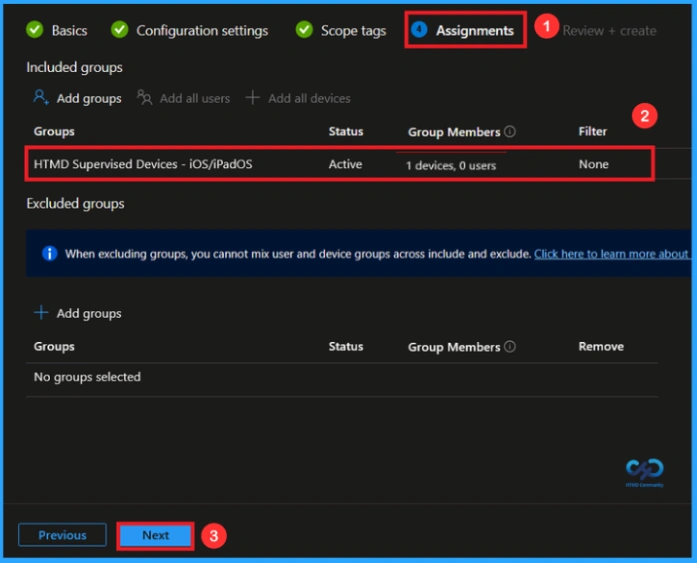
After the Scope Tags, you will reach the Assignment section. In this section, you can assign the policy to specific groups. Assignments ensure that the policy is applied only to the devices or users, helping maintain control and compliance. To assign a group, click Add Group, select HTMD Supervised Devices – iOS iPadOS Group, then click Next to continue.
Review + Create Tab
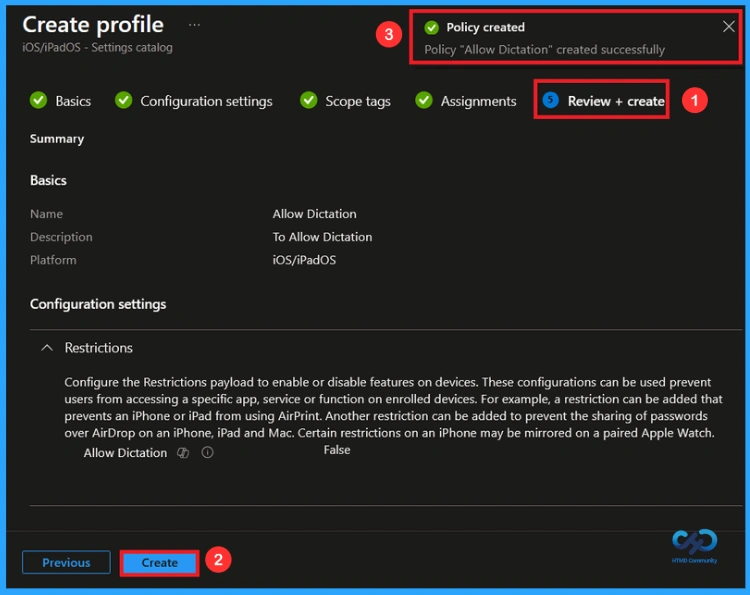
After Assignments, you will reach the Review + Create page. Here, you can review all the information and settings you have entered. If you need to make any changes, you can go back to the previous tabs and edit the configurations. Once you click Create, the policy will be successfully created and ready for deployment.
Monitoring Status
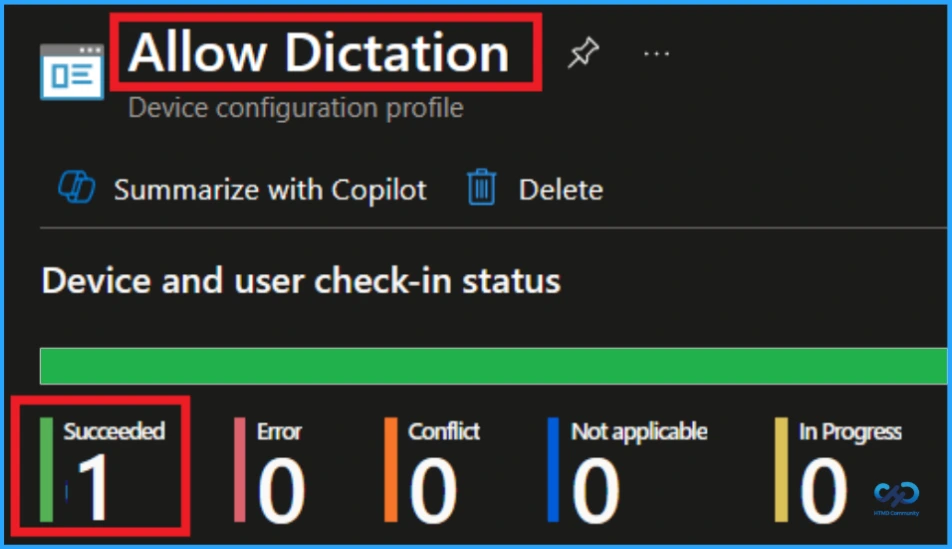
In the Device and User Check-In Status section for the Allow Lock Screen Control Center policy, you can see the deployment results. The status shows Succeeded(1), meaning one device or user has successfully received and applied the policy.
How to Remove Assigned Group from Dictation Policy
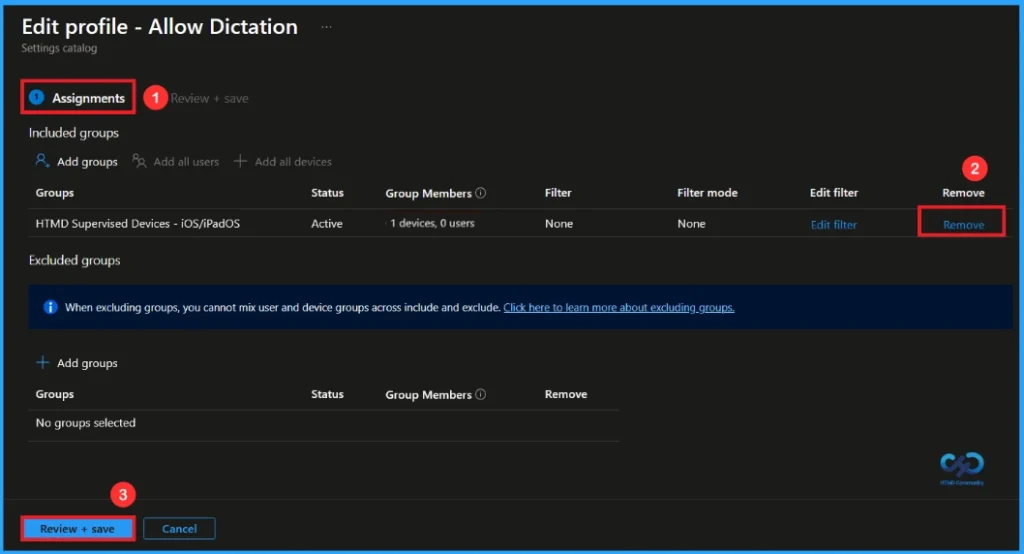
After creating the policy, if you want to remove the specific group that you previously selected, you can easily do that. First, go to Devices > Configuration policies. In the Configuration policy section, search and select the policy. In the Assignment section, you will find an Edit option and click on it. Then, click the Remove option.
For detailed information, you can refer to our previous post – Learn How to Delete or Remove App Assignment from Intune using by Step-by-Step Guide.
How to Delete Dictation Policy from Intune
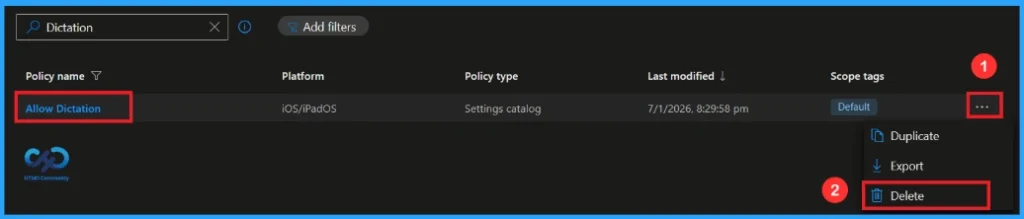
If you want to delete this policy for any reason, you can easily do so. First, search for the policy name in the configuration section. When you find the policy name, you will see a 3-dot menu next to it. Click on the 3 dots, then click the Delete button.
For detailed information, you can refer to our previous post – How to Delete Allow Clipboard History Policy in Intune Step by Step Guide.
Need Further Assistance or Have Technical Questions?
Join the LinkedIn Page and Telegram group to get the latest step-by-step guides and news updates. Join our Meetup Page to participate in User group meetings. Also, Join the WhatsApp Community and Whatsapp channel to get the latest news on Microsoft Technologies. We are there on Reddit as well.
Author
Anoop C Nair has been Microsoft MVP from 2015 onwards for 10 consecutive years! He is a Workplace Solution Architect with more than 22+ years of experience in Workplace technologies. He is also a Blogger, Speaker, and Local User Group Community leader. His primary focus is on Device Management technologies like SCCM and Intune. He writes about technologies like Intune, SCCM, Windows, Cloud PC, Windows, Entra, Microsoft Security, Career, etc


Discussion