





How to Configure RDP Shortpath Connection Types NAT Traversal STUN TURN using Intune and Group Policy
Key Takeaways
- RDP Shortpath is now configurable using Microsoft Intune and Group Policy.
- All Shortpath modes (Managed, STUN, TURN) can be enabled or disabled individually.
- Settings are enforced through registry-backed administrative policies.
- Session host policies override AVD host pool network settings.
Let’s discuss How to Configure RDP Shortpath Connection Types NAT Traversal STUN TURN using Intune and Group Policy. Microsoft has made it easier to control how Remote Desktop connects to Azure Virtual Desktop and Windows 365. Instead of setting up on every machine, admins can now use Intune or Group Policy to manage everything from one place. This helps keep connections working the same way everywhere and avoids manual work.
Table of Contents
RDP Shortpath Configuration Now Generally Available via Microsoft Intune and Group Policy
You know with this RDP Shortpath Configuration policies only decide which connection paths are allowed; they do not change network setup. For Shortpath to work, UDP (User Datagram Protocol) must be allowed and the required STUN or TURN services must be reachable. After applying the policy in Intune or Group Policy, session hosts or Windows 365 Cloud PCs must be restarted.
- If these requirements are not met, the connection will continue to use TCP even when Shortpath is enabled.
| Supported RDP Shortpath Modes- (Microsoft now supports policy control for all RDP Shortpath connection types) |
|---|
| RDP Shortpath for managed networks using NAT traversal |
| RDP Shortpath for public networks using NAT traversal (STUN) |
| RDP Shortpath for public networks using Relay (TURN) |
- Latest RDP Connectivity Requirements for Windows 365 and AVD
- HEVC Video Coding and Symmetric NAT with RDP Shortpath Support with Windows 365 Cloud PC 2409
- RDP Port 3389 is Disabled by Default for All Newly Provisioned Windows 365 Cloud PCs
Before the Changes
Earlier, RDP Shortpath settings had to be configured manually on each session host, which was hard to manage at scale. Now, Microsoft allows admins to control RDP Shortpath centrally using Microsoft Intune or Group Policy. Admins can enable or disable each Shortpath connection type (Managed, STUN, and TURN) through policy, making configuration Constant across Azure Virtual Desktop and Windows 365.
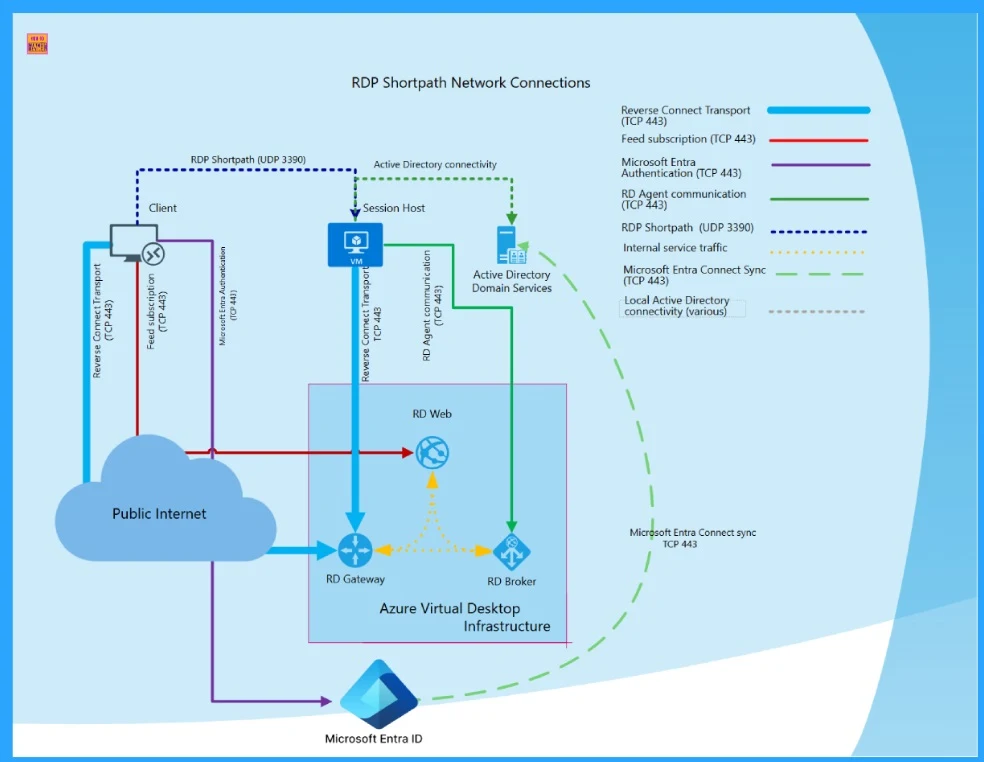
- Below you can see the screenshot from our previous post about How New TURN Relay IP Range Enhances RDP Shortpath for AVD and Windows 365
- As part of this transition, connections will progressively shift away from the current ACS TURN Relay range (20.202.0.0/16).
- Since these adjustments happen behind the scenes, they won’t be visible to end users.
Using Microsoft Intune to Configure RDP Shortpath
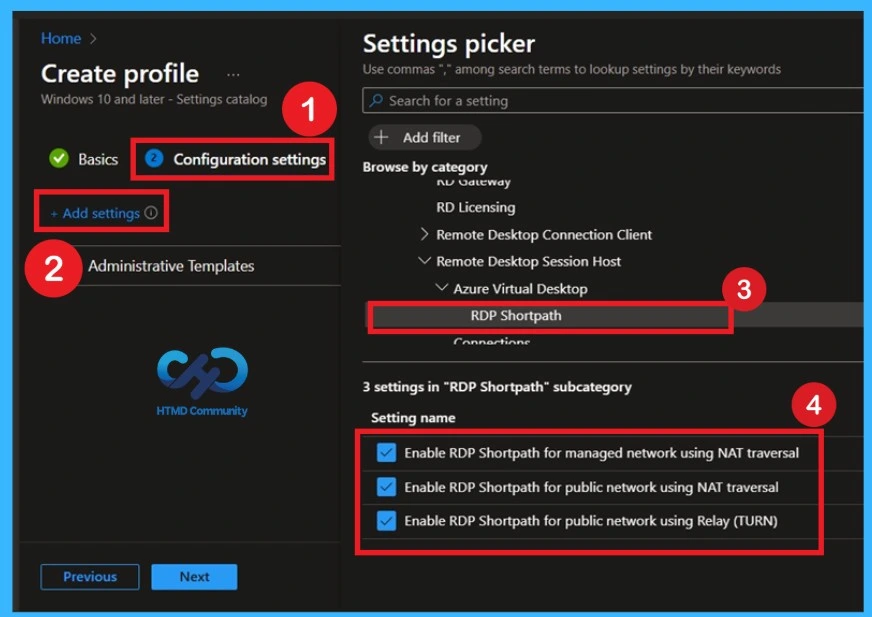
Now, Admins can manage RDP Shortpath settings for Windows 10 and later devices using the Settings catalog. They can turn RDP Shortpath connection paths on or off through policy and apply them to Azure Virtual Desktop session hosts and Windows 365 Cloud PCs, keeping settings consistent across all devices.

To deploy the policy through Intune you have to sign in to the MS Intune and in the configuration page, click on the +Add settings In the Settings picker, browse to: Administrative templates > Windows Components > Remote Desktop Services > Remote Desktop Session Host > Azure Virtual Desktop > RDP Shortpath.
- Expand the Administrative Templates category.
- Microsoft recommends keeping all 3 modes enabled (Managed, STUN, TURN). This allows the system to automatically select the best path depending on the network environment, improving performance.
- If your organization requires strict control so, you can selectively disable one or more modes.
Configure RDP Shortpath Using Group Policy
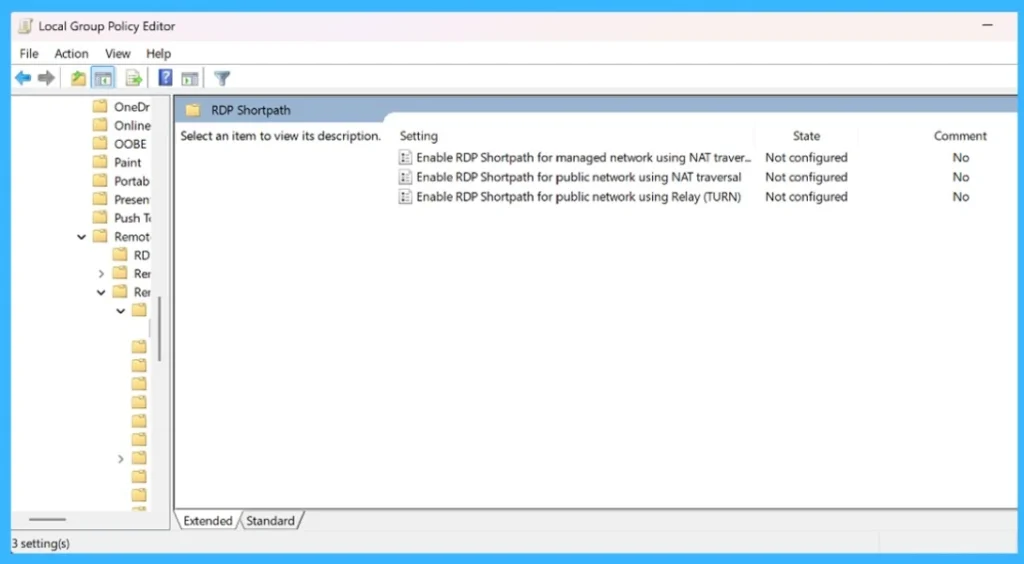
Group Policy allows administrators to configure RDP Shortpath settings in Active Directory environments. By using the Azure Virtual Desktop administrative templates, admins can enable or disable RDP Shortpath connection paths through policy and apply them to session hosts, ensuring consistent configuration across managed devices.
Add the Azure Virtual Desktop ADMX template and Make sure the Azure Virtual Desktop administrative template is available in your Active Directory domain. then, Open Group Policy Management. On a management device, open the Group Policy Management Console (GPMC). Then Create or edit a Group Policy Object and Create a new GPO or edit an existing one that targets the session host computers.
- Navigate to the RDP Shortpath settings
- Go to:
- Computer Configuration > Policies > Administrative Templates > Windows Components > Remote Desktop Services > Remote Desktop Session Host > Azure Virtual Desktop > RDP Shortpath
- Configure the RDP Shortpath policy
- Open the required RDP Shortpath policy and set it to Enabled or Disabled based on your requirement.
- Apply the policy to session hosts
- Ensure the GPO is linked to the correct OU containing the session host computers.
- Restart the session hosts
- Restart the session hosts so the policy changes take effect.
Need Further Assistance or Have Technical Questions?
Join the LinkedIn Page and Telegram group to get the step-by-step guides and news updates. Join our Meetup Page to participate in User group meetings. Also, Join the WhatsApp Community and WhatsApp Channel to get the latest news on Microsoft Technologies. We are there on Reddit as well.
Author
Anoop C Nair has been Microsoft MVP for 10 consecutive years from 2015 onwards. He is a Workplace Solution Architect with more than 22+ years of experience in Workplace technologies. He is a Blogger, Speaker, and Local User Group Community leader. His primary focus is on Device Management technologies like SCCM and Intune. He writes about technologies like Intune, Cloud PC, Windows, Entra, Microsoft Security, Career, etc.


Discussion