





How to Validate Microsoft Entra Dynamic Group Membership Rules in Intune
Key Takeaways
- Validate Rules helps test Entra Dynamic Group queries before or after saving them
- Allows validation against sample users or devices
- Helps troubleshoot unexpected group membership results
- Improves accuracy of Intune targeting for apps and policies
- Requires at least the Groups Administrator role
- Indirect role assignments are not supported for rule validation
Microsoft Intune and Microsoft Entra ID continue to improve the dynamic group experience for administrators. One of the most useful recent enhancements is the Validate Rules option for Dynamic Group memberships. This feature appears as a dedicated tab within the Dynamic Membership Rules section, allowing Intune admins to test and validate dynamic queries before saving them. The Validate Rules tab runs the membership rule against selected users or devices and instantly confirms whether they would qualify as group members.
Table of Content
Table of Contents
How to Validate Microsoft Entra Dynamic Group Membership Rules in Intune
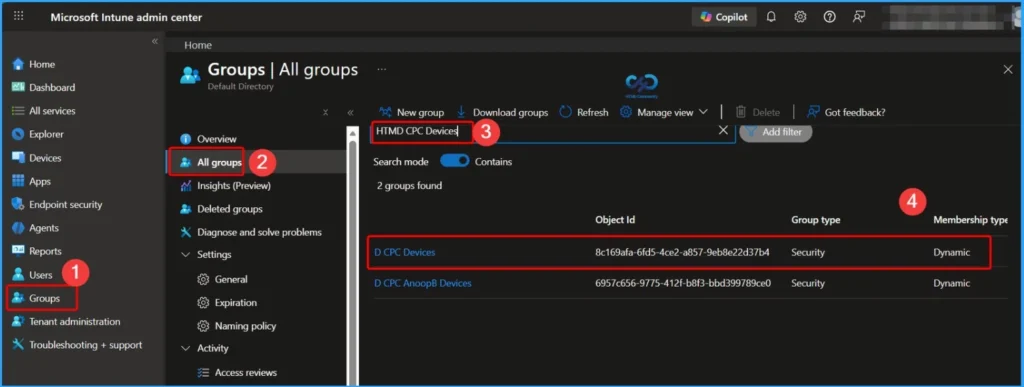
To validate Microsoft Entra dynamic group membership rules, sign in to the Microsoft Intune admin center using an account with at least the Groups Administrator role. Navigate to Groups > All groups, then select an existing dynamic group or create a new one. Once the group is selected, open Dynamic membership rules to view, edit, and validate the rule configuration.
- Best Guide to Invite B2B Guest Users to Entra ID using Intune
- How to Create Elevate as Current User EPM Rules Policy using Intune
- Key Scenarios of MS Entra External Identity Deployment Architectures
- New External Authentication Methods in Microsoft Entra ID
- Best Guide to use PowerShell Scripts in Intune Enterprise Catalog App
Dynamic Membership Rules
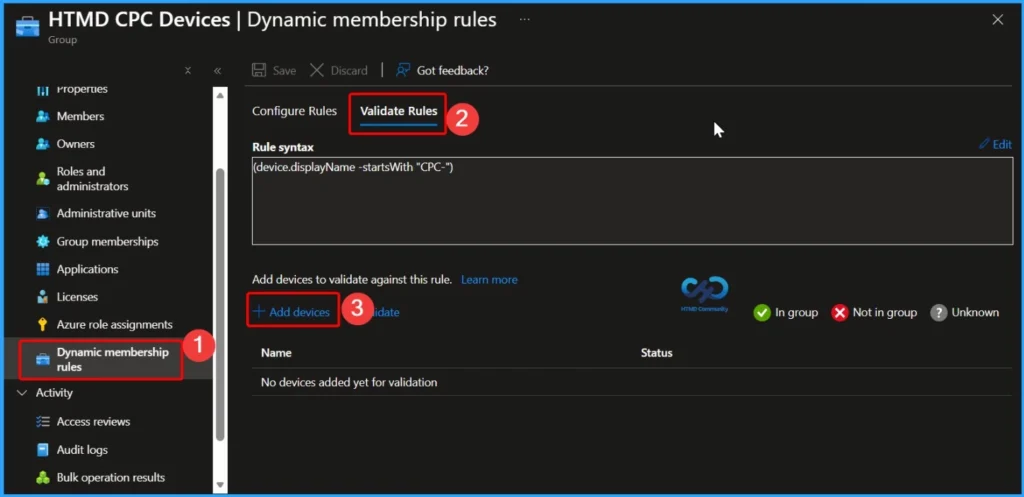
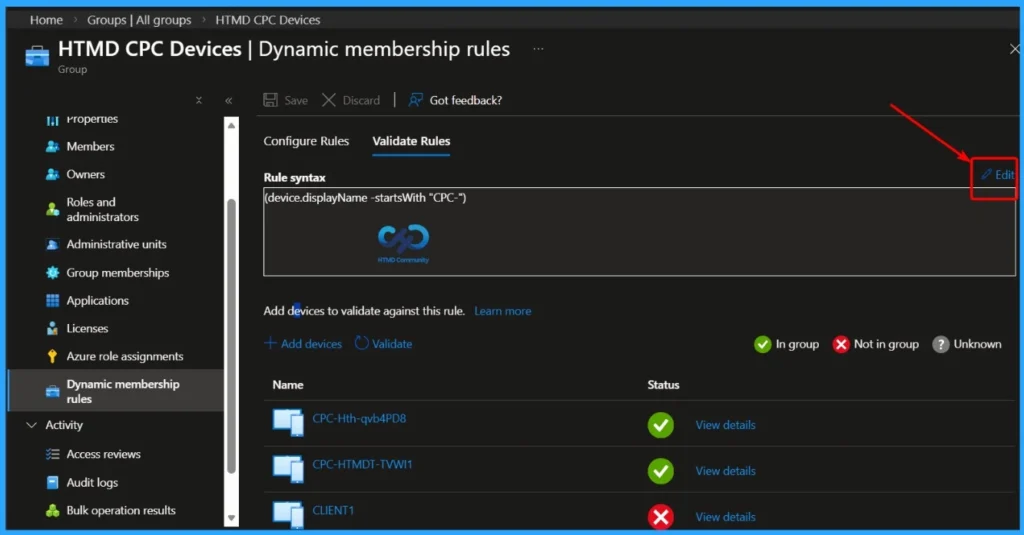
After selecting the dynamic group, navigate to the Dynamic membership rules tab. This section displays two options: Configure rules and Validate Rules. When you switch to the Validate Rules tab, you’ll see the + Add devices hyperlink. Click this link to select and add a device, allowing you to test whether it meets the dynamic membership rule criteria.
- Go to the Validate Rules tab in the Dynamic membership rules section
- Select Users (or Devices) to validate group membership
- You can select up to 20 users or devices at a time
- The validation result shows whether each selected user or device meets the dynamic rule criteria
How to Validate Rules
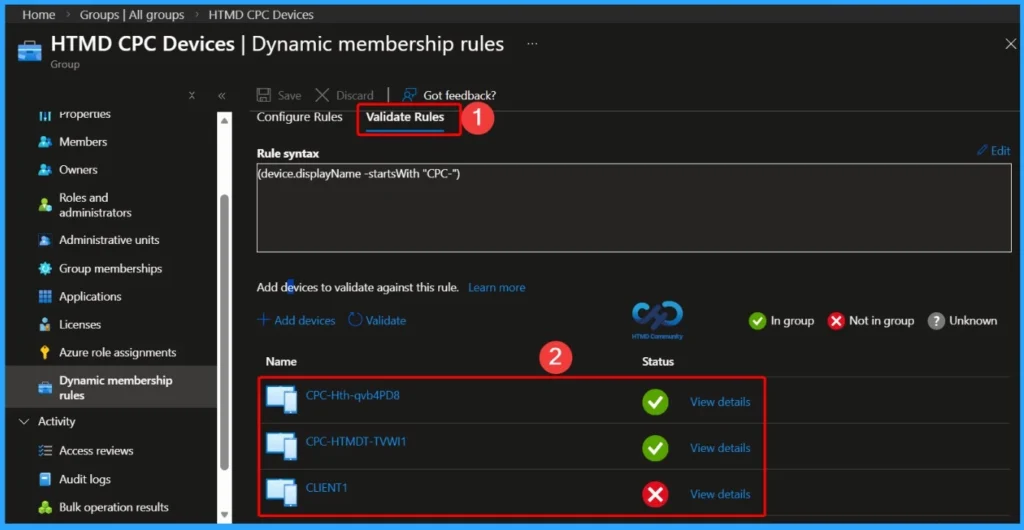
After completing the selection of devices, choose Select to proceed. The validation process starts automatically and evaluates thedynamic membership rule against the selected objects. The results clearly indicate whether each device qualifies as a member of the dynamic group or not, helping administrators quickly confirm rule accuracy.

Verification Details Section
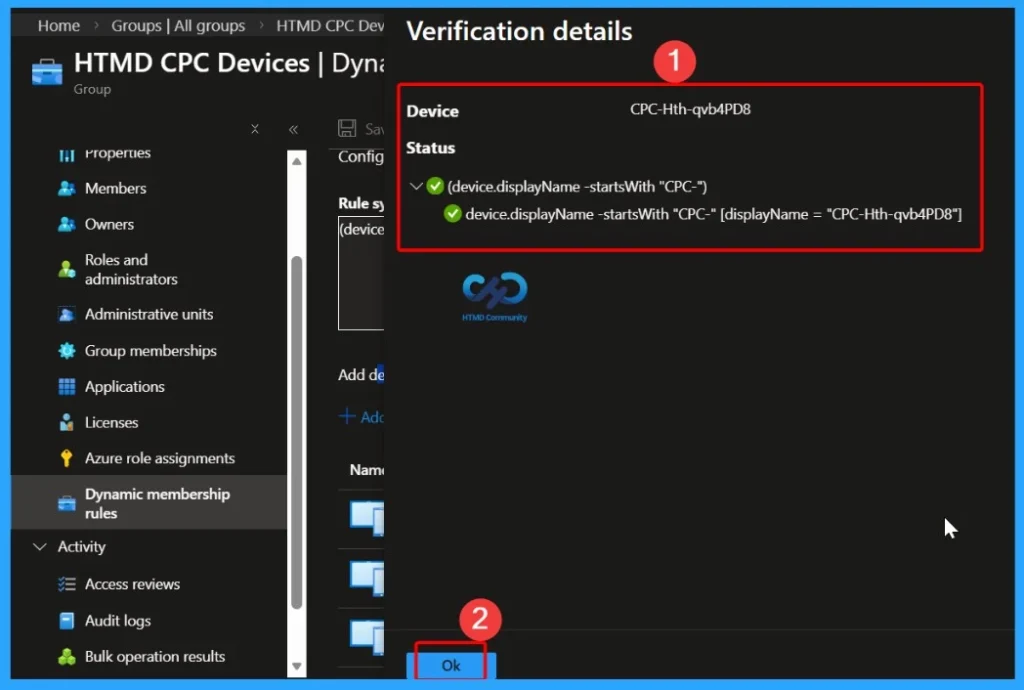
In the Verification details section, the validation results display the evaluated device, its membership status, and the rule logic applied. In this example, the dynamic rule (device.displayName -startsWith “CPC-“) was validated against the device CPC-Hth-qvb4PD8. Since the device display name starts with the specified prefix, the rule evaluation returns a positive result, confirming that the device meets the dynamic group membership criteria.
Dynamic Group Membership Rule
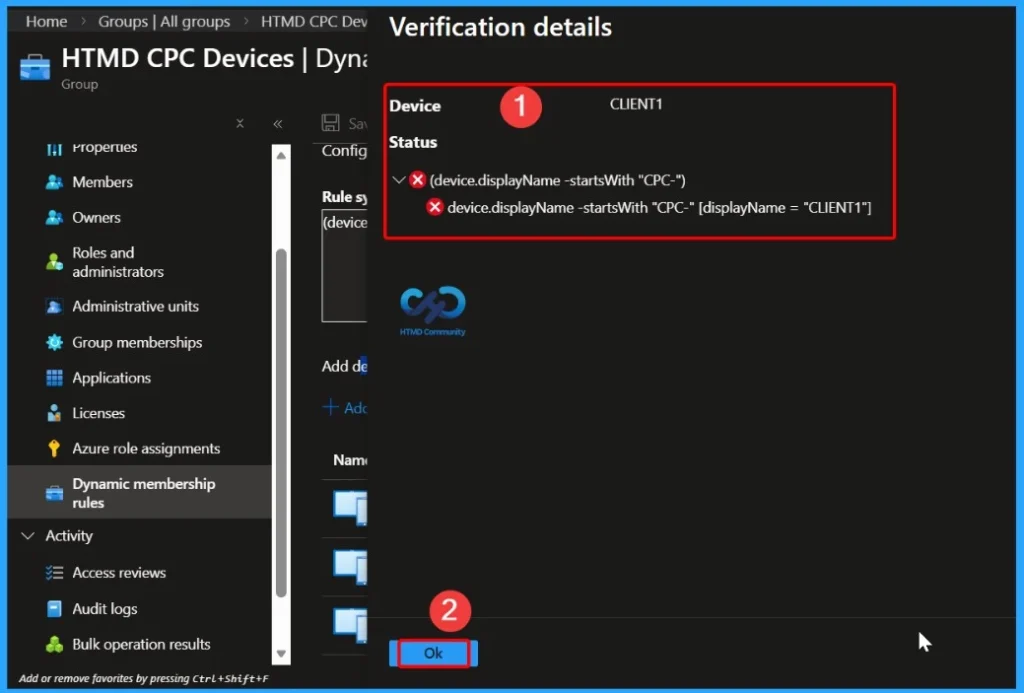
In the Verification details view, the validation results show that the device CLIENT1 does not meet the dynamic group membership rule. The rule (device.displayName -startsWith “CPC-“) was evaluated, but the device display name CLIENT1 does not start with the required “CPC-” prefix. As a result, the validation fails, and the device is marked as not eligible for inclusion in the dynamic group.
Edit and Validate Dynamic Membership Rules in Microsoft Entra
You can edit dynamic membership rules directly by clicking Edit in the rule box. After making the required changes, select Validate to immediately check the rule status. This allows administrators to confirm whether the updated rule correctly includes or excludes users or devices before saving the configuration.
Need Further Assistance or Have Technical Questions?
Join the LinkedIn Page and Telegram group to get the latest step-by-step guides and news updates. Join our Meetup Page to participate in User group meetings. Also, join the WhatsApp Community and the Whatsapp channel to get the latest news on Microsoft Technologies. We are there on Reddit as well.
Author
About Author – Jitesh, Microsoft MVP, has over six years of working experience in the IT Industry. He writes and shares his experiences related to Microsoft device management technologies and IT Infrastructure management. His primary focus is Windows 10/11 Deployment solution with Configuration Manager, Microsoft Deployment Toolkit (MDT), and Microsoft Intune.


Discussion