





Enforce Secure File and Registry Redirection for Applications using Intune Policy
Key Takeaways
- This policy ensures legacy applications cannot write directly to protected system folders or sensitive registry locations.
- It safely redirects failed write attempts to per-user locations without breaking application functionality.
- Enabling this setting reduces the risk of unauthorized system-level changes and improves overall Windows security.
- The policy works silently in the background and does not impact user experience or performance.
- It is a CIS Level 1 required setting and must be enabled for baseline compliance.
In this post let’s discuss the Enforce Secure File and Registry Redirection for Applications using Intune policy. User Account Control virtualization is a built-in Windows security feature designed to help older applications run safely on OS. However, blocking these actions completely can cause older applications to fail or behave unpredictably. User Account Control virtualization solves this issue by redirecting these write attempts to safe, user-specific locations without compromising security.
Table of Contents
Table of Contents
Enforce Secure File and Registry Redirection for Applications using Intune policy
This policy becomes especially important in managed environments where multiple applications are used across different business. By enabling virtualization of file and registry write failures, organizations prevent applications from making direct changes to critical system areas. This reduces the risk of system and prevents accidental or intentional misuse of protected resources.
Many older applications were created at a time when users had full administrative access, and these applications often attempt to write data directly into protected system locations. When applications attempt to write data to system folders or sensitive registry paths, Windows normally blocks those actions to protect the operating system.
- How to Fix Conditional Access Misconfiguration Causing Edge Authentication Loop in Intune
- How to Set Up White Dark Theme Sign-In Experience Passkeys and Enhanced Authentication
- Enable or Disable Hotspot Authentication in Networks using Intune Policy
Start Create Profile in MS Intune
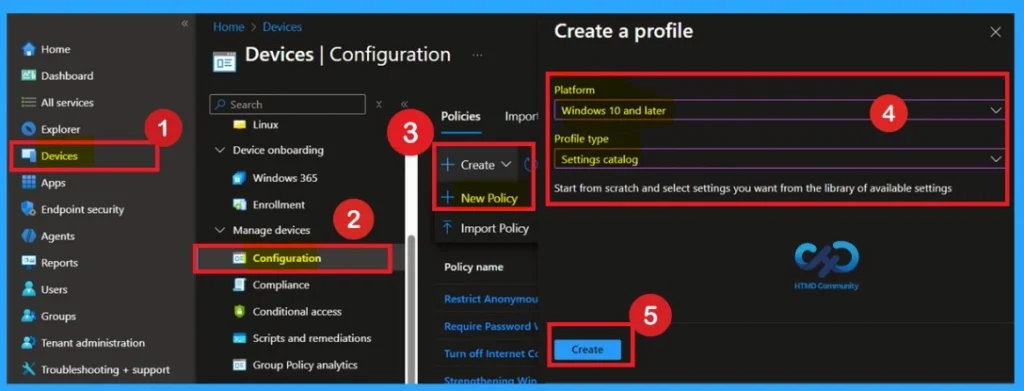
For start policy creation sign in to Microsoft Intune admin center. Then go to Devices > Configuration > +Create >+ New Policy. Choosing Platform and Profile is the next step after selecting New policy. It is very necessary step to effectively configure the policy to appropriate platform.

Basics Information for Policy Identification
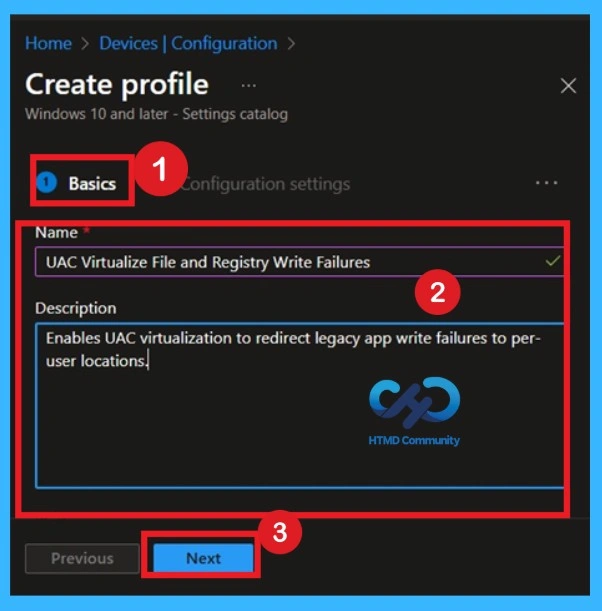
In the Name field, enter UAC Virtualize File and Registry Write Failures so it is easy to identify later. In the description, clearly mention that this policy enables UAC virtualization to redirect legacy application write failures to per-user locations, then click Next.
| Basic Details | Info |
|---|---|
| Name | UAC Virtualize File and Registry Write Failures |
| Description | Enables UAC virtualization to redirect legacy app write failures to per-user locations. |
| Platform | Windows |
Add Configuration Settings
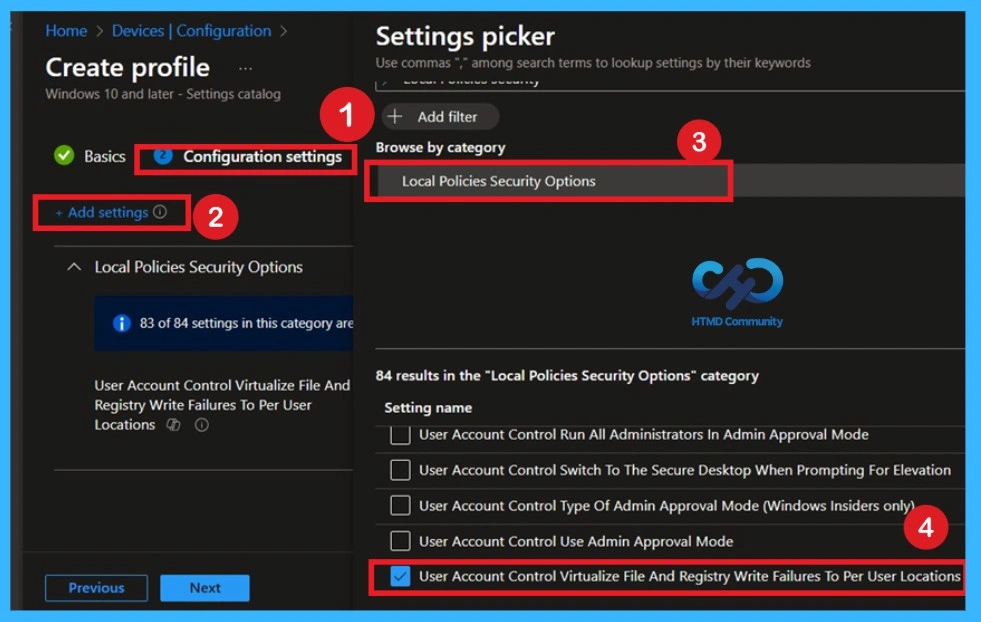
On the Configuration settings page, click Add settings to open the Settings picker. Browse by category and select Local Policies Security Options. This section contains security-related Windows policies used for system protection. You will see many settings listed, but only one needs to be configured for this policy. Selecting the correct category helps avoid mistakes and keeps the policy clean.
- So, you have to select User account control Virtualize File and registry write failure to per user location. Then close the settings picker window.
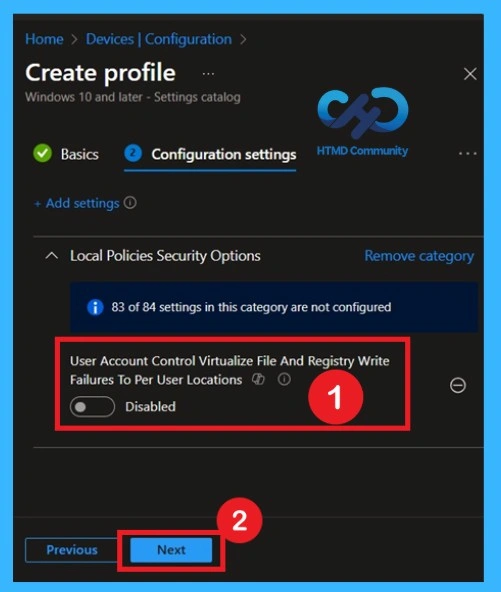
Disabled State of Policy
According to this policy to be enabled by default here in my case this policy is disabled by default. According to CIS documentation We have to enable this policy If you want to continue with that like disabled format y to continue the disabled format you can click on the next button.
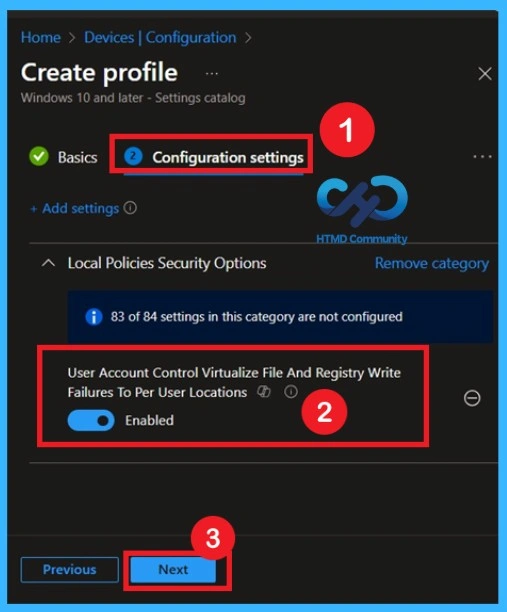
Activate the Policy as CIS Documentation
Enabling this ensures legacy applications cannot write directly to protected system locations. Instead, Windows safely redirects those writes to user-specific areas. This setting is required for CIS Level 1 compliance, so make sure it is enabled before moving to next.
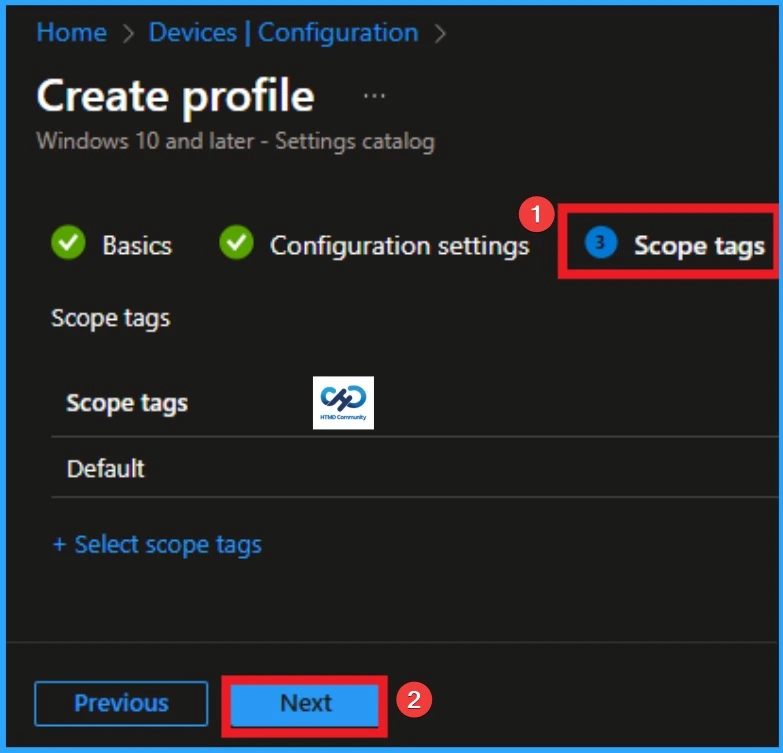
Scope Tags
Scope tags help control who can see or manage this policy in Intune. If your organization uses role-based access control, select the appropriate scope tag. This is useful in large environments where different teams manage different devices. If scope tags are not used in your tenant, you can leave this section and Click Next after confirming the selection.
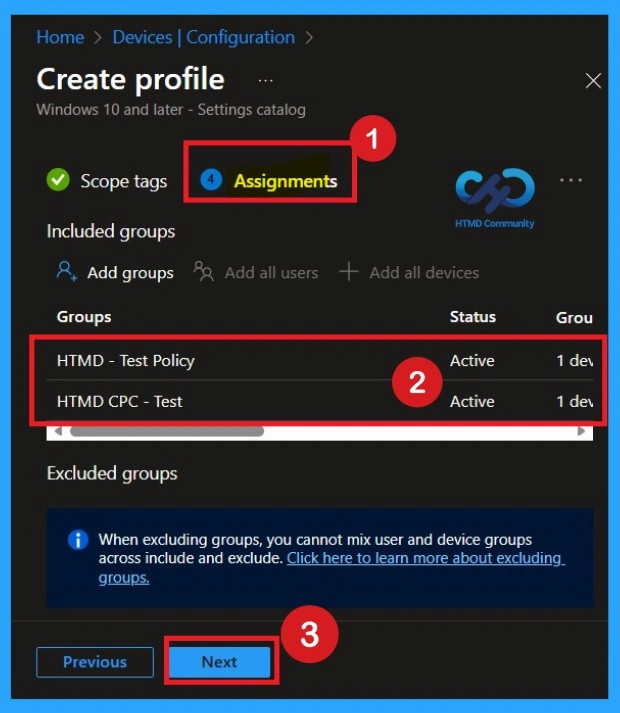
Assignments
Assignments decide which devices receive the policy. Choose Included groups and select a test device group first to avoid issues. If you are assigning a policy to a specified group, the policy should be applied to the ad specific devices. So here I selected 2 groups that I needed If you want to add more it will possible. After the You can click on the next for the next step.
Review + Create the Section in the Last Stage of Policy Creation
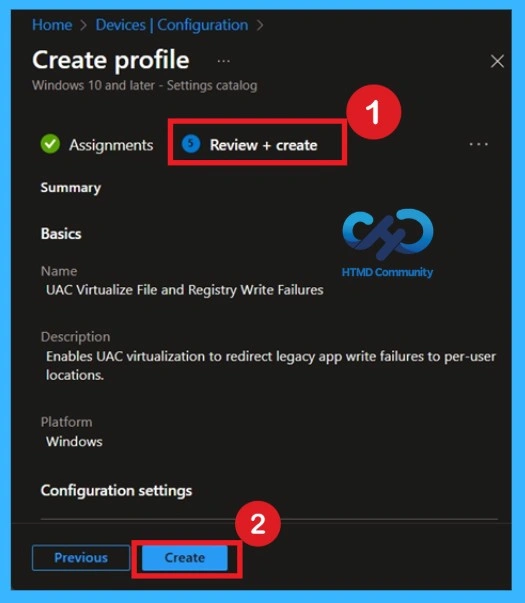
On the Review + create page, carefully check all details. Confirm the policy name, description, platform, and that the UAC virtualization setting is Enabled. Review assignments and scope tags one last time. Once everything looks correct, click Create to deploy the policy. The policy will now be pushed to assigned devices.
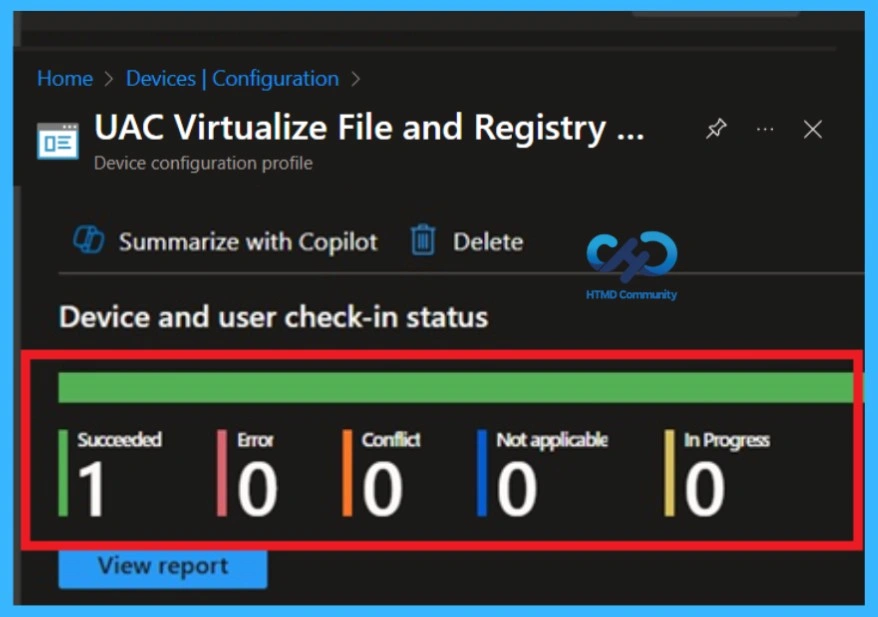
Conforming to the Policy Successfully or Not Through the Monitoring Status
After deployment, go to Devices > Configuration profiles and select this policy. Check Device status and User status to see whether it applied successfully. Devices should show a Succeeded status once the policy is active. Monitoring helps quickly identify any failed or pending devices. This step is important for compliance and troubleshooting.
Event Viewer Results
To get the client-side verification, open the Event Viewer and navigate to Applications and Services Logs > Microsoft >Windows > Device Management > Enterprise Diagnostic Provider > Admin. Once there, you can search for specific policy results by using the Filter Current Log feature located in the right pane. This helps quickly get the relevant results within the log.
Remove the Assigned Group from the Policy
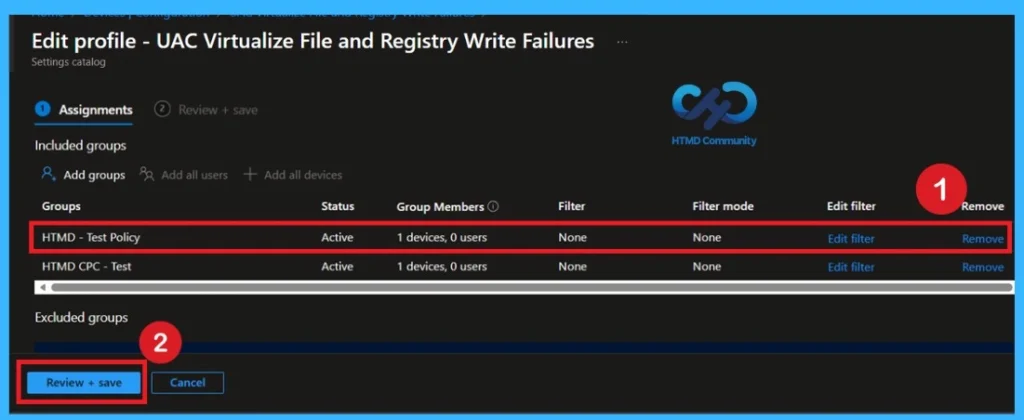
To remove a group assignment in the Microsoft Intune admin center, navigate to Devices → Configuration profiles and select the policy UAC Virtualize File and Registry Write Failures. From there, open the Assignments section to view all associated groups. Under Included groups, choose the group you want to unassign and click Remove. Finally, save your changes to ensure the policy is no longer applied to devices within that group.
To get more detailed information, you can refer to our previous post – Learn How to Delete or Remove App Assignment from Intune using by Step-by-Step Guide.
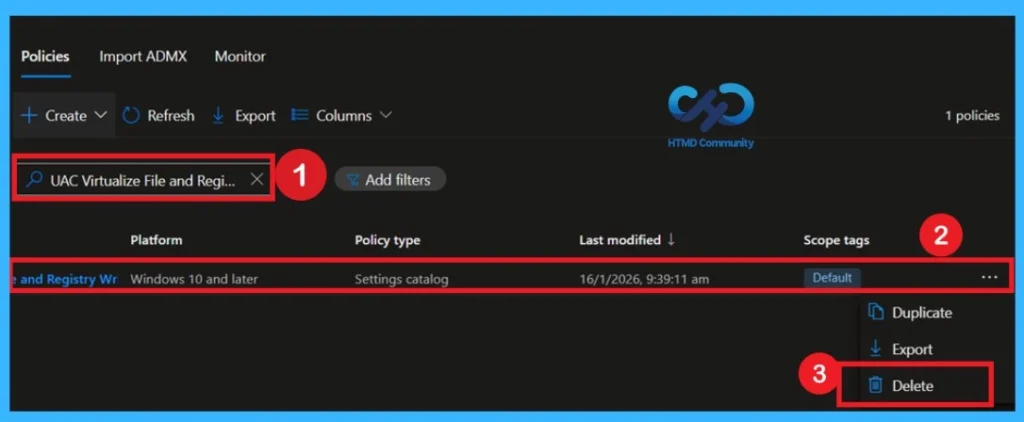
How to Delete the Policy Permanently
If a policy is no longer needed, you can delete it entirely from Intune. Navigate to Devices > Configuration profiles and select the policy you want to remove. Before proceeding, ensure that all group assignments have been cleared to prevent conflicts. Then, click Delete at the top of the policy page and confirm the action.
- Once deleted, the policy is permanently removed and will no longer be applied to any devices.
For detailed information, you can refer to our previous post – How to Delete Allow Clipboard History Policy in Intune Step by Step Guide.
Need Further Assistance or Have Technical Questions?
Join the LinkedIn Page and Telegram group to get the latest step-by-step guides and news updates. Join our Meetup Page to participate in User group meetings. Also, Join the WhatsApp Community to get the latest news on Microsoft Technologies. We are there on Reddit as well.
Author
Anoop C Nair has been Microsoft MVP from 2015 onwards for 10 consecutive years! He is a Workplace Solution Architect with more than 22+ years of experience in Workplace technologies. He is also a Blogger, Speaker, and Local User Group Community leader. His primary focus is on Device Management technologies like SCCM and Intune. He writes about technologies like Intune, SCCM, Windows, Cloud PC, Windows, Entra, Microsoft Security, Career, etc.


Discussion