Skip to content
Intune Application Management Using ManageEngine Patch Connect Plus

Intune Application Management Using ManageEngine Patch Connect Plus

Written By Vidya M A
Last Updated June 17, 2024
Posted In Intune
SHARE

Let’s discuss Intune Application Management Using ManageEngine Patch Connect Plus. A robust solution or product is regularly upgraded to suit current organizational requirements and market trends. Patch Connect Plus is no exception to this rule.

Working in tandem with System Center Configuration Manager (SCCM) to ease third-party application patching, it only makes sense that Patch Connect Plus also grows to complement SCCM’s expanding feature set.

As most SCCM users know, SCCM can now integrate with Microsoft Intune. This hybrid SCCM enables users to manage both on-premises and roaming endpoints. However, hybrid SCCM also has a handicap: third-party application management.

With its latest addition to Intune Application Management, Patch Connect Plus aims to overcome this limitation by expediting third-party application creation and deployment in Microsoft Intune.

Patch My PC
Index
Configuring Intune application management in Patch Connect Plus
Intune Configuration in the Patch Connect Plus console
Deploying third-party applications using Microsoft Intune
Results – End-User View
Try Out
Resource
Intune Application Management Using ManageEngine Patch Connect Plus – Table 1

Configuring Intune Application Management in Patch Connect Plus

The following steps help you configure Intune application management in the Patch Connect Plus console.

  • Register a new application in Azure AD
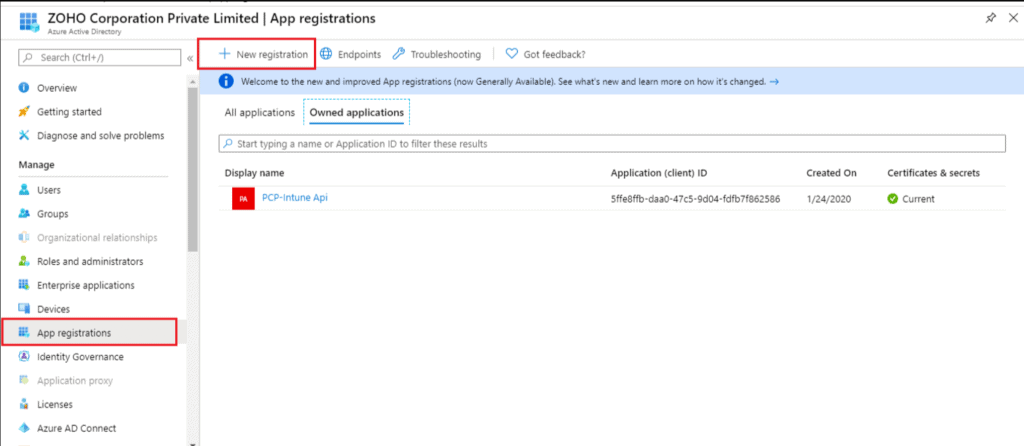
    The first step is to create a client ID and a tenant ID in Azure AD. Navigate to App
    registrations and click + New registration.
Intune Application Management Using ManageEngine Patch Connect Plus - Fig.1
Intune Application Management Using ManageEngine Patch Connect Plus – Fig.1

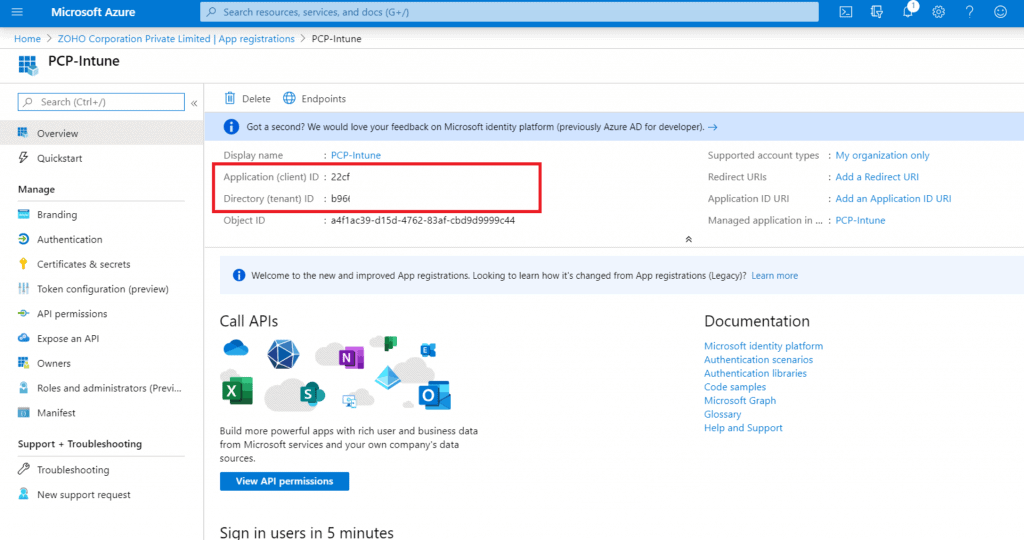
Once you have provided a suitable name and configured the account type according to your requirement, click Register, and your application will be registered with a unique client ID and tenant ID.
Intune Application Management Using ManageEngine Patch Connect Plus - Fig.2
Intune Application Management Using ManageEngine Patch Connect Plus – Fig.2

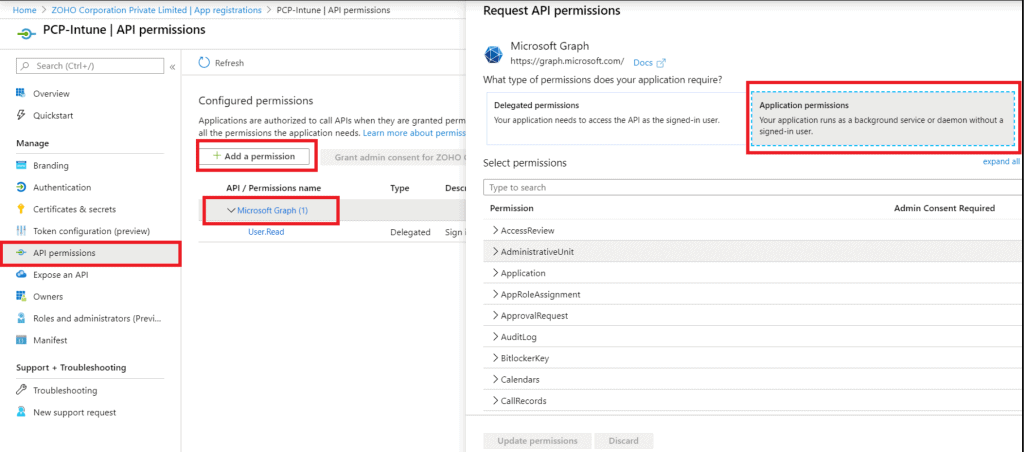
Add API permissions to the registered application. Then next step is to provide adequate permissions to the application created.

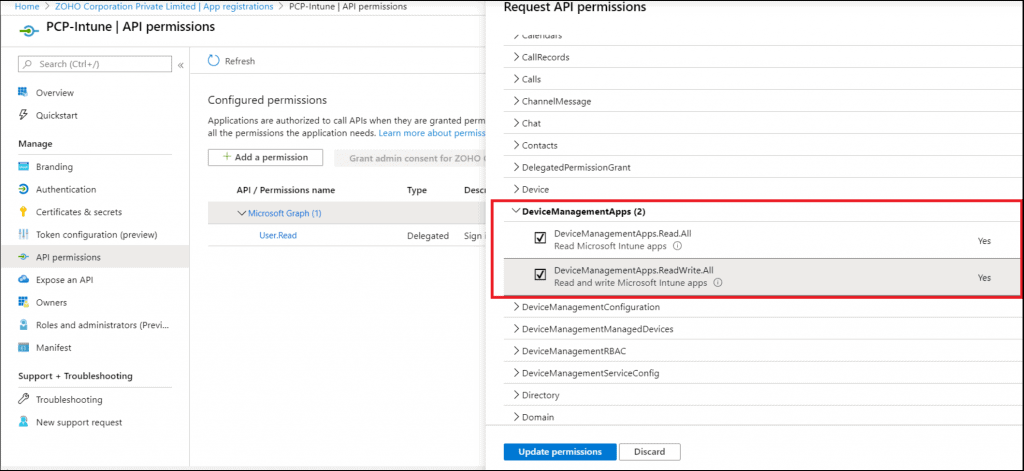
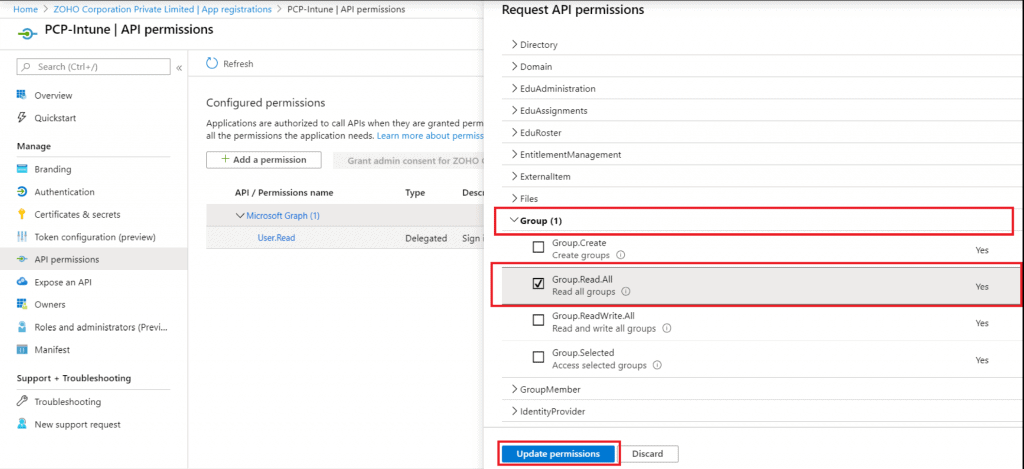
  • Click + Add a permission. Under Application permissions, click DeviceManagementApps and enable DeviceManagementApps.Read. All DeviceManagementApps.ReadWrite.All and Group.Read.All.
Intune Application Management Using ManageEngine Patch Connect Plus - Fig.3
Intune Application Management Using ManageEngine Patch Connect Plus – Fig.3
Intune Application Management Using ManageEngine Patch Connect Plus - Fig.4
Intune Application Management Using ManageEngine Patch Connect Plus – Fig.4
Intune Application Management Using ManageEngine Patch Connect Plus - Fig.5
Intune Application Management Using ManageEngine Patch Connect Plus – Fig.5
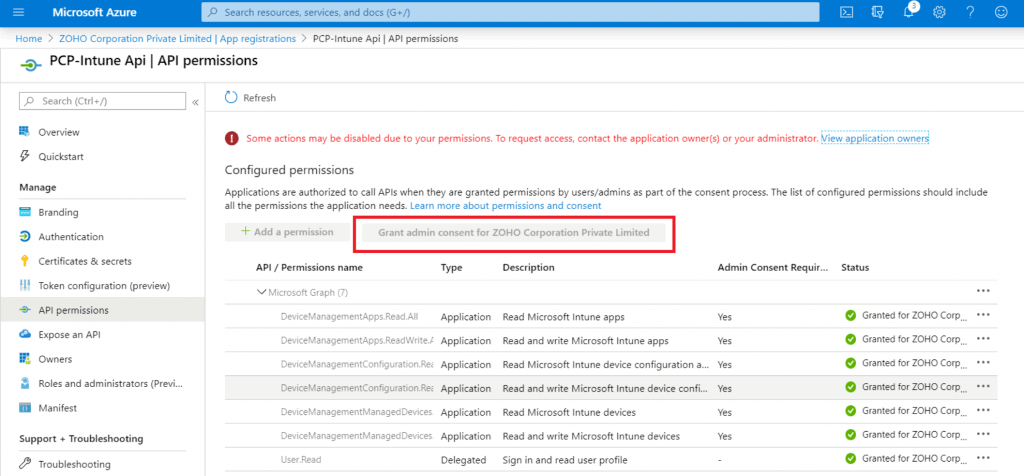
  • Once that’s done, grant admin consent to approve the permission, and select Yes
    whenever prompted for consent.
Intune Application Management Using ManageEngine Patch Connect Plus - Fig.6
Intune Application Management Using ManageEngine Patch Connect Plus – Fig.6
  • Create a new client secret
    Navigate to the Certificates & secrets tab, and create a new client secret. Give it a
    suitable description, and set the client secret to Never expire.
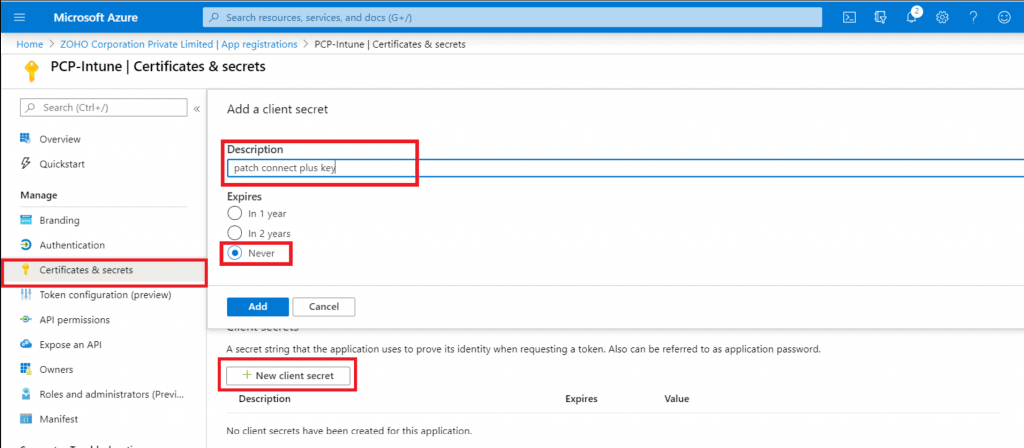
Intune Application Management Using ManageEngine Patch Connect Plus - Fig.7
Intune Application Management Using ManageEngine Patch Connect Plus – Fig.7
  • Once the client secret for Patch Connect Plus has been successfully created, copy and
    save the secret key to a secure location for any future use.
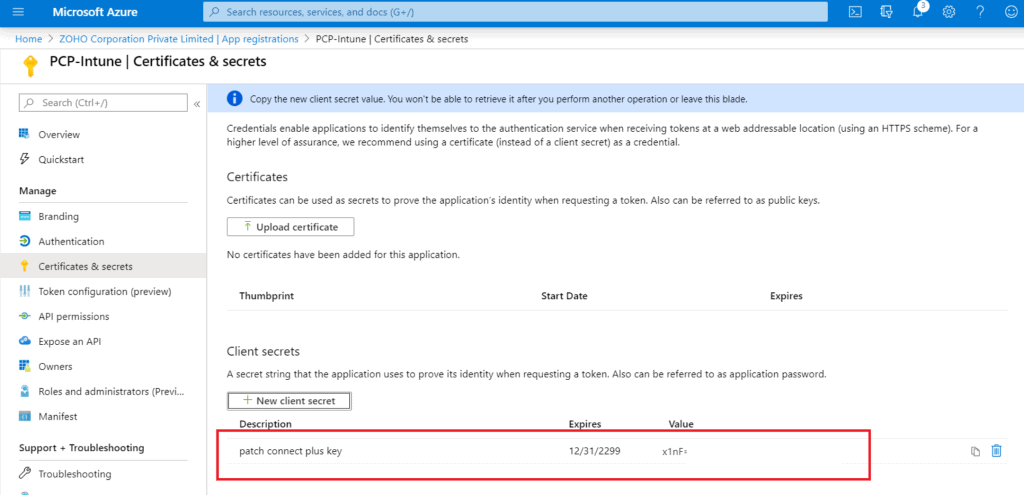
Intune Application Management Using ManageEngine Patch Connect Plus - Fig.8
Intune Application Management Using ManageEngine Patch Connect Plus – Fig.8

Intune Configuration in the Patch Connect Plus console

  • Copy the unique client ID and tenant ID. Navigate to Patch Connect Plus’ web console > Admin> Application Mgmt Settings > Intune Configuration. Paste the client ID, tenant ID, and client security details there, and click Save.
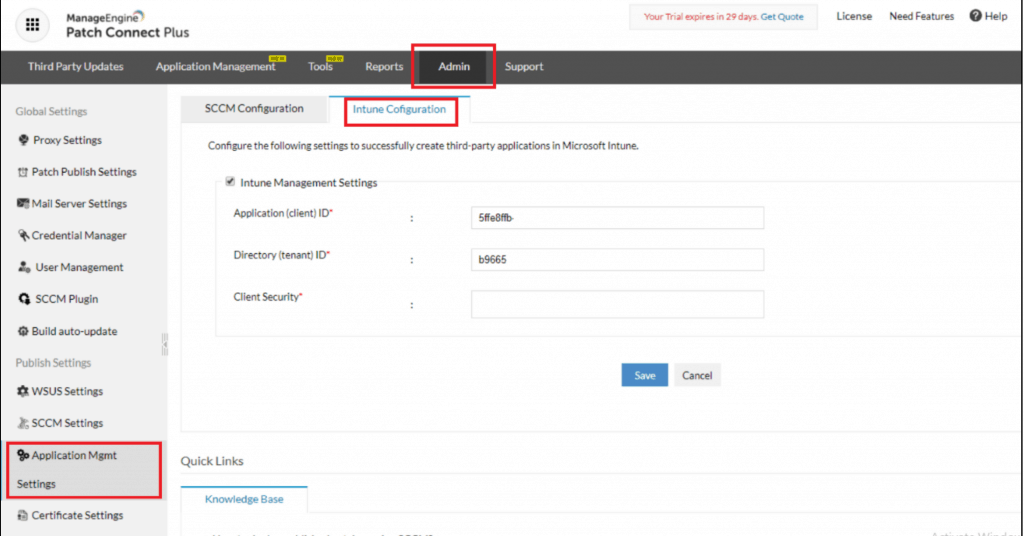
Intune Application Management Using ManageEngine Patch Connect Plus - Fig.9
Intune Application Management Using ManageEngine Patch Connect Plus – Fig.9

You have successfully configured Intune app management. The next step is to deploy third-party applications.

Deploying third-party applications using Microsoft Intune

Let’s take a look at how to deploy third-party applications in Intune using Patch Connect
Plus.

  • Open the Patch Connect Plus web console > Application Management > INTUNE.
  • Select the third-party application you wish to create. You can customize the deployment
  • using scripts, then click Create Application.
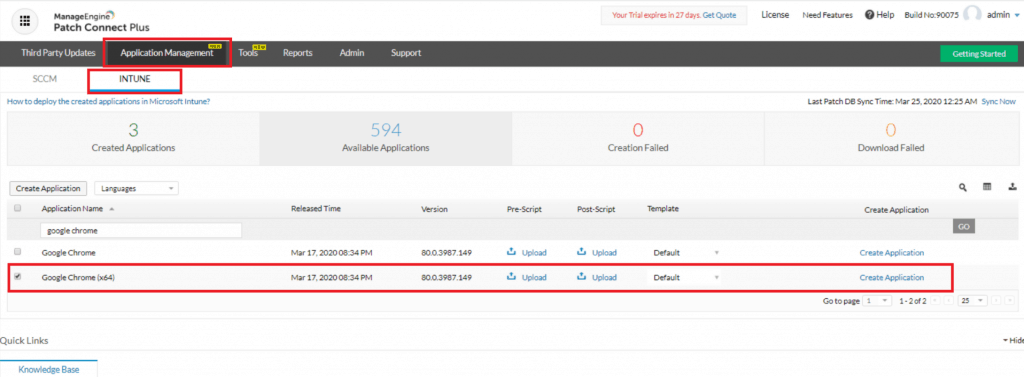
Intune Application Management Using ManageEngine Patch Connect Plus - Fig.10
Intune Application Management Using ManageEngine Patch Connect Plus – Fig.10
  • The selected third-party application will appear under Client apps, as shown below.
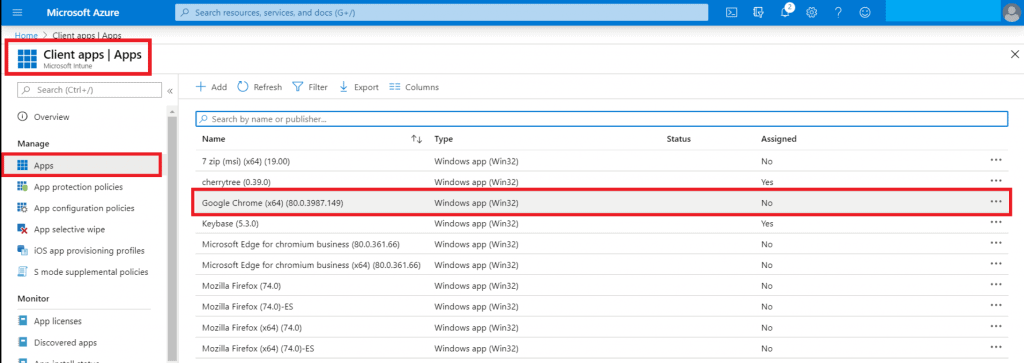
Intune Application Management Using ManageEngine Patch Connect Plus - Fig.11
Intune Application Management Using ManageEngine Patch Connect Plus – Fig.11
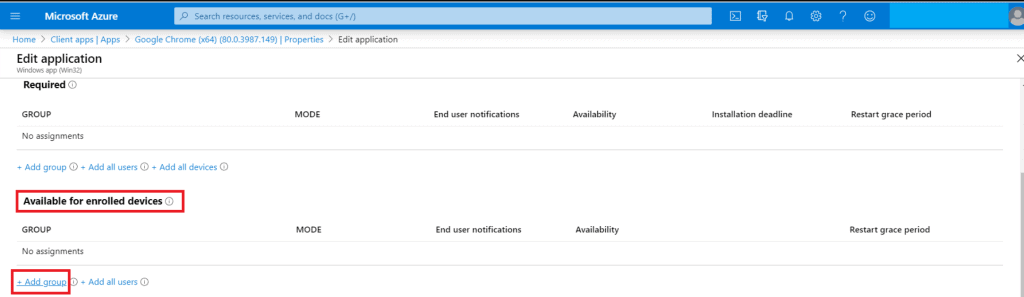
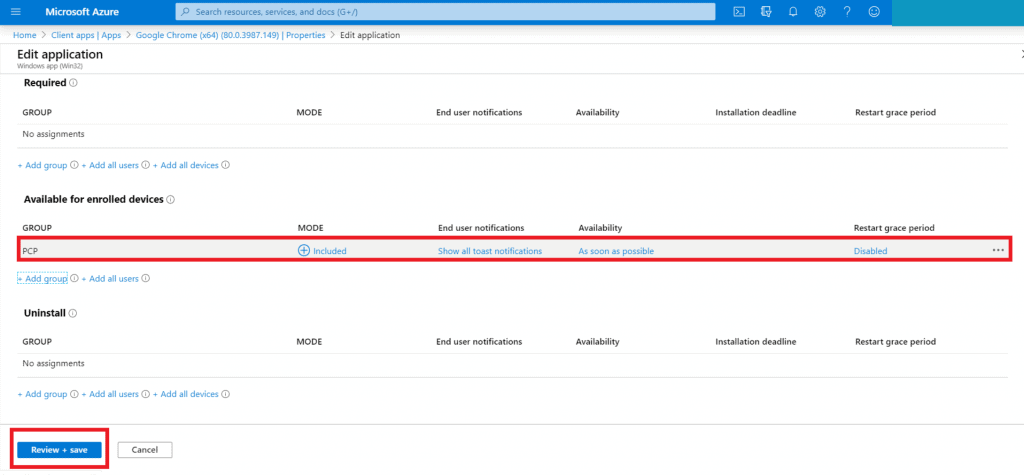
  • The next step is to assign a group under the enrolled devices for the application created. Under Properties, edit Assignments and click + Add group. Once the group is added, click Review + Save.
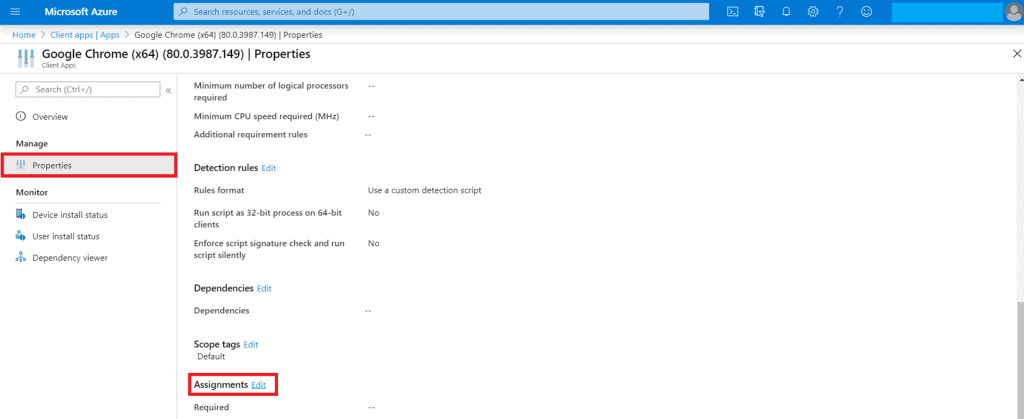
Intune Application Management Using ManageEngine Patch Connect Plus - Fig.12
Intune Application Management Using ManageEngine Patch Connect Plus – Fig.12
Intune Application Management Using ManageEngine Patch Connect Plus - Fig.13
Intune Application Management Using ManageEngine Patch Connect Plus – Fig.13
Intune Application Management Using ManageEngine Patch Connect Plus - Fig.14
Intune Application Management Using ManageEngine Patch Connect Plus – Fig.14

Results – End-User View

  • Once the groups have been assigned and saved, the application created can be found in the Company Portal under the Apps section.
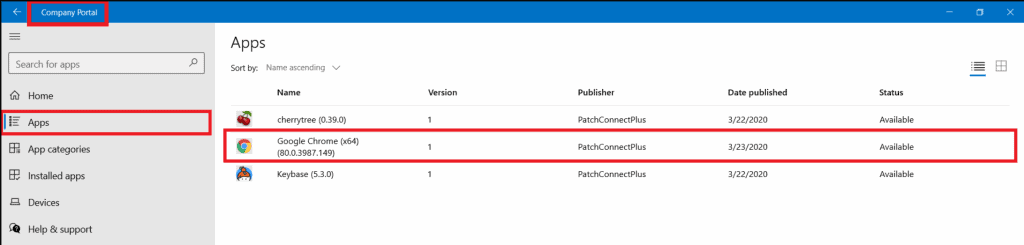
Intune Application Management Using ManageEngine Patch Connect Plus - Fig.15
Intune Application Management Using ManageEngine Patch Connect Plus – Fig.15
  • Click the application and install it as shown below.
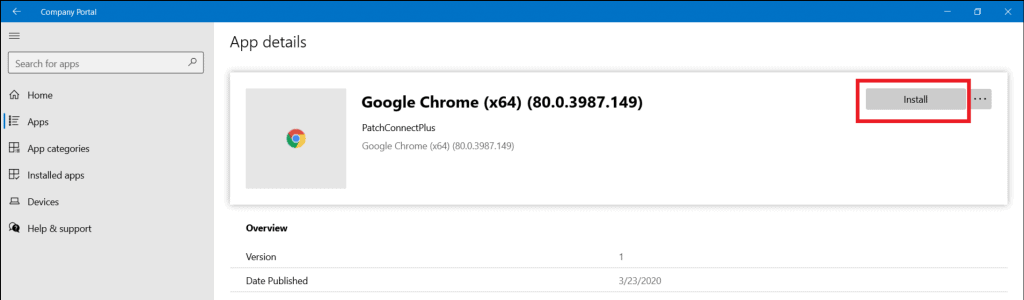
Intune Application Management Using ManageEngine Patch Connect Plus - Fig.16
Intune Application Management Using ManageEngine Patch Connect Plus – Fig.16

You have successfully created and deployed third-party applications in Intune using Patch Connect Plus.

Try Out

As you can see, setting up and configuring Intune app management in Patch Connect Plus is simple and requires no additional infrastructure.

With Intune settings configured, you can now create and deploy third-party applications in Microsoft Intune using Patch Connect Plus. Try the 30-day free trial for hands-on experience with this feature and much more.

Resource

We are on WhatsApp. To get the latest step-by-step guides and news updates, Join our Channel. Click here –HTMD WhatsApp.

Author

Admin

Written by

About Author - Vidya is a computer enthusiast. She is here to share quick tips and tricks with Windows 11 or Windows 10 users. She is also keen to find solutions to day-to-day tech problems and write about them.

Discussion

Join the discussion

Your email address will not be published. Required fields are marked *

Related guides

Intune

Simplify Windows Devices to Run Only the Required Applications using Intune

Key Takeaways Hey, let’s learn about Simplify Windows Devices to Run Only the Required Applications using Intune. This policy lets administrators replace the default windows shell with a custom or lightweight shell. it improves performance by using system resources and is useful for devices that run a dedicated application. If the policy is disabled or […]

AC Anoop C Nair 8 min read
Intune

Enhance macOS Compliance with Custom Security and Compliance Checks to Improve Device Security using Microsoft Intune

Key Takeaways In this post we are discussing about Enhance macOS Compliance with Custom Security and Compliance Checks to Improve Device Security using Microsoft Intune. Microsoft has announced the general availability of Custom Compliance Settings for macOS in Microsoft Intune. The feature helps organizations strengthen security controls while supporting many types of macOS management scenarios. […]

AC Anoop C Nair 4 min read
Intune

Manage Samsung Galaxy Firmware Versions to Improve Security and Compliance using Microsoft Intune

Key Takeaways In this post we are discussing Manage Samsung Galaxy Firmware Versions to Improve Security and Compliance using Microsoft Intune. Microsoft Intune has received a new update that expands firmware management capabilities for Samsung Galaxy devices through Firmware Versionsintegration. This enhancement gives IT administrators more control over firmware and operating system updates, helping them […]

AC Anoop C Nair 4 min read
Intune

MS Intune Adds Windows Registry Data Collection to Device Inventory for Single Values All Key Values and Subkeys

Key Takeaways Microsoft Intune 2607 introduces Windows Registry Data collection in Device Inventory, allowing IT admins to verify actual device configurations without relying on custom discovery or remediation scripts. Using the Properties Catalog, admins can collect registry information through Single Value, All Values Under a Key (Non-Recursive), or Same Value Across Subkeys. MS Intune Adds […]

AC Anoop C Nair 5 min read