






Install ConfigMgr Client Using Client Push Installation Method SCCM
Let’s understand the process of the ConfigMgr Client Push Installation Method. The installation of the client is one of the essential parts of the ConfigMgr manager environment.
As you know, the client installation strategy is very important for every organization. You can install the Configuration Manager client software using various methods. Choose one method or utilize a combination of methods.
I like the Client Push Installation method, which we will learn about in this post. Let’s begin with a step-by-step guide to the ConfigMgr Client Push installation method.
What are the Client Installation Methods in Configuration Manager?
The following are the client installation methods.
1. Client push installation (From SCCM Console)
2. Software update point-based installation (GPO GPEDIT.MSC)
3. Group policy installation (GPO – GPEDIT.MSC)
4. Using Microsoft Intune (Intune/Azure Console)
5. Package and program installation (SCCM Console)
6. OSD Task Sequence (SCCM Console)
7. Logon script installation (AD)
8. Workgroup computers (Manual)
9. Internet-based client management (SCCM/Manually ?)
10. Provision of client installation properties (GPO)
11. Manual installation (Manual via command prompt?)
ConfigMgr Client Push Installation Method
Client push is the easiest method to install the client. The installation tool can install the client on a single computer, a collection of computers, or based on the results from a query. Additionally, it has the capability to install the client on all discovered computers automatically.

This process is streamlined because it automatically uses the client installation properties defined on the Client tab in the Client Push Installation Properties dialogue box.
Requirements
- Admin$ share should present
- Admin$ SMB access to Windows 10 devices.
- Client Push Account should have administrator access on a Windows 10 client device.
- Or the SCCM site server should be part of the Administrators group on the Windows 10 device.
- Devices should be discovered and the Device records should be available in the SCCM console.
- Ensure Client Push firewall ports and defender settings are ok before starting the following process.
- Connectivity to Management Point.
| Description | UDP | TCP |
|---|---|---|
| SMB between the site server and the client computer | — | 445 |
| RPC endpoint mapper between the site server and the client computer | 135 | 135 |
| RPC dynamic ports between the site server and the client computer | — | 49152-65535 |
| Hypertext Transfer Protocol (HTTP) from the client computer to a management point when the connection is over HTTP | — | 80/443 |
NOTE! – Configuration Manager tries to install the client on all discovered resources. It retries any failures for up to seven days.
Initiate SCCM Client Install
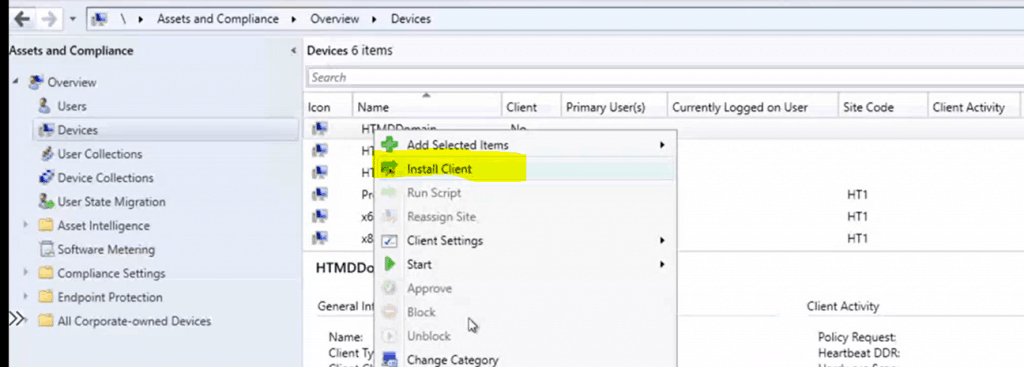
Right-click on one of the devices or device collections. Install ConfigMgr Client Using ClientPush Installation Method.
- Select Install Client.
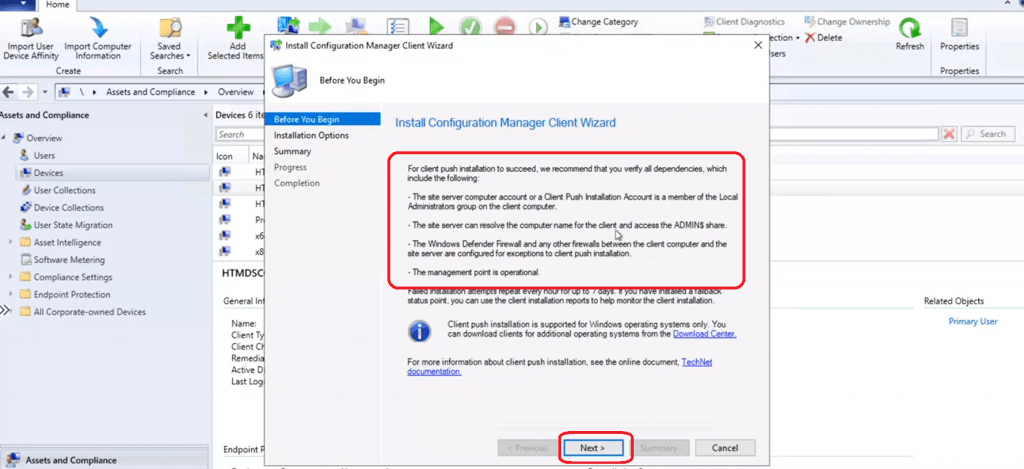
Click the Next button.
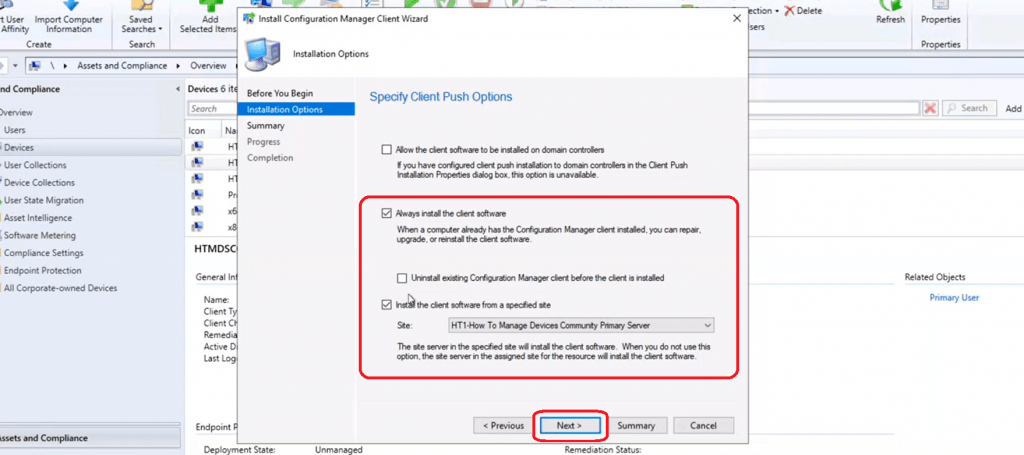
Select the two options below to install the client on a Windows 10 device. Enable the option called Always install SCCM client.
- Repair or upgrade it if the client has already installed it.
- Uninstall the SCCM client before installing its option is to have a clean installation of the client.
Click Next, Next, and Close to complete the ConfigMgr Client Push Installation Wizard.
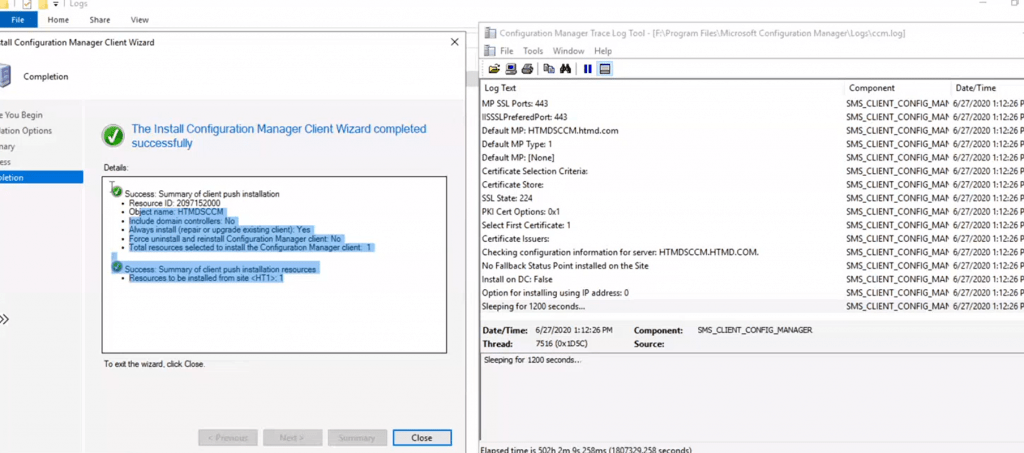
Server Side Log CCM.log
Let’s check CCM.log from site server F:\Program Files\Microsoft Configuration Manager\Logs.
- The following are the important log file entries.
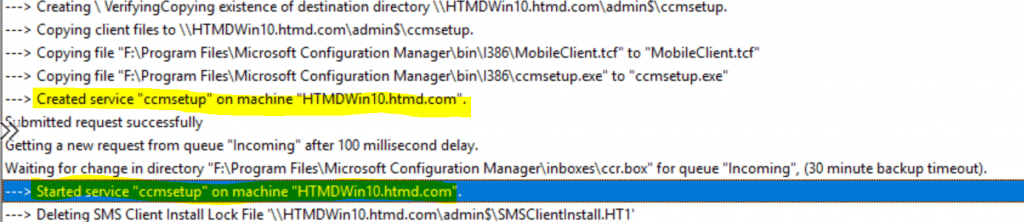
- Search for the following entry in ccm.log Started service “ccmsetup” on machine “HTMDWin10.htmd.com”.
- Once you have this entry for the client, everything will be OK from the server side.
---> Trying each entry in the SMS Client Remote Installation account list
---> Warning: no remote client installation account found
---> Attempting to connect to administrative share '\HTMDWin10.htmd.com\admin$' using machine account.
---> Connected to administrative share on machine HTMDWin10.htmd.com
---> Trying the 'best-shot' account which worked for previous CCRs (index = 0xFFFF)
---> Attempting to make IPC connection to share <\HTMDWin10.htmd.com\IPC$>
---> Searching for SMSClientInstall.* under '\HTMDWin10.htmd.com\admin$\'
---> System OS version string "10.0.19041" converted to 10.00
---> Unable to connect to WMI (root\ccm) on remote machine "HTMDWin10.htmd.com", error = 0x8004100e. $$<06-27-2020 14:09:29.685+00>
---> Creating \ VerifyingCopying existence of destination directory \HTMDWin10.htmd.com\admin$\ccmsetup.~
---> Copying client files to \HTMDWin10.htmd.com\admin$\ccmsetup.~
---> Copying file "F:\Program Files\Microsoft Configuration Manager\bin\I386\MobileClient.tcf" to "MobileClient.tcf"
---> Copying file "F:\Program Files\Microsoft Configuration Manager\bin\I386\ccmsetup.exe" to "ccmsetup.exe"
---> Created service "ccmsetup" on machine "HTMDWin10.htmd.com".
Submitted request successfully
Getting a new request from queue "Incoming" after 100 millisecond delay. \Program Files\Microsoft Configuration Manager\inboxes\ccr.box" for queue "Incoming", (30 minute backup timeout).
---> Started service "ccmsetup" on machine "HTMDWin10.htmd.com".
---> Deleting SMS Client Install Lock File '\HTMDWin10.htmd.com\admin$\SMSClientInstall.HT1
Execute query exec [sp_CP_SetLastErrorCode]
---> Completed request "2097152002", machine name "HTMDWIN10".
Deleted request "2097152002", machine name "HTMDWIN10"
Execute query exec [sp_CP_SetPushRequestMachineStatus] 2097152002
Execute query exec [sp_CP_SetLatest] 2097152002
Client-Side Log File – CCMSetup.Log & Client.MSI
Let’s check the Log Files related to the Client Push method from the client side.
- Go to C:\Windows\ccmsetup\Logs
- ccmsetup.log
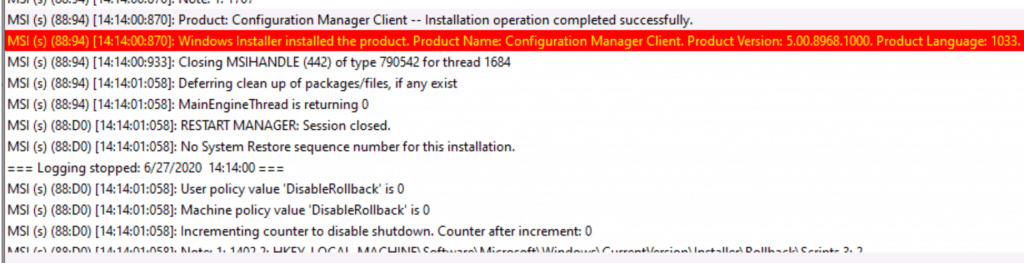
- Client.Msi.log to confirm the installation status
- Make sure there is NO entry called “Return Value 3“.
Product: Configuration Manager Client -- Installation operation completed successfully.
Windows Installer installed the product. Product Name: Configuration Manager Client. Product Version: 5.00.8968.1000. Product Language: 1033. Manufacturer: Microsoft Corporation. Installation success or error status: 0.
Results – Client Push Installation
The client got installed and is showing as online in the Configuration Manager console.
- The ConfigMgr client push installation was successful.

Video Recording
The video given below will teach us about the ConfigMgr Client Push Installation Method process.
Resources
- How to Perform SCCM AD Discovery Install SCCM Client
- Windows Firewall and port settings for clients in Configuration Manager
- ConfigMgr Client push installation
We are on WhatsApp. To get the latest step-by-step guides and news updates, Join our Channel. Click here –HTMD WhatsApp.
Author
Anoop C Nair is Microsoft MVP! He is a Device Management Admin with more than 20 years of experience (calculation done in 2021) in IT. He is a Blogger, Speaker, and Local User Group HTMD Community leader. His primary focus is Device Management technologies like SCCM 2012, Current Branch, and Intune. He writes about ConfigMgr, Windows 11, Windows 10, Azure AD, Microsoft Intune, Windows 365, AVD, etc.




But you already said client push is evil, no?
Staff did I ? I like client push because easy and make admins life easy … what you say
Hi Anoop,
Am looking forward to build carrer in system admin as am very much interested.
Please suggest from which courses i should start.bit confused here.
Anoop,
Love the blogs, really informative. QUick question, when running client upgrades, we still need the client push account(computer or user) to do the upgrade via push right? I know we can deploy via Software distribution, but to do it in an automated fashion, my assumption is that it’s the same process for upgrade as it is for clint push, meaning we need local admin rights?
Thanks
StaffThank you
I have the same understanding as yours ! Client upgrade package doesn’t require special account and admin access !
Hi Anoop, I am struggling to find out why my account is getting locked on our 2010 SCCM even after I removed my account. I rebooted it after that and still when I check the security logs on the DC, it is still saying I was locked from the sccm server on an hourly basis. Not sure what to do at this point, and I know I have to upgrade but we are very limited with our budget for years now.
StaffYou can check the accounts and check whether this account is used anywhere else … go to accounts and try to remove from that place in SCCM console
Oh, I think i figured it out. It was still using my credentials to push the client. Thanks for your post, it gave me an idea where to look further.
Hi. Very clear style and detailed. Thank you. Question: I have sccm 2012 environment. unstable. I am planning fresh install of current branch 2002. How to handle old clients? Will the 2002 client push option properly uninstall old and install new?
I’ve followed several guides to create a PKI for SCCM and changed the management points and distribution points to use https. Everything is working fine, including OSD but the one thing I can’t get to work is the client push.
Are there some additional installation properties required now i’m using https? At the top level i’m still set to http or https but the box is checked to use PKI certificate when available.
And then just like that, our Security group has implemented STRICT security policies and we now have LAPS. No more Admin$ and the like, so in essence, Client Push is dead in our environment.
We’re now working on scripts that uses lapsadmin account to try and fix the client issues.
Fun and games….
Hi Anoop –
Question about SCCM Client install. When you go through the ‘push’ wizard, there is no option to select “which” Client to install. So my assumption the ‘Default Client’ gets installed. I created a ‘custom’ Client with specific settings for a group of devices -> specifically, servers. How can you select to install that specific user-created/custom client, aside from rt-clicking the custom Client > Deploy > and select a Collection? My goal is to deploy this custom Client adding a paramater, like this: CCMSetup.exe /ExcludeFeatures:ClientUI . The confusion/question I have is, when using this setup file, what options/parameters do I need to add, besides the this one I have already, so the Client which gets installed is not the Default Client but my Custom Client (named Windows Server Client)? Thanks in advance!