






ConfigMgr Windows 10 Servicing Upgrade to 20H2 | SCCM
Today, I will discuss ConfigMgr Windows 10 Servicing Upgrade to 20H2 | SCCM. Let’s learn how to upgrade Windows 10 to 20H2 using ConfigMgr. You can use Windows 10 servicing plans to keep Windows 10 up-to-date and secure.
Windows 10 20H2 is the latest version of Windows 10. You can also upgrade to Windows 10 20H2 using Intune and WUfB (Windows Update for Business). The Windows Update for Business (WUfB) Feature Update policy allows you to update Windows 10 to version 20H2. These updated policies can be configured through Intune, providing a centralized way to manage and control feature updates for Windows 10 devices in your organization.
Microsoft released Windows 10, version 20H2 feature update, a.k.a. Windows 10 October 2020 Update, in October 2020. The update brings new features, performance improvements, and security enhancements to the Windows 10 operating system.
ConfigMgr (aka Configuration Manager) allows you to manage Windows as a service and learn how to upgrade to the Windows 10 20H2 version. Windows 10 October Update is another name for Windows 10 20H2. For more details, see Deploy Windows 10 20H2 Using SCCM Task Sequence | ConfigMgr | MEMCM.

- Windows 11 22H2 Upgrade Using SCCM Feature Update Option
- SCCM ConfigMgr VNext Comes With Windows 10 Servicing Configuration Manager On Prem MDM
- Windows 10 KB5039211 June 2024 Patches and 0 Zero-Day Vulnerability
- May 2024 Windows 10 KB5037768 Patches and 2 Zero-Day Vulnerabilities
| Index |
|---|
| Windows 10 Servicing |
| Prerequisites |
| Search for Windows 10 20H2 Servicing |
| Download Windows 10 20H2 Servicing Package |
| Downloading |
| Deploy Windows 10 Servicing Package |
Windows 10 Servicing
Windows 10 servicing is the modern way of upgrading Windows 10 to the latest version without using the in-place upgrade (IPU) Task Sequence.
You can create service plans to form deployment rings and ensure that Windows 10 systems are updated when new builds are released. You can also view alerts when Windows 10 clients are near the end of support for their Semi-Annual Channel build.
Prerequisites
Windows 10 Software Update Management. Windows Update for Business should not be enabled.
- Online Service Connection Point
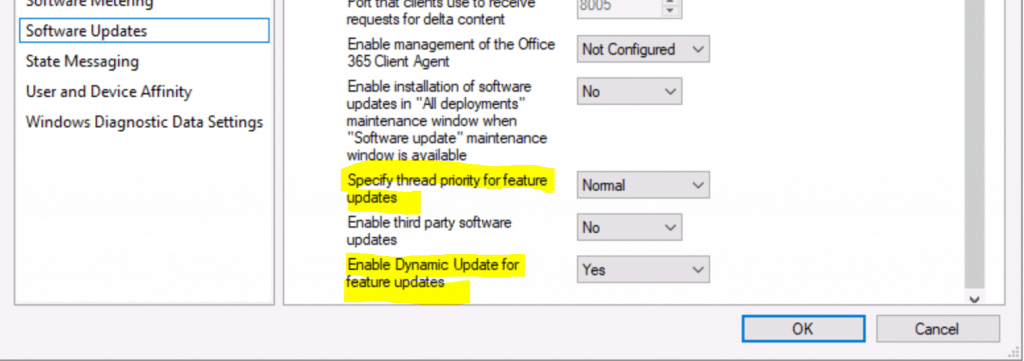
- Enable Specify thread priority for feature updates from Client settings (1902 or later).
- Enable Dynamic Update for feature updates from Client settings (1906 or later).
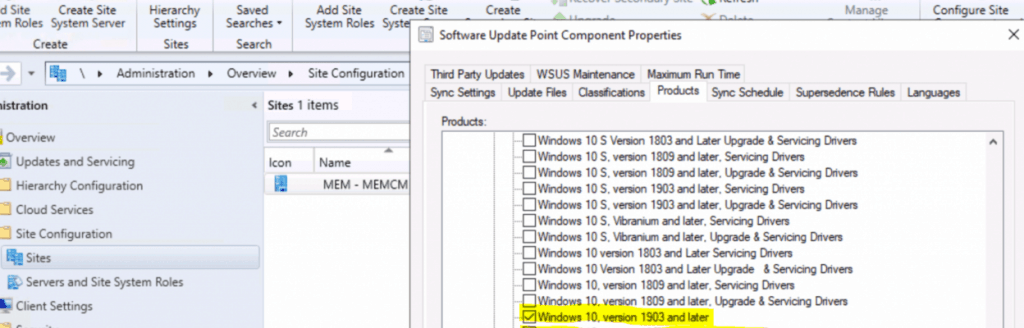
From the Products, you have enabled the following product.
- Windows 10, version 1903 and later
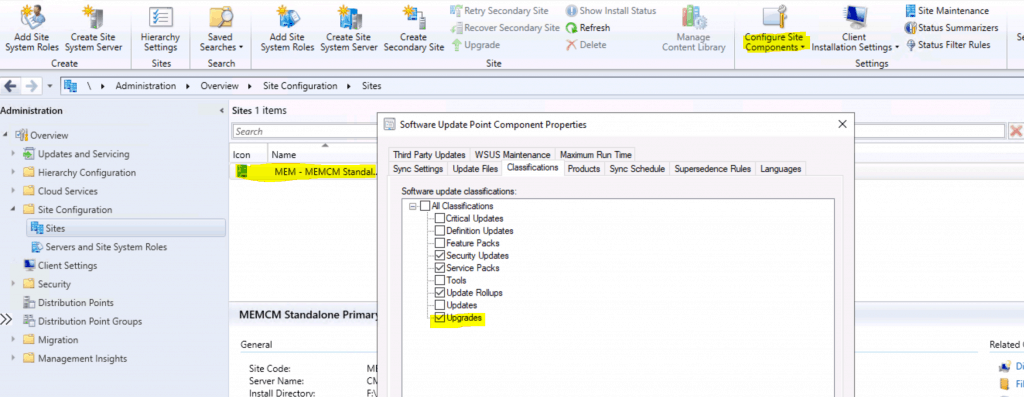
Click on UPGRADE and enable the checkmark for the upgrade option from the Classification tab from Software Update Point Component Properties.
NOTE: Make sure all the prerequisites mentioned in the following post are in place- Enable Windows 10 servicing using SCCM.
Search for Windows 10 20H2 Servicing
Navigate to \Software Library\Overview\Windows 10 Servicing\All Windows 10 Updates
- Search with Product and Date Released:
- Product – Windows 10 version 1903 and Later.
- Date Released – is On or After – Last 28 Days.
- Click on the Search button.
Click on the available update named – Feature update to Windows 10 (business editions), version 20H2, en-us x64.
- The “required” column shows 1.

Download Windows 10 20H2 Servicing Package
Right-click on Feature update to Windows 10 (business editions), version 20H2, en-us x64 and Click on Download.

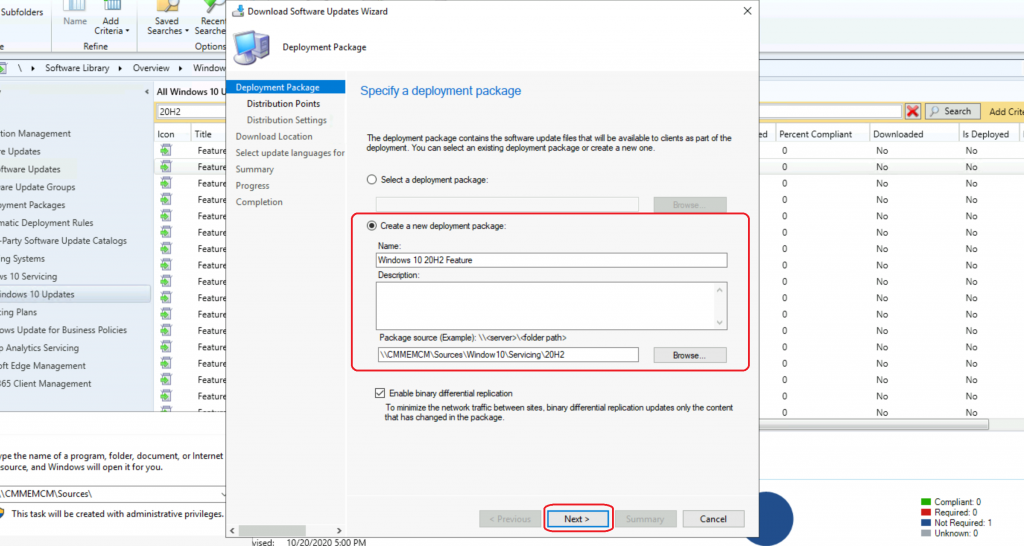
Select Create a new deployment package.
- Enter the Name – Download Windows 10 20H2 Servicing Package.
- Enter the package name source – UNC path to store the source file.
Click on Add and select Distribution Point.
- Select the Distribution Point – Click on the DP Name.
- Click OK and Next.
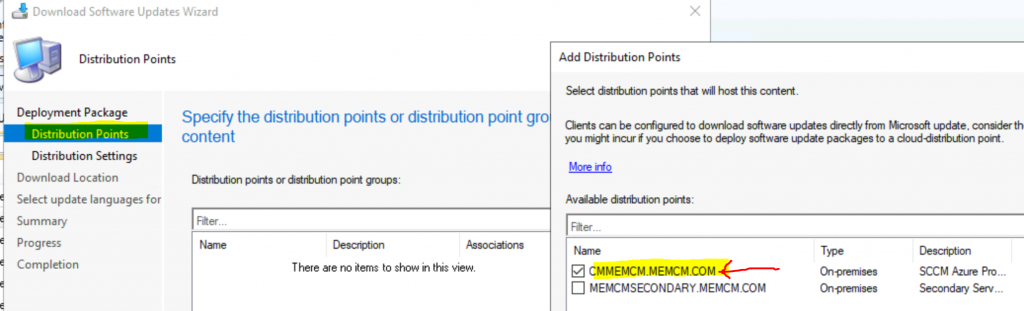
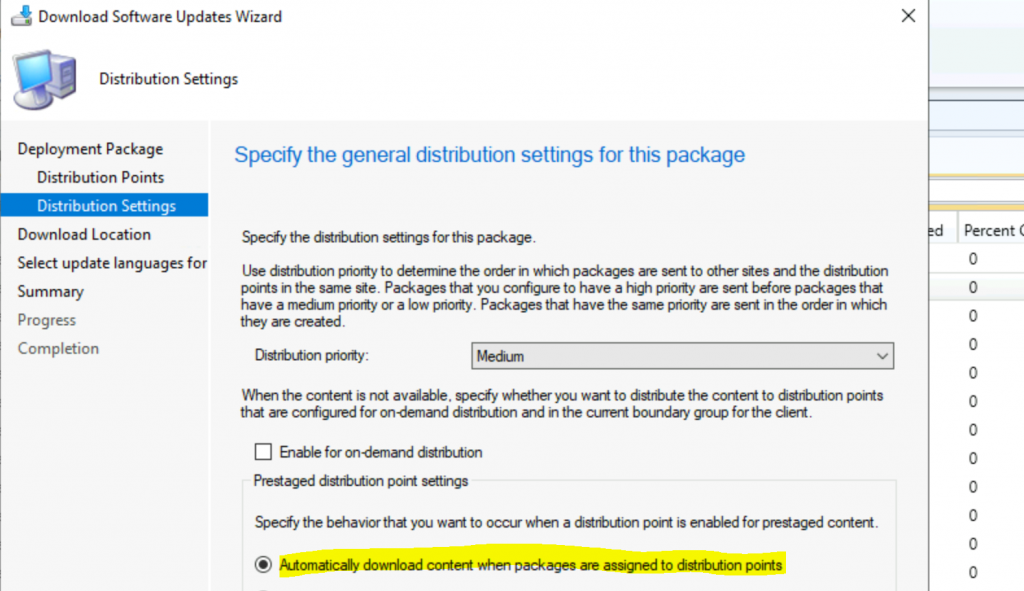
I don’t worry much about prestaged Distribution point settings because they are not used in normal scenarios.
Select “Automatically Download Content when packages are assigned to distribution points.”
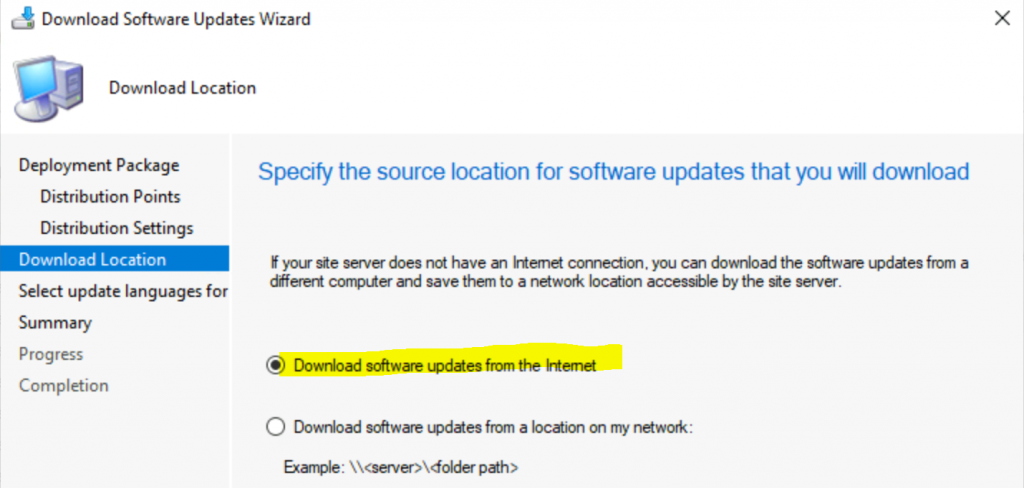
Download Source files from the Internet.
- Download Software Updates from the internet.
- Click Next to continue
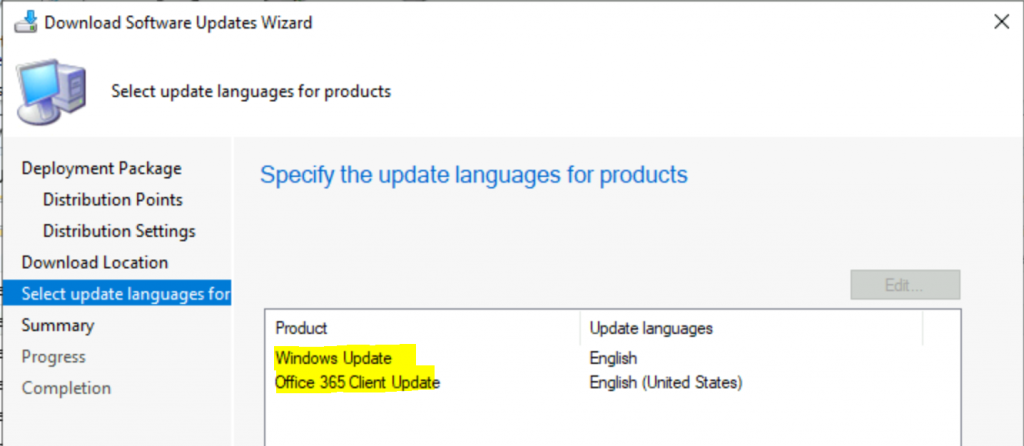
Specify the updated languages for products.
- Select the different languages by clicking on the Edit button.
- Click Next.
Click on Next on the Summary page.
Package:
The software updates will be placed in a new package:
• Windows 10 20H2 Feature
Content (1):
• CMMEMCM.MEMCM.COM
Distribution Settings
• Priority: Medium
• Enable for on-demand distribution: Disabled
• Prestaged distribution point settings: Automatically download content when packages are assigned to distribution points
Software updates that will be downloaded from the internet
Feature update to Windows 10 (business editions), version 20H2, en-us x64
Windows Update Language Selection:
English
Office 365 Client Update Language Selection:
English (United States)
Downloading
Click the Next button to download the Provisioning Update – Feature Update to Windows (business editions), version 20H2, en-us x64).
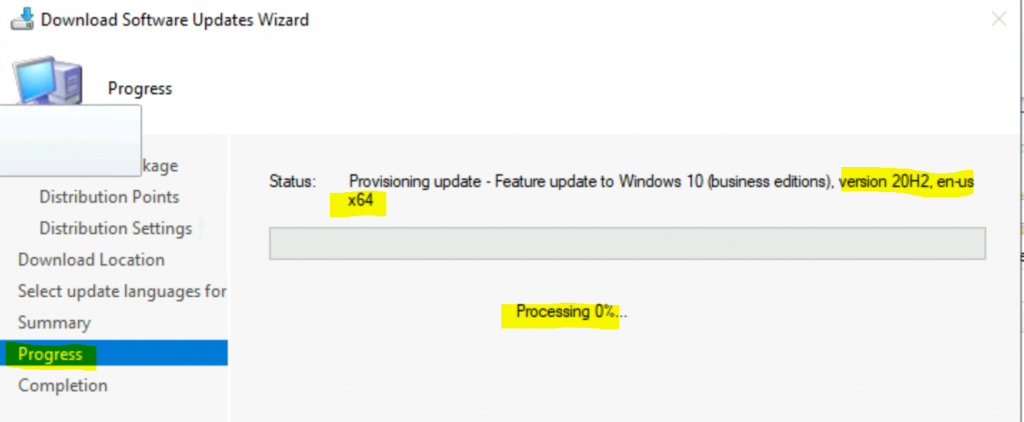
NOTE! – Check the PatchDownloader.log file from the %temp% folder to troubleshoot download issues with Windows 10 20H2.
Download the following files completed
- 19042.508.200927-1902.20h2_release_svc_refresh_CLIENTBUSINESS_VOL_x64FRE_en-us.esd
- WindowsUpdateBox.exe

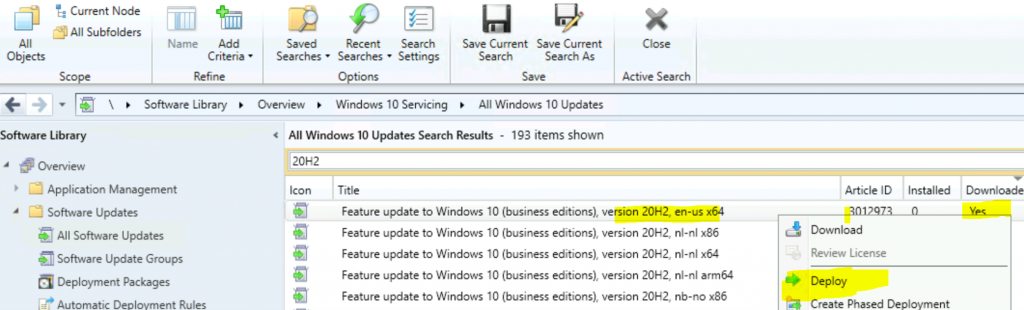
Make sure that you verified the download column shows Yes before proceeding further.

Deploy Windows 10 Servicing Package
You have already downloaded the Windows 10 20H2 servicing package. Now, let’s deploy the Windows 10 servicing update to test collection.
- Navigate to \Software Library\Overview\Windows 10 Servicing\All Windows 10 Updates.
- Right-click on a Feature update to Windows 10 (business editions), version 20H2, en-us x64 and click on Deploy.
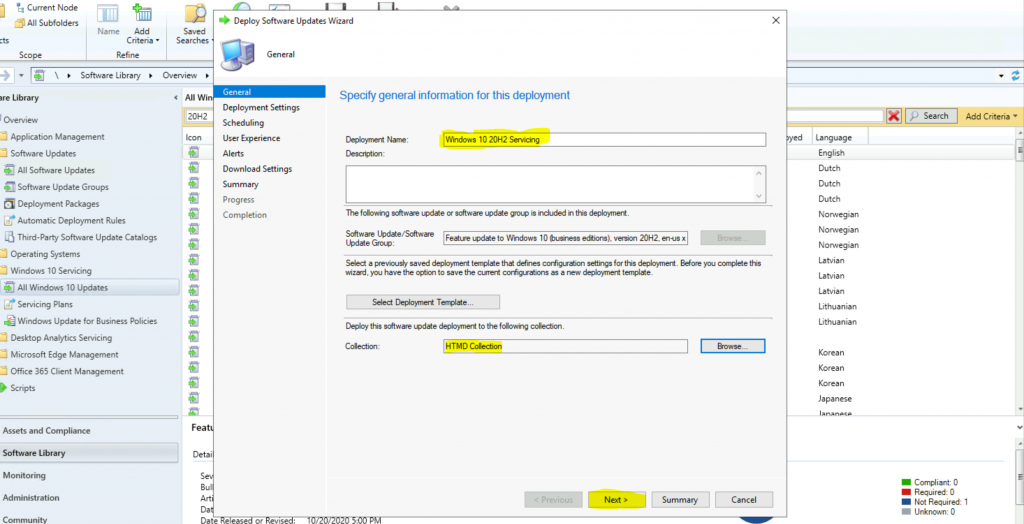
Enter the Name of Windows 10 Servicing Deployment
- Windows 10 20H2 Servicing
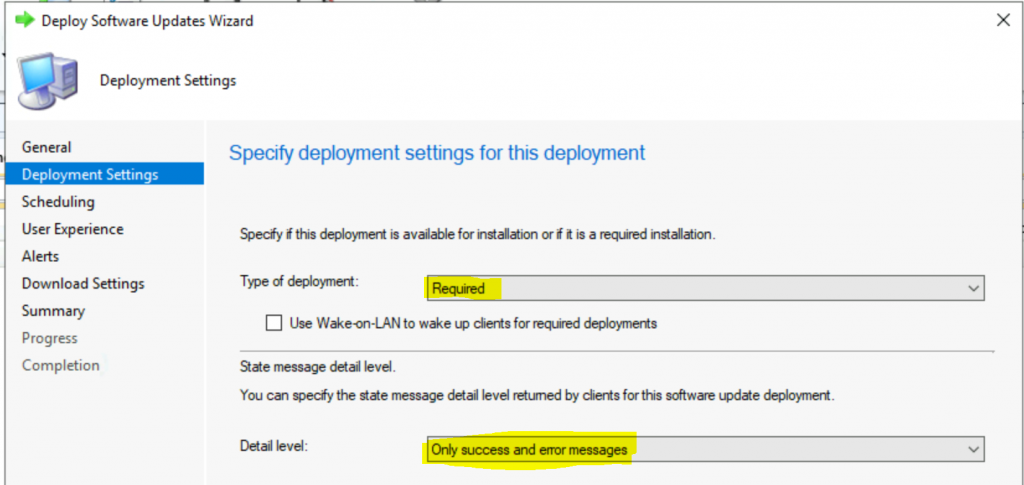
Select Type of Deployment – Required.
- Select State Message Level – Only Success and Messages.
Select Schedule Evaluation – Client Local Time.
- Select Software Available Time – As Soon As Possible.
- Select Installation Deadline – Specific Time – Date and Time.
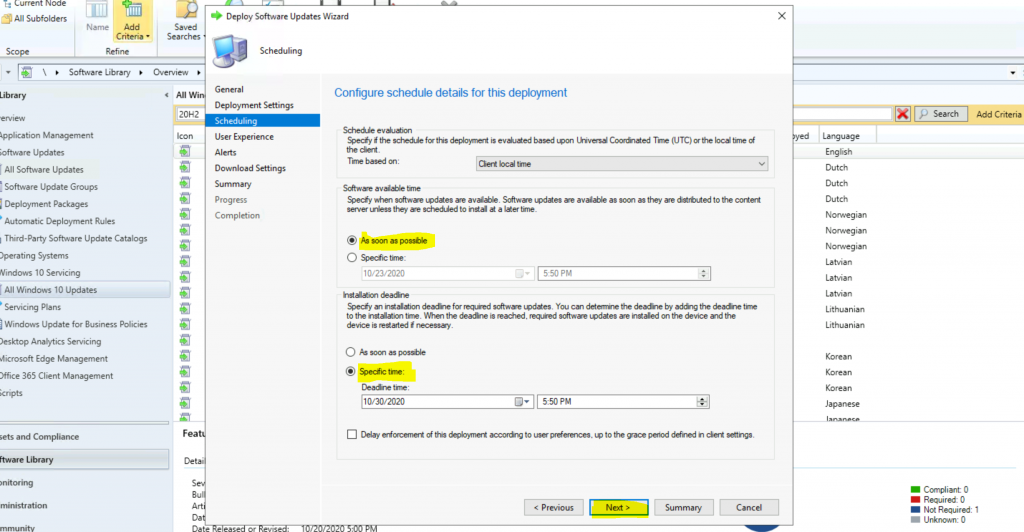
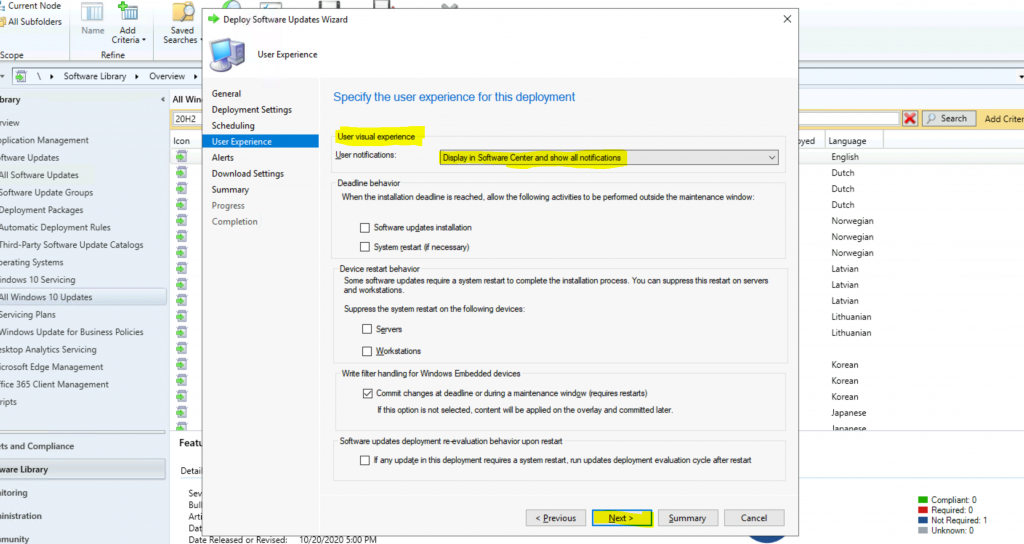
Select all the default values for Windows 10 Servicing
- Deadline Behavior.
- Device Restart Behavior.
- Write Filter handling for Windows Embedded Devices.
- Software Updates Deployment re-evaluation behavior upon restart.
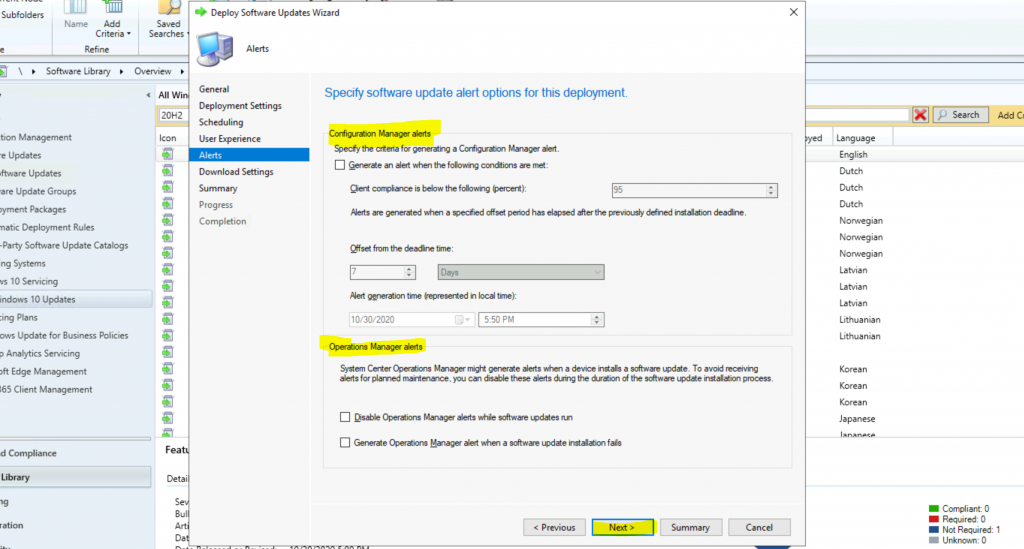
Select the default alert configuration for Windows 10 20H2 servicing deployment.
Select the following options for Windows 10 20H2 servicing deployment using SCCM (a.k.a ConfigMgr).
- Deployment Options:
- Do not install software updates
- Deployment Options
- Download and Install software updates from the distribution points site default boundary group.
- Click on the Next button twice.
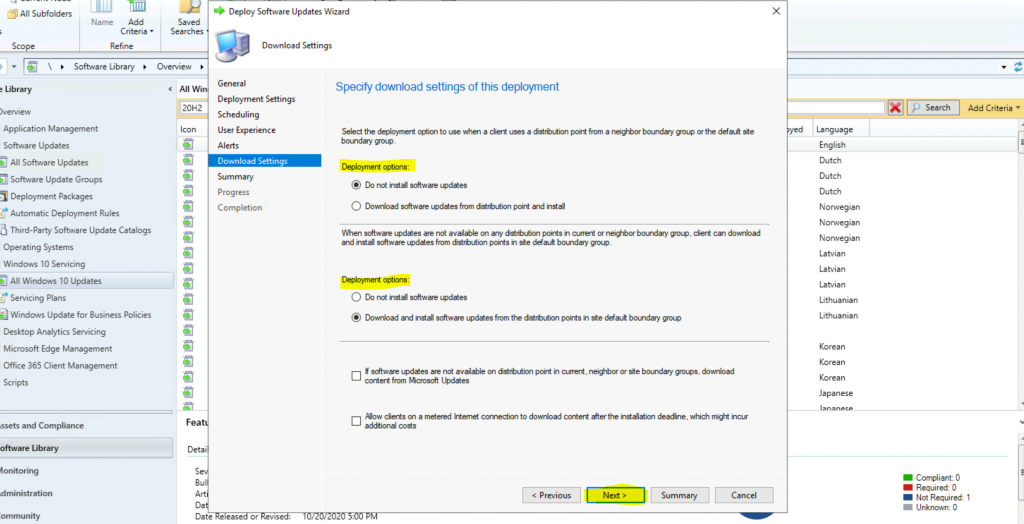
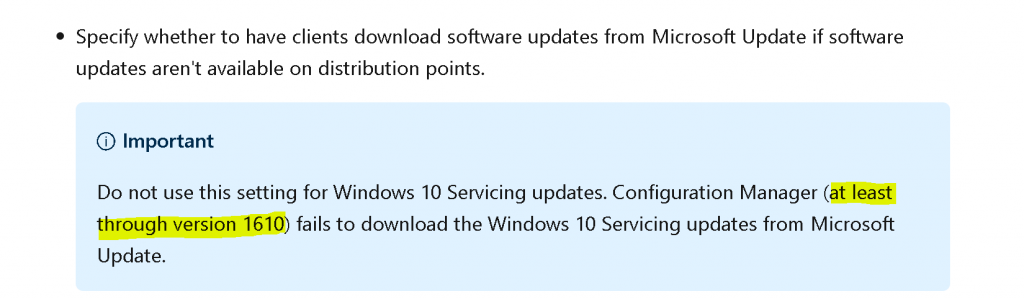
NOTE: If software updates are not available on distribution points in the current, neighbour, or site boundary group, the download content from Microsoft Updates (mentioned in the above screen capture) option is valid for Windows 10 servicing as per the Microsoft docs.
Summary – Deployment
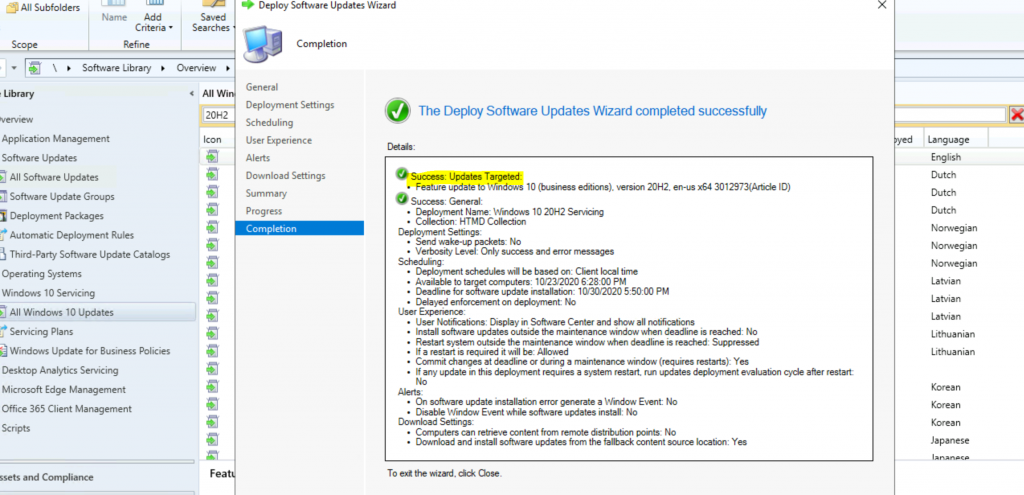
Let’s check the summary of Windows 10 20H2 deployment below:
Updates Targeted:
• Feature update to Windows 10 (business editions), version 20H2, en-us x64 3012973(Article ID)
General:
• Deployment Name: Windows 10 20H2 Servicing
• Collection: HTMD Collection
Deployment Settings:
• Send wake-up packets: No
• Verbosity Level: Only success and error messages
Scheduling:
• Deployment schedules will be based on: Client local time
• Available to target computers: 10/23/2020 6:28:00 PM
• Deadline for software update installation: 10/30/2020 5:50:00 PM
• Delayed enforcement on deployment: No
User Experience:
• User Notifications: Display in Software Center and show all notifications
• Install software updates outside the maintenance window when deadline is reached: No
• Restart system outside the maintenance window when deadline is reached: Suppressed
• If a restart is required it will be: Allowed
• Commit changes at deadline or during a maintenance window (requires restarts): Yes
• If any update in this deployment requires a system restart, run updates deployment evaluation cycle after restart: No
Alerts:
• On software update installation error generate a Window Event: No
• Disable Window Event while software updates install: No
Download Settings:
• Computers can retrieve content from remote distribution points: No
• Download and install software updates from the fallback content source location: Yes
- Click on the Close button to complete the deployment process.
End-User Experience Windows 10 Servicing
The end-user experience is similar to the Windows 10 2004 servicing.
- Manually Sync policies using the ConfigMgr applet from the Control Panel.
- Launch Software Center and click on Updates
- Select the available update for Windows 10 20H2.
- Click on the Install button to start the installation.
- User Confirmation of Windows 10 upgrade.
- Click on the Install button again.
Log Files for Windows 10 Servicing
The following are the critical SCCM and Windows log files associated with Windows 10 servicing.
- C:\Windows\Logs\CBS\CBS.log
- Dism.log – C:\Windows\Logs\DISM
Resources
- How to Enable Windows 10 servicing using SCCM | ConfigMgr | WSUS
- Manage Windows as a service using Configuration Manager
- Deploy Windows 10 20H2 Using SCCM Task Sequence | ConfigMgr | MEMCM
We are on WhatsApp. To get the latest step-by-step guides and news updates, Join our Channel. Click here –HTMD WhatsApp.
Author
Anoop C Nair is Microsoft MVP! He is a Device Management Admin with more than 20 years of experience (calculation done in 2021) in IT. He is a Blogger, Speaker, and Local User Group HTMD Community leader. His primary focus is Device Management technologies like SCCM 2012, Current Branch, and Intune. He writes about ConfigMgr, Windows 11, Windows 10, Azure AD, Microsoft Intune, Windows 365, AVD, etc.




machine crashed after update to 2009, had to reinstall windows, sccm tutorial here worked though
Great guide. How do you incorporate languages with the service model? I support 15 languages. I fear that doing the update straight through this model wipes out existing language packs. Is running the upgrade through a task sequence the only way to keep languages intact?
Hi, thanks for the time taken to share this content.
Question, after following your steps, would there be a reason why the Windows 10 Service Plan isn’t showing up on Software Center for the machines I’m using for testing? Which logs can I look at for information?
Thanks!
Nice content Sir, trying to upgrade 1909 to 20H2. an upgrade was successfully installed as per the logs, and once rebooted it says undoing changes and reverting back to the old build 1909 version. can you please advice
StaffWell, you need to go through the logs mentioned in the following post to get more details about roll back, etc…
https://www.anoopcnair.com/windows-upgrade-process-troubleshooting-logs/
I have 1507,1511,1703,1709, 1803 and 1909 can i upgrade this versions into 21H1 through feature upgrade.