






ConfigMgr Task Sequence OSD Multiple Physical Drives | SCCM
This post teaches about ConfigMgr Task Sequence OSD Multiple Physical Drives. Let’s try to understand how we can use conditions in the Task sequence to install operating systems via the SCCM Task Sequence on a machine having dual drives.
SCCM OSD, which stands for Operating System Deployment, is a crucial management solution within the SCCM (System Center Configuration Manager) family. This feature allows the concurrent deployment of operating systems to many systems within an organization’s network.
It streamlines the provisioning of new or updated operating systems across the network, providing IT administrators with significant time and resource savings.
The articles below will give you an idea of the scenario I faced when installing a Windows OS on a machine with two physical Hard drives. The conditions can be customized according to the environment and requirements.

- SCCM OSD Task Sequence Ultimate Guide 5 Understand Process
- OSD Known Issues Troubleshooting Guide | SCCM | ConfigMgr
- SCCM OSD Task Sequence Ultimate Guide 5 Understand Process
- SCCM Deployment Failed To Resolve Task Sequence Dependencies 0X80040102
| Index |
|---|
| ConfigMgr Task Sequence OSD Multiple Physical Drives |
| Info on Dual Drives |
| Solution |
| WMI Conditions |
| Result |
ConfigMgr Task Sequence OSD Multiple Physical Drives
We are taking an example of a system with a dual drive (or more) configuration, an NVMe drive, and a SATA mechanical disk or SATA SSD. Sometimes, the SATA disk may be enumerated as Disk 0, and the NVMe drive as Disk 1 or vice versa.
This can be confirmed by booting to WinPE, executing the DiskPart utility, and selecting disk 0 and/or disk 1, followed by the command detail disk. Note that the type of disk displayed will be either SATA or NVMe.
In a default standard SCCM OSD task sequence, disk 0 will be formatted and partitioned depending on the partition scheme assigned (MBR or GPT). As newer models are released, SATA mechanical disks or even SATA SSD disks are replaced with NVMe.
Info on Dual Drives
To check your machine’s drives, use the PowerShell command below.
wmic diskdrive get index,model

You can also check the information on the dual drive using disk management and open diskmgmt.MSC right-click on the disk on which you want information. In my case, I want information on disk 1; you can get info in the General tab.
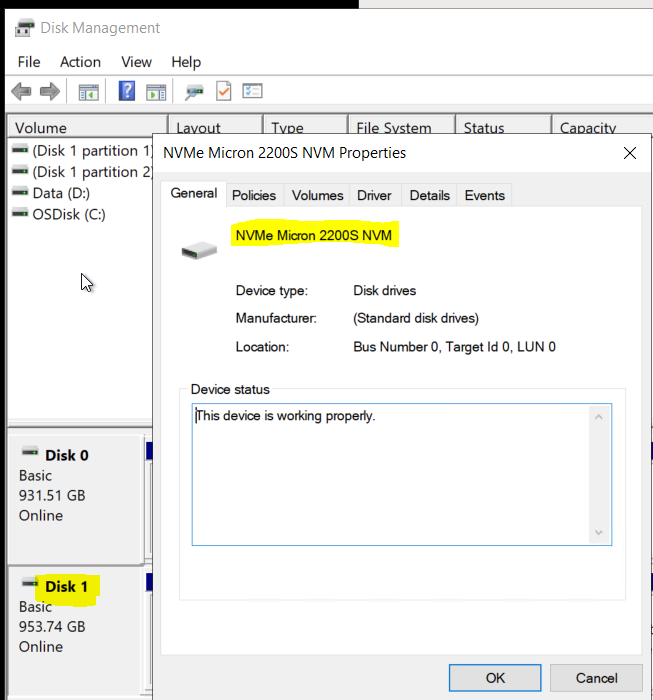
Similarly, it will show accordingly if you have a dual drive, one with NVMe and another with SATA mechanical or SATA SDD.
Solution
Ideally, the Windows OS should be installed on the NVMe disk for better performance (why it should be installed on the NVMe disk is a different topic ). There are many ways to achieve this, such as adding dynamic variables inside the OSD task sequence or using scripts.
If you know your environment and the hardware being used with their configurations, then it can be achieved by a WMI condition. Below are the steps which you can add to your task sequence to achieve it:
I created two groups with Format and Partition conditions as below; I am aware of the models that are procured in my environment, but to detect if the NVMe disk is at 0 or 1, the two groups are created
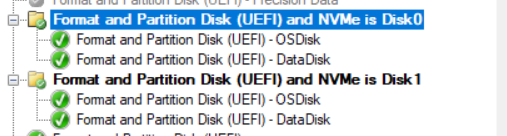
If NVMe is on disk 0, the first group will format and partition it, making it an OS disk and the other a data disk. In the second group, if NVMe is found on disk 1, it will be configured as an OS disk and the other as a data disk.
You can add two conditions: the first to get information on disk drive details and the second to provide the models on which you want to perform this step.


WMI Conditions
Let’s check the WMI conditions to check the disk types and avoid issues with the SCCM task Sequence.
Select * from Win32_DiskDrive where Model like "%NVMe%" and Index=0
Select * from Win32_ComputerSystem where Model like "%Model%"
Verification
You can review the smsts.log during the Image build to determine whether your configured conditions meet your requirements.
- Location of smsts.log before the hard drive is formatted
x:\windows\temp\smstslog\smsts.logThe location of smsts.log after the hard drive is formatted and partitioned.
x:\smstslog\smsts.log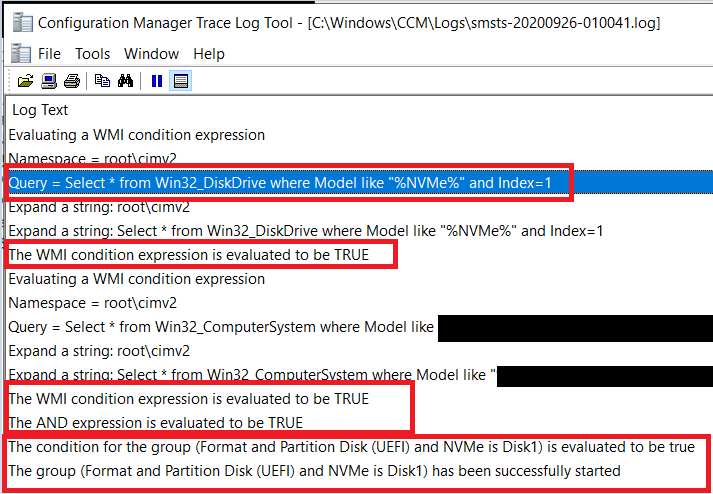
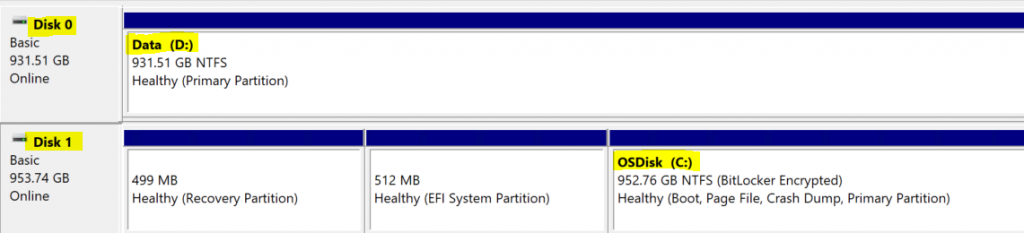
Let’s look into the results now.
Result
You can customize the condition according to your environment and requirements.
References
We are on WhatsApp. To get the latest step-by-step guides and news updates, Join our Channel. Click here –HTMD WhatsApp.
Author
Ankit Shukla, an IT professional with over seven years of experience, has worked on SCCM/MECM since 2012. During this time, he has extensively dealt with various aspects of the tool, such as migration, infrastructure designing, OSD, custom SQL reporting, and client-side troubleshooting. Ankit’s blog posts reflect his hands-on experience addressing issues and providing practical solutions. The primary aim of his posts is to cater to the audience, which is comprised of support team members and SCCM admins in organizations.




Great article thanks!
We have a new model that has 2 x identical NVMe drive.
Can you suggest how we might be able to format and partition 1 drive for OS and the other simply for Data.
And then how to apply the OS to the correct disk/partition.
I have been struggling with it all day 🙂
StaffHello,
If you have two identical NVMe drive then the format and partition step is straight forward, in this scenario you dont have you give information of the disk drive as 0 or 1 because both are identical.You can create a Group in TS with providing condition of model, in that group create first step for Format and Partition disk 0 and assign it as OS disk and in same group mention format and partition step again and assign disk 1 as Data disk.
Hi,
I have two NVMe disks in a laptop. One is 1TB, the other one which we manually add ist 2TB. We want TS to install Windows on the smaller 1TB NVMe, but naturally TS takes the bigger disk always.
How can I make the TS to install Windows on the smaller of the two NVMe disks?
Thank you
StaffHi in that case you have to use a powershell script which will detect the physical drives and assign the smaller nvme disk as disk 0 dynamically.
There is a good article on this from lenovo you can check that and change according to your infra.
Has anyone worked on a Dell Latitude 3140 with WD SDINFD04-128G eMMC storage? Instead of NVMe, SSD does anyone know how to do this on the above-said storage drive?
THis is good article, it provides me with some idea to manage 2 harddrive issue.
Then I use TSGUI tool and run powersheel to check the hard disk amount and each harddisk type SSD or HDD