






Install ConfigMgr SSRS Reporting Services Point | SCCM | Configuration Manager
Let’s learn how to install ConfigMgr SSRS Reporting Services Point. With the data collected by the Configuration Manager, we can create beautiful reports. SCCM has 500+ default reports ready to use out of the box.
Before viewing or managing reports from the admin console, you need a reporting services point. Reporting Services connects to the Configuration Manager site DB to retrieve data returned when you run reports.
SQL Server Reporting Services (SSRS) is one of the requirements for the SCCM CB reporting services point. The SQL reporting service is part of the SQL Server installation.
The details of SQL installation and SQL reporting service role installation from previous blog posts SQL Server – Installation and SQL Server Database Migration for your reference.

Prerequisites
Reporting in ConfigMgr has the following dependencies:
- SQL Server Reporting Services
- Reporting services point
- Optional – Power BI Report Server
- .NET Framework 4.8
- SQL Server Native Client
- Other details here.
It’s not recommended to change the reporting server URL. This change can create issues when you try to access reports from the admin console.
- Fix SCCM Upgrade Breaks SSRS with UserTokenSIDs Contains an Error ConfigMgr
- Free ConfigMgr Training Part 2 | 20 Hours of Technical | SCCM
- Fix ConfigMgr Power BI Report Unexpected Error | SCCM | Configuration Manager
Permissions
You must also have appropriate SCCM permission to install the site system role.
The user accounts you use to create the reporting services point must have Read access to the site database.
The current user must have Read access to WMI on the site system.
The account you specify must have the Logon local permission on the server that hosts the Reporting Services database. This is for the Reporting Services point account mentioned in the section below.
Install Reporting Services Point
Let’s see how to install reporting service points.
- Launch the admin console.
- Navigate to \Administration\Overview\Site Configuration\Servers and Site System Roles.
- Right-click on the SQL server where I plan to install the Reporting service point.
- Select Add Site System Roles.
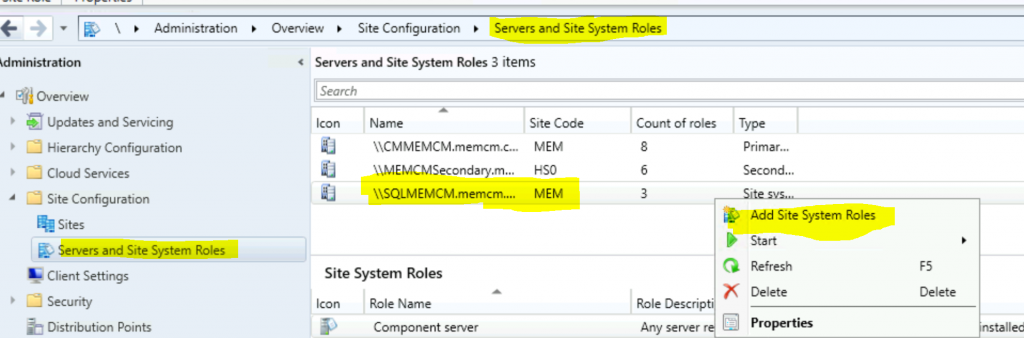
- Use the site server’s computer account to install the site system if the site server and site system servers are in the same domain and
- your site server account should be added to the local administrator’s group on the remote site system servers.
If the servers are not in the same domain and don’t have a two-way trust, try using the next option: “Use another account for installing this site system.”
Click on the Next button.
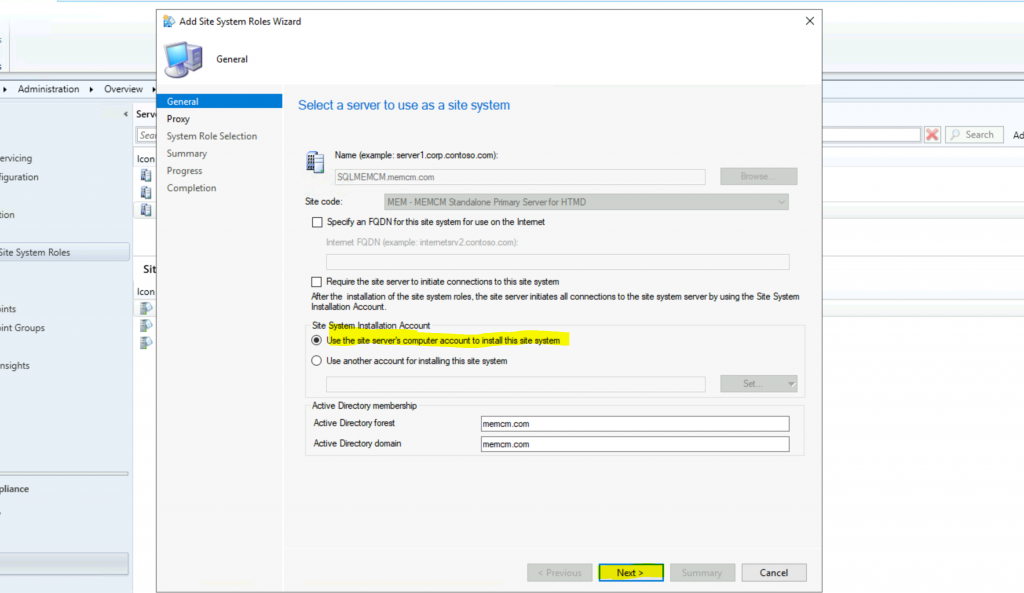
Click on the Next button from the Specify Internet Proxy Server page.
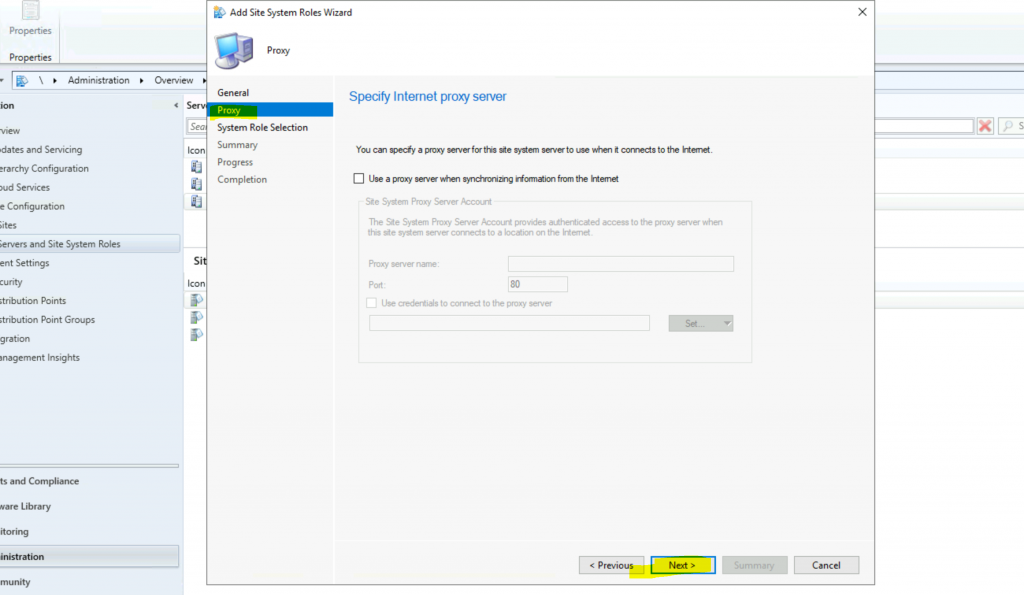
Click on Reporting Services Point.
Click on the Next button.
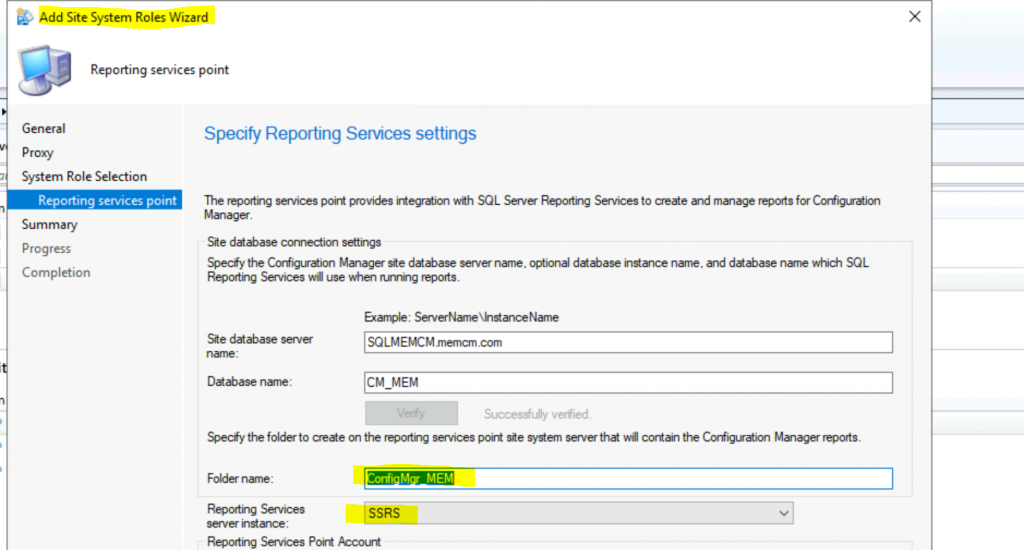
NOTE! – The reporting services server instance should automatically be detected. If the reporting service is not showing up by default, then you need to perform some troubleshooting with SQL Server Reporting Services Configuration Manager from the Start menu. Also, check the permissions section to get more details.
Click on the Verify button to confirm Site Database connection settings.
Normally, the Site Database server name, Database name, Folder Name, and Reporting services server instance will get automatically populated.
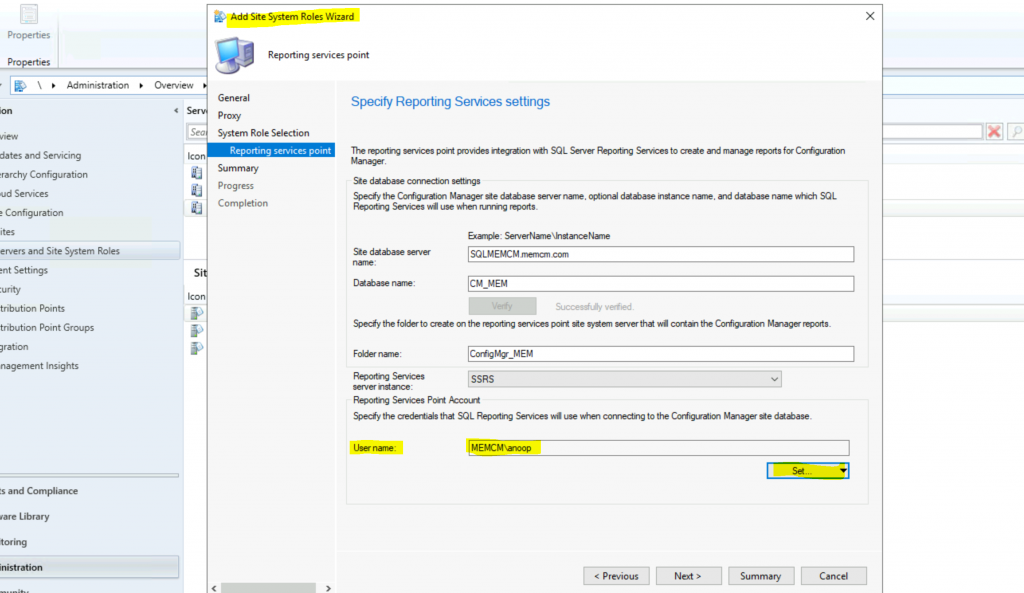
Select the Reporting Services Point Account – Specify the credentials that SQL Reporting Services will use when connecting to the Configuration Manager site database.
Select the service account by clicking on the Set button.
The permission section above should be taken care of, and as per that guidance, use the appropriate permission.
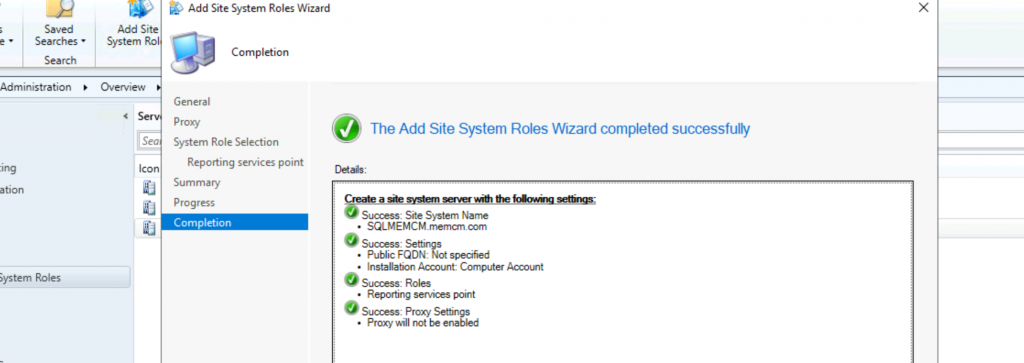
Click Next, Next, and Close.
SSRS Reporting Point Log files
Let’s check the SCCM Reporting Services point. If you install the SCCM Reporting services point on the remote server, the log files will be located in C:\SMS\Logs\.
- compmon.log
- mpfdm.log
- outboxmon.log
- PerfSetup.log
- smsexec.log
- srsrp.log
- srsrpMSI.log
- srsrpsetup.log
Results
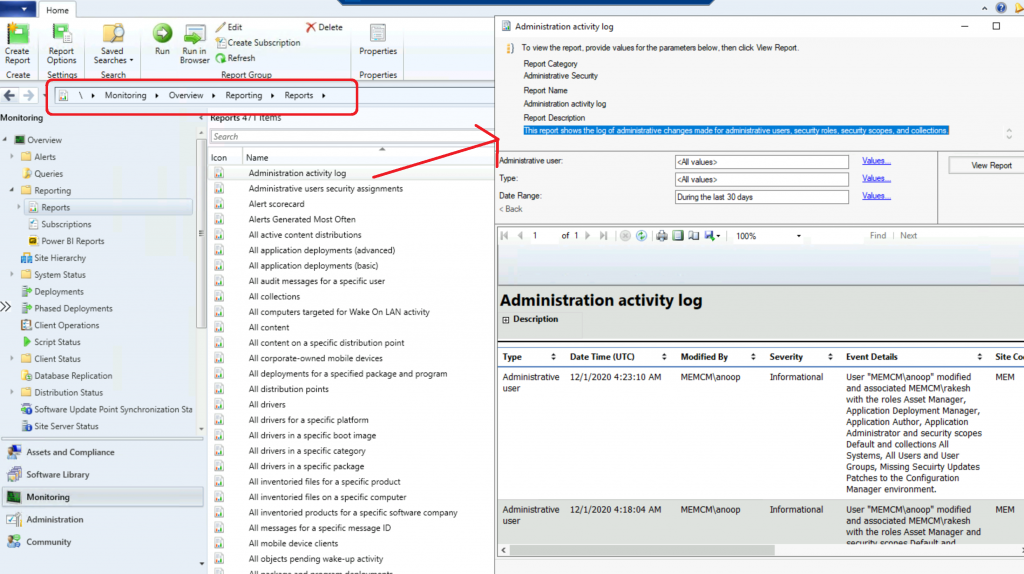
Let’s see whether the SSRS reports are available or not.
Launch Admin console. Navigate to \Monitoring\Overview\Reporting\Reports. Launch any particular report from the console itself.
Resources
We are on WhatsApp. To get the latest step-by-step guides and news updates, Join our Channel. Click here –HTMD WhatsApp.
Author
Anoop C Nair is Microsoft MVP! He is a Device Management Admin with more than 20 years of experience (calculation done in 2021) in IT. He is a Blogger, Speaker, and Local User Group HTMD Community leader. His primary focus is Device Management technologies like SCCM 2012, Current Branch, and Intune. He writes about ConfigMgr, Windows 11, Windows 10, Azure AD, Microsoft Intune, Windows 365, AVD, etc.




Discussion