






Customize ConfigMgr Software Center Appearance | Best Branding Options | SCCM
Let’s learn how to Customize the ConfigMgr Software Center appearance. With the version of SCCM 2103, Microsoft provides one of the best branding options for the Software Center. There are options to change the font colors within the software center.
I heard from many Admins/IT Pros that each entity within the same organization has its own unique branding requirements. SCCM provides the flexibility to change the appearance of the Software Center to meet those branding requirements.
Most organizations use a software center to deploy applications as they become available. This helps to avoid many overheads with required applications. Users can see all the available applications in the software center. I have a post about the difference between the SCCM Software Center and the Client Applet.
Software Center FAQs
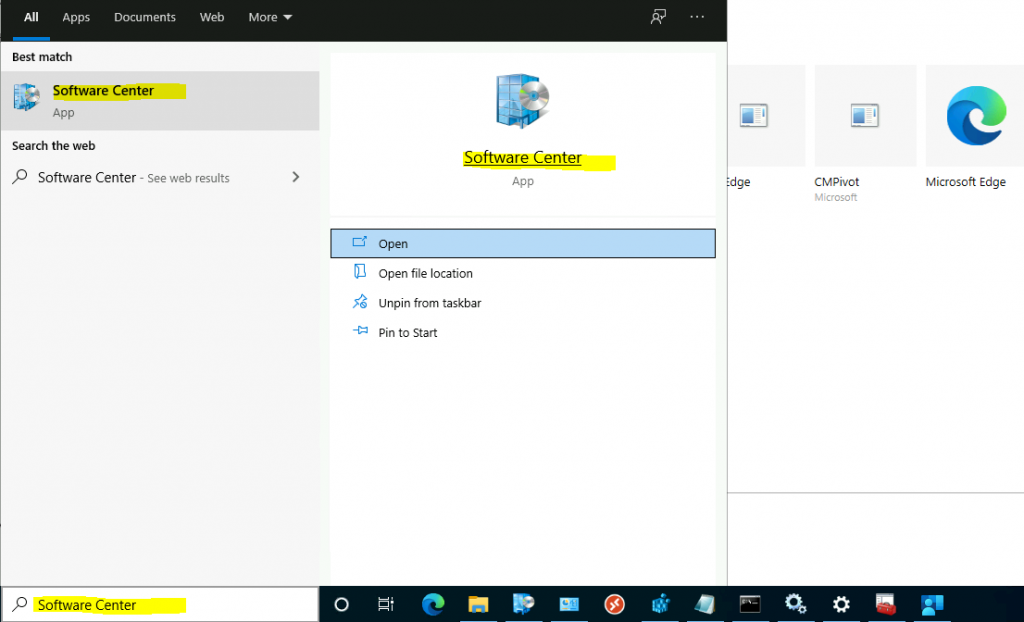
Let’s check some of the quick FAQs of the Software Center. You can launch the Software Center from Windows 10 by pressing Start and typing Software Center.

What is the SCCM Software Center?
How to Customize ConfigMgr Software Center?
How to use different Software Center Branding within the same SCCM infra?
Do we need to Install the Software Center application? Or is it automatically installed?
- Setup Notification Logo For Software Center In SCCM
- Fix the SCCM Software Center cannot be loaded Issue with ConfigMgr
- Easy Steps Software Center Icon for SCCM Application Deployment | ConfigMgr | Endpoint Manager
Customize Software Center
Let’s understand how to customize the Software Center to specify company branding. The following steps help you to customize the organization’s branding.
- Launch ConfigMgr Console using the account with appropriate access to change the client settings.
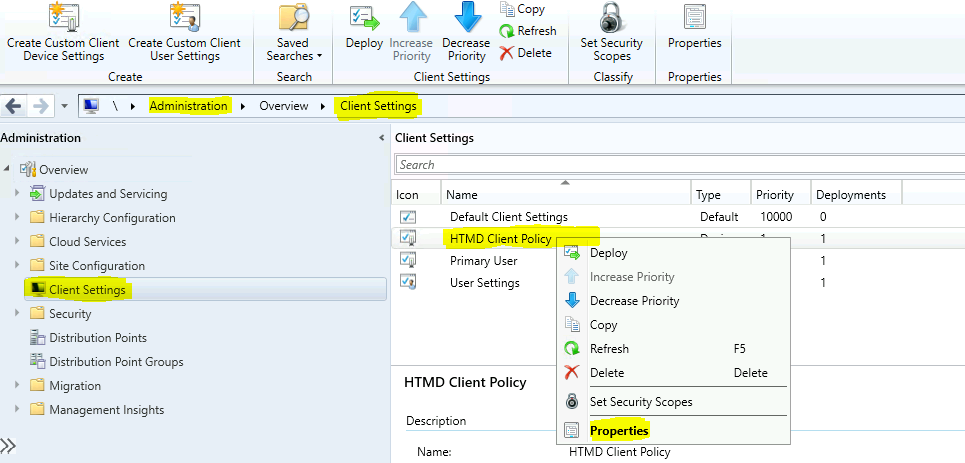
- Navigate to \Administration\Overview\Client Settings.
- Select the client settings that you want to customize.
- Right-click on the Client Settings policy and select properties.
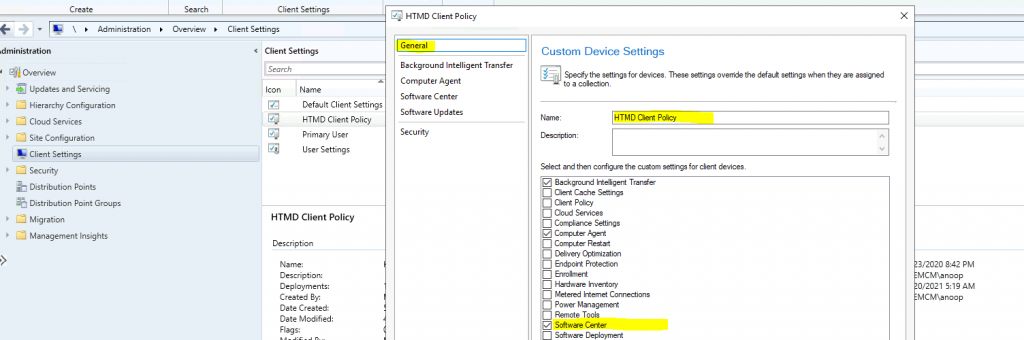
- Make sure the Software Center is selected from the General tab.
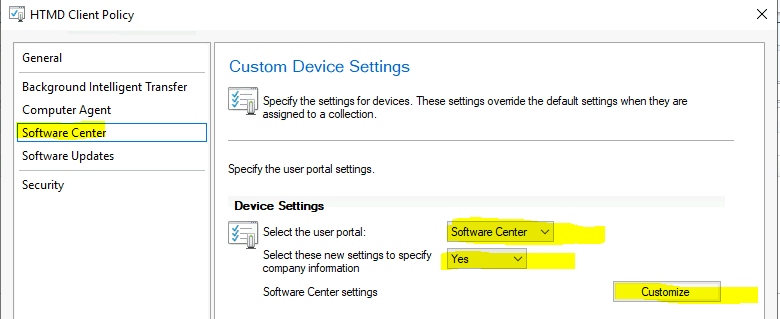
- Click on the Software Center tab.
- Select the User Portal -> Software Center.
- Select these new Settings to Specify Company Information -> Yes.
- Software Center Settings -> Click on the Customize button to start the branding.
Software Center Branding Options?
Now, let’s look at the branding options for the Software Center. To start branding the software center, click on the Customize button in the above client settings policy window.
- From the General Tab, you can configure the branding information.
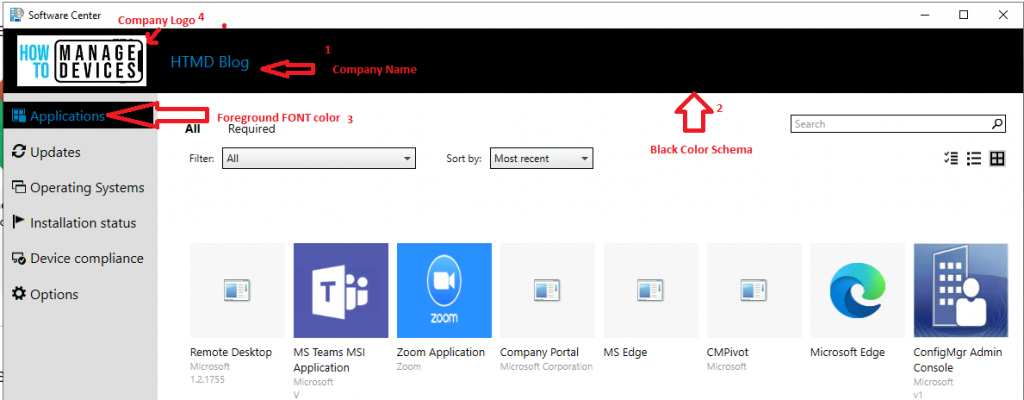
- Company Name—Enter the name of the company you want to appear in the Software Center—HTMD Blog.
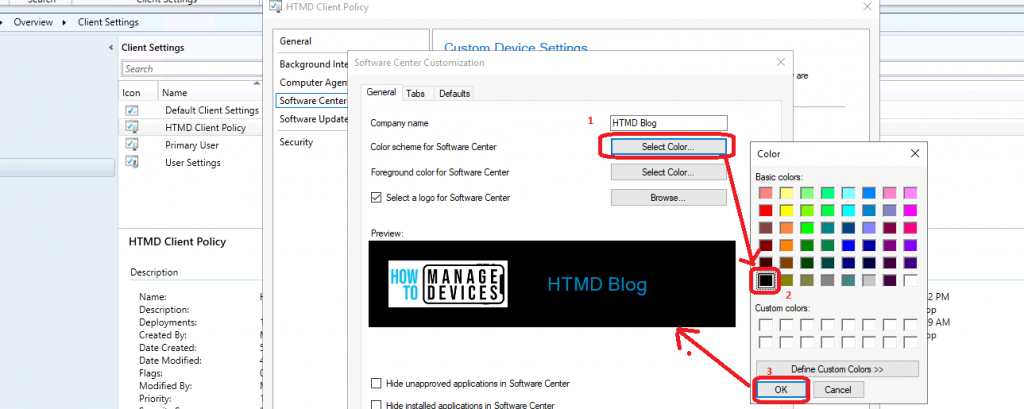
- Color Scheme for Software Center—Select the color scheme for the software center. In the example below, I have selected BLACK.
NOTE! – Color scheme is to set the primary color that Software Center uses.
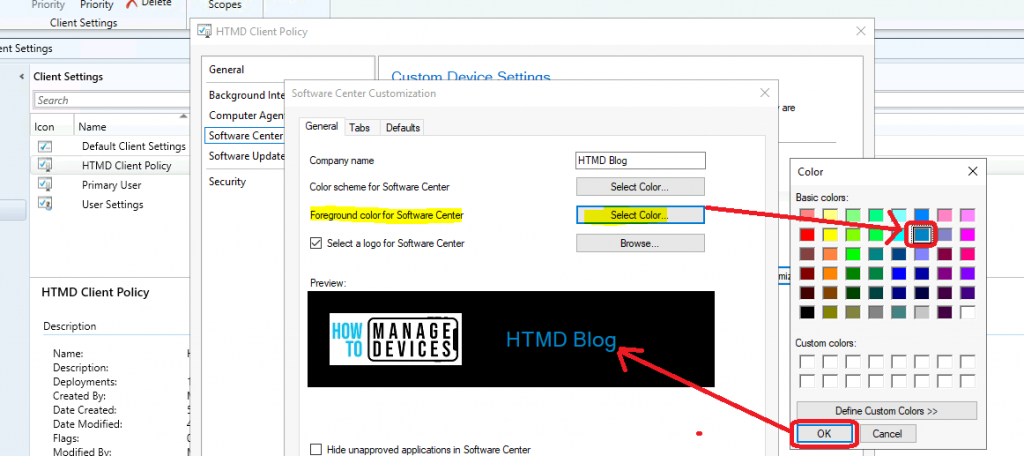
Foreground color for Software Center—You can configure a custom color for the foreground font, which is basically the FONT color in all software centers. I used a special/custom blue color.
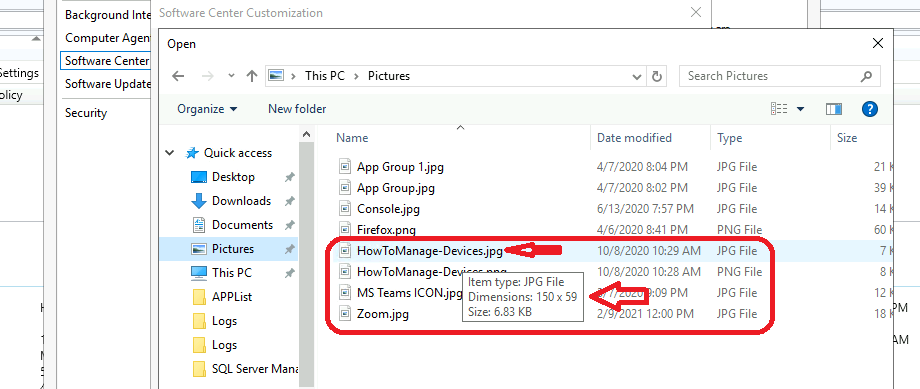
- Select a Company logo for the Software Center – The following are the supporting details.
- Supported files – JPG, PNG, or BMP.
- GIF is still not supported.
- The dimensions of the picture should be 400 x 100 pixels.
- Maximum size of 750 KB.
- Supported files – JPG, PNG, or BMP.
Deploy Software Center Client Settings Policy
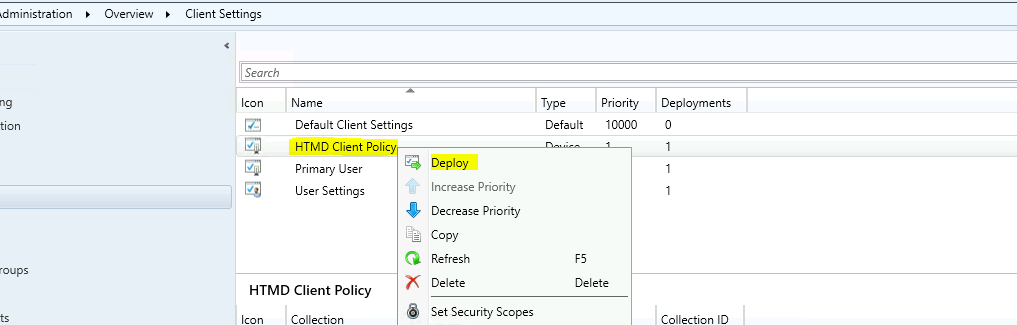
Now, it’s time to deploy the client settings policy to a device collection with new branding changes.
- Right-click on the Client Settings policy and select Deploy.
- Select one of the Device Collections from the list.
- Click OK to finish the deployment.
Results – Client Side
Let’s check how the branding information appears in the Software Center on the client side (Windows 10). All the settings configured above work fine with the Software Center’s customization.
- Company Name – HTMD Blog.
- Color Scheme for Software Center – Black color scheme.
- Foreground Font Color – Light Blue font color for all the software centers.
- Company Logo – Software Center shows the logo.
Resources
- Software Center settings (Microsoft Docs)
- SCCM Software Center and Client Applet
We are on WhatsApp. To get the latest step-by-step guides and news updates, Join our Channel. Click here –HTMD WhatsApp.
Author
Anoop C Nair has been Microsoft MVP for 10 consecutive years from 2015 onwards. He is a Workplace Solution Architect with more than 22+ years of experience in Workplace technologies. He is a Blogger, Speaker, and Local User Group Community leader. His primary focus is on Device Management technologies like SCCM and Intune. He writes about technologies like Intune, SCCM, Windows, Cloud PC, Windows, Entra, Microsoft Security, Career, etc.




SCCM is not available in my computer, is this software reserved for specific windows builds or for a group of specific people?
StaffThis Software Center is only licensed with SCCM. If no SCCM then no use with the Software Center application.
I entered my logo as a 100 x 100px for the Software Center window theme. When I look at Software Center it doesn’t look as nice as the preview did. When I check pixels by screenshotting it the logo is only approximately 60px, which is why it looks to be more pixelated and therefore a lesser quality. Are others seeing the same thing? Is there anything I can do to resolve this and force full size rendering?