






Custom Software Center User Notification for SCCM Task Sequence Deployment | ConfigMgr
Let’s learn how to create a Custom Software Center User Notification for SCCM Task Sequence Deployment. With Configuration Manager, You can configure task sequence properties to provide more information to the end-user about task sequence deployment in the Software Center.
Specifying the following information in the Task Sequence Properties helps to manage high-risk deployment easily and optimize the unwanted conversations with IT\SCCM admin.
- Restart Required
- The Download size of the task sequence
- Estimated Run Time
- Create a custom notification
Table of Contents
Software Center Properties
Use the following procedure to configure the details for the task sequence displayed in the Software Center. These details are for information only.
In the Configuration Manager console, go to the Software Library workspace, expand Operating Systems, and select Task Sequences.

Select the task sequence to customize displayed information during execution and select Properties.
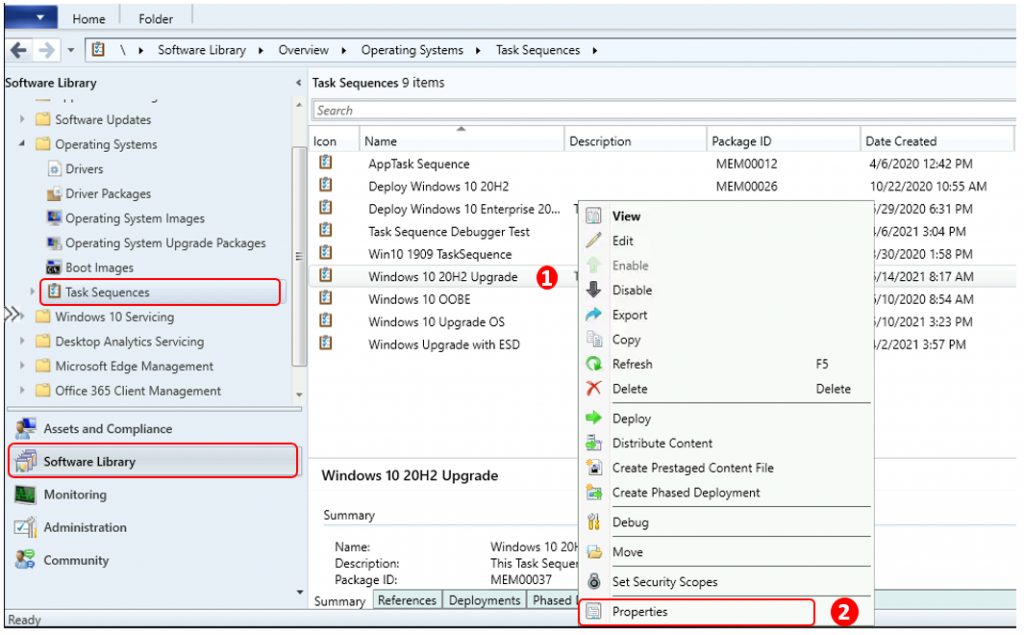
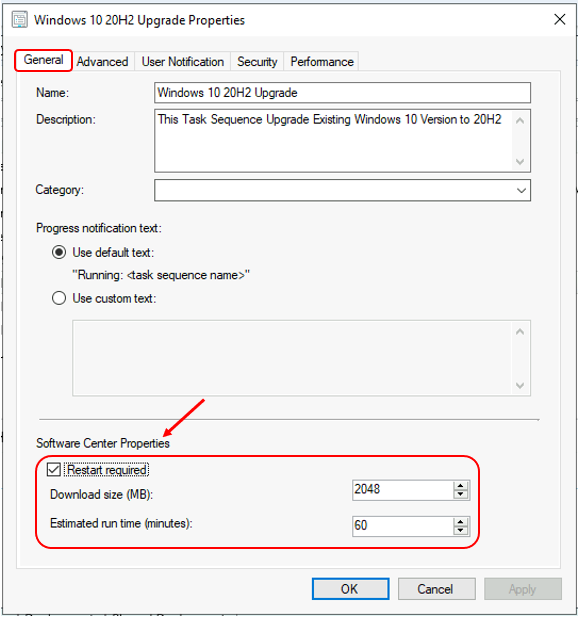
- On the General tab, the following settings for Software Center are available:
- Restart required: Let the user know whether a restart is required during the installation.
- Download size (MB): Specifies how many megabytes are displayed in the Software Center for the task sequence.
- Estimated run time (minutes): Specifies the estimated run time in minutes displayed in the Software Center for the task sequence.
- Let’s learn how to Customize ConfigMgr Software Center appearance
- SCCM Software Center Custom Tab Setup
Create a Custom Software Center User Notification
You can configure the task sequence properties of non-OS task sequences (The TS, which doesn’t contain any Operating System) or stand-alone task sequences and make them high-impact. The client only displays high-impact notifications for required OS deployment task sequences by default.
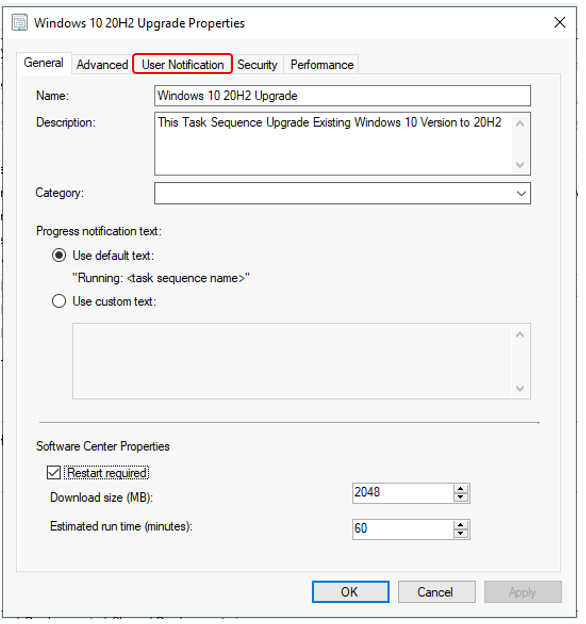
Click on the User Notification tab.
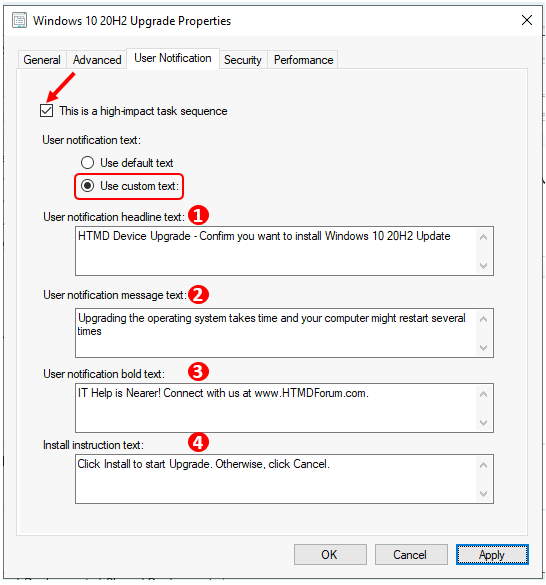
On the User Notification tab, check This is a high-impact task sequence and select Use custom text.
Note – You can only set user notification text when you select the option. This is a high-impact task sequence. Each text box has a maximum limit of 255 characters.
- User notification headline text: Specifies the headline text displayed on the Software Center user notification.
- These are the three text boxes that provide the body of the custom notification. All text boxes require that you add text.
- User notification message text: Specifies the main body of text, typically containing instructions for the user.
- User notification bold text: Specifies the bold text under the main body.
- Install instruction text: Specifies the last line under the bold text.
Once done, click Apply and Ok. Deploy the task sequence to the target computer to review the custom user notification in Software Center.
End-User Experience
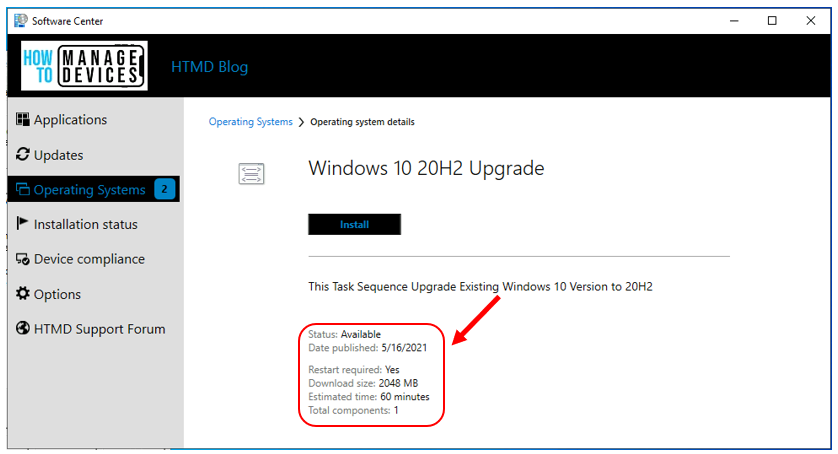
Here’s the detailed information for configured task sequence displayed in Software Center.
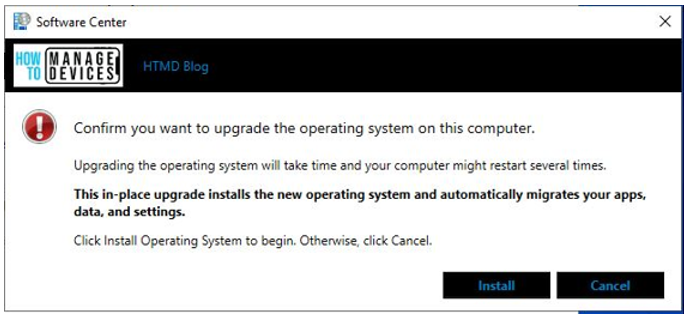
Default text – The following notification message displays when the end-user opens the installation from Software Center. This is the default text notification message.
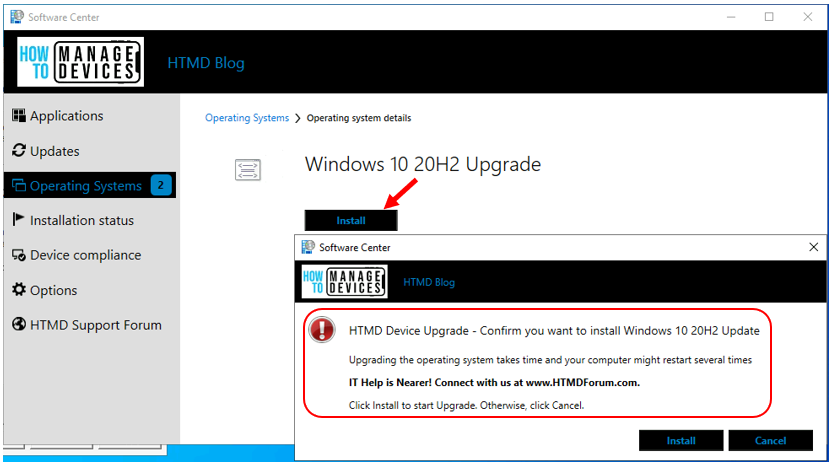
Custom text – The following notification message displays when the end-user opens the installation from Software Center.
We are on WhatsApp. To get the latest step-by-step guides and news updates, Join our Channel. Click here –HTMD WhatsApp.
Author
Jitesh, Microsoft MVP, has over six years of working experience in the IT Industry. He writes about and shares his experiences related to Microsoft device management technologies and IT infrastructure management. His primary focus is Windows 10/11 Deployment solution with Configuration Manager, Microsoft Deployment Toolkit (MDT), and Microsoft Intune.




Hi Anoop great article , what is the location of the default notification scripts to take a snapshot ?
StaffHi, What exactly do you want to peform here…Can you please explain
What if the deployment is required for IPU – TS . Does this work for that as well ? . How can we infor the user about reboot or have option to defer reboot for IPU TS ?