






Windows 11 Start Menu Taskbar Alignment Options | How to align Center or Left
Let’s check the Windows 11 Start Menu Taskbar Alignment Options. Until the Windows 11 release, we all had the taskbar aligned to the left. This post will provide more details about the Windows 11 start menu layout options.
In Windows 11, you have two start menu or taskbar alignment options. I like the option of Taskbar icon alignment. The taskbar icons include the start menu, search, widgets, Task View, and Microsoft Store.
There are two Windows 11 taskbar alignment behavior options – one is the left side alignment of the taskbar. The second one is the center alignment of the taskbar. You can also use the registry editor for this Windows 11 taskbar alignment.
You can change the Taskbar alignment only when Windows 11 is activated. If the option to change the alignment is disabled in your Windows 11, it’s worth checking the Windows 11 activation status.

Table of Contents
How to Change Windows 11 Taskbar Alignment Options
Windows 11 start menu is similar to Windows 10X-like UI. You can change the start menu layout to center and left. You can change the task menu alignment layout from the settings app.
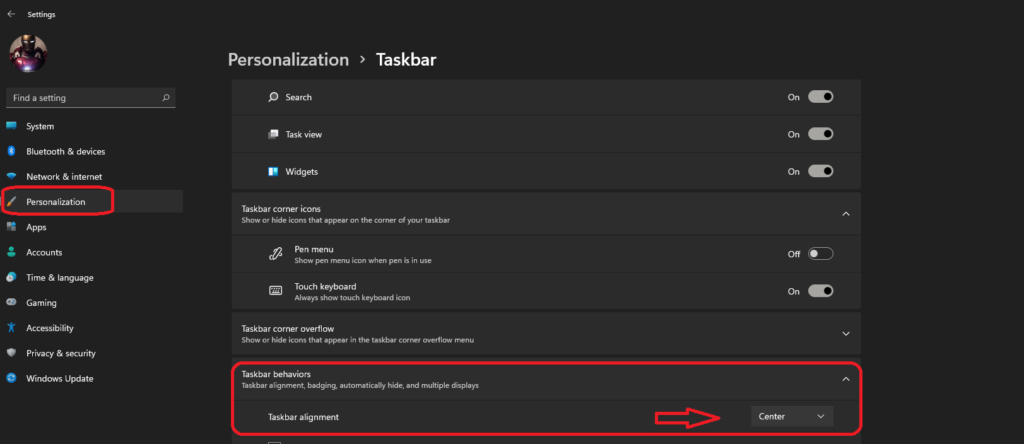
- Go to the Settings application
- Click on Personalization -> TaskBar Behaviours -> Taskbar alignment
- Best Method To Customize Windows 11 Taskbar
- Learn How To Activate Windows 11 License Using The Command Line Option
- Intune Proactive Remediation Scripts Vs PowerShell Scripts
Windows 11 Taskbar Center Alignment Options
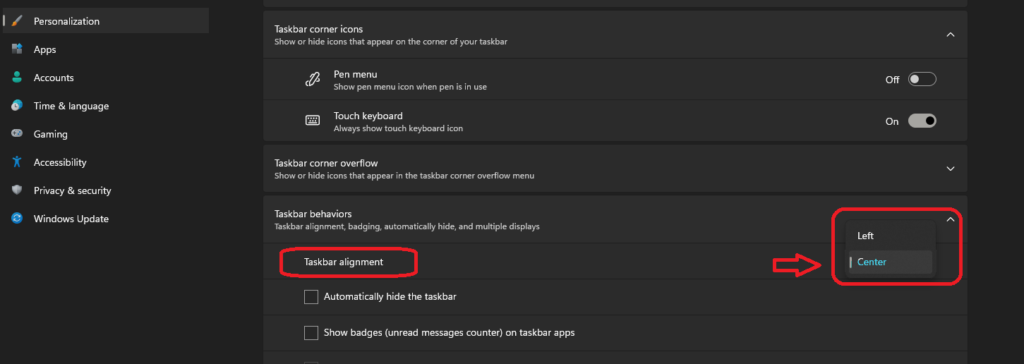
Windows 11 Taskbar Center alignment options from the following option. You can open the settings application and navigate to personalization.
- You can go to Taskbar behaviors.
- Select Task Alignment -> Center.
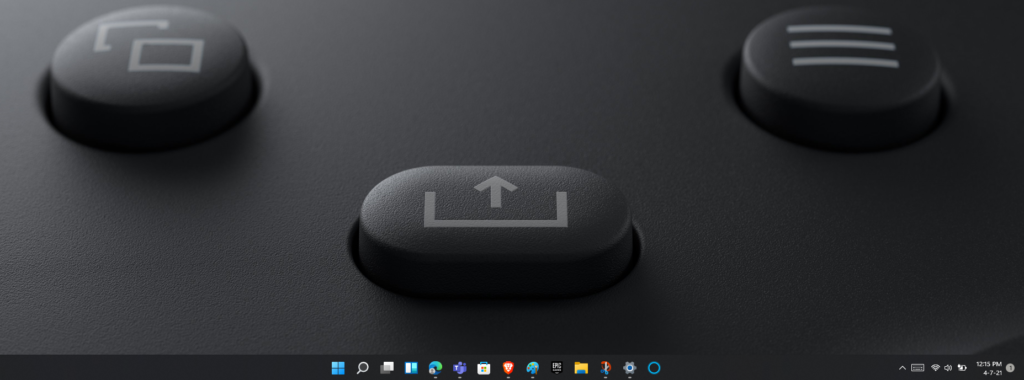
The following is the Windows 11 start menu layout alignment with the center option. Do you like this option, or do you still prefer the left-side start menu option?
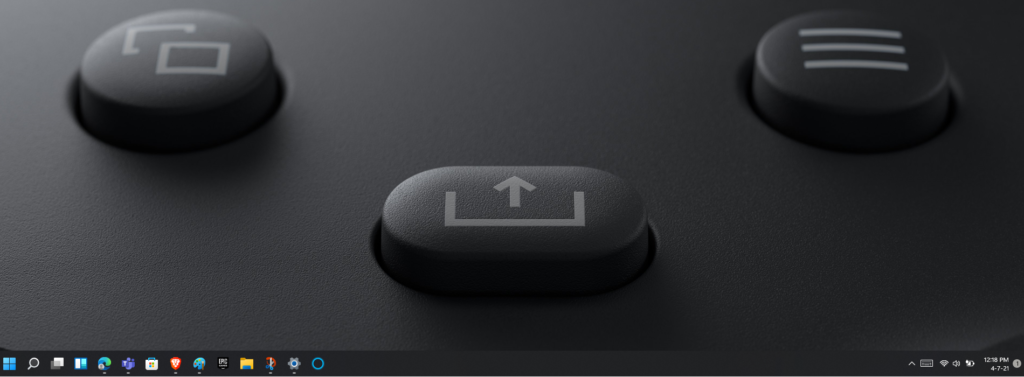
The following is the Windows 11 start menu layout alignment with the left option. Do you like this option, or do you still prefer the center-side start menu option?
Windows 11 Taskbar Left Alignment Options
Windows 11 Taskbar LEFT alignment options from the following option. You can open the settings application and navigate to personalization.
- You can go to Taskbar behaviors.
- Select Task Alignment -> LEFT.
Registry Options to Change Windows 11 Taskbar Alignment
Let’s check the Registry options to change the Windows 11 taskbar alignment. Navigate the registry path as explained below to change the Taskbar alignment to Center or Left.
NOTE! – I don’t recommend using the registry option to change Windows 11 taskbar alignment.
- Launch Registry Editor using Regedit.exe using the RUN option or Windows Terminal.
- Navigate to Computer\HKEY_CURRENT_USER\SOFTWARE\Microsoft\Windows\CurrentVersion\Explorer\Advanced
- Right-Click on the Advanced registry folder and select -> New -> DWORD (32-bit) Value.
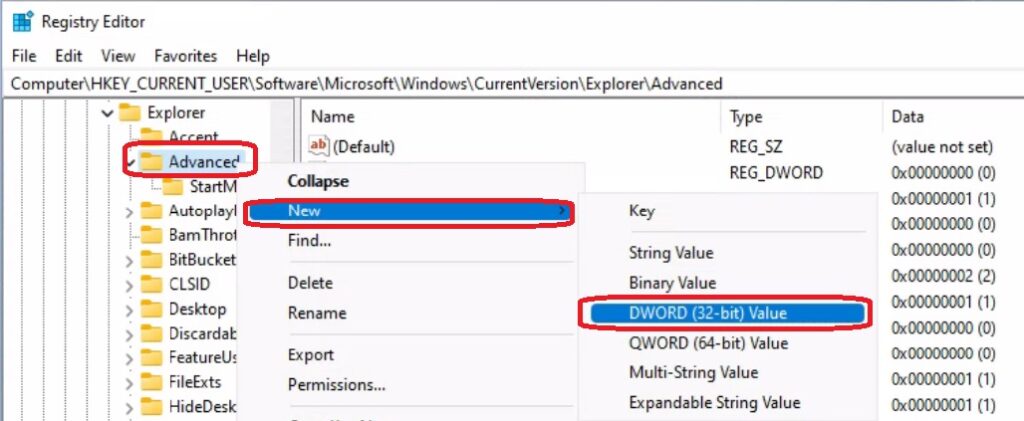
The TaskbarAl (l is a small letter L, and it’s not capital i). Enter the name of the DWORD (32-bit) value name -> TaskbarAl, as shown in the screenshot below.
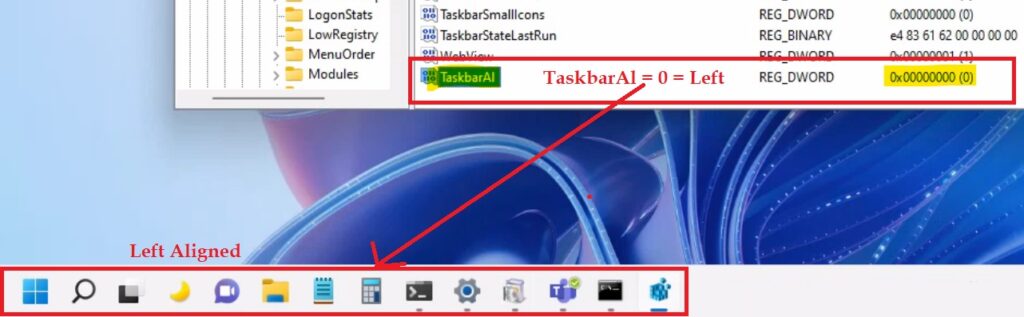
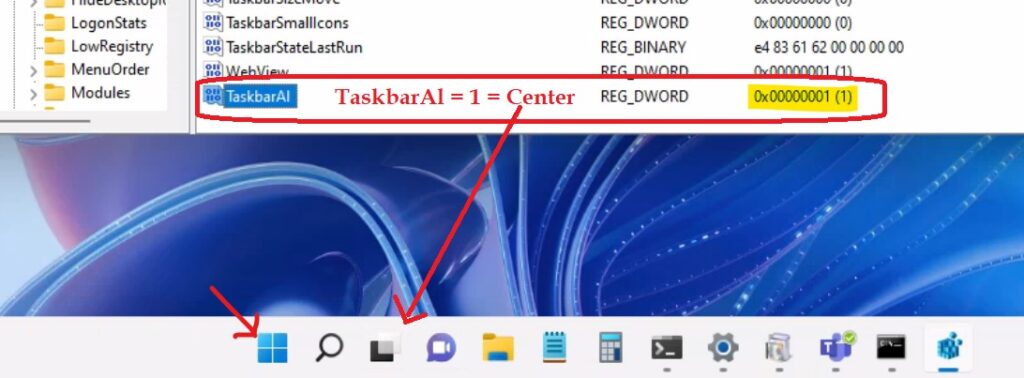
There are two options for value data for TaskbarAl.
- TaskbarAl value date = 0 = Taskbar Left alignment for Windows 11.
TaskbarAl value date = 1 = Taskbar Center alignment for Windows 11 devices.
Intune Options to Deploy Windows 11 Taskbar Alignment
Let’s check the Intune Options to Deploy Windows 11 Taskbar Alignment. The following are the Windows 11 or Windows 10 CSP policies available for the Taskbar, and there is no MDM CSP policy for Windows 11 taskbar alignment to Left or Center.
As discussed above, you must rely on the PowerShell script to set the registry values. You can deploy that particular PowerShell script using the Intune proactive remediation option.
ADMX_Taskbar policies
ADMX_Taskbar/DisableNotificationCenter
ADMX_Taskbar/EnableLegacyBalloonNotifications
ADMX_Taskbar/HideSCAHealth
ADMX_Taskbar/HideSCANetwork
ADMX_Taskbar/HideSCAPower
ADMX_Taskbar/HideSCAVolume
ADMX_Taskbar/NoBalloonFeatureAdvertisements
ADMX_Taskbar/NoPinningStoreToTaskbar
ADMX_Taskbar/NoPinningToDestinations
ADMX_Taskbar/NoPinningToTaskbar
ADMX_Taskbar/NoRemoteDestinations
ADMX_Taskbar/NoSystraySystemPromotion
ADMX_Taskbar/ShowWindowsStoreAppsOnTaskbar
ADMX_Taskbar/TaskbarLockAll
ADMX_Taskbar/TaskbarNoAddRemoveToolbar
ADMX_Taskbar/TaskbarNoDragToolbar
ADMX_Taskbar/TaskbarNoMultimon
ADMX_Taskbar/TaskbarNoNotification
ADMX_Taskbar/TaskbarNoPinnedList
ADMX_Taskbar/TaskbarNoRedock
ADMX_Taskbar/TaskbarNoResize
ADMX_Taskbar/TaskbarNoThumbnail
Resources
- https://www.anoopcnair.com/windows-11-next-generation-windows-announcement/
- Windows 11 Live virtual event
We are on WhatsApp. To get the latest step-by-step guides and news updates, Join our Channel. Click here –HTMD WhatsApp.
Author
Anoop C Nair has been Microsoft MVP for 10 consecutive years from 2015 onwards. He is a Workplace Solution Architect with more than 22+ years of experience in Workplace technologies. He is a Blogger, Speaker, and Local User Group Community leader. His primary focus is on Device Management technologies like SCCM and Intune. He writes about technologies like Intune, SCCM, Windows, Cloud PC, Windows, Entra, Microsoft Security, Career, etc.




My taskbar in windows 11 keeps going to the farthest right when I put it on center, why is that?
StaffI have this problem with the dev channel … have you enabled the registry key to reduce the size of the taskbar icons by any chance https://www.anoopcnair.com/how-to-change-the-taskbar-size-in-windows-11-easiest-method/
Are there any Intune settings to mass set this to the left?
StaffI have not seen any Intune settings. I have updated the blog with registry key details as a dirty workaround. You might need to wait until Microsoft provides a proper MDM CSP to change this alignment in Windows 11. Until that time, you need to create PowerShell script to check, create, and change the registry value explained in the post.
Hey Anoop! Just one correction. The reg key is ComputerHKEY_CURRENT_USERSoftwareMicrosoftWindowsCurrentVersionExplorerAdvanced.
Your screenshot is correct but the text above stays HKEY_CURRENT_MACHINE.
Thanks!
StaffHey Jay – Thank you. Fixed now.