






SCCM Install Behavior for Applications | ConfigMgr | Endpoint Manager
Let’s check SCCM Install Behavior for Applications. In Configuration Manager, you can configure an application deployment to check if certain executable files run on the client. In application deployment properties, you can use the option to check for processes that might disrupt the installation of the application.
This is more useful for SCCM Admin when deploying an application and closing the running process. Based on your input, if one of these executable files is running, the client blocks the installation of the deployment type.
A prompt will appear to the user to close the running executable file before the client can install the deployment type. The client can automatically close the running executable file for deployments with the required purpose.
Let’s follow the steps below to improve the install behavior for detecting open applications. If you want to explore the complete guide for application deployment, Check out this blog post on deploying an application using SCCM.

Table of Contents
Check for Running Executable Files
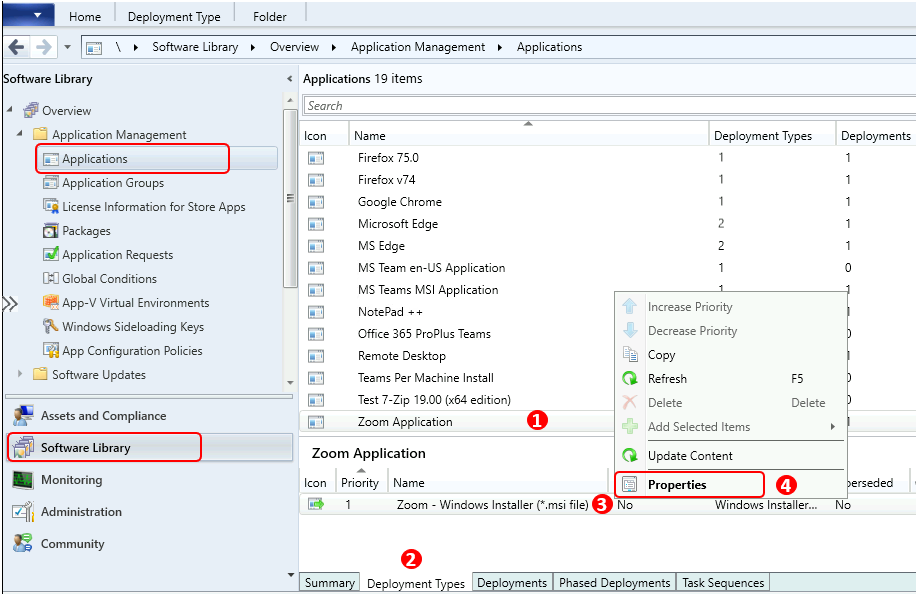
In the SCCM console, go to the Software Library workspace, expand Application Management, and select the Applications node.
In the Applications node, select an existing application and select the Deployment Types tab. Right-click on the deployment type and select Properties.
- Get Installed Applications list using SCCM CMPivot Query
- Install Multiple Applications using ConfigMgr Task Sequence SCCM
- Best Guide to Install Microsoft SQL Server 2016 Report Builder using Intune
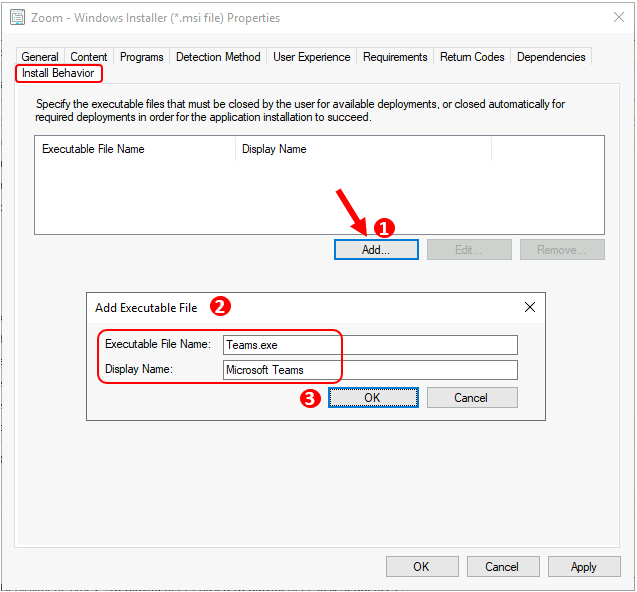
Switch to the Install Behavior tab, and select Add. In the Add Executable File window, enter the name of the target executable file. Specify a friendly name for the application to help you identify it in the list. Select OK to save.
For Example – We will deploy the Zoom application to a device and specify the executable file Teams.exe. It will check Teams should not be running before installing Zoom. Ensure that it is closed.
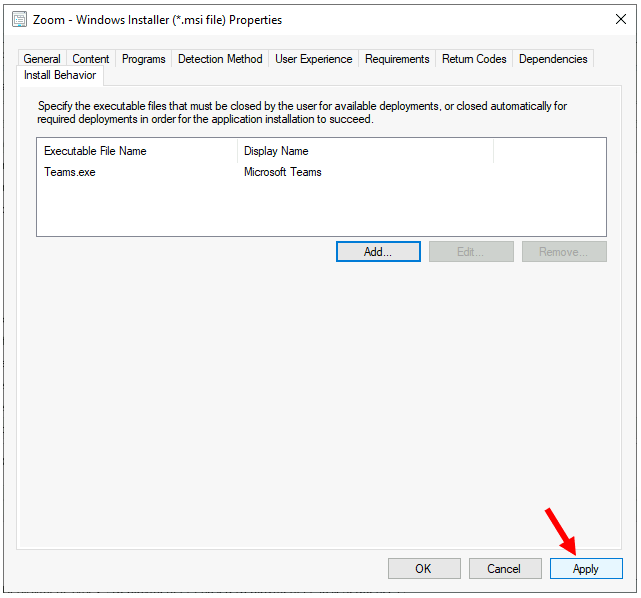
Click Apply and Ok to close the deployment type properties window.
Important: If you configure an application to check for running executable files and include it in the Install Application task sequence step, the task sequence will fail to install. If you don’t configure this task sequence step to continue on error, then the entire task sequence will fail.
End-User Experience
Let’s check the end-user experience of SCCM Software Center Applications.
Available Deployment
- Launch the Software Center on the Windows device that you are managing.
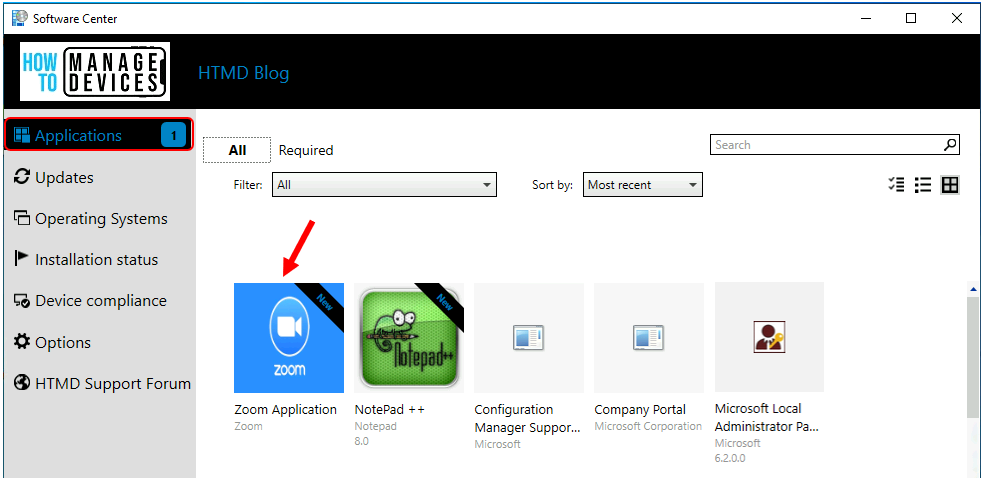
- Select the Applications tab to find and install applications you deploy to this device.
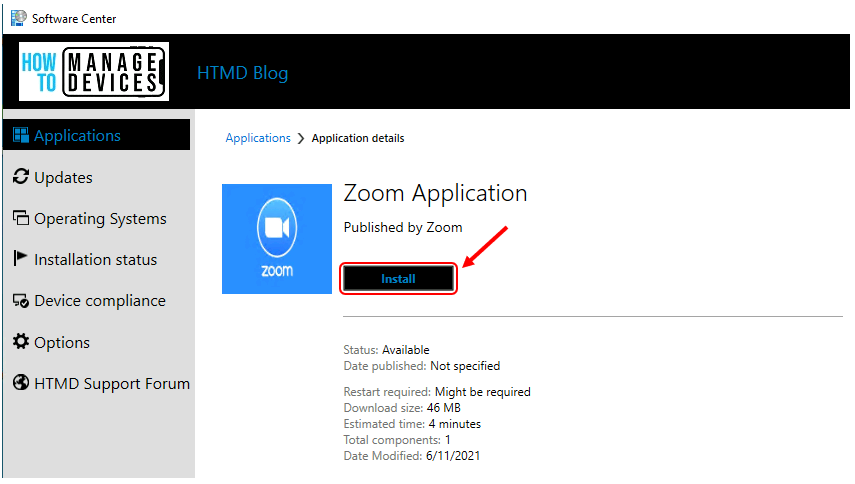
- Here, you see the Zoom application configured above. Click on the Zoom Application to start the installation.
Select the Install button to start the application installation.
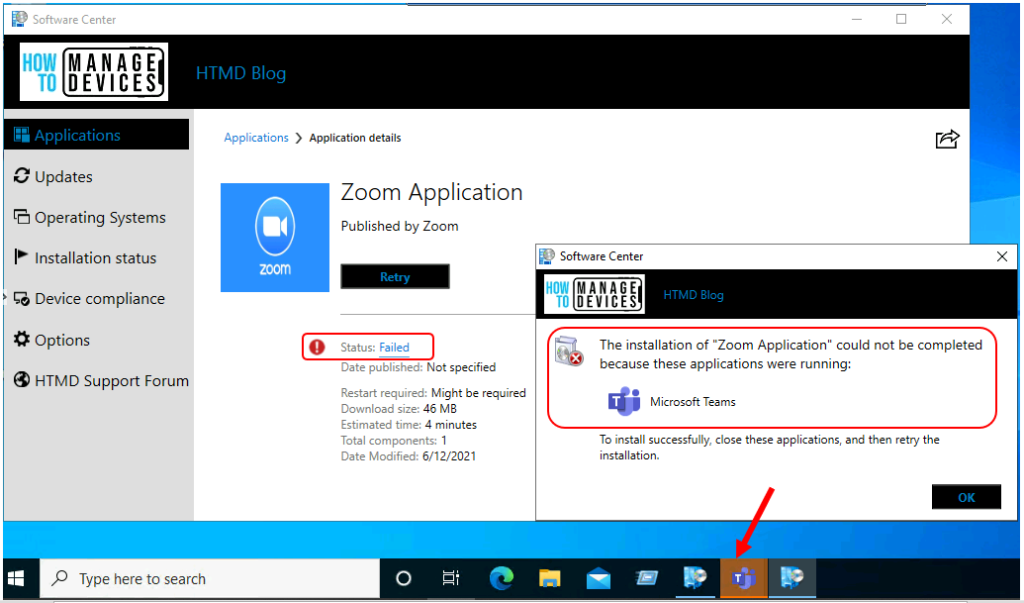
It fails if you deploy the application as Available and a user tries to install it. The client prompts the user to close the specified running executable files before installing.
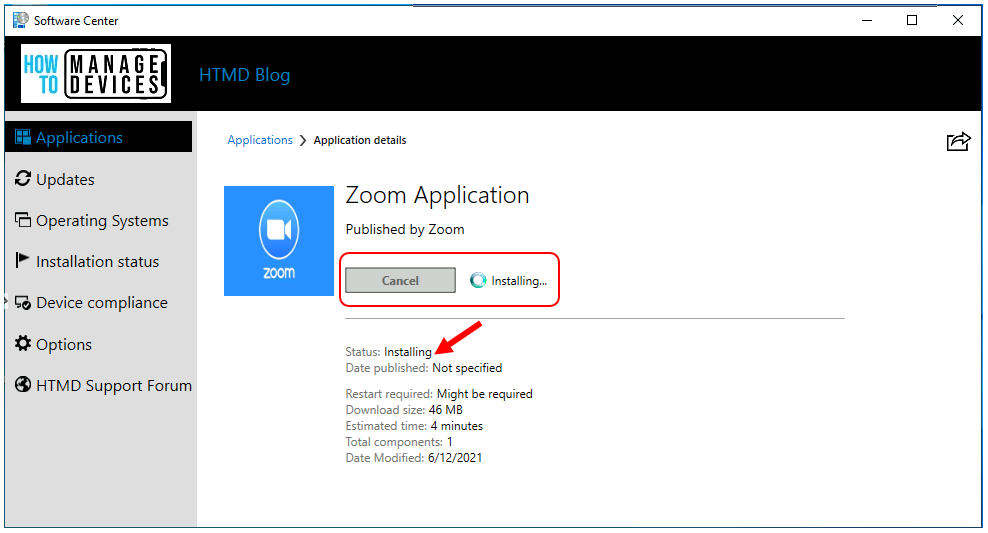
Close the Teams app and retry the installation from the Software Center. The application started installations.
Required Deployment
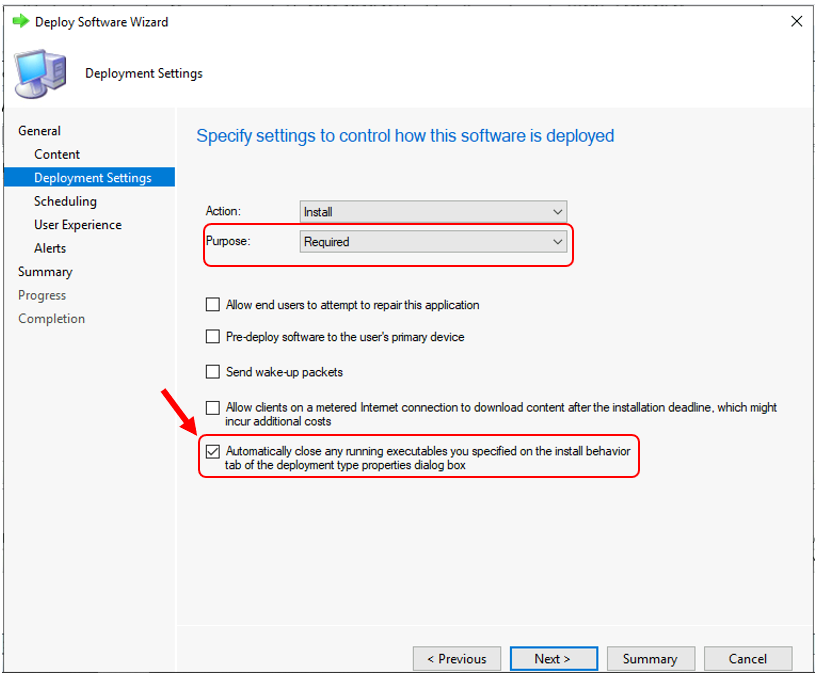
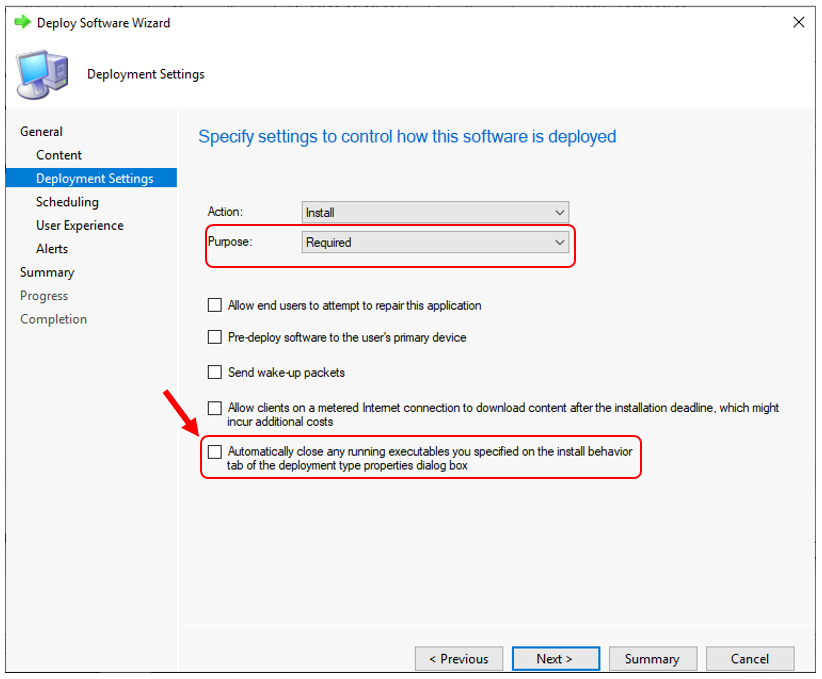
If you deployed the application as Required and specified to Automatically close any running executables you specified on the install behavior tab of the deployment type properties dialog box.
Then, the client displays a notification. It informs the user that the specified executable files are automatically closed when the application installation deadline is reached.
The deployment will fail if the user tries to install the application before the deadline. It will notify the user that the installation couldn’t be completed because the specified executables are running.
Note – This option will only be available for required deployment with the above-configured install behavior.
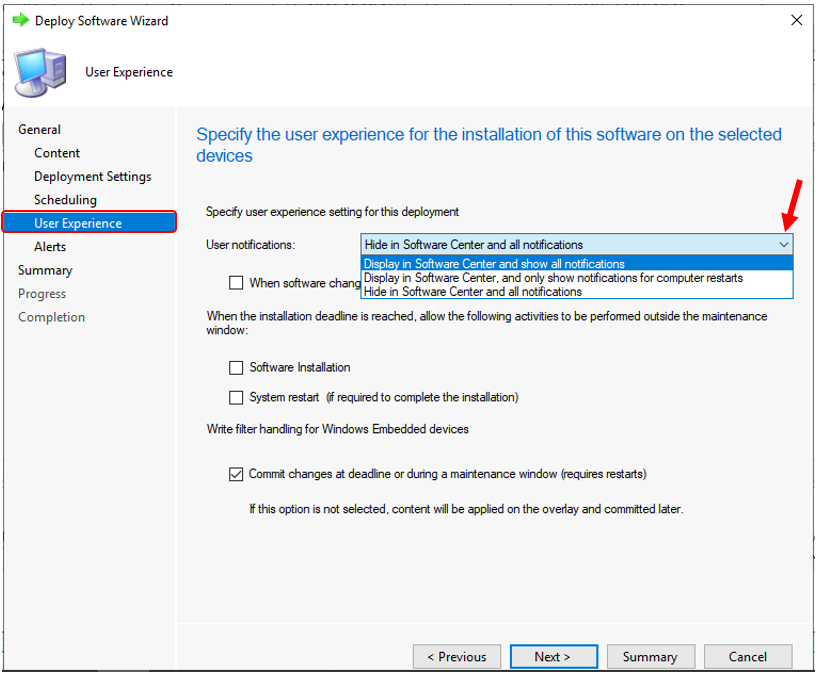
- If you don’t want the user to see these messages, On the User Experience tab, select the option to Hide in Software Center and all notifications.
Important – If you select the option to Hide Software Center and all notifications, the notification
will not be shown to users, and the running application added as executable in App Install behavior will be closed without prompt, and the user could lose unsaved data.
If you deployed the application as Required and didn’t specify to automatically close any running executables on the install behavior tab of the deployment type properties dialog box, then the app’s installation will fail if one or more of the specified applications are running.
Resources
We are on WhatsApp. To get the latest step-by-step guides and news updates, Join our Channel. Click here –HTMD WhatsApp.
Author
Anoop C Nair has been Microsoft MVP for 10 consecutive years from 2015 onwards. He is a Workplace Solution Architect with more than 22+ years of experience in Workplace technologies. He is a Blogger, Speaker, and Local User Group Community leader. His primary focus is on Device Management technologies like SCCM and Intune. He writes about technologies like Intune, SCCM, Windows, Cloud PC, Windows, Entra, Microsoft Security, Career, etc.




“Automatically close any running executables you specified on the install behavior tab of the deployment type properties dialog box.”
It’s not the Deployment TYPE that holds that option but the Deployment itself.