






Recover Expired Updates from SCCM WSUS Console
Today, I will explore how to recover Expired Updates from the admin console. The SCCM patch management is not easy if you are new to this process.
Sometimes, missing patches in the admin console can confuse you. Let’s explore the options for recovering expired and deleted updates from the SCCM Console.
Microsoft released a couple of blog posts (more details in the resources section below) to clarify the confusion surrounding Windows 10 KB5003637 June Cumulative Update (CU) issues. You can read more about this in the SCCM Patching Issue with Windows 10 KB5003637 June CU issues.
Do you see the SCCM patching issue with Windows 10 KB5003637 June Cumulative Update? Learn how to recover Expired Update KB5003173 from the SCCM admin console from this post. You need to have appropriate SCCM RBAC access to complete this activity.

Table of Contents
Where are SCCM Supersedence Rules?
You can check the Supersedence rules from the SCCM admin console. These supersedence rules can help you manage software updates using a bit cleaner method. Let’s see where the option is in the admin console.
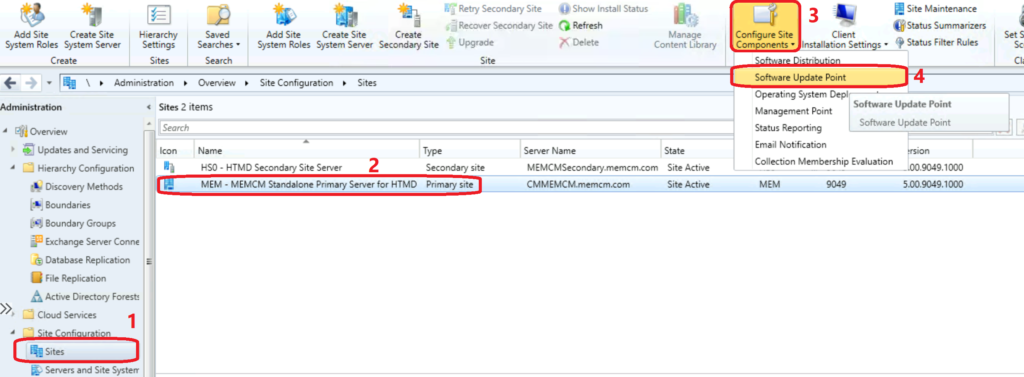
- Navigate to \Administration\Overview\Site Configuration\Sites
- Select the primary server/CAS and click on the Configure Site Components option from the ribbon menu.
- Select Software Update Point from the drop-down list.
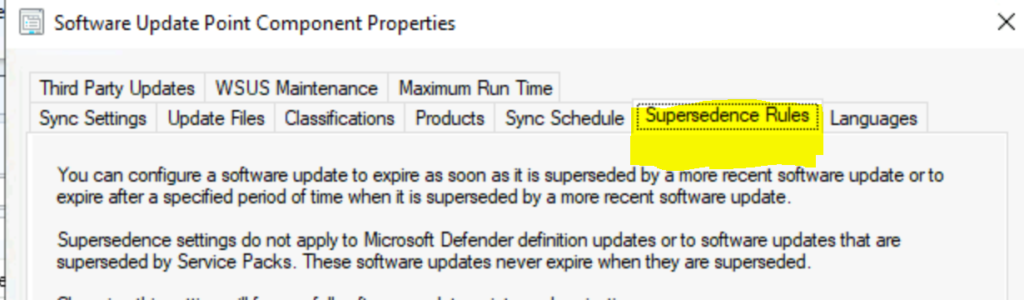
From the Supersedence Rules tab from Software Update Component Properties.
- Accidental Listing of C Release to WSUS Made Current Months CUs as Superseded in SCCM and WSUS
- Enable Microsoft Defender for Endpoint Updates Patching using SCCM and WSUS
- How to Setup WSUS Cleanup Task from SCCM Console Configuration Manager
Use WSUS Console also to get back the Accidentally Declined Updates
You can use the following option to Recover Expired or declined Updates from the WSUS console. You can start syncing from the SCCM console to get these settings up and recover the expired or declined updates.
- In the WSUS administrative console, click Updates and then click All Updates.
- Change Approval to Declined and click Refresh. The list of declined updates loads.
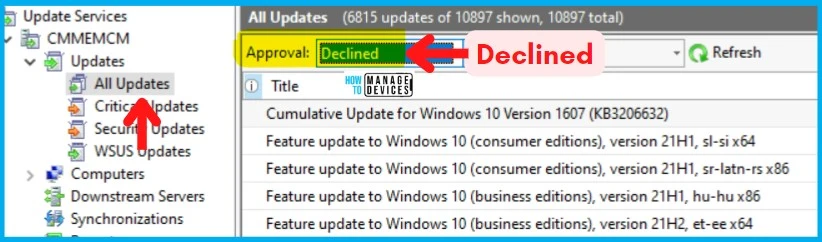
- In the list of updates, select one or more declined updates you want to reinstate or recover.
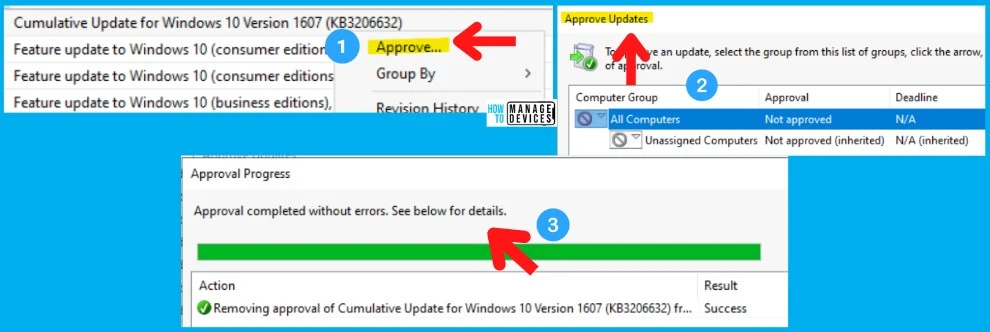
To reinstate a particular update, right-click on it and select Approve. In the Approve Updates dialog, click OK to re-apply the default Not Approved approval status. The update will now show in the list as Not Approved instead of Declined.
How to Recover Expired Updates from SCCM
Let’s understand how to recover expired updates from SCCM (Configuration Manager). You may need to deploy a superseded update that has been marked as expired in SCCM.
Learn how to Recover Expired Updates from SCCM Console | ConfigMgr. Go through the following steps to recover the expired software updates:
- In the above section, you have already seen where the option to configure supersedence rules is.
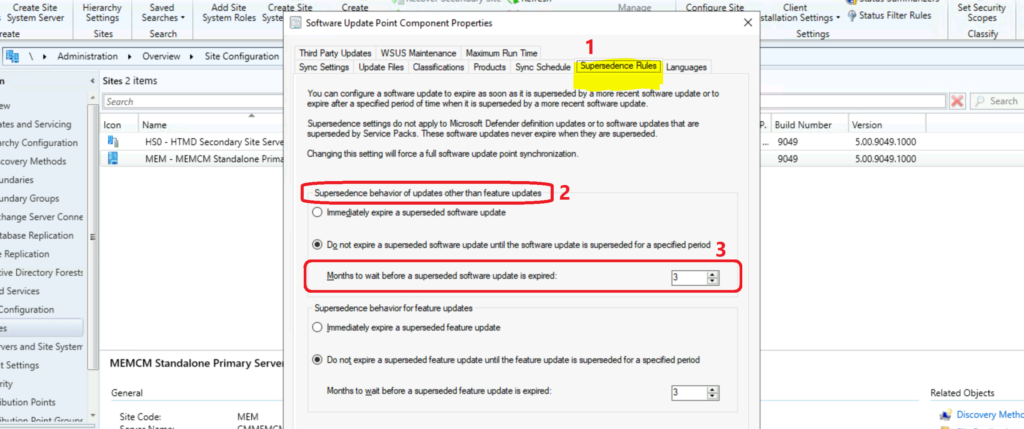
- Once in the Supersedence rules tab, you can check the Supersedence behavior of updates other than the feature updates section.
Make sure you have selected the option:- “Do not expire a superseded software update until the software update is superseded for a specific period.“
You must change the number of months following the option from Months to wait before a superseded software update expires.
The following example shows that the number of moths selected is three (3). Click on OK to continue and save the new expired updates settings.
NOTE: If the software update marked as expired was superseded 2 months ago, the waiting period would need to be greater than 2 months. The minimal interval value should be 3 months.
Manual WSUS Scan Sync
Once you change the Software Updates expired configuration interval to 3 months, you can recover the expired software updates 2 months before with a manual WSUS sync.
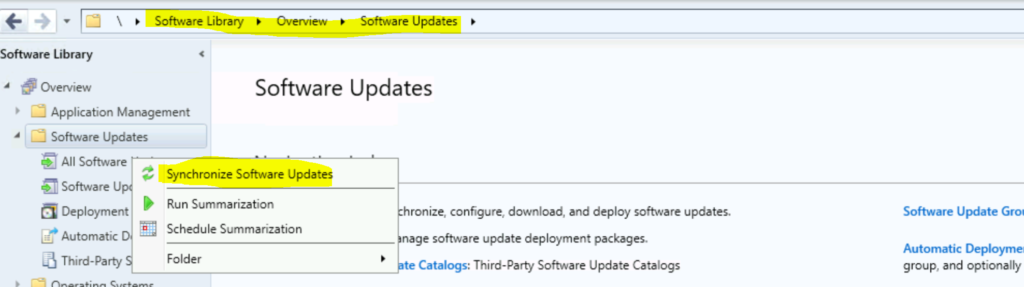
- Navigate to \Software Library\Overview\Software Updates.
- Right-click on the All Software Updates node.
- Select Synchronize Software Updates to initiate a manual WSUS sync.
- Click on OK to start the sync.
NOTE! – Let’s wait for WSUS sync to complete so you can see all the expired updates in the SCCM admin console. You can refer to wsyncmgr.log to verify the completion of the WSUS sync.
Resources
Author
Anoop C Nair has been Microsoft MVP for 10 consecutive years from 2015 onwards. He is a Workplace Solution Architect with more than 22+ years of experience in Workplace technologies. He is a Blogger, Speaker, and Local User Group Community leader. His primary focus is on Device Management technologies like SCCM and Intune. He writes about technologies like Intune, SCCM, Windows, Cloud PC, Windows, Entra, Microsoft Security, Career, etc.




I did the same procedures which you mentioned in here but my issue still same. How to do this? Please suggest me.