






Windows 11 Add Additional Clocks Time Zone Easiest Option
Let’s see which Windows 11 Add Additional Clocks Time Zone Easiest Options are. Then, we can learn how to add time zone clocks in Windows 11.
You can add two additional clocks to the default clock, each in a different timezone. I find the additional clocks useful when working with international clients.
How many know you can add extra time zone clocks in Windows 11? The default clock is shown in the Windows 11 taskbar. You see additional time zone clocks when you hover over the default clock from the taskbar.
Windows 11 lets you view up to three (3) different time zone clocks. This post will teach you how to set up and keep track of time zones. I don’t think there is any difference between the time zone settings in Windows 10 and 11.

How to add additional clocks to Windows 11
Learn how to add additional clocks to your Windows 11 PC. There are different ways to add additional time zone clocks to Windows 11, and I’ll share a couple of methods in this post.
- Click on the Windows 11 Start button.
- Start typing “date and time settings“.
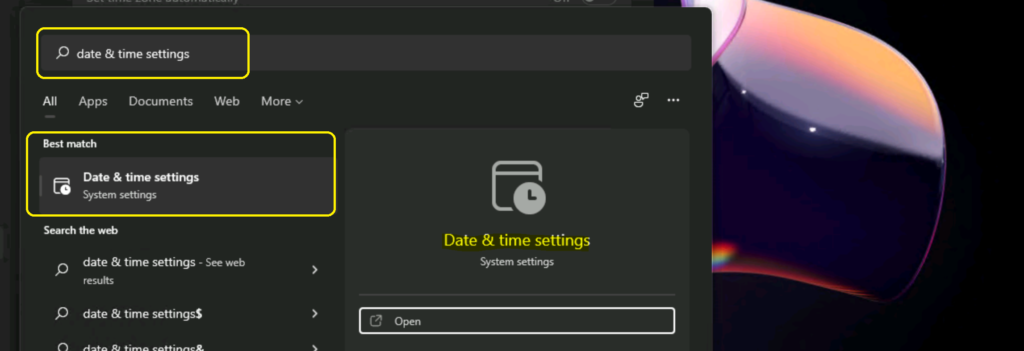
Another option is to launch Date and Time Settings in Windows 11 is given below:
- Click on Windows 11 Start button.
- Click on the Settings app.
- Click on the Time and Language tab.
- Click on the Date & time section from Time and Language tab.
- Scroll down to Related links section – Click on additional clocks.
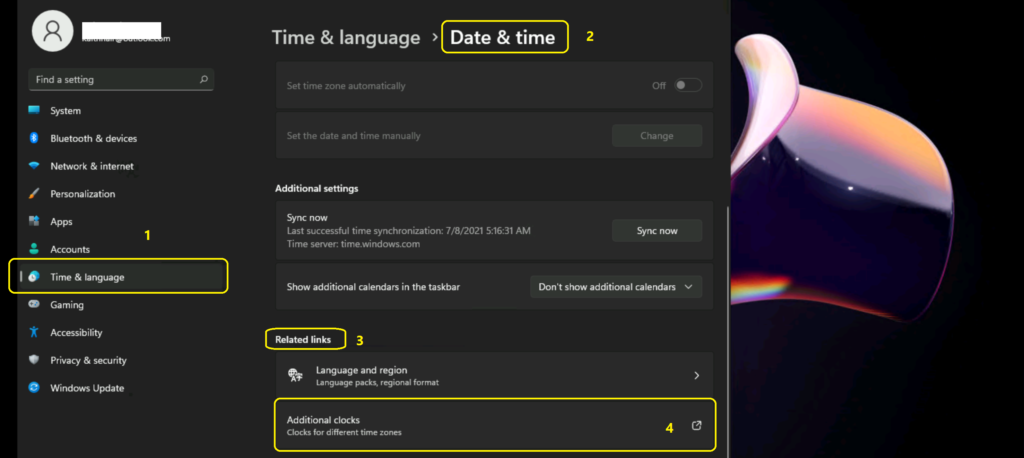
NOTE! – Additional clocks can display the time in other time zones. You can view them by clicking on or hovering over the taskbar clock.
- Click on Show this clock from the Date and Time windows.
- Select the time zone that you want to show on the additional clock.
- (UTC+05:30) Chennai, Kolkata, Mumbai, New Delhi
- Enter the Display name for the additional clock.
- India
You can repeat the above steps to add the third additional time zone clock. Click on OK to complete the configuration.
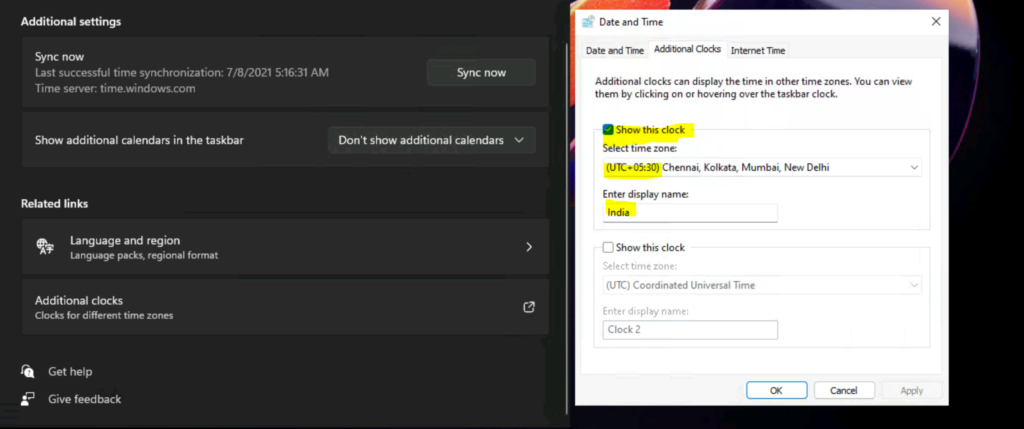
Results – Windows 11 Add Additional Clocks Time Zone Easiest Option
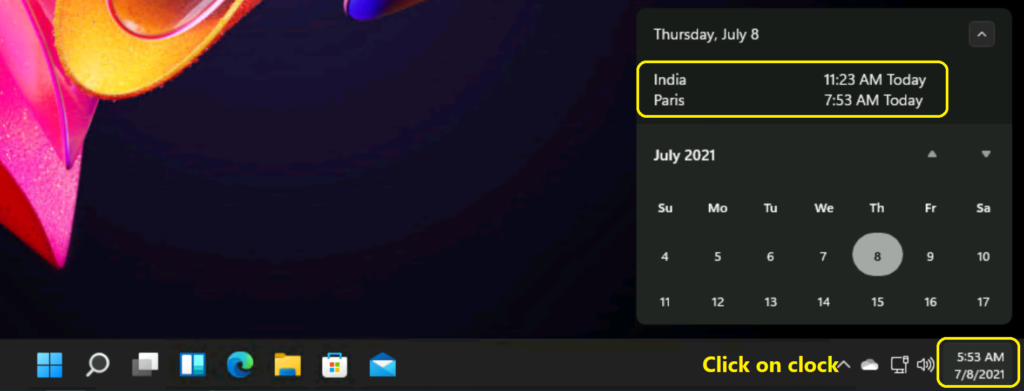
You can check whether adding additional clocks to Windows 11 worked okay. There are two methods to check this.
One of the options is to hover over the Windows 11 taskbar clock.
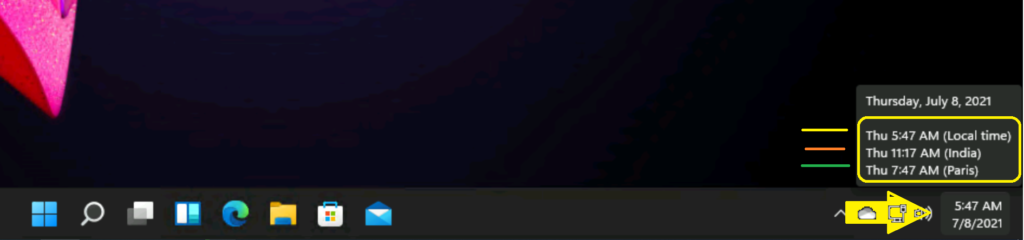
The second option is to click on the Windows 11 taskbar clock to view all three additional time zone clocks in Windows 11.
Resources
- Add or Remove Windows 11 Widgets Button on Taskbar Easy Option
- Windows 11 Wallpapers Change Download Options
We are on WhatsApp. To get the latest step-by-step guides and news updates, Join our Channel. Click here –HTMD WhatsApp.
Author
Anoop C Nair has been Microsoft MVP for 10 consecutive years from 2015 onwards. He is a Workplace Solution Architect with more than 22+ years of experience in Workplace technologies. He is a Blogger, Speaker, and Local User Group Community leader. His primary focus is on Device Management technologies like SCCM and Intune. He writes about technologies like Intune, SCCM, Windows, Cloud PC, Windows, Entra, Microsoft Security, Career, etc.




Not able to change additional clock format to 12 hr instead of 24 hr….
Note: My current time in system shows 12 hr but in additional clock it is showing 24 hrs
Thank you!
With me living in the Colorado Mountain time zone, two brothers in Holland, and a sister in Australia I clearly need this option. Could not find it after switching from win10 to 11.
Thank you. It’s a very insightful and useful topic.
Thank you Anoop. It’s handy and pretty much useful tip. Kudos..
Thank you Anoop. It’s handy and pretty much useful tip. Kudos..
I knew that I landed here searching for how to add more than 2. I am assuming there must be regedit hack for that. but nobody seems to be interested in adding more than 2 clocks earlier we could had 5 clock in widnows