






How to Create Deploy Adobe Acrobat Application using SCCM ConfigMgr Easiest Method
I hope most ConfigMgr admins know how to Create and Deploy Adobe Acrobat applications using SCCM or a different application.
However, I will share my knowledge in this blog post on creating Adobe Applications in SCCM for those who recently started learning ConfigMgr (A.K.A. SCCM). This post will help newcomers or freshers.
Before registering or adding any application to the ConfigMgr console, you must test it manually. Make sure you use all the use cases while trying to check all the application functionality. I suggest asking your packaging team for help creating a package and then adding an application to the SCCM console.
First, download the required Adobe application from the site. Test and verify the application, then use the silent switch with the command line to install it.

As I said, you can also ask your packaging member for help once everything is ready. Use the below step to create an application in SCCM. Check out this blog post: SCCM Install Behavior for Applications.
Table of Contents
How to Create and Deploy Adobe Acrobat Application using SCCM
Let’s start with the creation of the Adobe Acrobat application.
- Launch ConfigMgr Console
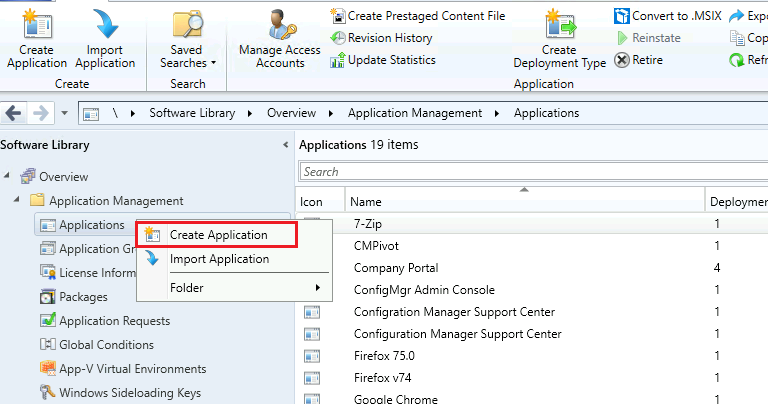
- Navigate to \Software Library\Overview\Application Management\Applications
- Right Click on the Applications node
- Select Create Application
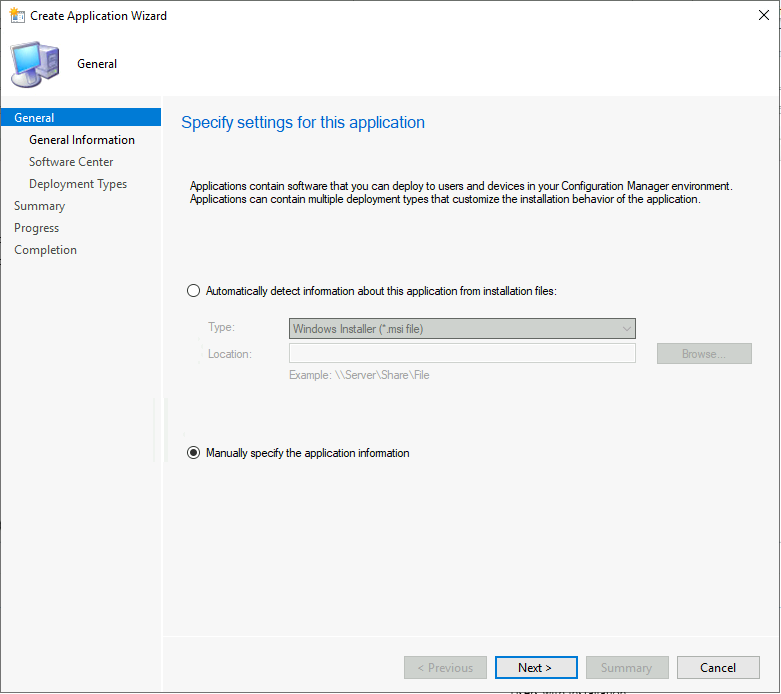
Specify Settings for this Application – Create Deploy Adobe Acrobat Application using SCCM.
- Select the option called “Manually specify the application information. “
- Click on the Next button
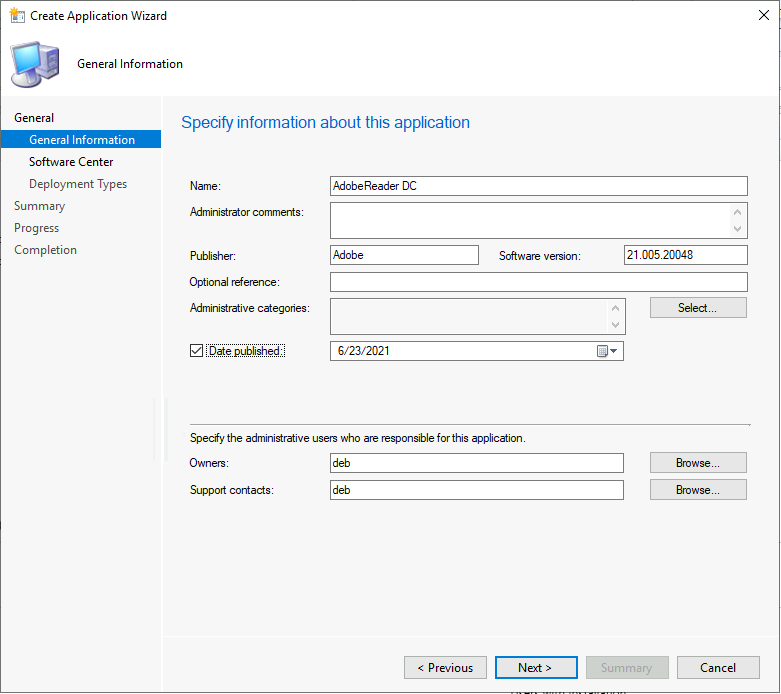
Enter the name of the application you want to deploy – AdobeReader DC
Enter the Publisher Name – Adobe
Click on NEXT to continue
Click on Browse in the Software Center tab to select the Software Center ICON for Adobe.
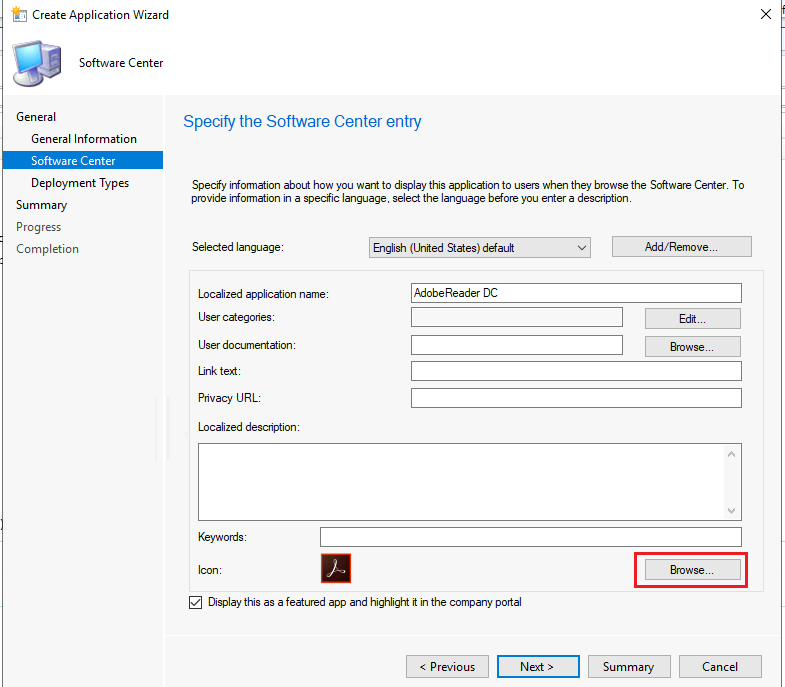
Click on the Next button once the Adobe ICON is uploaded
Use the Easy Steps Software Center Icon for SCCM Application Deployment | ConfigMgr | Endpoint Manager for more information about uploading icons.
- On the Deployment Types page, you need to provide the following details.
- Deployment Types include information about the installation method and the source files for the application.
- Click on the ADD button to configure the AdobeReader DC application
Deployment Type Creation for AdobeReader DC
Specify the settings for this deployment type. Type of the Application – Script Installer. Manually specify the deployment type information option, which will be auto-selected.
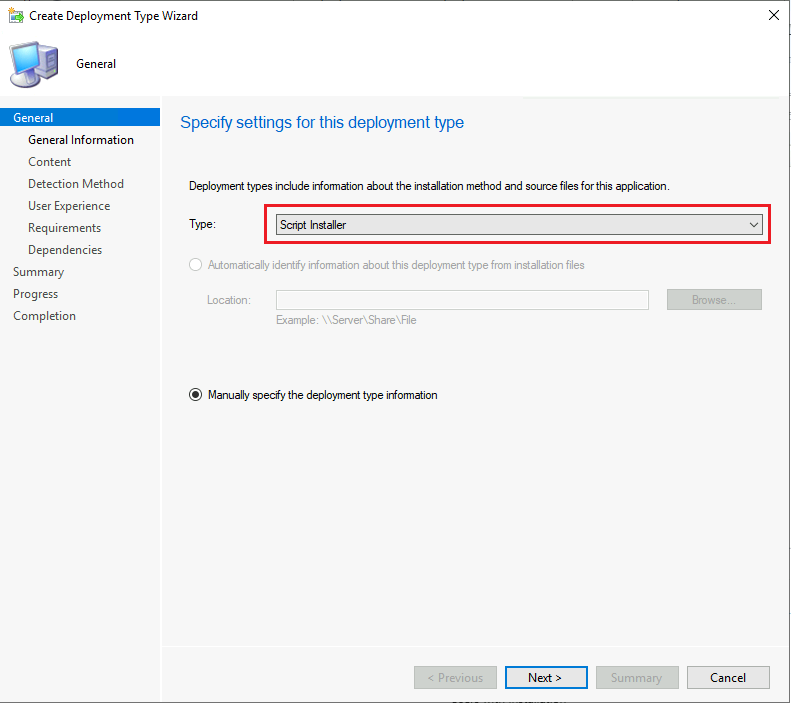
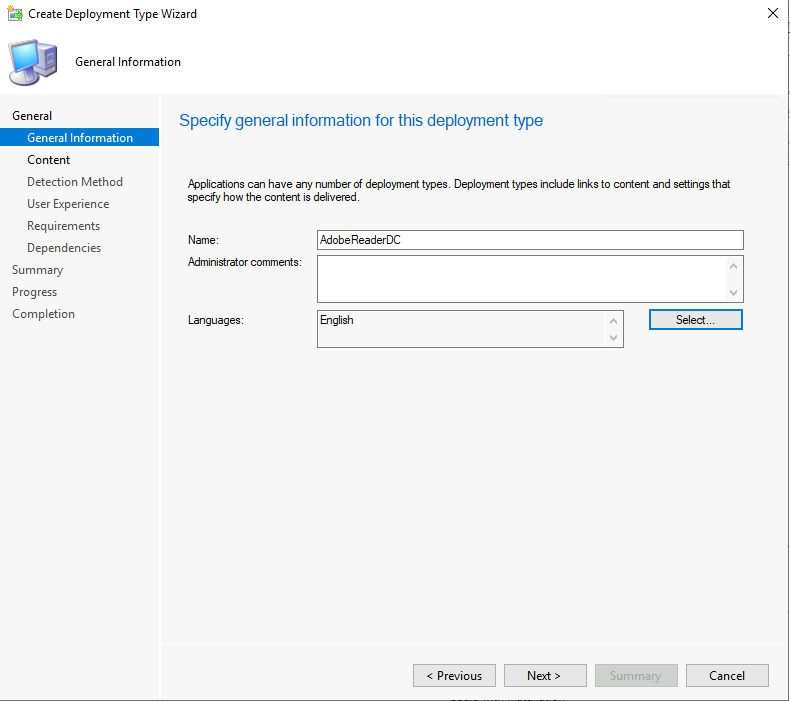
Specify general information for this deployment type
Name – AdobeReaderDC. Language – Select English. Click on NEXT to continue
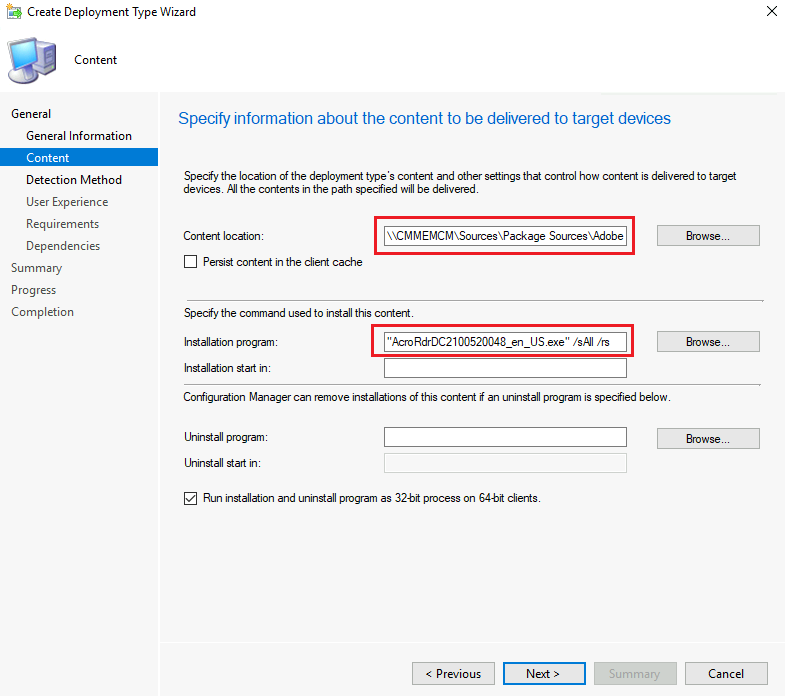
Specify the Content location of this deployment type.
Specify the Installation program – “AcroRdrDC2100520048_en_US.exe” /sAll /rs
Click on NEXT to continue.
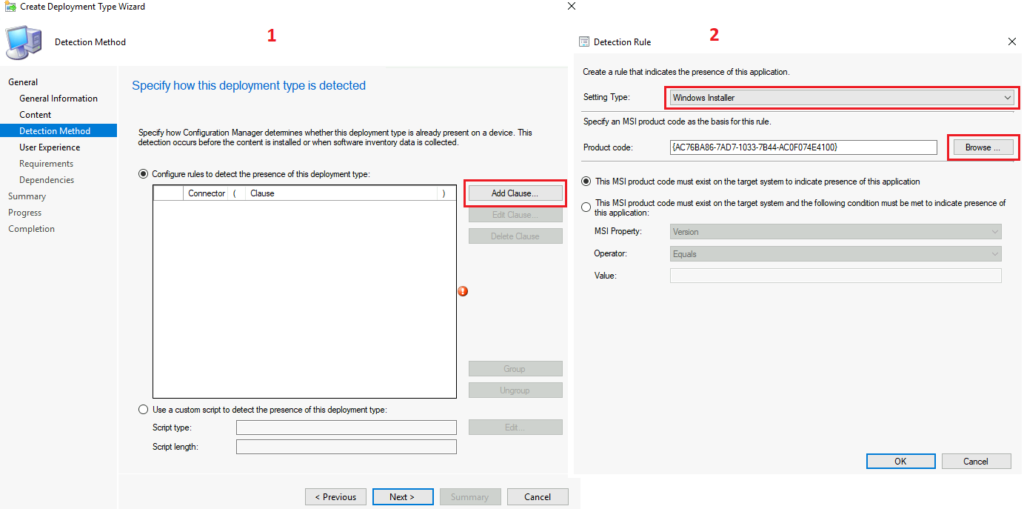
Specify the detection method for this deployment type. Setting Type – Windows Installer. Product Code – {AC76BA86-7AD7-1033-7B44-AC0F074E4100}
Click on OK. Click on NEXT to continue.
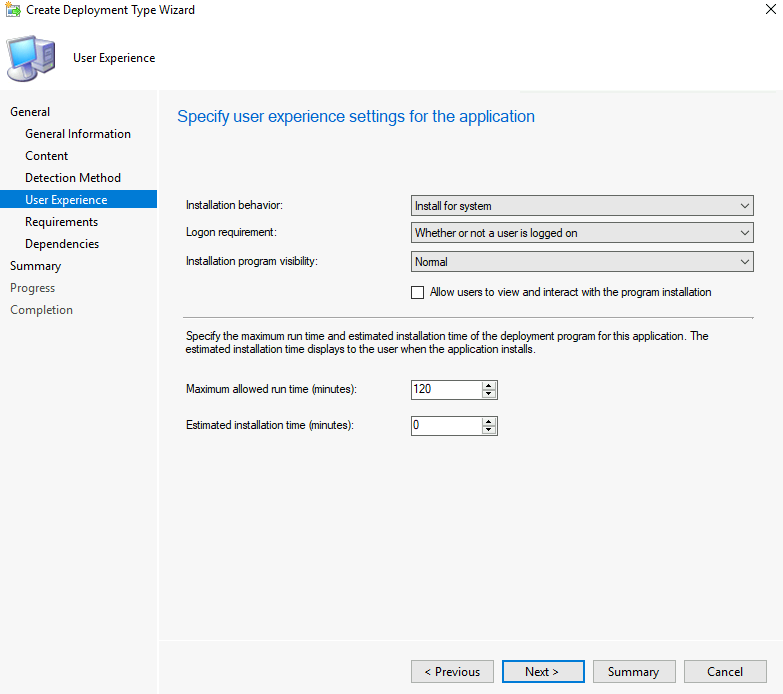
Specify the User Experience of this deployment type
Installation behavior – Install for the system. Logon requirement – Whether or not a user is logged on. Installation program visibility – Normal.
Click on NEXT to continue.
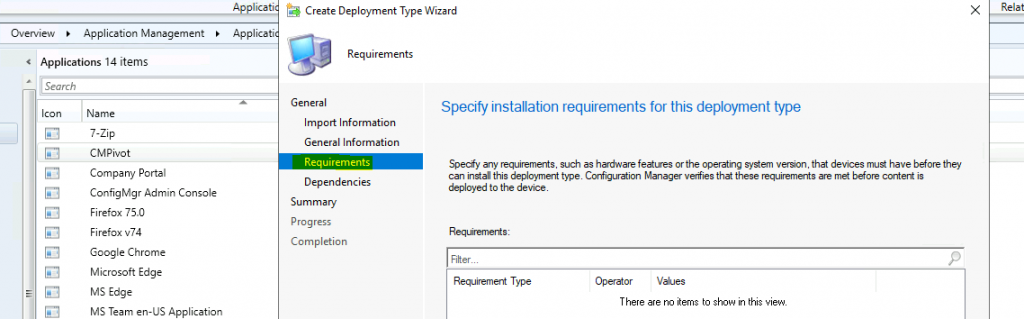
Click on NEXT to continue on the Requirements page
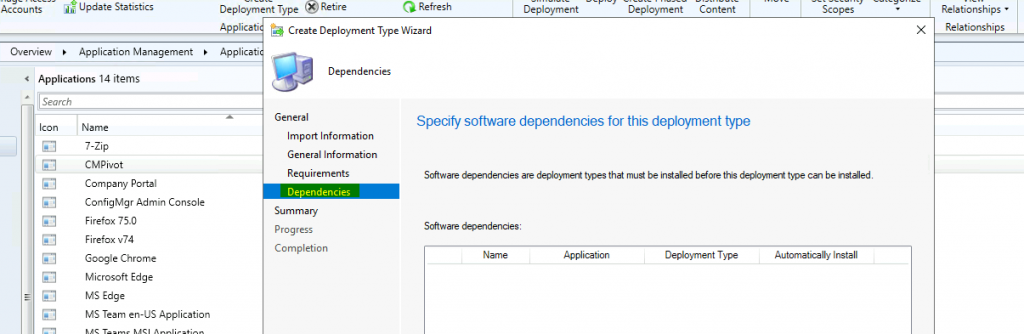
Select the Software Dependencies of the AdobeAcrobat DC application
Click the NEXT to Continue
Confirm the Settings of Teams Deployment configuration. Click on NEXT to continue. Click on CLOSE to complete the AdobeAcrobar DC Application Deployment type using SCCM. Click on NEXT to Continue.
Click NEXT, NEXT, and CLOSE to complete the application creation process.
Deploy Adobe Acrobat Using SCCM – Create and deploy the Adobe Acrobat application using SCCM.
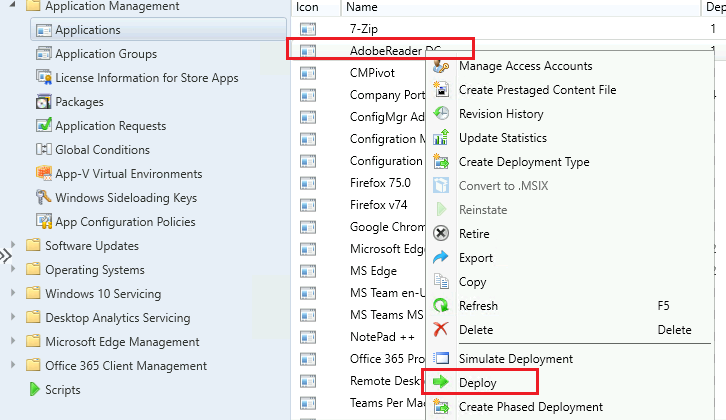
Navigate to \Software Library\Overview\Application Management\Applications. Right-click on the Adobe Acrobat application that we created in the above section.
Right-click and select DEPLOY.
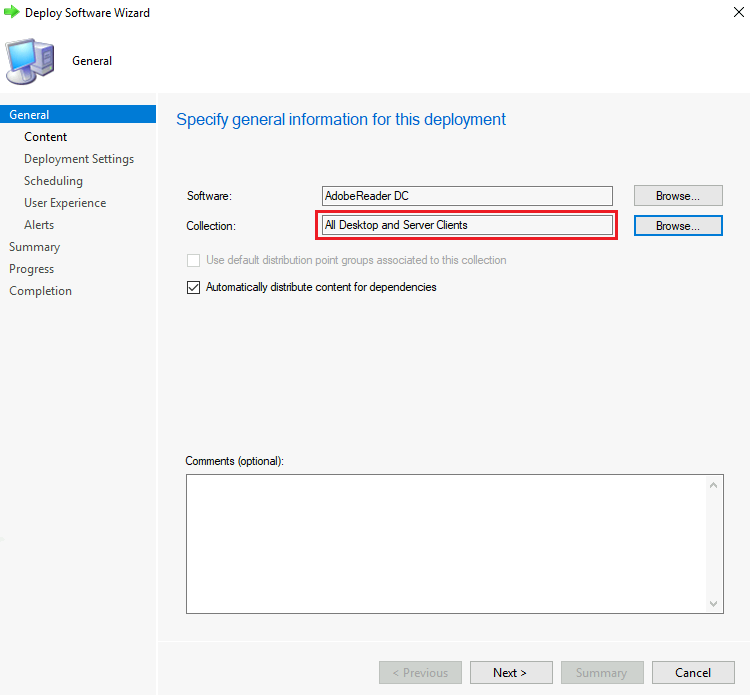
Click on the BROWSE button near Collection. Select the Device COLLECTION you want to deploy AdobeReader DC application.
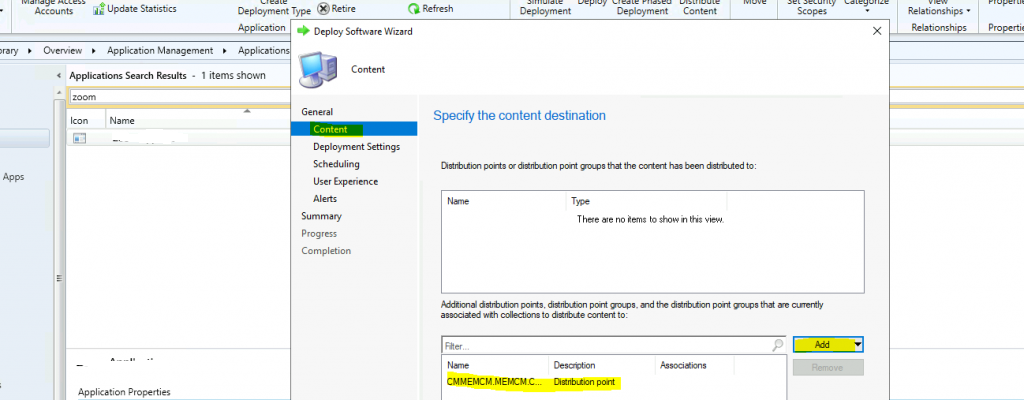
Click on the ADD button to distribute the Source files of the Teams application to the Distribution Point server.
Select the Distribution Point option.
Click OK to continue.
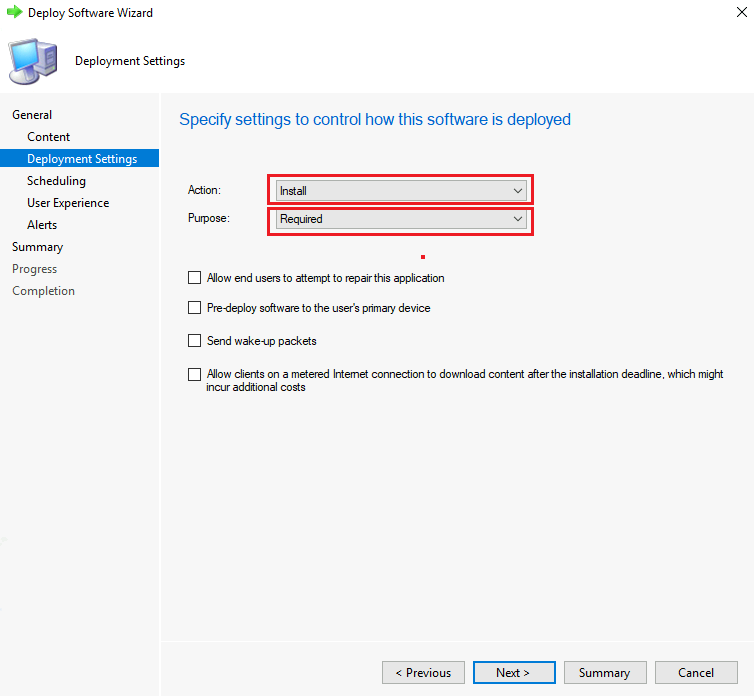
Click on NEXT to continue. Select the installation ACTION as INSTALL. Select the Purpose as REQUIRED.
Schedule the installation of the Adobe Acrobat application on Windows 10 devices.
Installation Deadline
Specify the date and time the application will be scheduled to be available. Also, set the date and time of the Installation Deadline.
Click on the NEXT button on the USER EXPERIENCE page. Click on the NEXT button on the ALERTS page. Click NEXT and Confirm the summary page. Click CLOSE to finish the deployment of Adobe Acrobat using SCCM.
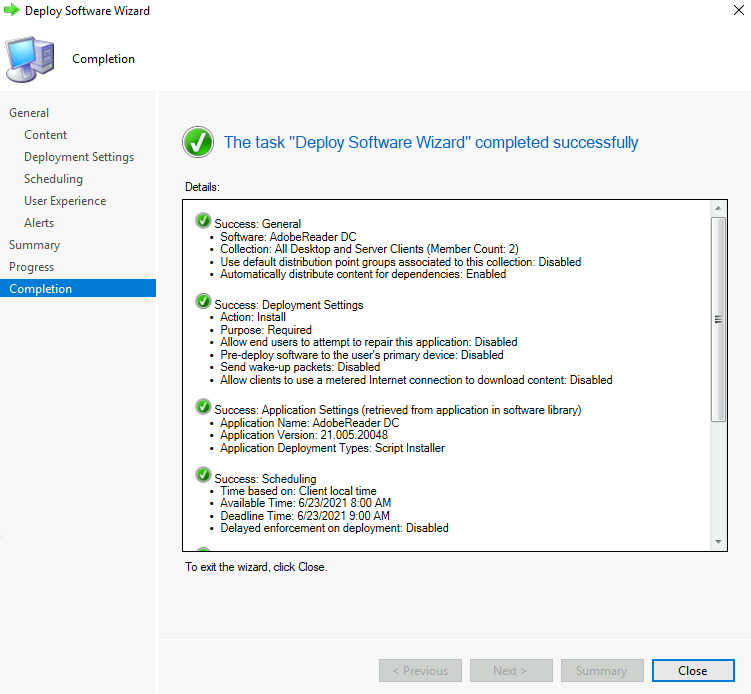
Results – Adobe Acrobat Application
Make sure the content is distributed to the DP. Software Center shows that the Adobe Acrobat application has been successfully installed on the Windows 10 Device.
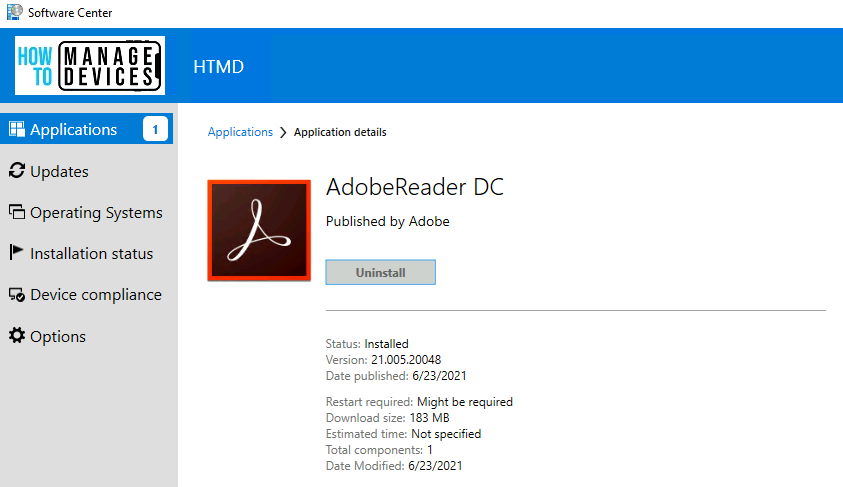
| Application | Application Details |
|---|---|
| Status | Installed |
| Version | 21.005.20048 |
| Date pubished | 6/23/2021 |
| Restart Required | Might be required |
| Dowload size | 183 MB |
| Estimated Time | Not specified |
| Total componenets | 1 |
| Date Modified | 6/23/2021 |
Also, verify the Adobe Acrobat installation status from the Program and Features.
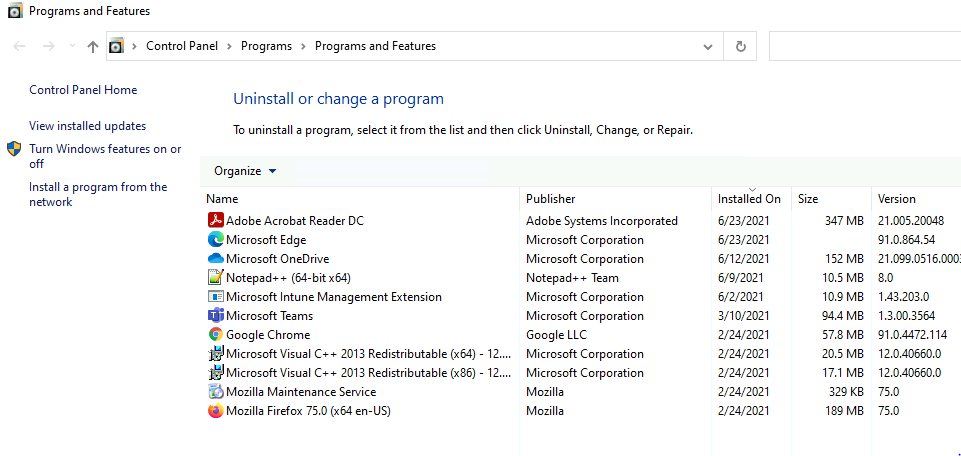
Verify the AppEnforce.log from this C:\Windows\CCM\Logs folder.

Details of the application that you created for Abode Acrobat.
+++ Application not discovered. [AppDT Id: ScopeId_1074285A-82C7-474F-B242-1EE20F8C3CE5/DeploymentType_e8a4f610-4f13-4d6d-bb31-c5c5fd13fd39, Revision: 1] AppEnforce 6/23/2021 9:21:01 AM 8900 (0x22C4)
App enforcement environment:
Context: Machine
Command line: "AcroRdrDC2100520048_en_US.exe" /sAll /rs
Allow user interaction: No
UI mode: 1
User token: null
Session Id: 4294967295
Content path: C:\windows\ccmcache\9
Working directory: AppEnforce 6/23/2021 9:21:01 AM 8900 (0x22C4)
Prepared working directory: C:\windows\ccmcache\9 AppEnforce 6/23/2021 9:21:01 AM 8900 (0x22C4)
Parsed CmdLine: "AcroRdrDC2100520048_en_US.exe" /sAll /rs AppEnforce 6/23/2021 9:21:01 AM 8900 (0x22C4)
Parsed CmdLine: "AcroRdrDC2100520048_en_US.exe" /sAll /rs AppEnforce 6/23/2021 9:21:01 AM 8900 (0x22C4)
Prepared command line: "C:\windows\ccmcache\9\AcroRdrDC2100520048_en_US.exe" /sAll /rs AppEnforce 6/23/2021 9:21:03 AM 8900 (0x22C4)
Parsed CmdLine: "C:\windows\ccmcache\9\AcroRdrDC2100520048_en_US.exe" /sAll /rs AppEnforce 6/23/2021 9:21:03 AM 8900 (0x22C4)
Post install behavior is BasedOnExitCode AppEnforce 6/23/2021 9:21:03 AM 8900 (0x22C4)
Raising ETW event 20001 AppEnforce 6/23/2021 9:21:03 AM 8900 (0x22C4)
Raised ETW event 20001 AppEnforce 6/23/2021 9:21:03 AM 8900 (0x22C4)
Process creation time: 2021-06-23 09:21:03:423 AppEnforce 6/23/2021 9:21:03 AM 8900 (0x22C4)
Current time: 2021-06-23 09:21:03:447 AppEnforce 6/23/2021 9:21:03 AM 8900 (0x22C4)
Actual elapsed time (in seconds): 0 AppEnforce 6/23/2021 9:21:03 AM 8900 (0x22C4)
Resources
- Create an application to deploy with Windows 10 using Configuration Manager.
- Deep Dive SCCM Application Model Troubleshooting – Client End
- Deep Dive SCCM Application Model Troubleshooting
We are on WhatsApp. To get the latest step-by-step guides and news updates, Join our Channel. Click here –HTMD WhatsApp.
Author
Anoop C Nair has been Microsoft MVP for 10 consecutive years from 2015 onwards. He is a Workplace Solution Architect with more than 22+ years of experience in Workplace technologies. He is a Blogger, Speaker, and Local User Group Community leader. His primary focus is on Device Management technologies like SCCM and Intune. He writes about technologies like Intune, SCCM, Windows, Cloud PC, Windows, Entra, Microsoft Security, Career, etc.




How to give the content location and installation program and product code can u explain that i need to deploy another application
i have the Adobe MSI and installs perfect however how do i put all the application shortcuts on the desktop?
thanks
CAN YOU SHARE THE LATEST ADOBE MSI LINK
REALLY APPERICIATE IF YOU SHARE