






SCCM Force Reboot After Patching Easiest Options ConfigMgr
In this post, I will explore SCCM Force Reboot After Patching Easiest Options ConfigMgr. Let’s check SCCM force reboot options after patching. Reboot options are available in client settings policies: Manier times, then reboot options after patching works by the maintenance window.
You can set the maintenance window configurations from SCCM collection properties. Maintenance windows can be used to avoid accidental force reboots and application installation during business-critical hours.
Windows 10 and Windows 11 reboot notifications(toast notifications) have been greatly improved. The notification settings are available from System > Notifications & actions.
However, when you use SCCM/Configuration Manager, the notifications should be configured through client settings.

Table of Contents
SCCM Force Reboot Options After Patching?
Let’s check the default client settings to control force reboot and notification delivered to Windows 10/ Windows 11 devices. All these notification and force reboot behaviors must be configured/managed through client settings.
- Launch Configuration Manager Console.
- Navigate to \Administration\Overview\Client Settings.
- Select the default client settings and go to properties.
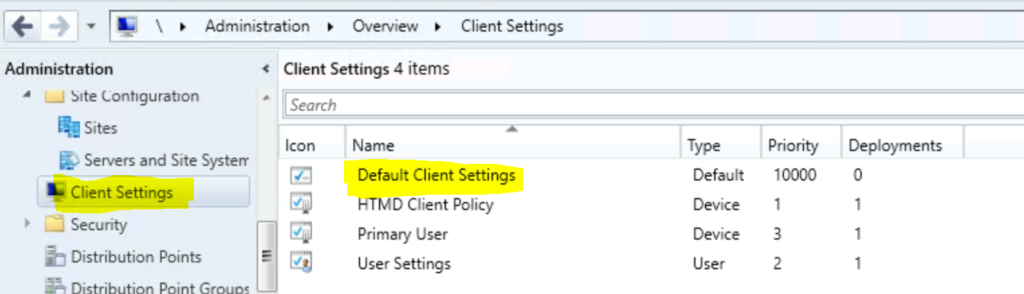
Now, let’s check the configurations to set up the SCCM force reboot after patching. You also need to check the Software Updates client settings configurations section. You can specify settings that apply to all clients in the hierarchy and can be modified by custom settings. You can specify restart behavior on client computers.
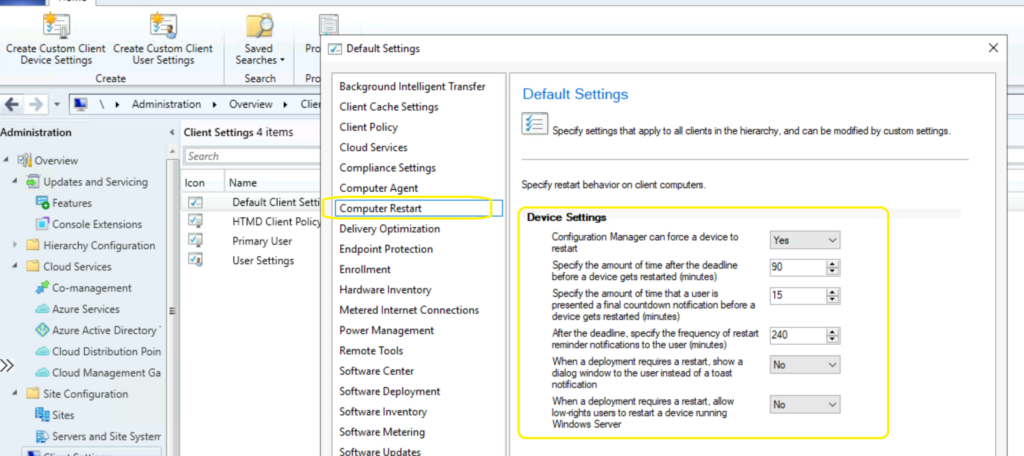
From the Computer Restart tab, you can configure the following settings. The following are the recommended/ default values. Most of these notifications and configurations are very mature if you compare them with WUfB settings in Intune.
| Client Settings for PC Restart | Value |
|---|---|
| Configuration Manager can force a device to restart | Yes |
| When a deployment requires a restart, show the user a diag window instead of a toast notification. | 90 |
| Specify the amount of time that a user is presented a final countdown notification before a device gets restarted (minutes) | 15 |
| After the deadline, specify the frequency of restart reminder notifications to the user (minutes) | 240 |
| When a deployment requires a restart, allow the low-rights user to restart a Windows server device. | No |
| When a deployment requires a restart, allow the low rights user to restart a Windows server device. | No |
- Top 50+ Latest SCCM Interview Questions and Answers
- Free SCCM Training 37 Hours of Latest Technical Content Lab Setup
- SCCM Application User Experience Options | Deployment Type
Patching Notification and Force Reboot Configs
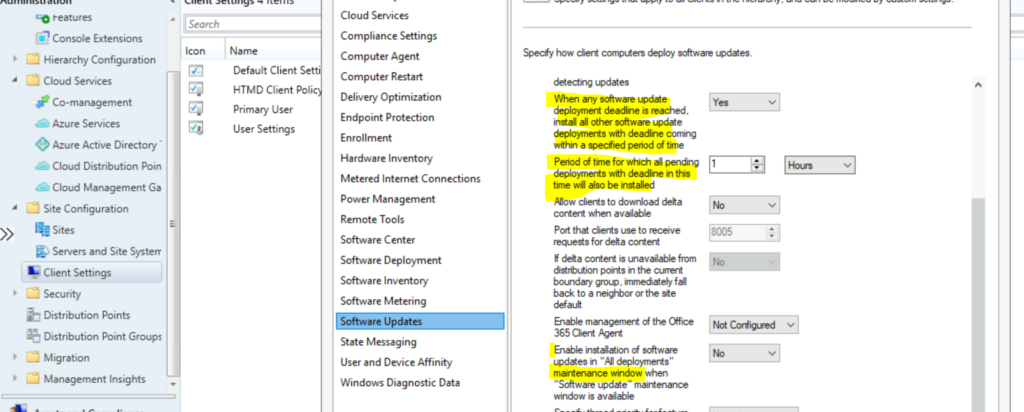
Now, let’s check patching(software update) notifications and force reboot configurations from the client settings tab called Software Updates. You can learn how to create and deploy a new software update patch package using SCCM. Let’s learn more details from the below section.
- Navigate to Client Settings -> Software Updates tab.
- The following are the default values of software update policies.
NOTE! These policies will not help configure and manage force reboot settings directly; however, these settings help provide a consistent user experience.
| Software Updates Deadline Settings | Default Values |
|---|---|
| Period of time for which all pending deployments deadline is reached, install all other software update deployments with the deadline coming within a specified period of time. | Yes |
| Period of time for which all pending deployment with deadline in this time will also be installed | 1 Hour |
| When the ” Software Update ” maintenance window is available, install software updates in the “All deployments” maintenance windows. | No |
Resources
We are on WhatsApp. To get the latest step-by-step guides and news updates, Join our Channel. Click here –HTMD WhatsApp.
Author
Anoop C Nair has been Microsoft MVP for 10 consecutive years from 2015 onwards. He is a Workplace Solution Architect with more than 22+ years of experience in Workplace technologies. He is a Blogger, Speaker, and Local User Group Community leader. His primary focus is on Device Management technologies like SCCM and Intune. He writes about technologies like Intune, SCCM, Windows, Cloud PC, Windows, Entra, Microsoft Security, Career, etc.




what if I have tick suppress option in ADR and in client setting force restart to yes. The client will restart or not in this case?
StaffI don’t remember on top of my head which one will take precedence here. I think I need to test to confirm this.
Hi!
I want some servers to be updated automatically and restarted (if needed) during a defined maintenance window (i have every workday 20-24h).
I got the problem, that updates are installed – but the servers don’t do the reboot.
What am i missing?
me too.
ADR runs and deploys. Software updates install during maint window but servers do not restart. they are left “pendingreboot”
Did you find the cause and a resolution?
Hello,
me too…no restart after updates…
Same problem, for me it worked after i defined MW. Good luck
Was this ever figured out?
Something to try…
Had an issue at one client where reboots didn’t happen on some systems.
It seems the notifications got stuck in to toast notifications and the users never saw this. Could possibly be fix by a GPO to show toast notifications.
However, for the sake of simplicity we changes the setting “show a diag window to the user instead of a toast notification” to yes and it appeared to have resolve the issue.
The default settings do not make sense to me at all. In the documentation (https://learn.microsoft.com/en-us/mem/configmgr/core/clients/deploy/device-restart-notifications#client-settings) for the setting
“After the deadline, specify the frequency of restart reminder notifications to the user” we can read
“This frequency duration value should be less than the value of Specify the amount of time after the deadline before a device gets restarted (minutes) minus the value of Specify the amount of time that a user is presented a final countdown notification before a device gets restarted (minutes). Otherwise, the reminder notifications won’t work.”
That means using the default values the value for “After the deadline, specify the frequency of restart reminder notifications to the user” needs to be smaller than 90min-15min.
But the default is 240, I question how this should work.