






SCCM Client Policy Polling Interval Define Custom Policy Interval ConfigMgr
Let’s check how to change the SCCM client policy polling interval for Windows 10 and Windows 11 PCs. The ConfigMgr (a.k.a SCCM) is a client-server architecture. You can define the client policy polling interval from the server side.
There are options to manually initiate client policy from Windows 10, Windows 11, or Server operating systems. You can also initiate client actions from the admin console using the notification channel. For more details, refer to the following post about Machine Policy Request.
I know there are many scenarios where we need custom policy polling intervals, and we will also discuss that in the sections below.
It’s important to understand the Hardware Inventory Collection Cycle and other important components of the SCCM client from ConfigMgr Client Component Status details.

Table of Contents
What is the SCCM Client Policy Polling Interval?
ConfigMgr Client Policy polling interval helps to define how frequently Windows client PCs check & download new client policy(s) if there are any. The SCCM client policy settings control how often the client checks in for policy updates.
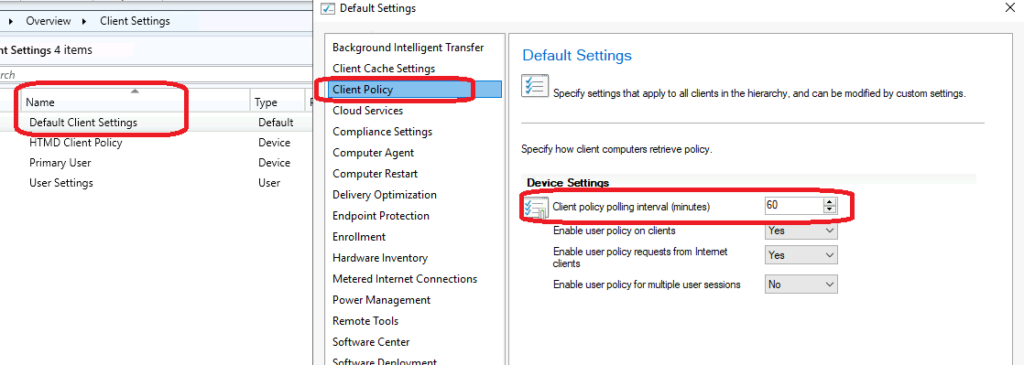
The default client policy polling interval is every 60 minutes. I suggest keeping the interval as default because that is the recommended value. However, you can customize policy intervals using the client settings.
- The default Client Policy polling interval is 60 minutes.
- SCCM Client Settings Custom Report With Priority Details Using SQL Query
- Easiest way to find Deployments targeted to a Collection in SCCM ConfigMgr
- FIX Windows Update issues for Windows 11 Errors Troubleshooting Tips
Custom Client Policy Polling Interval
The custom client policy polling interval is defined through client settings. I understand there could be several use cases where you will need more frequent policy checks and downloads. It’s ok to create a custom client settings policy to define the custom interval for policy polling.
It’s not recommended to edit the default client settings of a policy to create a custom policy polling interval. As mentioned above, the best practice is to create a custom policy. Now, let’s see how to create a custom policy polling interval for Windows 10 and Windows 11 clients.
- Launch Admin console.
- Navigate to \Administration\Overview\Client Settings
- Click on Create Custom Client Device Settings from the Ribbon menu.
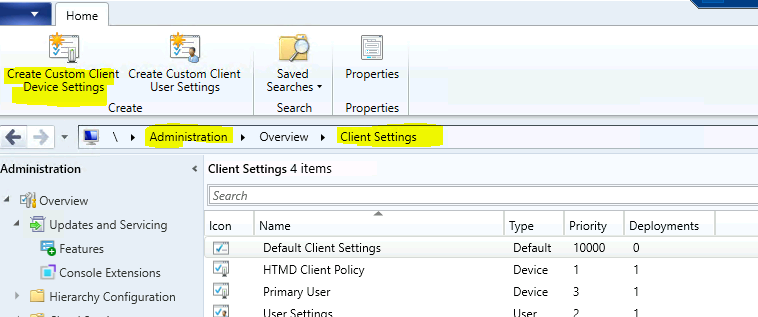
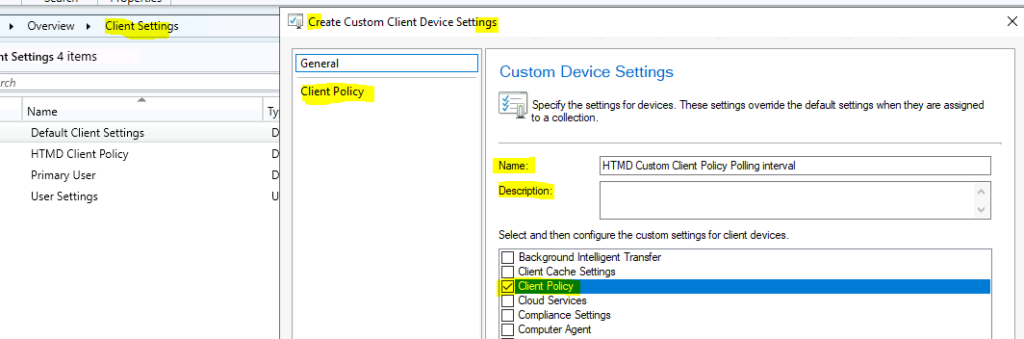
- Enter the Name of the policy -> HTMD Custom Client Policy Polling interval.
- Enter the Description of the policy.
- Select the Client Policy option. The client policy will now be listed on the left side of the Create custom client device settings window.
- Click on the Client Policy tab to configure the custom policies.
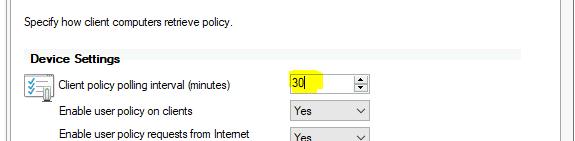
Now, you can change the client policy polling interval value in minutes to 30 minutes. This should be configured very carefully; I don’t recommend putting very short policy polling intervals. You can use very short intervals if you have a lab environment and want to test things quickly. Otherwise, it’s a big NO.
- Specify how client computers retrieve policy from the options below.
- Device Settings – We don’t need to change any other configurations in this example.
- Change the value of the Client Policy Polling interval (minutes) to 30.
- Click OK to save the settings.
Deploy Custom Client Device Settings
Now, it’s time to deploy a custom client policy polling interval using newly created Custom Client Device Settings. You need to decide on the set of devices this policy should go into and select the device collection to deploy.
You can see the client settings policies assigned to collections from the device or user collections node. A few days ago, I wrote a post about the same topic. You can refer to The best method to Find Custom Client Settings for a Collection.
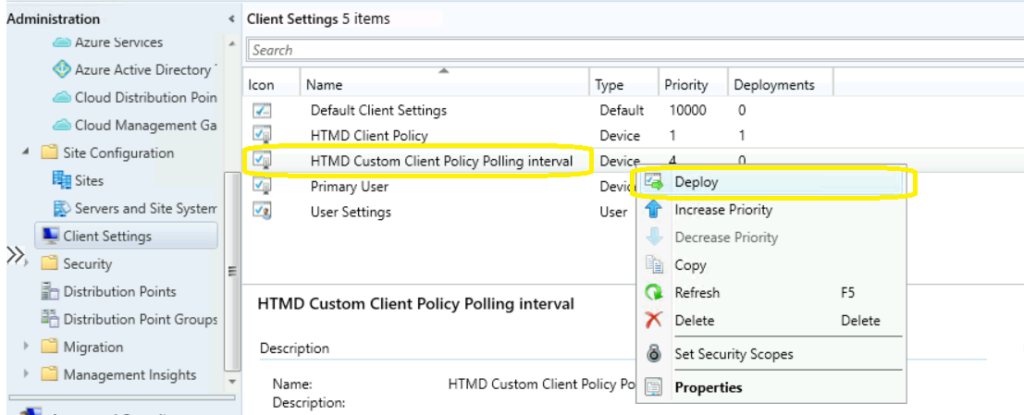
- Right-click on the policy that you have created and select Deploy.
- You can select a device collection to deploy this policy.
- Click OK to complete the deployment process for custom client device settings.
Manual Method to Initiate SCCM Client Policy Update Immediately
There are a couple or more options to manually initiate the SCCM client policy update if you don’t want to wait for the next policy polling interval. I will quickly share two prominent methods that you can use to initiate machine policy immediately on Windows PCs.
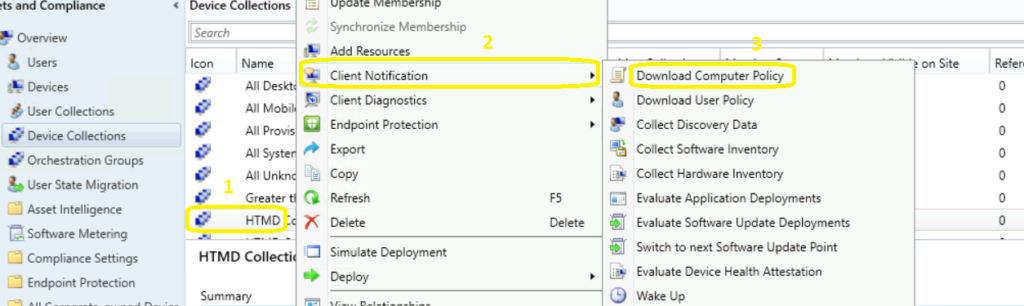
- You can use the SCCM admin console to initiate the client policy polling immediately.
- Right-click on any of the collections or devices and click on Client Notification.
- Select the Download Computer policy option to initiate the polling on a Windows 10 or Windows 11 client PC.
The previous blog post explains another option to initiate a computer policy from a Windows client and the background process of the machine policy cycle update. You can read more details from Machine Policy Request Evaluation Cycle Client Action.
Resources
We are on WhatsApp. To get the latest step-by-step guides and news updates, Join our Channel. Click here –HTMD WhatsApp.
Author
Anoop C Nair has been Microsoft MVP for 10 consecutive years from 2015 onwards. He is a Workplace Solution Architect with more than 22+ years of experience in Workplace technologies. He is a Blogger, Speaker, and Local User Group Community leader. His primary focus is on Device Management technologies like SCCM and Intune. He writes about technologies like Intune, SCCM, Windows, Cloud PC, Windows, Entra, Microsoft Security, Career, etc.




Discussion