






Create Windows 11 SCCM Device Collection Process
Let’s quickly check the process to create Windows 11 SCCM device collection. Microsoft released the 2107 version of Configuration Manager (a.k.a SCCM), which supports Windows 11 PCs. So, it’s worth creating a dynamic device collection for grouping all Windows 11 devices.
Grouping of Windows 11 PCs dynamically will help admins target applications and policies only to those devices. However, before going into further details of the creation process, let’s pause and analyze the best practices you need to follow while creating a dynamic collection.
You can create collections for Windows 11 PCs only when you install the SCCM client and it’s working fine. More details on How to Install SCCM Client on Windows 11 PC. Once the client is installed you can use any of the following WQL queries to build a dynamic collection for Windows 11 PCs.
Let’s have a quick look at the Windows 11 build numbers and version numbers. The Windows 11 version build number starts with 22000. I think it’s safe to assume that the build number is still supported in Windows 11 world, unlike the ReleaseID (deprecated).

SCCM Collections help to group users or devices. Here you are going to learn how to create Windows 11 Devices collection. Windows 11 is released in production now and you can have a look at Windows 11 version numbers to build collections.
- SCCM Collection Best Practices while Creating a Dynamic Collection
- Easiest Method to Create SCCM WQL Queries
- Verify SCCM Collection Query Preview Tool
- Windows 11 Upgrade Minimum System Requirements
- Latest Windows 11 ISO Ready to Download
Best way to Create Windows 11 SCCM Device Collection
Let’s have a look into the best options to create Windows 11 SCCM device collection. There are several ways to query all devices in your SCCM environment and select only Windows 11 devices. I think you will need to settle down with the optimized WQL query to build a collection for All Window 11 Devices.
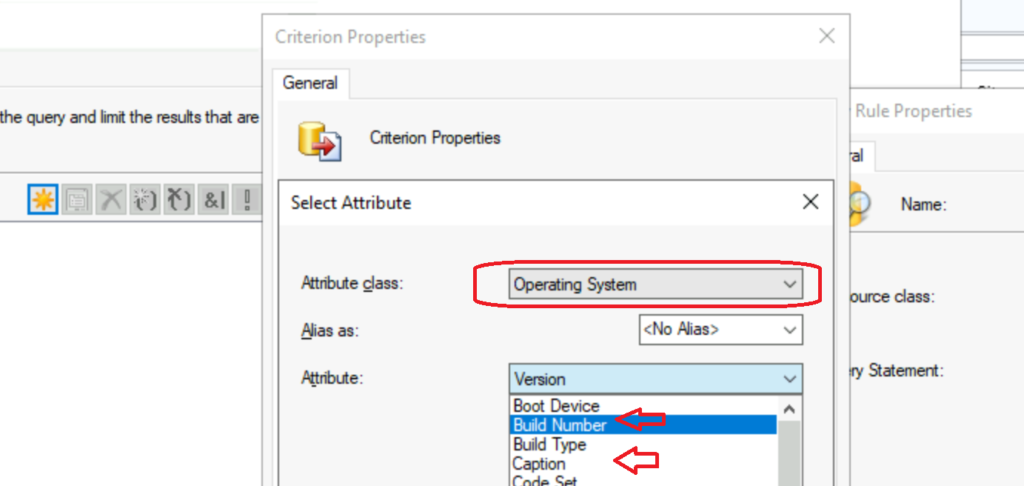
You can analyze the performance of the queries using different options in SMS_G_System_OPERATING_SYSTEM properties. The following is the list of options you have to build All Windows 11 device collection in SCCM. I think you will need to use Build Number or Caption properties to group all Windows 11 devices.
- Build Number -> Example for Windows 11 build version -> 22000
- Caption -> Example for Caption for Windows 11 -> Microsoft Windows 11 Enterprise
- Version -> Example for Windows 11 Full version number -> 10.0.22000.100
- Name -> Example for Name of Windows 11 OS -> Microsoft Windows 11 Enterprise|C:\WINDOWS|\Device\Harddisk0\Partition2
The Windows 11 version number property would be helpful to create an SCCM device collection of Windows 11 devices with a particular update or hotfix installed. I would avoid using the Name property because you might need to use the % symbol to filter things, which is not good for the performance of the WQL collection query.
Use Resource Explorer to Find Window 11 Device Properties
You can use SCCM resource explorer to find the details of Windows 11 device properties such as Build Number, OS Caption, or OS edition details.
- Navigate to \Assets and Compliance\Overview\Devices\ and select any one of the Windows 11 devices.
- Right-click on one of the devices and select Start and click on Resource Explorer.
- Navigate to Operating System tab on the left side to get the details of Windows 11 OS related details.
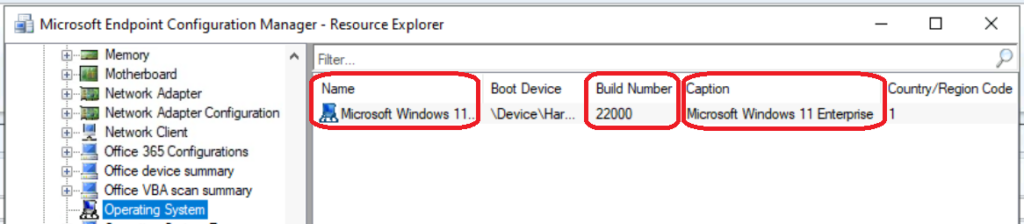
The following paragraph gives more details about all the Windows 11 operating system-related properties available in SCCM Resource explorer. These details along with column names help you to build an SCCM collection query for Windows 11 devices.
- Name = Microsoft Windows 11 Enterprise
- Build Number = 22000
- OS Caption = Microsoft Windows 11 Enterprise
- OS Vesion = 10.0.22000
Create All Windows 11 Devices Collections
Now, it’s time to learn how to create SCCM Windows 11 device collection (dynamic). The ConfigMgr Windows 11 Device Collection can be created using the following steps.
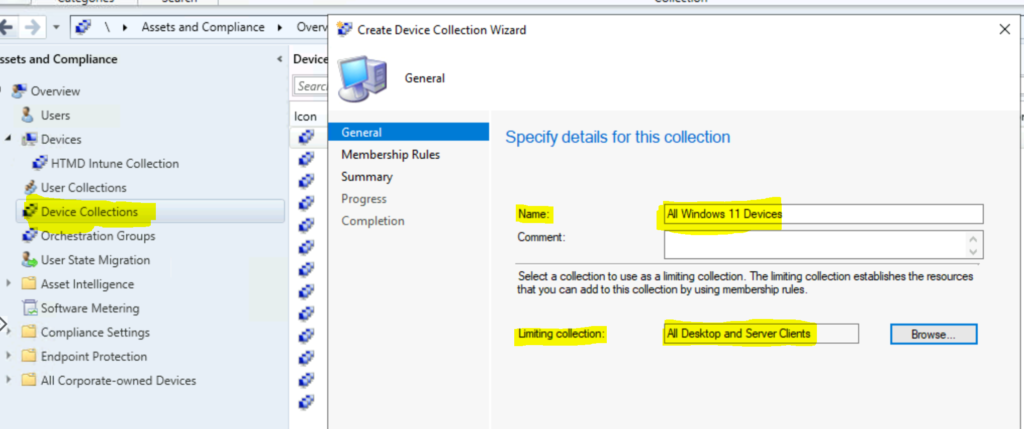
- Navigate to SCCM console – Assets and Compliance – Device Collections to create Windows 11 Device.
- Right-click and select “Create Device Collection” from the Device Collections node.
- From the General page, provide a Name and a Comment (optional).
- You can be limiting the collection; choose to Browse to select a limiting collection. The collection contains members from the limiting collection
- -> Avoid using All Systems collection as limiting collection.
- Click on the NEXT button.
On the Membership Rules page of the Create Device Collection Wizard, in the Add Rule list, select the type Query Rule membership rule for this collection.
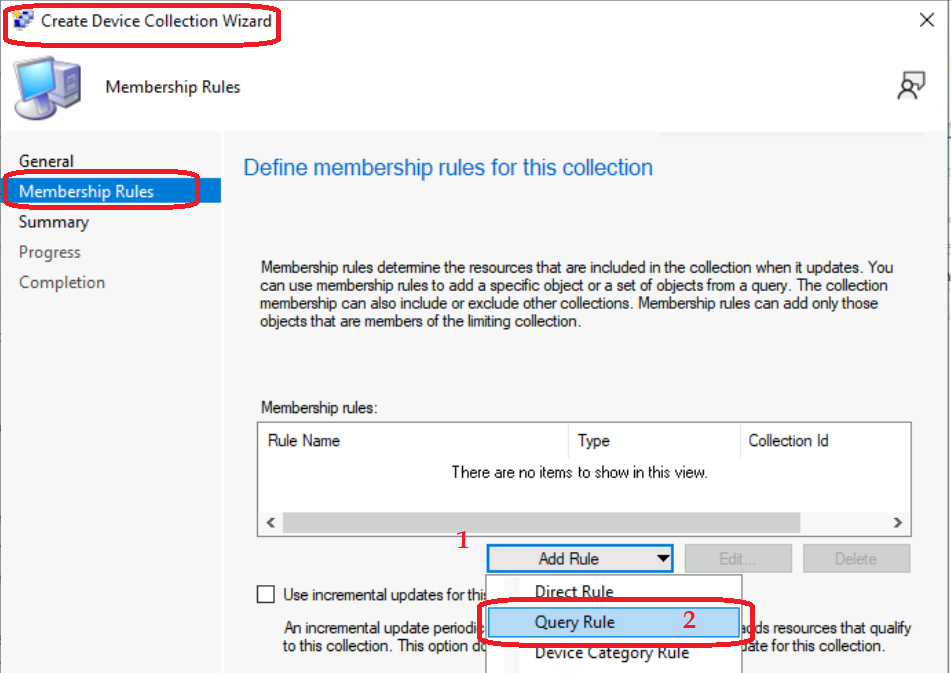
You can configure multiple rules for each collection if there is a requirement. This is not required for creating All Windows 11 device collections.
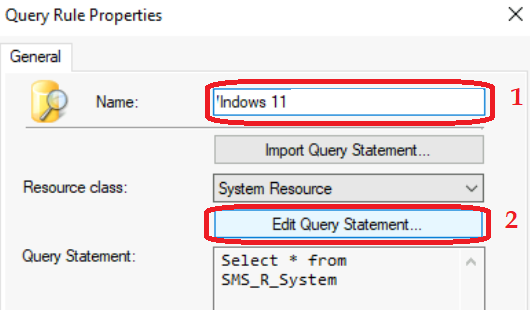
- Enter the name of the Dynamic query – All Windows 11 Devices.
- Click on Edit Query Statement to add All Windows 11 devices.
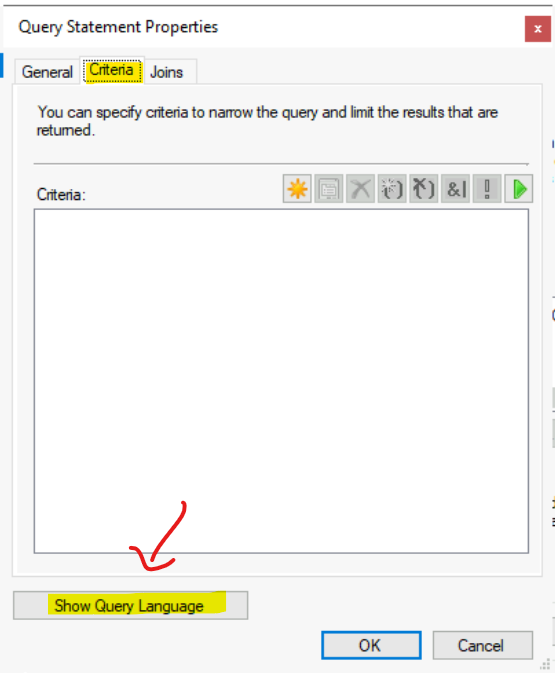
Click on the Criteria tab and then click on the show query Language button to create a new Criteria.
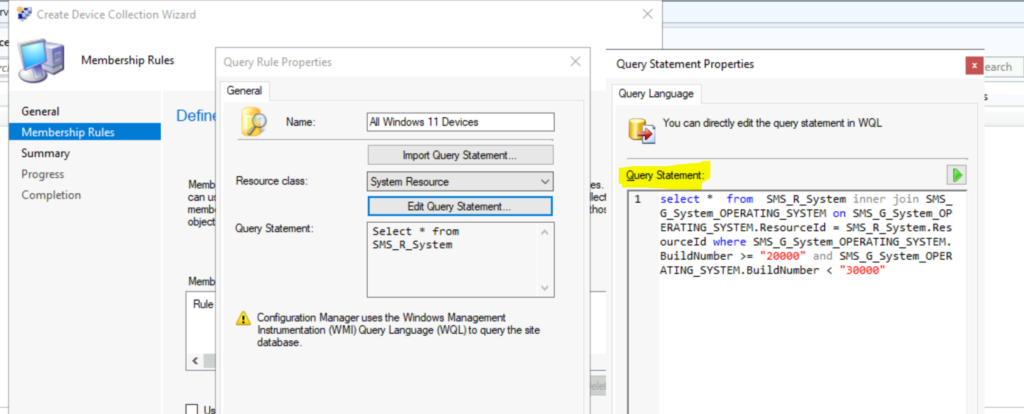
Copy any of the below WQL queries to build a query statement for grouping All Windows 11 Devices in your SCCM. Before that, you will need to decide whether you will use a WQL query based on the Build Number of the Windows 11 operating system or based on the Caption value of the Windows 11 Operating System.
SCCM Windows 11 Collection based on Build Number
I think this is the best query to create a collect all Windows 11 devices based on build numbers. You can also use the WQL based on Caption to group only the enterprise version of Windows 11 devices.
Windows 11 reports the Operating System property as Microsoft Windows NT Workstation 10.0, which is identical to Windows 10. To distinguish devices running Windows 11, use the Operating System Build device property for build number 10.0.22000 or later.

select * from  SMS_R_System inner join SMS_G_System_OPERATING_SYSTEM on SMS_G_System_OPERATING_SYSTEM.ResourceId = SMS_R_System.ResourceId where SMS_G_System_OPERATING_SYSTEM.BuildNumber >= "22000" and SMS_G_System_OPERATING_SYSTEM.BuildNumber < "30000" and
SMS_G_System_OPERATING_SYSTEM.Caption = "Microsoft Windows 11 Enterprise"
NOTE! – It seems Server 2022 operating system also follows the same build number 20348. Hence it’s better to add Caption also into the dynamic collection query.
Best SCCM Collection Query for Windows 11 21H2 Oct 2021 Version
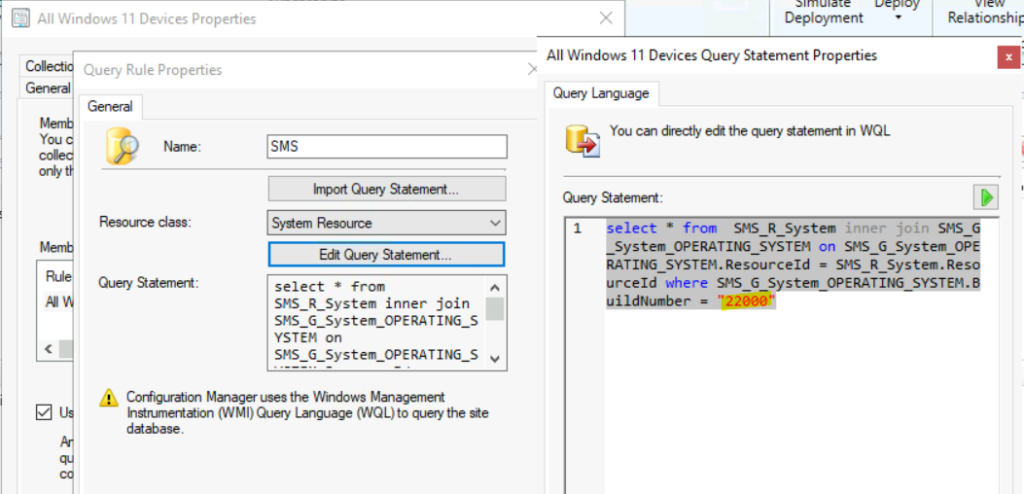
I think it’s better to create a collection for Windows 11 21H2 using the following WQL query. In the following query, I use the build number for Windows 11 OCT 2021 release (21H2). This is the best way to create Windows 11 Collection.
select * from SMS_R_System inner join SMS_G_System_OPERATING_SYSTEM on SMS_G_System_OPERATING_SYSTEM.ResourceId = SMS_R_System.ResourceId where SMS_G_System_OPERATING_SYSTEM.BuildNumber = "22000"
SCCM Collection Query using Windows 11 OS Caption
You can use caption property as another option to build the All Windows 11 Device collection. But, you need to be careful whether you need to include only the enterprise version of Windows 11 or plan to use both enterprise and professional versions of Windows 11. The following query covers only the Enterprise version.
select * from SMS_R_System inner join SMS_G_System_OPERATING_SYSTEM on SMS_G_System_OPERATING_SYSTEM.ResourceId = SMS_R_System.ResourceId where SMS_G_System_OPERATING_SYSTEM.Caption = "Microsoft Windows 11 Enterprise"Query Statement
Let’s copy any query statements and create a dynamic device collection for Windows 11 devices. I’m going to use Build number as an example in this post. You can click on Green Video like the button to evaluate the WQL query using the SCCM collection query preview tool.
- Click OK, OK, and Next button to continue to schedule option page of SCCM collection creation wizard.
Schedule Windows 11 Dynamic Device Collection
You can now configure the regular update options for Windows 11 device collection. The regular update of the collection with new Windows 11 devices is achieved through Schedule options.
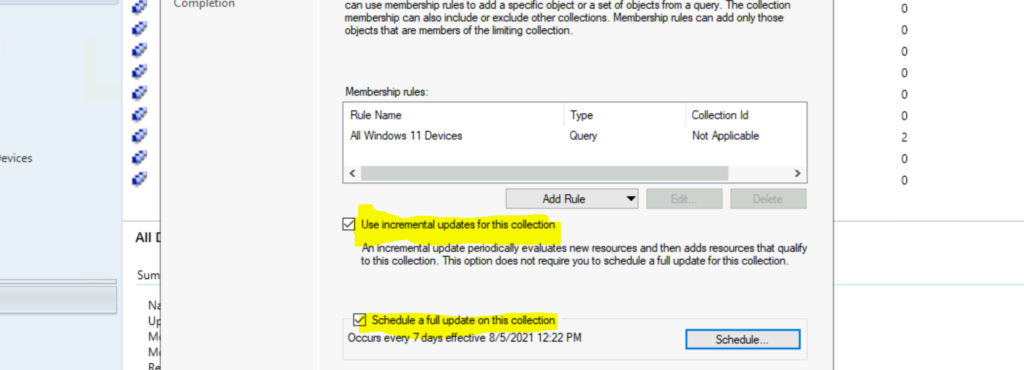
By default, the schedule is 7 seven days. However, in the real-world probably, you might need to change the schedule to get better results. You can click on the Schedule button to change the schedule and select the custom interval – Recur every – 1 – day. Click on the OK button to continue.
Note! – Don’t configure an aggressive schedule for updates. However, you will need to ensure that you have an automatic schedule to update the dynamic collections. Also, I think an incremental update option is good for All Windows 11 collections during the migration phase.
- Enable the following option – Use Incremental updates for this collection.
- Keep the default value – Schedule a full update on this collection – once in every 7 days.
- Click on the Next, Next, Close button to finish the creation of All Windows 11 Devices.
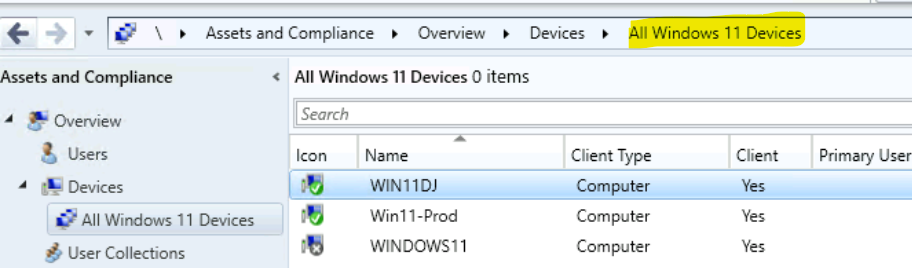
Results SCCM Collection for All Windows 11 Devices
You can check the SCCM Collection for All Windows 11 Devices contains all the Windows 11 devices or not using the following method.
Resources
- Windows 11 Version Numbers Build Numbers
- How to Configure Collection Size Limits for Task Sequence Deployment Settings | Configuration Manager | SCCM




The query does not consider non-English names, example from my company: ‘Microsoft Windows 11 企业版’ in result not covering all W11 devices. I use the following query:
select SMS_R_SYSTEM.ResourceID,SMS_R_SYSTEM.ResourceType,SMS_R_SYSTEM.Name,SMS_R_SYSTEM.SMSUniqueIdentifier,SMS_R_SYSTEM.ResourceDomainORWorkgroup,SMS_R_SYSTEM.Client from SMS_R_System where SMS_R_System.OperatingSystemNameandVersion like “%Workstation 10.0%” and SMS_R_System.Build like “10.0.22%”