






Create Cloud PC Azure AD Dynamic Device Group
Let’s quickly look into the options to create a Cloud PC Azure AD dynamic device group. Microsoft announced the general availability of Windows 365 Cloud PC on 2nd Aug 2021. The cloud PC is the personalized desktop solution offered by Microsoft.
The following steps to create Azure AD dynamic device groups are only for the LAB/testing environment. I’m sure soon Microsoft will introduce additional methods to identify and segregate Cloud PCs from other Physical and Virtual devices.
I don’t think creating a dynamic group and Intune assignment filters based on display name is an optimal solution for large-scale deployments. You can also use the Device Model property of Cloud PC or CloudPC. I think something similar to Groups tags in Autopilot properties is more reliable. You can also use the device model proper for Cloud PC Intune assignment filters as well.
Cloud PC Default Naming Standard
Let’s quickly understand the default naming standard of the cloud pc. The cloud PC naming standard is predefined, and there is no option to change the naming standard. I’m sure Microsoft will add more flexible options so that we don’t have to rely heavily on naming standards. Also, unique names are always helpful to avoid duplicate records and related issues, etc…

- The Cloud PC name starts with “CPC-“
- The second part of the name is taken from user ID -> anoopb
- The third part of the name is some random number? or am I missing something – “2-U7“
- Example – Full name of a Cloud PC = CPC-anoopb-2-U7

Cloud PC Azure AD Dynamic Device Group
Let’s have a quick look into an option to create an AAD dynamic device group for Cloud PCs. This guide will use the Display name property of the cloud PC’s AAD record to create a dynamic group.
NOTE! – Microsoft doc is updated with a better option to create Azure AD dynamic group for Cloud PC based on device model.
- Open portal.azure.com
- Navigate to Azure AD (Azure Active Directory) -> Groups – All Groups.
- Click on “+ New Group“.
- Select Security – Group Type from the drop-down option.
- Enter Group Name “HTMD Cloud PCs” (any name is fine).
- Enter Group Description “Group for Cloud PCs” (any description is fine).
- Select Dynamic Device as Membership type.
- Click on Add Dynamic Query under Dynamic Device Members.
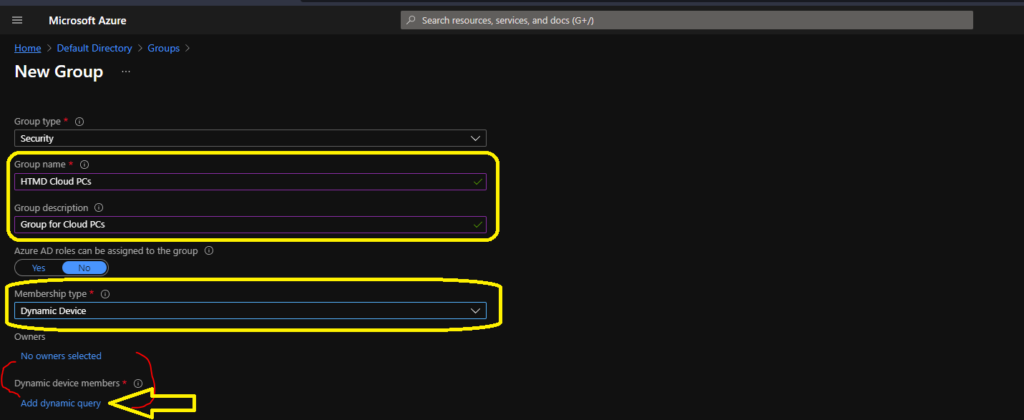
AAD Dynamic Groups for Cloud PC Business – Cloud PC
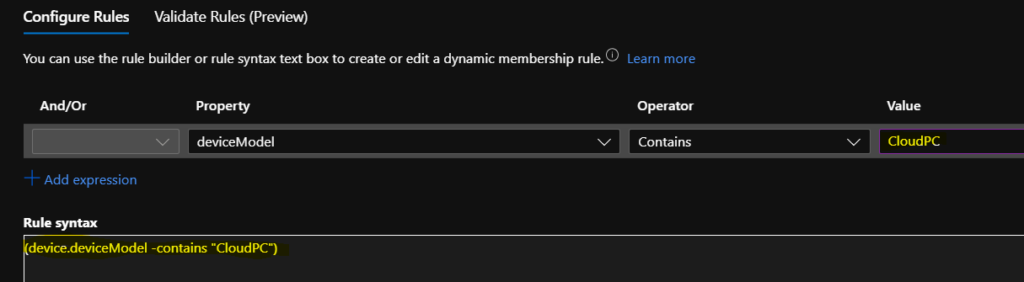
Hover over the properties column so that you get an option to select Azure AD dynamic device groups based on Cloud PC naming standards. Otherwise, you can also copy-paste the following query to create an Azure AD dynamic device for cloud pc.
- Property = “deviceModel”
- Operator = “Contains”
- Value = “CloudPC”
(device.deviceModel -contains "CloudPC")NOTE! – If you have a Cloud PC enterprise SKU, you might need to try to check the AAD query mentioned in the below section.
There is an option to validate the dynamic query, and it’s beneficial. I recommend using the validate rules options. Once you are confident about the AAD dynamic query rule, you can click on SAVE and CREATE button to complete the process of building Cloud PC (Windows 365) Azure AD dynamic device group creation.
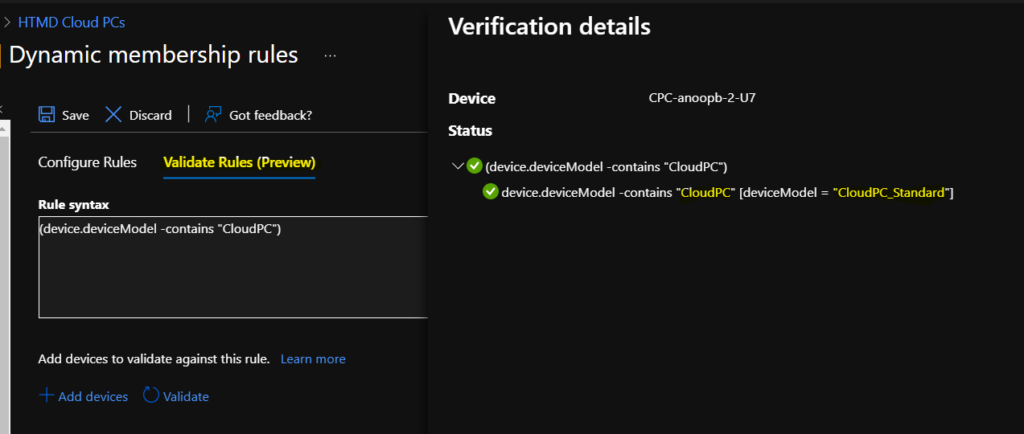
Azure AD Dynamic Device Group for Cloud PC Enterprise SKU
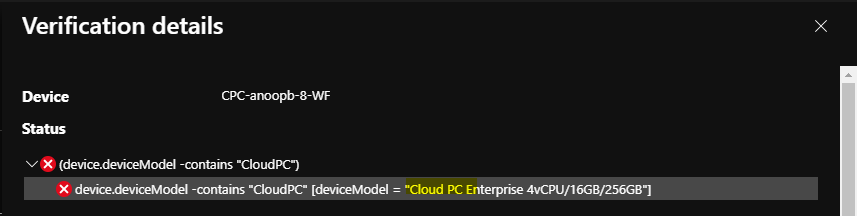
If you use the above query, then only the business SKU cloud PCs will get added to the AAD dynamic group. You can confirm this from validation details. Hence you must add enterprise SKU details also into the AAD query.
- Property = “deviceModel”
- Operator = “Contains”
- Value = “Cloud PC“
(device.deviceModel -contains "CloudPC") or (device.deviceModel -contains "Cloud PC")
NOTE! – It’s strange that Microsoft uses a different device model for different SKUs. Ideally, the model name should start with the same naming standards. For enterprise, it’s Cloud PC and for Business it’s CloudPC.
Results
You can check the results from the members tab of the HTMD Cloud PCs AAD dynamic group. Normally, the Azure AD dynamic device groups get updated within 5 minutes or so. However, Microsoft doesn’t have any SLA less than 24 hours for the AAD dynamic group auto-update process.
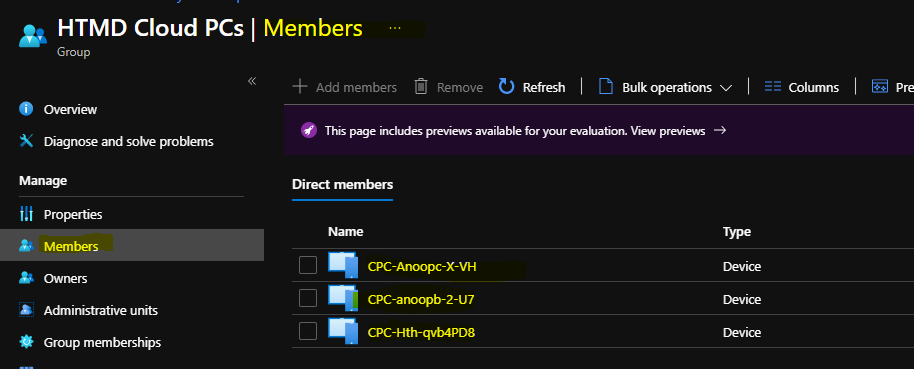
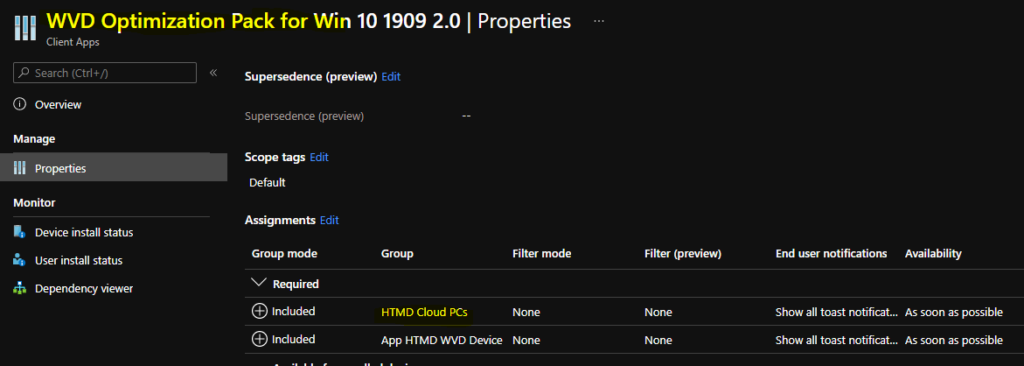
As part of test scenarios, you can use the dynamic device group to deploy specific optimization scripts or policies or applications from Intune to cloud PCs. You can also use Intune assignment filters to deploy policies/apps only to Cloud PCs.
Additional Support for Cloud PC Device Properties
I have raised a new Windows 365 feature request to support the Cloud PC device properties. This helps to target specific policies and apps to a specific group of devices. If you like the idea and want to see this option? Try to upvote.
NOTE! – There are more options to create Azure AD dynamic device groups. You can create Cloud PC dynamic groups based on the name of the provisioning policy. This is very helpful for the deployment of particular policies to a set of Cloud PC devices.
- Property = “enrollmentProfileName“
- Operator = “Equals”
- Value = “HTMD Users“
Resources
- Microsoft Cloud PC Overview
- Cloud PC Windows 365 FAQs Frequently Asked Questions AMA
- What is Windows 365 Cloud PC




Our Windows365 Device model was Virtual Machine. I did the validate step and Cloud PC didn’t work but it showed Virtual Machine inside of the brackets so I put that in the Value location and it worked.
So some Windows 365 Business PCs will have Virtual Machine as their device model.