






CMPivot Query to Find Windows 10 or 11 Devices from SCCM
Let’s try to use the CMPivot query to find Windows 10 or Windows 11 devices from SCCM. There are different ways to find Windows 11 or 10 devices from SCCM. CMPivot is one of the easiest and quickest ways to find the latest information about Windows 10 or 11 devices.
I have already shared tips about CMPivot Query to find Windows devices with the English Language. The CMPivot query to find Windows 10 devices quickly is useful to segregate Windows 11 and Windows 10 devices. I also share the different methods to find Windows 10 devices in this post.
If you are looking for a WQL query to create a collection to find Windows 10 or Windows 11 devices, then you can head over to the best practices blog post. You can also use the same CMPivot queries from the Microsoft Endpoint Manager portal to collect the same details about co-managed / Tenant Attached devices.
I will share the options to find out Windows 11 devices using SQL queries as well. You can get access to the free Windows 11 dashboard from the post SCCM Report for Windows 11 Dashboard. This dashboard gives you the version details along with the total number of devices in each version.

CMPviot Query to find out Windows 11 Devices
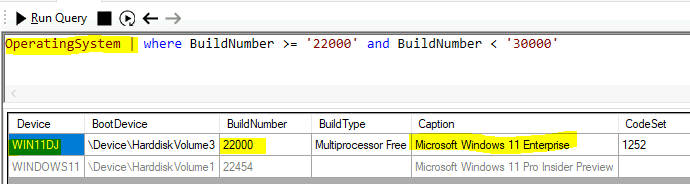
Let’s check the CMPviot Query to find out Windows 11 Devices using the build numbers. Windows 11 build numbers are based on the 22000 series. You will need to use this build number to find out the list of Windows 11 devices in your SCCM environment.
The basic details of SCCM CMpviot and how to launch CMPivot are not covered in this post. Let’s have a quick look at the SCCM CMPivot query for Windows 11 devices using the build number in this section.
The starting build number for Windows 11 is “22000” and maximum the build number for Windows 11 could go up to “30000” (I assume).
Launch SCCM CMPivot using any of the preferred methods (I like to launch it from a specific device collection) and use the following query to find out the Windows 11 devices.
OperatingSystem | where BuildNumber >= '22000' and BuildNumber < '30000'You have options to export the list of Windows 11 devices into CSV format and then to Excel, etc. You can filter Windows 11 devices based on Caption also. More details are below.
List Window 11 Devices using SCCM CMPivot Query based on OS Caption
Let’s list down Window 11 Devices using SCCM CMPivot Query based on OS Caption. Operating System “Caption” is one of the fields available with the SCCM CMPivot entity called OperatingSystem.
I have used the caption options for Windows 11 – Microsoft Windows 11 Enterprise, Microsoft Windows 11 Education, and Microsoft Windows 11 Pro Insider Preview
OperatingSystem
| where Caption == 'Microsoft Windows 11 Enterprise'
or Caption == 'Microsoft Windows 11 Eduation'
or Caption == 'Microsoft Windows 11 Pro Insider Preview'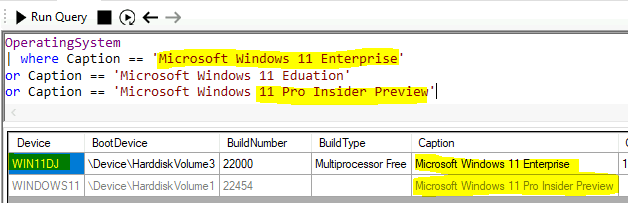
CMPivot Query using Window 10 Build Number
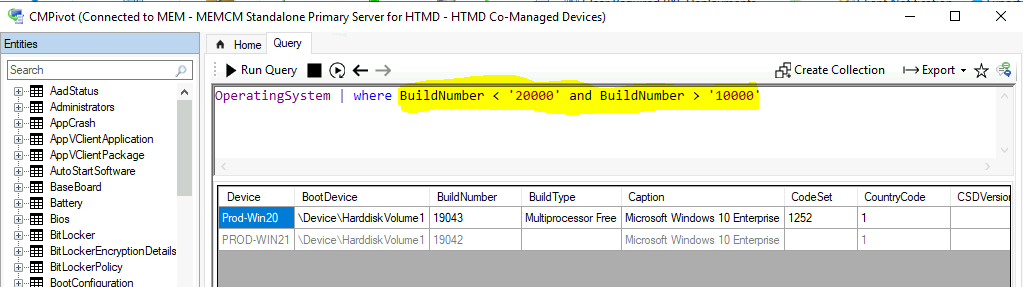
You can use the following query to find Windows 10 devices. This query is using the same logic that I used in the above-mentioned blog post. The main logic behind this query is the maximum and minimum build numbers of Windows 10.
- Maximum build number for Windows 10 will less than 20000 for sure(?yes).
- Minimum build number for Windows 10 is greater than 10000.
You can launch the CMPivot tool from the console or as a standalone tool. Select any device collection, and Run CMPivot button from the ribbon menu to launch CMPiovt. You can click on the query tab and paste the following query.
OperatingSystem | where BuildNumber < '20000' and BuildNumber > '10000'NOTE! – You can see the results in the below screenshot. One is highlighted in bold, and the other record is with normal color. Well, it seems CMPivot can now show the basic details of OFFLINE PCs as well. PROD-WIN21 PC is offline for many days but still shows up in Windows 10 CMPivot query.
CMPivot Query based on Caption for Windows 10
Let’s quickly check the way to find out Windows 10 or Windows 11 devices using CMPivot query based on Caption of the operating system. This query will collect the devices with Windows 10 Enterprise version.
If you manage devices with some other versions of Windows 10 like education, you will need to change this query to Microsoft Windows 10 Education.
OperatingSystem | where Caption == 'Microsoft Windows 10 Enterprise'
OperatingSystem | where Caption == 'Microsoft Windows 10 Education'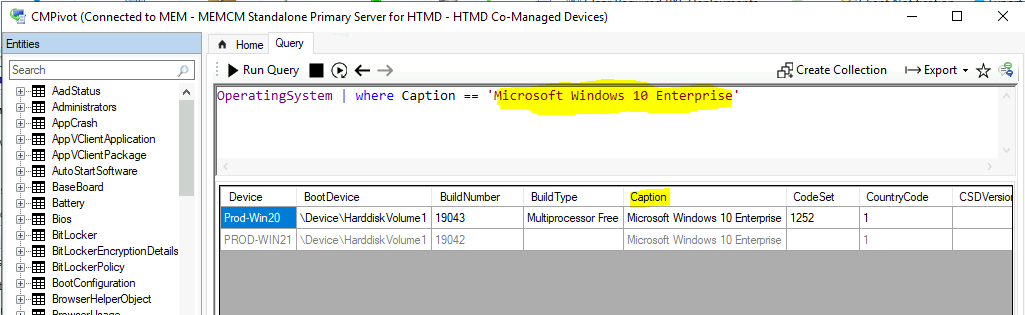
Graphical Represenation using CMPivot query
You can create some graphical representation of the Windows 10 data using the CMPivot tool and query. Some of the other default options to render graphs are not supported for the Count () function. The following examples help you produce the total count of Windows versions within SCCM, and it will be represented as a bar chart, column chart, or pie chart.
OperatingSystem | summarize count() by Caption | render barchart
OperatingSystem | summarize count() by Caption | render columnchart
OperatingSystem | summarize count() by Caption | render piechart
Following is another quick query is to find Windows build numbers available in SCCM. You can check the different build numbers available in your SCCM infra. I don’t know how much useful information is this. However, if you run this query against all Windows 10 devices collection, then it’s useful for sure.
OperatingSystem | summarize count() by BuildNumber | render piechart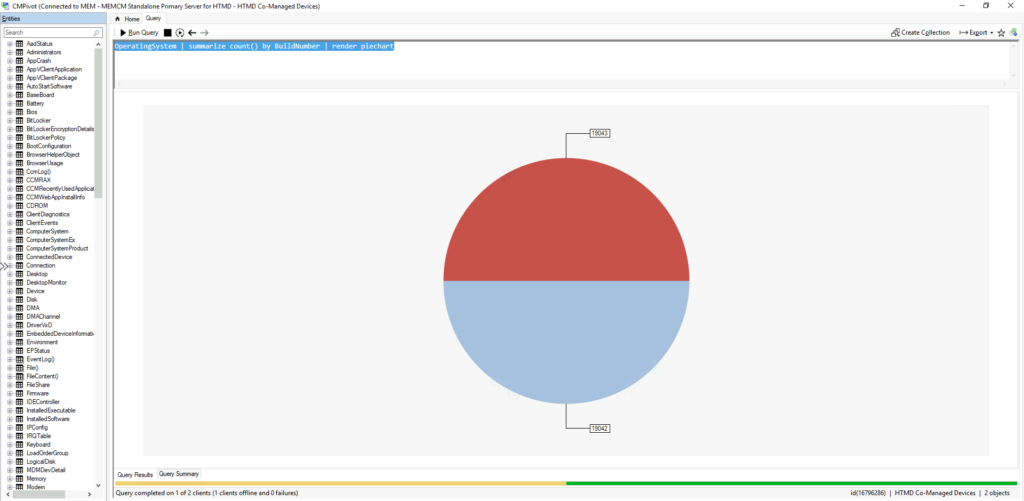
SQL Query to Find out Windows 11 Devices
Let’s try to use the following SQL query to find out Windows 11 devices. You can go through the following steps to get the list of Windows 11 devices in your environment.
- Open the SQL Management Studio.
- Connect your Database Engine.
- Right Click on your database CM_XXX and click on ‘New Query’
- Copy the following SQL query to find the report to get the list of Windows 11 PCs.
- Click on the Execute button.
select v_R_System.Name0 as 'Hostname',
v_R_System.User_Name0 as 'Username',
v_GS_OPERATING_SYSTEM.Caption0 as 'Operating System',
v_GS_OPERATING_SYSTEM.BuildNumber0 as 'Build Number'
from v_r_system
inner join v_gs_operating_system
on v_R_System.ResourceID=v_GS_OPERATING_SYSTEM.ResourceID
where v_GS_OPERATING_SYSTEM.BuildNumber0 >= '22000' and v_GS_OPERATING_SYSTEM.BuildNumber0 < '30000'
order by v_R_System.Name0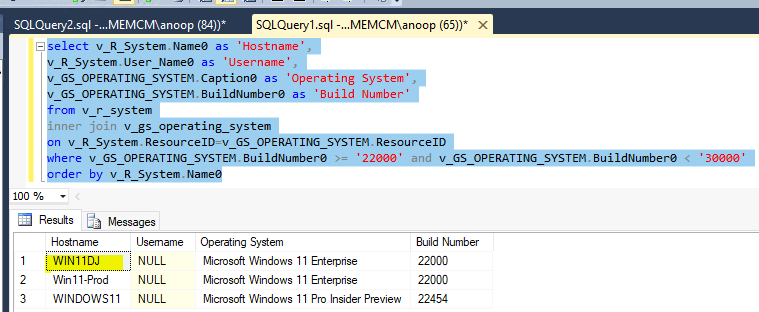
Resources
- How to Collect Intune Error Details using SCCM ConfigMgr CMPivot Best Option
- CMPivot for real-time data in Configuration Manager
- Collect Hardware Hash From SCCM For Autopilot Easiest Method HTMD Blog (anoopcnair.com)




Discussion