






Collect Hardware Hash from SCCM for Autopilot Easiest Method
Let’s have a look at the options to collect hardware hash from SCCM for Autopilot import. The easiest way to get this information is shared in the post—all the credit to excellent share by Wolfgang Sauer. There are many other ways to get the hardware hash information from SCCM, but I will share the CMPivot query method.
You can collect the hardware hash from the SCCM database using a simple CMPivot query. I don’t think the devices should be hybrid Azure AD joined or co-managed to get these hardware hash from SCCM. Also, you don’t have to enable any additional hardware inventory class for this method.
The unique serial number of each device hardware is already collected and stored in SCCM DB as part of the default inventory reports. Window Autopilot related information is already available as part of SCCM default hardware reports.
Collect Hardware Hash using CMPivot
Let’s check how to use CMPivot to collect the hardware hash from SCCM (A.k.a ConfigMgr). You can follow the steps below to get the hardware hash details from all the online SCCM devices. You can also check why some of your PCs are offline in SCCM.

- Launch Admin Console
- Navigate to device collection.
- Select any device collection that you want to collect the Hardware hash.
- Right-Click on Device collection.
- Select Start CMPivot.
NOTE! – You can also launch CMPivot from the ribbon menu as well.
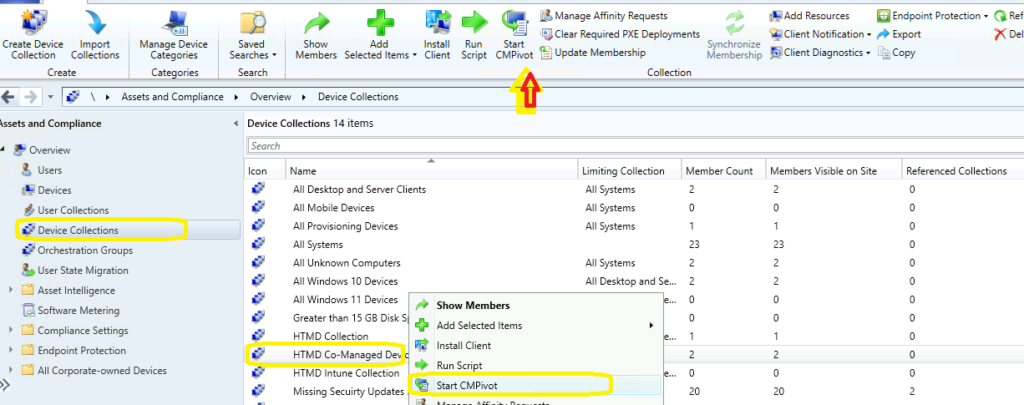
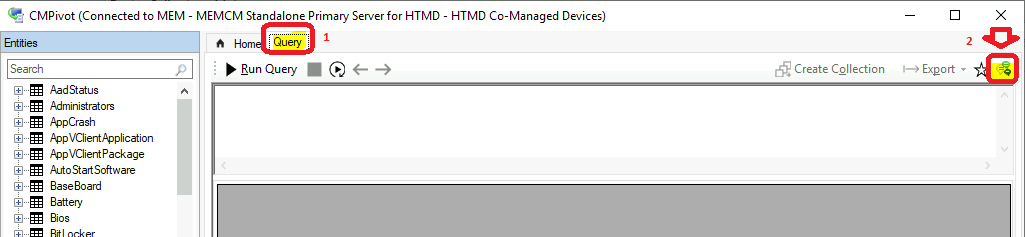
Once you are in the CMPivot application, you can follow the steps mentioned below to run the CMPivot query to get the Hardware hash of all the devices from SCCM for Autopilot upload.
- Click on the Query tab.
- Click on Community hub icon on the far right top corner (I’m using SCCM 2107 version).
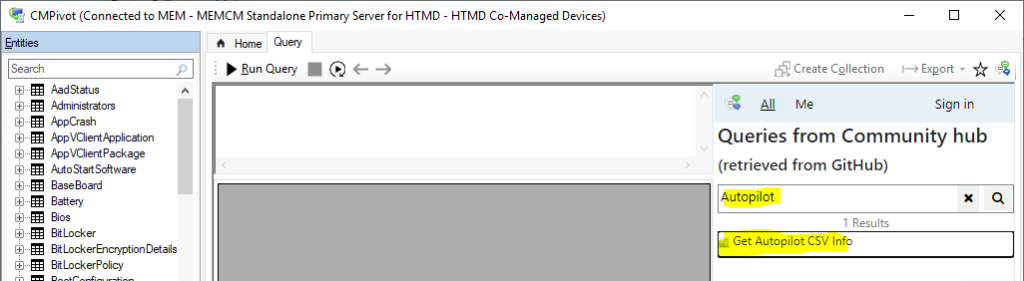
Select the following query from the list of queries published in Community Hub. The CMPivot query name is “Get Autopilot CSV Info.” You can use the search option to filter it from all other queries. Normally it takes some time to fetch the details from GitHub. So don’t get panic!
You can click on the CMPivot query to Get Autopilot CSV Information from SCCM. Once you click on the query, it will get displayed in the CMPivot query field. Thanks to WolfgangSauer (Wolfgang Sauer) (github.com) for sharing this query.
- You can run the query to get the hardware hash details of SCCM managed devices. Also make sure you go through the comments in the query to create an CSV file that is ready for Autopilot upload.
- Create an empty CSV file
- Add this CSV header (remove quotation marks): “Device Serial Number,Windows Product ID,Hardware Hash”
- Copy / paste the content of a single CSVLine cell to the CSV file and upload it to Autopilot.
Bios
| project Device, SerialNumber
| join (MDMDevDetail) | project Device, CSVLine=strcat(SerialNumber, ',,', DeviceHardwareData)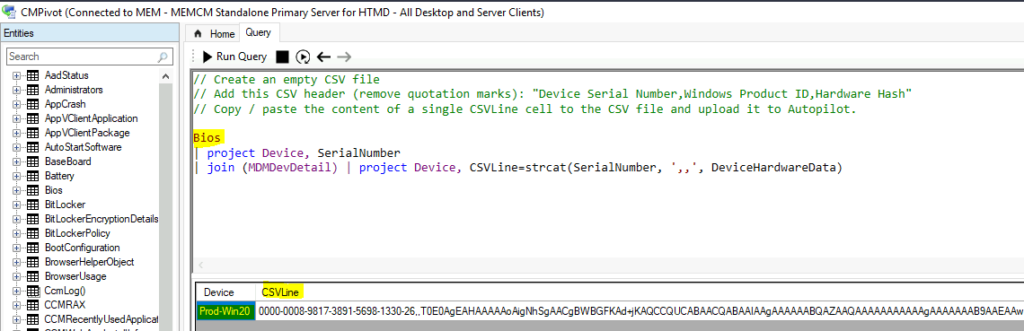
Download the CMPivot Query
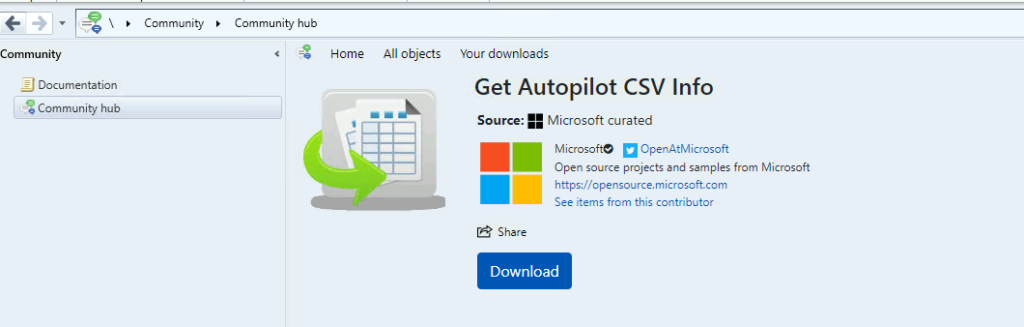
I don’t think you need to download the CMPivot query from Community Hub anymore because you can directly get all the queries from the CMPivot application itself. But just in case you want to know what a Community hub is and what the options to download the CMPivot query are? Here is the option:




Hi Anoop,
It is an excellent article. But I tried to edit the .csv as you have mentioned but still I’m unable to import due to error “Incorrect headers, cannot proceed further”
When I execute the powershell in a PC i get the below header which works fine. But from CMPivot result it shows me a error.
“Device Serial Number,Windows Product ID,Hardware Hash,Order ID”
Thanks
Narayanan
Format the file as ASCII/ANSI, don’t use Excel or other editors unless you know how to keep the output as ASCII/ANSI text. UTF-8 is a problem, per Microsoft. I haven’t had any issues with my imports, but figured I’d pass this along since reading it in MS documentation recently.
Incorrect header is likely referring to the file header, not the data header. Our company uses Titus Classification and that will cause this error. You can’t see it in the file but it is present and errors. A work around is to only open and edit in Notepad or use a computer that isn’t shackled :-).
If you want to Include/use -GroupTag in the csv file then below command will work. I have used Hybrid as a group tag and you may change it based on your requirement
==================================================================
Bios
| project Device, SerialNumber
| join (MDMDevDetail) | project Device, CSVLine=strcat(SerialNumber, ‘,,’, DeviceHardwareData, ‘,Hybrid’)
==================================================================
I’ve created a version using an Intune PowerShell script.
https://wolfgangontheroad.wordpress.com/2024/02/25/get-autopilot-hash-with-intune/
Wolfgang