






Create Windows 365 Cloud PC Assignment Filters in Microsoft Intune
Key Takeaways
- Simplifies app and policy targeting for Windows 365 Cloud PCs without creating additional Microsoft Entra ID dynamic device groups.
- Reduces administrative overhead by using built-in device properties to identify Cloud PCs during deployments.
- Prevents unwanted applications, configuration profiles, and policies from being deployed to Windows 365 Cloud PCs.
- Improves deployment accuracy by including or excluding Cloud PCs based on assignment filter rules.
Let’s quickly check how to Create Windows 365 Cloud PC Assignment Filters in Microsoft Intune. Microsoft Intune Assignment Filters provide a flexible way to target or exclude specific devices from app, policy, and profile deployments without creating additional Microsoft Entra ID device groups. For Windows 365 Cloud PCs, filters make it easy to distinguish Cloud PCs from physical Windows devices based on built-in device properties such as the device model.
Table of Contents
Create Windows 365 Cloud PC Assignment Filters in Microsoft Intune
This simplifies deployment management and helps administrators apply configurations only to the intended devices. Windows 365 Cloud PCs can be identified in Intune using device properties such as the device model. Creating an assignment filter for Cloud PCs allows organizations to control how apps and policies are deployed across physical devices and Cloud PCs, ensuring that only the intended devices receive specific configurations while reducing unnecessary deployments. In this post, you will learn how to create Intune filter rules for Windows 365 Cloud PCs.
- Intune Filters For Assigning Apps Policies And Profiles In Intune Portal
- Intune Filters for Azure Virtual Desktop VMs
- MEM Intune: Create Assignment Filters for Azure Virtual Desktop Single Session Windows 10 | AVD
Create Intune Filter Rule for Cloud PCs
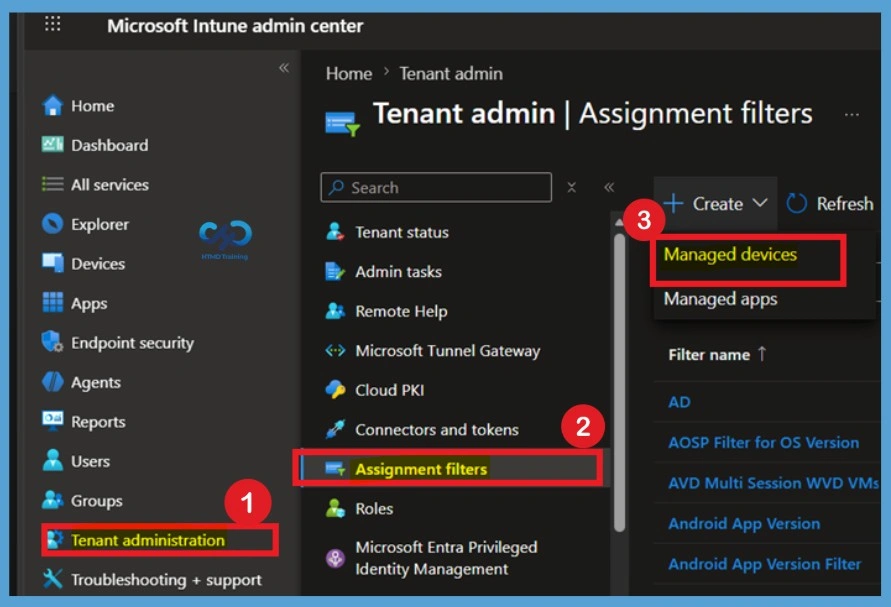
To create a new assignment filter, sign in to the Microsoft Intune admin center and navigate to Tenant administration > Assignment filters. Click Create and select Managed devices to create a filter that can be used for device-based app, policy, and profile assignments. The Managed devices option allows you to define filter rules based on device properties.
- Sign in to the Microsoft Intune admin center.
- Select Tenant administration > Filters.
- Click on + Create button to start the process.
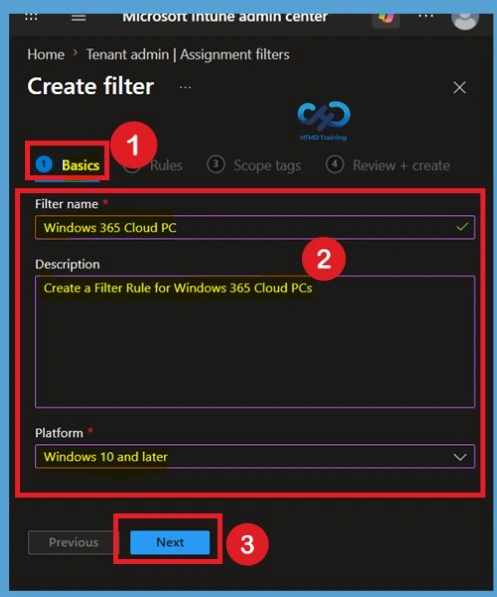
Basics Tab
On the Basics page, provide a meaningful Filter name and an optional Description to clearly identify the purpose of the assignment filter. Choose Windows 10 and later as the platform since Windows 365 Cloud PCs are managed under this platform. Using a descriptive name and description makes it easier to identify the filter when applying it to future deployments. After verifying the information, click Next to continue to the rule configuration page.

- Enter the Name of the Filter as “Windows 365 Cloud PC” is the name I provided.
- Enter the description of the cloud PC filter policy as an optional setting.
- Select Windows 10 and later as platform from the drop-down list.
- Click on Next button to continue.
Filter Rule Settings
On the next page of the Create Intune filter rule, you can create the logic for identifying the Cloud PC devices from Intune. You will need to rely on the drop-down list of properties, as you can see below. You will need to select the following property and value to create a Windows 365 Cloud PC filter rule filter rule using Intune.
| Property Rule Settings | Information |
|---|---|
| Property | model |
| Operator | contains |
| Value | CloudPC |
- Repeat all the above steps and enter the value as Cloud PC.
Rule Syntax => (device.model -contains "CloudPC") or (device.model -contains "Cloud PC")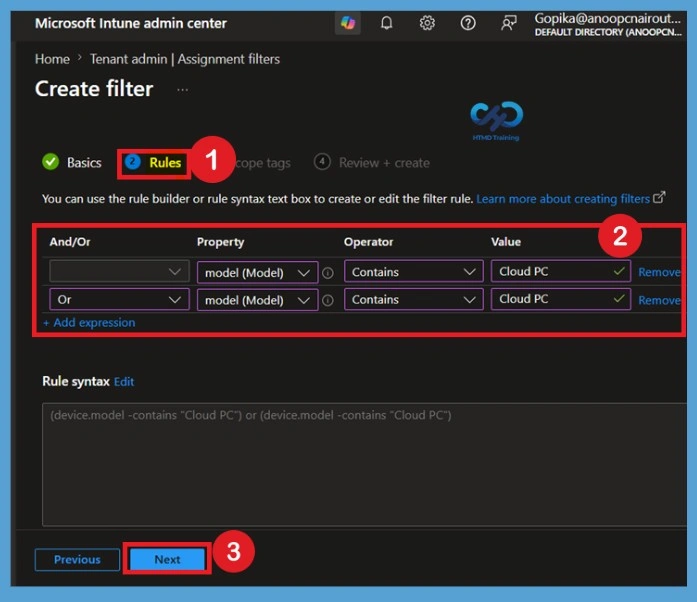
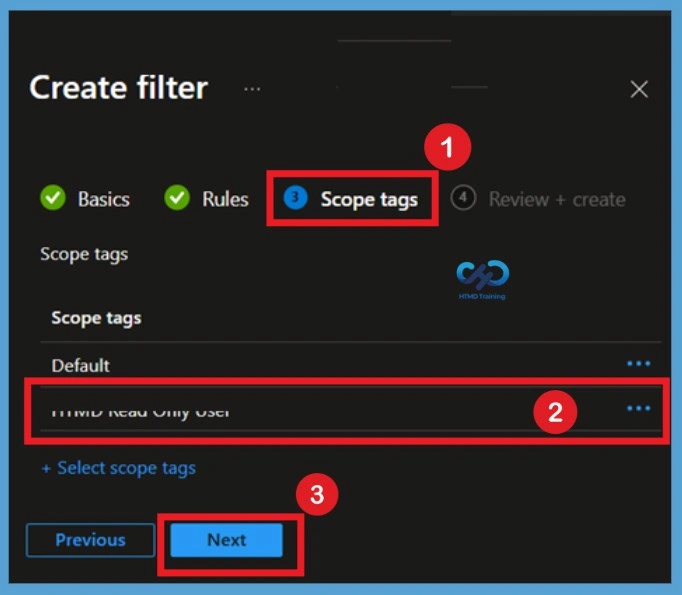
Scope Tags
The Scope tags page lets you assign administrative scope tags to the assignment filter. Scope tags help implement Role-Based Access Control (RBAC), allowing administrators to manage only the resources assigned to their roles.
Review + Create
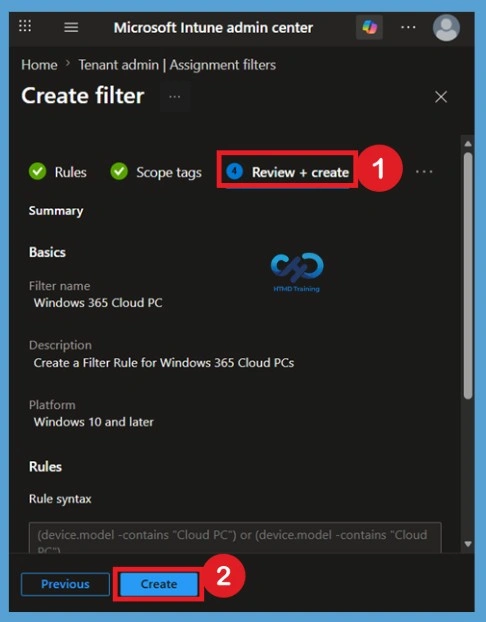
The Review + create page displays a summary of the filter configuration, including the filter name, platform, scope tags, and rule syntax. Carefully review these settings to ensure they accurately identify Windows 365 Cloud PCs.
How to Use a Filter Rule in Intune Assignments
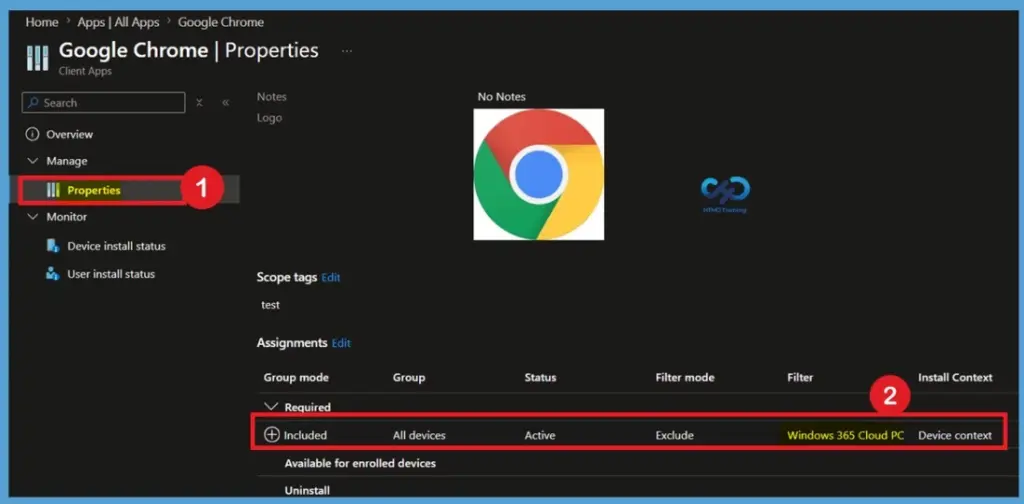
After assigning the application and saving the deployment, open the application’s Properties page in the Microsoft Intune admin center to verify the assignment configuration. The Assignments section displays the target group, assignment status, filter mode, and the assignment filter associated with the deployment.
In this example, the application is assigned to the All devices group, while the Windows 365 Cloud PC assignment filter is configured in Exclude mode.
This confirms that the assignment filter has been successfully associated with the deployment and that Windows 365 Cloud PCs will be excluded when Intune evaluates the assignment during deployment.
Need Further Assistance or Have Technical Questions?
Join the LinkedIn Page and Telegram group to get the latest step-by-step guides and news updates. Join our Meetup Page to participate in User group meetings. Also, join the WhatsApp Community and the Whatsapp channel to get the latest news on Microsoft Technologies. We are there on Reddit as well.
Author
Anoop C Nair has been Microsoft MVP from 2015 onwards for 10 consecutive years! He is a Workplace Solution Architect with more than 22+ years of experience in Workplace technologies. He is also a Blogger, Speaker, and Local User Group Community leader. His primary focus is on Device Management technologies like SCCM and Intune. He writes about technologies like Intune, SCCM, Windows, Cloud PC, Windows, Entra, Microsoft Security, Career, etc.




Hi,
I am not think so it will work as expected. Initially, it apply the policy after that it revokes the policy. checkit if you have a doubt..