






How to Create Windows 11 Filter Rule in Intune
Key Takeaways
- Assignment filters decide whether an app or policy applies to a device or user based on device or app properties.
- Filters are reusable and can be created for specific criteria, such as device model, OSVersion etc.
- Filters are applied during policy assignment in include or exclude mode.
- Intune evaluates filters when a device enrolls, checks in, or when a policy is re-evaluated.
- Based on the evaluation, the policy or app is either applied or skipped.
Microsoft Intune assignment filters help admins decide which devices or users should receive an app or policy. Instead of creating many dynamic groups, you create a filter based on device details like device model or OS version (for example, Windows 11 or iPhone XR) and then include or exclude that filter when assigning a policy to a group.
Table of Content
How to Create Windows 11 Filter Rule in Intune
Intune checks the filter whenever a device enrolls or syncs, and based on the result, the policy is applied or skipped. Filters are useful when you want to target or block specific devices, such as excluding Windows 11 PCs from certain deployments. A tenant can have up to 200 filters, devices must be enrolled in Intune, and filters mainly work with app protection and app configuration policies.
- Sign in to the Intune admin center.
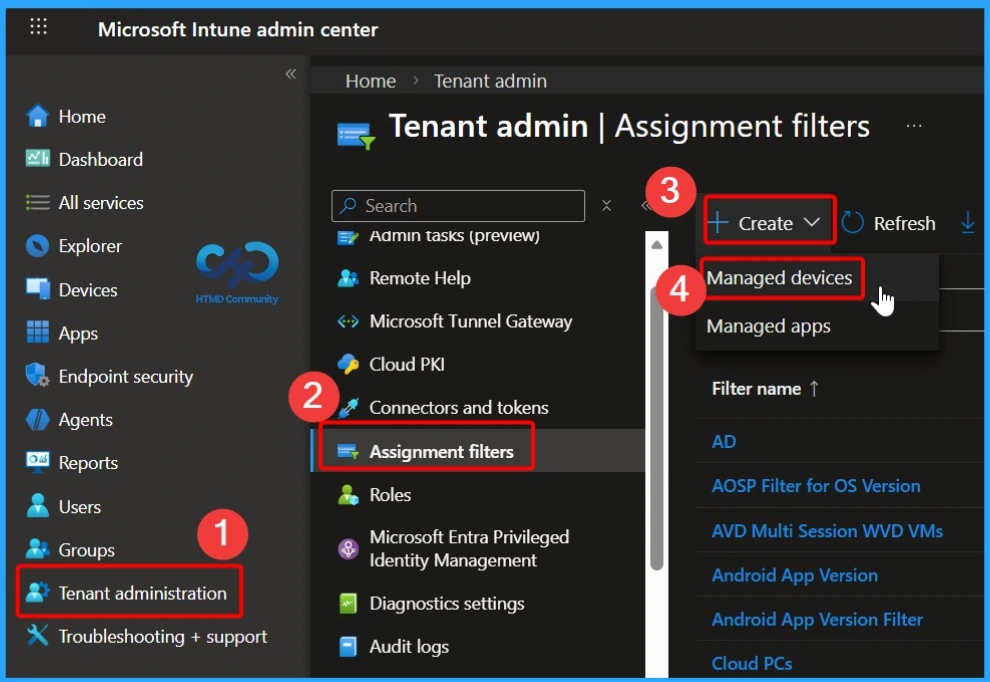
- Select Tenant administration > Assignment Filters > Create > Managed Devices
- Filter Intune App Policy Assignments Based On Domain Join Type
- How to Use Intune Assignment Filters Comparison Property gt ge lt le with OS Version.
- Set Minimum Encryption Key Size for Bluetooth in Intune via Setting Catalog
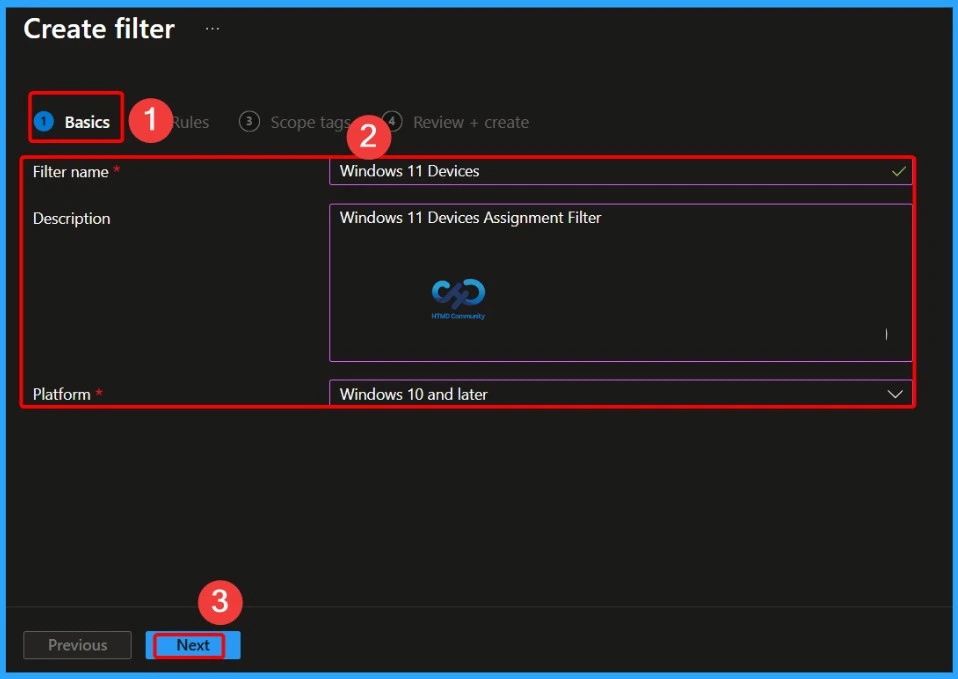
Basics – Intune Assignment Filter Settings
In the Basics section, you need to provide basic information for the assignment filter. This includes the Name and Description to clearly identify the purpose of the filter. In this example, the filter name is Windows 11 Devices, and the description is Windows 11 Devices Assignment Filter, which helps admins quickly understand what the filter is used for.
Rules – Define the Windows 11 Filter Logic
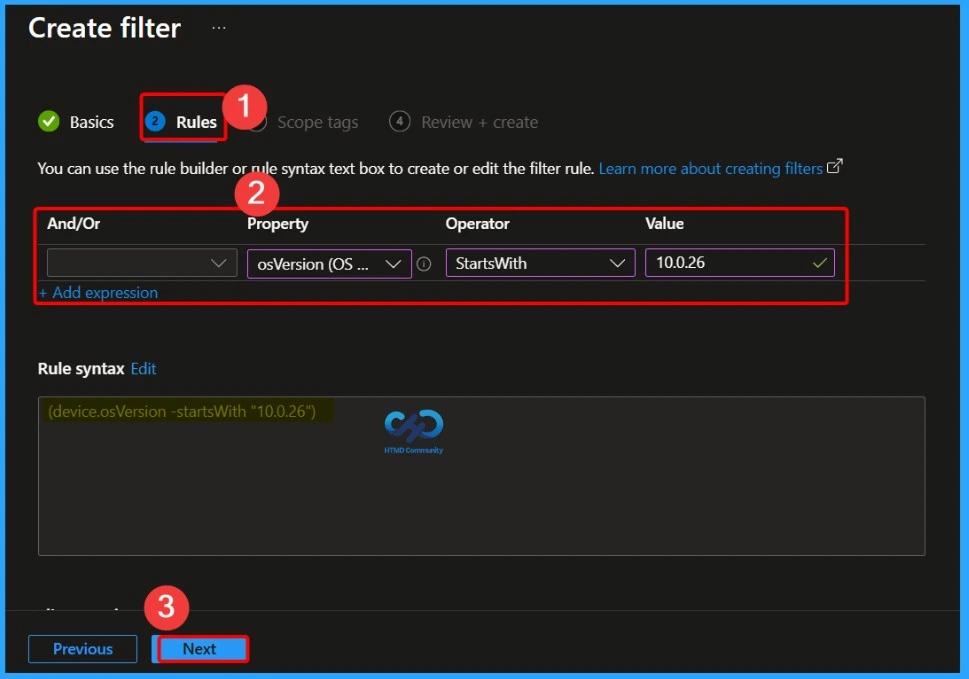
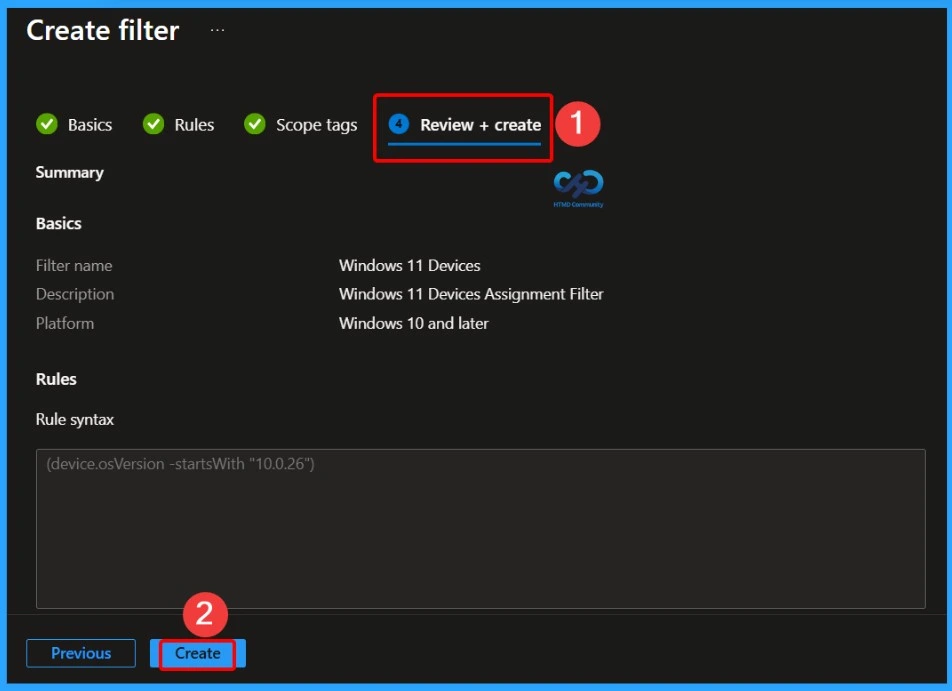
In the Rules tab, you define the condition that Intune uses to identify Windows 11 devices. For this filter, set the Property to osVersion, choose the Operator as StartsWith, and enter the Value 10.0.26. This rule ensures that the filter dynamically targets devices running Windows 11, as their OS version begins with this value, allowing policies or apps to be included or excluded accurately.

- Property – osVersion
- Operator – StartsWith
- Value – 10.0.2
(device.osVersion -startsWith “10.0.26”)
Scope Tags – Optional Access Control
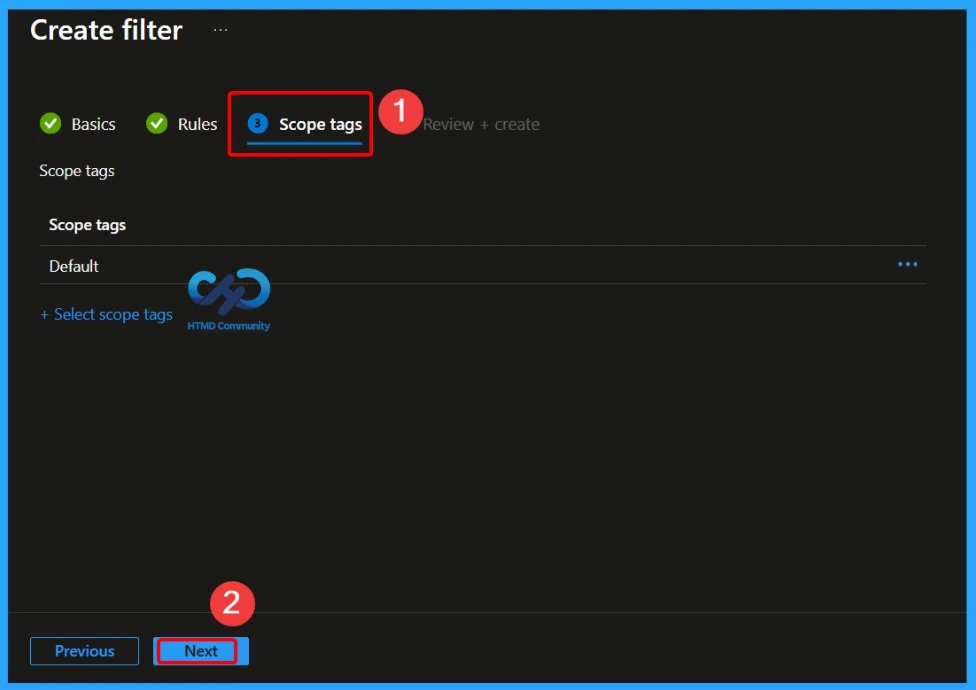
In the Scope tags (optional) section, you can assign a scope tag to limit the visibility and management of the filter to specific IT teams. Scope tags help organizations with distributed IT environments ensure that only the appropriate administrators can view or manage certain Intune resources.
Finalize the Assignment Filter
In theReview + create section, carefully review all the configured settings to ensure they are correct. Once you select Create, the assignment filter is saved and becomes available for use. After creation, the filter appears in the Assignment filters list and can be used immediately when assigning apps or policies in Microsoft Intune.
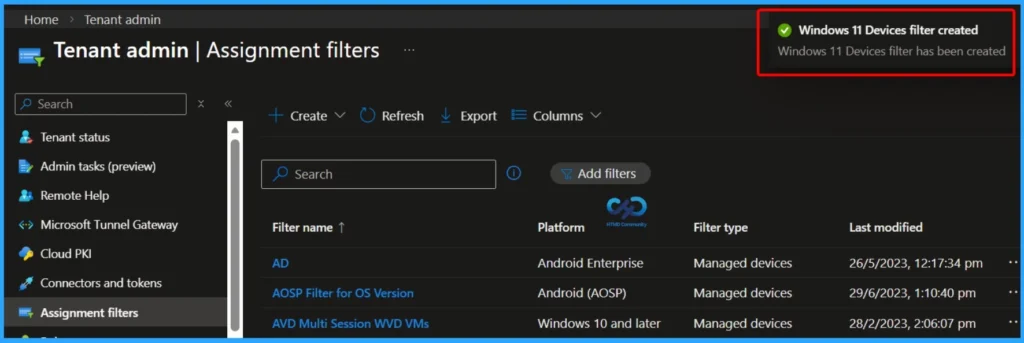
Notification – Assignment Filter Created Successfully
In the screenshot below, you can see a notification message confirming that the Windows 11 device assignment filter has been created successfully. This confirmation indicates that the filter is now active and ready to be used when assigning apps or policies in Microsoft Intune.
Real Time Usage – Assignment Filter in Action
Let’s look at how an assignment filter works in real time during the policy or app assignment process. In this example scenario, the assignment filter rule is used to exclude Windows 11 devices while assigning a policy or application to a group. During assignment, Intune evaluates the filter dynamically as devices check in, ensuring that Windows 11 devices are automatically skipped while the policy applies only to the intended devices.
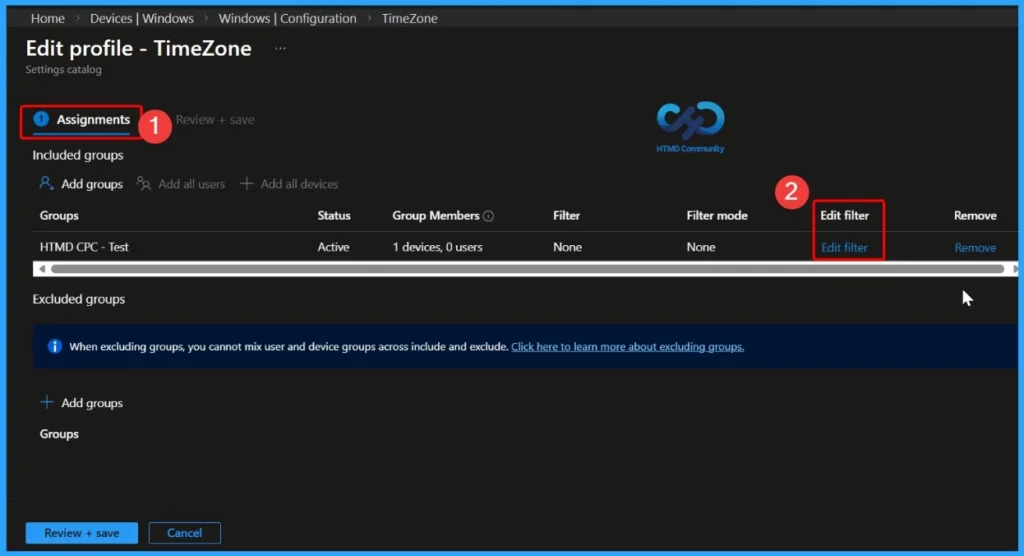
- I have opened a setting catalog policy to change the timezone.
- The policy is deployed to HTMD CPC- Test
- I would like to exclude Windows 11 devices from this policy.
- Click on Edit option from assignments section.
- Click on Edit Filter option from Included Groups section.
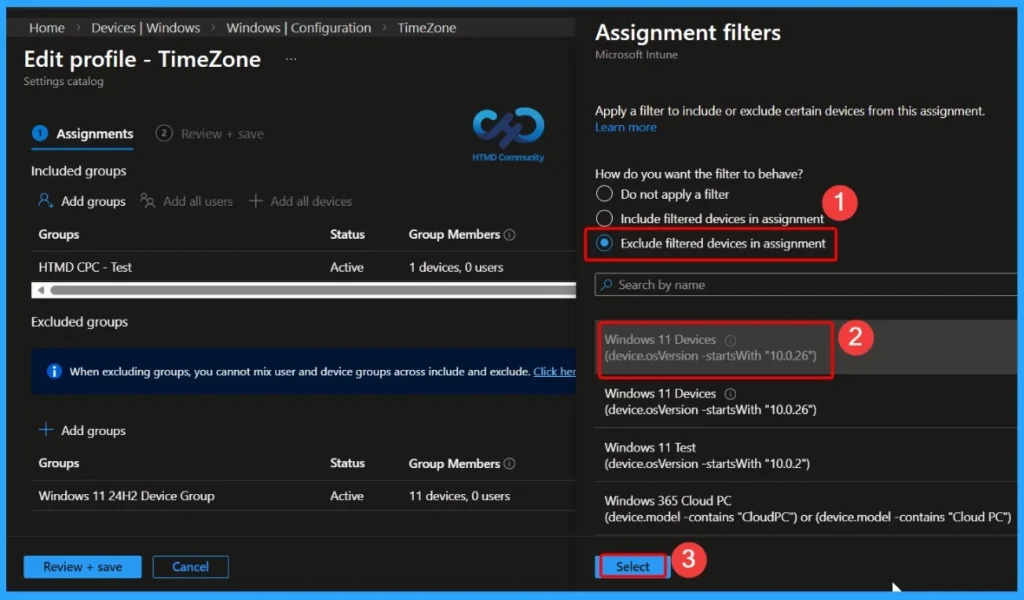
Assignment – Exclude Windows 11 Devices Using Filters
You can choose to include or exclude Windows 11 devices when assigning a policy using assignment filters. In this scenario, the goal is to exclude Windows 11 devices from the policy. From the Filters blade during assignment, select Exclude filtered devices, then choose the Windows 11 Devices filter rule from the available list. Finally, click Select, followed by Review + Save, to complete the assignment with the filter applied.
- Assignment Filters – Exclude Filtered devices in assignment
- Select the Windows 11 Devices filter rule from the below list of rules.
- Click on Select & Review + Save button to complete assignment of filter rule.
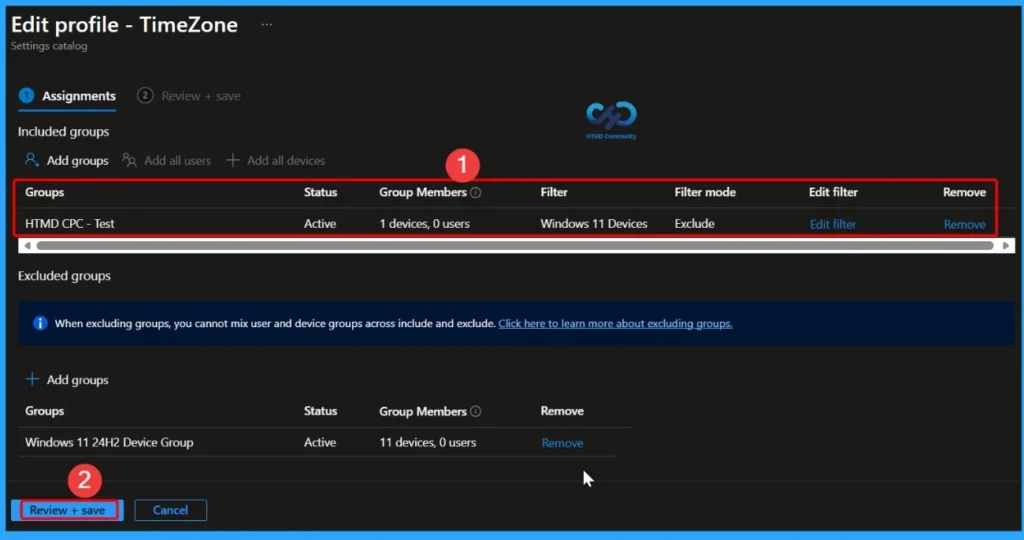
Verification – Confirm Filter Mode and Assignment
Ensure that the correct filter and filter mode are selected during the assignment to successfully exclude Windows 11 devices from the Settings Catalog policy. The filter should be set to Windows 11 Devices, and the mode must be Exclude, so Intune correctly evaluates the rule and prevents the policy from applying to Windows 11 devices.
Need Further Assistance or Have Technical Questions?
Join the LinkedIn Page and Telegram group to get the latest step-by-step guides and news updates. Join our Meetup Page to participate in User group meetings. Also, join the WhatsApp Community and the Whatsapp channel to get the latest news on Microsoft Technologies. We are there on Reddit as well.
Author
Anoop C Nair has been Microsoft MVP for 10 consecutive years from 2015 onwards. He is a Workplace Solution Architect with more than 22+ years of experience in Workplace technologies. He is a Blogger, Speaker, and Local User Group Community leader. His primary focus is on Device Management technologies like SCCM and Intune. He writes about technologies like Intune, SCCM, Windows, Cloud PC, Windows, Entra, Microsoft Security, Career, etc.


Discussion