






FIX: SCCM Task Sequence Failed to Apply Driver Package 0x80070057
Let’s see how you can FIX SCCM Task Sequence Failed to Apply Driver Package 0x80070057. You might encounter a prompt message “Failed to Apply Driver Package” while performing Operating System Deployment with SCCM Task Sequence.
Do you know what is drivers, and why do you need to install drivers? Refer to the following post What are Drivers, and Why do we need Drivers? If you want to start from scratch and explore more about the Driver Creation process using SCCM, Let’s explore SCCM Driver Import Driver Package Creation Process Guide. This post will be helpful to streamline lots of SCCM admins during OSD/Task Sequence/Image creation activities.
Here is the detailed analysis for the error that appeared in the Task Sequence progress error prompt. Let’s check the steps and resolution to fix error 0x80070057.
Issue Summary
The new Install driver package via running DISM with recurse option feature in the Apply Driver Package task sequence step is introduced starting with Configuration Manager version 1706. This option isn’t recognized if the existing boot images aren’t updated to the new Configuration Manager binaries.

If you check to Apply driver package via running DISM with recurse option, Windows setup will attempt to use DISM to import the drivers into the OS image that was staged in the Apply Operating System Image step.
Let’s examine the SMSTS.log to find details about Apply Driver Package step failure prompt. To troubleshoot OSD-related problems, learning to read SMSTS.log is very important, and most important to be aware of the location of the SMSTS log during SCCM OSD process, and More you can explore SCCM OSD Task Sequence Troubleshooting Steps by Step Ultimate Guide SMSTS.log.
Here are the highlights that Failed to Apply Driver Package 0x80070057 from the SMSTS.log.
The execution of the group (Apply Driver Packages) has failed and the execution has been aborted. An action failed. Operation aborted (Error: 80004004; Source: Windows)
Failed to run the last action: Apply Dell Latitude 5420 Driver Package Win10 x64. Execution of task sequence failed. The parameter is incorrect. (Error: 80070057; Source: Windows)
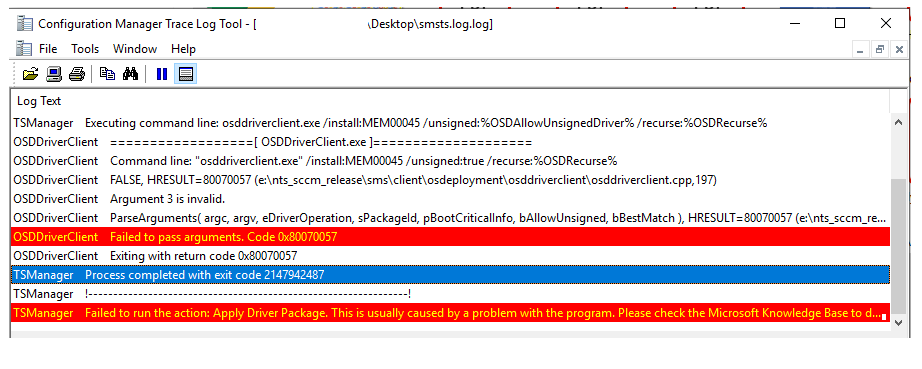
TSManager    Set command line: osddriverclient.exe /install:<Driver_Package_ID> /unsigned:%OSDAllowUnsignedDriver% /recurse:%OSDRecurse%
TSManager    Start executing the command line: osddriverclient.exe /install:<Driver_Package_ID> /unsigned:%OSDAllowUnsignedDriver% /recurse:%OSDRecurse%
TSManager    !----------------------------------------------------------------!
TSManager    Expand a string: WinPE
TSManager    Executing command line: osddriverclient.exe /install:MEM00045 /unsigned:%OSDAllowUnsignedDriver% /recurse:%OSDRecurse%
OSDDriverClient    ==================[ OSDDriverClient.exe ]====================
OSDDriverClient    Command line: "osddriverclient.exe" /install:MEM00045 /unsigned:true /recurse:%OSDRecurse%
OSDDriverClient    FALSE, HRESULT=80070057 (e:\nts_sccm_release\sms\client\osdeployment\osddriverclient\osddriverclient.cpp,197)
OSDDriverClient    Argument 3 is invalid.
OSDDriverClient    ParseArguments( argc, argv, eDriverOperation, sPackageId, pBootCriticalInfo, bAllowUnsigned, bBestMatch ), HRESULT=80070057 (e:\nts_sccm_release\sms\client\osdeployment\osddriverclient\osddriverclient.cpp,341)
OSDDriverClient    Failed to pass arguments. Code 0x80070057
OSDDriverClient    Exiting with return code 0x80070057
TSManager    Process completed with exit code 2147942487
TSManager    !----------------------------------------------------------------!
TSManager    Failed to run the action: Apply Driver Package. This is usually caused by a problem with the program. Please check the Microsoft Knowledge Base to determine if this is a known issue or contact Microsoft Support Services for further assistance.
Failed to Apply Driver Package 0x80070057 The parameter is incorrect. (Error: 80070057; Source: Windows
FIX – Failed to Apply Driver Package 0x80070057
Validate whether the boot image is upgraded to the latest installed SCCM version. It’s important to update the boot images. let’s follow the steps to fix the issue Failed to Apply Driver Package 0x80070057 –
- Launch Configuration Manager console, Navigate to Software Library.
- Expand Operating Systems, and then select Boot Images that is being used in task sequence.
- Right-click the boot image that you want to update, and then select Update Distribution Points, follow the on screen intruction and complete the wizard.
Important – When using the Update Distribution Points action from the Boot Images node in the console, the site updates the target boot image with the client components, drivers, and customizations.
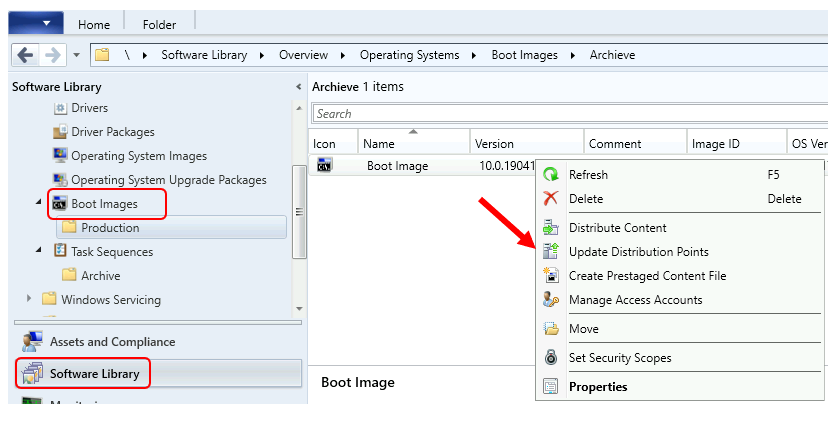
- You can perform the Update Distribution Points action to all boot images that were previously distributed.
Once the content distribution status indicates success, Reinitiate the task sequence deployment.
Resources
- The Apply Driver Package task fails with 80070057 in Configuration Manager
- FIX: SCCM Task Sequence Failed to load class properties 0x80041002 (2147749890)
- SCCM Deployment Failed to Resolve Task Sequence Dependencies 0X80040102
- OSD Known Issues Troubleshooting Guide |SCCM |ConfigMgr
- ConfigMgr OSD Troubleshooting Known Issues Guide Part 2 | SCCM




Discussion