






FIX: SCCM Task Sequence Failed With Error Code 0x80070002
Let’s learn how you can FIX SCCM Task Sequence Failed With Error Code 0x80070002. You might encounter a prompt Task Sequence Error while performing Operating System Deployment with SCCM Task Sequence. The error 0x80070002 means “The system cannot find the file specified”. This is often seen when the DP can’t be reached.
When users proceed for the deployment, At the initial stage of the task sequence step, Windows deployment gets failed. Here are the error details in the prompt window that appears.
ERROR: Task Sequence Failed with the Error Code 0x80070002. For more information, contact your system administrator or helpdesk operator.
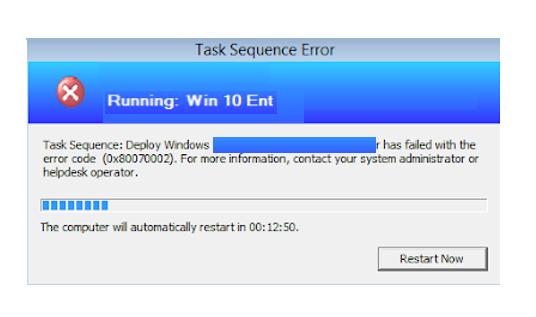
It’s always be recommended to examine the SMSTS,log for task sequence failure issue that will help you get the inside about the failure prompt to troubleshoot the task sequence error, and most importantly, to be aware of the location of the SMSTS log during SCCM OSD process. More you can explore SCCM OSD Task Sequence Troubleshooting Steps by Step Ultimate Guide SMSTS.log.

This Task Sequence Failed With Error Code 0x80070002 is also seen because associated packages to sccm Task Sequence could not access content directly from the distribution point. In this scenario, it’s first recommended to validate the Network access.
FIX – Task Sequence Failed With Error Code 0x80070002
Let’s follow the steps to fix the issue Task Sequence Failed With Error Code 0x80070002 and You need to validate the network access account configuration. In this case, It’s important to have a network access account. A Configuration Manager client first tries to use its computer account to download the content. If it fails, it then automatically tries the network access account.
The following steps help you to configure the Network Access Account –
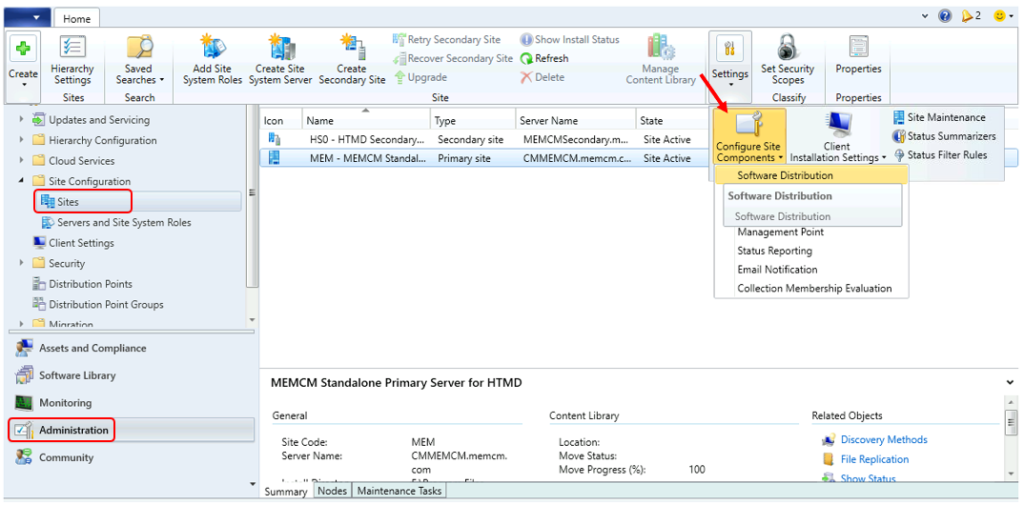
- Launch SCCM Console, In the Administration workspace, expand Site Configuration and click Sites. On the Home ribbon at the top of the console window, click Configure Site Components and then click Software Distribution.
The network access account is never used as the security context to run programs, install software updates, or run task sequences. It’s used only for accessing resources on the network.
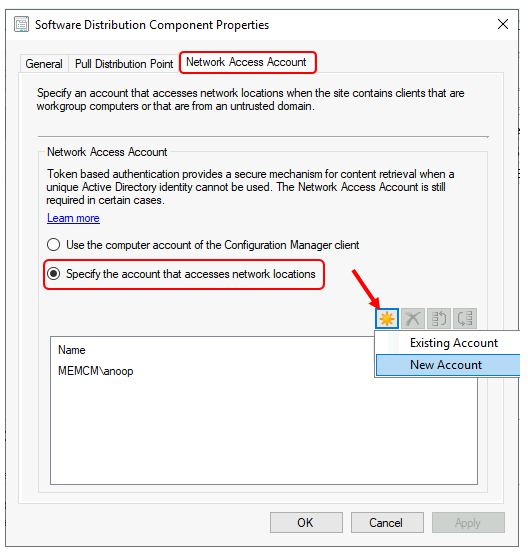
- On the Network Access Account tab, choose to Specify the account that accesses network locations. Click the yellow starburst and then click New Account.
- Click Browse and then under Enter the object name to select, type Account Name (For Example : Anoop) which has the appropriated permission and click OK. Next to Password and Confirm Password, type <Your Password>, and then click OK twice.
- After adding the account, you can see it’s getting appeared with Domain Name\Account Name. Click Apply and OK.
Once you completed the above steps, Let’s reinitiate the Task Sequence deployment. You will be able to perform the deployment without any issues.
If you have a different experience with the Error Code 0x80070002, Examine the SMSTS.log to get more details! Would you please share your inputs in the comment section?
Use the HTMD Forum, the one-stop shop for all your device management queries related to ConfigMgr (a.k.a SCCM), Intune, and more!
About Author -> Jitesh has over 5 years of working experience in the IT Industry, He writes and shares his experiences related to Microsoft device management technologies, and IT Infrastructure management. His primary focus area is Windows 10 Deployment solution with Configuration Manager, Microsoft Deployment Toolkit (MDT), and Microsoft Intune.
Resources
- FIX: SCCM Task Sequence Failed to Apply Driver Package 0x80070057
- FIX: SCCM Task Sequence Failed to load class properties 0x80041002 (2147749890)
- SCCM Deployment Failed to Resolve Task Sequence Dependencies 0X80040102
- OSD Known Issues Troubleshooting Guide |SCCM |ConfigMgr
- ConfigMgr OSD Troubleshooting Known Issues Guide Part 2 | SCCM




This page covers when your entire site sees this issue but not when a limited number of devices see the error. When covering errors, it is probably best to cover both these options.
2″ file=”tsmanager.cpp:1295″>
open(), HRESULT=80070002 (X:\bt\1204713\repo\src\Framework\TSCore\environmentlib.cpp,335)]LOG]!>
open(), HRESULT=80070002 (X:\bt\1204713\repo\src\Framework\TSCore\environmentlib.cpp,561)]LOG]!>
Hello!
I had the same issue when testing image deployment over PXE and I found that it was boundary groups not set correctly that caused it for me.
I suppose it still was an error with accessing the network share, but not in terms of permissions or accounts, just that because the boundary groups didn’t allow the connection to the server to access the content.
similar issue
hMap != 0, HRESULT=80070002 (K:\dbs\sh\cmgm\0405_083130\cmd\w\src\Framework\TSCore\environmentscope.cpp,495)
m_pGlobalScope->open(), HRESULT=80070002 (K:\dbs\sh\cmgm\0405_083130\cmd\w\src\Framework\TSCore\environmentlib.cpp,335)
this->open(), HRESULT=80070002 (K:\dbs\sh\cmgm\0405_083130\cmd\w\src\Framework\TSCore\environmentlib.cpp,561)
::RegQueryValueExW(hSubKey, szReg, NULL, NULL, NULL, &dwSize), HRESULT=80070002 (K:\dbs\sh\cmgm\0405_083130\cmd\w\src\Framework\TSCore\utils.cpp,691)
RegQueryValueExW is unsuccessful for Software\Microsoft\SMS\Task Sequence, SMSTSEndProgram