






Create Windows 11 Azure AD Device Group
Let’s learn to create Windows 11 Azure AD Device Group. You will have to get ready with Windows 11 PCs sooner than later. One of the things you can start with is creating Azure AD dynamic devices for Windows 11 PCs.
You can create Azure AD dynamic device groups based on available device properties. Well, you can’t create dynamic device groups based on applications installed device (unlike SCCM collections). This is expected because Azure AD is not a device management solution like Intune and SCCM.
The Intune assignment filters are another useful method to filter devices based on their properties. I think Intune filter rules will be powerful as SCCM collection queries in the future. I’ve shared details on using filter rules to include or exclude Windows 11 devices from an app or policy deployment.
Useful Device Properties in Azure AD
There is a bunch of device properties supported in Azure AD. However, I don’t think all the Azure AD device properties are exposed to the public. Let’s first check what the useful device properties in Azure AD from a device management perspective are.

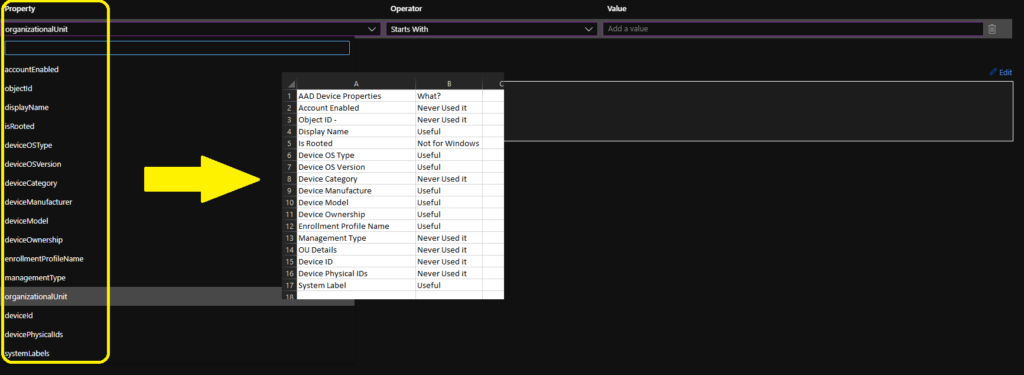
| AAD Device Properties | What? |
|---|---|
| Account Enabled | Never Used it |
| Object ID | Never Used it |
| Display Name | Useful |
| Is Rooted | Not for Windows |
| Device OS Type | Useful |
| Device OS Version | Useful |
| Device Category | Never Used it |
| Device Manufacturer | Useful |
| Device Model | Useful |
| Device Ownership | Useful |
| Enrollment Profile Name | Useful |
| Management Type | Never Used it |
| OU Details | Never Used it |
| Device ID | Never Used it |
| Device Physical IDs | Never Used it |
| System Label | Useful |
Create Azure AD Dynamic Device Group for Windows 11
Let’s now build an Azure AD dynamic device group for Windows 11 PCs. I think the best reliable option is to go with OS version properties. However, if you plan to onboard Hololens and another kind of Windows 11 device into Azure AD/MEM management, you should use additional properties as well.
- Open portal.azure.com
- Navigate to Azure AD (Azure Active Directory) -> Groups – All Groups.
- Click on “+ New Group“.
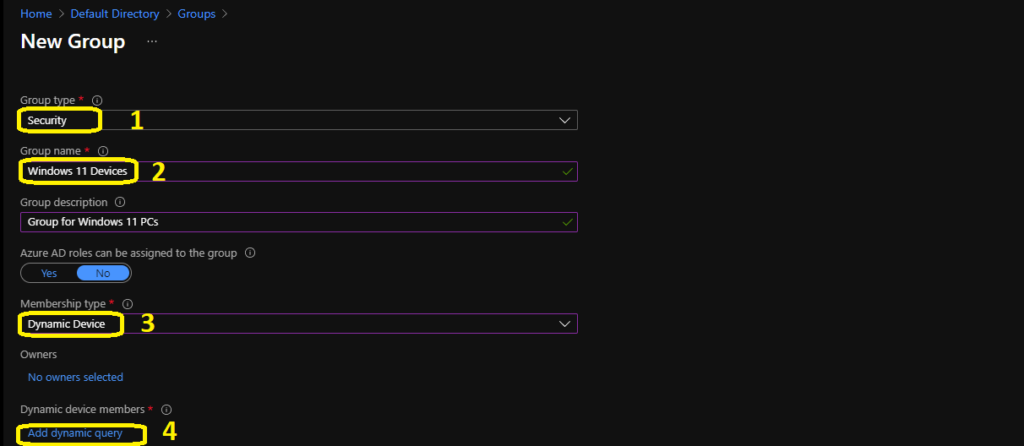
- Select Security – Group Type from the drop-down option.
- Enter Group Name “Windows 11 Devices” (any name is fine).
- Enter Group Description “Group for Windows 11 Devices” (any description is fine).
- Select Dynamic Device as Membership type.
- Click on Add Dynamic Query under Dynamic Device Members.
Hover over the properties column so that you get an option to select Azure AD dynamic device groups based on the Windows 11 OS Version. Otherwise, you can also copy-paste the following query to create an Azure AD dynamic device for Windows 11 Devices.
Please use the Windows 11 version details post from the HTMD community for more specific version numbers. Windows 11 Version Numbers Build Numbers Major Minor Build Rev HTMD Blog (anoopcnair.com).
- Property – osVersion
- Operator – StartsWith
- Value – 10.0.22
(device.deviceOSVersion -startsWith "10.0.22")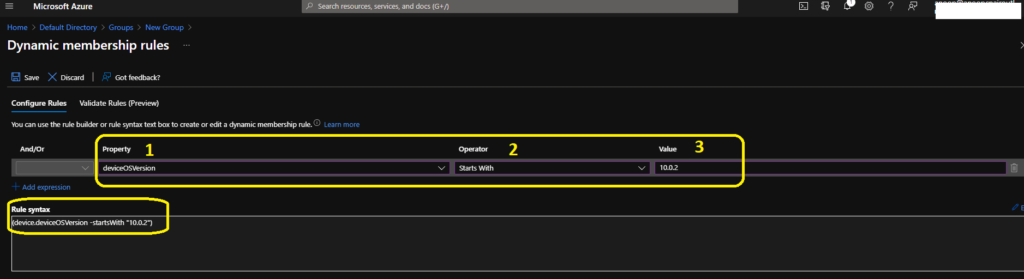
NOTE! – I don’t know whether there will be other types of Windows 11 Devices in your production tenants. For Examples, Surface Studio, Devices in meeting rooms, Hololens? You will have to be careful whether these devices will be part of Azure AD Windows 11 Device Group or not.
Validate the Logic of Azure AD Dynamic Query
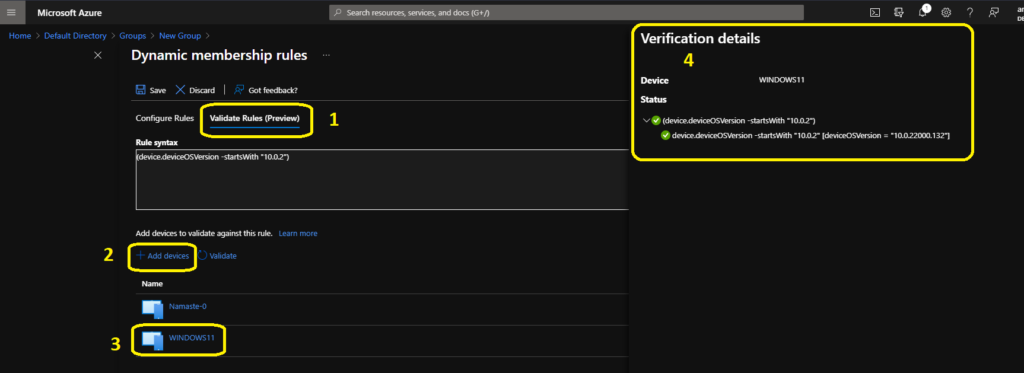
Always perform the validation of Dynamic queries before putting those into production. There is Validate Rules tab within Dynamic query membership rules. You can use the validate options to confirm whether the AAD dynamic query logic works as you expect or not.
- Click on Validate Rules
- Add Devices – Select at least two or three devices. Some of the devices you think should be part of this group and some of them that should not be part of this group.
- Check the validation results blade to understand and confirm whether your Azure AD dynamic device group query logic is correct or not.
There is an option to validate the dynamic query, and it’s beneficial. Once validation is completed, you can click on SAVE and CREATE buttons to complete the process of building Windows 11 Azure AD dynamic device group creation.
Results
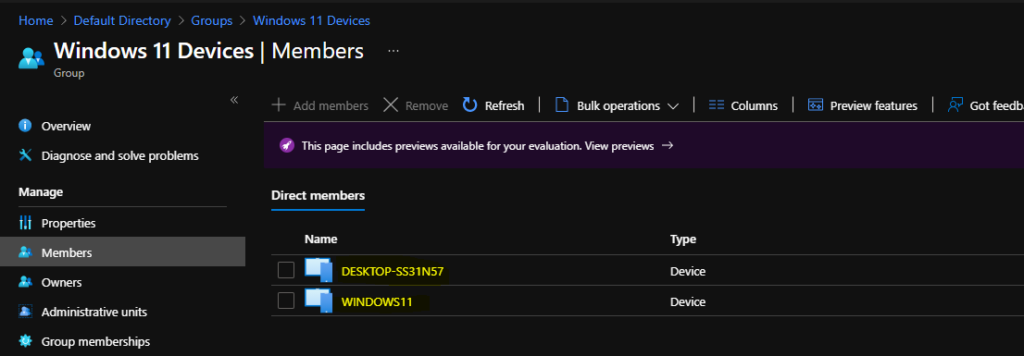
You can check the results from the member’s tab of the Windows 11 AAD dynamic group. Normally, the Azure AD dynamic device groups get updated within 5 minutes or so. However, Microsoft doesn’t have any SLA less than 24 hours for the AAD dynamic group auto-update process.
Anoop is Microsoft MVP! He is a Solution Architect in enterprise client management with over 17 years of experience (calculation done in 2018). He is Blogger, Speaker, and Local User Group HTMD Community leader. His main focus is on Device Management technologies like SCCM 2012, Current Branch, and Intune. He writes about ConfigMgr, Windows 11, Windows 10, Azure AD, Microsoft Intune, Windows 365, AVD, etc…..…



Very nice!
Will appreciate if other queries too can be posted
That was pretty Helpfull guide with step by step walk through
This also picks up servers.
StaffWe have added additional version details … try to use more specific version numbers and let us know.
This includes Windows 10 devices too
This is pretty frustrating. I’m not sure why this is difficult but I’m seeing machines being excluded because their Windows 11 version is actually 10.0.26… Using 10.0.22 is causing those machines to drop off. What is the best way to actually include all Windows 11 devices. Surely there is a more consistent value?
Should we add 261 for Windows 11 24H2?
Microsoft really did a number on the OSVersion… Make sure to update all filters and groups before moving to Win11 24H2 since it will change the OSVersion to 10.0.26
This however also includes Windows Server 2025 since they share the same OSVersion as 24h2…
Win11 23H2: 10.0.22631.xxxx
Win11 24H2: 10.0.26100.xxxx
WinServer 2025: 10.0.26100.xxxx