






Per User Vs Per Device SCCM App Deployment Options | User Experience Settings
This post helps to understand the Per User Vs Per Device SCCM App Deployment Options. Let’s learn how to define All Users or A User SCCM app deployment type using user experience settings. You can specify the installation behavior of an SCCM application program.
The user experience settings help you define the installation behavior of an SCCM app. All the other user experience options are covered in SCCM Install Behavior For Applications blog post.
The installation behavior of an application is one of the user experience factors of application deployment using SCCM (a.k.a ConfigMgr). Other properties can also help to define user experience behavior (most of them are already covered in the above blog post).
Per User Vs, Per Device SCCM App Deployment Options using One user experience behavior that you can specify is how users can interact with the application installation.

User notification of SCCM application deployment is not part of user experience settings within installation behavior. You can also Specify the maximum run time and estimated installation time of the deployment program for an application.
The estimated installation time displays to the user when the application installs. But in this post, we will discuss per-user or per-machine installation options and configurations.
SCCM App Creation Process – Per User Vs Per Device SCCM App Deployment Options
The application creation process using SCCM has been explained in many posts before. The list of posts is mentioned in the below list. You can create SCCM apps using PowerShell command lets or manually.
I would recommend performing the application creation option using the manual method to understand the process first. You can try the automation afterward if you are interested.
You will need to make sure that you are ready with all the command-line options of that particular application before starting the creation process. Also, you should have the application source files following the SCCM app creation process.
- How To Deploy Zoom Application Using SCCM
- SCCM CMPivot Standalone App Installation Guide
- How to Install Office 365 ProPlus Client Package
- How to Disable SCCM Application Deployment
All Users or A User SCCM App Deployment Types Configuration
Let’s check how to define SCCM App Deployment Type User Experience. These settings specify how the client installs the application on devices.
It also helps admins to define what the user sees. You can follow the steps explained below to change the user experience of SCCM app deployment types.
- Launch SCCM conole.
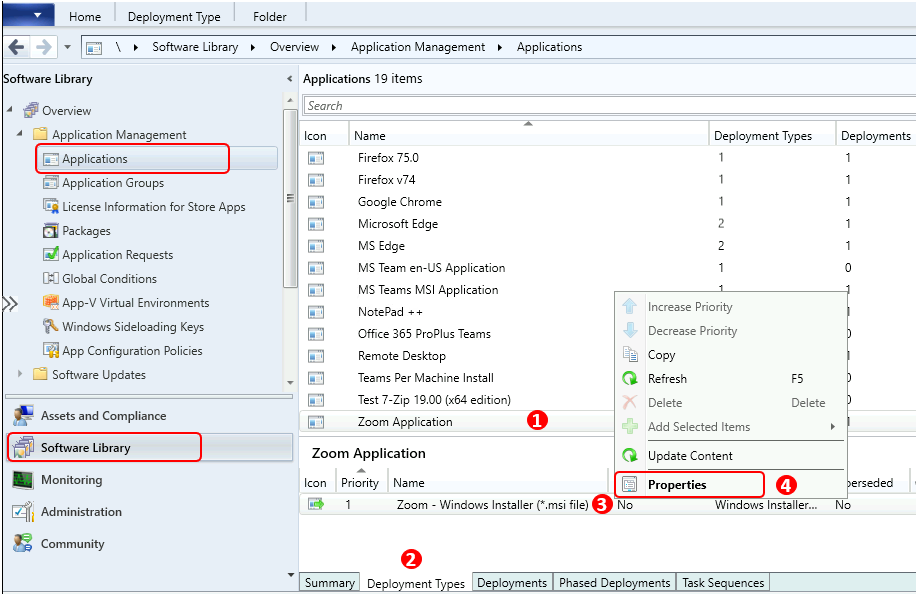
- Navigate to \Software Library\Overview\Application Management\Applications.
- Select the application that you want to change the deployment type user experience.
- Select the Deployment Type -> Right-Click and then Click on Properties.
SCCM Deployment Type is nothing but an application program in SCCM where you specify an installation and uninstallation command lines, detection method, etc.
Install for System – Installation Behavior – Per User Vs Per Device SCCM App Deployment Options
The Install for System is one of the installation behavior options available in the SCCM application model. The following options logon requirement and installation program visibility will get changed according to the selection of installation behaviors.
Install for System = All Users (per machine) Options. The client installs the application only once. It’s available to all users.
When you select the installation behavior of an SCCM application, you are asking the SCCM client to check conditions before installing the application program. Those conditions are defined based on the options selected below:
- Logon Requirements
- Installation Program Visibility
- Allow Users to view and interact with the program installation
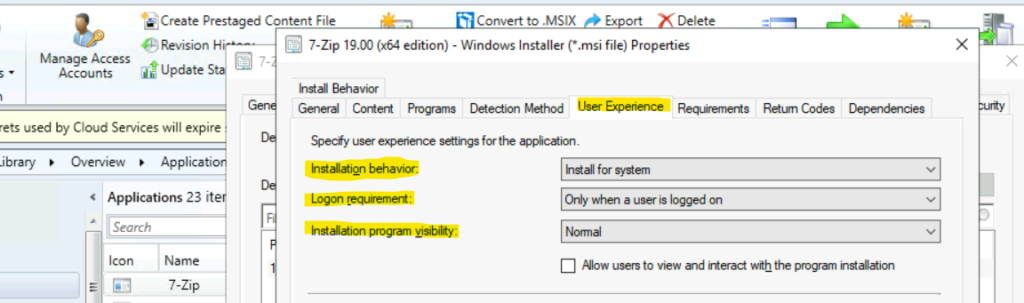
The following Table gives you different user experience options that come with the installation behavior options called Install for System.
| Installation Behaviour | Install for System |
| Logon Requirement | Whether or not a user is logged on |
| Only when a user is logged on | |
| Only when no user is logged on | |
| Installation Program Visibility – Normal | Maximized |
| Normal | |
| Minimized | |
| Hidden | |
| Allow users to view and interact with program installation | Yes |
| No |
Install for User
The Install for User is one of the installation behavior options available in the SCCM application model. This comes with one logon requirement, and that is Only when a user is logged on.
The application program installation will happen only when the assigned user is logged on to the Windows PC.
Install for User = A User (per user/Specified User-based deployment). The client only installs the application for the user to whom you deploy the application. Deployment type = A specific User (NOT for all users).
Here we get Per User Vs Per Device SCCM App Deployment Options. You can use this installation behavior option to deploy the application program only to a specific user.
So make sure you deploy these types of applications to user collections instead of device collections because user collections make more sense when your application program is defined for user-based installations.
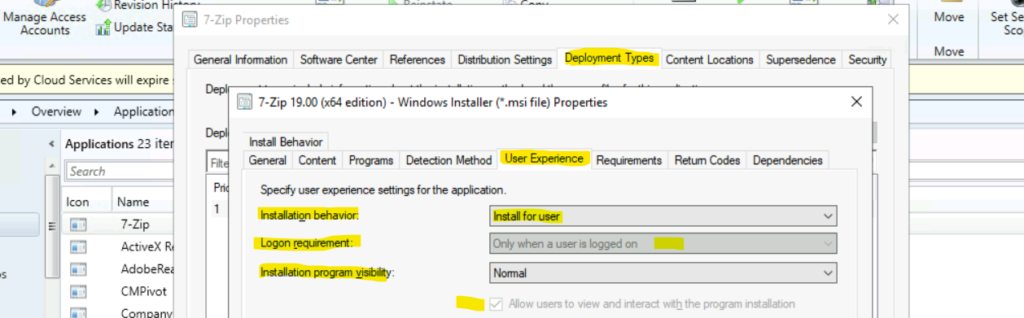
The following Table for Install for users gives you different user experience options that come with the installation behavior options called Install for the user.
The installation program visibility gives all the options for most of the installation behavior scenarios from deployment types.
| Installation Behaviour | Install for User |
| Logon Requirement | Only when a user is logged on |
| Installation Program Visibility | Maximized |
| Normal | |
| Minimized | |
| Hidden | |
| Allow users to view and interact with program installation | Yes |
Install for System if Resource is Device otherwise Install for User
This is the third option in the SCCM deployment type user experience. The installation behavior option “Install for System of resource is device; otherwise, install for user” is a bit different from earlier options. This helps to define program installation independent of resource type in the deployment.
I think this is the best deployment type of installation behavior in terms of user experience. You can deploy this application either to device collection or to user collection. Based on the targeted resources, SCCM will automatically select the behavior of the installation.
NOTE! – If you deploy the application to a device, the client installs it for all users. If you deploy the application to a user, the client only installs it for that user. So this is either a User or All Users.
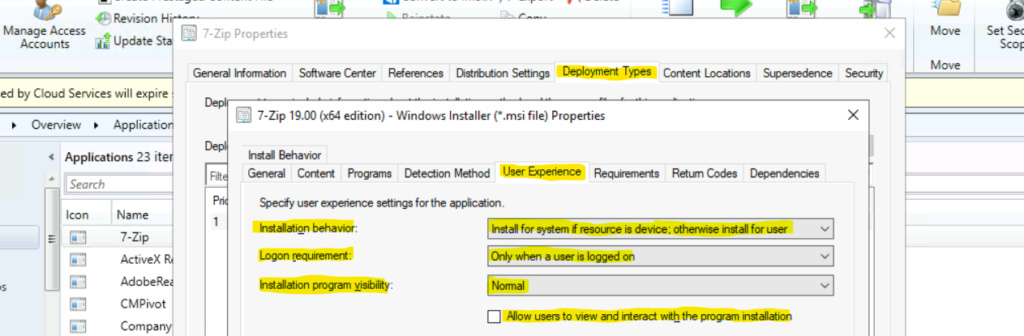
The following Table gives you options to choose between Install for User or Install for System. This gives more flexible options to give different user experience options based on the targeted collection.
| Installation Behaviour | Install for System of resource is device; otherwise, install for user |
| Logon Requirement | Whether or not a user is logged on |
| Only when a user is logged on | |
| Installation Program Visibility – Normal | Maximized |
| Normal | |
| Minimized | |
| Hidden | |
| Allow users to view and interact with program installation | Yes |
| No |




Discussion