






SCCM File Replication Account to help with Site Replication Issue Troubleshooting
Let’s try to understand how the SCCM file replication account can help you with site-to-site connectivity issue troubleshooting. You can refer to another post that talks about the SCCM Upgrade Issue because of SQL Based Replication.
The file replication account helps the SCCM source server to connect to the destination site and to write data to that site’s SMS_SITE share.
The SQL-based replication and file-based replication between the secondary site and primary sites are always tricky when you are hosting primary and secondary servers in different domains.
Both SQL and file-based replications are important to have stable connectivity between primary and secondary servers.

The replication issues between sites can become critical because that can put SCCM infrastructure read-only mode. Think about a scenario, you can just view the objects in the console, but you can’t take any action. What will you do?
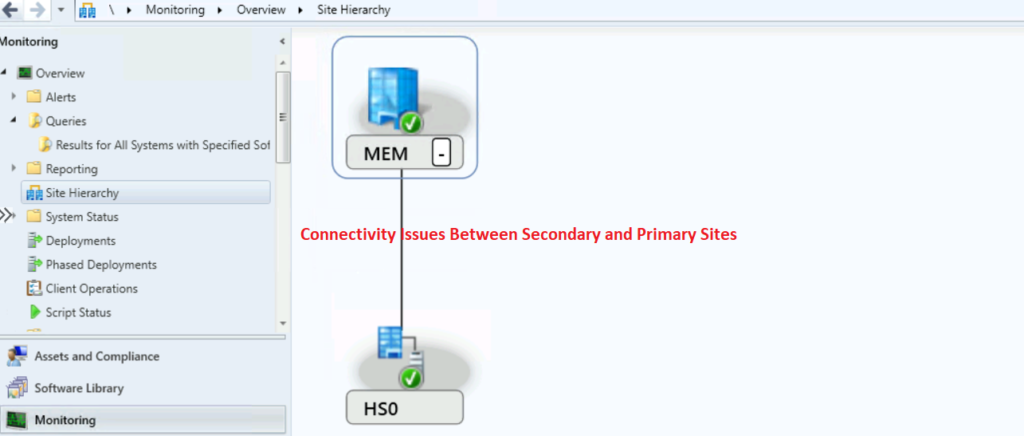
Use Computer Account – System Account
By default, SCCM uses a computer account (system account) to complete the replication between secondary and primary sites. The computer account authentication works well if you have two-way trust between your root and child domains.
The troubleshooting two-way trust-related issues are complex in most of the organizations for SCCM admins. This is where a file replication account can come to the rescue and troubleshoot and fix the connectivity issues between secondary and primary sites.
Ideally, the connection between the primary server and secondary servers should be similar to the one that is shown in the below screenshot. Sometimes site to site connectivity issues can be because of many reasons external to Configuration Manager.
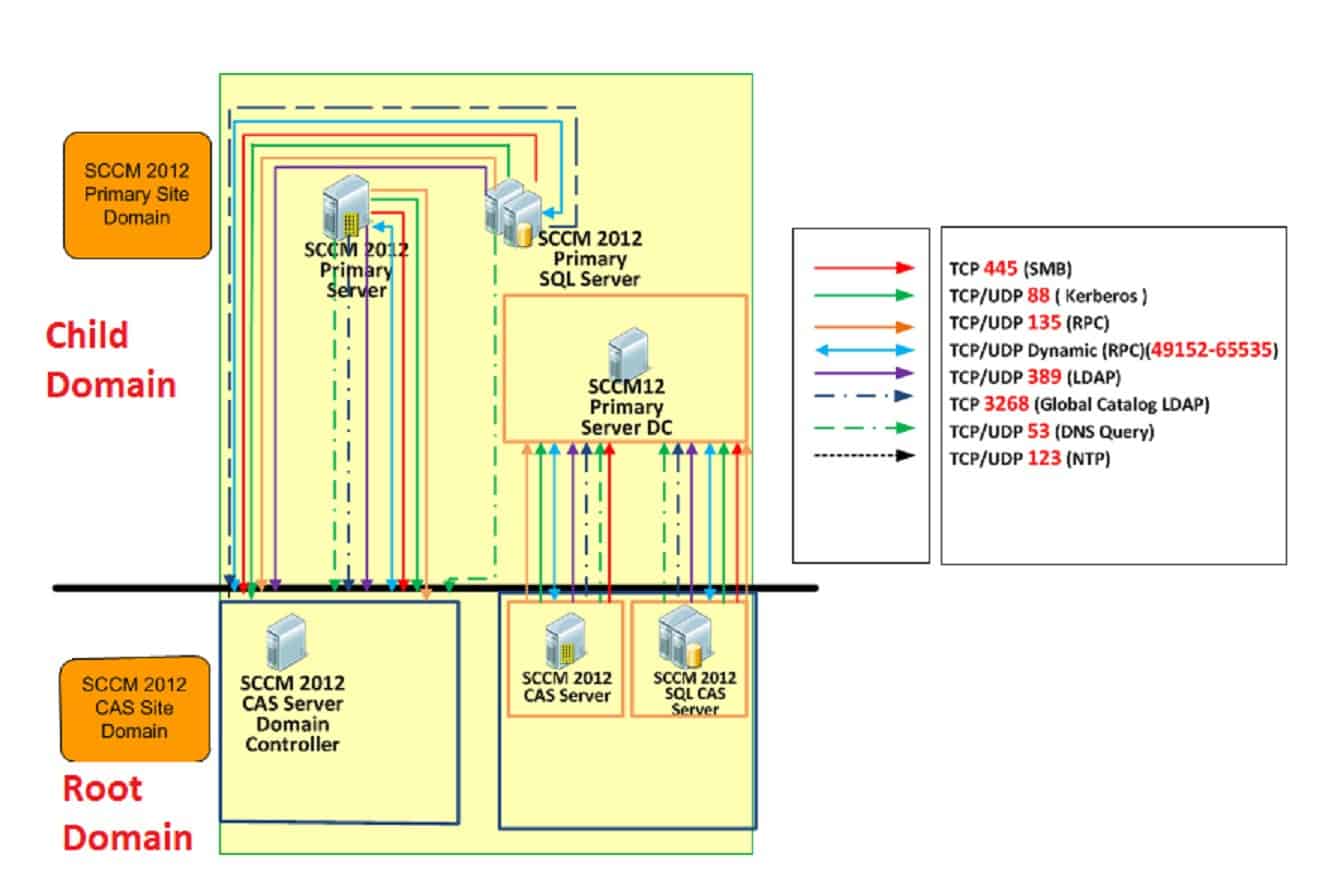
The following picture depicts the exact situation of a complex network environment. This is especially when you have a complex network environment with a lot of firewalls in between.
The communication issue between domain servers and SCCM servers can cause the site to site communication issues. More details are SCCM Firewall Ports Details Direction With DC Other Servers | Configuration Manager | Bi-direction.
You can get more details about SCCM replication groups from my previous post “List of all Replication Groups and Article Names.”
I have another post that talks about SCCM SQL-based replication in detail. I would recommend reading that to know more about replication groups and article names with examples – SCCM SQL Based Replication Guide.
SCCM File Replication Account to Site Connectivity Issue Troubleshooting
I have seen several times file replication account configuration helped SCCM admins to workaround the replication issues between secondary and primary servers. SQL-based replication is a major component for the site to site replication in SCCM. However, SCCM file replication is essential for the site to site communication.
You can refer to the sender.log to get more details about the use of file replication-related activities. It’s important to know options to change the File replication account to connect to the destination site and to write data to that site’s SMS_SITE share.
You have two types of authentication scenarios here for the file-based replication between SCCM secondary sites and primary sites. The following are those options:
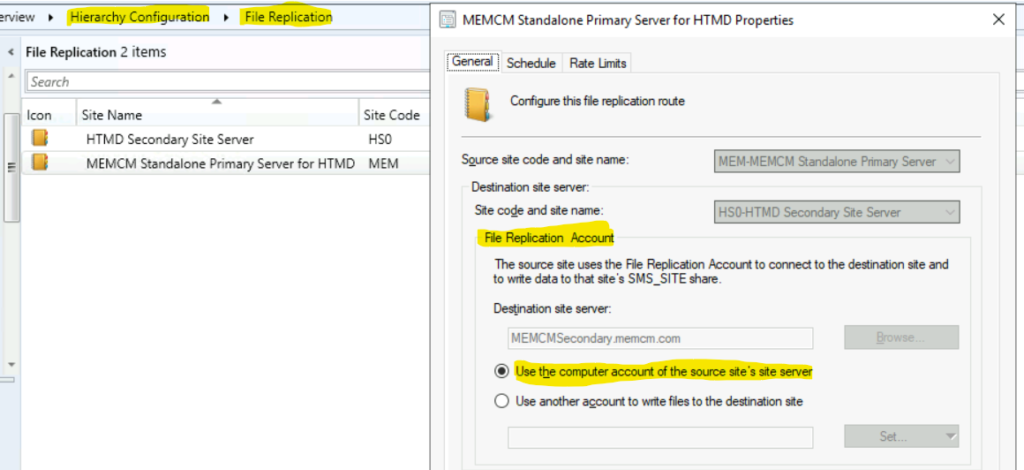
- Use Computer Account of the source site’s site server (Kerberose – better method from security perspective)
- Use another account to write files to the destination site (less preffered but you can use for troubleshooting scenarios).
Let’s see how to change the File Replication account from the site properties:
- Launch SCCM console.
- Navigate to \Administration\Overview\Hierarchy Configuration\File Replication.
- Check the connections available for file based repllication. If you have One primary and secondary server in your environment, then you see two connections.
- Primary Sever to Secondary server
- Secondary server to Primary server
- Select the connection you want to troubleshoot and go to properties of the connection.
- In my example, I have selected SCCM primary server to Secondary server connection.
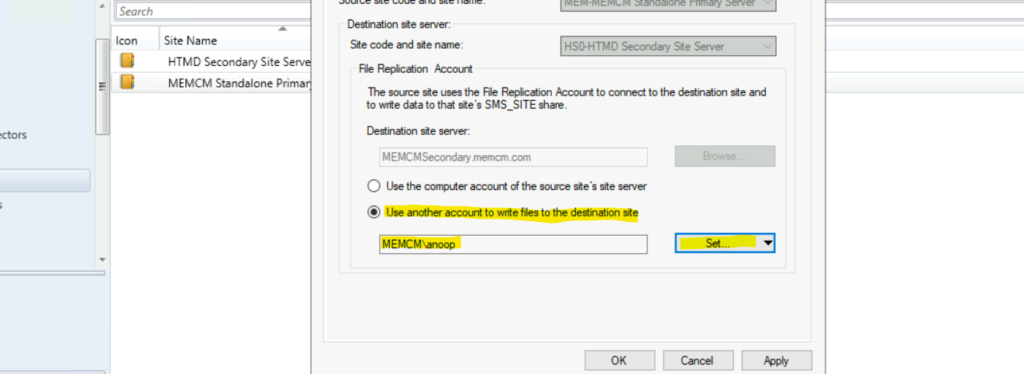
- Select the option called Use another account to write files to the destination site.
- Now, it’s time to enter the user name and password details to access the destination server.
- The account should have full admin access on the server or atleast on the share folder to copy the files to SMS_SITE share.
You can evaluate the sender.log to find out the details about the file replication process. Also, this log helps to understand and monitor whether the account has appropriate access to write files into the destination server.




Discussion